

Creating a new job, linking to a project and importing data
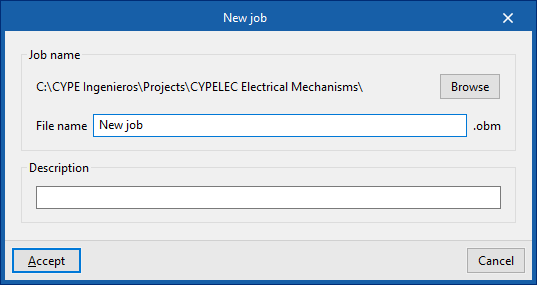
When you launch the app and click on “New”, you are given the option to create a "New project". After entering the "File name" and "Description", the project can then be added to an existing project on BIMserver.center.
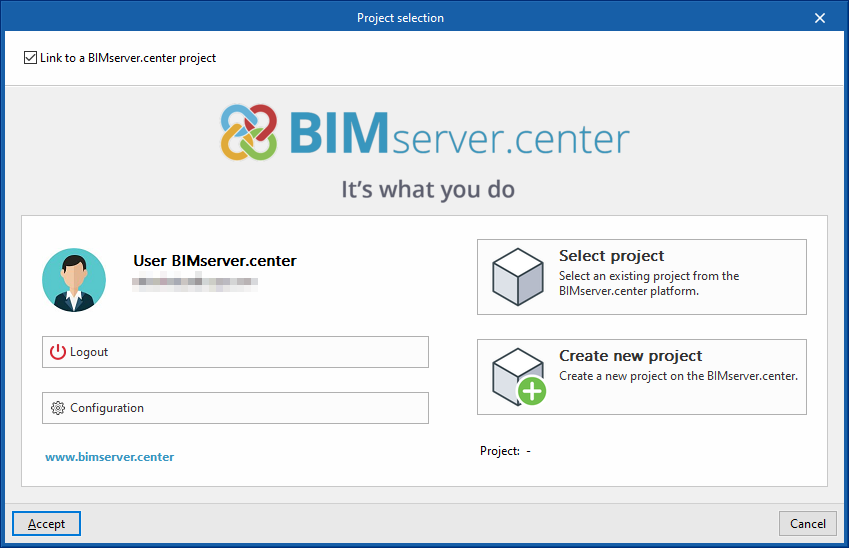
This is done in the "Project selection" window, which offers the following options:
- On the left-hand side, you can sign in using a BIMserver.center account.
- On the right, use the "Select project" option to choose an existing project. You also have the option to "Create a new project". In that case, the project you create will be visible on BIMserver.center from that point onwards.
- You have the option to start the project without linking it to the BIMserver.center platform. To do this, simply uncheck the box labelled "Link to a BIMserver.center project", which is located in the top-left corner.
Once the new project has been created, you will be taken to the program’s main interface, after going through the import wizard, if applicable. At any point thereafter, whilst working on the project, you can share or import project files via the “BIMserver.center” panel, located in the top-right-hand corner of the main interface.
Importing BIM models
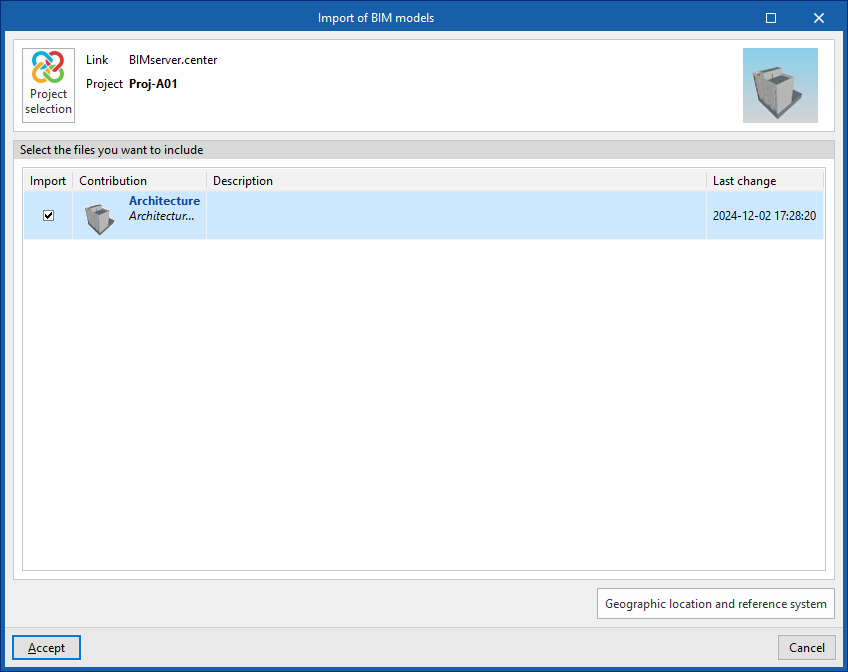
When creating a new project and selecting a project hosted on the BIMserver.center platform via "Select project", the "Import BIM models" window appears, displaying the files contained in that project in IFC format.
The app allows you to include one or more of the existing models in that project. To do this, tick the "Import" box and confirm.
When you access the interface, the graphical window will display the imported models. Furthermore, if this information is available, the floor plans required for developing the plant model will be imported and created.
Setup assistant: selecting codes, downloading catalogues and classifying venues
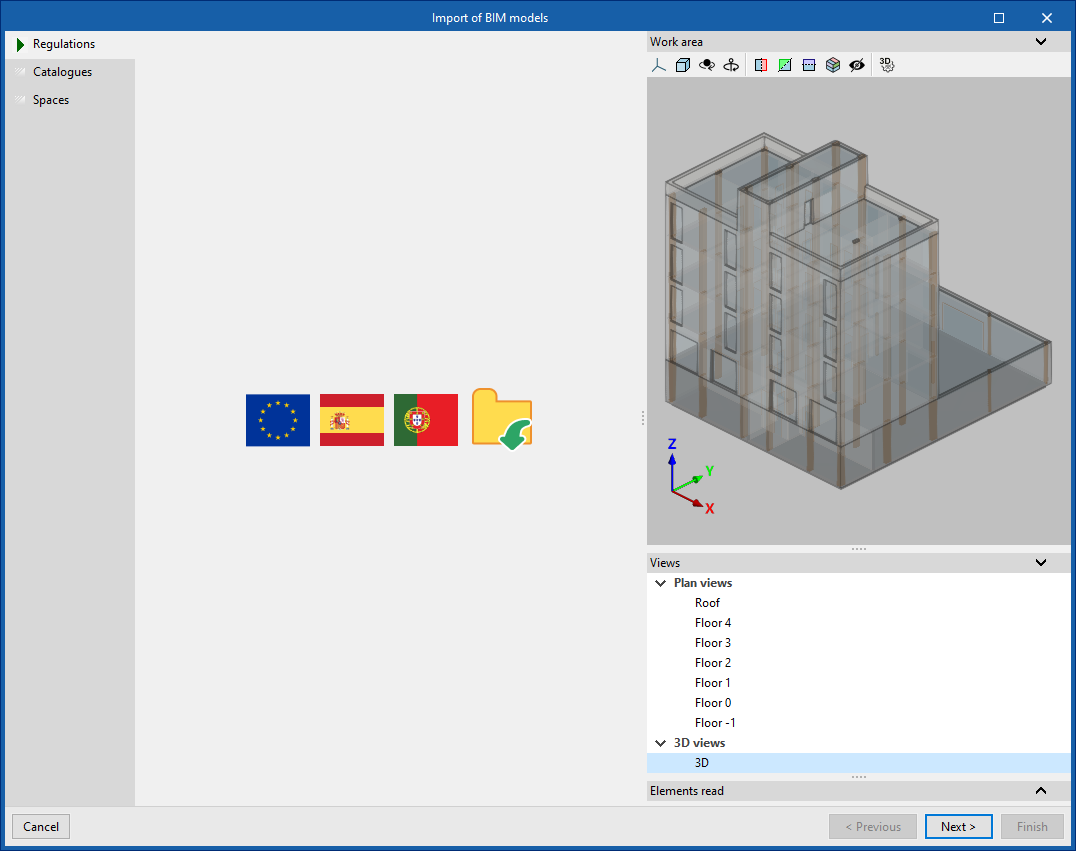
The program then opens the "Import BIM models" wizard, which consists of the following steps:
- In the first step, you can select the applicable codes from those available for different countries and regions, or from a file containing this information that has been previously saved to disk. This automatically imports the checks defined in the regulations or in the file.
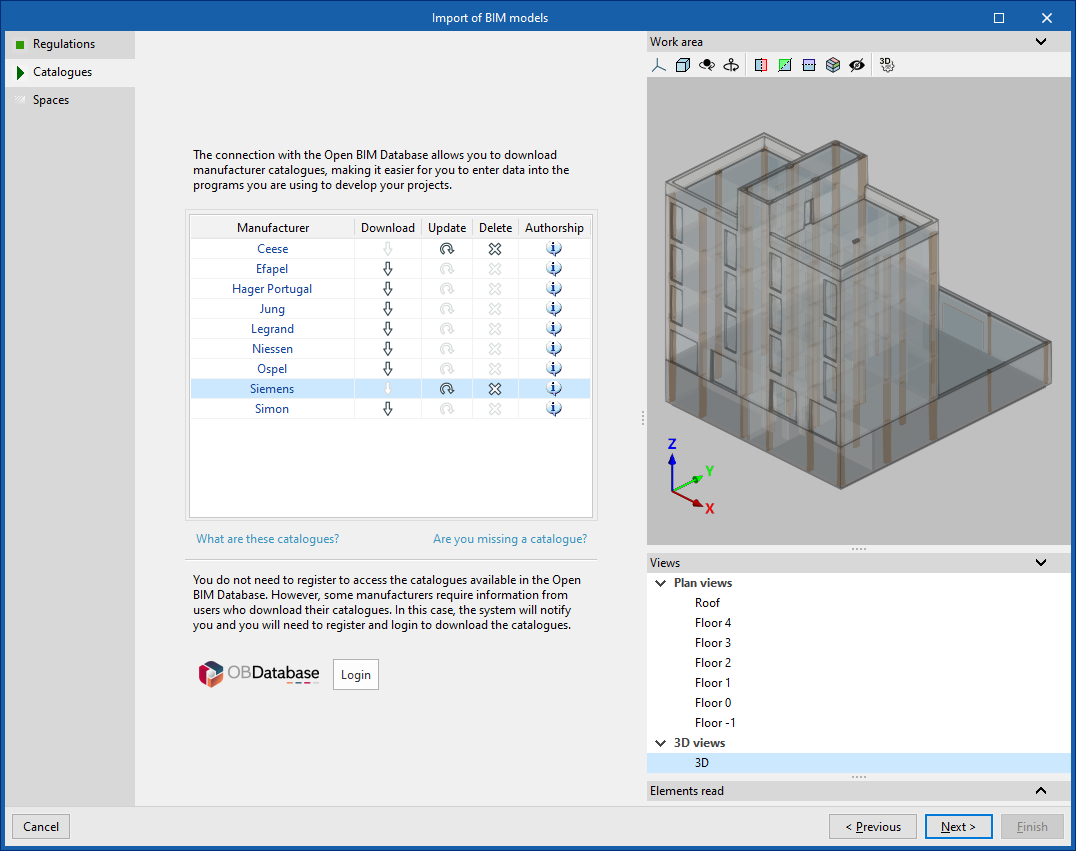
- In the next step, you can establish a connection to the Open BIM Database to download and manage manufacturer catalogues. These catalogues will be available when you add installation elements.
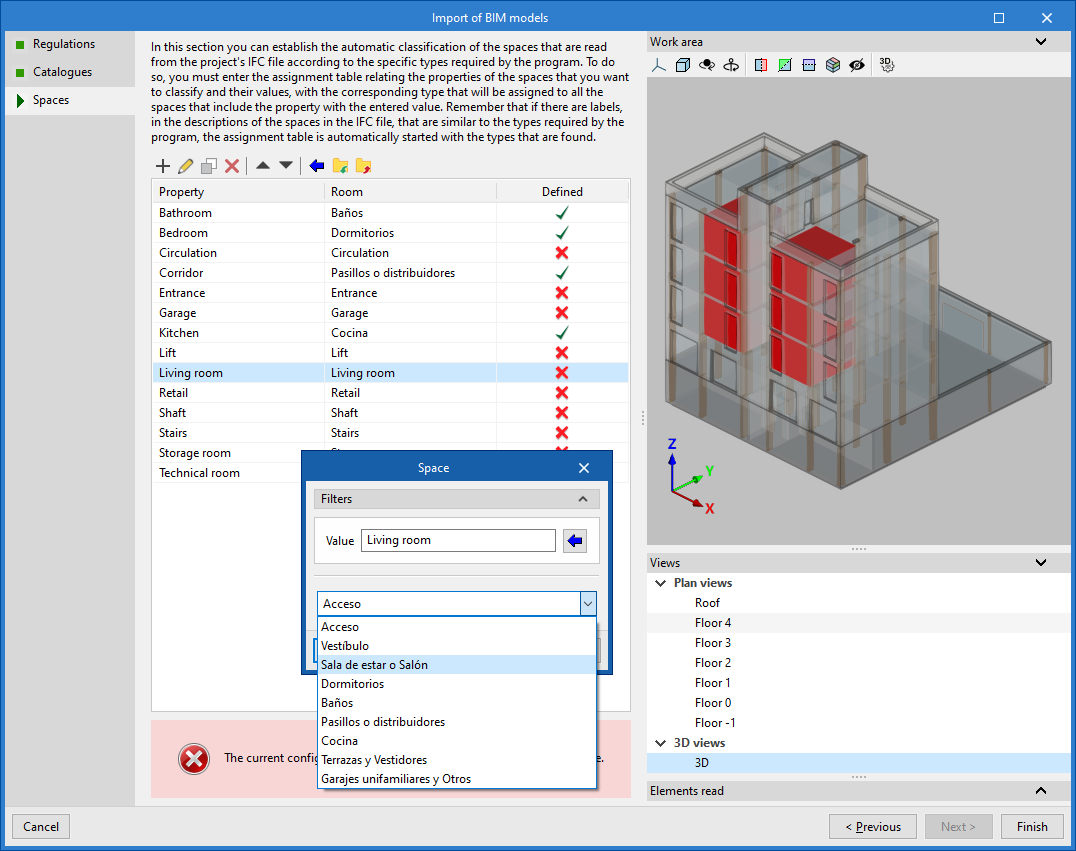
- Finally, in the last step, you can set up the automatic classification of the spaces read from the project’s IFC file according to the specific room types required by the program.
To do this, you must add entries to the assignment table. For each entry, the spaces to be classified are filtered by specifying their property values; by editing these, you can select the room type specific to the program that you wish to assign to them.
It is also possible to use the wizard in the top toolbar to import all spaces read from the IFC file in bulk based on the desired property, thereby generating an entry in the table for each group of spaces with the same property.
On the right, the program allows you to view the layout of the selected spaces in the model.
Spaces that are not to be calculated must be removed from this classification table.
The program will assign the selected room type to all areas read from the IFC file that have the value indicated in the displayed property and will generate their geometry; it will then incorporate them into the model view.
It is necessary to assign a type to all elements in the list. To do this, the program displays the "Defined" column, where spaces filtered by a specific "Property" that have been assigned a "Room" type are marked in green, and those that have not yet been assigned a type are marked in red.
The imported models will then be displayed in the workspace, along with the rooms assigned to the spaces that have been scanned and categorised, where applicable.
