Creating a new job, linking to a project and importing data
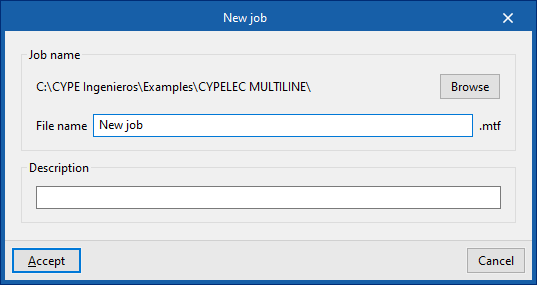
When you launch the app and click on "New", you are given the option to create a "New job". After entering the "File name" and "Description", the project can then be added to an existing project on BIMserver.center.
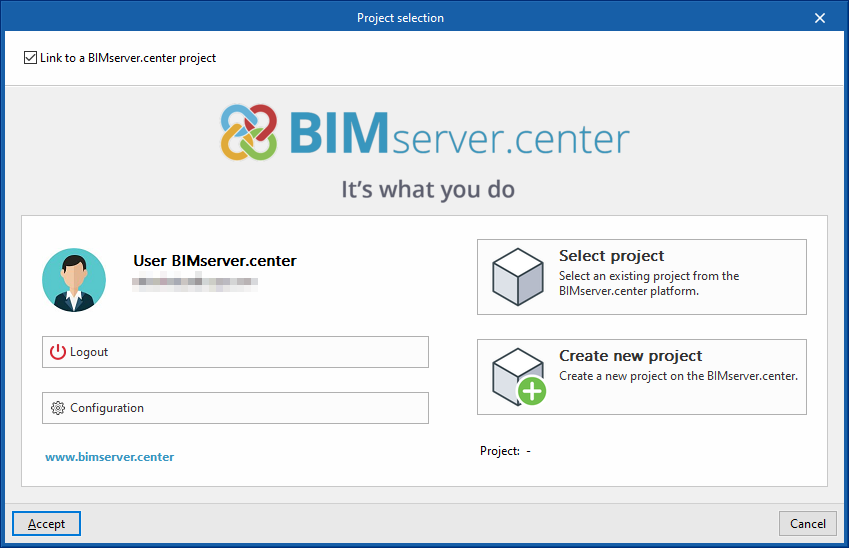
This is done in the "Project selection" window, which offers the following options:
- On the left-hand side, you can sign in using a BIMserver.center account.
- On the right-hand side, you will find the "Project selection" option to choose an existing project. You also have the option to "Create a new project". In that case, the project you create will be visible on BIMserver.center from that point onwards.
- You have the option to start the project without linking to the BIMserver.center platform. To do this, simply uncheck the box labelled "Link to a BIMserver.center project", which is located in the top-left corner.
Once the new project has been created, you will be taken to the program’s main interface. At any point thereafter, whilst working on the project, you can share or import project files via the "BIMserver.center" panel, located in the top-right-hand corner of the main interface.
Importing BIM models
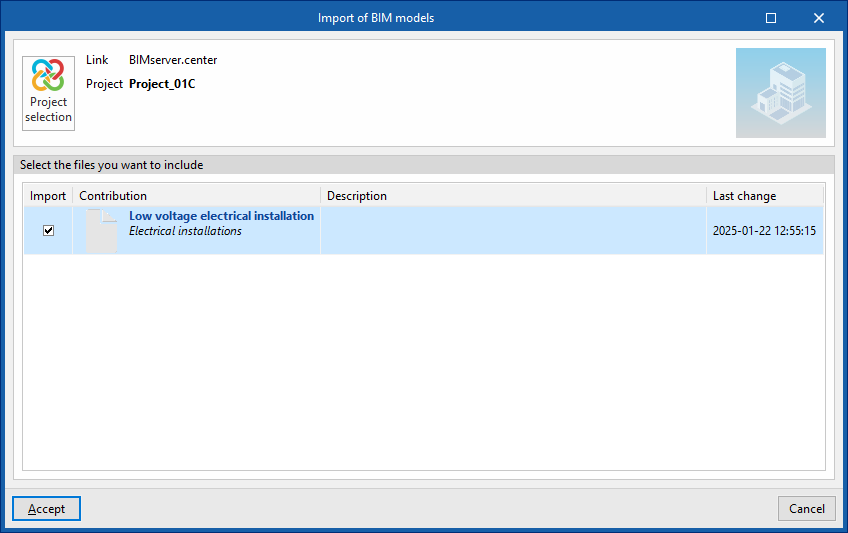
When creating a new project, if you have selected a project hosted on the BIMserver.center platform via "Select project", the "Import BIM models" window will appear, displaying the files contained in that project in IFC format.
To include the information from a specific project file, tick the "Import" box and confirm.
Import results
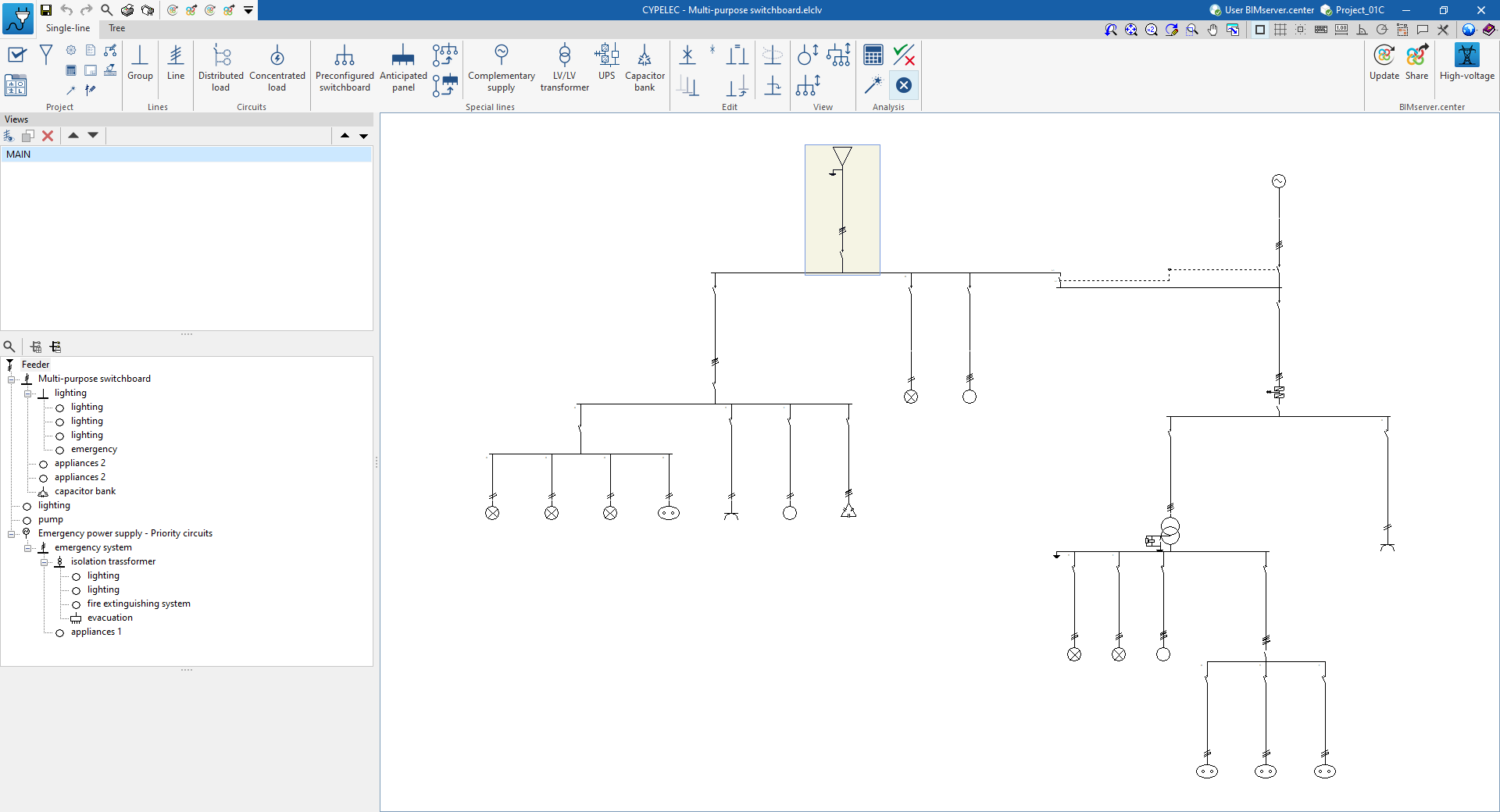
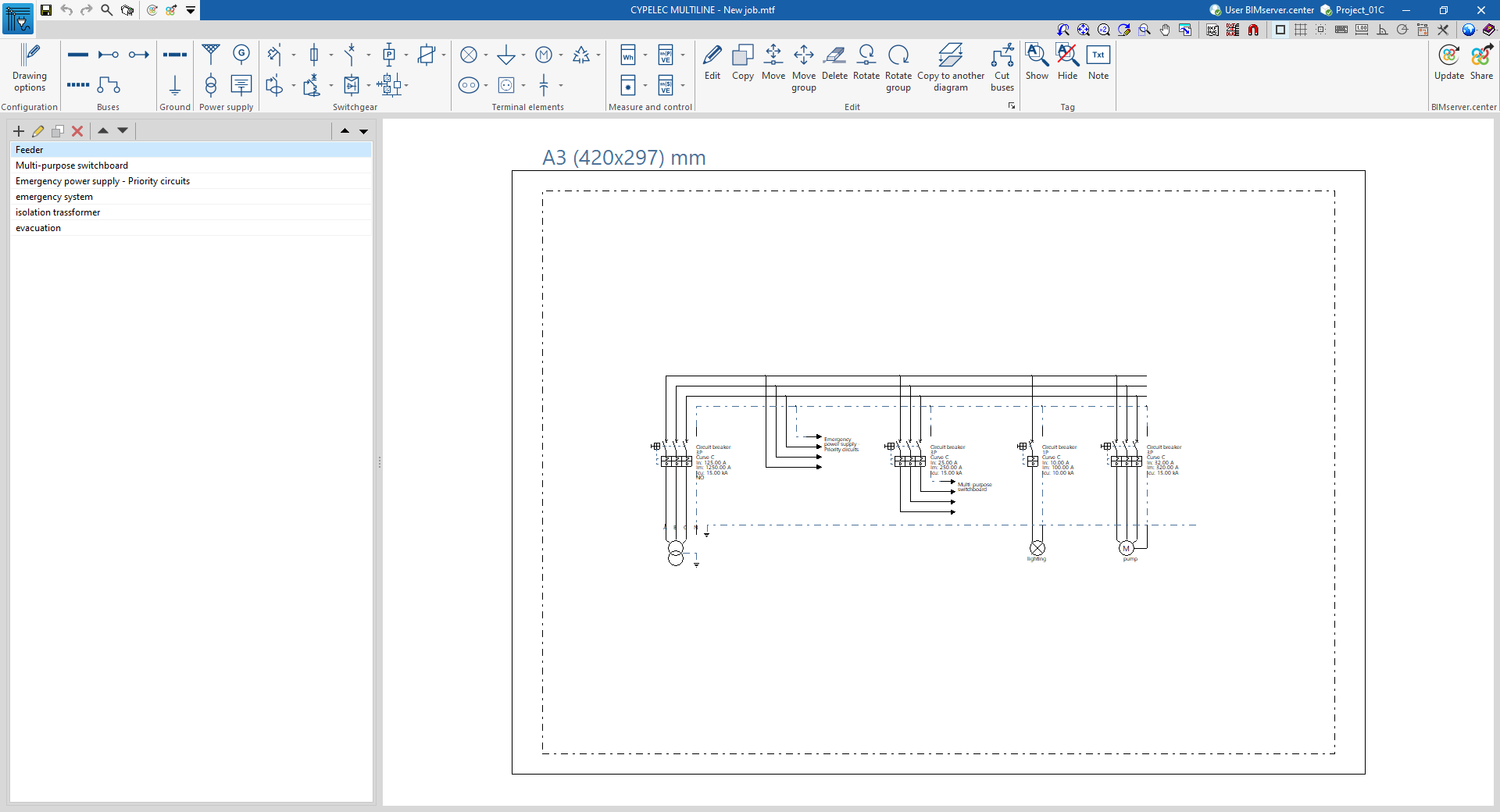
The program will generate the diagrams that make up the multi-line diagram based on the layout of the main switchboards, sub-switchboards and special components of the installation, as derived from the BIM model, provided that this information is included.
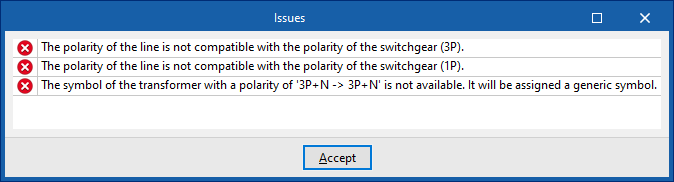
In addition, a window appears showing any "Issues" that occurred during the data import process and the actions taken by the program to resolve them, where possible.