


Detailed model results output
Detailed model listings
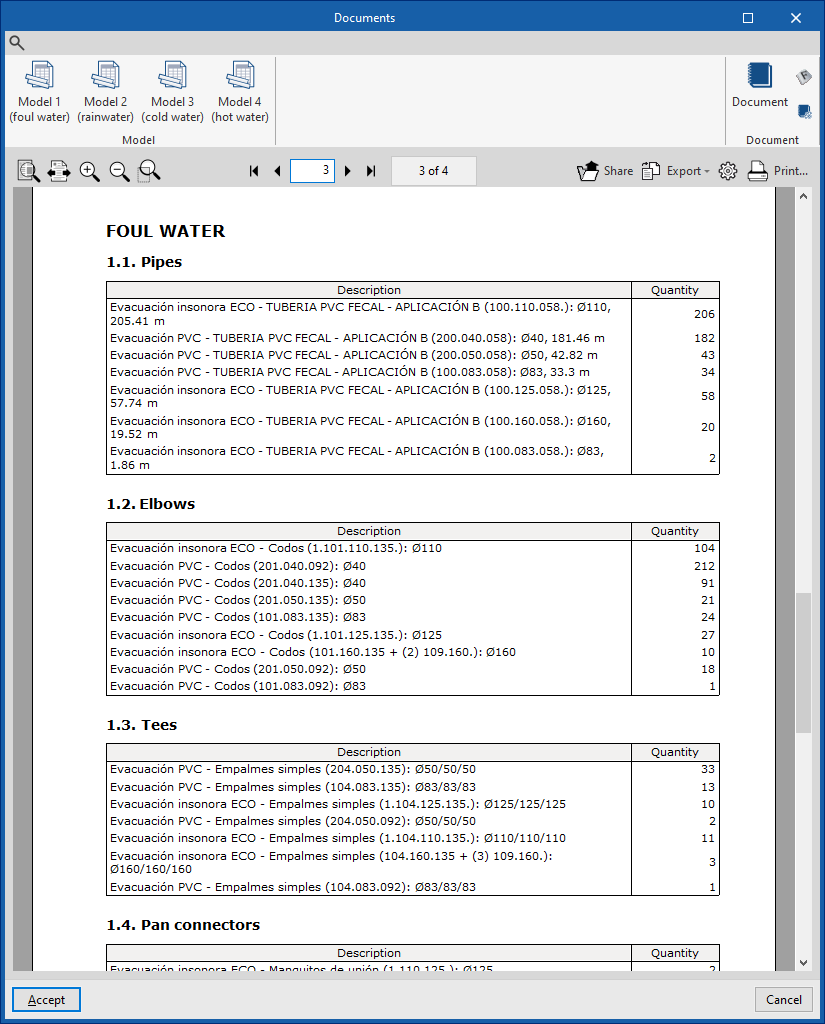
The "Reports" option at the top of the "Digital Model" tab opens the "Documents" window.
From here, using the options in the "Model" group on the top toolbar, you can generate a "Bill of materials" report for each of the detailed models generated. These reports include the quantities of all the parts and fittings for the designed systems.
To compose a single document with information from several models, use the "Document" option in the same window.
| Note: |
|---|
| This information can be given to each manufacturer to request a bill of quantities for the system. To do this, you can first create different detailed models using different manufacturers to obtain the reports needed for comparison. |
Detailed model plans
The drawings of the detailed model designed in the "Digital Model" tab can be generated and obtained from the "Layout" tab.
To do this, follow these steps:
- First, from the scene library ("3D Scene", "Scene Library"), create a scene associated with each detailed model (by clicking on "Create" and, in the "Diagrams" panel, selecting one of the available detailed "Models").
- Then, insert the scene into the sheet ("3D Scene", "Insert Scene").
The program then generates the detailed model scene and automatically labels its components.
If necessary, you can use the options in the top bar to add or remove labels, or modify the rest of the information in the plan.
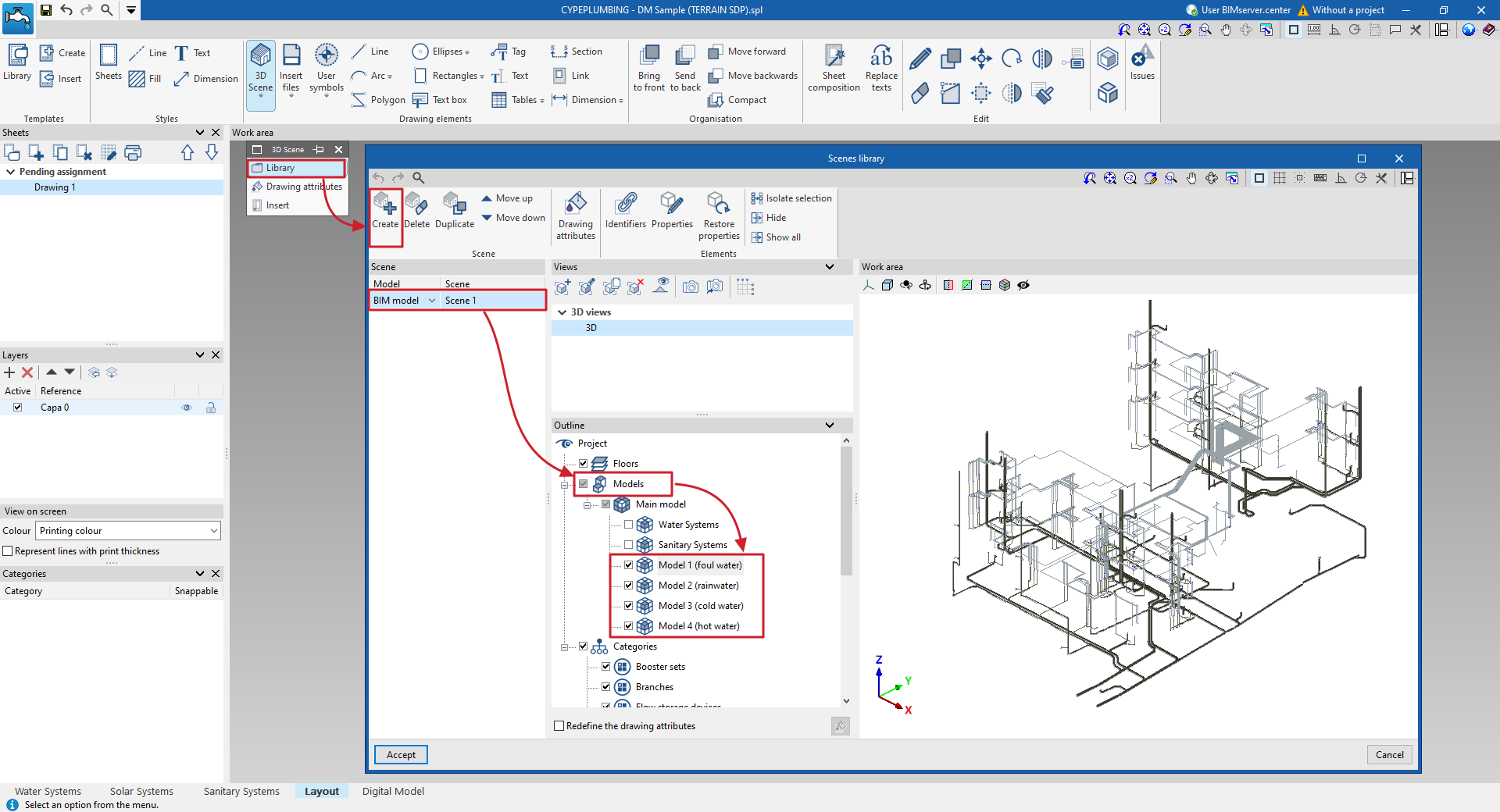
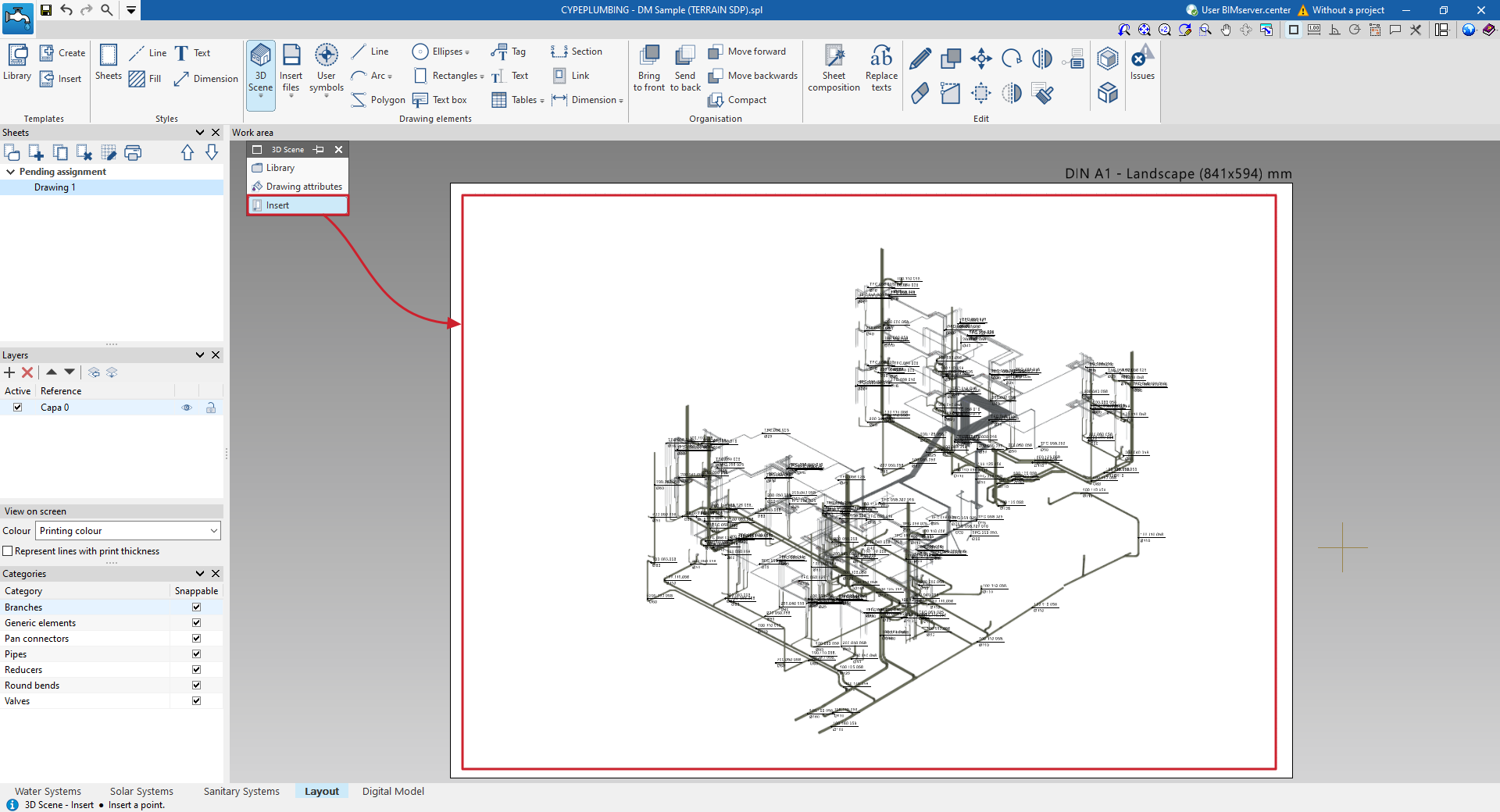
Process for creating and inserting 3D scenes of the detailed model with automatically generated labels
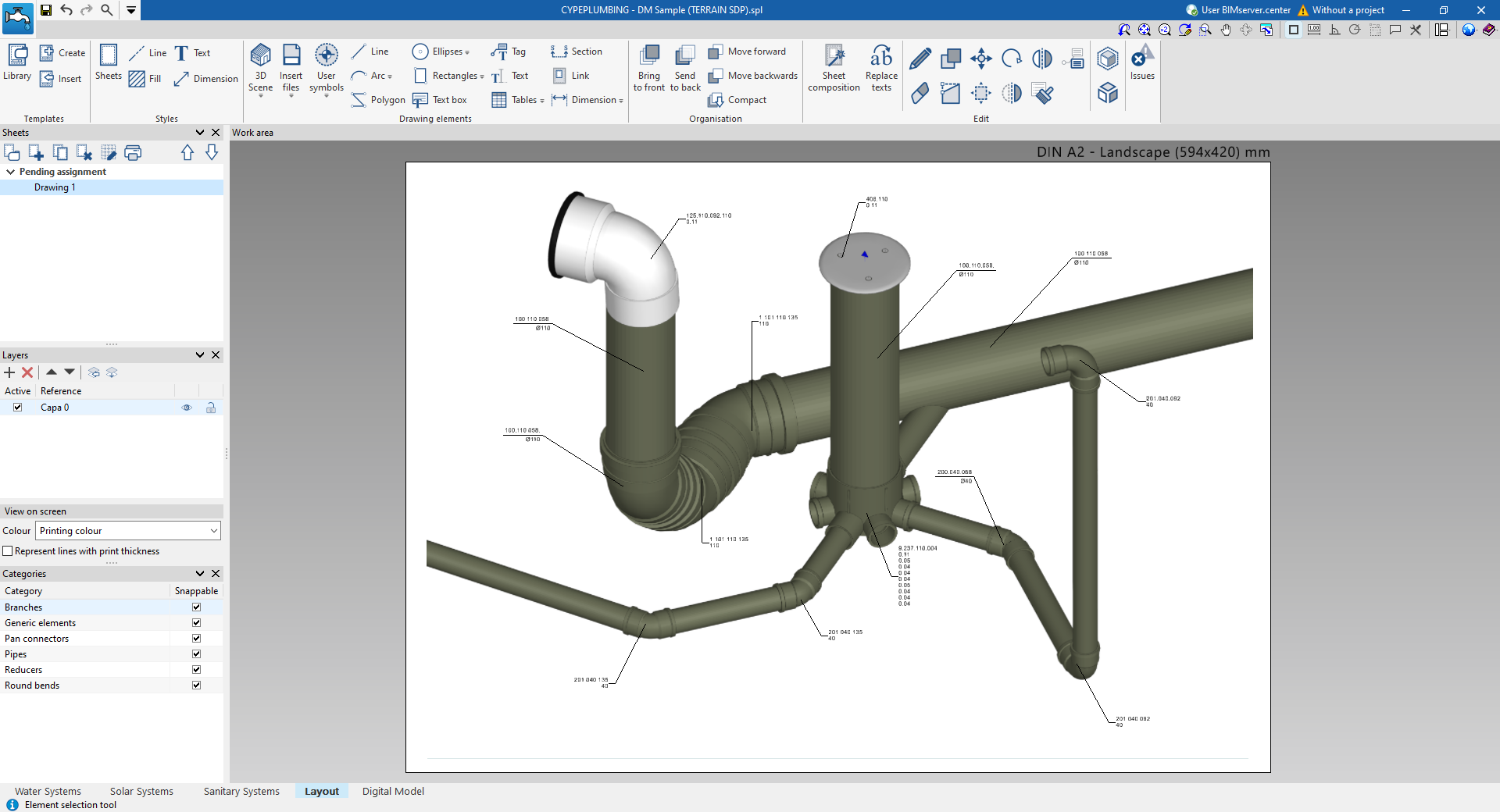
Example of a sheet with scene and labels entered manually
Quantities in the detailed model in BC3 format
The program allows you to obtain the quantities of the parts and fittings of the detailed model in FIEBDC-3 (BC3) format using the "Export in BC3 format" option in the top bar, in the "Digital Model" tab.
Files in BC3 format can be imported and worked with in any program capable of managing estimates, including the "Bill of quantities" tab available in CYPEPLUMBING.
File .gltf compatible with BIMserver.center
When exporting the project to the BIMserver.center platform, it is possible to incorporate the export of the detailed model created in the "Digital Model" tab by ticking the corresponding box.
This automatically exports a 3D model in GLTF format for the integration of the detailed model of the installation into the Open BIM project, allowing it to be viewed:
- on the online platform;
- in the BIMserver.center application for iOS and Android;
- in virtual reality and augmented reality;
- in other CYPE programs.
