Inserting individual elements into the detailed model
The options in the "Elements" group in the top toolbar of the "Digital Model" tab allow you to manually insert individual parts and fittings to complete the detailed model.

Inserting elements individually is particularly useful when the automatic processes in the "Generate" group options have not been able to correctly resolve certain points in the system.
Elements
The following elements are available:
- Pipe
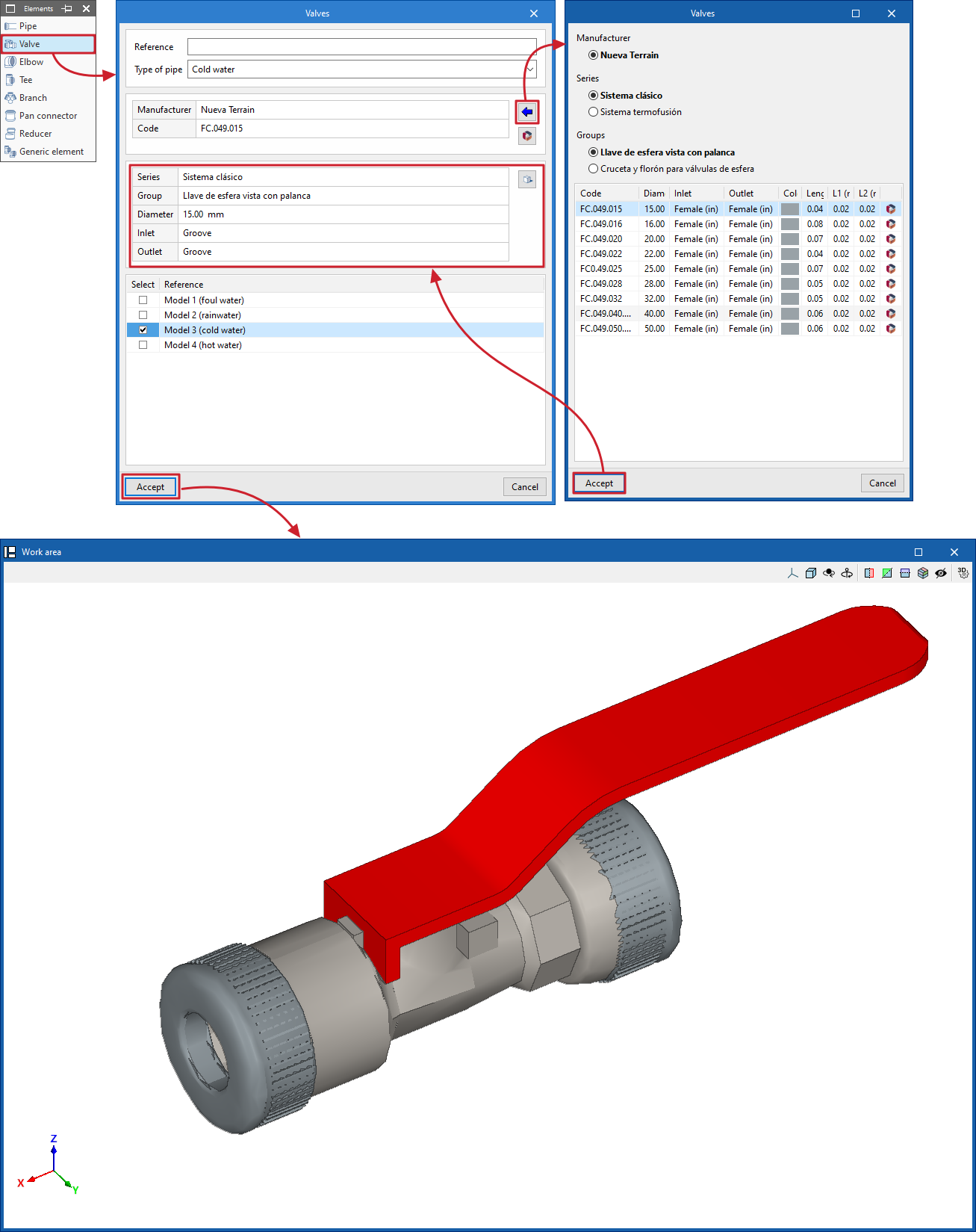
- Valve
- Elbow
- Tee
- Branch
- Pan connectors
- Reducer
- Generic element
Includes elements such as grafts, cleanout branches, floor trap, connectors, aeration terminals or drains.
When you select any of these, a window opens where you can enter a "Reference" for the element and select the "Installation type" and "Pipe type" from those available.
Next, a specific product from a "Manufacturer" is selected using the data import button on the right. The program also allows "Catalogues" from Open BIM Database manufacturers to be downloaded and updated from this window.
Below, the program displays information about the selected product, as well as a "3D View".
At the bottom, you must "Select" the detailed model in which you want to incorporate the element; after clicking "Accept", it will be available in the work area.
The orientation and layout of the element can be adjusted later using the tools in the "Edit" group.