


Analysing and checking the telecommunications installation
In the "Analysis" group of the main toolbar of the "Schemes: Calculation" tab, you can access the following utilities:

Update results
This option can analyse the installation and check whether the parameters calculated in the telecommunications installation elements are within the permitted ranges, based on the configuration defined in the "Configuration" section of the "Project" group.
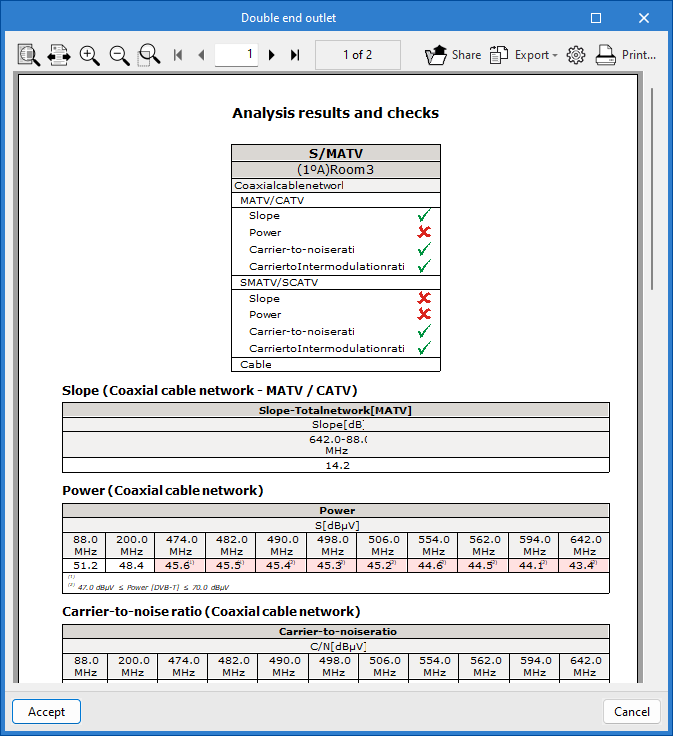
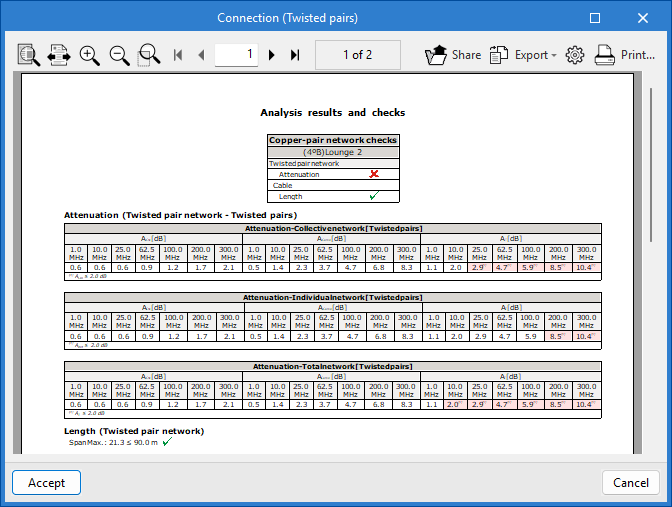
The result is a direct display with error or warning messages about the elements that present a problem in the check, as well as a detailed report if the "Consult results" tool is used on each element.
In turn, the "Update results" option can detect incidents related to the consistency between the design made in the "3D Model" tab and the elements entered in the infrastructure network diagram. This function facilitates the detection of duplicates, the updating of conduit lengths and the selection of products, thus ensuring correlation with the 3D model and helping to complete the installation diagram.
View results
This option allows you to view the checks for elements where the "Check" option has previously been assigned.
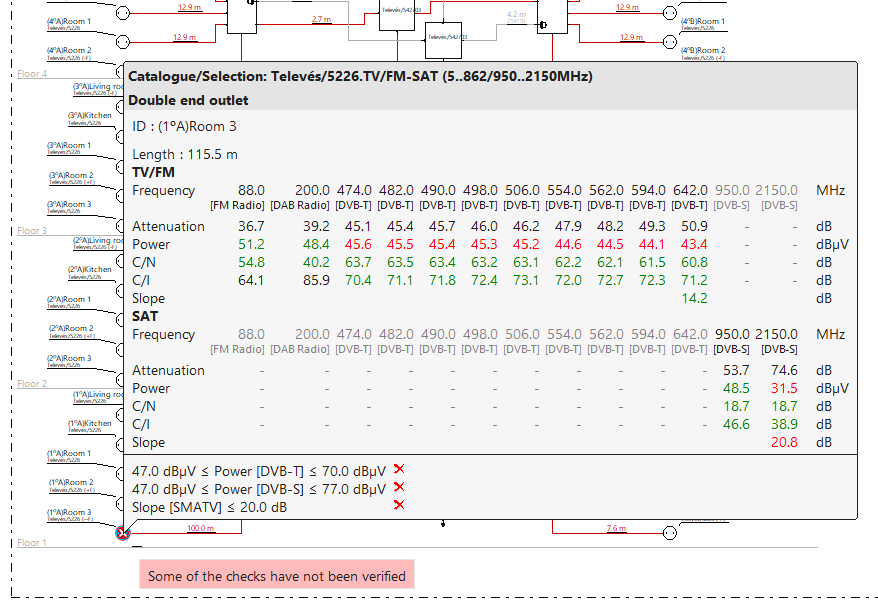
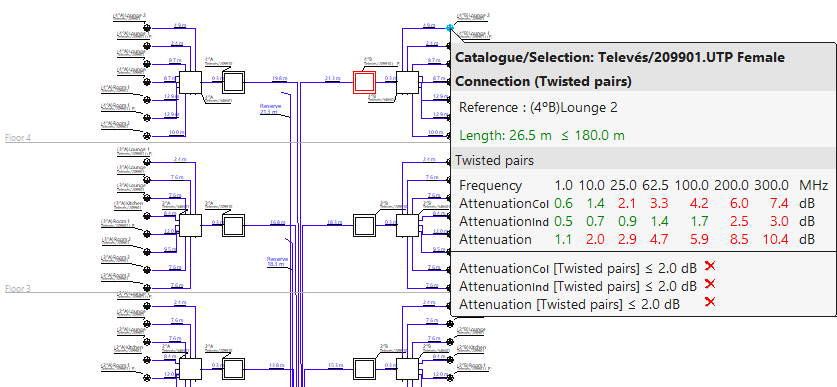
After analysing and activating the "View results" tool, from the diagram and by hovering over the element, it is possible to view the checks that have been carried out. Checks that do not comply are highlighted in red, and those that do comply are highlighted in green.
In addition, when you click on the element, a detailed list of the checks performed appears.
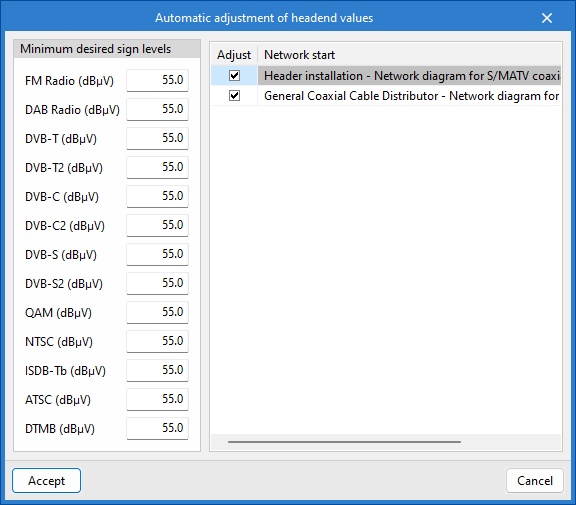
Automatic adjustment of headend values
This tool can modify the signal levels of the channels at the "network start". It also adjusts the gain of the headend amplifiers of the reception and amplification system to meet the requirements of the network start.
Show/hide incidents
Activating this option highlights the elements of the installation that have warnings or errors, either in their introduction, editing or in the analysis checks, such as incidents resulting from incorrect design or possible regulatory non-compliance. When you position the cursor over each incident, a descriptive message is displayed with details of the warning or error.
