

Editing gaps in the building elements of the building tree
When you select the "Structural elements" level within a room, in the "Project" element tree under the "Building" tab, a table showing the structural elements associated with that room is displayed in the main editing area on the right-hand side.
When you select each structural element, you can see the "Openings" defined for it in the table at the bottom of the interface.
This table shows various columns containing information about the openings in that element, including:
- Its identification code (for example, Z01_S01_E01_G04), which is generated automatically and depends on the position of the hole in the tree.
- The "Element" type and its symbol.
- The "Reference".
- The selected "Type".
- The element’s "Area".
- If there are any issues.
The table features options at the top for adding, editing, copying, deleting or reordering elements in the list.
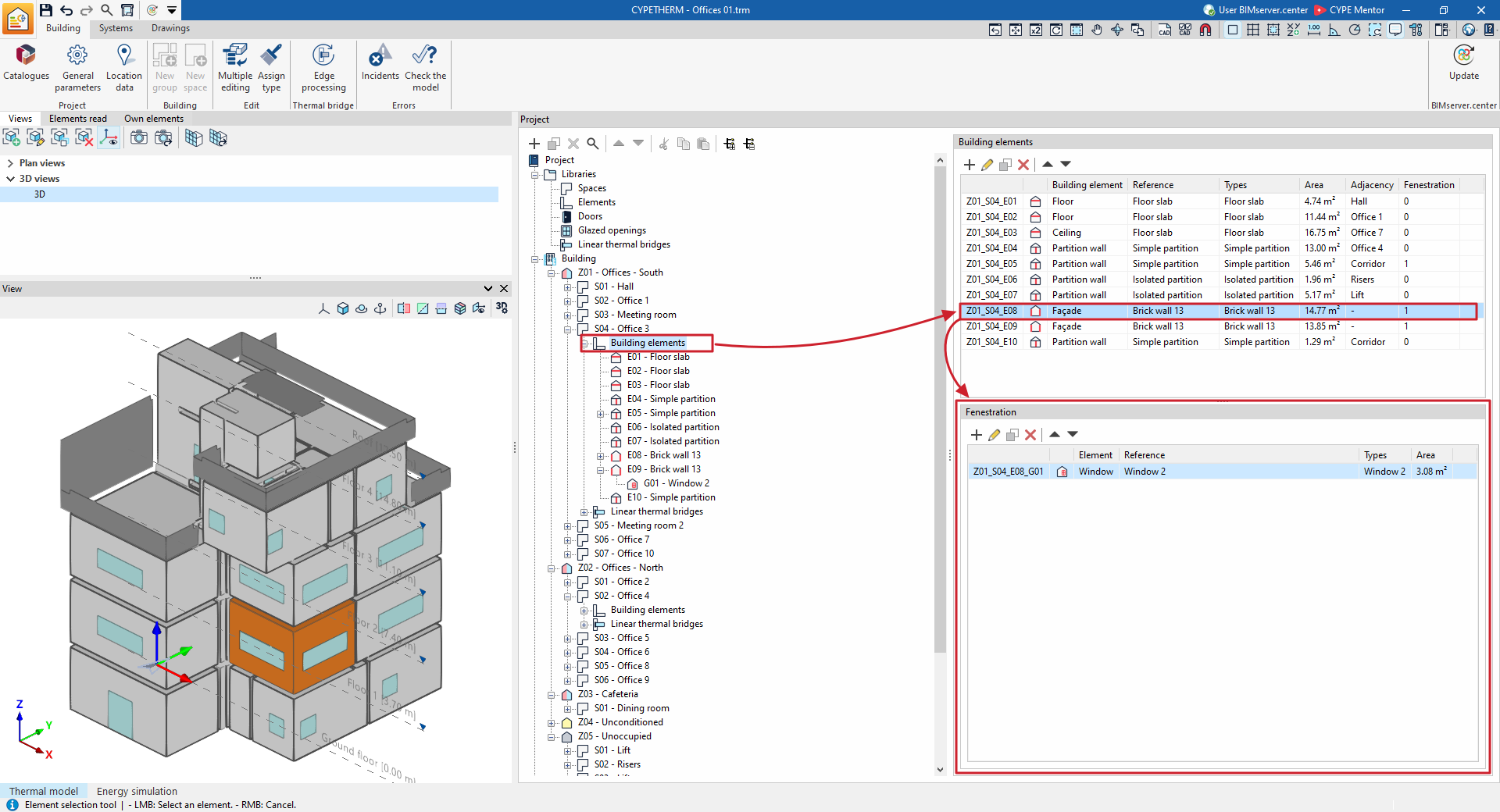
Furthermore, if that structural element is expanded in the building tree, the levels corresponding to the openings in that element are displayed. When a particular opening is selected in the tree, it is highlighted in the 3D model viewer.
By selecting each opening in the tree, or editing each bridge in the table, you can edit their properties. Openings are defined by the following characteristics:
- Considered in the design (optional)
By ticking or unticking this option, you can choose to include or ignore the gap in the analysis performed by the program. When this option is enabled, you can edit the remaining parameters. - Reference
Reference number of the opening. The program also displays the identification code. - Type
You must select one of the following four:- Door
Select a "Type" from those available in the door library. It also requires you to define the "Area" (or the "Vertices") and its "Position" ("External" or "Internal"). If the "Position" is "Exterior", you must specify the "Angle of inclination", the "Orientation" and the "Shadows" affecting the opening. - Window
Select a "Type" from those available in the glazed openings library. This is an opening in vertical elements (external walls, partition walls). It also requires the definition of the "Area" (or the "Vertices") and its "Position" ("Exterior" or "Interior"). If the "Position" is "Exterior", the "Tilt angle", the "Orientation" and the "Shadows" affecting the opening must be specified. - Skylight
Select a "Type" from those available in the glazed openings library. This is an opening in horizontal elements (floor slabs, roofs, cantilevers). It also requires the definition of the "Area" (or the "Vertices") and its "Position" ("Exterior" or "Interior"). If the "Position" is "External", you must specify the "Tilt angle", the "Orientation", whether it is situated on the "Ceiling" or the "Floor", and the "Shadows" affecting the opening. - Openings
Openings represent an opening created directly on the element and do not require the selection of a specific type from the library. They only require the definition of the "Area" (or the "Vertices").
- Door
- Area / Vertices
In the "Thermal loads" project type, the area of the opening is displayed as a single numerical parameter.
In the "Energy simulation" project type, the area of the opening is entered using a polygon defined by its vertices. By clicking on the button that appears, you can view and define the points with global coordinates (X, Y, Z) that determine the position and surface area of the opening. - Shading (in the "Energy simulation" project type)
In the "Shading" section for doors, windows and skylights, you can select one of these three options:- No shading
The gap is not shaded. - Simplified definition
A value is entered for "Fixed shading percentage". - Detailed definition
Define a shading diagram.
- No shading
- Linear thermal bridges
Assign the linear thermal bridges associated with the intersection between the opening and the element containing it. To do this, select the positions of the thermal bridges to be taken into account (at the "Bottom", "Top" and/or "Lateral" edges of the opening) and choose a bridge type for each one.
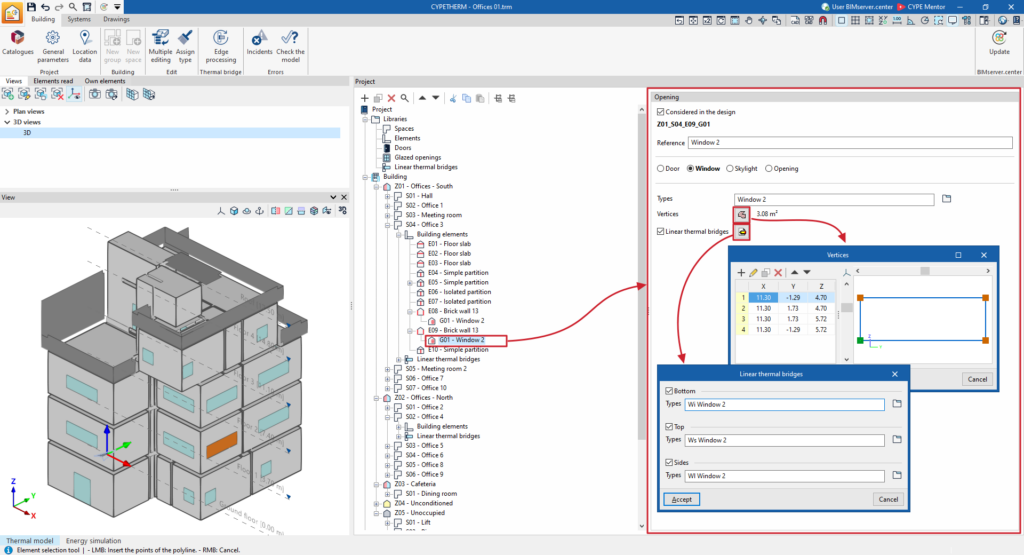
(project type: "Energy simulation")
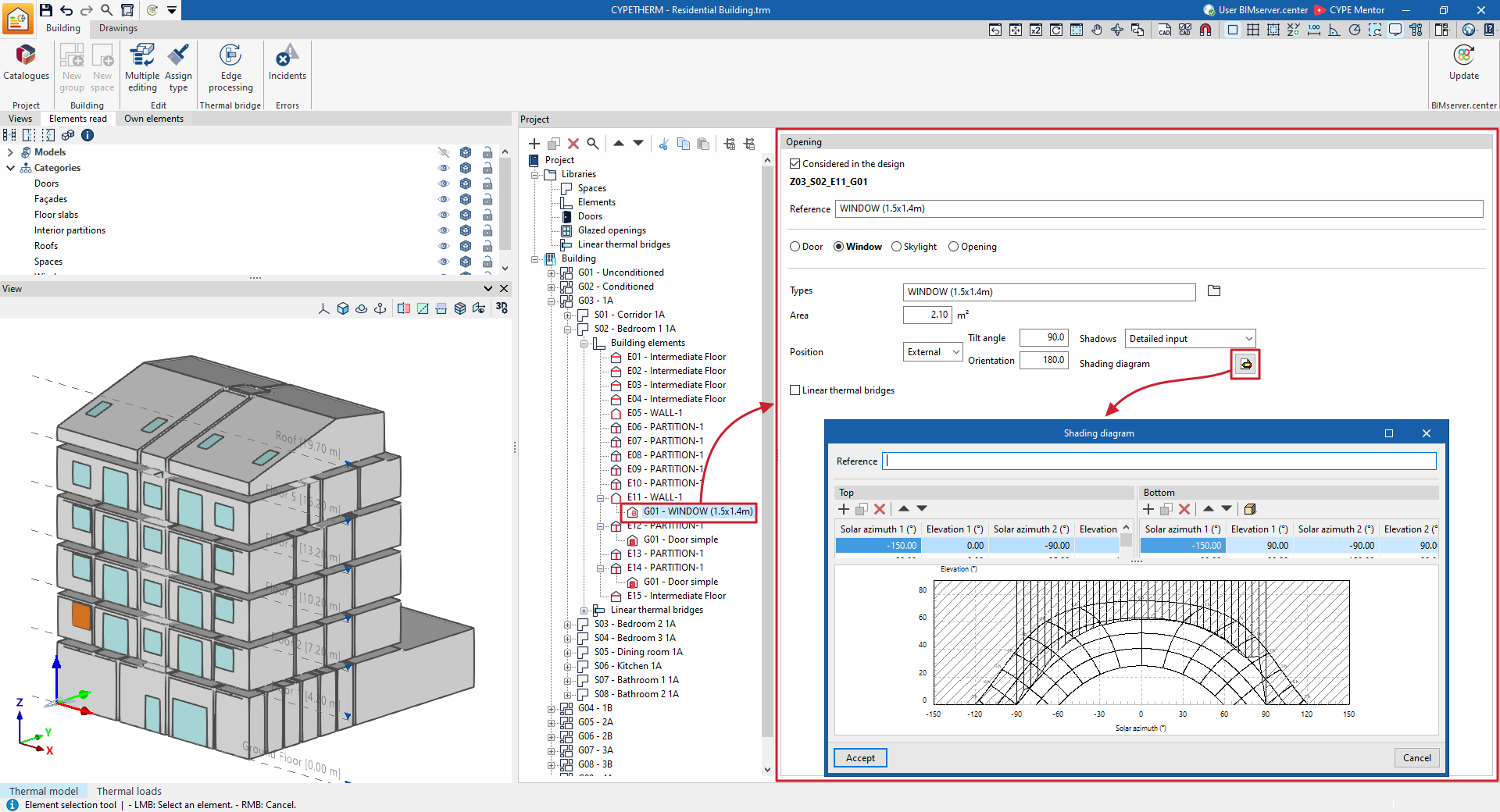
(project type: "Thermal loads")
