

Creating a new job, linking it to a project and importing data into an "Energy simulation" project
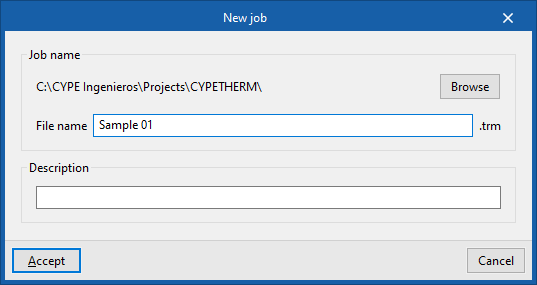
When you launch the app and click on "New", you are given the option to create a "New job". In the pop-up window, you are asked to enter the "File name" and its "Description".
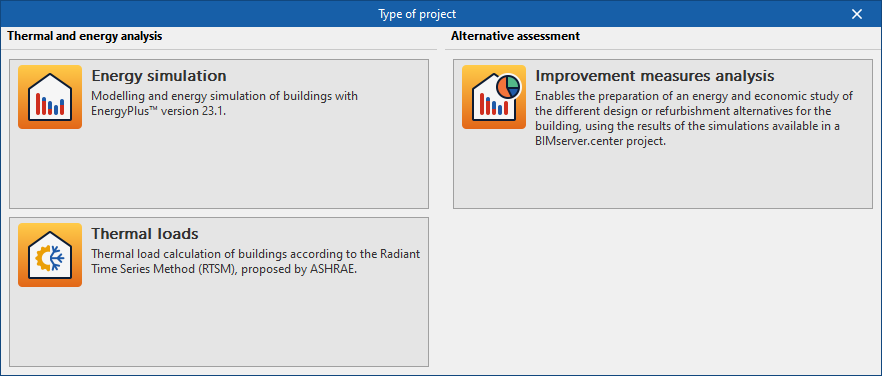
Next, you need to specify the "Project type".
You must select the "Energy simulation" option to access the specific interface for carrying out the building’s energy simulation, which includes the option to calculate energy demand and associated consumption.
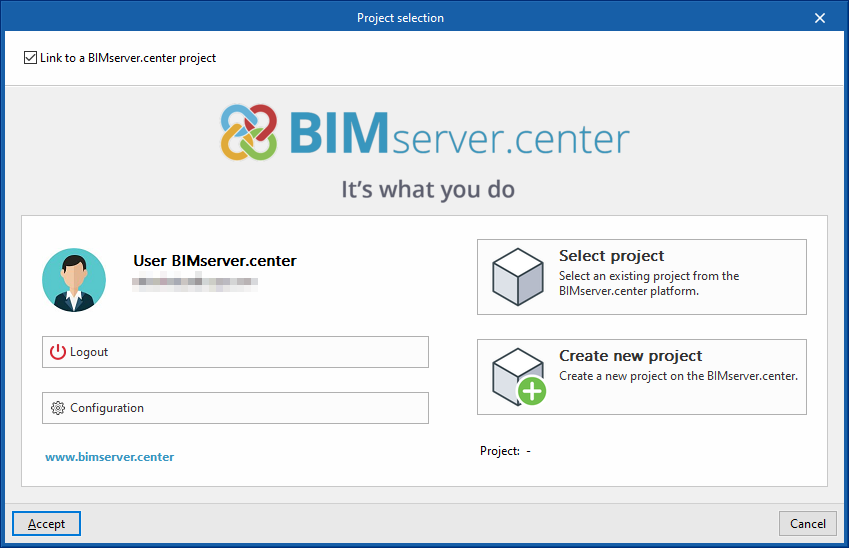
At a later stage, the project can be linked to a BIMserver.center project.
This is done in the "Project selection" window, which offers the following options:
- On the left-hand side, you can sign in using a BIMserver.center account.
- On the right-hand side, you will find the "Select project" option to choose an existing project. You also have the option to "Create a new project". If you do so, the project you create will be visible on BIMserver.center from that point onwards.
Once the new project has been created, you are taken to the program’s main interface. At any stage of the work, you can share or import project files via the "BIMserver.center" group, located in the top right-hand corner of the main interface on the relevant tab.
Importing BIM models
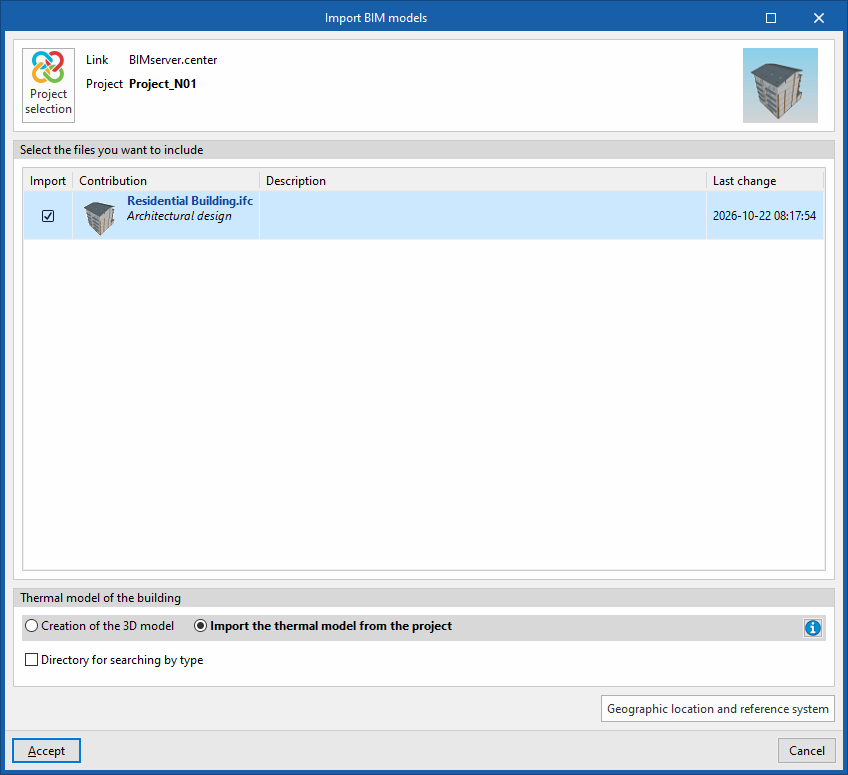
When creating a new project, after selecting or creating a project hosted on the BIMserver.center platform, the "Import BIM models" window appears, displaying the files contained in that project in IFC format.
The app lets you include one or more of the existing models in that project. To do this, tick the "Import" box and confirm.
At the bottom of the import window, the "Building thermal model" section is displayed, with the following options:
- Creation of the 3D model
If this option is selected, the program will enable the "3D Model" tab, from which you can design the building’s geometry. - Importing the thermal model from the project
If this option is selected, the program will import the building geometry from the information contained in the models included in the BIMserver.center project and will not enable the "3D Model" tab.
In the latter case, the program offers the following option:
- Directory for searching by type (optional)
When this option is enabled, you can select a directory on the hard drive where the type library files are stored. This lets you import type libraries previously created in other projects and exported to that directory, and automatically assign them to the spaces, elements and openings in the imported model. To do this, the type references in the selected directory must match the element type references in the imported model.
| Note: |
|---|
| If you have started the workflow in CYPE Architecture or in software such as Revit and other modelling programs, either by sharing the model via the Open BIM – Revit plug-in or by uploading the IFC file directly to the BIMserver.center platform, the model to be imported must be the one provided by Open BIM Analytical Model. |
Final import settings
The program will then open the "General parameters", "Location data" and, where applicable, the "Ventilation (Habitable zones)" and "Edge processing" windows, so that the relevant parameters can be configured.
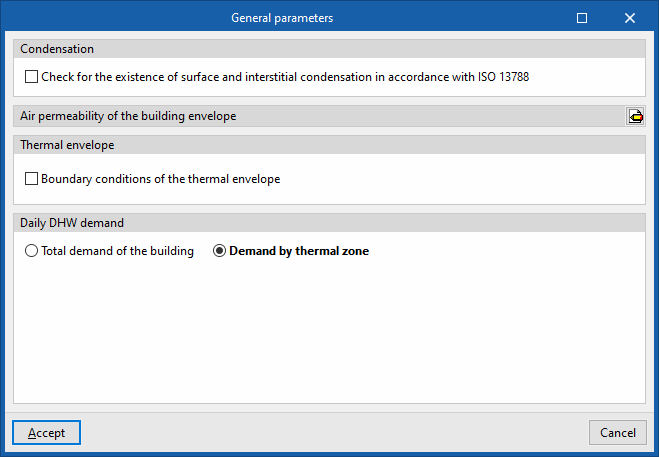
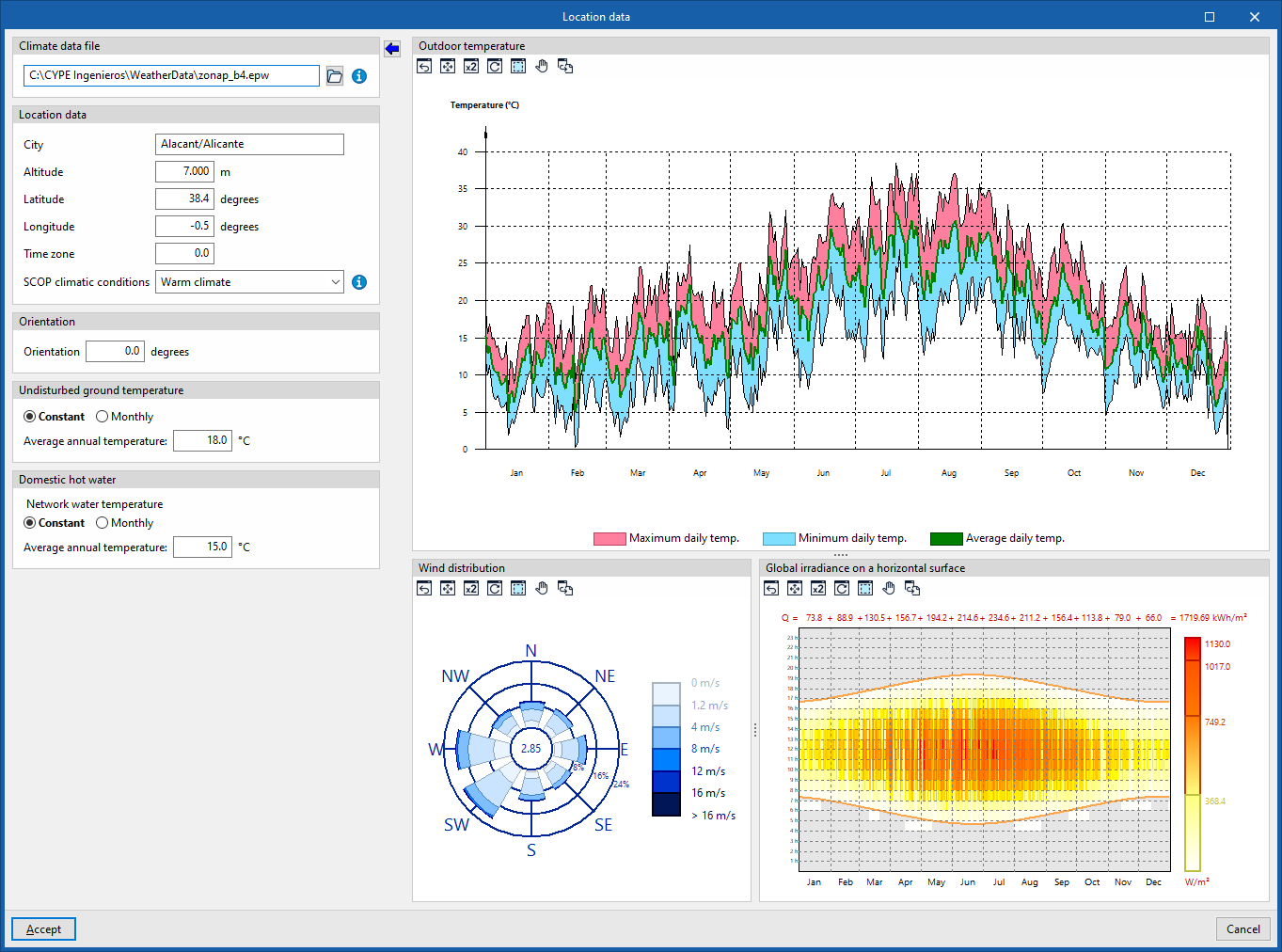
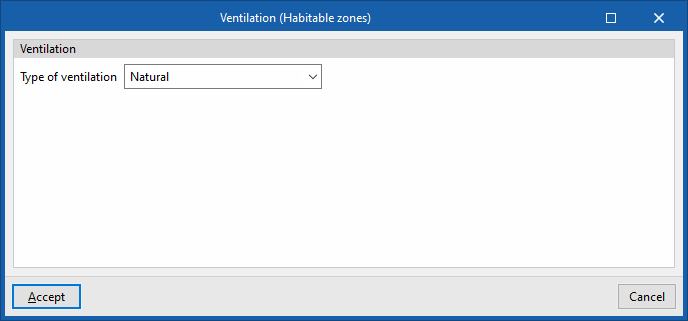
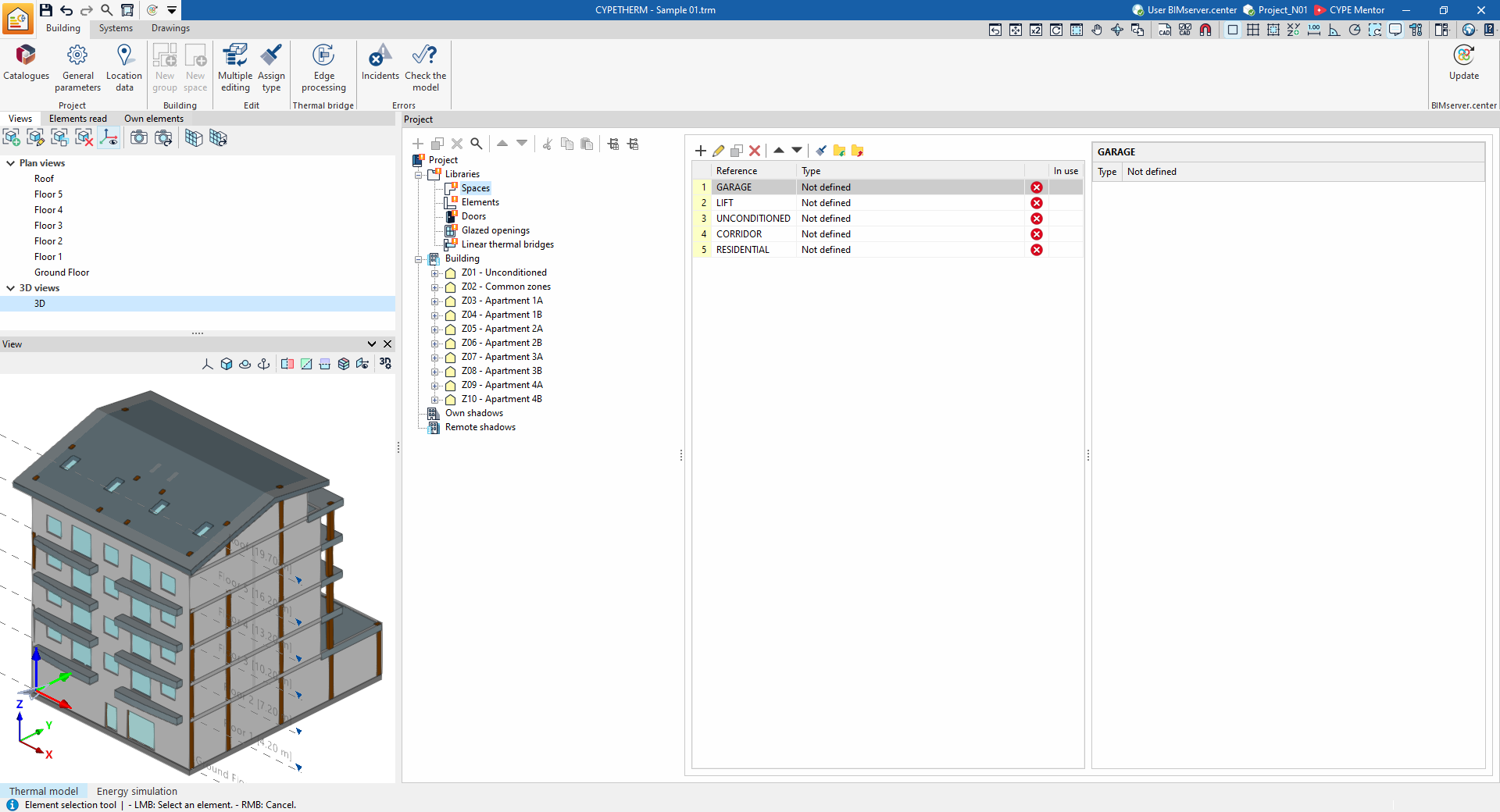
Finally, the program will open on the "Building" tab and will have generated the model geometry and element libraries based on the data in the project or in the selected directory.
At this stage, you can enter the information required to continue working on the model, first in the "Building" tab and then in the "Systems" tab.
| Note: |
|---|
| In the building’s tree structure, libraries with types that have not yet been defined will be marked with an orange symbol. The data for these types must be edited to complete the building’s thermal model. If "Edge processing" has not been carried out during import, and if the edges from the BIM model have been imported, the thermal bridges in the library will appear as undefined. To carry out automatic thermal bridge management, the rest of the model must be defined and free of errors. At that point, you can use the "Edge processing" option to automatically define linear thermal bridges. If any changes need to be made to the building’s geometry, it is advisable to make them in the original model, re-export the model to the BIMserver.center project, and update the information in CYPETHERM using the "Update" option in the "BIMserver.center" group. To ensure the information is transferred correctly, the element references in CYPETHERM must not be modified. |
