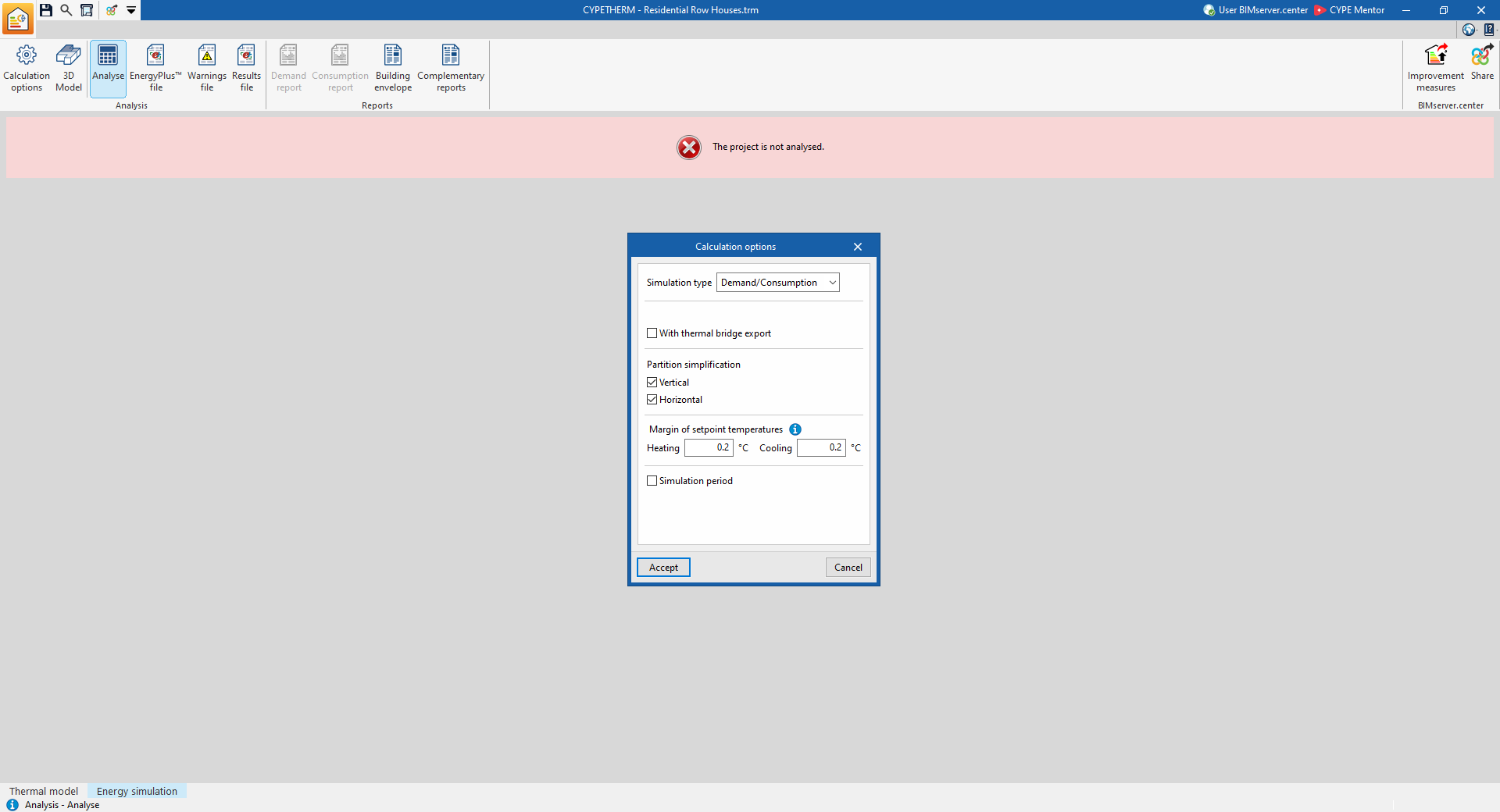
Tools in the "Calculation" group in the "Energy simulation" tab
The "Calculation" section of the top toolbar on the "Energy simulation" tab contains the following options:

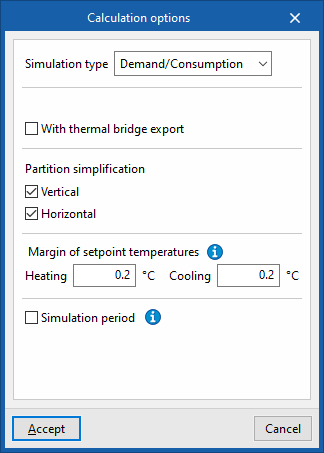
Calculation options
This lets you set the following options to configure the simulation:
- Simulation type:
- Demand
Simulate the building without the HVAC systems. - Demand/Consumption
Carry out two simulations of the building – one with the HVAC systems and one without.
- Demand
- With analysis by space (optional)
This option appears when "Demand" is selected as the simulation type. It simulates the building by considering the rooms individually, rather than grouping them into defined thermal zones. - With thermal bridge export (optional)
Includes thermal bridges in the simulation. - Partition simplification
These options simplify the building’s analysis model, thereby significantly reducing simulation time whilst maintaining the accuracy of the results. The simplification involves reducing the number of surfaces that make up the model.- Vertical (optional)
This option removes the internal vertical partitions within a single zone, replacing them with their thermal inertia. - Horizontal (optional)
This option, in a second step, rejoins the floor slabs.
- Vertical (optional)
- Setpoint temperature range Hours during which the air temperature in the building’s spaces falls outside the heating or cooling setpoint temperature range, by more than the specified values, shall be counted as hours outside setpoint.
- Heating
- Cooling
- Simulation period (optional)
By default, if this option is not selected, the building will be simulated for a full year, from 1 January to 31 December. This option should only be selected if you wish to specify a different simulation period. In that case, the "Start" and "End" dates of the simulation must be specified.
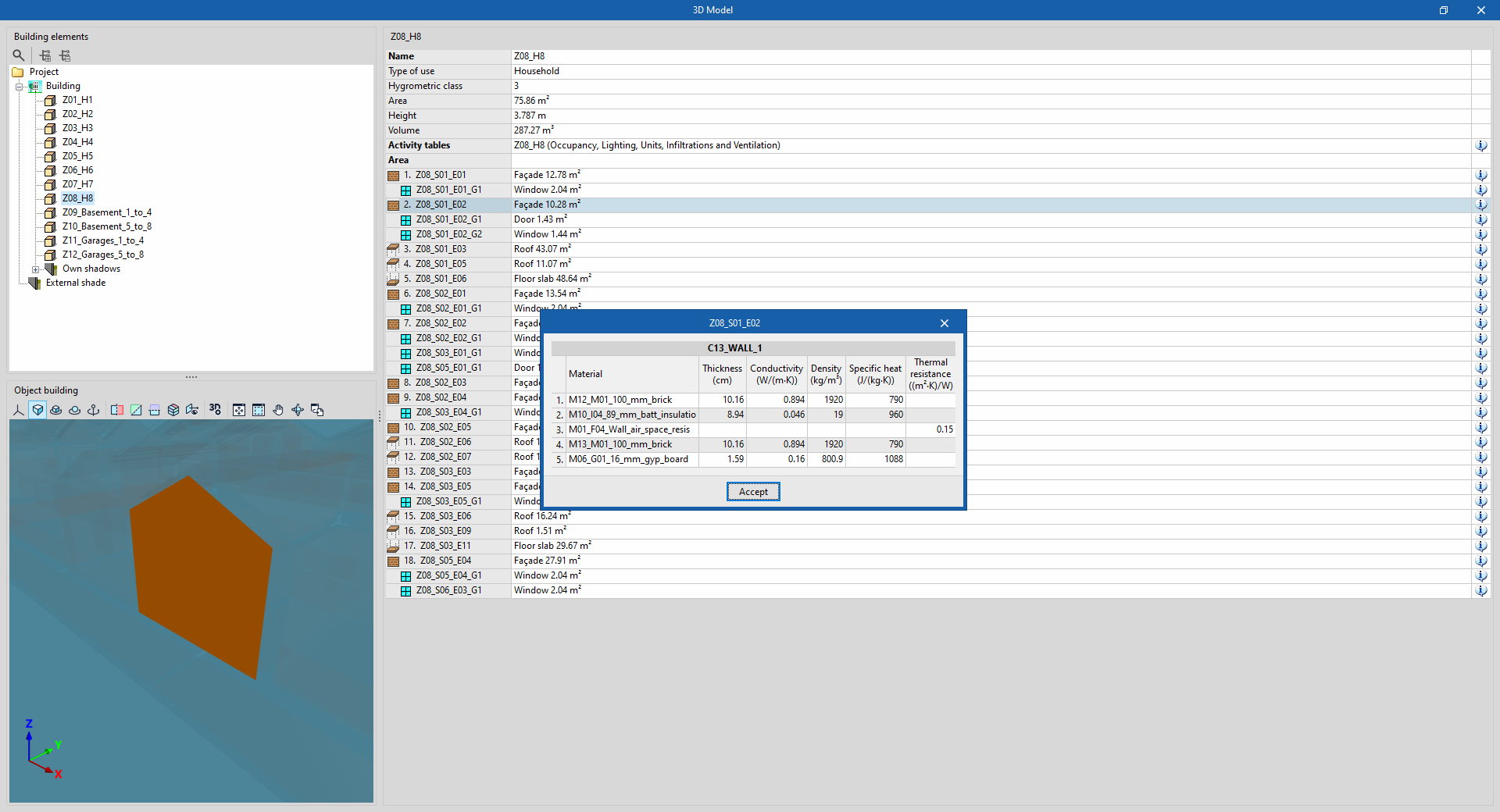
3D model
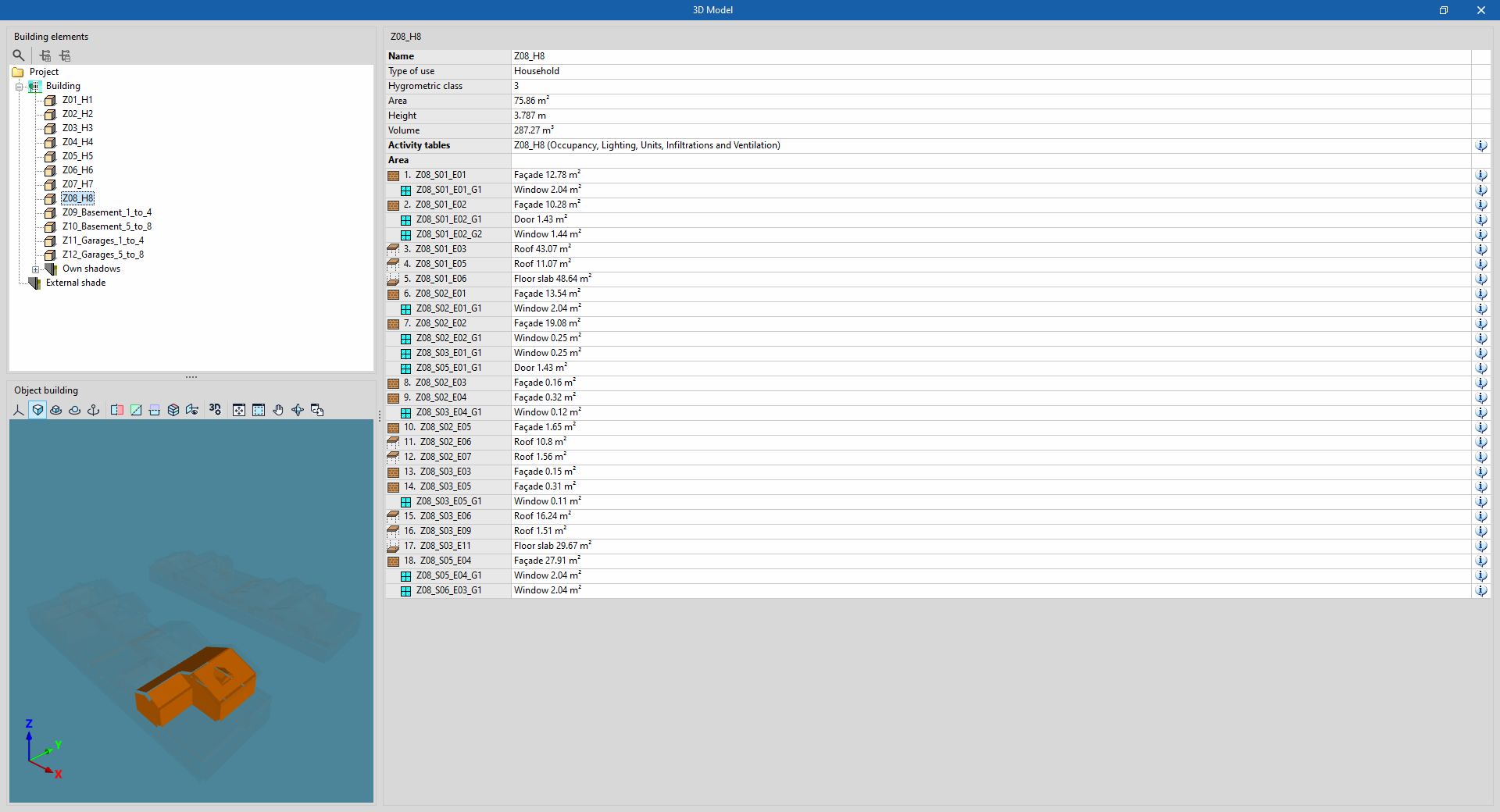
Displays the elements of the building’s analysis model. This BEM (Building Energy Model) is the one used in the simulation with the analysis engine, and is created from the definitions in the "Building" tab, which were in turn imported from the BIM model.
On the left-hand side is the "Building elements" tree, which includes zones, self-shadows and remote shadows.
When you select an item in the tree, it is highlighted in orange in the 3D view at the bottom, which corresponds to the representation of the "Object building".
On the right-hand side, there is a table showing information about the selected level. You can view the properties of each element in the model by clicking on the information button to the right of each row in the table.
Analyse
The "Analyse" option runs the energy simulation and generates the results and reports:
- First, the program lets you change the "Calculation options" in a window similar to the one that appears when you click on this option.
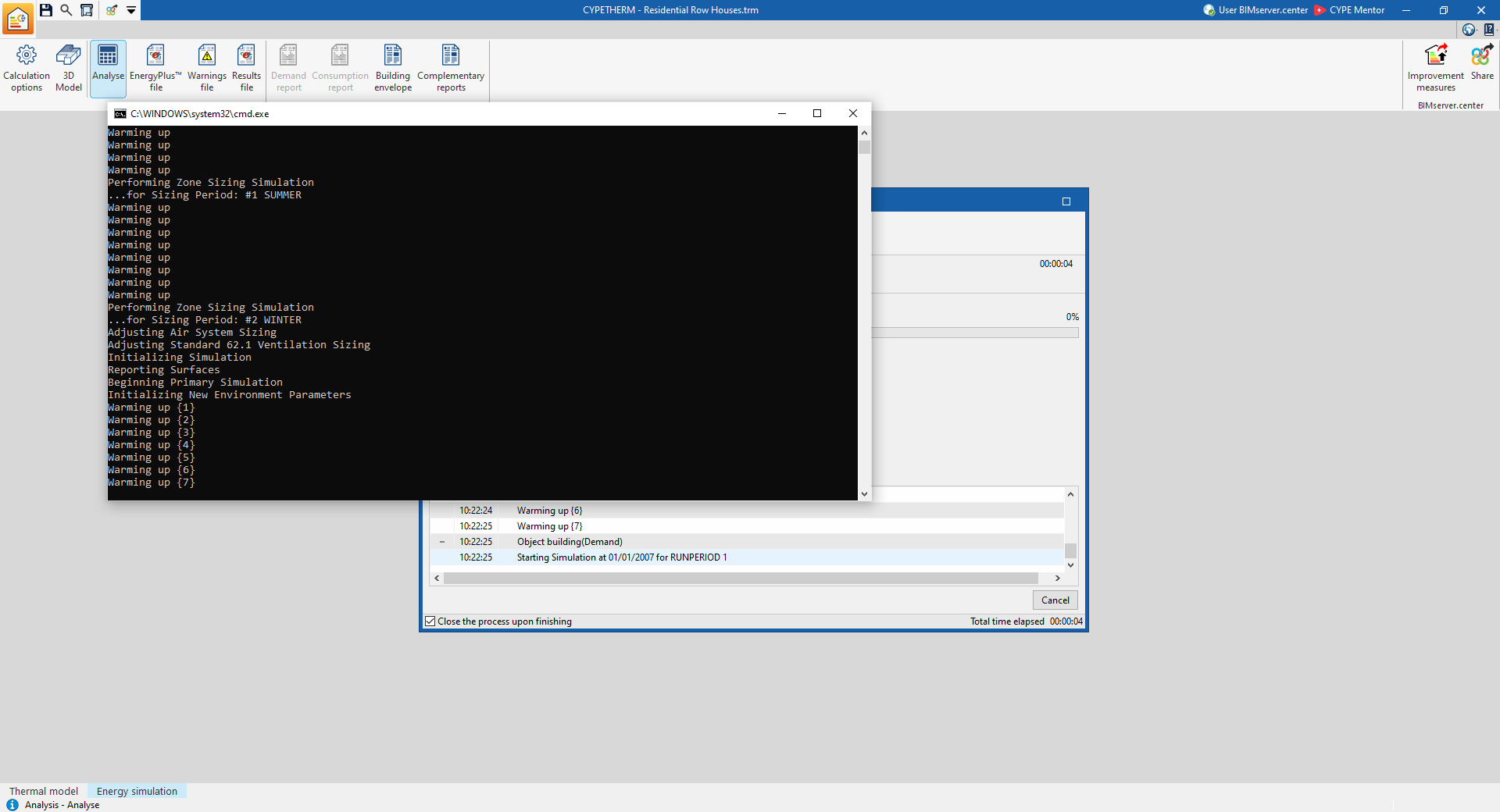
- A console window will then open, in which you can monitor the calculation process.
- Once the process is complete, the console windows close automatically and the calculation results can be viewed on screen.
| Note: |
|---|
| Whenever you switch tabs, you must click the "Analyse" button to regenerate the reports. The simulation will only run if the settings on the "Building" or "Systems" tabs have resulted in changes to the input data file for the analysis engine. |