Options available in CYPETHERM EPlus
The "BIMserver.center" section of the main toolbar contains the features needed to use the program in conjunction with other BIMserver.center tools:



Update
The "Update" button, located in the "BIMserver.center" section of the toolbar on the "Building" and "Drawings" tabs, allows you to synchronise changes made to the BIM model.
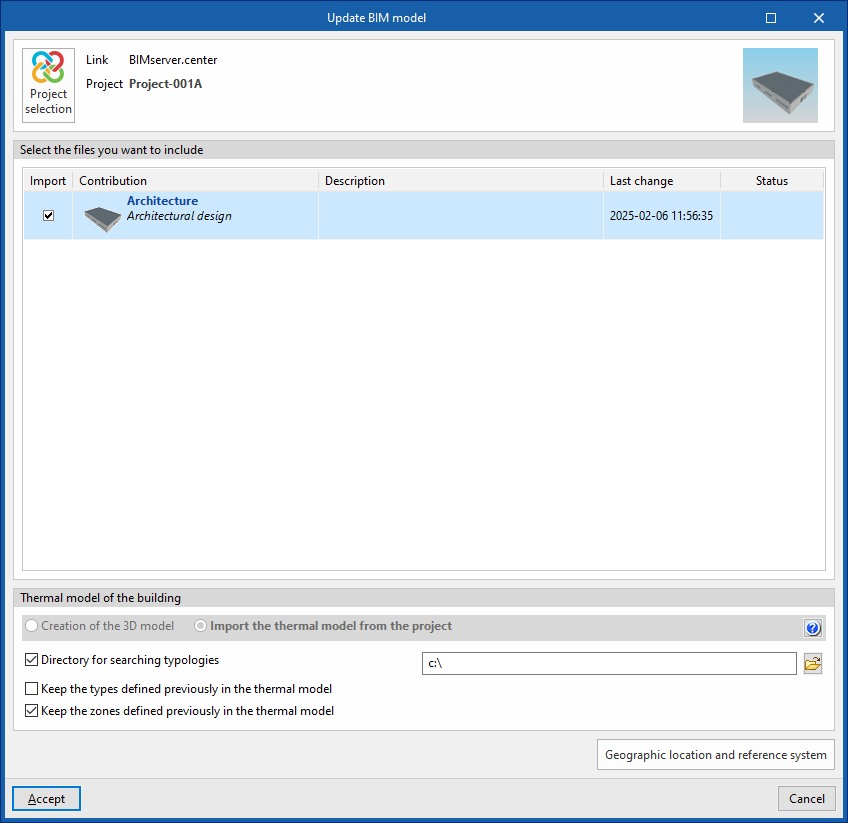
Clicking on it brings up the "Update BIM Model" panel. Here, ticking the "Import" box updates the information contained in the models previously imported into the project, or allows you to import new models if desired.
At the bottom of the window, the "Building thermal model" section will be greyed out, as it cannot be modified once the project has been created. If you need to change this setting, you will need to create a new project.
In addition, where applicable, the program offers the following options at the bottom.
- Directory for searching types (optional)
When this option is enabled, you can select a directory on the hard drive where the typology library files are stored. This allows you to import typology libraries previously created in other projects and exported to that directory, and automatically assign them to the spaces, elements and openings in the imported model. To do this, the references of the typologies in the selected directory must match the references of the element types in the imported model. - Retain the types previously defined in the thermal model (optional)
- Retain the zoning previously defined in the thermal model (optional)
| Note: |
|---|
| To make the most of the Open BIM workflow, it is recommended that changes to model elements be made in the software in which they were originally created. To ensure the model is synchronised correctly and to be able to use the "Edge processing" tool, elements imported from the BIM model must retain their reference (their name). |
Share
Once the energy simulation has been carried out, the results can be exported to the platform to be shared with the team working on the linked BIM project. This helps to consolidate the building project by adding further information to it.
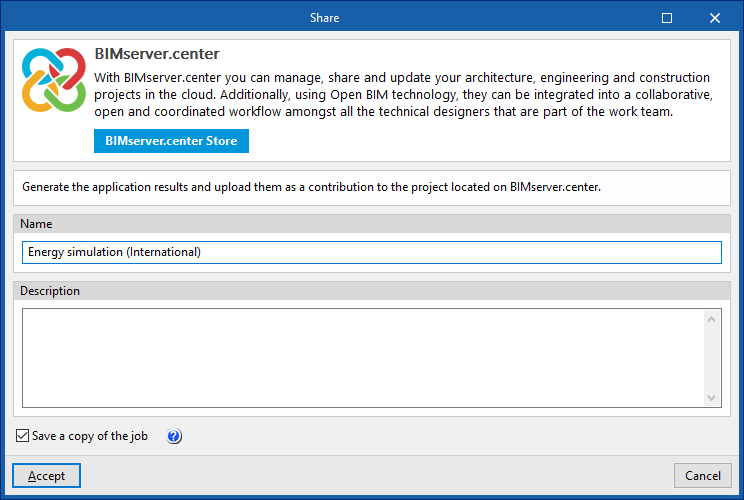
To share the results from CYPETHERM EPlus and include them alongside the linked BIM model, use the "Share" option, which is available in the "BIMserver.center" section of the toolbar on the "Energy simulation" tab.
The program allows you to enter a name and a description for the contribution generated by the application:
- Name
- Description
- Save a copy of the project
If this option is enabled, a compressed file in CYP format containing the model data at the time of export will be saved. This backup copy is saved in a folder named after the project with the extension _bak, located in the directory where the project is stored (by default, C:\CYPE Ingenieros\Proyectos\CYPETHERM EPlus\projectname_bak). Each time the "Share" option is used with this option selected, a new backup file in CYP format will be generated in this folder.