

Managing design alternative data
Data relating to the various design situations or alternatives (such as the building’s initial condition and situations involving each set of proposed improvement measures) is managed via the "Project" tree displayed on the left-hand side of the interface, which expands to show the levels corresponding to each situation.
In addition, you can use the options in the "Data management" section of the main toolbar to delete or reorder situations.
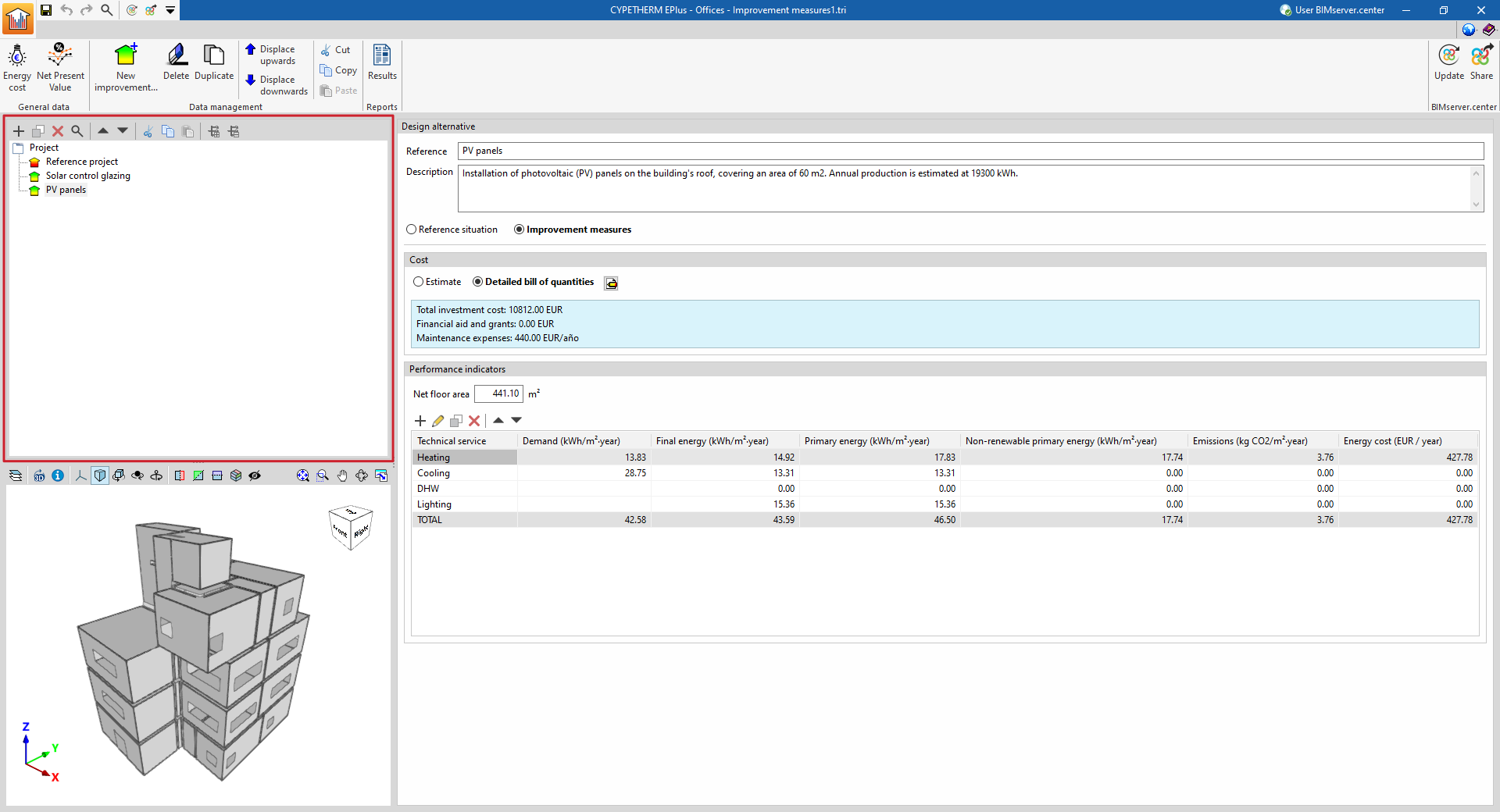
Defining design situations or alternatives
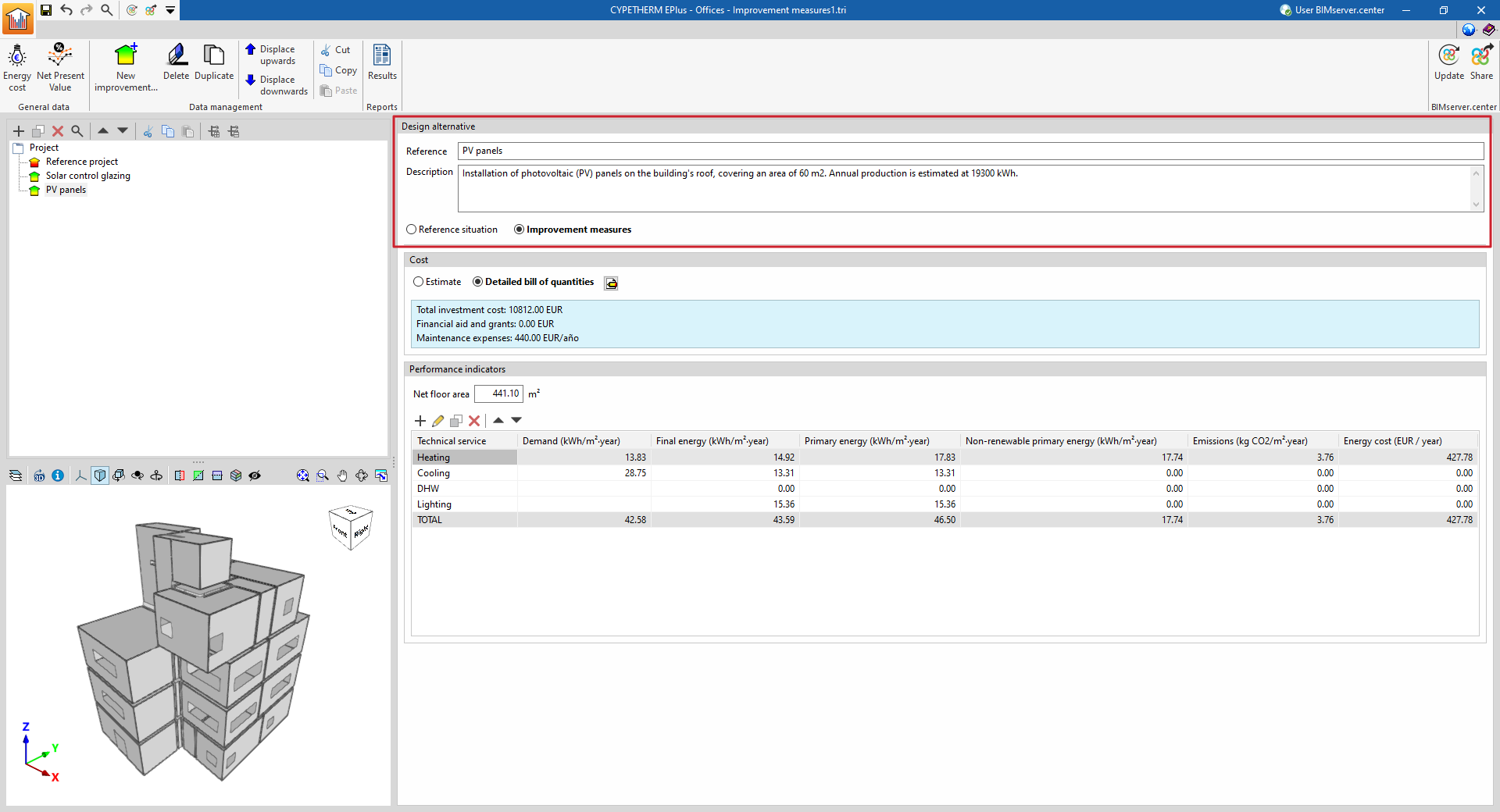
Each level in the "Project" tree represents a design situation or alternative. For each one, the following details must be defined:
- Reference
Reference to the selected situation or design option. - Description
This field must contain a full description of the chosen design option, detailing its main technical and construction features. - Additional information
This allows you to enter any other relevant information about the selected design option.
The "Reference situation" option allows you to specify that the selected design alternative is the reference situation against which the economic or energy analysis comparisons will be made.
The "Improvement measures" option allows you to indicate that the element selected in the tree represents a design alternative to the reference situation, such as the condition of the building following the implementation of a specific set of improvement measures (such as replacing parts of the building envelope or building services with refurbished ones).
Ticking the "Reference situation with cost" box indicates that this situation represents a design alternative for the building project with a specific cost. In this way, the payback period will be calculated based on the difference between the costs of the other design alternatives and that of this reference situation. In the case of the current situation of the existing building, this box will remain unchecked, as no cost is associated with it.
| Objective | Definition in the program |
| A comparison between the initial condition of the existing building and various improved situations resulting from the implementation of different sets of improvement measures | - A "Reference situation" is defined with the "Reference situation with cost" checkbox deselected - "Improvement measure" alternatives are defined for each set of improvement measures to be considered, and the cost of each is specified. |
| Comparison of different design options for the project | - A "Reference situation" is defined with the "Reference situation with cost" box ticked, specifying its cost - "Improvement measure" alternatives are defined for each project design alternative to be considered, and the cost of each is specified. |
Performance indicators
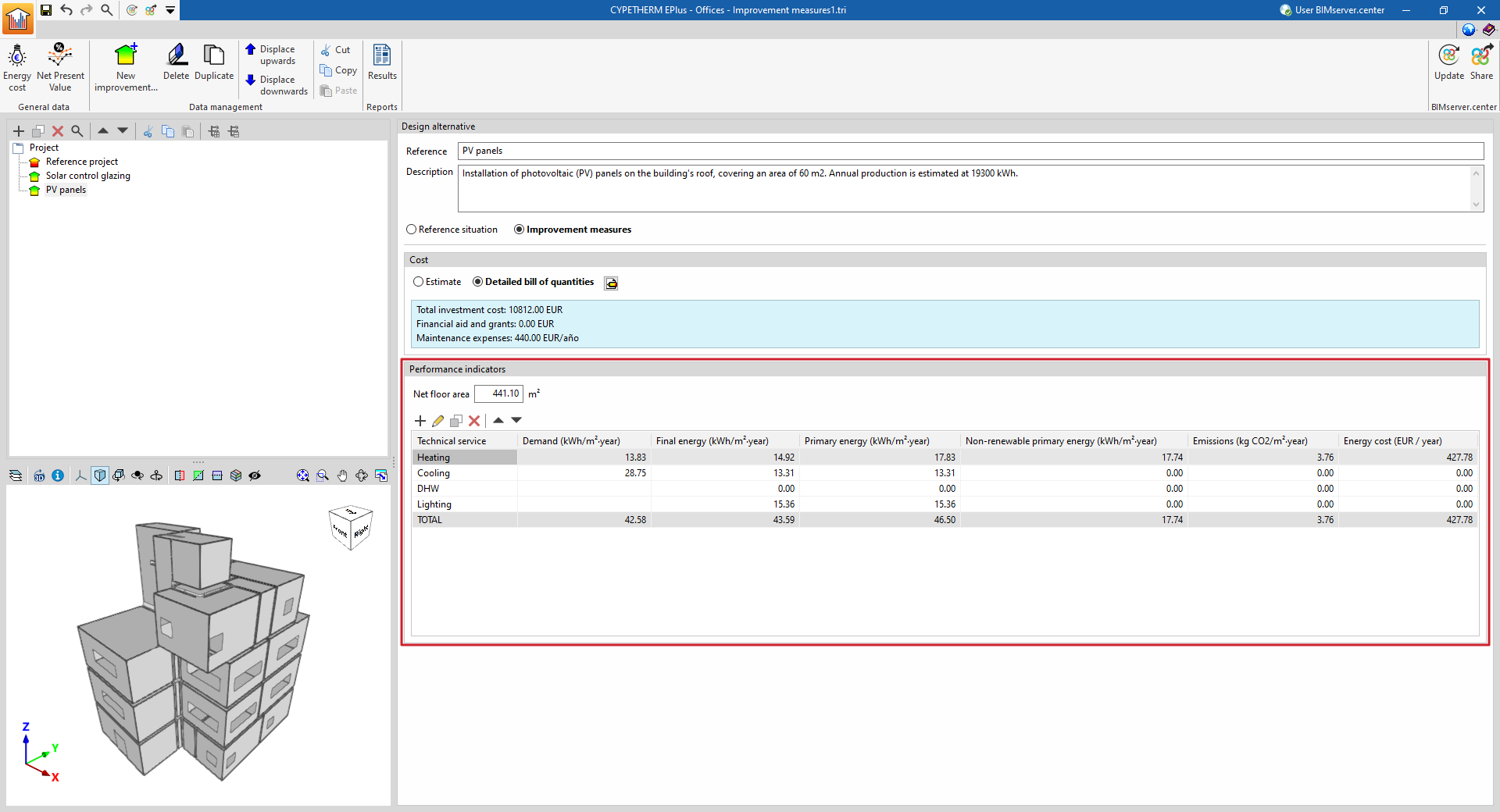
Performance indicators can be added and completed manually or imported from data provided by simulations previously carried out using the software and shared with the BIM model. They are as follows, for each of the technical services and for the building as a whole:
- Demand (kWh/m²·year)
- Final energy consumption (kWh/m²·year)
- Primary energy (kWh/m²·year)
- Non-renewable primary energy (kWh/m²·year)
- Emissions (kg CO₂/m²·year)
- Energy costs (selected currency / year)
This section also displays and allows you to modify the 'usable floor area' of the building included in the analysis.
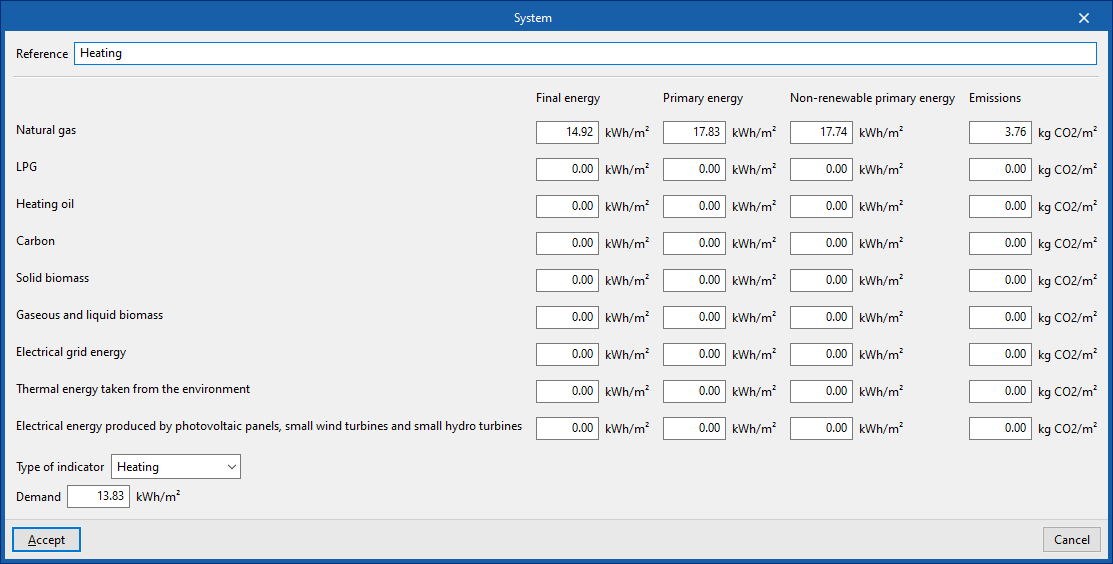
When adding or editing a performance indicator, you must define:
- The "Reference";
- Energy and emissions figures (“Final energy”, “Primary energy”, “Non-renewable primary energy” and “Emissions”) broken down by energy source (“Natural gas”, “LPG”, “Heating oil”, “Carbon”, “Solid biomass”, “Gaseous and liquid biomass”, "Electrical grid energy", "Thermal energy taken from the environment" and/or "Electricity energy produced by photovoltaic panels, small wind turbines and small hydro turbines");
- and the "Indicator type" (whether "Heating", "Cooling", "DHW", "Ventilation", "Lighting", "Transport", "Humidity control" or "Other").
Costs
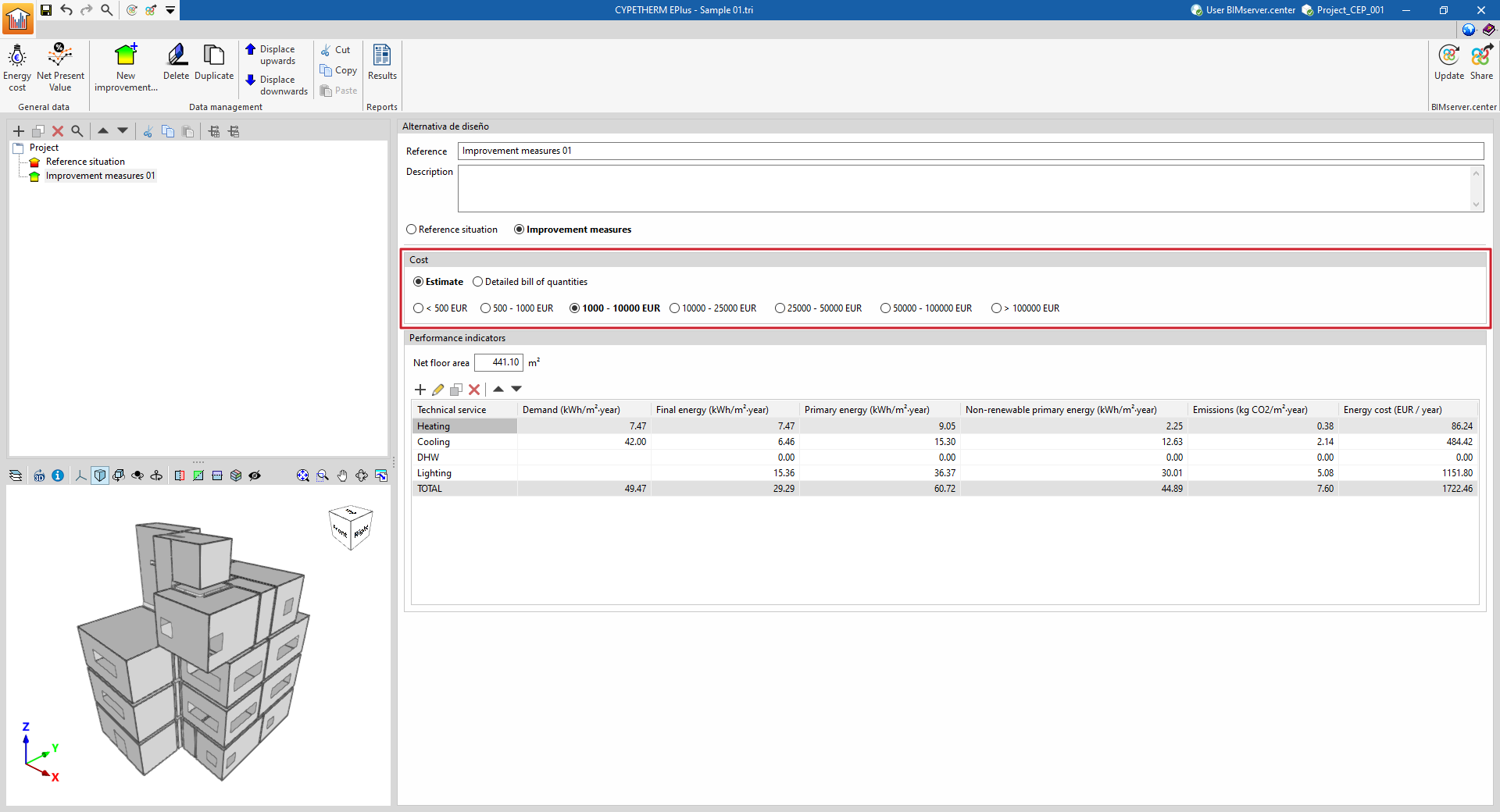
The "Costs" section allows you to describe the costs associated with each design alternative selected in the "Project" tree. Costs can be defined if the design alternative is defined as an "Improvement measure" or as a "Reference situation" with the "Reference situation with costs" option enabled.
Costs can be defined as an "Estimated" cost or via a "Detailed bill of quantities":
Estimate
Defines the cost of the improvement measure or design alternative in a simplified manner, by selecting one of the following ranges (in the selected currency units):
- < 500
- 500–1,000
- 1,000–10,000
- 10,000–25,000
- 25,000–50,000
- 50,000–100,000
- > 100,000
The program will calculate the average of the selected range when performing the economic analysis.
Detailed bill of quantities
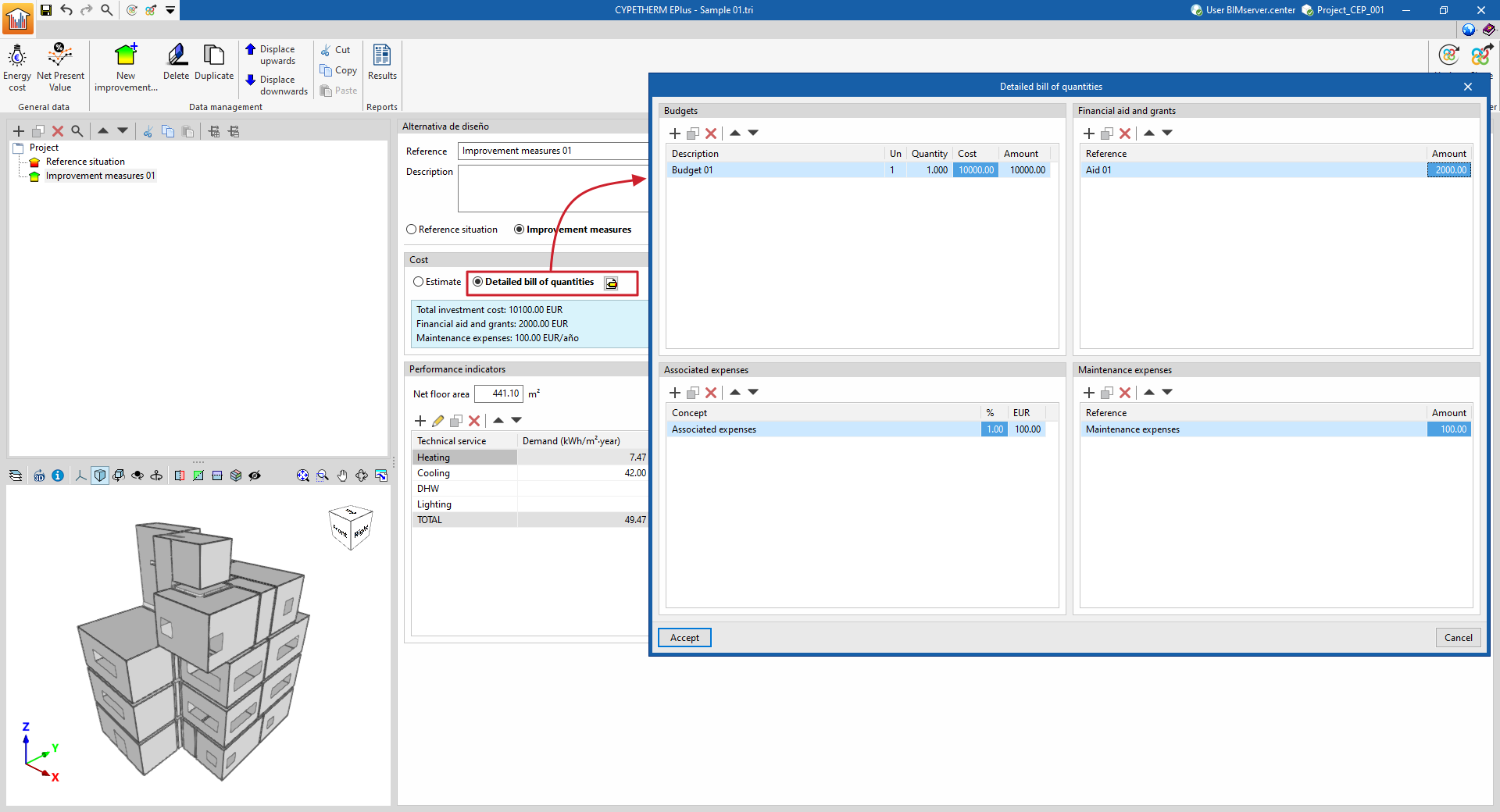
The "Detailed bill of quantities" option allows you to break down the cost of the improvement measure or design alternative in detail. To do this, clicking the edit button opens a pop-up window where you can define the bill of quantities, associated costs and maintenance costs, as well as any grants and subsidies associated with the selected improvement measure or design alternative. This data enables you to complete the economic analysis and adjust the payback period:
- Bbill of quantities
- Description
- Units
- Quantity
- Cost
- Amount
- Financial aid and grants
- Reference
- Amount
- Related costs
- Concept
- %
- Currency units (default: euros)
- Maintenance costs
- Reference
- Amount
Options in the "Data management" group
The "Data management" section of the top toolbar contains the following options:

- New improvement measure
Adds a new improvement measure or design alternative to the "Project" tree. - Delete
Deletes the selected design option. - Move up / Move down
Reorders the layout options in the tree. - Cut / Copy / Paste
These options allow you to cut, copy or paste design elements in the tree.
