Library management
In the "Project" section of the main toolbar, you will find the following option:

Libraries
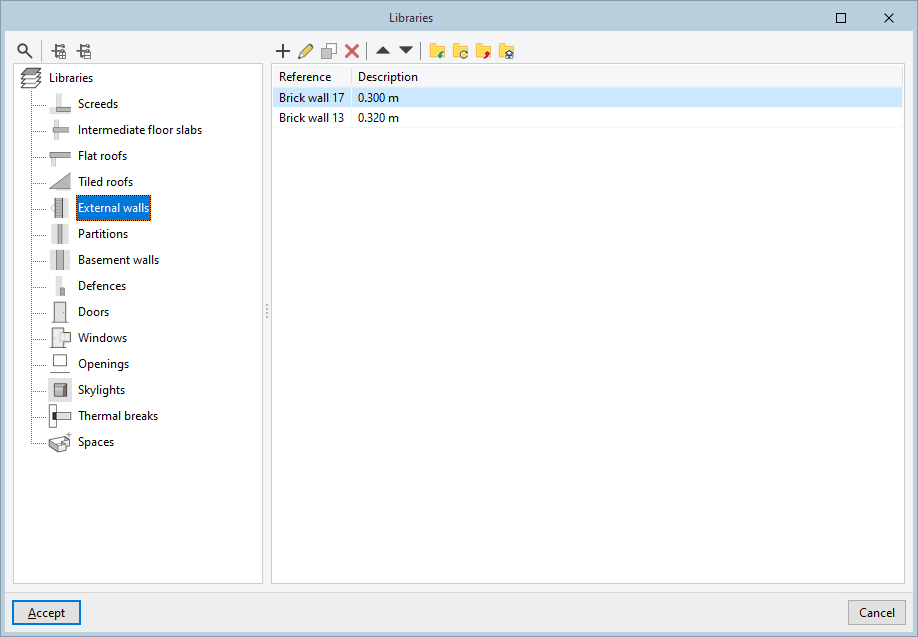
Clicking this button opens a window through which you can access and manage the types defined for the model components.
The types created here will be available when using the "Building elements" or "Spaces" input options in the relevant sections of the main toolbar.
Category tree
On the left is a tree showing the categories of available items. They are as follows:
- Screeds
- Intermediate floor slabs
- Flat roofs
- Tiled roofs
- External walls
- Partitions
- Basement walls
- Defences
- Doors
- Windows
- Openings
- Skylights
- Thermal breaks
- Spaces
The tools at the top of the tree allow you to "Search" for categories using text snippets, "Expand all" in the tree or "Collapse all" in the tree.
When you select each category, the program displays a list on the right showing the types defined within that category.
Managing elements in library lists
The tools at the top of the list allow you to perform the following actions:
 | Add | Add a new item to the list. |
 | Edit | Opens the editing panel for the selected item. |
 | Copy | Duplicates the selected item, adding a copy to the list. |
 | Delete | Removes the selected item from the list. |
 | Move the selected item up one place in the list | Swap the position of the selected item in the list with that of the previous item. |
 | Move the selected item down one place in the list | Swap the position of the selected item in the list with that of the item following it. |
Importing and exporting library elements to files on disk
Further to the right, there are options for saving library item information to files on your hard drive so that you can use them in other projects:
 | Import elements saved to disk into the project | Imports the elements saved on the hard drive into the project, adding them to the list. If an element (with the same reference) already exists in the project, its data will be overwritten. |
 | Update the items used on site | Update the elements defined in the project with the properties of the elements saved to disk under the same reference. |
 | Export the item to a file | Export the selected item to a file so that you can import it later. |
 | Select a file containing initial values for creating a new project | This allows you to select a list of items saved to disk to load into the library when creating a new file. |
Libraries of building components
When adding building element types to the libraries, the program offers the option of creating a simplified definition or using a building solution:
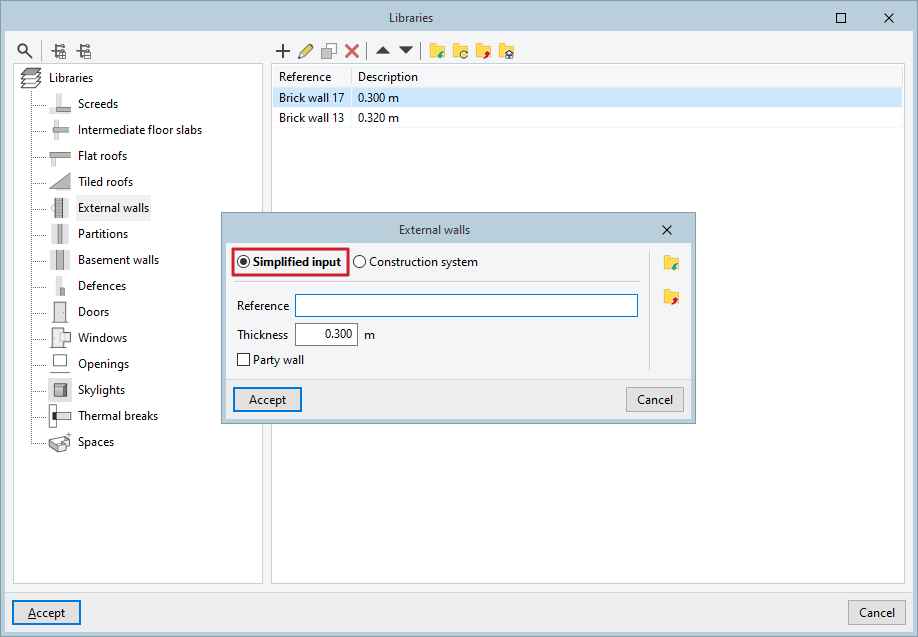
- Simplified definition
This option allows you to create a type with a simplified definition, assigning only a "Reference" and geometric characteristics such as the following, which will be used to define and calculate the volumes and areas of the elements that make up the model:- In floor slabs, floor structures, flat roofs, pitched roofs, external walls, partition walls, basement walls and retaining walls, the “Thickness”, which comprises the entire structural thickness up to the finished surface (which defines the internal volume of the spaces), thus including the thickness of cladding and finishes;
- For doors, windows, openings or thermal breaks, the values for "Width" (optional, if you wish to assign the value rather than entering it when drawing the element on the model) and/or "Height".
- For some fields, additional information is required to complete the form, as in the following cases:
- In floor slabs, the "Cantilever" option allows you to specify that the element separates an interior space at the top from the exterior environment at the bottom.
- In the case of building envelopes, the "Partition wall" option allows you to specify that the element is situated between a building compartment and the space belonging to other buildings.
- Construction system
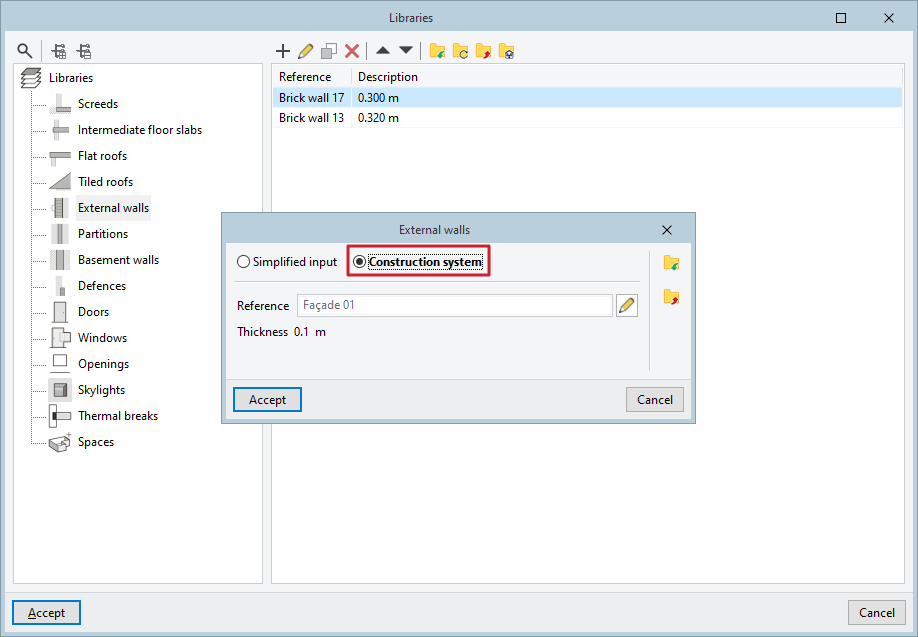
This option allows you to create a type with a detailed construction definition for the element. To do this, the program accesses the list of construction solutions for the relevant element category, allowing you to enter, edit and select them on the fly. It is also possible to enter and/or edit construction solutions in advance using the "Construction systems" option in the "Project" group.
A detailed geometric definition is not required for the analyses carried out by some apps; therefore, a geometric model consisting of simplified elements may be sufficient for this purpose.
As an alternative to creating and defining structural solutions in IFC Builder, it is possible to carry out detailed structural modelling in software such as CYPE Construction Systems, which is integrated into the Open BIM workflow, or to perform the structural modelling directly within the target software, such as CYPETHERM.
Space libraries
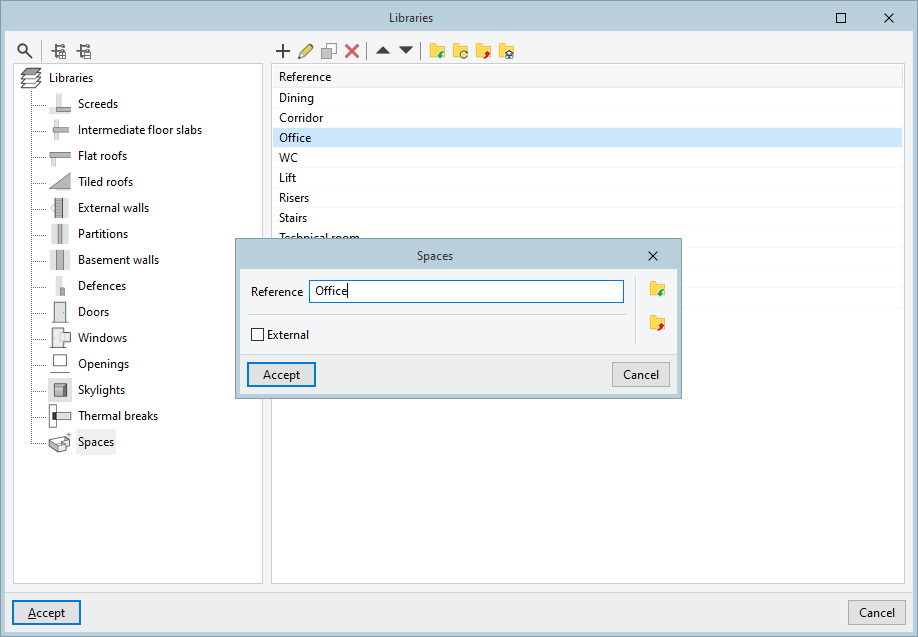
As for defining the types of spaces, in addition to entering their "Reference", the "External" option allows you to specify that the space entered is an outdoor area, such as a balcony or a terrace.