
Options on the "Switchboards" tab
The "Switchboards" tab allows you to list the electrical switchboards included in the project and specify the switchgear for each one. To do this, you can import the electrical project data from other apps or enter the information directly from scratch.
The options in this tab are as follows:
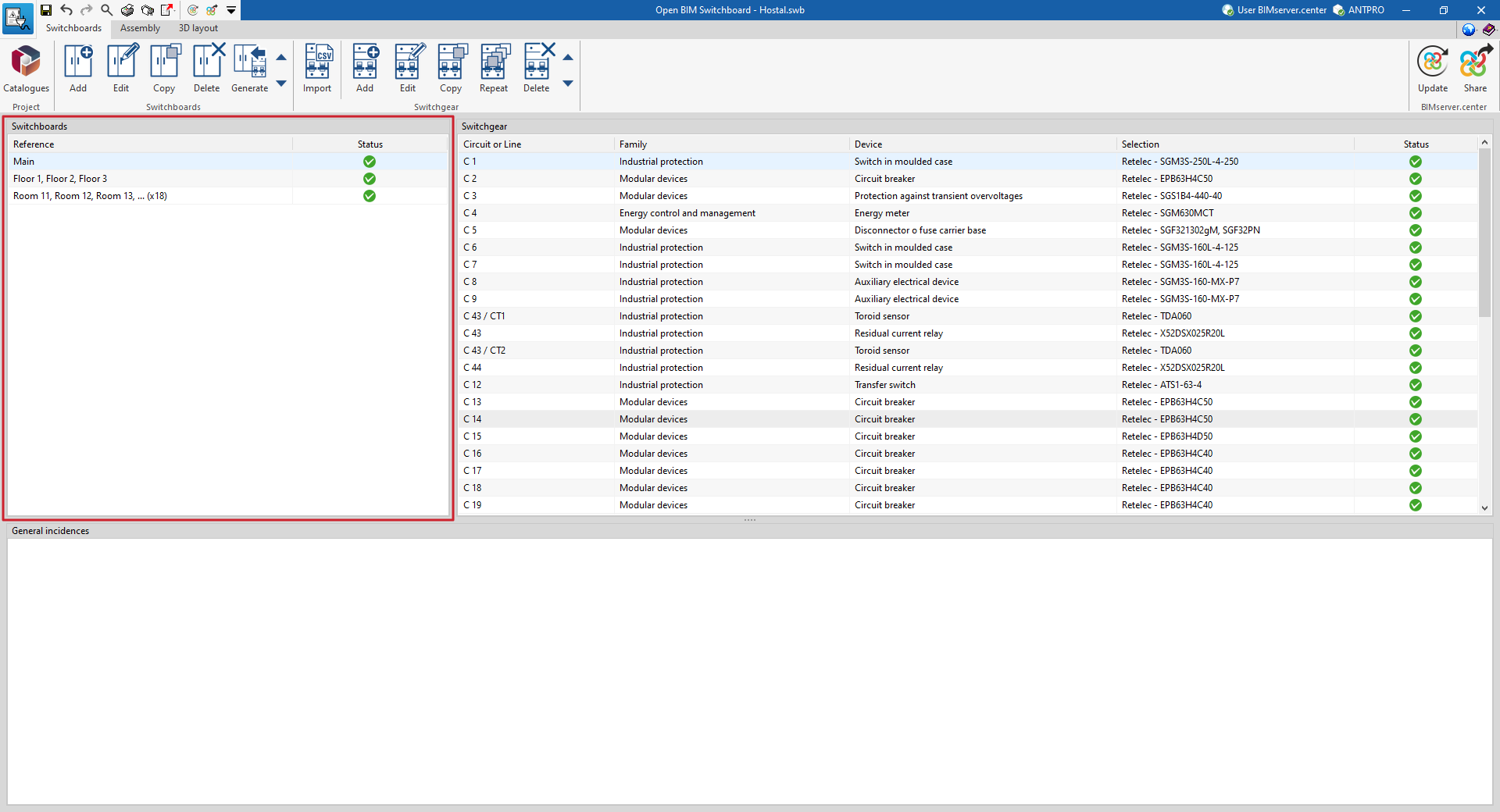
List of switchboards
The "Switchboards" panel on the left-hand side of the interface displays a list of the project's electrical switchboards, defined using the options described below. The following information is displayed for each panel:
- Reference
Reference to the table or tables in the group. - Status
Displays the status of the switchboard. Clicking on it displays any associated issues, if any.
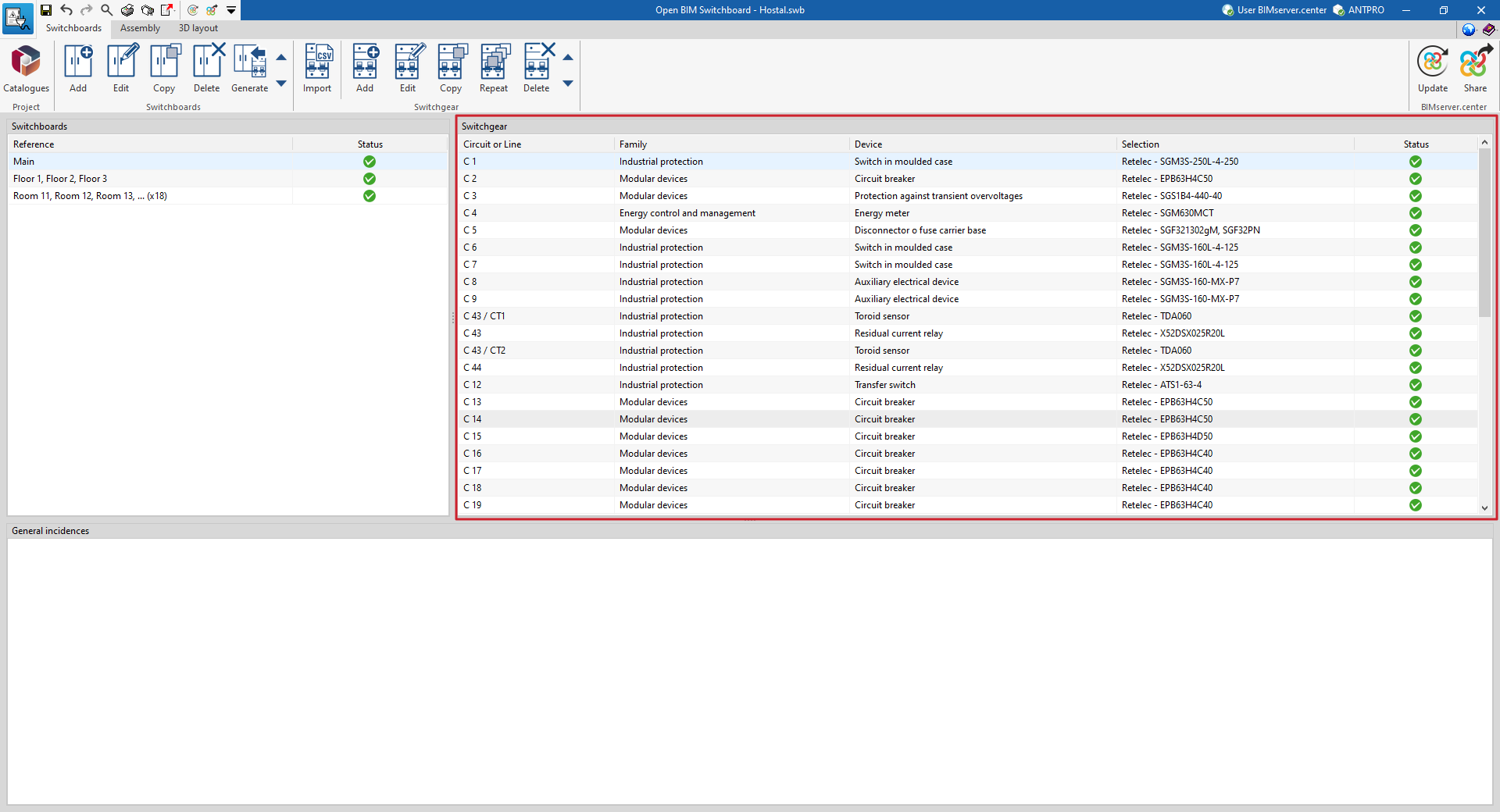
List of switchgear
The "Switchgear" panel on the left-hand side of the interface displays a list of the devices configured using the options described below. The following information is displayed for each device:
- Circuit or line
The reference number of the circuit or line to which the device belongs. - Family
Device family. - Device
Device type. - Selection
Details of the selected device. - Status
Displays the device's configuration status. Clicking on it displays any associated issues, if there are any.
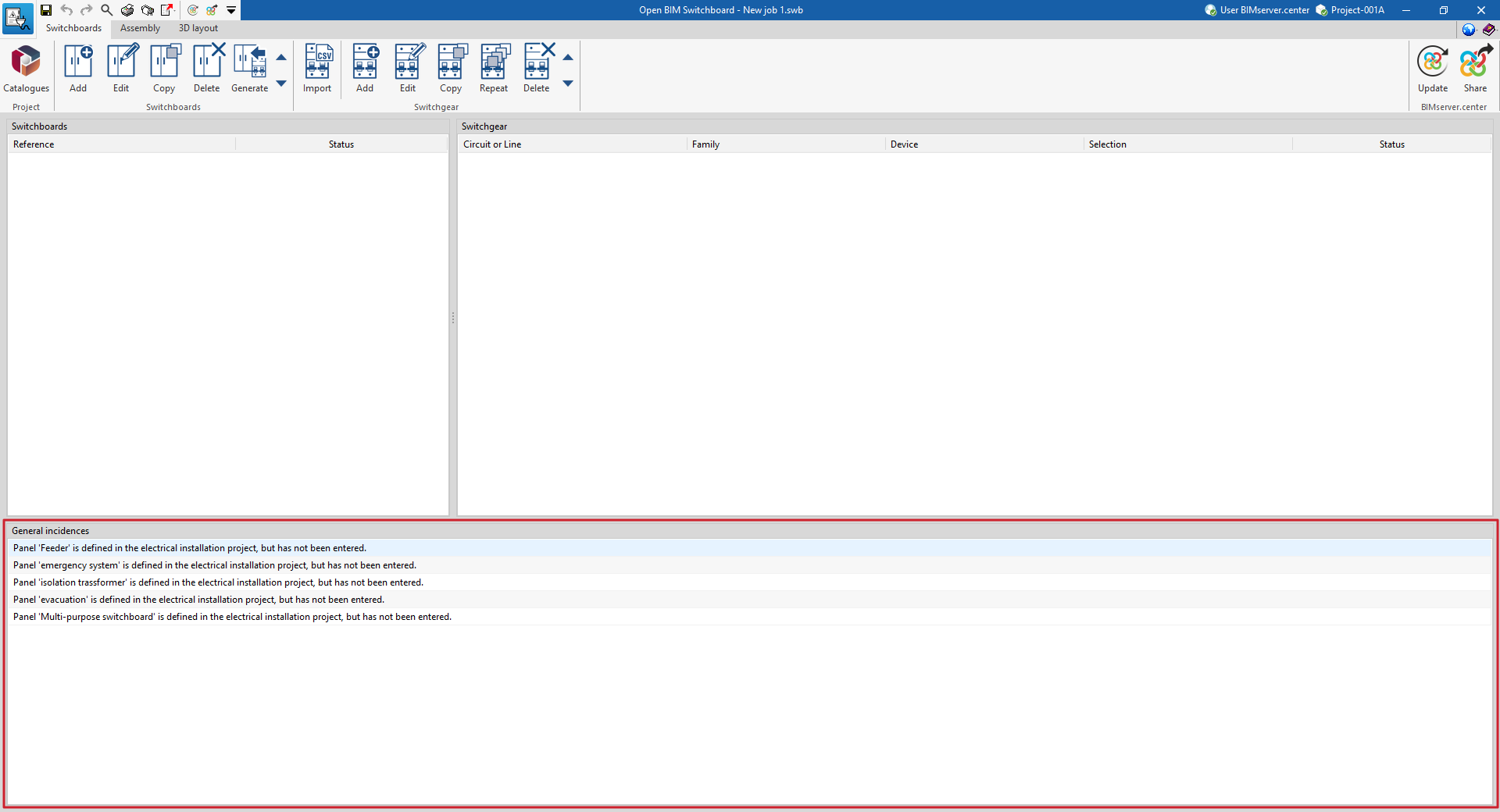
Issue management
The "General issues" panel at the bottom of the interface displays the issues to be resolved that have been detected by the program.
Importing catalogues
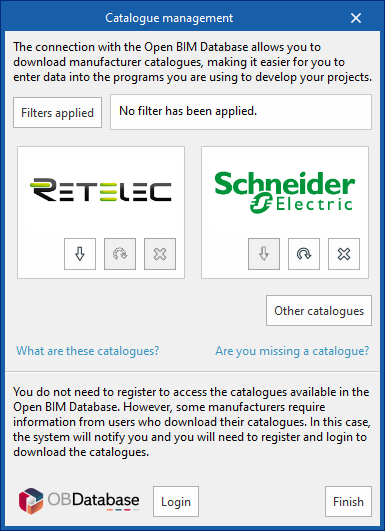
In the "Project" section of the main toolbar, you will find the option to download manufacturer catalogues from the Open BIM Database:

Clicking on this option opens a window showing the available manufacturer catalogues.
Download catalogues
The following options are displayed for each manufacturer:
- Download
Downloads the manufacturer’s catalogue. The products in the catalogue will be available in the project. - Update
Updates the catalogue for the selected manufacturer to the latest version, deleting the version previously downloaded to the project. - Delete
Deletes the selected manufacturer's catalogue. The products in the catalogue will no longer be available in the project.
Connecting to the Open BIM Database
At the bottom of this dialogue box, the program allows you to log in using an Open BIM Database account and password.
The products from the downloaded catalogues can be selected when defining the other elements.
Importing project data
In the "Project" section of the main toolbar, you will find the option that allows you to import data from electrical projects created in external programs using .txt or .csv files:

Creating and editing switchboards
The "Switchboards" section of the main toolbar contains options for managing the project's electrical switchboards, as well as generating them from imported data:

- Add
Adds a switchboard or group of switchboards to the list. - Edit
Edits the properties of the selected switchboards or group of switchboards in the list. - Copy
Copies the selected switchboards or group of switchboards to the list. - Delete
Deletes the selected switchboards or group of boxes from the list. - Generate
Generates a list of switchboards and the associated switchgear for each one based on information imported from the electrical design created in other applications.
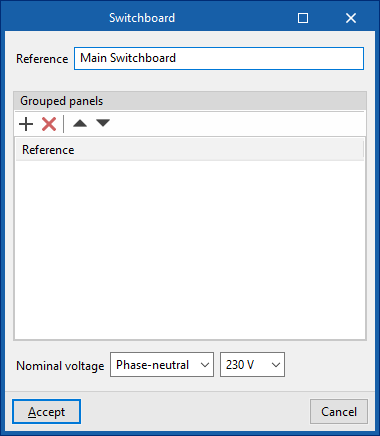
When adding a table, the program allows you to specify the following properties:
- Reference
Switchboards reference. - Grouped panels
If the project includes switchboards with the same specifications (for example, the electrical panels in the rooms of a hotel), entries can be made in this table using the reference number of each individual electrical panel. This allows you to define a group of identical panels. - Rated voltage
Defines the rated voltage of the switchboard ("Phase-to-phase" or "Phase-to-neutral").
If the file contains information from an electrical project created using other apps, the program provides wizards on the right-hand side that allow you to select one of the project panels directly.
Defining switchgear
The "Switchgear" section of the main toolbar contains options for managing the switchgear associated with each of the defined switchboards, as well as for importing data from .csv files:

- Import
Imports devices from a .csv file. - Add
Adds the selected device to the list. - Edit
Edits the properties of the device selected from the list. - Copy
Copies the device selected from the list once. - Repeat
Copies the selected elements in the list a specified number of times. - Delete
Removes the selected device from the list.
When adding each switchgear device, the reference for the "Circuit or line" to which it belongs is specified. You can define a "Generic" element or use one of those available in the "Manufacturer catalogues".
In addition, you must specify the "Family" and the type of "Device":
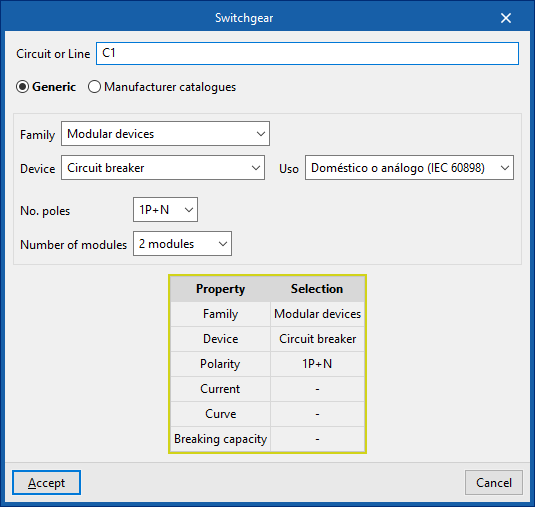
The devices available for each family are listed below:
Family: Modular switchgear
Devices:
- Circuit breaker
- Residual current circuit breaker
- Combined circuit breaker + residual-current device protection
- Combined circuit breaker + permanent overvoltage protection
- Combined circuit breaker + transient and permanent overvoltage protection
- Auxiliary electrical device
- Protection against transient overvoltages
- Switch or linear switch
- Light indicators
- Modular contactor or impulse relay
- Modular contactor or remote-controlled contactor
- Protection against electric arcs
- Disconnector of the fuse carrier base
- Remote control. Intelligent protection of installations
- Time regulation
- Control relays
Category: Industrial protection
Devices:
- Magnetic starter
- Auxiliary electrical device
- Switch in moulded case
- Residual current relay
- Transfer switch
- Contactor or miniature contactor
- Disconnector to interrupt lines
- Toroid sensor
Category: Solar shading
Devices:
- Circuit breaker
- Protection against transient overvoltages
- Disconnector or fuse carrier base
Category: Energy monitoring and management
Devices:
- Network analyser
- Energy meter
- Current transformer
