


Options in the "Beam input" tab
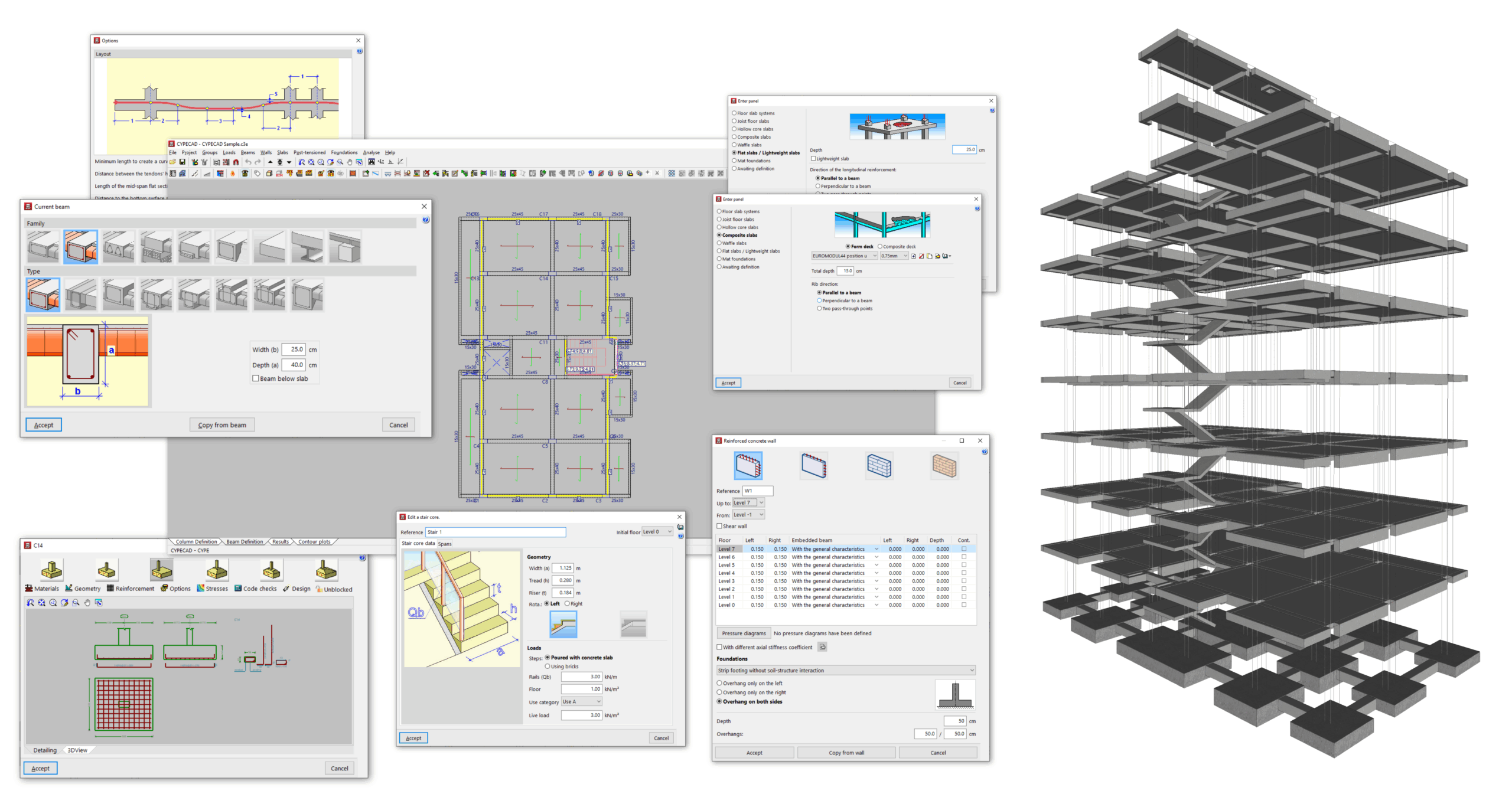
In the "Beam input" tab of CYPECAD, which you can access from the bottom of the main interface, you enter beams, walls, slab panels, foundation elements and special elements such as ramps, stairs and integrated 3D structures. Once the model is complete, this tab also allows you to analyse, check and design the project.
"Project" menu
The "Project" menu provides the following features:
- Access to the general project data, where you can control the codes and materials used, the load cases and load combinations considered in the analysis, and the detailed configuration of checking and sizing options for the different elements, as well as the management of reinforcement tables.
- Insertion and editing of special elements such as ramps, stairs and integrated 3D structures.
- Configuration of certain general options, beam options, slab options and options for connection analysis, as well as management of the section library.
You can find a detailed description of the options available in the "Project" menu of the "Beam input" tab at the following link:
"Groups" menu
En The "Groups" menu includes the following features:
- Definition of inclined slabs and slab level differences.
- Insertion of building sections.
- Options to copy elements from one storey group to another and to reload the group.
- Consultation of storey elevations and surface information for the group.
- Specific configuration of fire resistance for each storey group.
- Management of element references, sections and labels.
- Access to the different available 3D views of the model.
- Control of the display of outlines.
You can find a detailed description of the options available in the "Groups" menu of the "Beam input" tab at the following link:
"Loads" menu
The "Loads" menu provides the following features:
- Options to enter and edit different types of loads (point loads, line loads on beams, surface loads on panels and loads on groups), manage their display, update loads from construction elements and post-tensioned slab tendons, and change their load case assignment.
- Entry and editing of construction elements, which may generate loads and/or affect the structural behaviour.
You can find a detailed description of the options available in the "Loads" menu of the "Beam input" tab at the following link:
"Beams" menu
The "Beams" menu includes the following features:
- Entry of beams (from point to point or using a rectangular outer boundary) and inclined beams, as well as definition of common beams between storey groups.
- Entry and editing of short corbels.
- Options to define polybeams, predefined reinforcement spans, manage beam alignments and configure the connection of free-standing beams to a rigid diaphragm.
- Definition of coupling beams.
- Options to edit and modify beam geometry, obtain beam information, define fixity at beam ends, join and split beams, connect and disconnect walls from columns, and edit the remaining parameters associated with beams.
You can find a detailed description of the options available in the "Beams" menu of the "Beam input" tab at the following link:
"Walls" menu
The "Walls" menu provides the following features:
- Entry and editing of reinforced concrete walls, plane stress walls, masonry walls and concrete block walls.
- Other wall-related options, including those that allow you to modify their geometry, split them or assign them a shear wall function.
You can find a detailed description of the options available in the "Walls" menu of the "Beam input" tab at the following link:
"Panels" menu
The "Panels" menu includes the following features:
- Entry and editing of slab panels, including joist slabs, shells, composite slabs, waffle slabs, solid slabs, lightweight slabs and slabs supported on the ground.
- Definition of drop panels and openings within panels.
- Assignment of base reinforcement or welded meshes, assignment of concrete cover and definition of predefined reinforcement.
- Definition of joist continuity.
- Assignment of the seismic resistance category of slabs.
You can find a detailed description of the options available in the "Panels" menu of the "Beam input" tab at the following link:
"Post-tensioned" menu
The "Post-tensioned" menu provides the following features:
- Options for defining post-tensioned slabs.
- Configuration of tendon layout and stressing loads.
- Entry of tendons and tendon bending lines.
- Options for editing and assigning anchorages.
"Foundations" menu
The "Foundations" menu includes the following features:
- Management of soil–structure interaction.
- Entry of anchor plates and foundation elements such as pad footings, pile caps, tie beams and strap beams.
- Options to edit the geometry and reinforcement of foundation elements.
- Options for sizing and checking foundation elements.
- Other foundation-related options, such as consultation of stresses at the base of pad footings, removal of overlaps between footings or definition of limits for polygonal footings.
You can find a detailed description of the options available in the "Foundations" menu, which is accessible from both the "Beam input" tab and the "Results" tab, at the following link:
"Analyse" menu
The "Analyse" menu provides the following features:
- Tools to analyse the project, with or without foundations, or without obtaining reinforcement.
- Options to redesign frames and/or columns, check group geometry, enter reinforcement in slabs and waffle slabs, or obtain the centre of mass and centre of stiffness.
You can find a detailed description of the options available in the "Analyse" menu of the "Beam input" tab at the following link:
Once the model has been analysed in the "Beam input" tab, you can consult the checks, reinforcement and other analysis results, and make modifications to them, in the "Results" tab.
