Add a new quantity combination
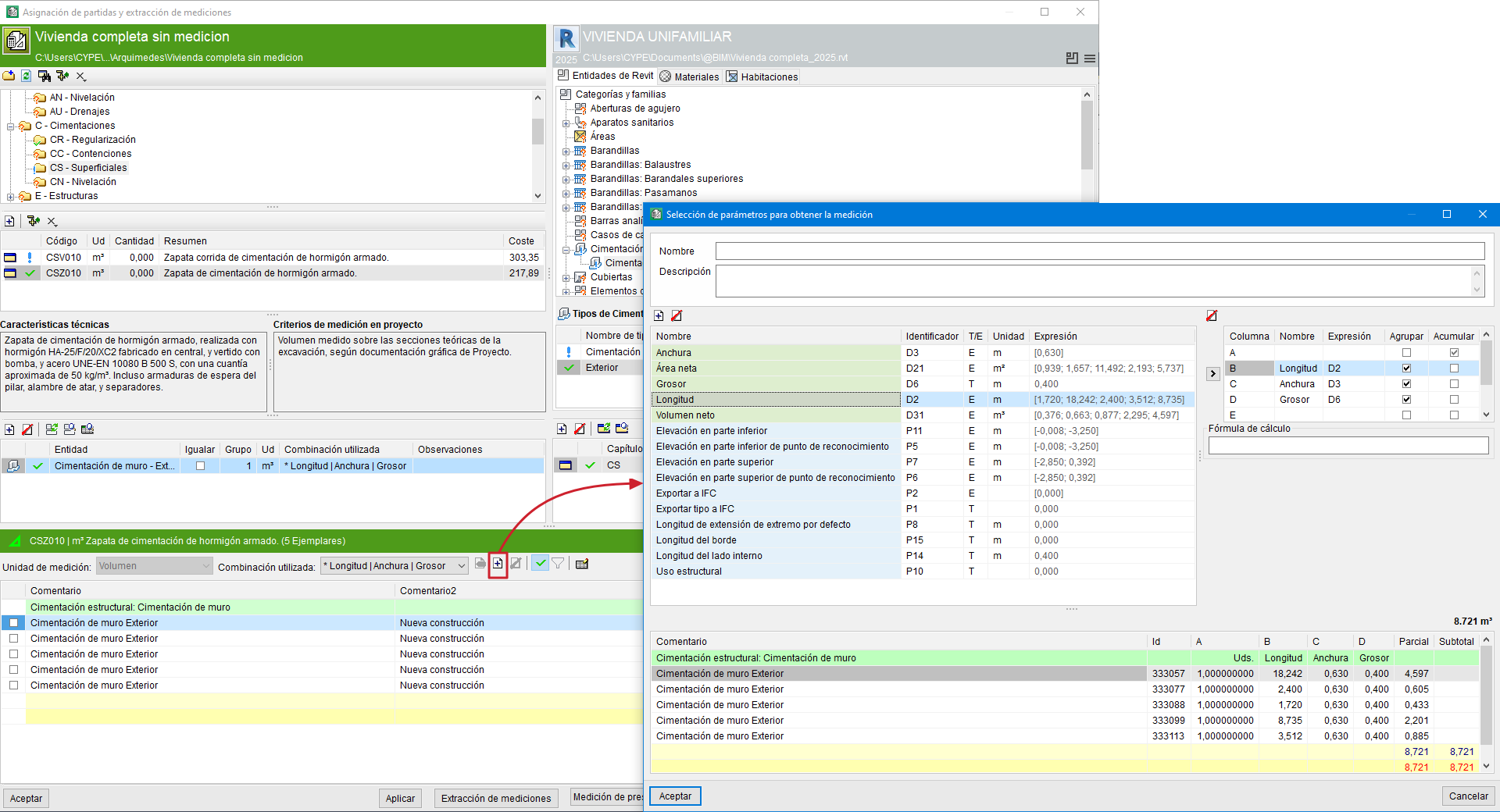
You can always define a new combination using the "Add combination" button located to the right of the "Combination used" drop-down list. After pressing this button, the "Selection of parameters for obtaining the quantity" dialogue appears, consisting mainly of two tables:
- The table on the left initially contains the parameters associated with the Revit model entity.
- The table on the right contains the parameters used in the quantity combination.
To add new parameters to be used in the quantity combination, simply select the desired parameter in the table on the left (you may choose an existing one or create a new one), select the column where it will be applied in the table on the right, and press the ">" button.
At the bottom of the "Selection of parameters for obtaining the quantity" dialogue, the quantity detail table for the selected item is displayed. This table allows you to preview the changes introduced before accepting the combination.
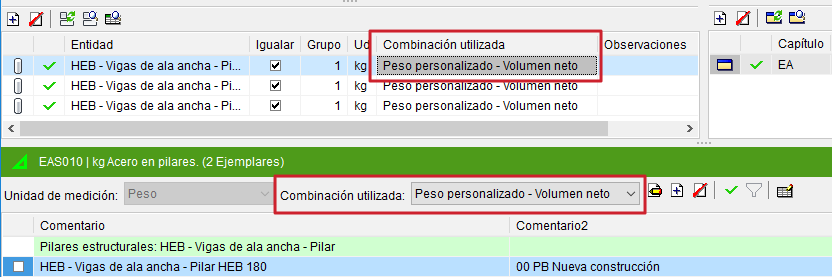
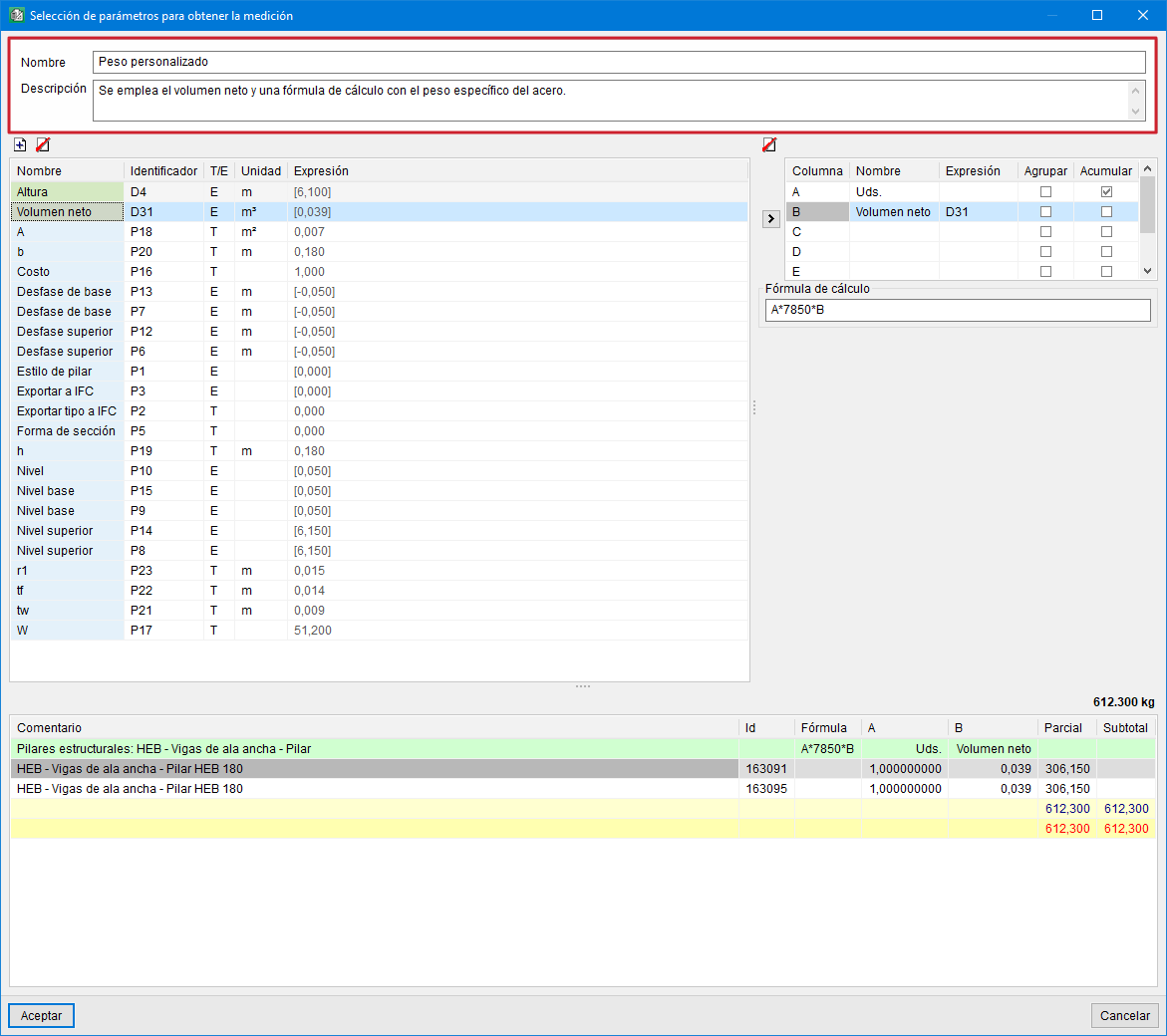
To help identify the user combinations used in the extraction of quantities, there are the "Name" and "Description" fields in the "Selection of parameters for obtaining the quantity" dialogue.