Generation of native Revit elements based on a structural IFC
The "Generation of native Revit elements based on an IFC" module includes the "Generation of native Revit elements based on a structural IFC" feature. This feature converts a structural model (included in a BIMserver.center project) into native Revit elements by assigning families.
| Best practice: |
|---|
| When generating native Revit elements from a structural IFC, it is essential to work with a Revit file that uses the structural template. This ensures a smooth import and better integration of the elements into the model. |
How the “Generation of native Revit elements based on a structural IFC” module works
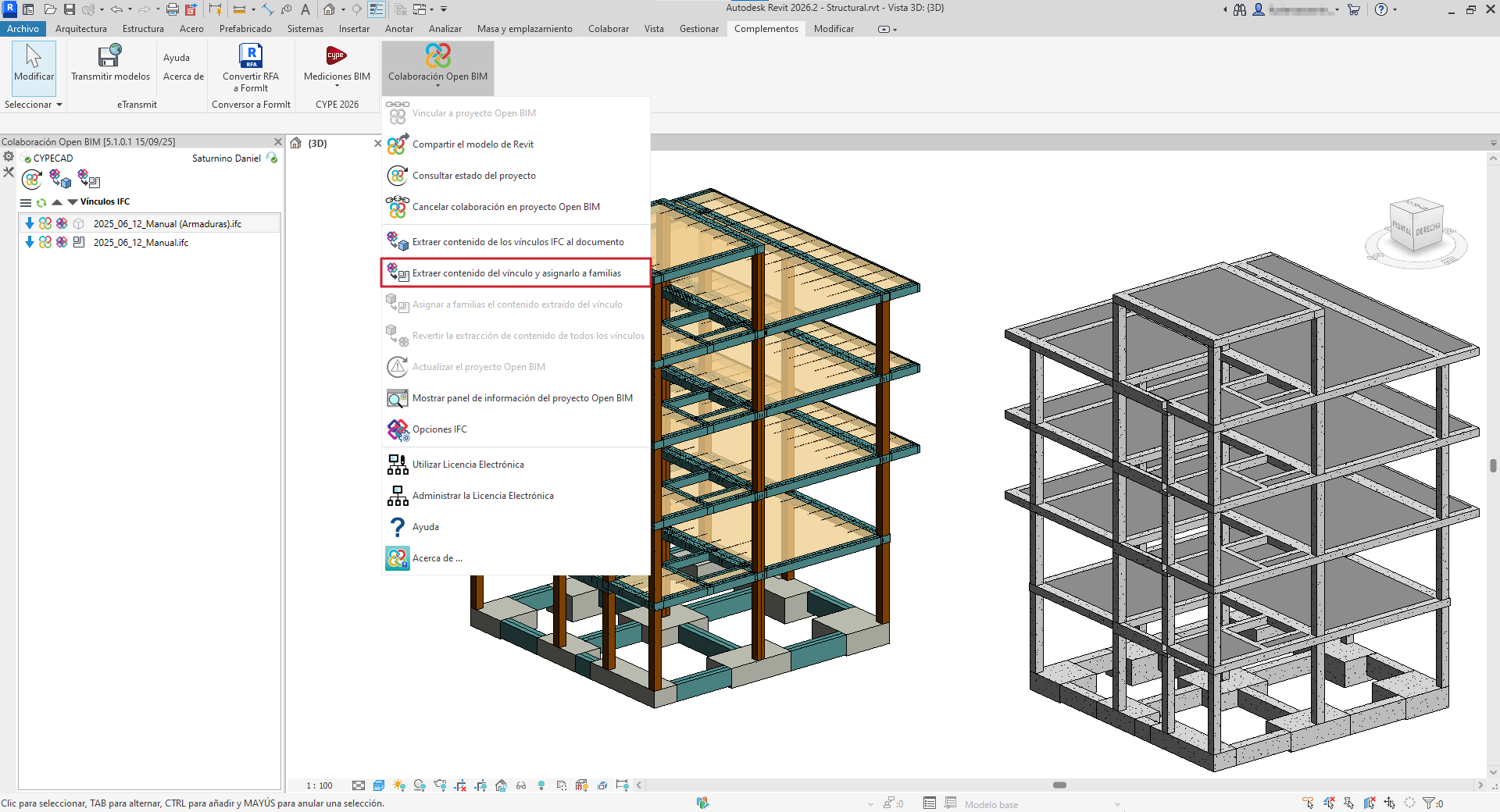
After selecting the option "Extract contents of the link and assign it to families" a dialogue box with the same name opens. This is how it works:
- Main section
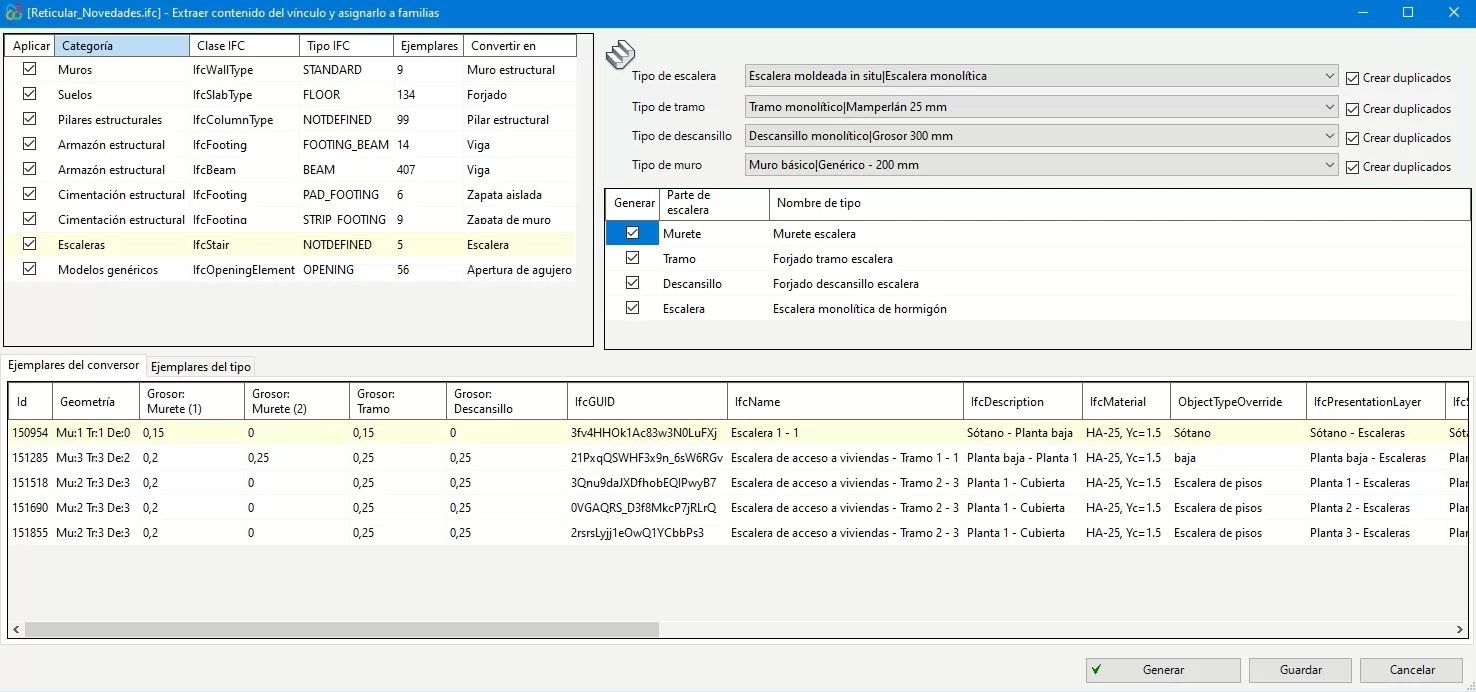
All categories of structural elements detected in the IFC links of the imported model are shown at the top left-hand side and are grouped by class and the IFC type to which they belong. The number of existing instances and the Revit native category to which they are to be converted are also displayed from these groups.
The categories (along with their IFC class) that can be detected and converted to native elements within Revit are:
- Walls - IfcWallType
- Floor slabs - IfcSlabType
- Structural columns - IfcColumnType
- Structural frame - IfcFooting, IfcBeam, IfcMember
- Structural foundation - IfcFooting, IfcPile
- Stairs - IfcStair
- Ramps - IfcRamp
- Opening elements - IfcOpeningElement
- Revit native family selector (Converter)
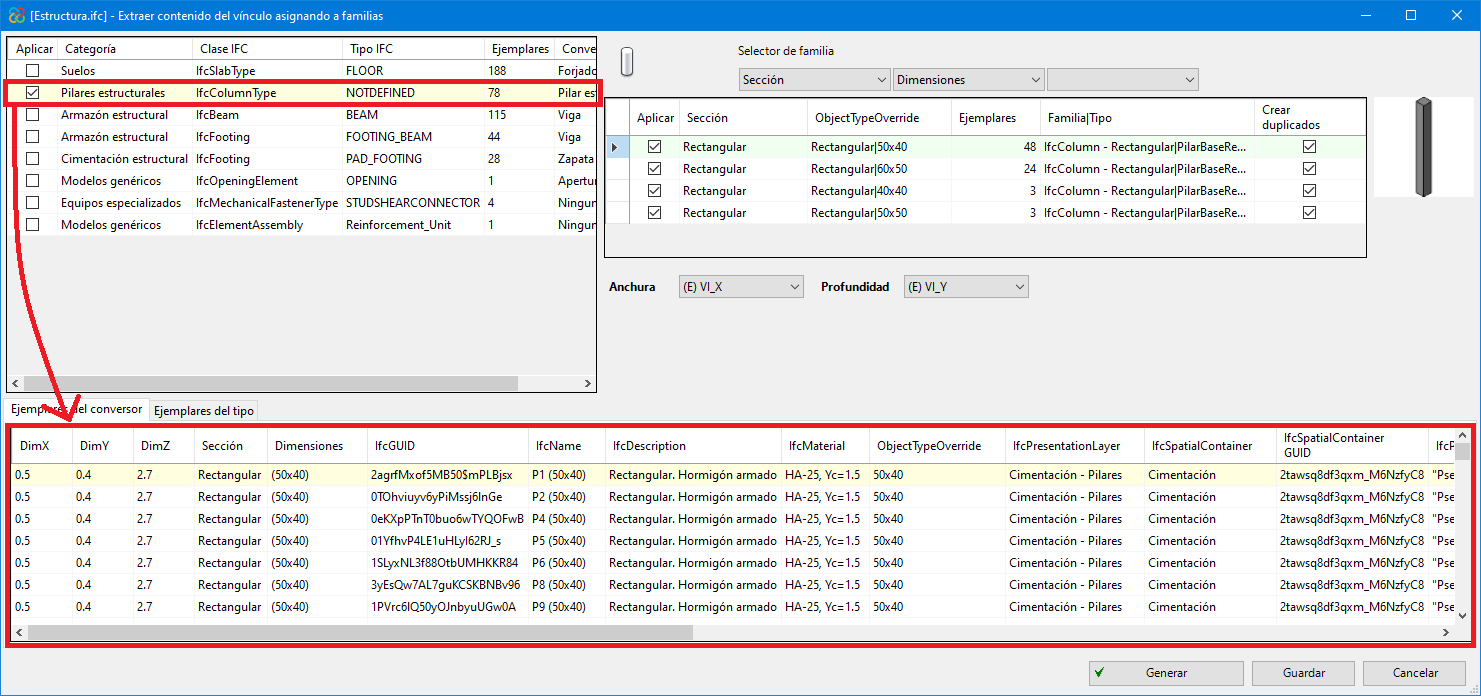
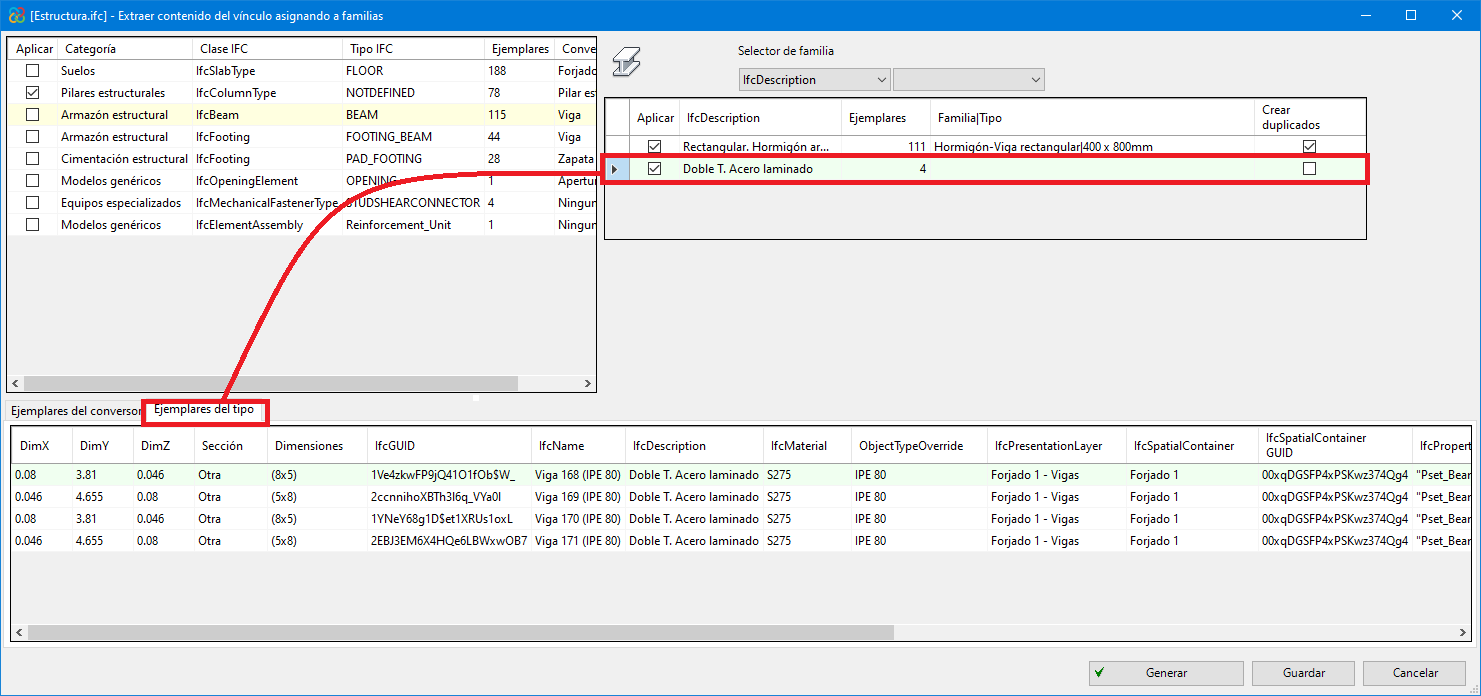
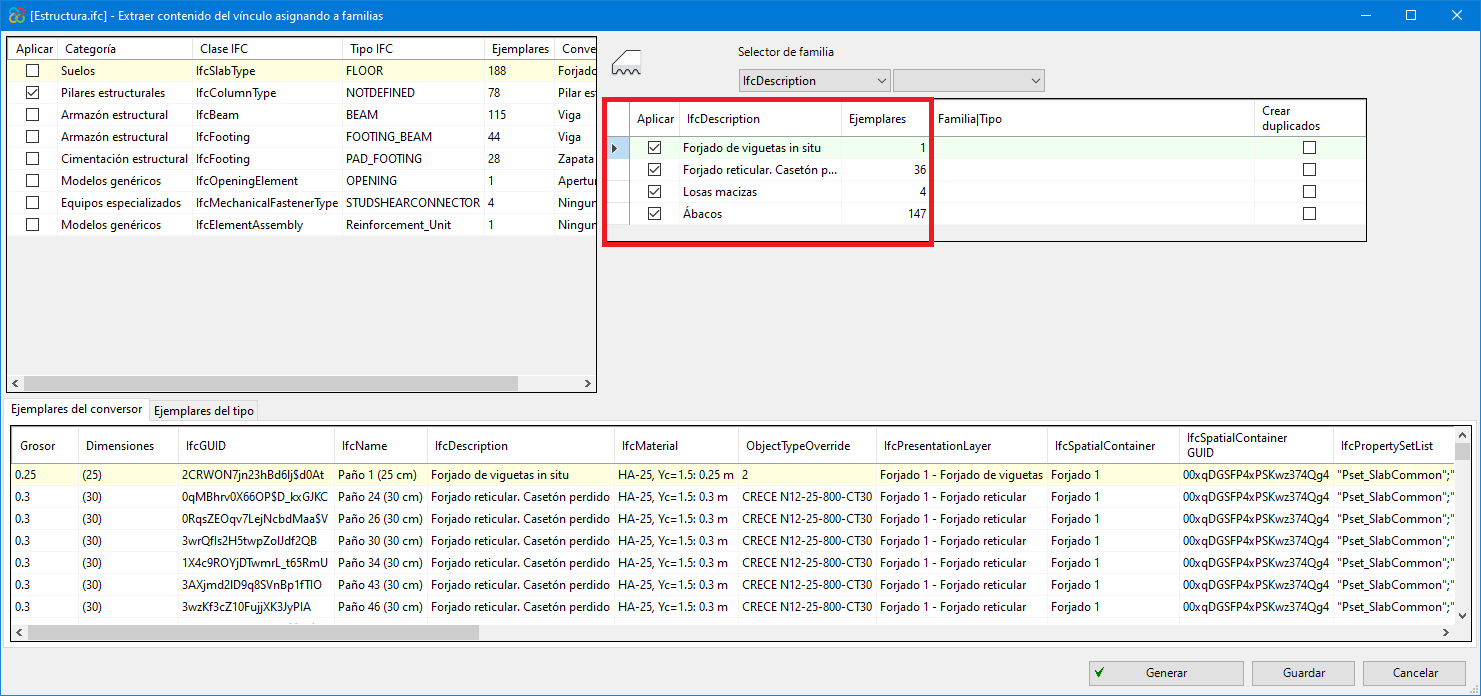
In the highlighted red part of the image, all types are shown together with the instances of the category that have been selected in the "Main section". The existing families in the Revit template can be assigned to them and converted to native.
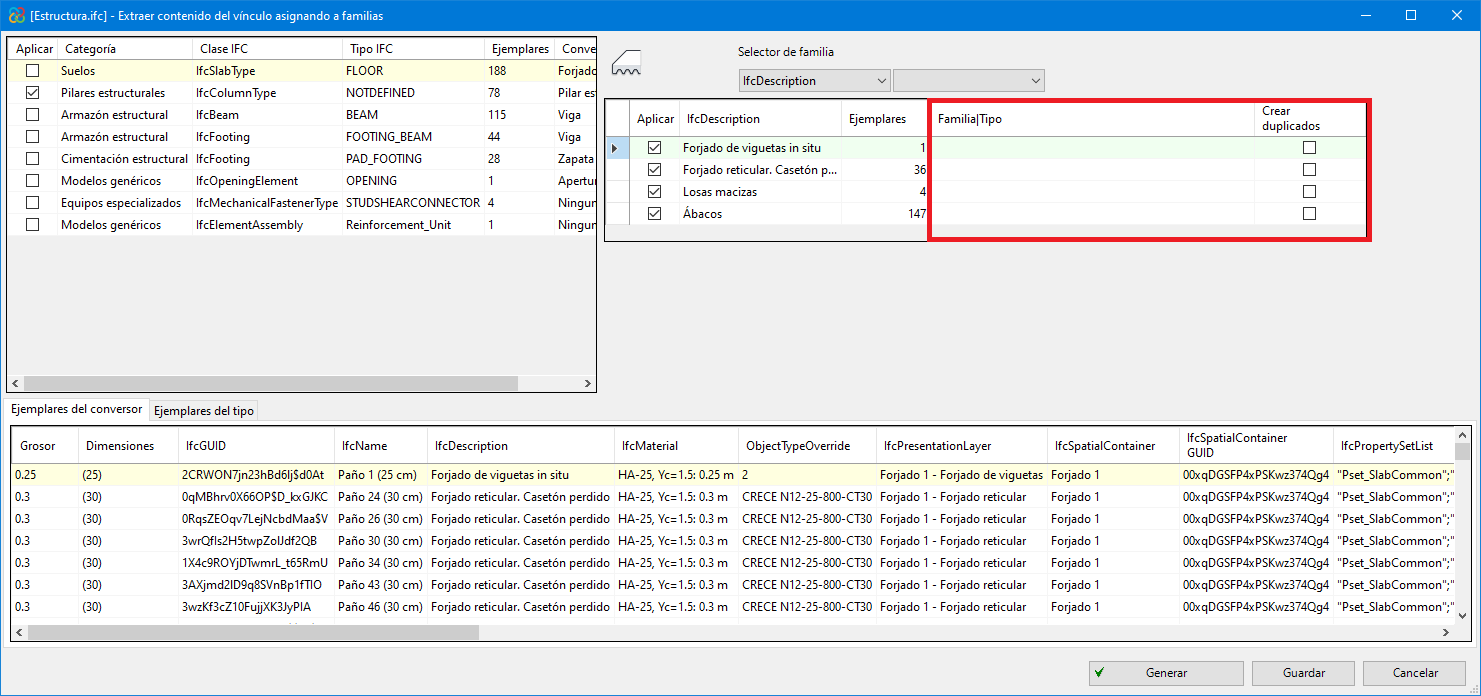
- The same table allows users to create duplicates if the assigned family contains type parameters and not instance parameters ("Create duplicates" column).
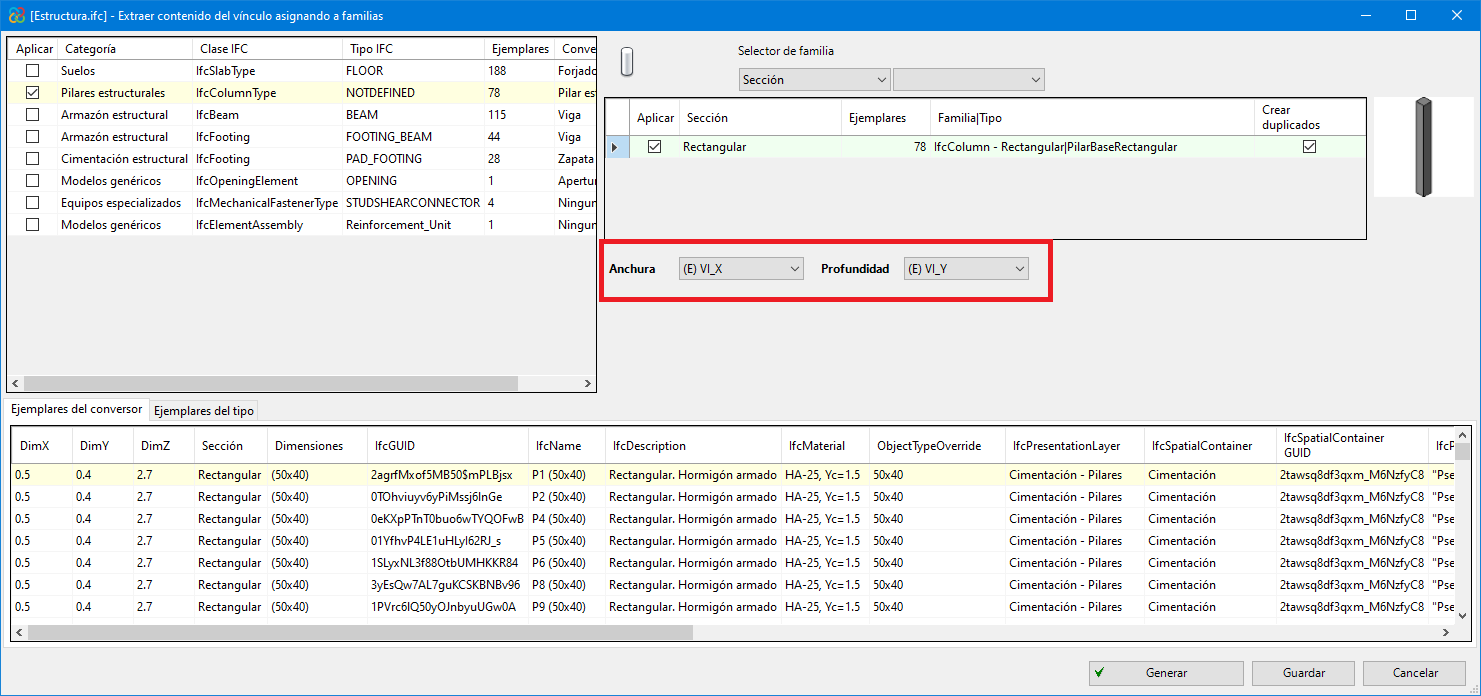
- When assigning a family with instance parameters, users must assign the parameters of the family with no need to duplicate types (users are recommended to load the families that are necessary and are not included by default in the Revit template before exporting).
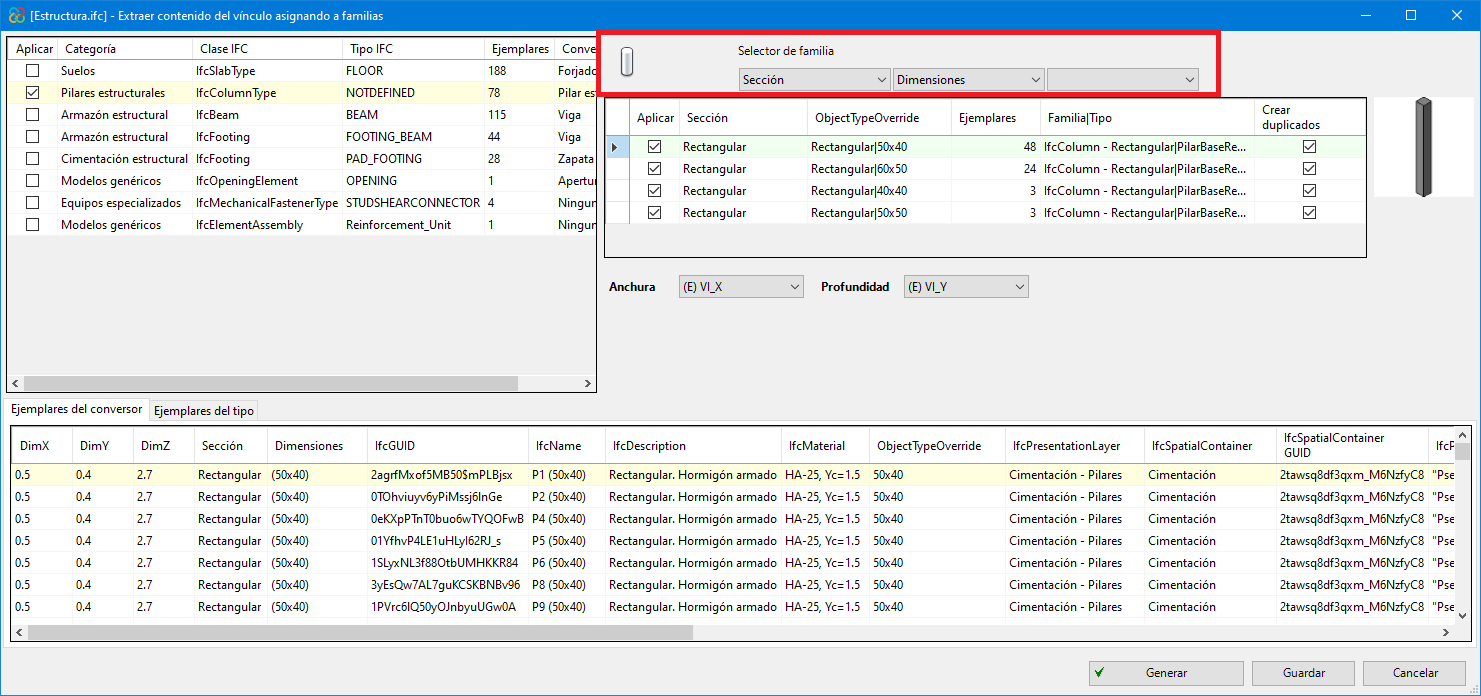
- Several filtering buttons are available to make the workflow easier for the users, allowing them to view different types of instances.
- Converter instances/Type instances
In the bottom part of the dialogue box "Extract contents of the link and assign it to families", the information for all the instances of the converter is displayed or, in the case of selecting a specific type, only the information for the instances of this type can be seen.