
Installation
The Open BIM-Revit Plugin is installed on the same device as Revit. Please note that the LT version of any Revit version does not support the installation of add-ons.
The plugin can be installed in two ways:
- From CYPE Menu, in the "Interoperability" section, click on "Plugin Open BIM – Revit" to automatically install the selected version. During the process, consider the "Installation scope", which has two options: installation for the current user or for all users. These options will determine where the plugin will be installed, with the current user option taking precedence.
- From BIMserver.center, in the Store, click on "Download" and run the Open BIM - Revit Plugin installer in the desired version. As in the previous option, you will need to consider whether you want to install it for the current user or for all users.
Once installed, if you run "Plugin Open BIM - Revit.exe" without administrator permissions, a window will open showing the Revit versions installed on the machine, the available version of the plugin to be installed, and which Revit versions have it installed. From this window, you can install the plugin on the available Revit versions. Normally, this .exe executable is located in the following path: C:\CYPE Ingenieros\**Version**\Plugin Open BIM – Revit.
| Note: |
|---|
| The common part of the plugin is compatible with Revit versions 2016 to 2026, and the part related to the generation of native Revit elements is compatible with Revit versions 2022 to 2026. |
Plugin components
In the Open BIM - Revit Plugin, we can distinguish between two sets of features. Each of them responds to specific needs within the collaborative workflow and the conversion of information to native Revit elements.
1. Common part
The first of these parts, or the common part, brings together all the general features related to the integration of Revit into the Open BIM workflow.
From this section, users can link their project to the BIMserver.center platform, share model updates, check the status of the project and, if necessary, cancel the collaboration. In addition, this section includes a set of tools for working with IFC links, allowing users to extract the content of these links to the Revit document (DirectShape), reverse this extraction if necessary, and keep the project updated within the collaborative environment. Along with these tools, the common section also offers an Open BIM information panel that allows users to track the progress of the project, specific options for IFC parameter management, and a set of additional tools such as electronic licence management, direct access to online help, and application information.
In short, it is a section that brings together all the resources necessary for users to work in coordination with other agents and maintain constant control over the status of the project.
2. Revit native element generation part
The second part of the plugin is geared towards generating native Revit elements and is one of the most notable aspects of the app. While the first section focuses on collaboration and link management, this section aims to convert data from IFC models into native entities that are fully editable within Revit. To do this, the plugin uses the "Extract link content and assign it to families" tool to generate a native Revit model, so that the imported information is not limited to being a simple IFC link, but becomes part of the native model.
This tool is available for converting structural IFC and reinforcement links. In addition, to use this tool, you must have a paid module (see the "Licenses and related modules" section).
| Best practice: |
|---|
| When generating native Revit elements from a structural IFC, it is essential to work with a Revit file that uses the structural template. This ensures a smooth import and better integration of the elements into the model. |
Plugin Open BIM - Revit
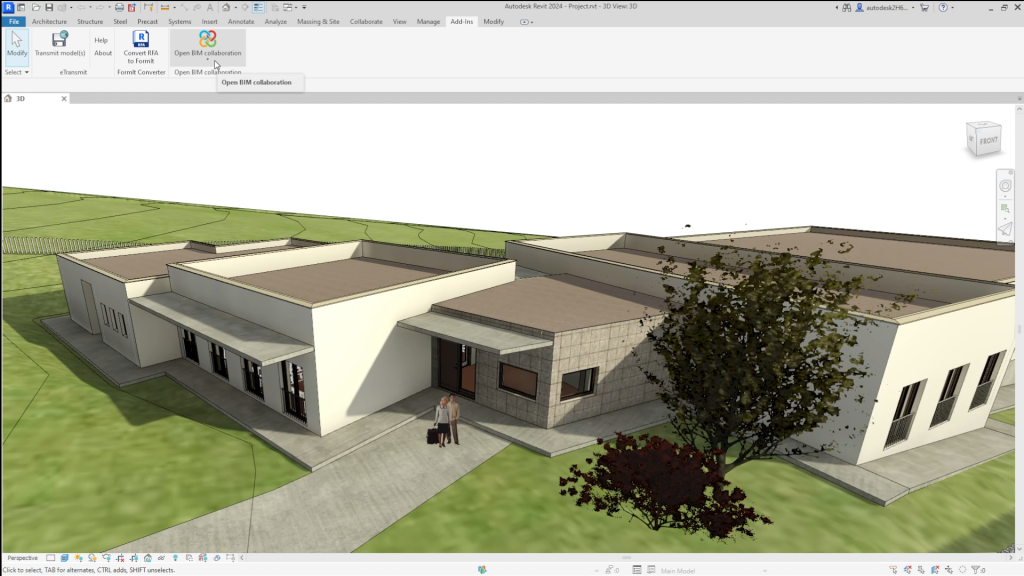
In the "Add-ins" tab, in the "Open BIM collaboration" panel in Revit's main toolbar, there are options available for the Open BIM - Revit Plugin.

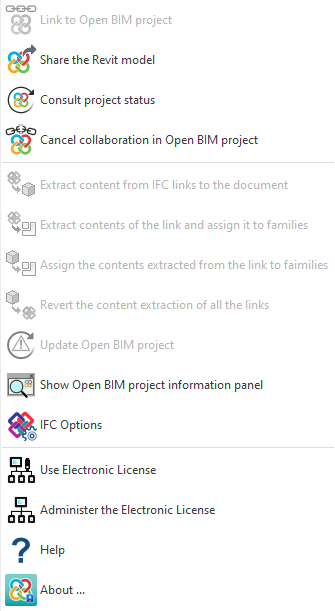
There are three separate sections in the drop-down menu.
The first section contains the tools needed to synchronise the project with the BIMserver.center platform.
- Link to Open BIM project
- Share the Revit model
- Consult project status
- Cancel collaboration in Open BIM project
The second section contains tools for managing the content of IFC links.
- Extract content from IFC links to the document
- Extract contents of the link and assign it to families
- Assign the contents extracted from the link to families
- Revert the content extraction of all the links
- Update Open BIM project
- Show Open BIM project information panel
- IFC options
The third section covers license management and the help and information available.
- Use Electronic License
- Administer the Electronic License
- Help
- About...
Open BIM collaboration
With the “Open BIM - Revit Plugin”, users can start an Open BIM project directly from Revit. This way the Revit model can be communicated with the CYPE models, thus achieving two-way collaboration in real time between the different disciplines of the project and Revit through the exchange of IFC files. This improves communication between Revit and the set of specialised CYPE tools, optimising the BIM workflow.
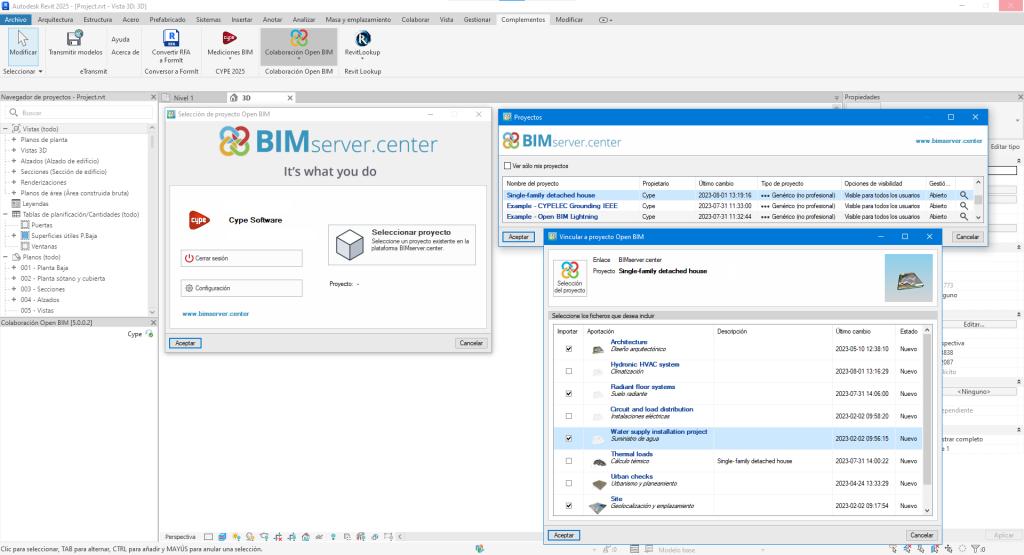
Linking to an Open BIM project
With the “Link to Open BIM project” tool, users select the BIMserver.center project that they want to connect to. Once the project has been selected, the different contributions included can be incorporated to extract information or coordinate with the Revit model.
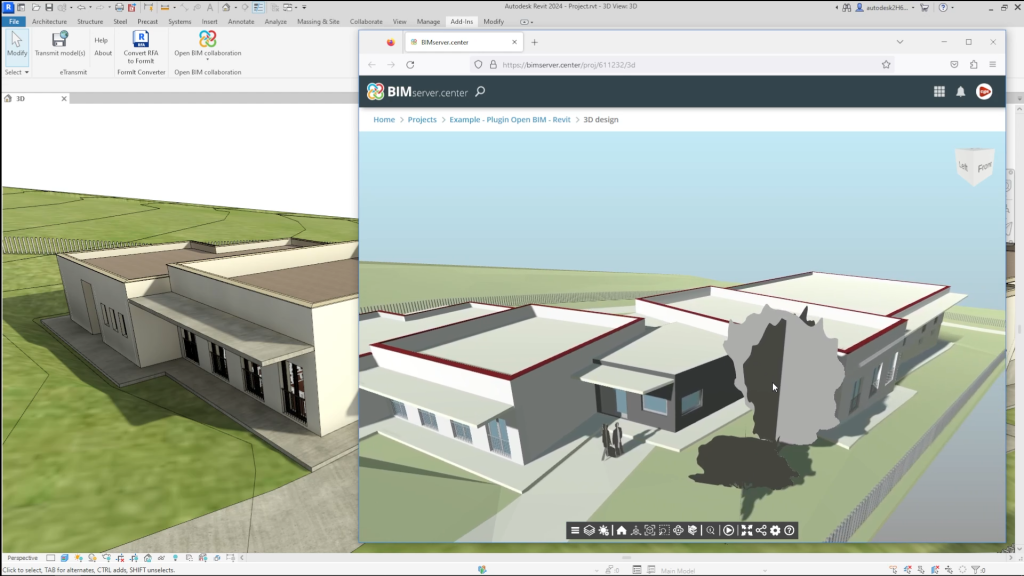
Sharing the Revit model
With the “Share the Revit model” tool, users can extract the information from the Revit model by generating files in standard IFC format to then incorporate it into the project on the BIMserver.center platform to which it is linked.
Users can select a local destination for the project or use BIMserver.center to share the project with other collaborators.
Once the project is created, an IFC file of the current model is generated.
| MMore information: |
|---|
| The possibility of working in collaborative environments by storing central models both on third-party platforms and in Autodesk's cloud, Autodesk Construction Cloud, has been implemented. This ensures the correct functioning of the plug-in's features and tools in a collaborative work environment. |
Checking the status of the project and updating the Open BIM project
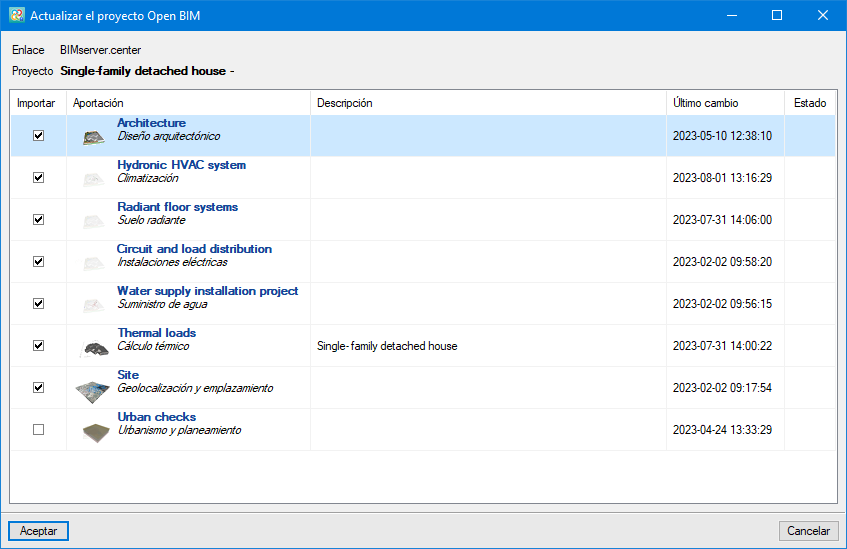
With the “Consult project status” tool, users can check for possible changes in the project's IFC files.
The program reports any changes that have been generated in the projects of the different disciplines and allows users to decide whether they wish to update the project information.
IFC files that still need to be linked can be selected or some of the previously linked IFC files can be deleted.
Cancelling the Open BIM project collaboration
With the ”Cancel collaboration in Open BIM project” tool, the messages concerning the collaboration with the Open BIM project are deactivated and all links to IFC files are optionally removed.
Extracting content from IFC links to the document
With the “Extract content from IFC links to the document” tool, users can convert the linked IFC model into a set of individual objects (DirectShape), which makes it possible to delete or modify the position of these objects and, alternatively, to modify the parameters of the associated elements. Furthermore, the linking to native Revit categories allows them to be filtered, tagged and listed in tables.
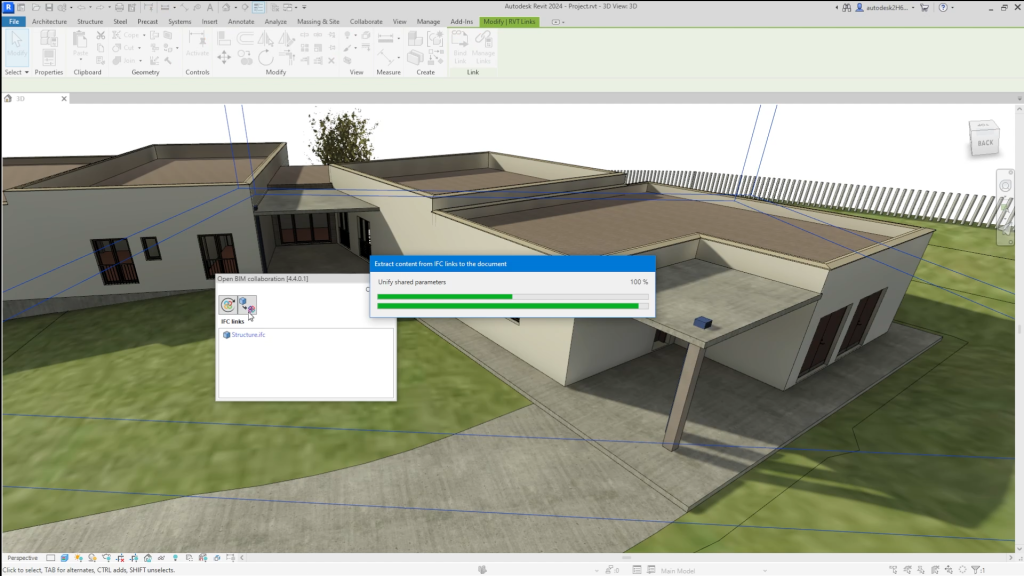
For the analysis and documentation of models, the conversion process adds a significant advantage: bringing the shared parameters together. Linking IFC models to a Revit project requires the association of individual IDs to each IFC property or attribute. The consequence of this process is that the same attribute or property receives different IDs in different links, requiring the definition of the specific shared parameter file for each operation to be performed on each of the linked models. By extracting the content of the IFC links, this tedious operation is no longer necessary; the plugin takes care of joining the shared parameters so that users are not forced to maintain and manage a set of shared parameter files (one for each linked IFC model). This makes the process transparent to the users, who simply have to locate the attribute or property to be listed by its name.
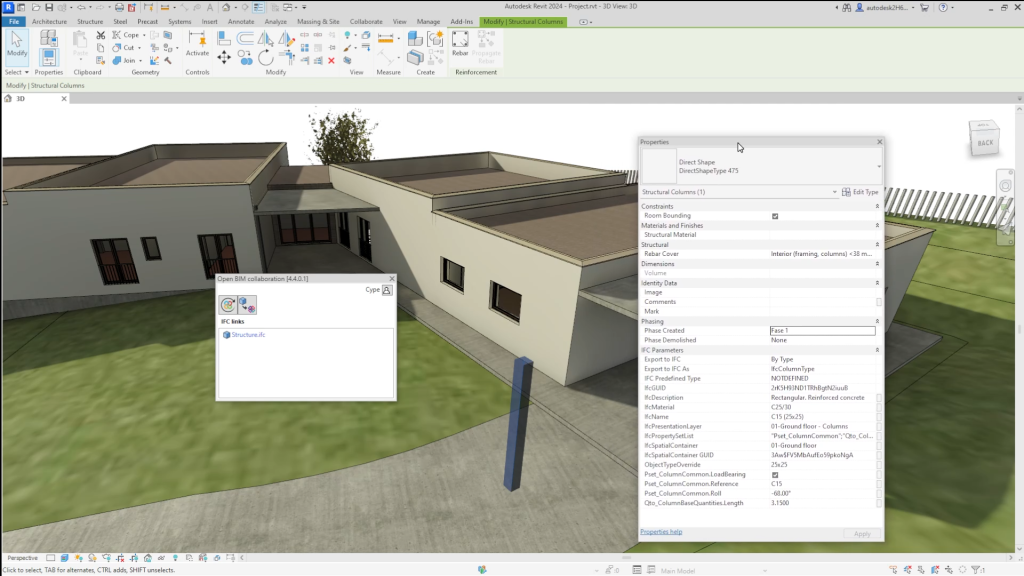
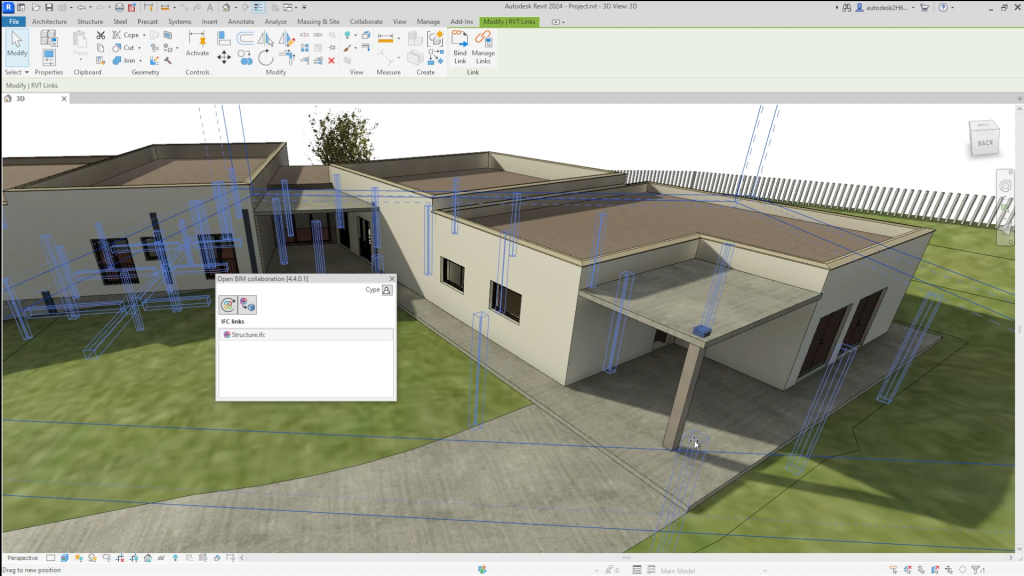
The conversion process is fully reversible. Users can either “Extract content from the link to the document“ or “Revert the content extraction of the link“. This synchronisation of the different models to the project can be maintained in BIMserver.center and this operation can be defined for the federated set of models or individually for each model. The status of each link shall be shown with an icon and a distinctive colour.
Generating native Revit elements based on a structural IFC
The "Generation of native Revit elements based on an IFC" module includes the "Generation of native Revit elements based on a structural IFC" feature. This feature converts a structural model (included in a BIMserver.center project) into native Revit elements by assigning families.
| Best practice: |
|---|
| When generating native Revit elements from a structural IFC, it is essential to work with a Revit file that uses the structural template. This ensures a smooth import and better integration of the elements into the model. |
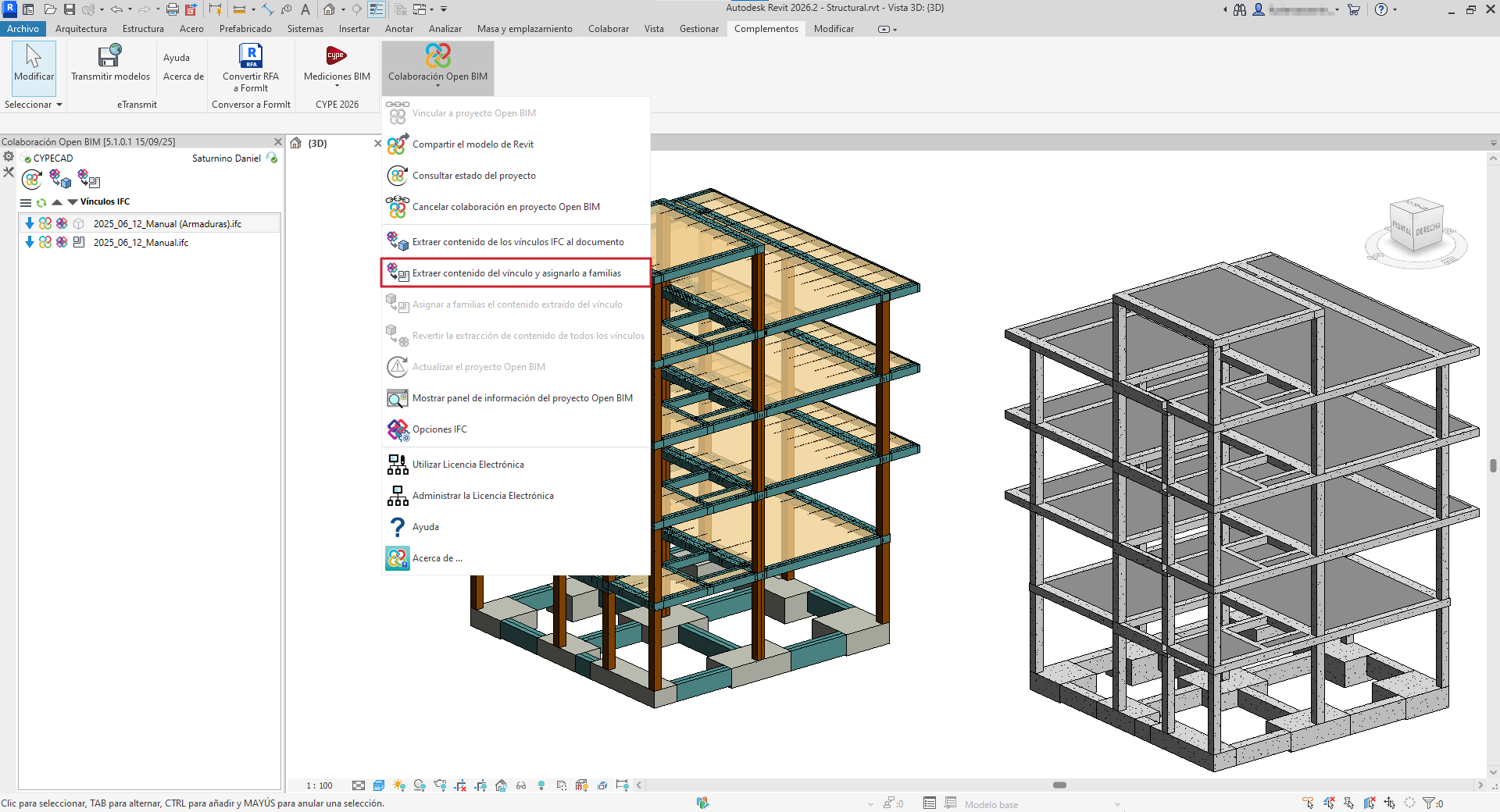
How the “Generation of native Revit elements based on a structural IFC” module works
After selecting the option "Extract contents of the link and assign it to families", a dialogue box with the same name opens. This is how it works:
- Main section
All categories of structural elements detected in the IFC links of the imported model are shown at the top left-hand side and are grouped by class and the IFC type to which they belong. The number of existing instances and the Revit native category to which they are to be converted are also displayed from these groups.
The categories (along with their IFC class) that can be detected and converted to native elements within Revit are:
- Walls - IfcWallType
- Floor slabs - IfcSlabType
- Structural columns - IfcColumnType
- Structural frame - IfcFooting, IfcBeam, IfcMember
- Structural foundation - IfcFooting, IfcPile
- Stairs - IfcStair
- Ramps - IfcRamp
- Opening elements - IfcOpeningElement
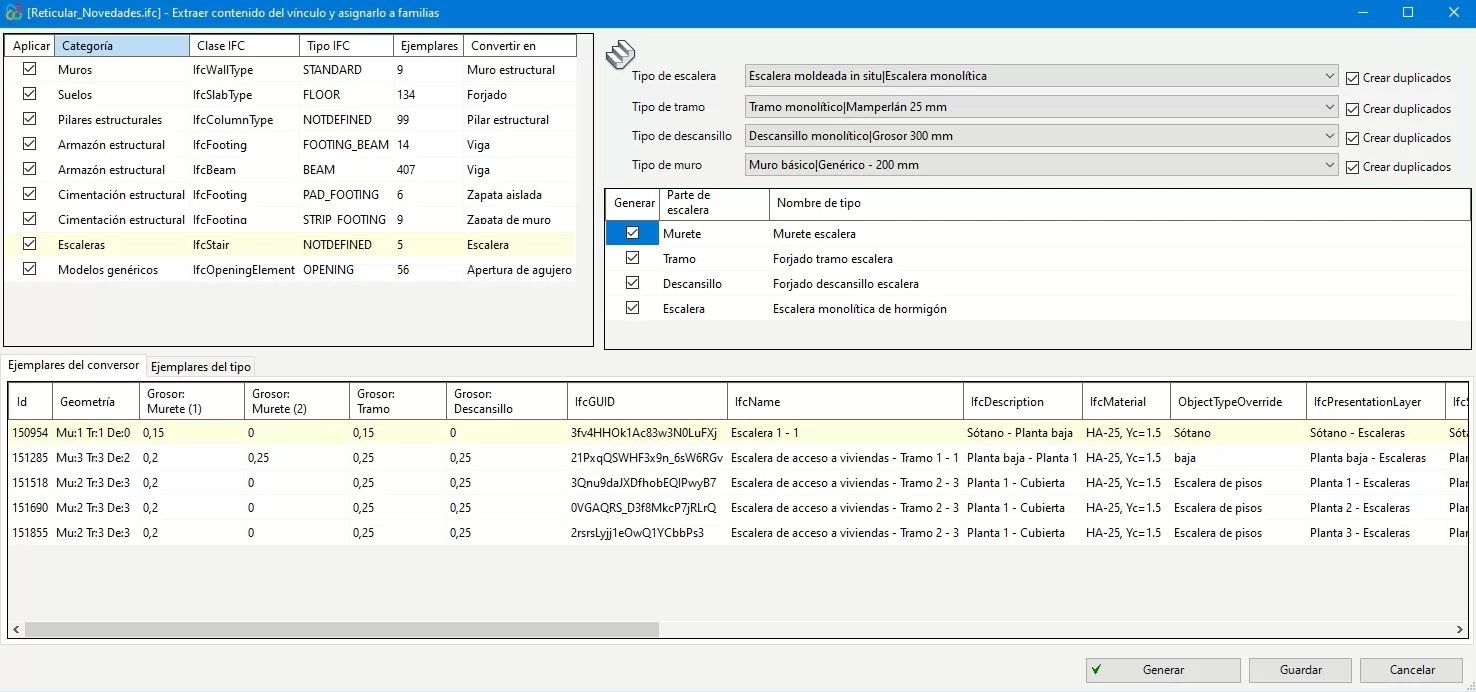
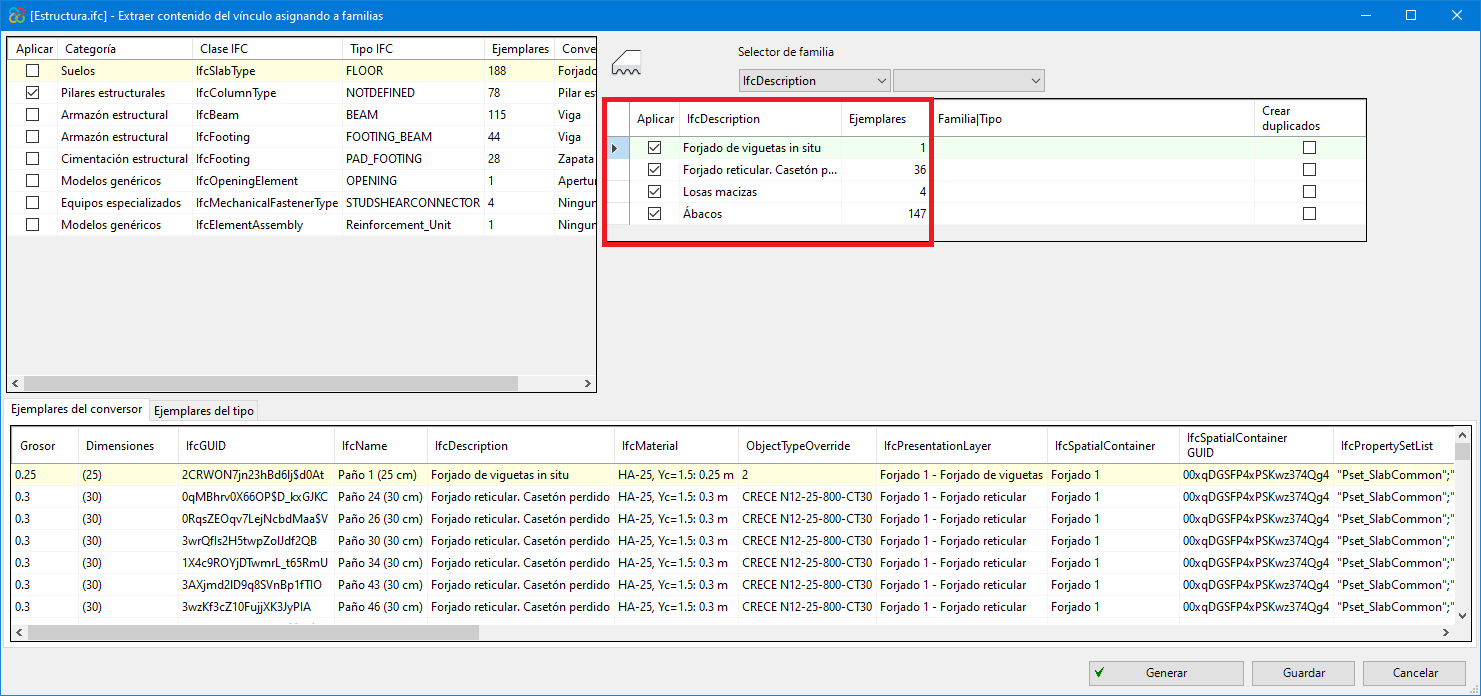
- Revit native family selector (Converter)
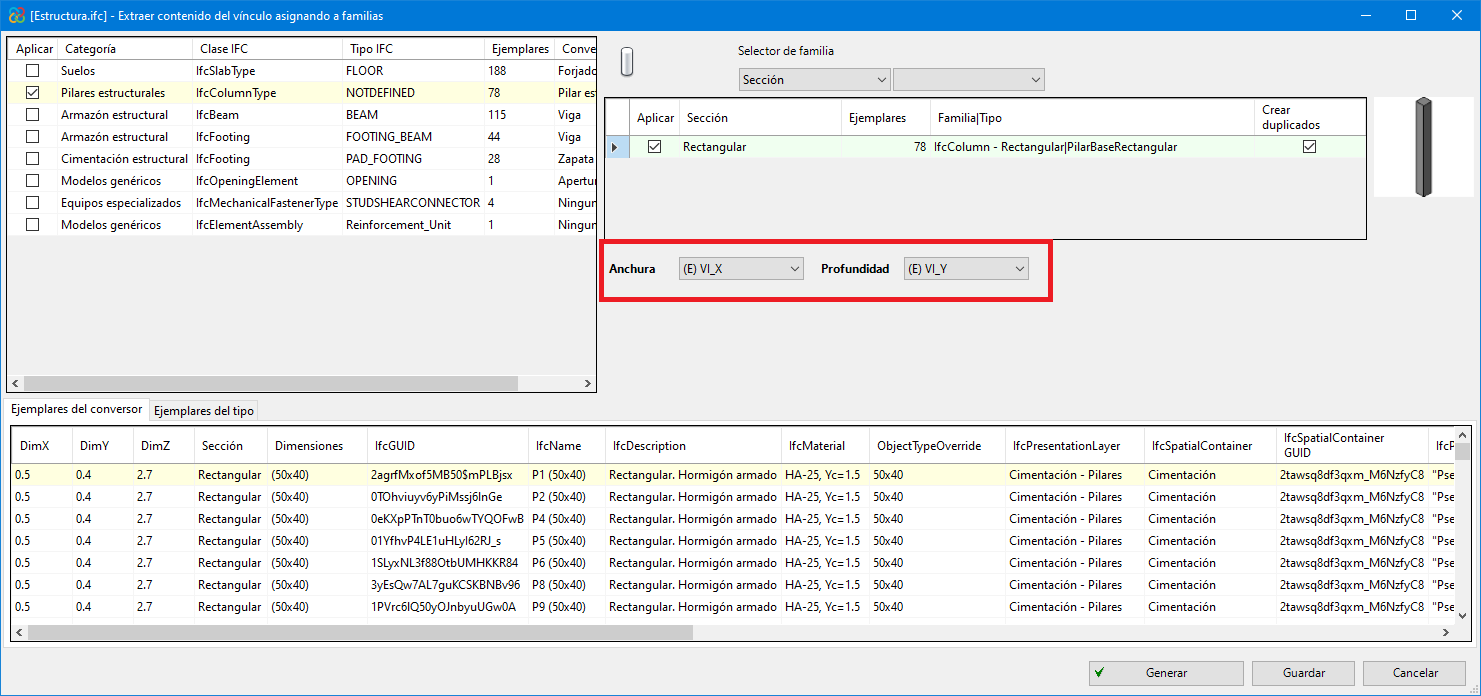
In the highlighted red part of the image, all types are shown together with the instances of the category that have been selected in the "Main section". The existing families in the Revit template can be assigned to them and converted to native.
- The same table allows users to create duplicates if the assigned family contains type parameters and not instance parameters ("Create duplicates" column).
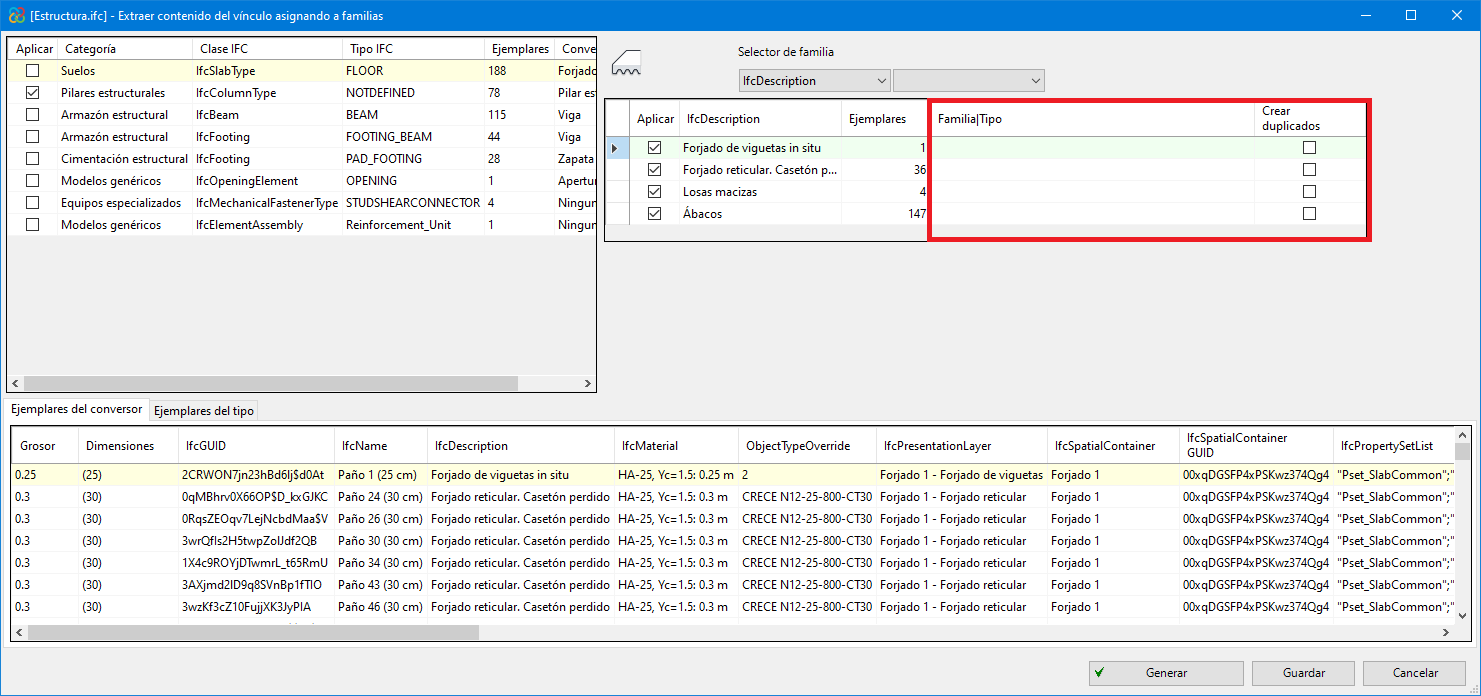
- When assigning a family with instance parameters, users must assign the parameters of the family with no need to duplicate types (users are recommended to load the families that are necessary and are not included by default in the Revit template before exporting).
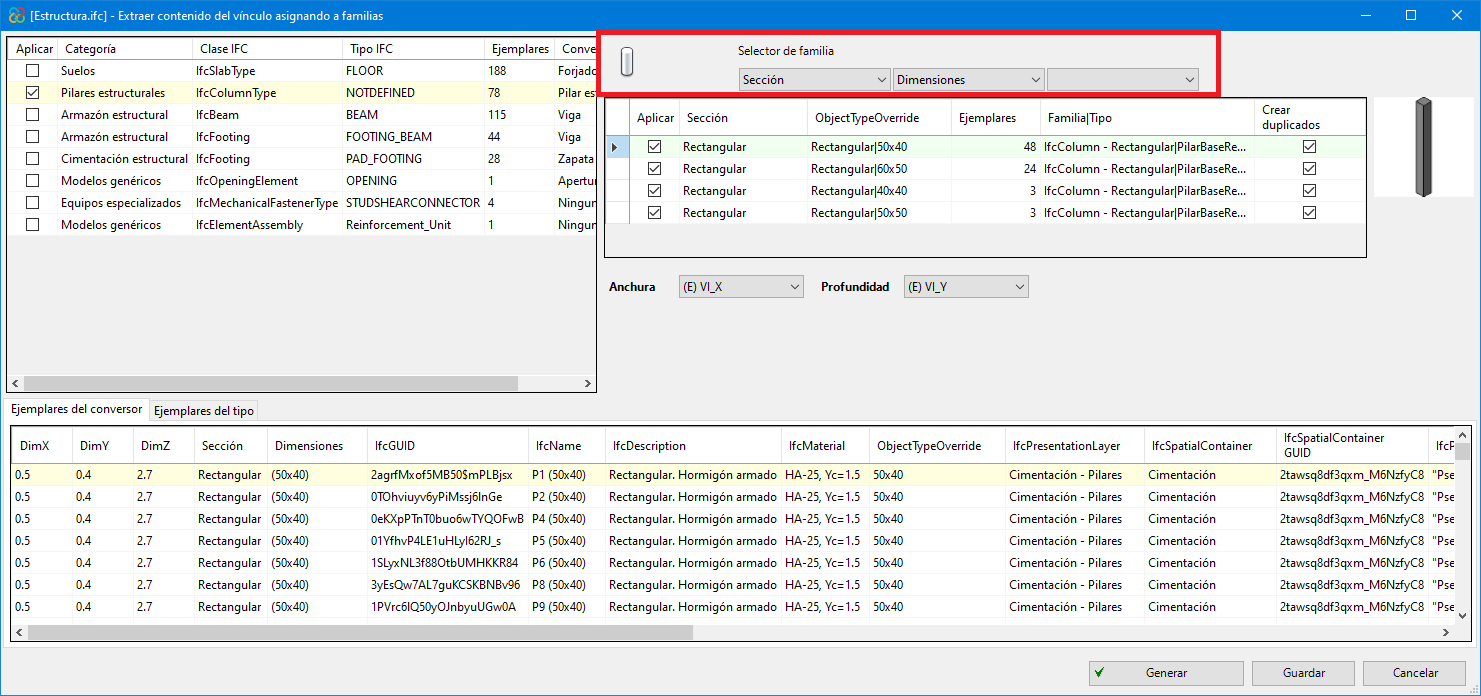
- Several filtering options are available to make the workflow easier for the users, allowing them to view different types of instances.
- Converter instances/Type instances
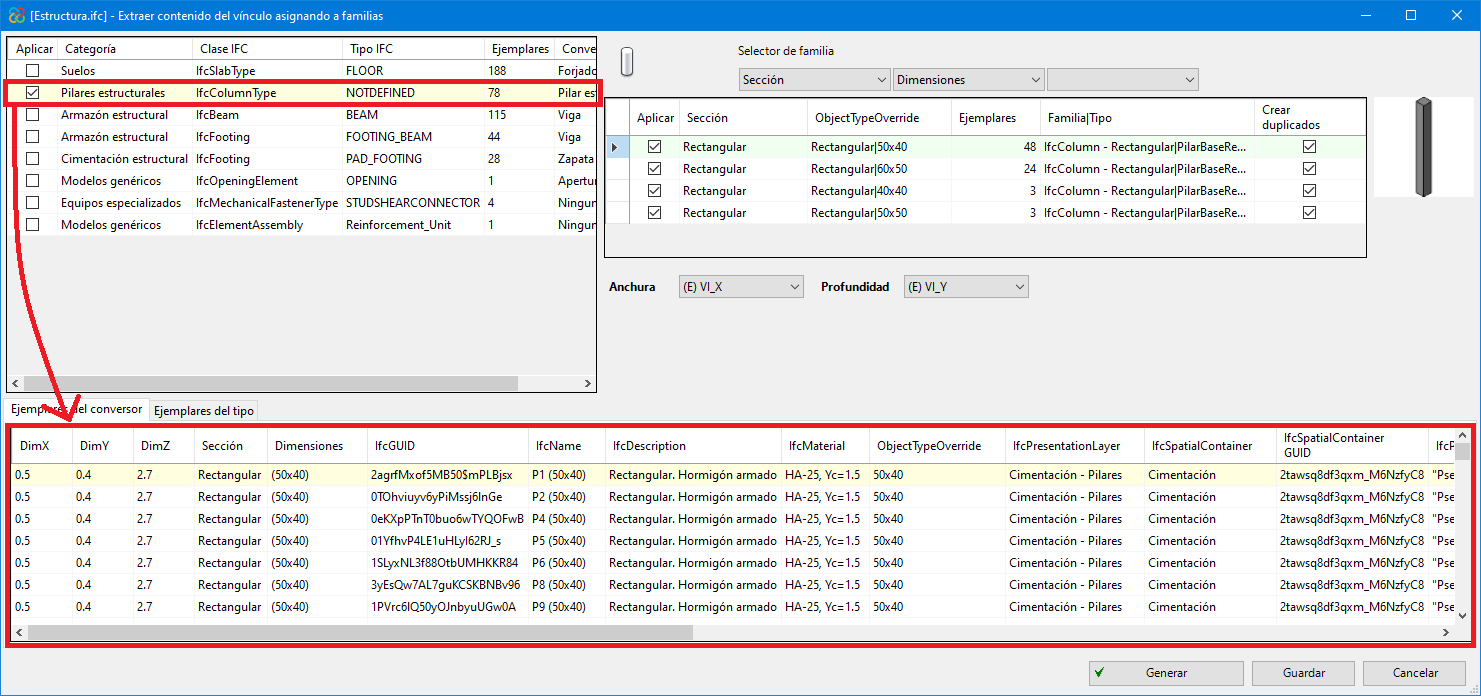
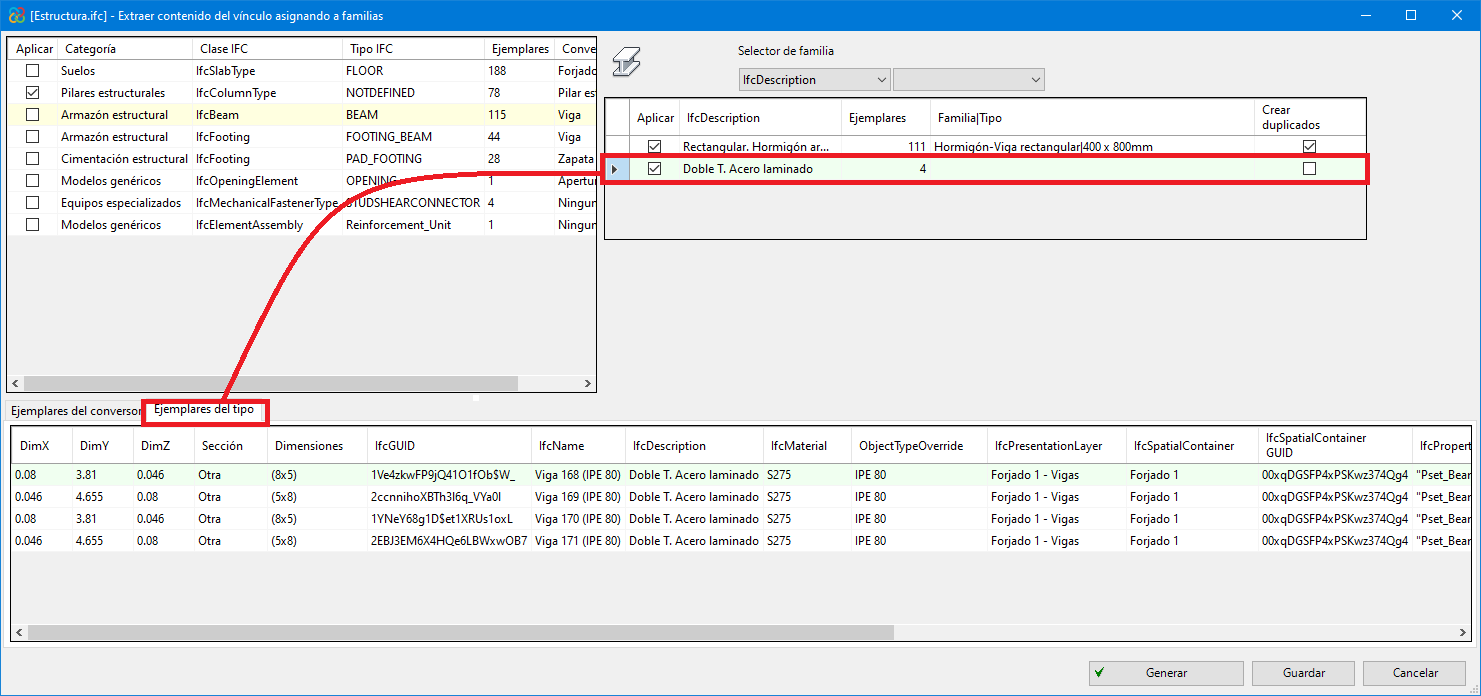
In the bottom part of the dialogue box "Extract contents of the link and assign it to families", the information for all the instances of the converter is displayed or, in the case of selecting a specific type, only the information for the instances of this type can be seen.
Generation of native Revit elements based on a IFC
The "Generation of native Revit elements based on a IFC" module of the Open BIM - Revit Plugin can convert structural IFC links, reinforcement and/or piping systems (included in a BIMserver.center platform project) to native Revit elements through family assignment.
The features of this module are centralised in the "Extract link content and assign to families" option in the "Open BIM Collaboration" panel in Revit.
For more information, please refer to the following links:
Generating reinforcement layouts for native Revit elements
The "Generation of native Revit elements based on a IFC" module extends its features with the "Generation of reinforcement rebars to native Revit entities" tool. This tool converts reinforcement models (included in a project on the BIMserver.center platform) to native Revit entities.
| Note: |
|---|
| To convert reinforcement layout (generated in CYPECAD) to native Revit entities, you must check the following boxes in CYPECAD, under the "Export" option in the "BIMserver.center" menu: "Reinforcement" + "One IFC file with all the floors" and/or "One IFC file per floor" + "Include the description of the bars in BVBS format in the IFC files". For more information, please refer to this link. |
Converting reinforcement to native Revit elements using the new tool requires prior conversion of the host structural elements, such as beams, columns, floor slabs, footings or any other structural element containing reinforcement.
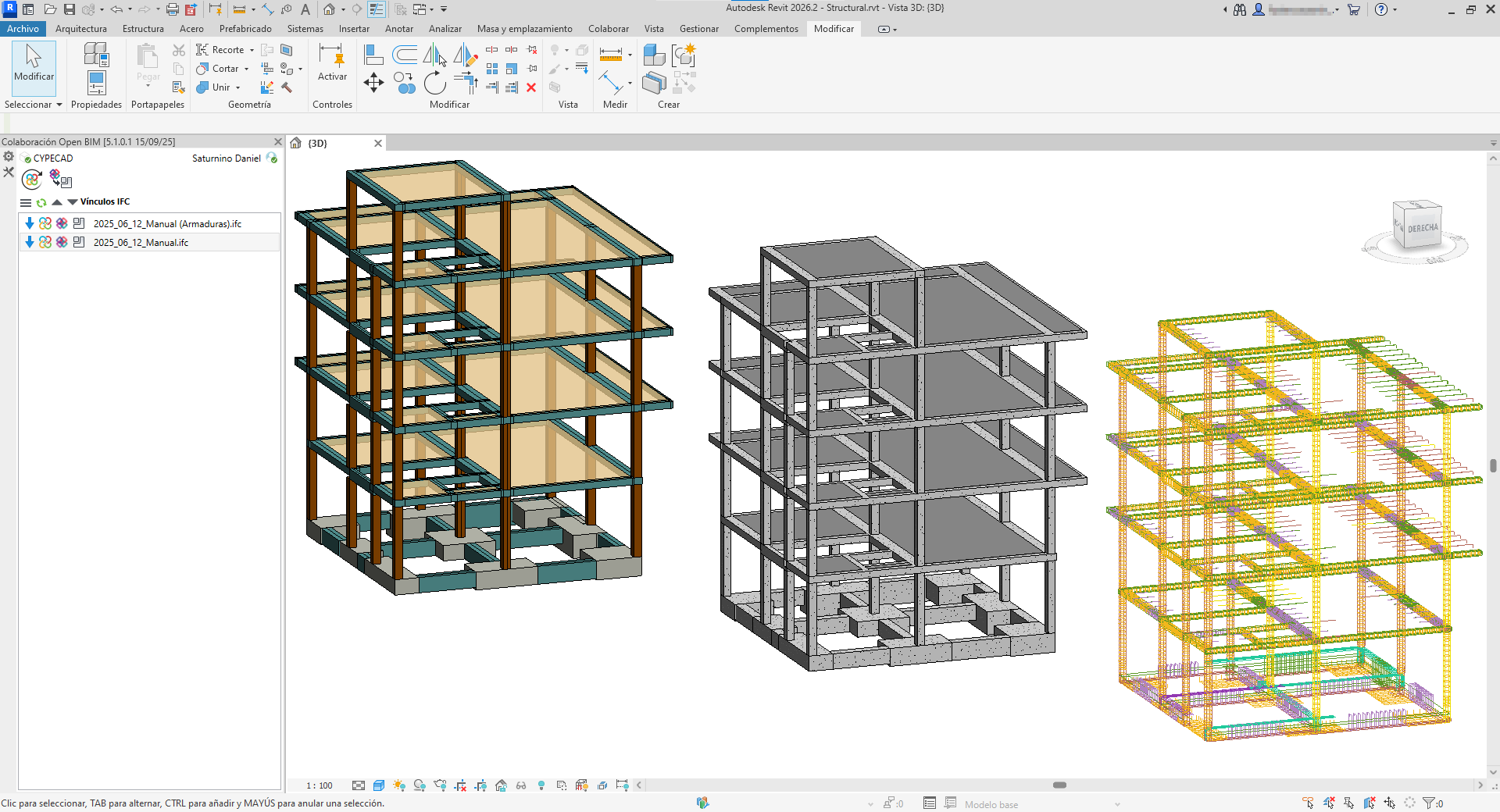
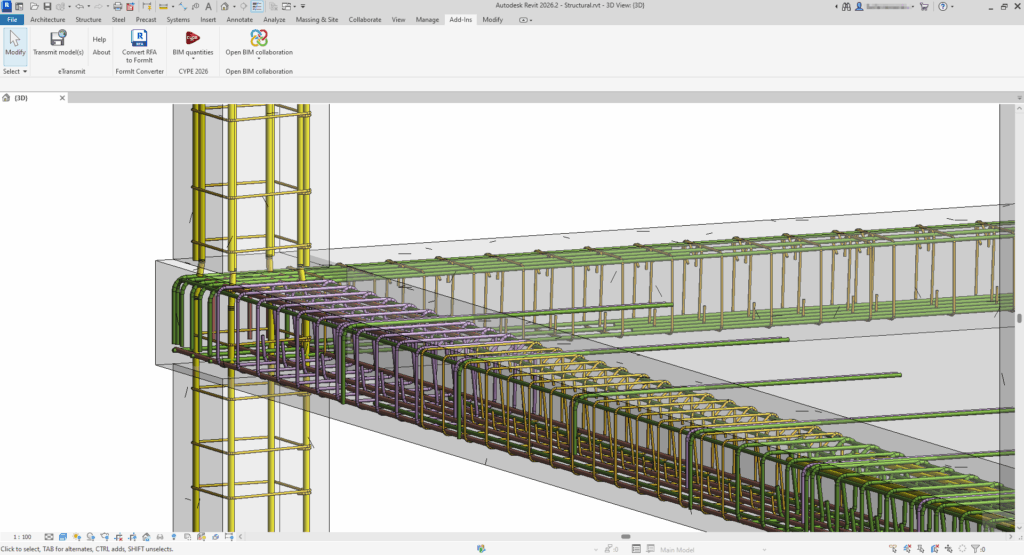
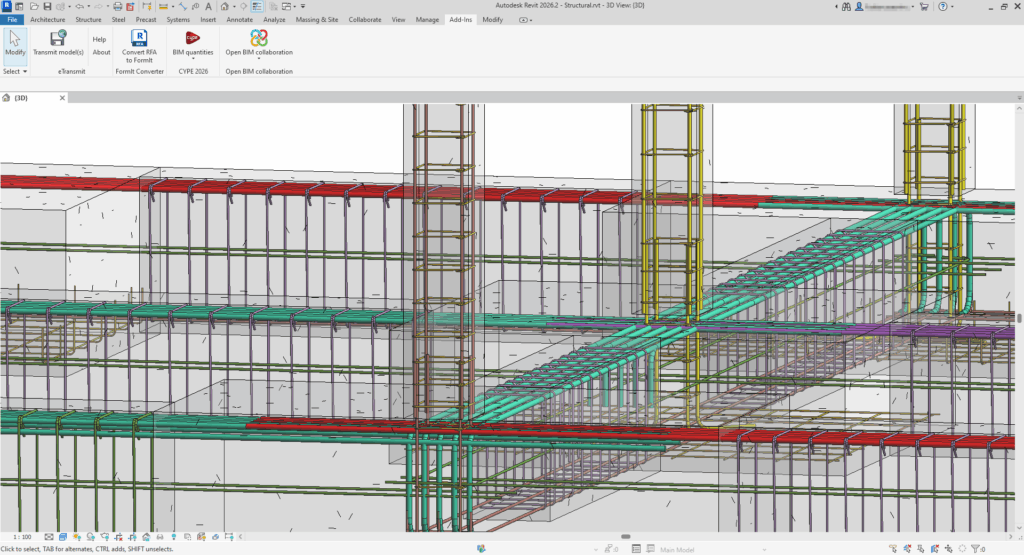
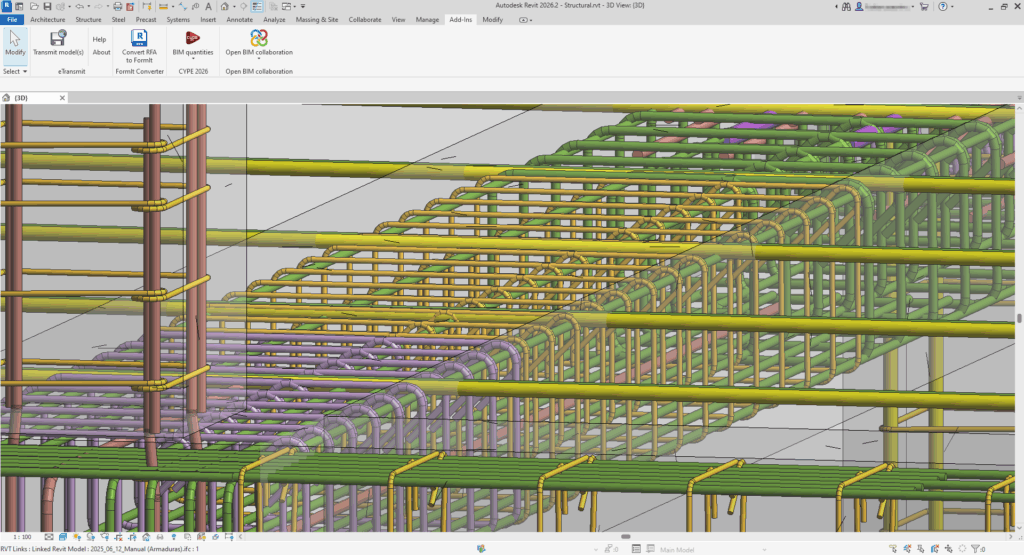
How to use the "Generation of reinforcement rebars to native Revit entities" tool
After selecting the "Extract link content and assign it to families" in a structural reinforcement IFC link option, a dialogue box with the same name opens, the operation of which is described below:
- Main section
In the main section, the categories to be converted to native entities are shown. In this case, as it is a reinforcement IFC, only the category "Structural reinforcement" will be shown. In the same way, the IFC class and the number of existing specimens in the IFC are shown.
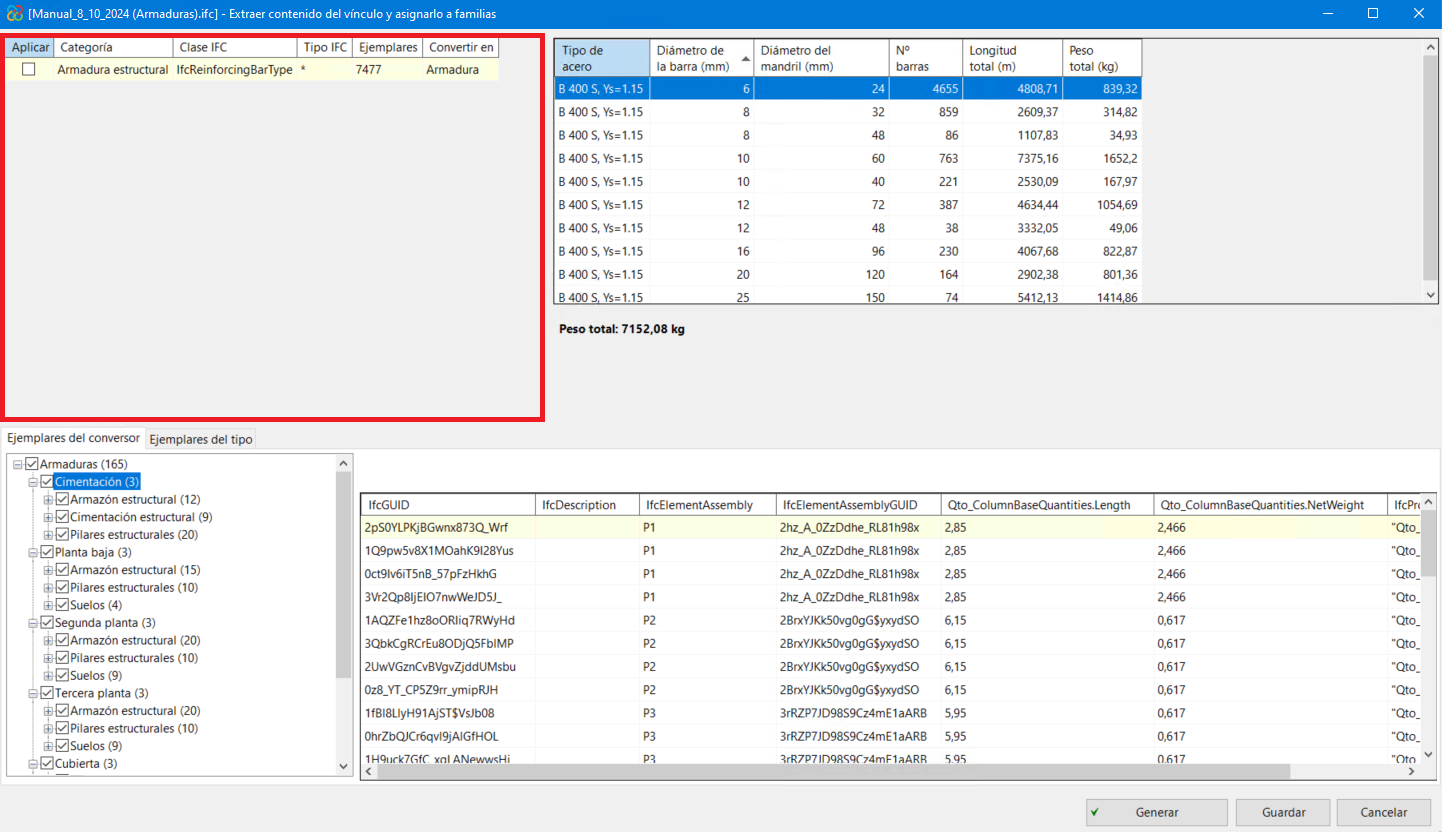
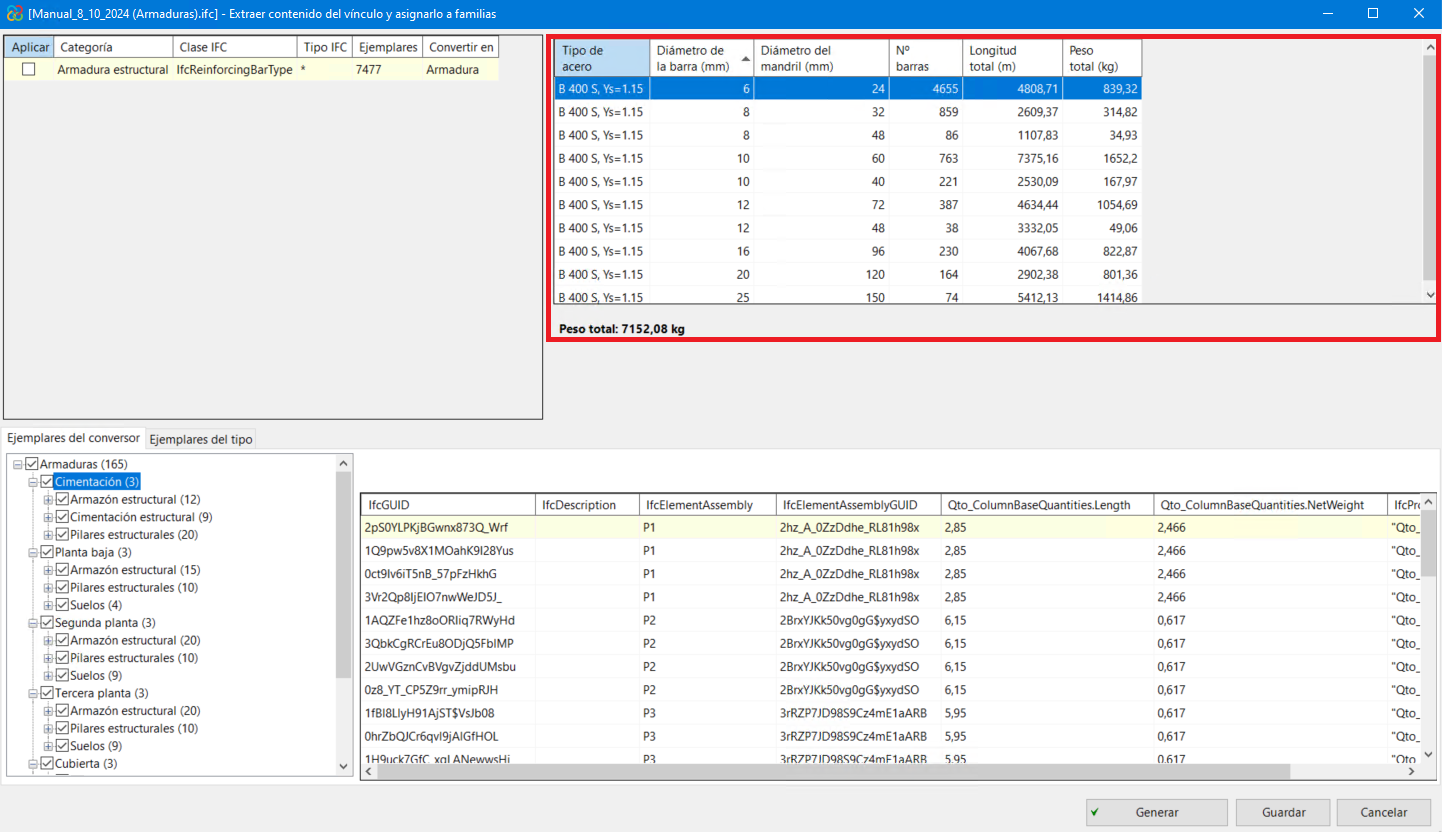
- Quantities/amounts information panel
Information on steel quantities is presented here. This information is classified by steel type, bar diameter and mandrel diameter. At the bottom of the table, there is also a summary of the total weight of steel expressed in kilos.
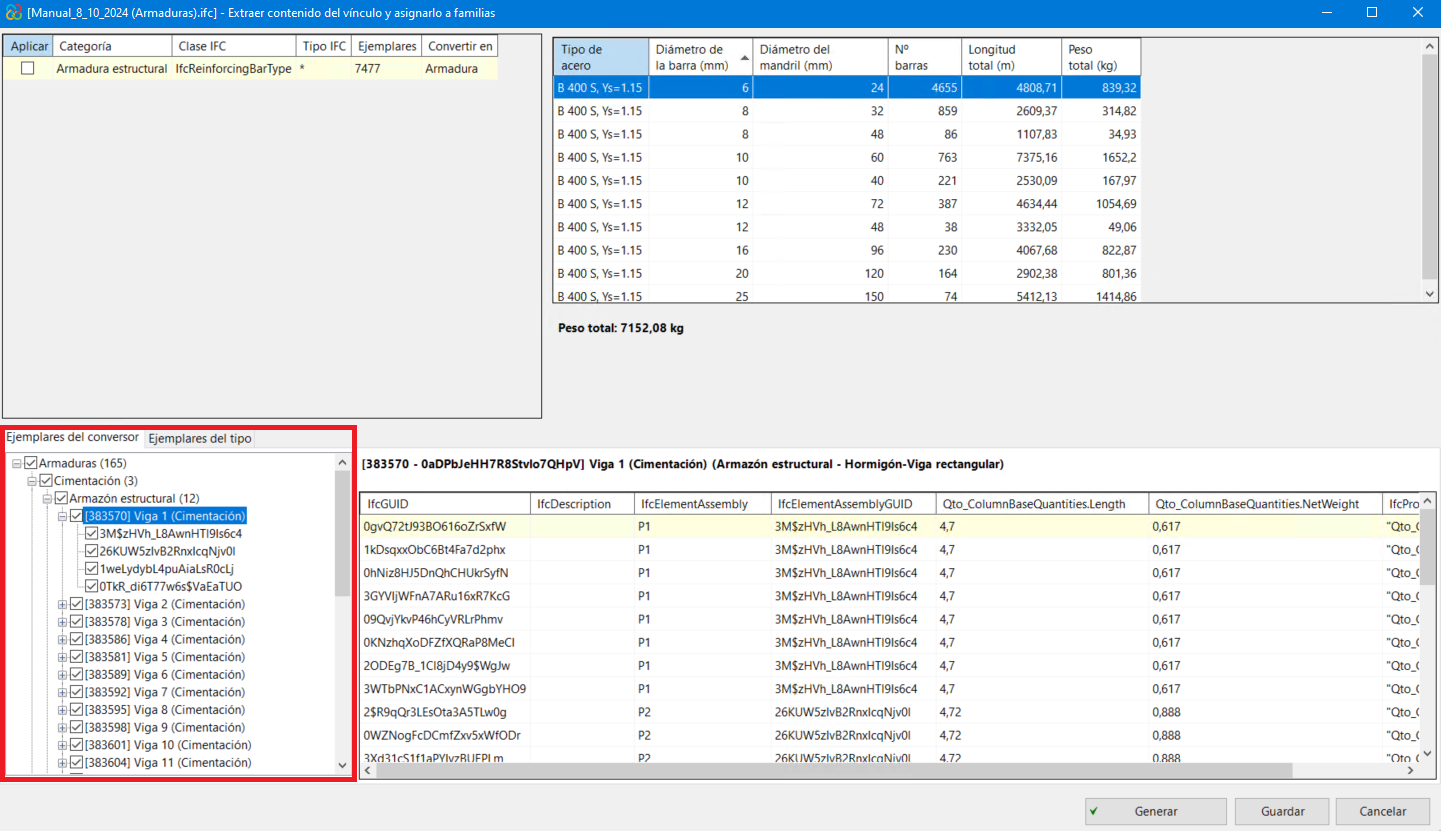
- Converter examples
In the bottom-left panel, the hierarchy of the converter examples is shown. This hierarchy is set in descending order:
- General reinforcement (covering the whole model).
- Floors or levels in the model (foundations, ground floor and following floors).
- Categories of Revit structural elements belonging to each level (structural framing, structural columns, etc.).
- Single structural element.
- Reinforcement assemblies (sets or groups of bars forming the total reinforcement of a structural element).
- General reinforcement (covering the whole model).
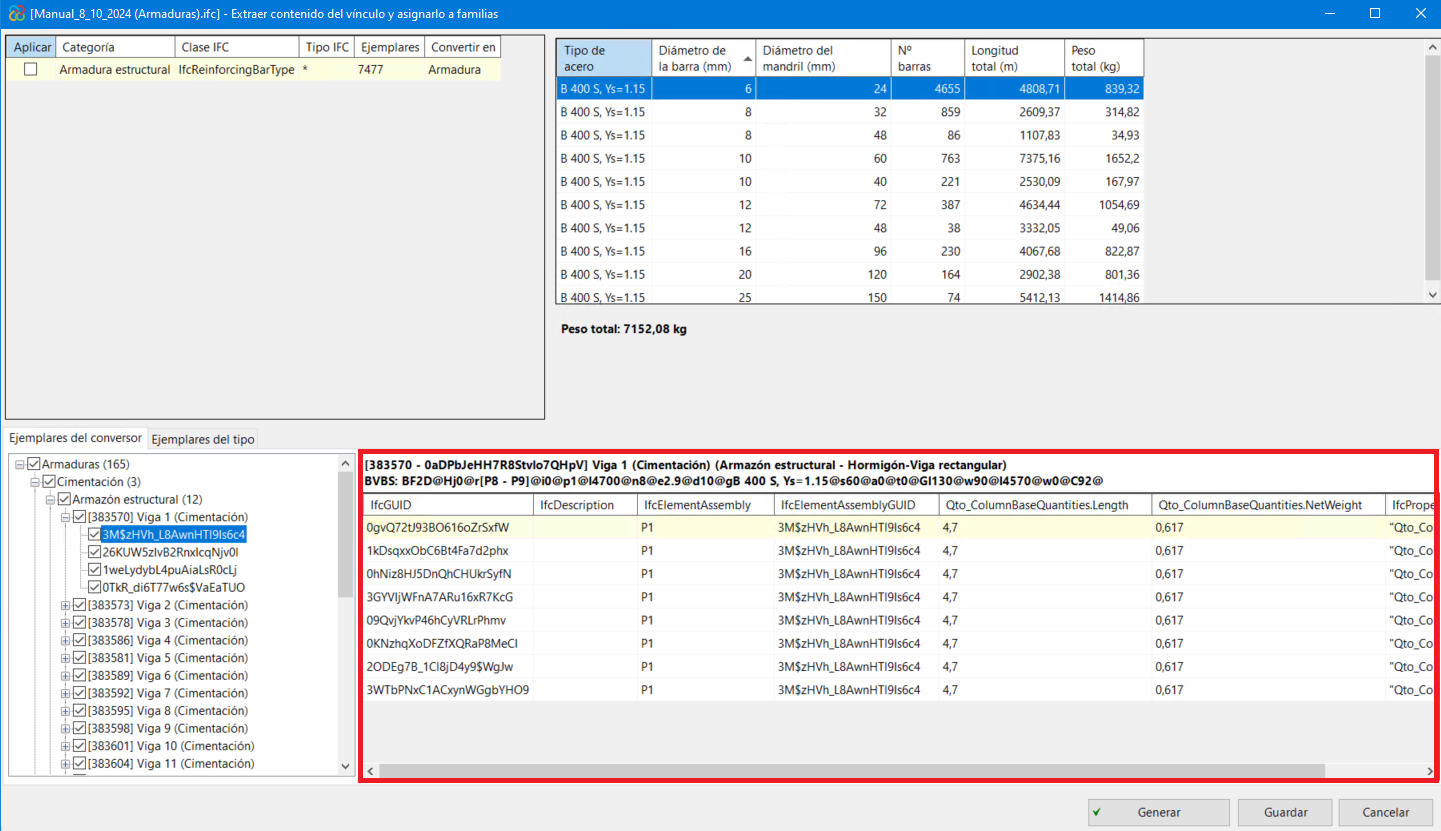
- In the bottom-right panel, the information concerning each bar in each assembly is shown.
Generating native Revit elements from an IFC file of piping systems
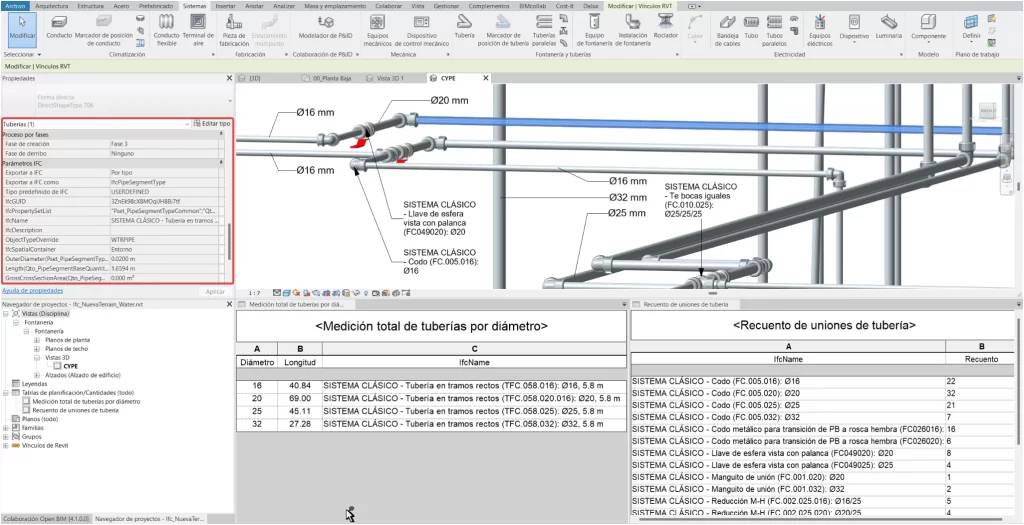
The "Generation of native Revit elements" module includes the feature "Generation of native Revit elements from an IFC of piping systems". This feature allows the conversion of an MEP model (included in a BIMserver.center project) to native Revit piping systems by assigning families.
You can generate complete pipe systems, including not only systems, pipes and joints, but also pipe insulation, equipment and pipe fittings.
| Best practice: |
|---|
| When generating native Revit elements from an IFC file of piping systems, it is essential to work with a Revit file that uses the systems template. This ensures correct import and better integration of the elements into the model. In addition, it is useful to define the "Discipline" property as "Coordination" in the view, from the "Properties" palette. |
| Note: |
|---|
| To convert piping systems (generated in CYPEPLUMBING) to native Revit entities, you must select the following checkboxes in CYPEPLUMBING, under the "Share" option in the "BIMserver.center" menu: "Water Systems" or "Sanitary Systems". If sharing from CYPEFIRE Hydraulic Systems, it is essential to activate "Export connection ports" so that the information on the inlet and outlet ports of the installation elements is incorporated, allowing the different piping systems to be distinguished and connected. |
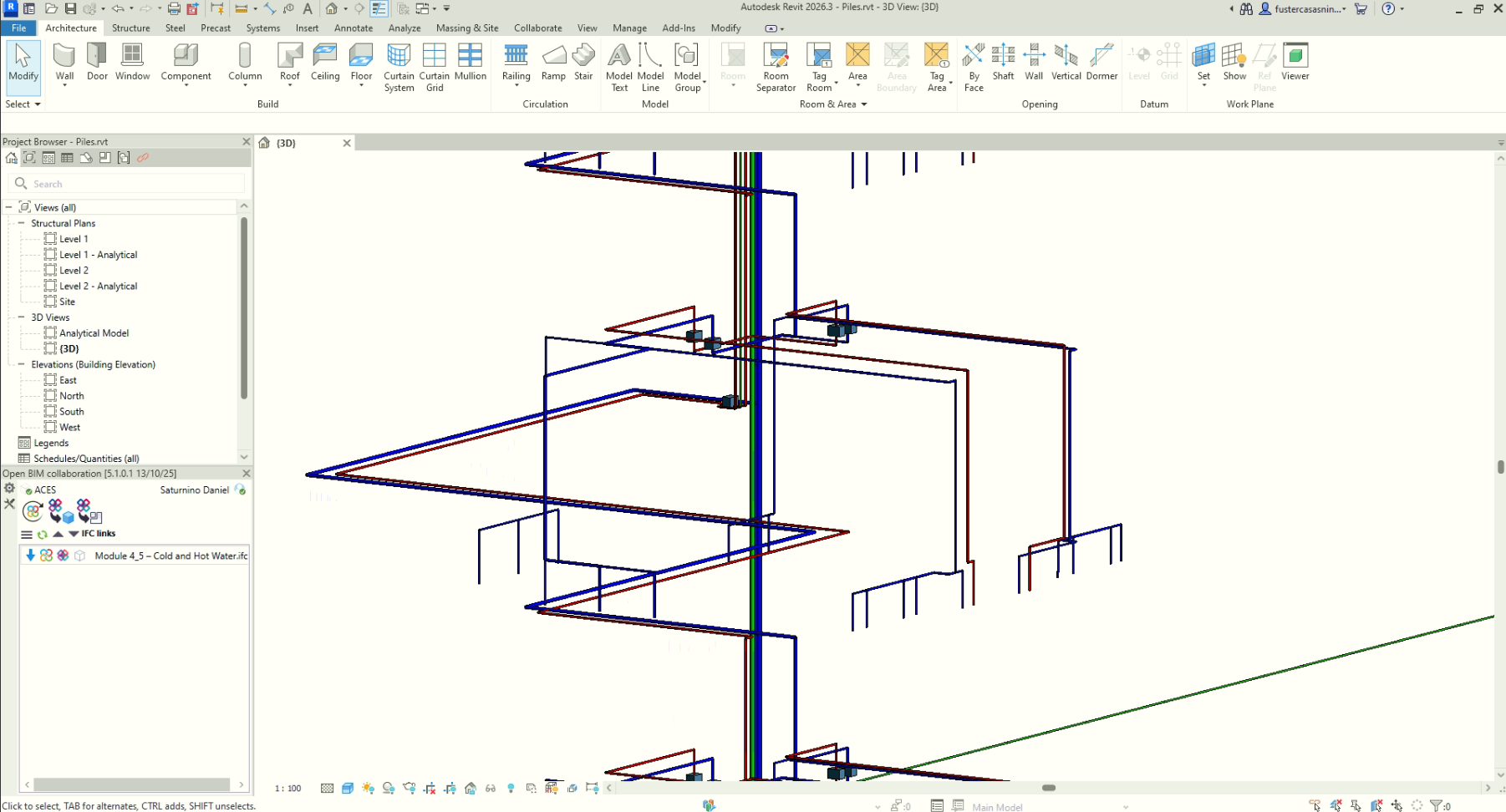
How the "Generation of native Revit elements based on a structural IFC" module works
After selecting the "Extract contents of the link and assign it to families" option a dialogue box with the same name opens. This is how it works:
- Main section
- All categories of structural elements detected in the IFC links of the imported model are shown at the top left-hand side and are grouped by class and the IFC type to which they belong. The number of existing instances and the Revit native category to which they are to be converted are also displayed from these groups.
- The categories (along with their IFC class) that can be detected and converted to native elements within Revit are:
- Pipes - IfcPipeSegment
- Pipe connections - IfcPipeFitting
- Pipe fittings - IfcFlowMeter, IfcValve
- Mechanical equipment - IfcTank, IfcPump, IfcHeatExchanger
- Generic models - IfcCovering
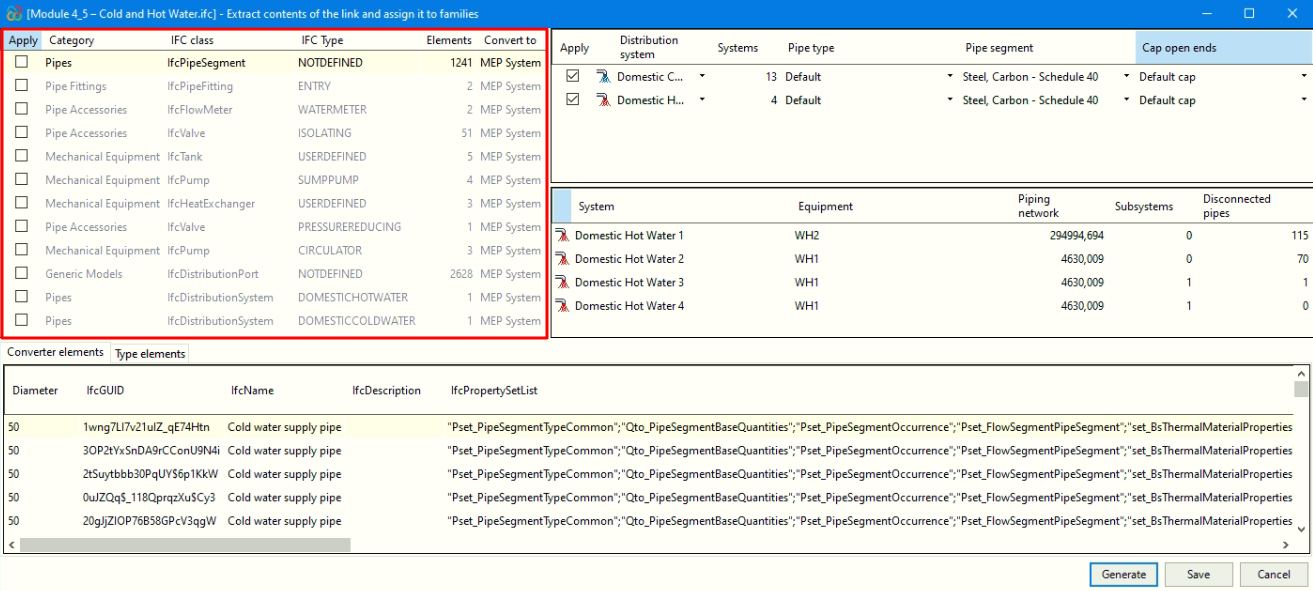
- Revit native family selector (Converter)
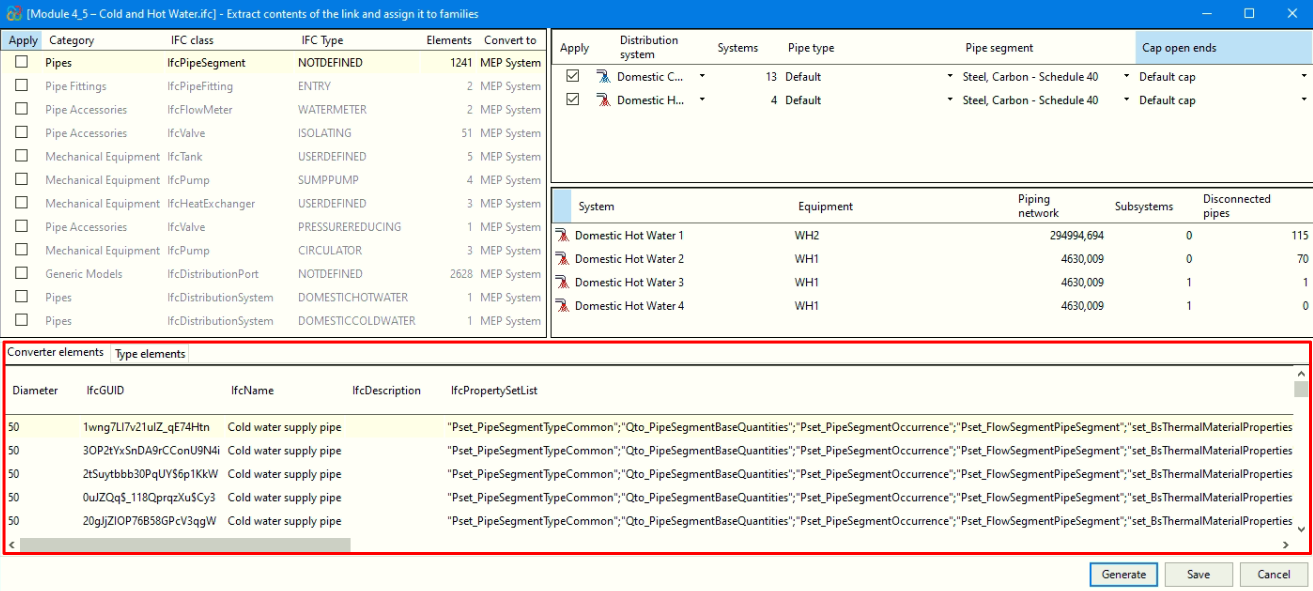
A) For the category "Pipes":
- In the upper right-hand corner, in the area framed in red in the image, the distribution systems for the category selected in the "Main section" are grouped together, along with the corresponding quantity.
- For these systems, from the area marked in green in the image, you can assign an existing pipe type in the Revit model to convert to native elements. In addition, the type of pipe segment must be selected and, if you wish to plug the ends, indicate the corresponding plug type.
- The central table, framed in blue in the image, shows the items from the distribution system selected in the table immediately above.
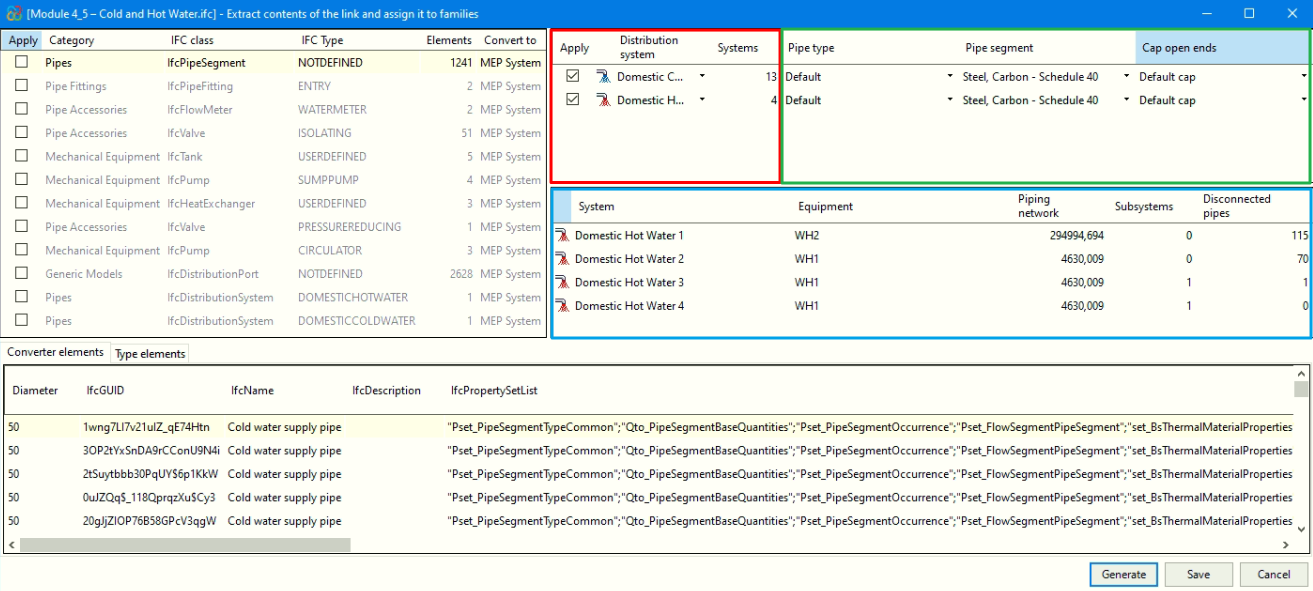
B) For all other categories:
- In the upper right-hand corner, in the area framed in red in the image, the MEP elements in the category selected in the "Main section" are grouped together, along with the corresponding quantity.
- For these elements, from the area framed in green in the image, you can:
- Assign previously loaded families in the Revit model.
- Generate parametric families, according to the type of element:
- In the case of valves, families are generated with standard valve geometry.
- In the case of insulation (in pipes and pipe joints), it is necessary to select a material preloaded in the Revit model.
- In the remaining elements, families are generated from the geometry contained in the IFC entities.
- The central table, framed in blue in the image, shows the types of the selected family in the upper green box.
- When you select generate families, the types will appear with the label "To be generated", as no type has yet been created for that family.
- If you choose to assign an existing family, the required types that are already defined in that family will appear with the label "Existing", while the required types that are not found in it will be displayed with the label "To be generated".
| Note: |
|---|
| When generating families or assigning an existing family, the remaining necessary types will be automatically created, identified by the diameter in brackets in their name. |
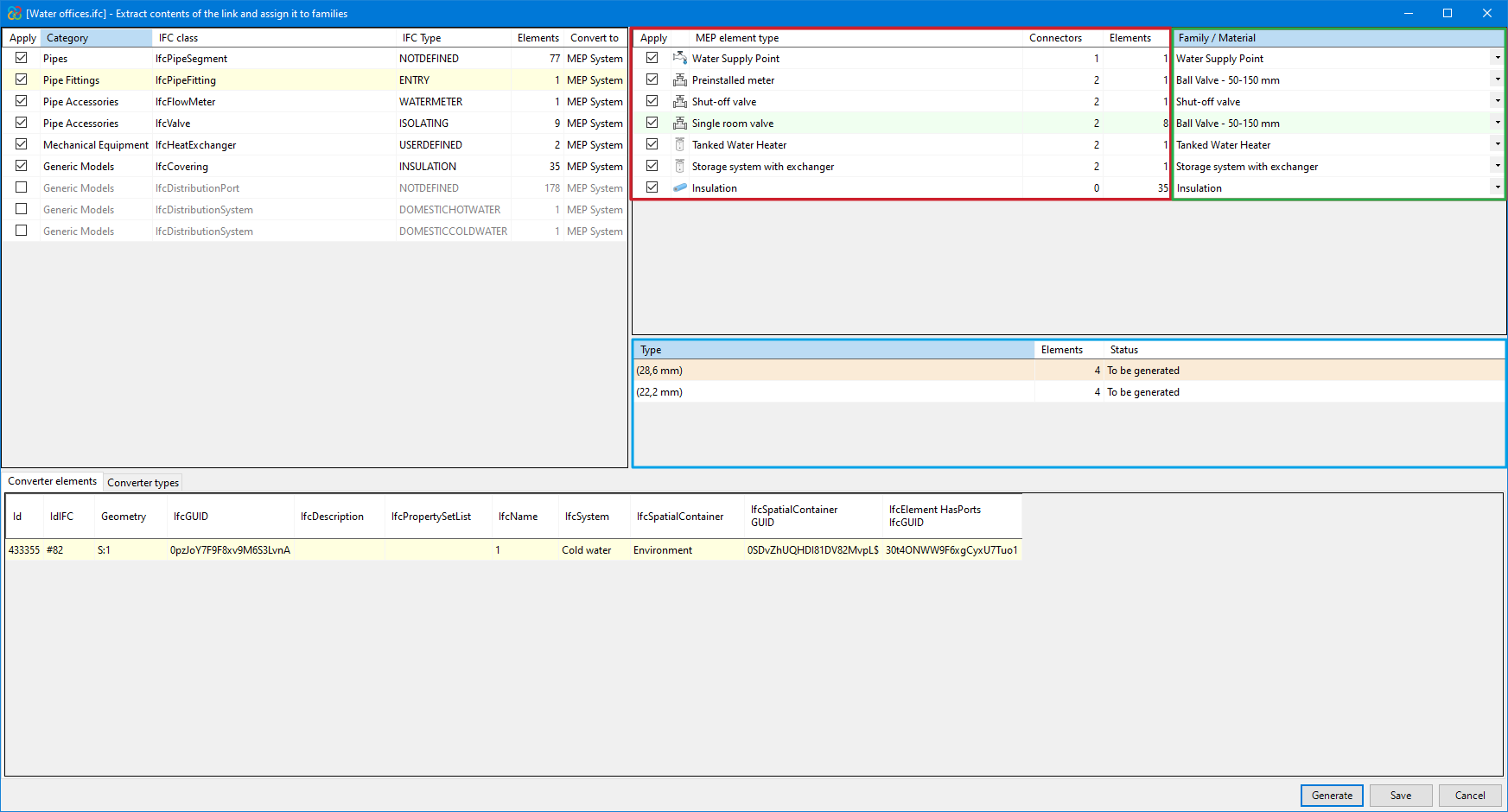
- Converter instances
At the bottom of the "Extract link content and assign to families" dialogue box, information about all converter instances is displayed.
Generating native Revit elements from an IFC file of piping systems
The "Generation of native Revit elements" module includes the feature "Generation of native Revit elements from an IFC of piping systems". This feature allows the conversion of an MEP model (included in a BIMserver.center project) to native Revit piping systems by assigning families.
You can generate complete pipe systems, including not only systems, pipes and joints, but also pipe insulation, equipment and pipe fittings.
| Best practice: |
|---|
| When generating native Revit elements from an IFC file of piping systems, it is essential to work with a Revit file that uses the systems template. This ensures correct import and better integration of the elements into the model. In addition, it is useful to define the "Discipline" property as "Coordination" in the view, from the "Properties" palette. |
| Note: |
|---|
| To convert piping systems (generated in CYPEPLUMBING) to native Revit entities, you must select the following checkboxes in CYPEPLUMBING, under the "Share" option in the "BIMserver.center" menu: "Water Systems" or "Sanitary Systems". If sharing from CYPEFIRE Hydraulic Systems, it is essential to activate "Export connection ports" so that the information on the inlet and outlet ports of the installation elements is incorporated, allowing the different piping systems to be distinguished and connected. |
How the "Generation of native Revit elements based on a structural IFC" module works
After selecting the "Extract contents of the link and assign it to families" option a dialogue box with the same name opens. This is how it works:
- Main section
- All categories of structural elements detected in the IFC links of the imported model are shown at the top left-hand side and are grouped by class and the IFC type to which they belong. The number of existing instances and the Revit native category to which they are to be converted are also displayed from these groups.
- The categories (along with their IFC class) that can be detected and converted to native elements within Revit are:
- Pipes - IfcPipeSegment
- Pipe connections - IfcPipeFitting
- Pipe fittings - IfcFlowMeter, IfcValve
- Mechanical equipment - IfcTank, IfcPump, IfcHeatExchanger
- Generic models - IfcCovering
- Revit native family selector (Converter)
A) For the category "Pipes":
- In the upper right-hand corner, in the area framed in red in the image, the distribution systems for the category selected in the "Main section" are grouped together, along with the corresponding quantity.
- For these systems, from the area marked in green in the image, you can assign an existing pipe type in the Revit model to convert to native elements. In addition, the type of pipe segment must be selected and, if you wish to plug the ends, indicate the corresponding plug type.
- The central table, framed in blue in the image, shows the items from the distribution system selected in the table immediately above.
B) For all other categories:
- In the upper right-hand corner, in the area framed in red in the image, the MEP elements in the category selected in the "Main section" are grouped together, along with the corresponding quantity.
- For these elements, from the area framed in green in the image, you can:
- Assign previously loaded families in the Revit model.
- Generate parametric families, according to the type of element:
- In the case of valves, families are generated with standard valve geometry.
- In the case of insulation (in pipes and pipe joints), it is necessary to select a material preloaded in the Revit model.
- In the remaining elements, families are generated from the geometry contained in the IFC entities.
- The central table, framed in blue in the image, shows the types of the selected family in the upper green box.
- When you select generate families, the types will appear with the label "To be generated", as no type has yet been created for that family.
- If you choose to assign an existing family, the required types that are already defined in that family will appear with the label "Existing", while the required types that are not found in it will be displayed with the label "To be generated".
| Note: |
|---|
| When generating families or assigning an existing family, the remaining necessary types will be automatically created, identified by the diameter in brackets in their name. |
- Converter instances
At the bottom of the "Extract link content and assign to families" dialogue box, information about all converter instances is displayed.
Open BIM project information panel
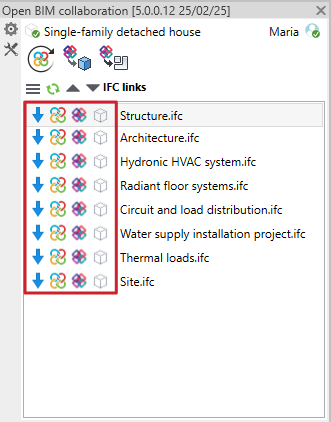
When linking to a project, this panel shows each of the links, and the status of the links using the following icons:
- Link status
Shows whether the link is loaded or unloaded. - Original IFC status
Shows the status of the IFC located in the ‘bim_projects’ folder. - Local IFC status
Shows the status of the IFC located in the local directory folder where the project is saved. - Content status
Shows the status of the extracted contents (DirectShapes) of each of the links.
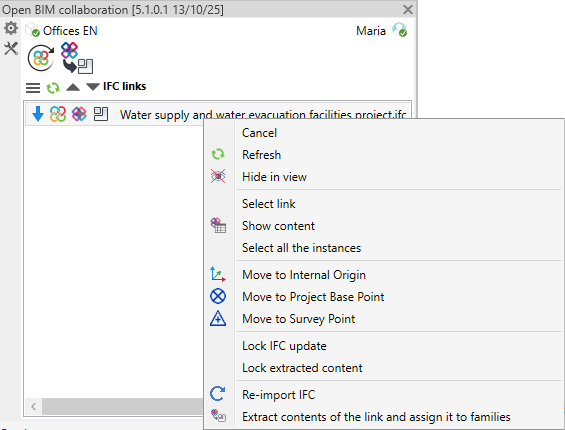
When you right-click on a link, a context menu appears that allows you to perform the following actions:
- Cancel
Closes the context menu without performing any action. - Refresh
Updates the status of the IFC link in the view, displaying any recent changes without the need to manually re-import it. - Hide in view
Completely hides an IFC link in the active view. To display it again, simply run the tool on the same link. - Select link
Select the IFC link in the Revit model, making it easier to locate and manipulate. - Show content
Opens an information panel displaying all the information on the IFC entities contained in the link. This panel is read-only and is for informational purposes only. - Select all the instances
Simultaneous selects all instances generated from an IFC link, facilitating their management and bulk editing. - Move to Internal Origin
Moves the location of the IFC link to align it with the internal origin of the Revit project. - Move to Project Base Point
Adjusts the position of the IFC link to match the project's base point in Revit. - Move to Survey Point
Relocates the IFC link using the project recognition point as a reference. - Lock IFC update
Prevents the IFC link from updating automatically when changes are detected in the original model, maintaining its current status in Revit. - Lock extracted content
Prevents already extracted elements from being accidentally modified or updated, ensuring the stability of the converted model. - Re-import IFC
Forces the IFC link to update, replacing its content with the latest version available in the BIMserver.center project. - Extract contents of the link and assign it to families
Converts the contents of the IFC link into native Revit entities by assigning them to families, allowing you to work with them directly within the Revit environment.
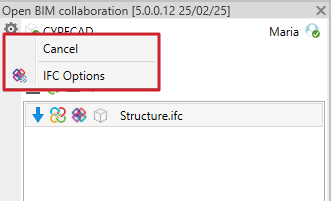
On the left-hand side of the panel, a toolbar is located to improve the accessibility and organisation of the options.
It is structured in two main sections: "Configuration" and "Tools".

Configuration
The configuration section brings together options for customisation, conversion control and IFC data management.
- IFC options
Specific configurations can be defined for importing and exporting models in IFC format. This tool is explained in more detail in the IFC options section.
Tools
The tools section provides additional tools for visualisation, filtering and management of structural models, making it easier to navigate and analyse BIM content.
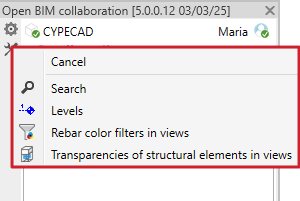
Search instance
Makes it easier to locate instances within the Revit project.

Information about the levels
It provides specific details on project levels, making analysis and organisation easier.

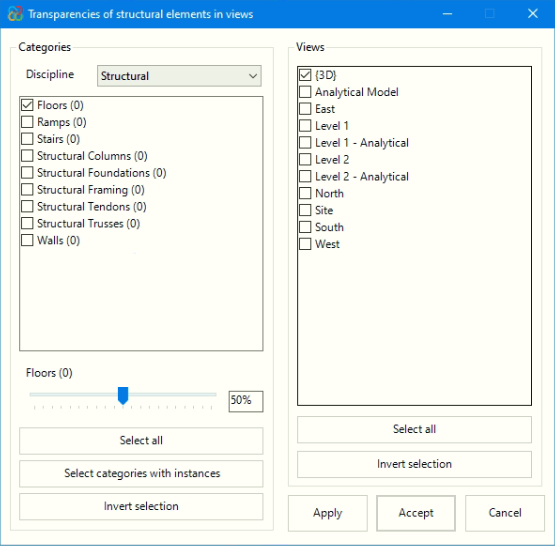
Apply transparencies to elements in views
This feature can be used to quickly modify the transparency level of different categories in the Revit model without having to access the visibility and graphics editor in the interface. It can also be used to freely select elements and define an editable transparency percentage for one or more project views.
In the categories section, the drop-down menu selects one of the disciplines available in Revit. By default, the discipline defined in the project template is loaded. Depending on the discipline chosen, different categories of the model will be displayed, along with the number of instances in each. Manual or global selections can be made using the buttons below. In the central area, a slider (TrackBar) allows you to define the transparency percentage to be applied, with values between 0% and 100%.
Finally, in the views section, select the model views to which you want to apply the previously defined transparency percentage.
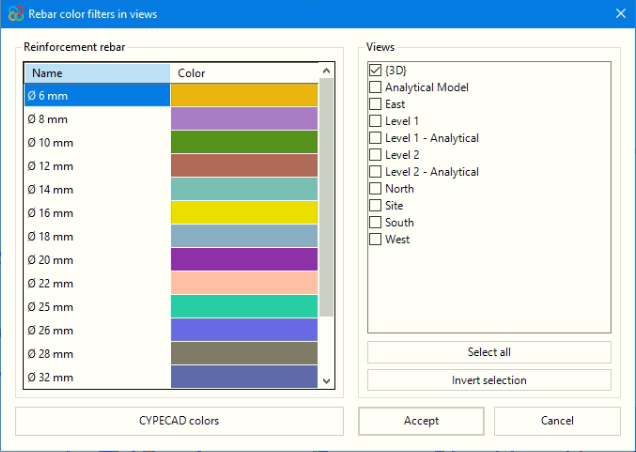
Assign colour filters to reinforcement
This tool can be used to assign colours to the reinforcements according to their diameter. They can then be applied to the available views selected without the need to create a filter for each of them. The colours are customisable, and the colours used in the original design program are also available.
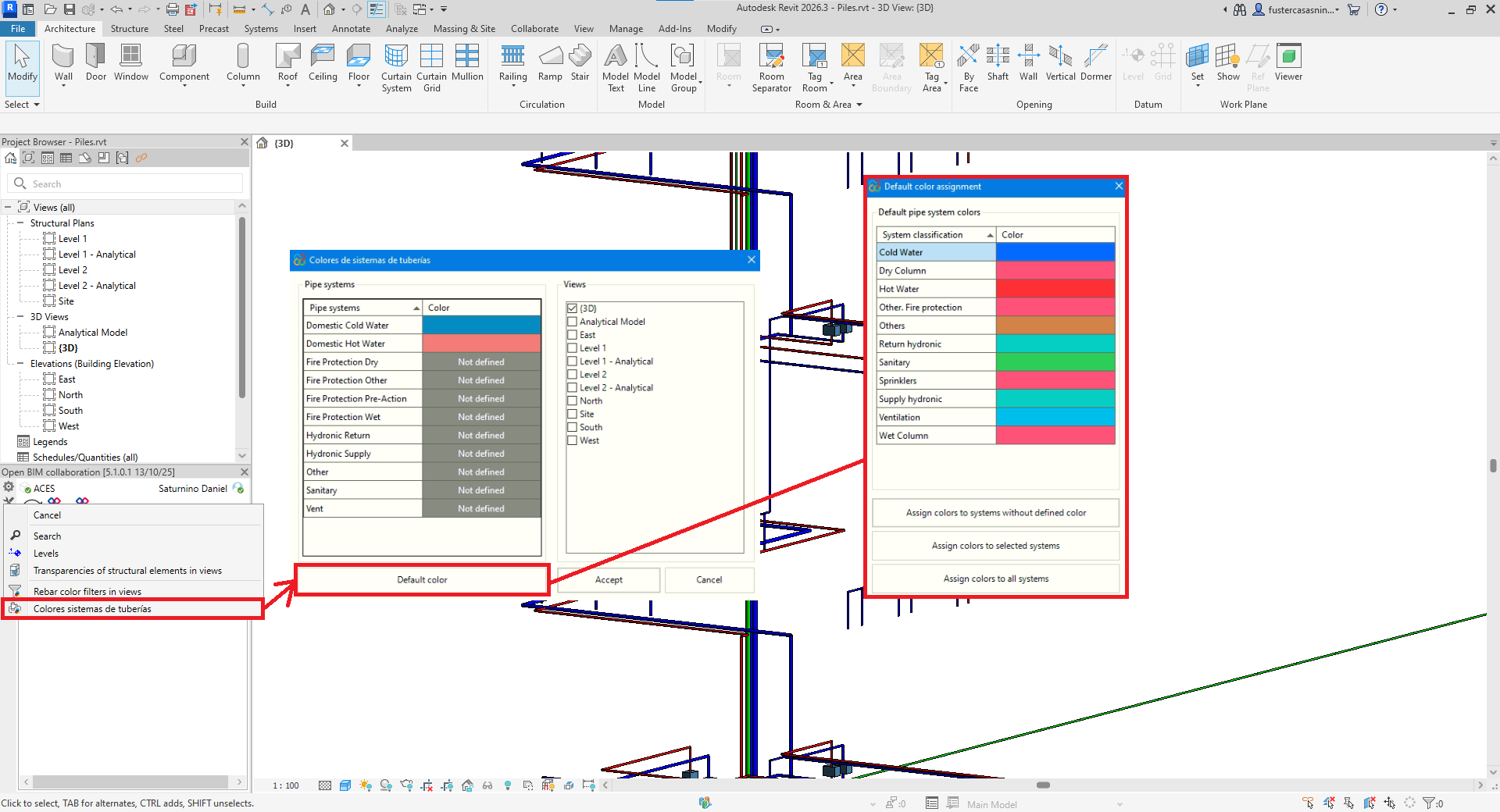
Assign colours for piping systems
This feature can be used to manage and customise the colours assigned to the different types of pipe systems available in the Revit model. It also makes it easier to identify systems without a defined colour and offers the possibility of applying a set of default colours in three different ways:
- Only to systems that do not have any colour assigned.
- To systems previously selected in the colour panel.
- To all systems available in the document.
In addition, you can manually modify the colours of each system by double-clicking on the corresponding cell, without having to use the default colour package.
The main dialogue box shows all the pipe systems in the project, while the default colours dialogue box shows the Revit system classification together with its assigned colour. Thus, when applying the default colours, the indicated colour will be automatically assigned to all systems belonging to that classification.
IFC options
With the "IFC options" tool, users can customise and optimise the conversion of objects to and from IFC. The availability of objects belonging to Revit's categories allows users to tag objects or to carry out analyses using planning tables, among other things.
This way, the BIM workflow of projects that are modelled in Revit and analysed with CYPE's programs is optimised, and it focuses on the possible detailed models generated from the applications belonging to the manufacturer's systems.
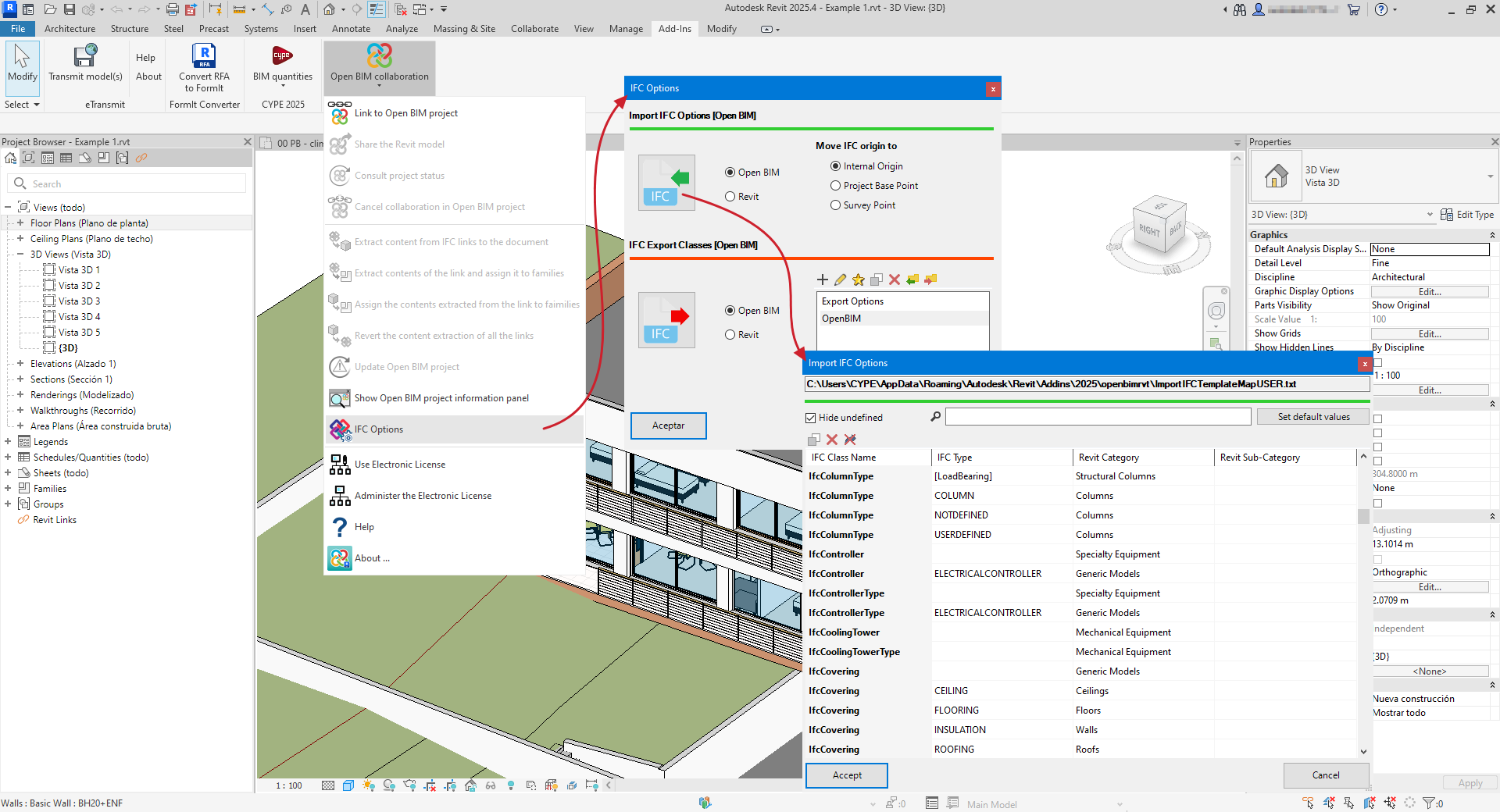
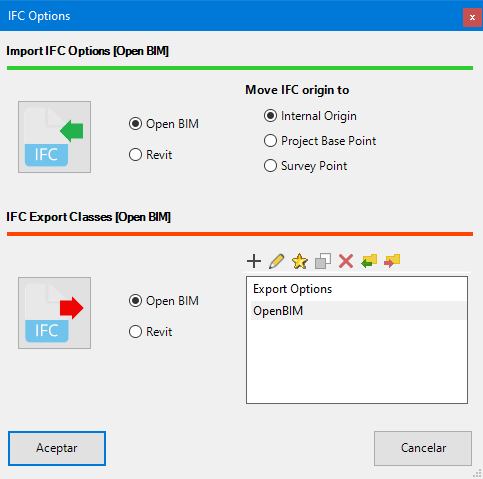
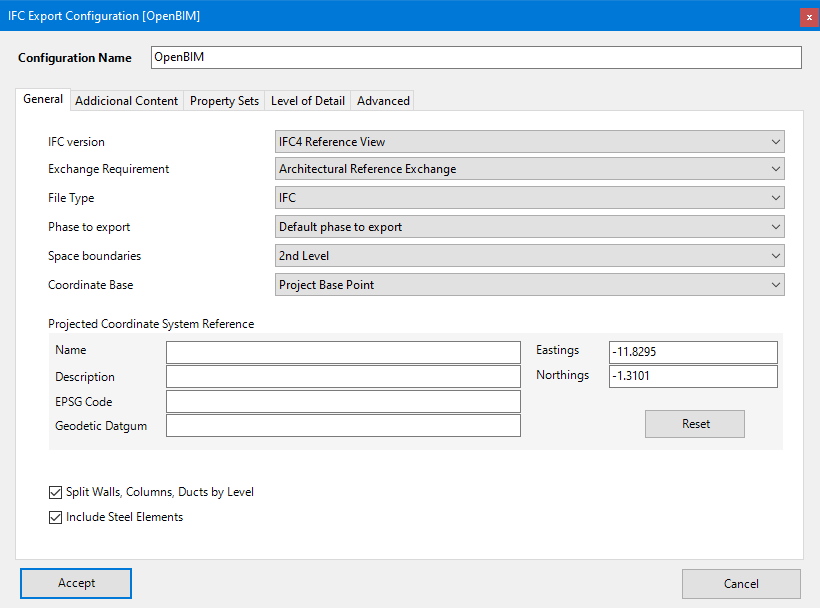
The "IFC options" feature complements Revit (accessible via File > Export > IFC > Modify configuration), and allows the import and export options defined in that setup to be overridden.
If "Revit" is selected in "IFC options", the plug-in uses the same configuration file as Revit. If "Open BIM" is selected, the plug-in suggests a mapping aligned with the needs of CYPE tools. This mapping can be modified, although it is already prepared to work seamlessly with CYPE tools without needing adjustments.
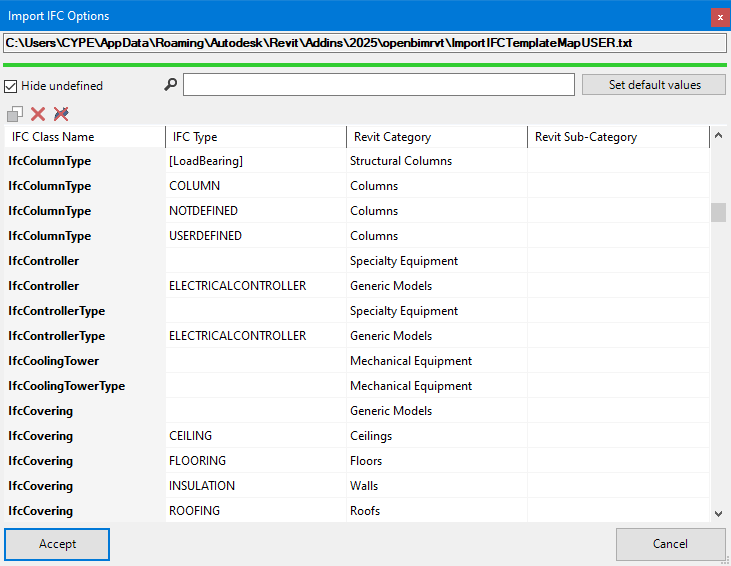
The "IFC import options" allow elements from IFC links to be assigned to native Revit categories, even though they cannot be modified while remaining within the IFC link. This enables the creation of filters and the use of schedules with those elements.
You can also select the point at which the origin of the IFCs from the selected contributions is inserted during import. Once loaded, these links can be moved to reference points in two ways:
- Moving them all at once,
- Moving each one individually.
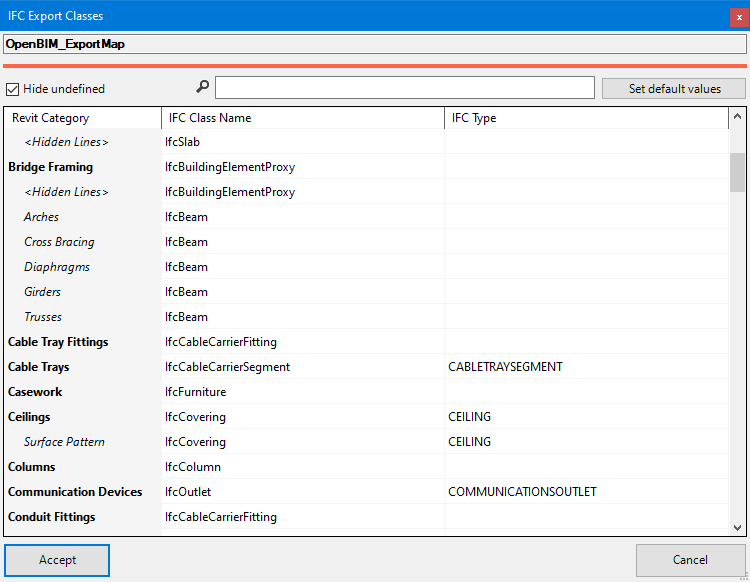
On the other hand, the "IFC export classes" allow you to review and modify the IFC classes associated with native Revit elements at the time of exporting an IFC model through the plug-in.
Integration into the BIMserver.center platform
Many of CYPE's programs are connected to the BIMserver.center platform and allow collaborative work to be carried out via the exchange of files in formats based on open standards.
Please note that, to work on BIMserver.center, users can register on the platform free of charge and create a profile.
When accessing a program connected to the platform, the program connects to a project in BIMserver.center. This way, the files of the projects that have been developed collaboratively in BIMserver.center are kept up to date.

| More information: |
|---|
| For further details related to using CYPE software via the BIMserver.center platform, please click on this link. |