


Contour plot diagrams in two-way slabs
To view the contour plot diagrams for slabs and composite slabs in CYPECAD, first open the "Contour plots" tab after analysing the project and select the desired group. Then, select the "View" menu at the top of the interface and ensure that the "Loadcases and floors" option is enabled.
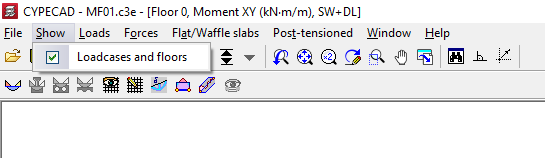
The program will open the "Loadcases and floors" dialogue box, where you can configure the options related to the display of contour plots.
In addition, the screen will display the contour plot diagram for the magnitude selected in the drop-down menus of the dialogue box. Each colour in the graph represents a different value. At the bottom of the screen, a scale shows the range of contour plots displayed, from the lowest to the highest value.
Options in the "Loadcases and floors" dialogue box
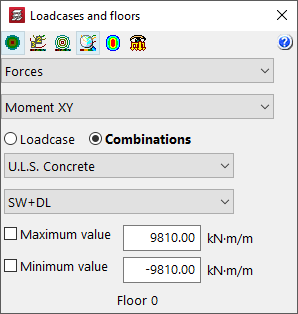
At the top of the "Loadcases and floors" dialogue box, you will find the following options:
- The options "View contour plots", "View contour lines with values" and "View contour lines without values" allow you to activate the display of information in the indicated formats.
- It is also possible to "Automatically adjust the scale when zooming" so that the colours, lines and values displayed on the screen are adjusted according to the visible area when using the zoom.
- Optionally, you can modify the "Colours for representing contour plots" and, if there are loads drawn on the model, activate the "View loads" option to display them on screen.
Next, select the contour plot diagram you wish to consult from the drop-down menus for one of the available "Loadcase" or "Combinations", as appropriate.
You can limit the "Maximum value" and "Minimum value" of the contour plot map by ticking the corresponding boxes at the bottom and entering the limit value. This will colour only those areas on the screen where the value is below or above the specified limits.
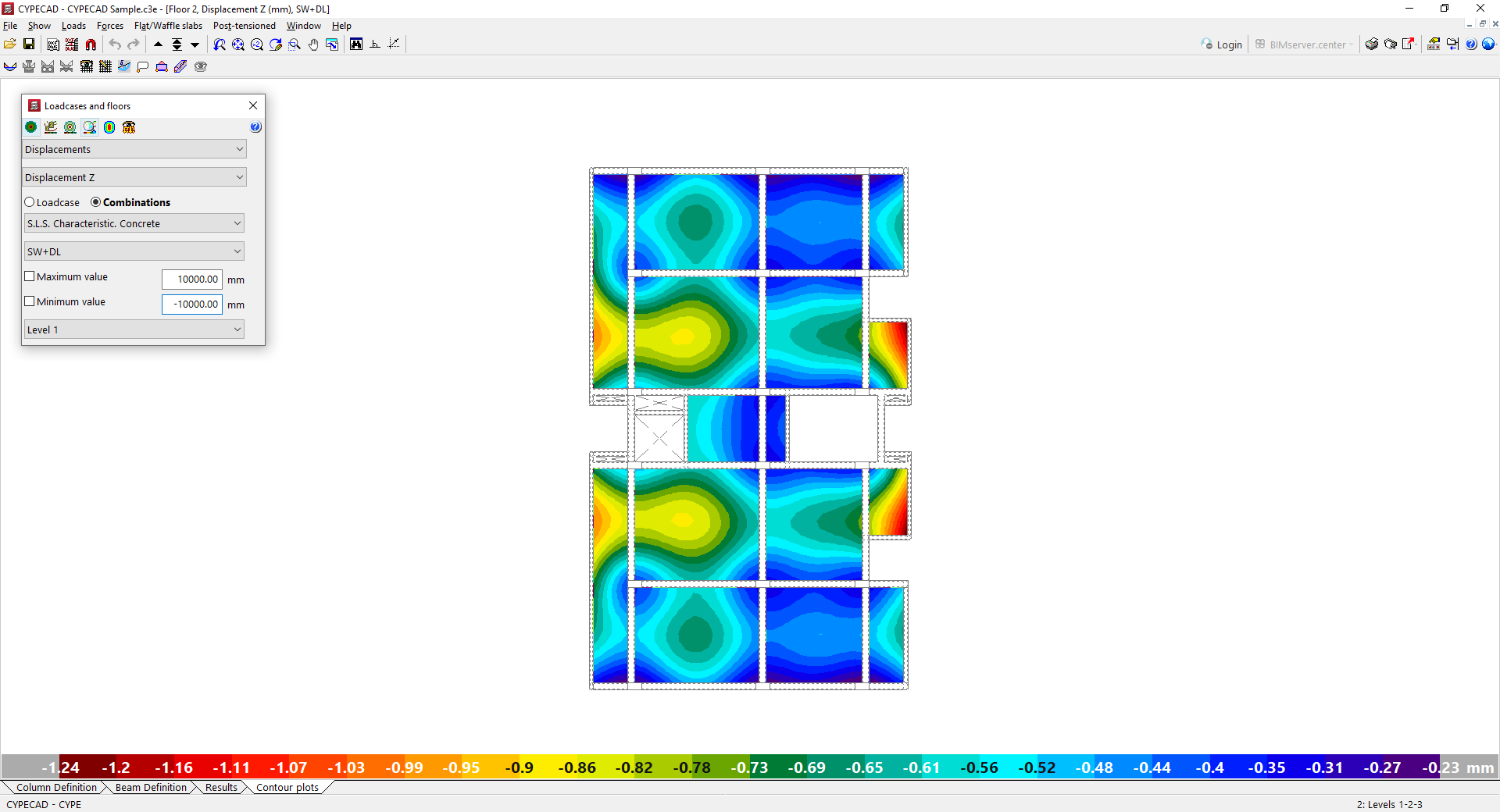
Checking displacements
If "Displacements" is selected in the first drop-down menu, it is possible to view the displacement on the Z axis, the rotation on the X axis, and the rotation on the Y axis for the selected loadcase or combination.
- Z Displacement
- X Rotation
- Y Rotation
In the case of displacements, negative values represent a vertical decrease.
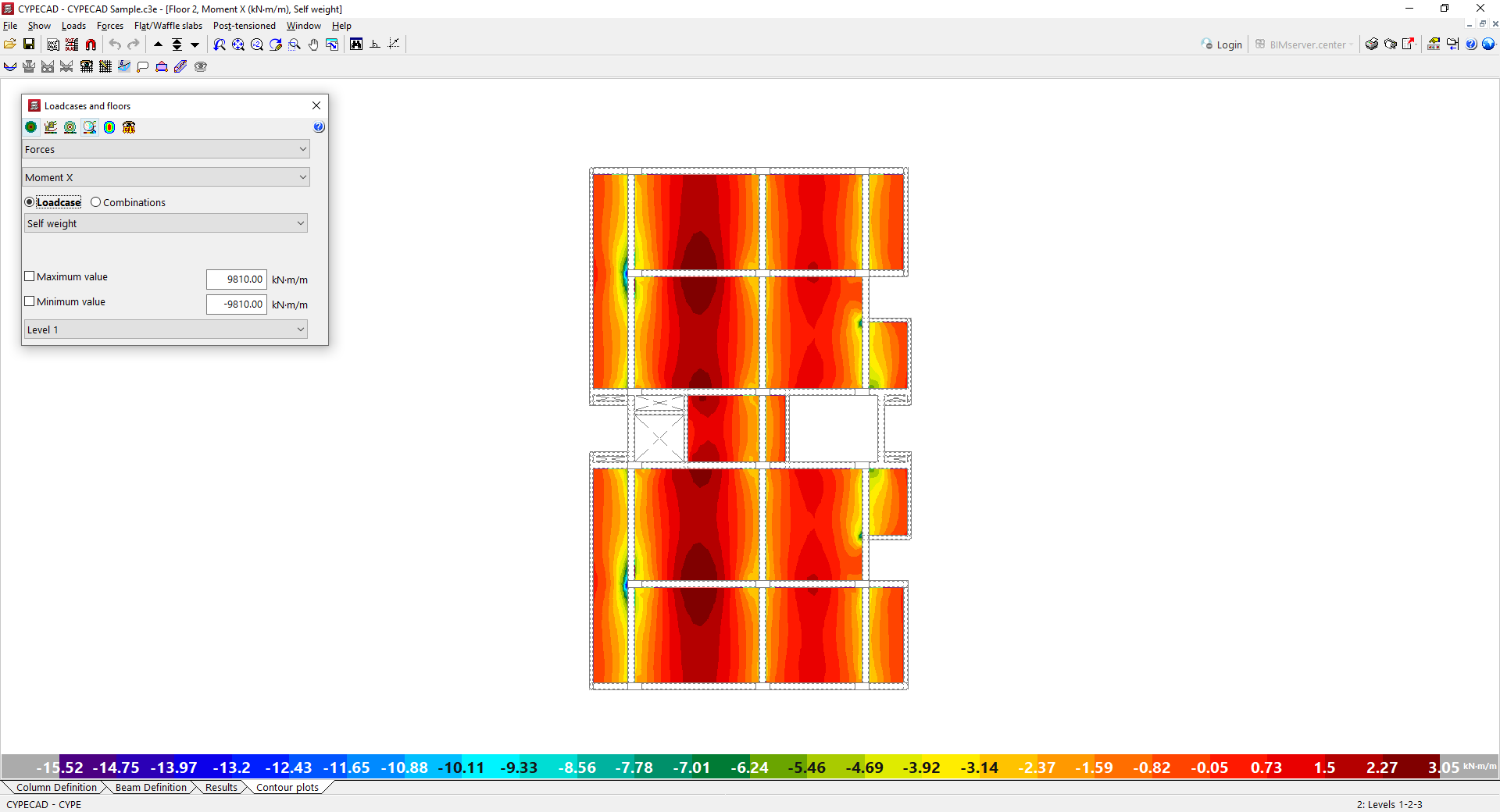
Checking forces
It is also possible to consult the "Efforts" resulting from the analysis for the selected loadcase or combination, including the following:
- Total shear
- X Shear
- Y Shear
- X Moment (moment contained in the XZ plane)
- Y moment (moment contained in the YZ plane)
- XY moment (torsional moment of the elemental plate)
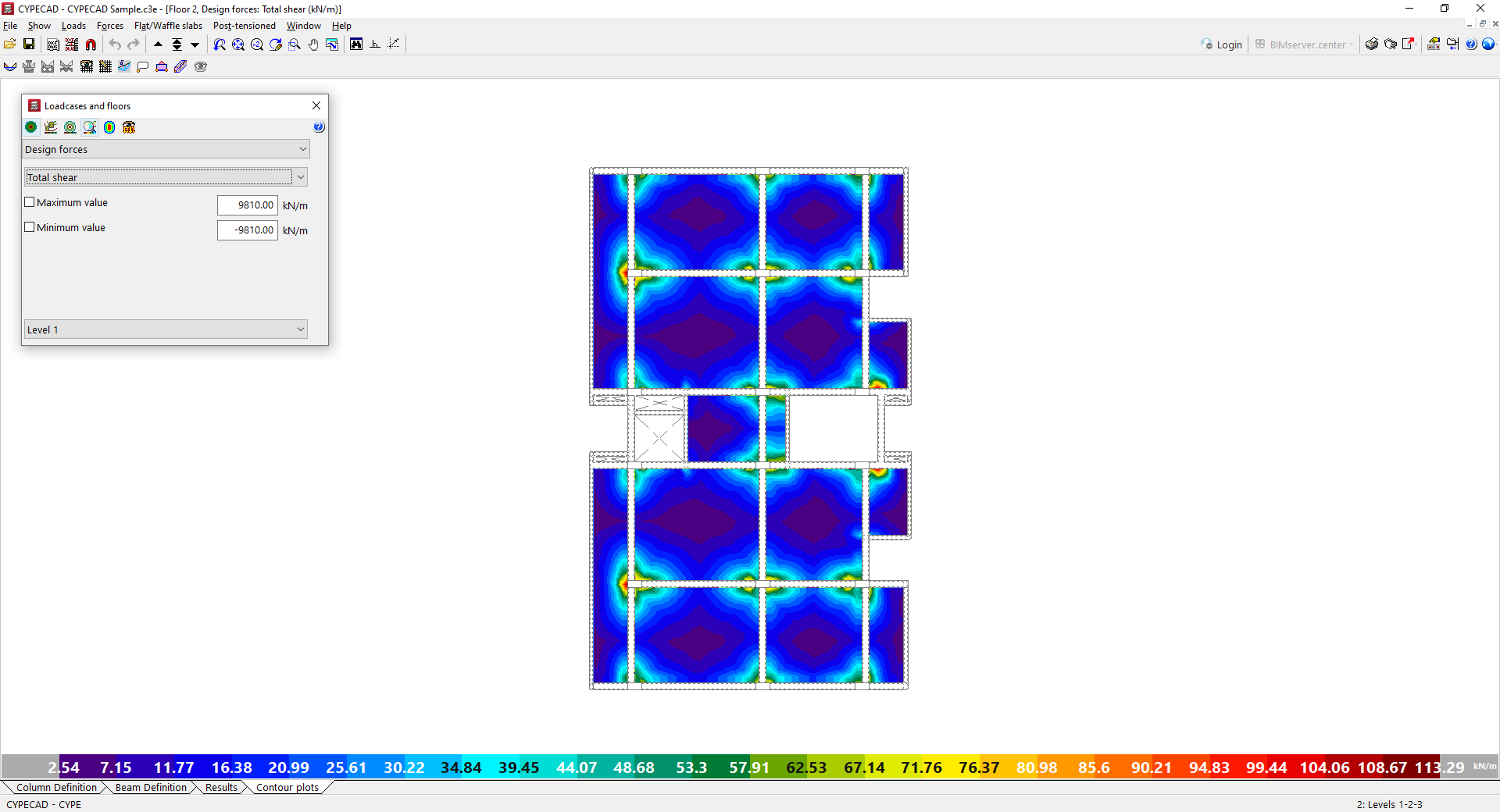
Checking design forces
The "Design forces" are derived from the above and represent the envelope of forces with which the reinforcement has been designed.
- Total shear
- X Shear
- Y Shear
- X moment, lower amount
- Y moment, lower amount
- X moment, higher amount
- Y moment, higher amount
In particular, the design moments for the upper and lower quantities are obtained from the analysis moments using the Wood and Armer method.
| Note: |
|---|
| The Wood and Armer method is used to obtain, from the analysis moments Mx, My and Mxy (which can be consulted in the "Forces" section of the "Contour plots" tab), the design moments in each direction and each face, Mx* and My* (corresponding to moments X and Y, upper and lower amounts in the "Design forces" section). Thus, in the case of the lower reinforcement, considering that Mx and My are positive bending moments, which pull on the lower face of the slab, the reinforcement is calculated as follows: Design moment X, Mx*=Mx + |Mxy| Design moment Y, My*=My + |Mxy| If Mx and My were of opposite sign, and Mx* and My* were also of opposite sign, the negative value is set to zero, and the positive value is used in that direction: For Mx*<0, My*>0, Mx*=0 My*=My + | (Mxy2/Mx)| For Mx*>0, My*<0, My*=0 Mx*=Mx + | (Mxy2/My)| If Mx* and My* are negative, no lower positive flexural reinforcement is required. On the other hand, in the case of upper reinforcement, considering that Mx and My are negative bending moments, which pull on the upper face of the slab, the reinforcement is calculated as follows: Design moment X, Mx*=Mx - |Mxy| Design moment Y, My*=My - |Mxy| If Mx and My were of opposite sign, and Mx* and My* also have opposite signs, the positive value is set to zero and the negative value is used in that direction: For Mx*<0, My*>0, My*=0 Mx*=Mx - |(Mxy2/My)| For Mx*>0, My*<0, Mx*=0 My*=My - |(Mxy2/Mx)| If Mx* and My* are positive, no additional negative bending reinforcement is required. |
Checking reinforcement quantities
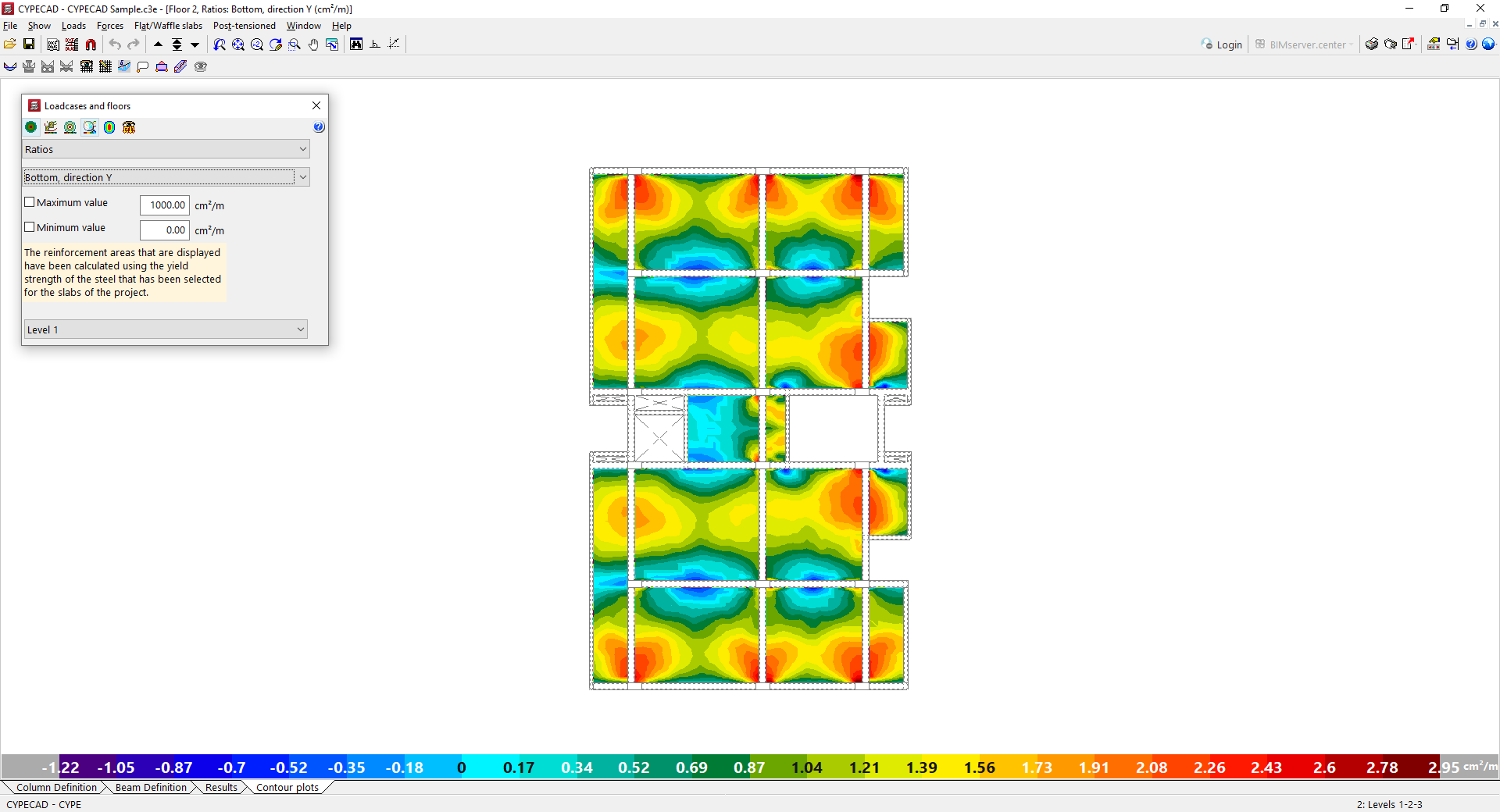
The lower and upper "Quantities" in the X-direction and Y-direction of the slab represent the steel section required by analysis.
- Lower, X direction
- Lower, Y direction
- Upper, X direction
- Upper, Y direction
During the design process, the program approximates these quantities with the reinforcement available in the reinforcement tables.
Checking the field stress
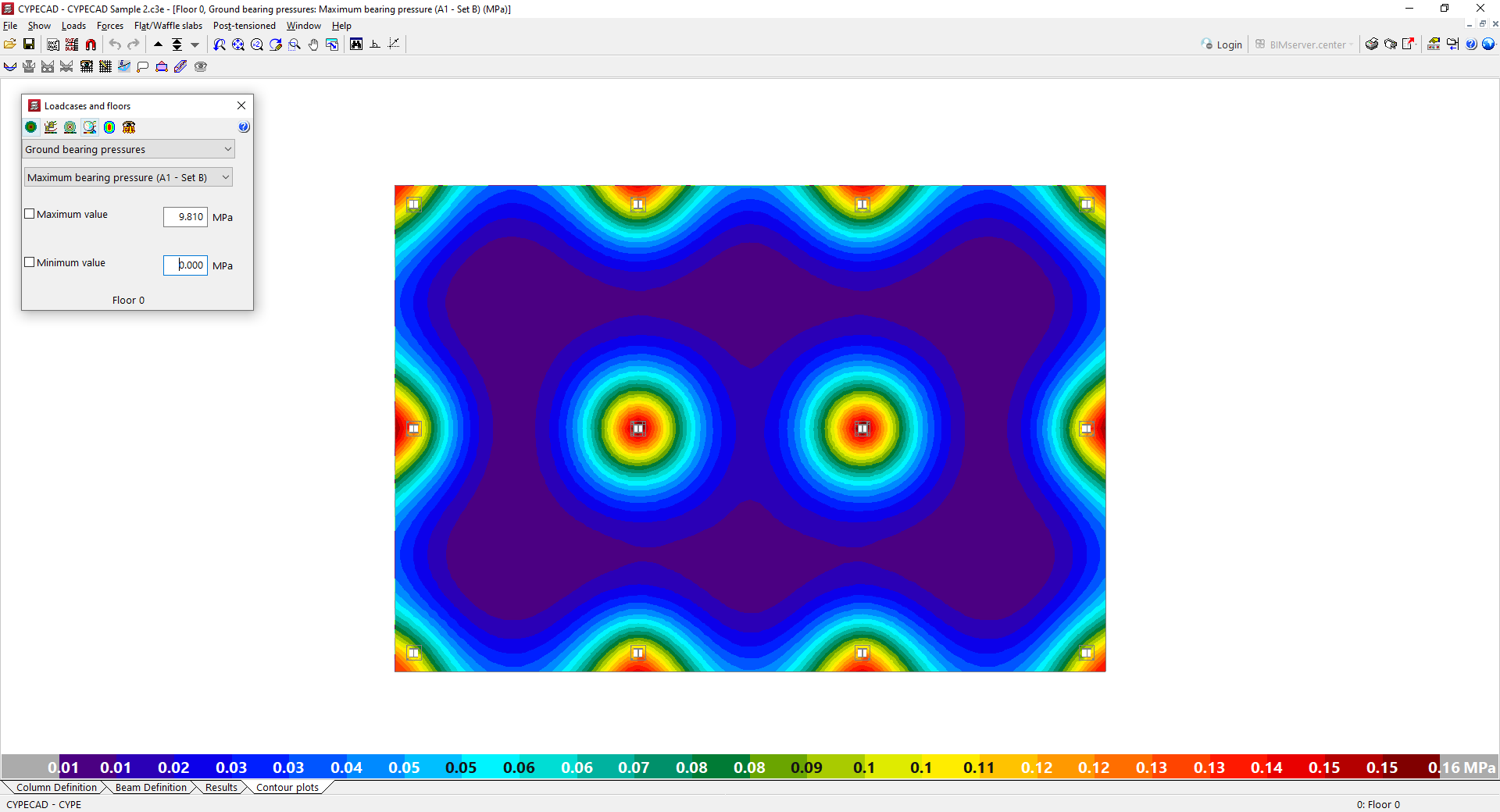
In the case of foundation slabs, the "Ground bearing pressures" can be visualised, including the following:
- Maximum voltage
- Take-off (if applicable)
- Voltage "By loadcase" or selected combination
Deflection between two points in two-way slabs
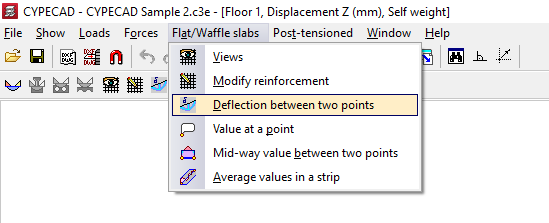
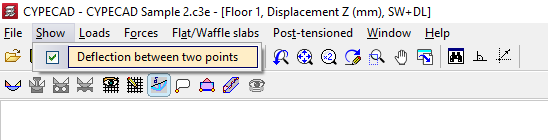
To view the arrow between two points on slabs and grid slabs in CYPECAD, open the "Contour plots" tab after analysing the structure and navigate to the desired group. Next, open the "Flat/Waffle slabs" menu at the top of the interface and click on "Deflection between two points".
The program will open the "Deflection between two points" dialogue box, where you can configure the options relating to the arrow. To hide or show this box, open the "View" menu and toggle the "Deflection between two points" option on or off.
In addition, the contour plot diagram corresponding to the instantaneous elastic displacements along the Z-axis of the slabs and grid-type floor slabs in the group is displayed on screen for the combination selected from the drop-down menus. Each colour in the graph represents a different displacement value.
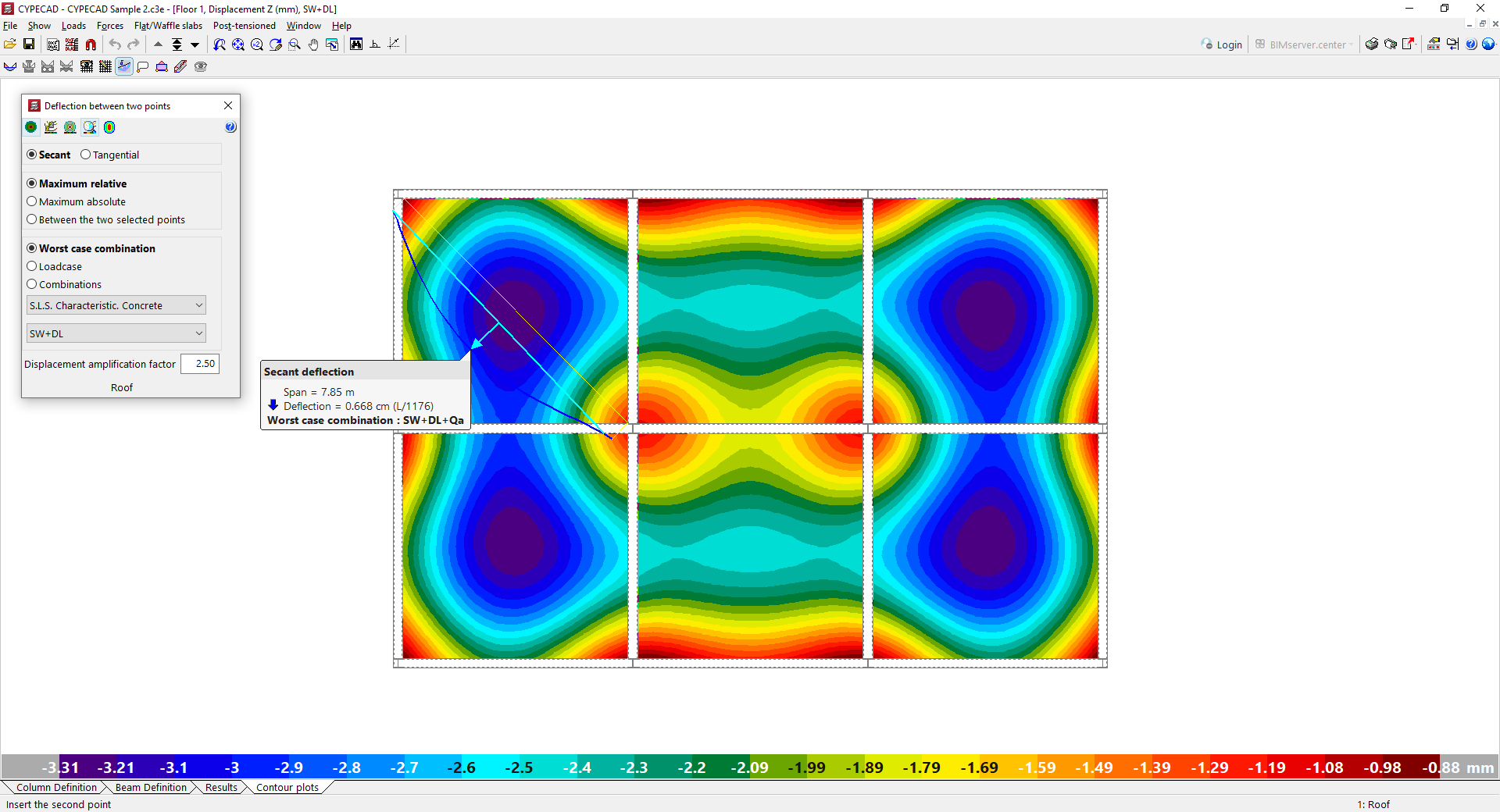
Options in the "Deflection between two points" dialogue box
The following tools appear at the top of this dialogue box:
- The "View contour plots", "View contour plots with values" and "View contour plots without values" options allow you to customise the display of this information.
- It is also possible to "Automatically adjust the scale when zooming" so that the colours, lines and values displayed on screen are adjusted according to the visible area when zooming.
- The "View loads" option allows you to view the loads that have been entered.
Next, select the "Secant" option if you wish to examine the deflection of an internal span, or "Tangent" if it is a cantilever:
- The "Secant" is calculated as the distance between the deformed coordinate of a point and the line connecting the deformed coordinates of the two endpoints of the segment.
- The "Tangent" deflection is the distance between the deformed line at a given point and the line tangent to the deformed line at the starting point of the span. In this case, to calculate the relative deflection, a span length equal to twice the length of the span is taken into account.
Next, select the type of arrow:
- Select "Relative maximum" or "Absolute maximum" if you wish to obtain the section where the maximum relative deflection or absolute deflection, respectively, occurs along the line connecting the two points marked on the screen.
- The "Between the selected points" option allows you to obtain the line segment between two marked points. This is not necessarily the section where the maximum value occurs.
Use the drop-down menu below to select the combination or loadcase you wish to view:
- If you select "Worst-case combination", the value of the arrow displayed will be the maximum among all combinations in the group selected in the first drop-down menu. In this case, the combination selected in the second drop-down menu is irrelevant. The worst-case scenario will then be shown in the information message that appears when the arrow is drawn on the screen.
- By selecting "Loadcase" or "Combination", you can display the arrow value for a single loadcase or for a specific combination of loadcases selected from the drop-down menus at the bottom. This also allows you to view on screen the contour plot and contour line diagrams corresponding to the selected loadcase or combination.
Finally, the value entered in "Displacement amplification factor" multiplies the instantaneous vertical elastic displacements obtained from the structural analysis to estimate the probable value of the deformation used to calculate the deflection. By adjusting this value, you can approximate the value of the active deflection, the total deflection over an infinite time span, or the instantaneous overload deflection. By default, the program uses a factor of 2.50.
Checking the deflection between two points on a floor plan
Once you have configured the above parameters, you can view the deflection of a slab or waffle slab on the floor plan.
- It is recommended that a preliminary analysis of displacement contour plots be carried out for the various design loadcases in order to identify the areas where maximum deflection may occur. These areas typically coincide with the most concave sections of the mid-span or the ends in the case of cantilevers.
- To do this, mark two points on the plan by left-clicking on the first point and moving the cursor to another point to measure the deflection between them. This will display a preview of the deflection data. If you left-click on the second point, the information will be fixed on the screen. It is possible to mark points outside the geometry of the slab or grid slab:
- If it is a "Secant" arrow, mark two points with a slight downward slope, like two columns, ensuring that the secant line to the curved line connecting them passes through the areas of greatest concavity.
- If the arrow is a "Tangent" arrow, mark the point of contact and the tip of the arrow, ensuring that the line tangent to the deformed line remains horizontal.
- The program therefore provides the following information:
- A solid yellow line connecting the two points is displayed.
- Below this, the deformed curve is plotted, tracing a dark blue curve consisting of the vertical displacements of all the points. This deformed curve corresponds to the hypothesis, combination or worst-case combination selected in the panel, and takes into account the amplification of displacements specified therein.
- The segment of the secant or tangent line to the deformed curve is drawn in cyan, and perpendicular to it, a line also in cyan with an arrow pointing towards the maximum descent according to the selected parameters.
- The information text indicates whether it is a "Secant" or a "Tangent", the "Span" or distance between the marked points, the absolute "Distance" in units of length and, in brackets, the relative distance, In addition, the "Loadcase" or "Combination" being queried is shown, or, where applicable, the "Worst-case combination", specifying which one it is.
- It is not possible to determine a priori whether the arrow drawn and displayed on screen is the maximum of all possible arrows between the pairs of points that make up the slab or grid-type floor. It is therefore advisable to draw several arrows connecting different pairs of points in other directions using the left mouse button until you are satisfied that the information displayed is correct.
- To clear the information from the screen, use the middle mouse button to zoom out (if the information is pinned to the screen) or use the right-click button (if you are previewing the information). Finally, use the right-click button to exit the option.
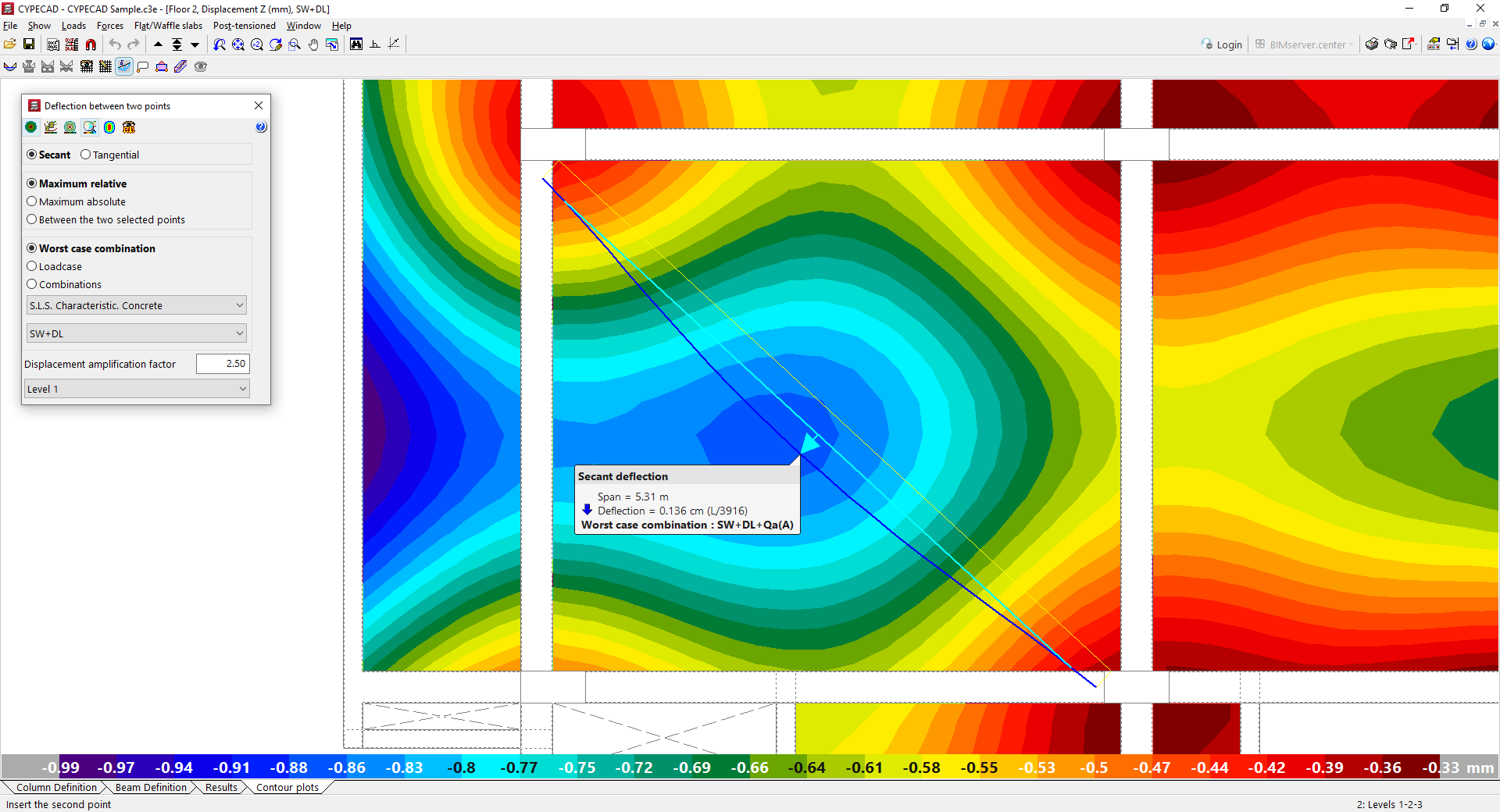
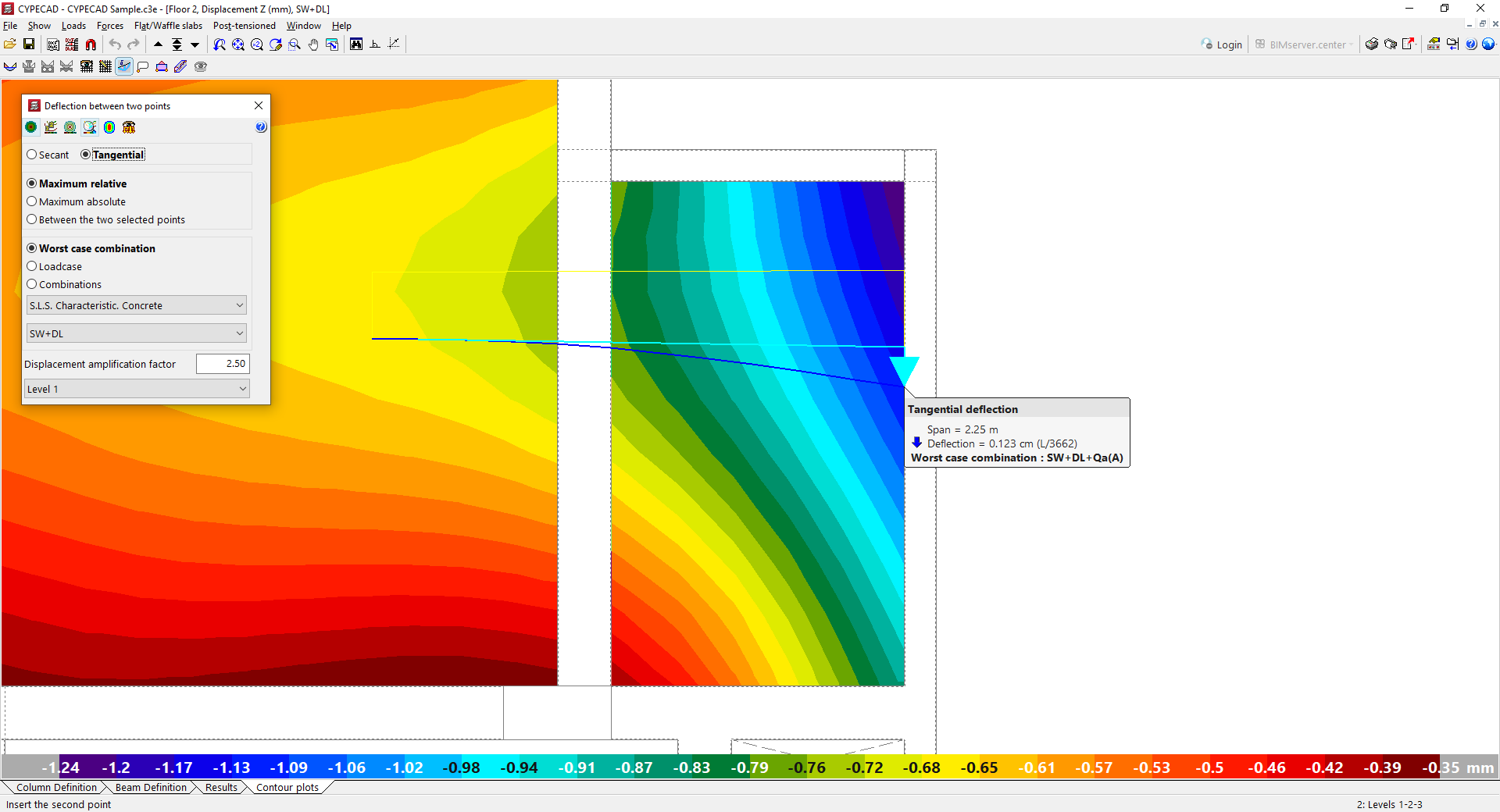
Table of contents
Complete your tour of CYPECAD by exploring the other available sections:
- Introduction
- Introduction and creating new jobs
- General data configuration
- Defining floors and groups of floors and inserting columns, shear walls and starts ("Column input" tab)
- Inserting beams, walls, floor slabs, foundation elements and special elements, and structural analysis (the "Beam Input" tab):
- Checking analysis results and editing elements (the "Results" tab):
- Options on the "Contour plots" tab
- Printing documents and exporting data
- More information:
- General features of CYPECAD
