

"Drawings" tab interface
The "Drawings" tab, accessible from the top of the "Thermal model" tab, lets you create and edit the drawings for the building’s thermal envelope.
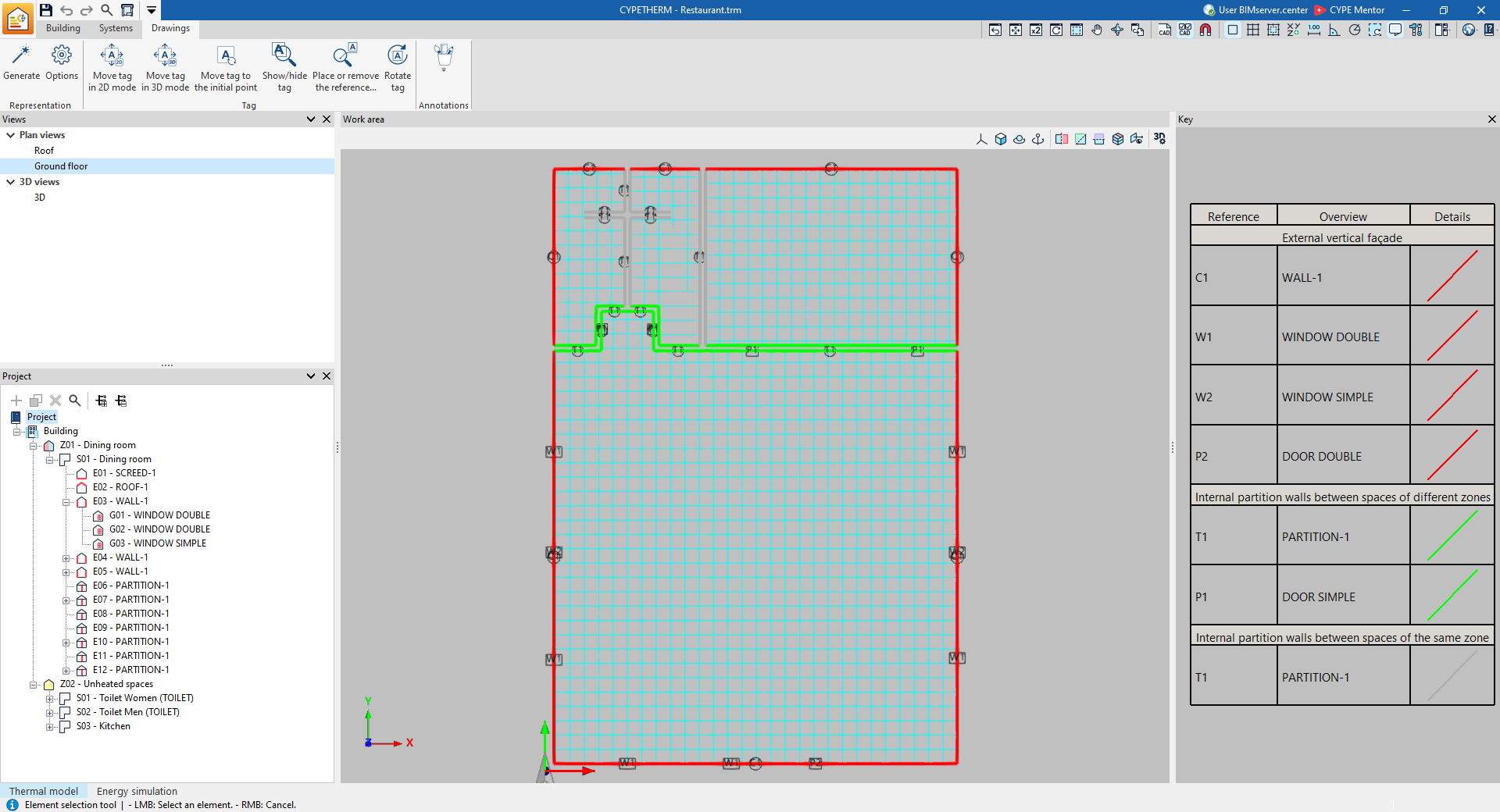
The drawings are generated from the information contained in the "Building" tab. You can also import and view templates in DXF/DWG format, either from the BIM model or via the "DXF-DWG templates" button on the top toolbar.
This tab features an interface with the following areas:
Toolbar
The top toolbar contains tools for configuring the display, managing labels and adding annotations.
Views
In this area, which is located by default at the top of the left-hand side, you can select the view to be displayed in the workspace (plan views, 3D views, elevations, etc.). Views can be created and edited in the section of the same name on the "Building" tab.
Project
This area, located at the bottom of the left-hand side, features a navigation tree where you can select the groups, zones, building elements and openings that make up the building. In the workspace, the program highlights in orange the model elements associated with the level selected in the tree.
Work area
The workspace, in the centre of the interface, is a three-dimensional environment where the model is displayed according to the selected view. The elements of the envelope are coloured according to the legend provided.
Key
In this area, on the right-hand side, the map legend is displayed, showing the "Details" of the graphic representation used for each feature, its "Reference" and its "Description".
| Note: |
|---|
| The drawings created and edited in the "Drawings" tab can subsequently be printed using the "Drawings" option at the top of the interface or via the "Drawings" option in the "File" menu. |
Tools in the "Representation" group in the "Drawings" tab
The options in the "Representation" section of the "Drawings" tab let you carry out the following operations:

- Generate
Generate the building drawings based on the information entered in the "Building" tab.
- Options
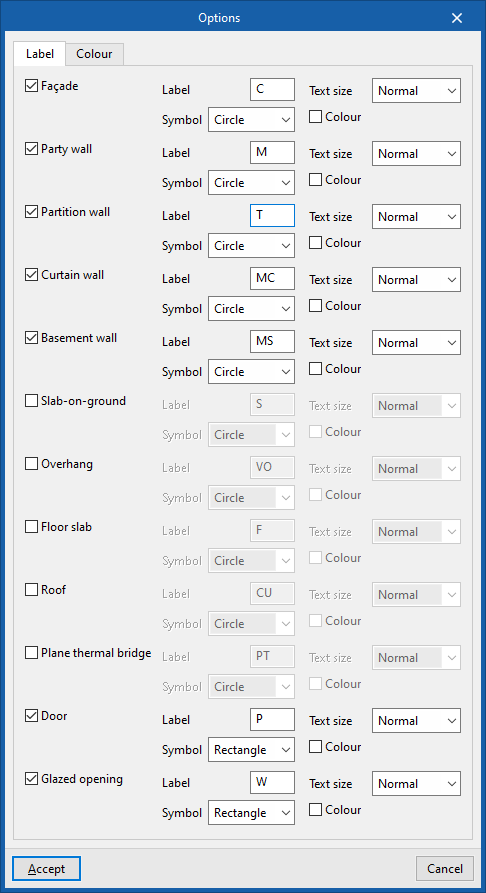
Manage the label and colour of the model elements that are generated in the drawings (when using the "Generate" option).- "Label" tab
Change the label text, its symbol, the text size and colour for each element in the template:- Façade
- Party wall
- Partition wall
- Curtain wall
- Basement wall
- Slab-on-ground
- Overhang
- Floor slab (between storeys)
- Roof
- Plane thermal bridge
- Door
- Glazed recess
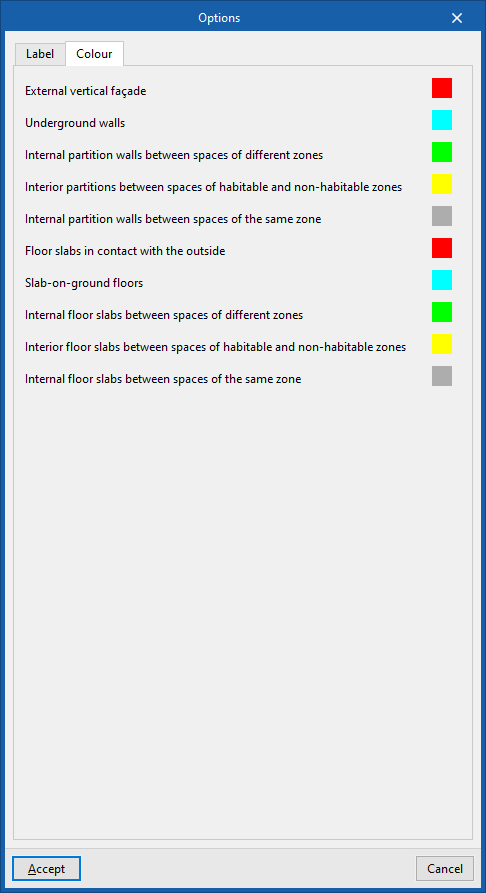
- "Colour" tab
Change the display colour of model elements according to their category:- External vertical façade
- Underground walls
- Internal partition walls between spaces of different zones
- Internal partitions between spaces of habitable and non-habitable zones
- Internal partition walls between spaces of the same zone
- Floor slabs in contact with the outside
- Slab-on-ground floors
- Internal floor slabs between spaces of different zones
- Interior floor slabs between spaces of habitable and non-habitable zones
- Internal floor slabs between spaces of the same zone
- "Label" tab
Tools in the "Tag" group in the "Drawings" tab

The options in the "Tag" section of the "Drawings" tab let you carry out the following editing operations on the tags generated for the model’s elements:
 | Move tag in 2D mode | Move the selected tag on the element’s plan view. |
 | Move tag in 3D mode | Move the selected tag in three-dimensional space. |
 | Move tag to the initial point | Return the tag of the selected element to its original position. |
 | Show/hide tag | Show or hide the tag of the selected element. |
 | Place or remove the reference line of the tag | Place or remove the line linking the label to the selected element to which it refers. |
 | Rotate tag | Turn the tag to face the correct way. |
Tools in the "Annotations" group in the "Drawings" tab

The options in the "Annotations" section of the "Drawings" tab let you insert or edit the following drawing elements in plan views:
 | Elevation | Enter a dimension between two selected points, specifying the colour and line weight, and the text size. |
 | Line | Insert a line between two selected points, specifying its colour and thickness. |
 | Text | Enter some text and a reference line, specifying its colour, line thickness and text size. |
 | Text box | Insert a text box that is left-aligned, right-aligned or centred, specifying the text colour and size, the border properties and the background fill. |
 | Arc | Enter an arc and, if you wish, its radius, specifying the colour and line thickness, as well as the text size. |
 | Circle | Enter a circle and, if you wish, its radius or diameter, specifying the colour and thickness of the line and the text size. |
 | Rectangle | Draw a rectangle and, if you wish, enter its area, specifying the colour and thickness of the line and the text size. |
 | Area | Enter a polygon by specifying its vertices and, optionally, its area, indicating the colour and thickness of the line and the text size. |
 | Polyline | Draw a polyline using points, specifying its colour and line weight. |
 | Edit | Edit the properties of the selected drawing resource. |
 | Move | Move the selected drawing object or parts of it. |
 | Copy | Copy the selected drawing resources to a new location. |
 | Assign | Assign the properties of one drawing resource to others. When you select a drawing resource, any resources with the same properties are highlighted in orange. |
 | Move a group of elements | Move the selected drawing resources to a new position. |
 | Rotate a group of elements | Rotate the selected drawing resources. |
 | Symmetry (move) | Move a selection of drawing objects symmetrically about an axis defined by two points. |
 | Symmetry (copy) | Copy a selection of drawing resources with symmetry about an axis defined by two points. |
 | Delete | Delete the selected drawing resources. |
