Introduction
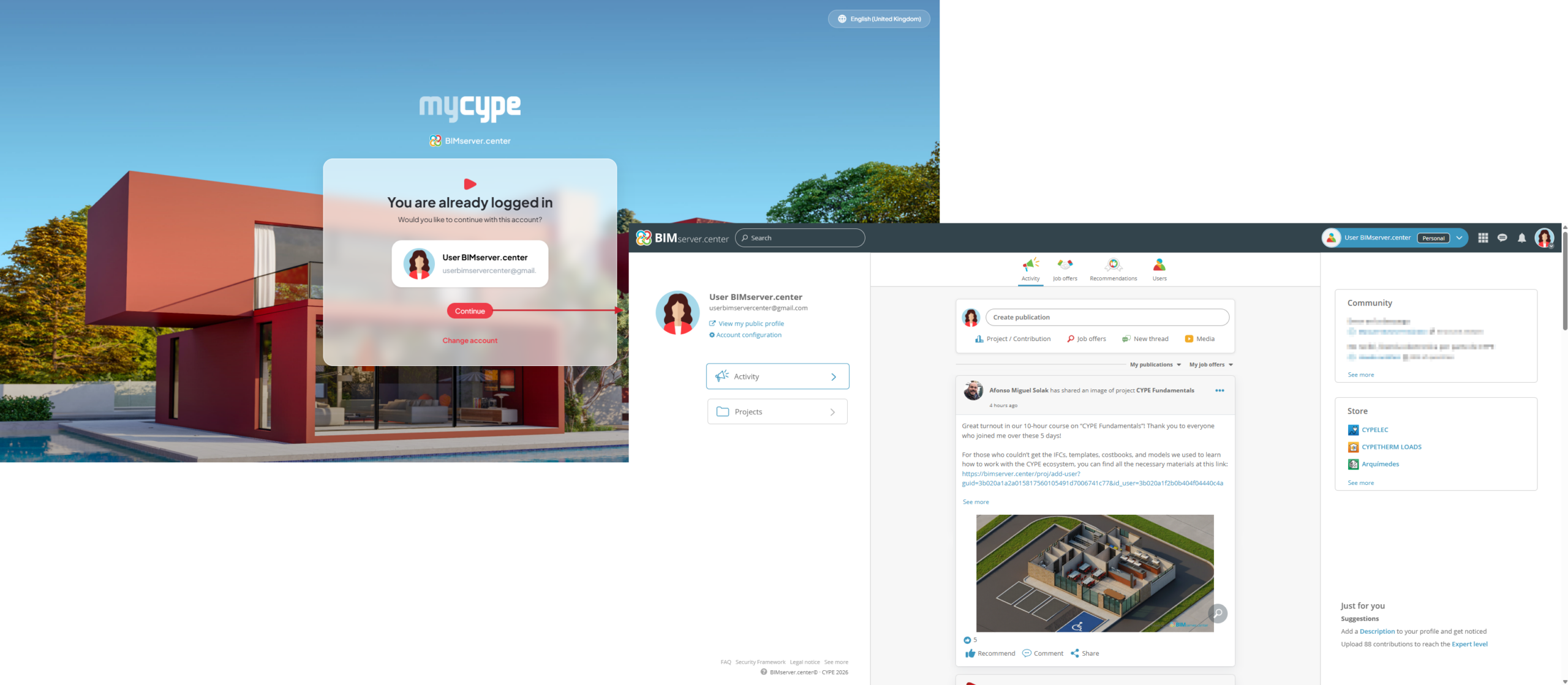
myCYPE is the central portal for accessing all of CYPE’s platforms with a single user account.
When logging into myCYPE, a dashboard will appear where you can view your user account details and access all available platforms, such as BIMserver.center, making them easy to find and quick to access from a single dashboard.
myCYPE can also be used to manage your personal data and security settings.
This platform will continue to expand over time with new features.
myCYPE dashboard
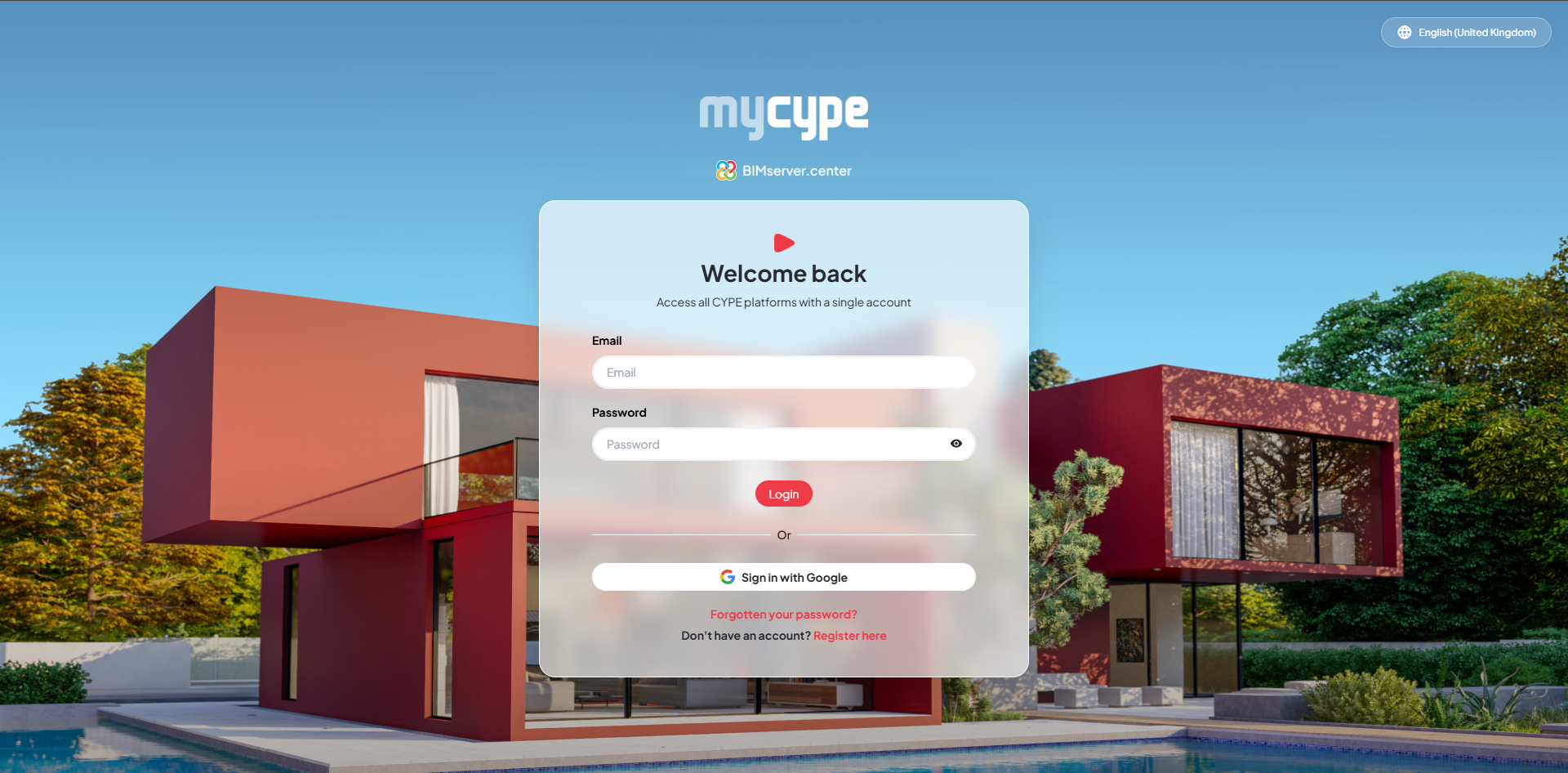
The myCYPE interface is organised into a single dashboard containing the following sections:
- At the top of the page, you can:
- Access CYPE’s platforms directly via the "myCYPE platforms" icon.
- Edit your personal details or log out from the menu under the user icon.
- On the left-hand side, a side menu lets you:
- Go to the main dashboard (Start).
- View and edit your personal details.
- Go to the security settings to change your email address and password.
- In the centre of the page, you’ll see the content for the option selected in the side menu.
Signing into the myCYPE portal
Log in
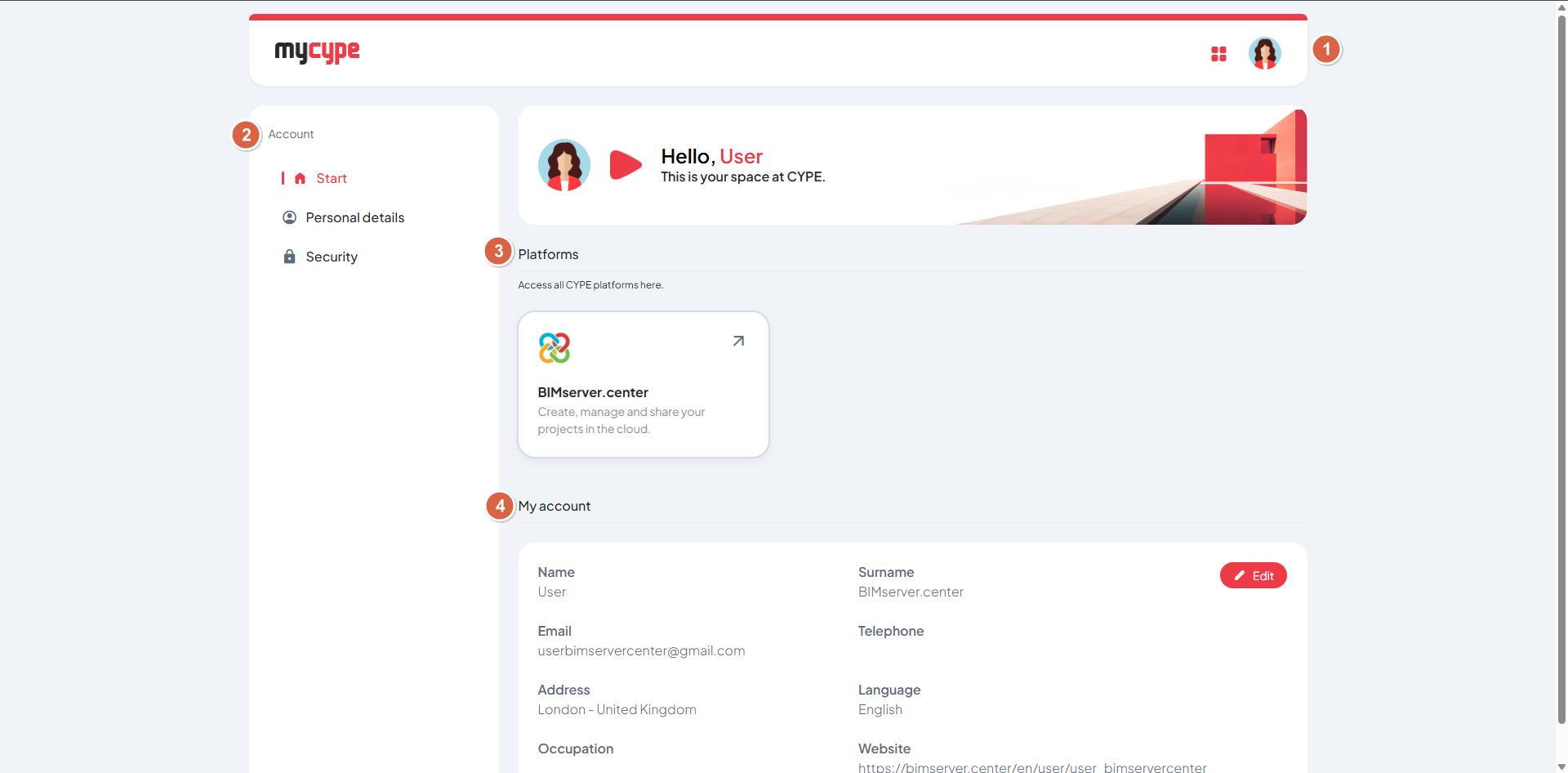
To access myCYPE, you must log in using your BIMserver.center account. To log in, follow these steps:
- Enter your BIMserver.center login email address in the "Email" field.
- Enter your BIMserver.center login password in the "Password" field.
- Click on the "Log in" button.
- Once logged in, you will see the myCYPE dashboard, where you can manage your account and access the various CYPE platforms.
Other options
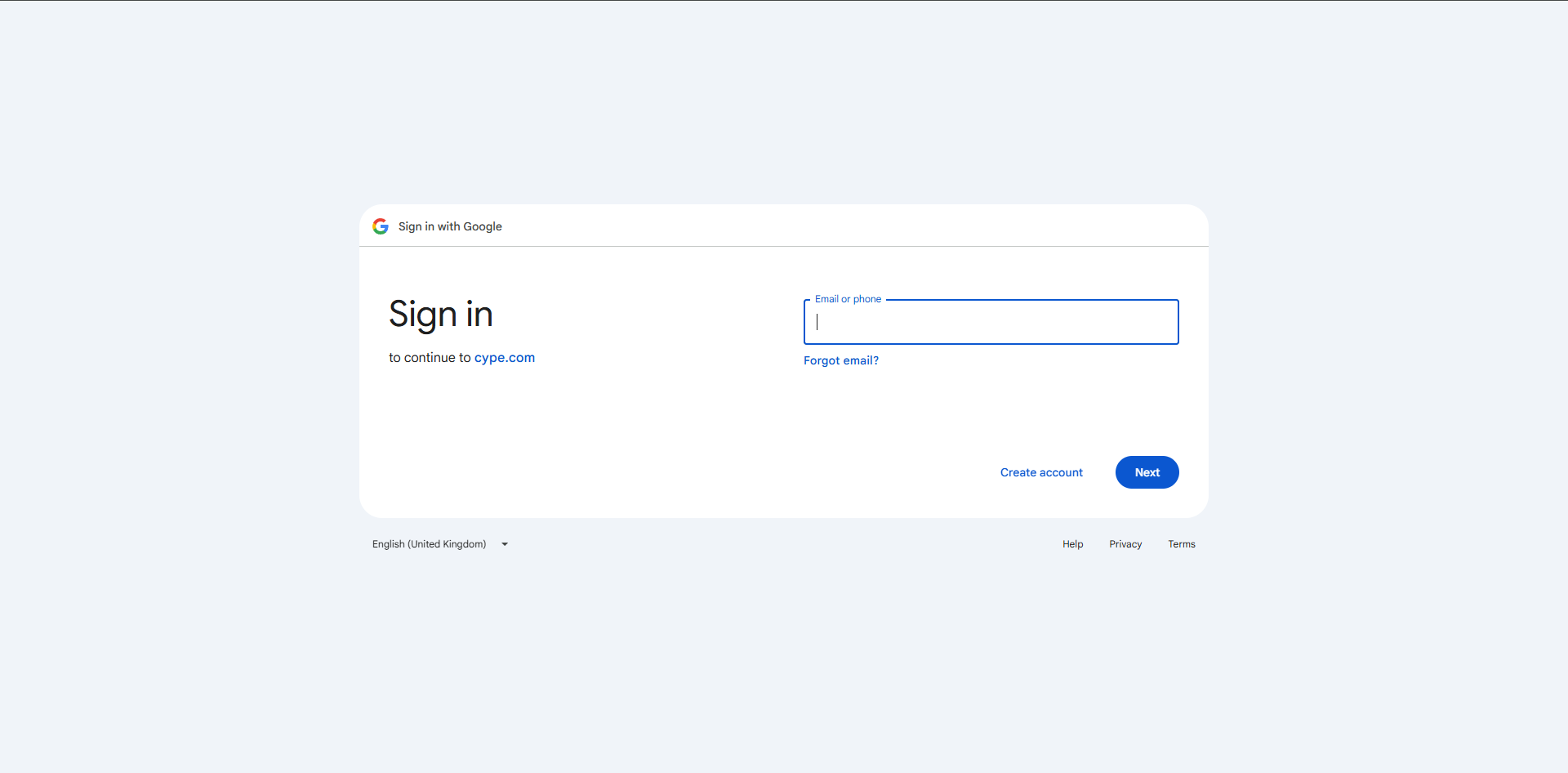
- "Sign in with Google": You can sign in using the option provided.
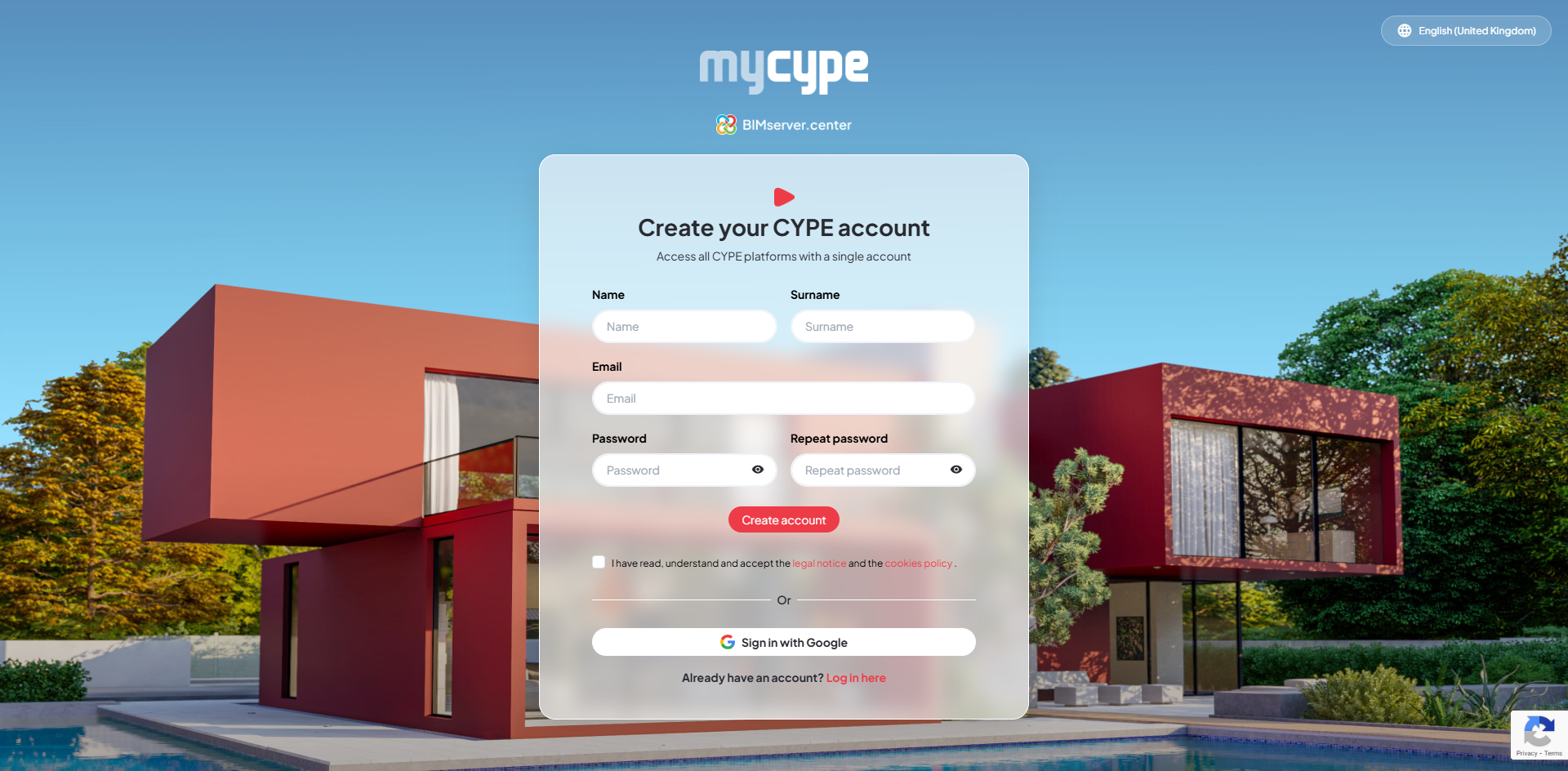
- Create an account: You can create a new account by clicking on "Sign up here" and entering the required details.
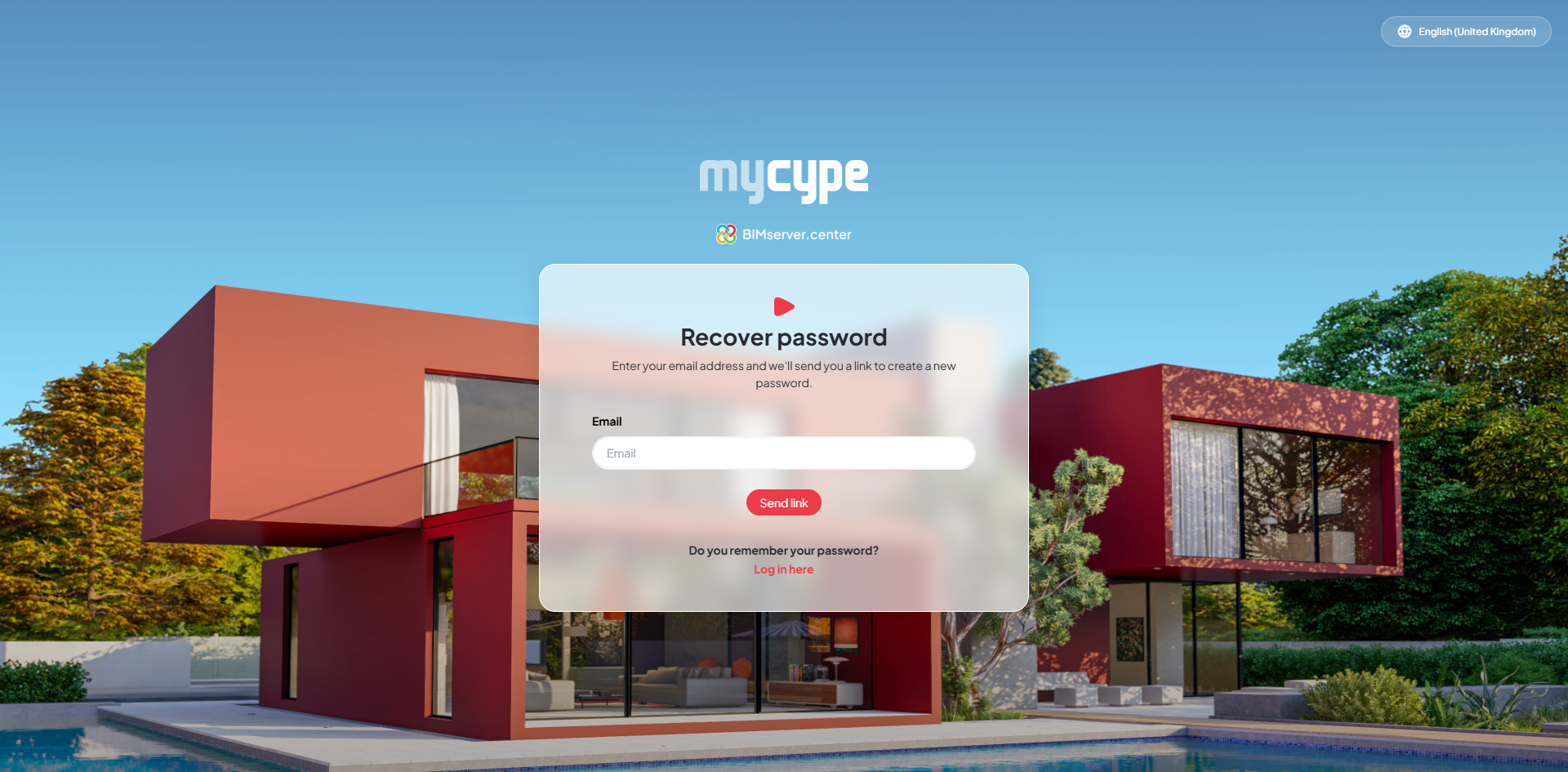
- "Forgotten your password?": You can recover your password using the corresponding option.
Log out
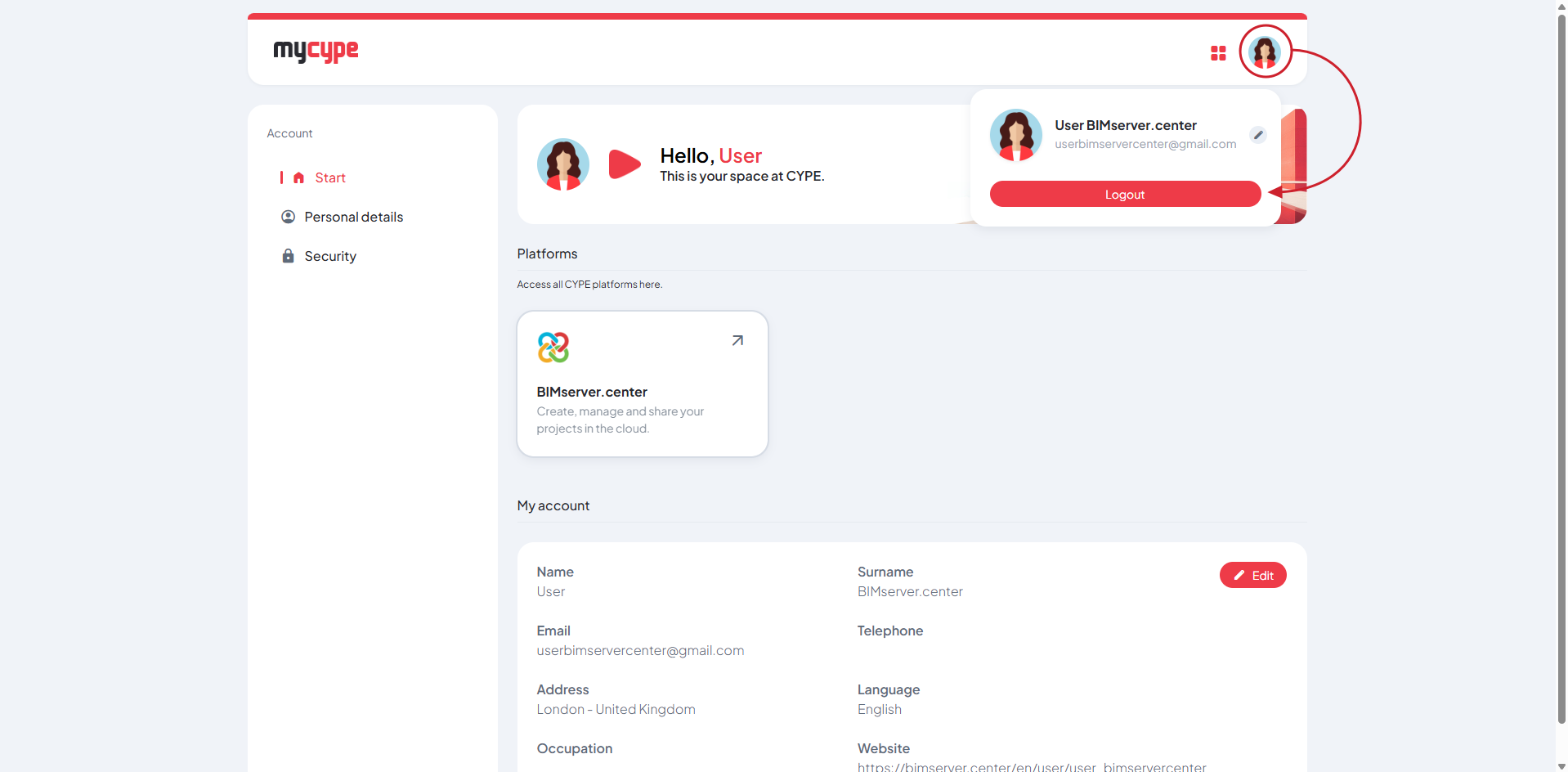
To log out, click on the user icon in the top right-hand corner of the interface and select the "Log out" option.
Account management options
On the left-hand side of the myCYPE interface, there is a side menu containing the following options:
Start
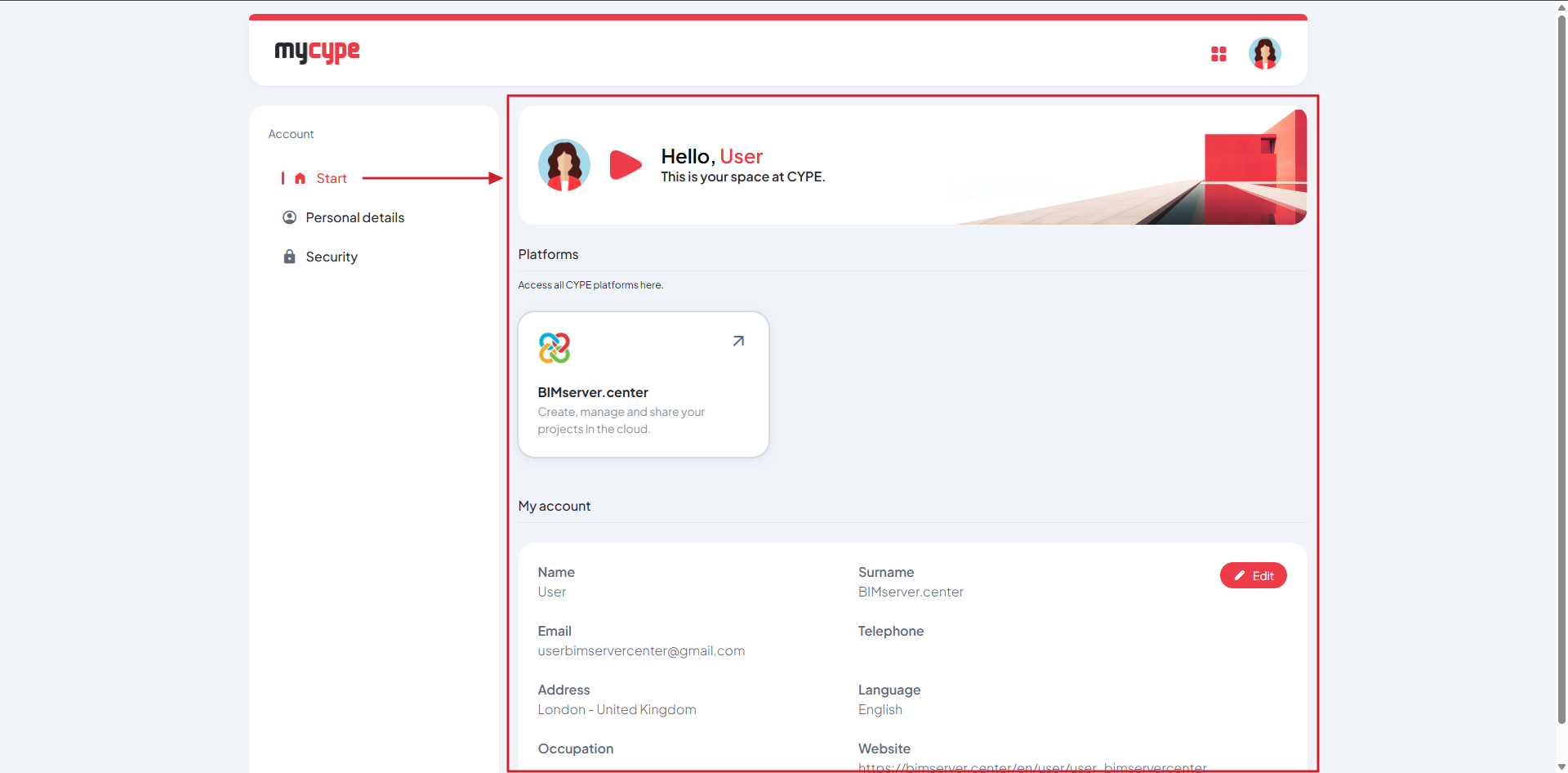
The "Start" button takes you to myCYPE's main dashboard, where you can:
- Quickly access the available CYPE platforms (shortcuts)
- View an overview of your account information
- Directly edit your personal details
This is myCYPE's home page: it's where you can access all the platforms and key account information.
More information
You can also access the various platforms via the "myCYPE platforms" icon located at the top right of the interface.
Personal details
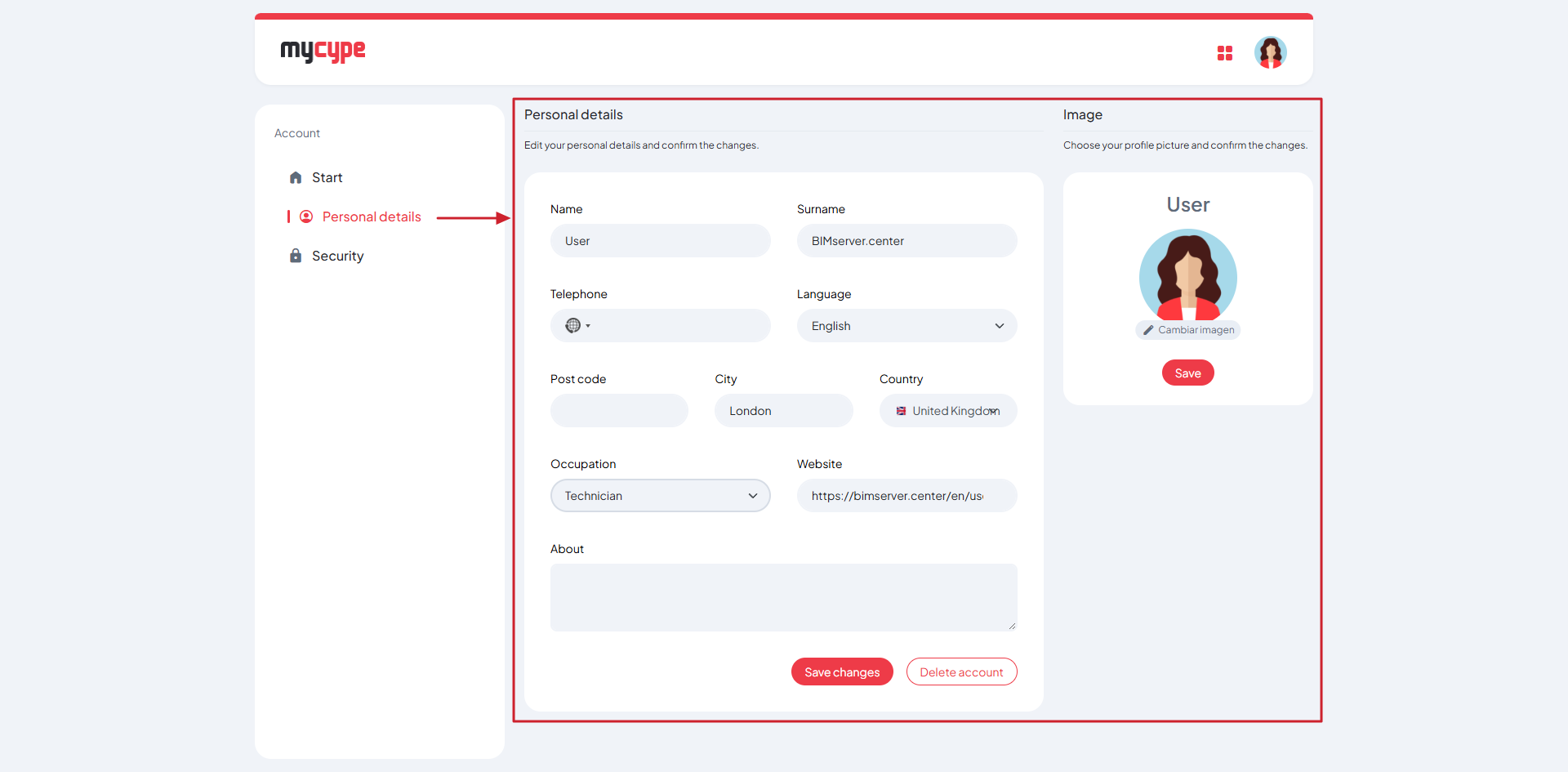
The "Personal details" button lets you access and manage your account details. In this section, you can view and edit information such as:
- Name and surname
- Phone number
- Language
- Address
- Occupation
- Website
- Additional information
There is also a section for managing your profile picture, so you can add or change the photo associated with your account.
Please note
Any changes made in this section must be confirmed by clicking the "Save changes" button for them to be applied correctly.
Account security
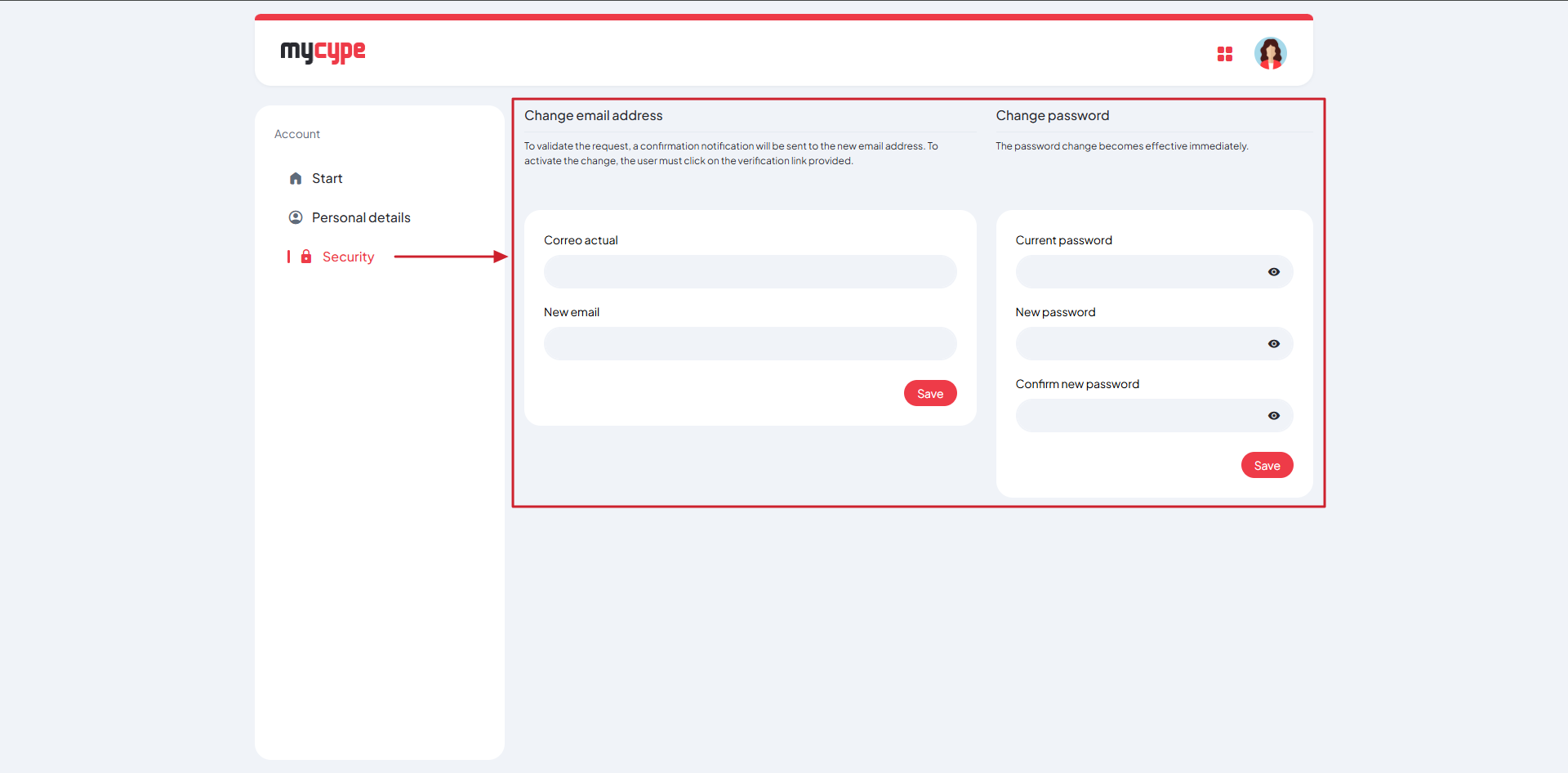
The "Security" button takes you to your account’s security settings. In this section, you can change your registered email address and password.
Changing your email address: the request must be confirmed via a verification link sent to the new email address.
Changing your password: changes are applied immediately following confirmation.
Best practice
Use a strong password and update your login details regularly to enhance your account security.
Links to external websites
You can find the following shortcuts to external websites both via the "myCYPE platforms" icon and on the home page:
- BIMserver.center
Link to the web platform for managing, sharing and coordinating BIM projects, supporting collaborative working and interoperability between programs. It includes features such as advanced search, an image gallery for your projects, AI image generation, Google Sign-In, a web-based DXF/DWG viewer, and a user community area.