Comparative bills of quantities
Arquimedes can simultaneously compare different bills of quantities or various offers received during a tendering process. This feature is useful for contrasting bidders’ proposals or comparing a base bill of quantities with a revised version.
The comparative is carried out at the item level, not at the unit breakdown level, and is based on matching item codes and the chapter and subchapter structure of the base bill of quantities.
Creating a new comparative bill of quantities
A comparative bill of quantities can be generated using the "New comparative bill of quantities" option (in the "Processes" menu, under "Comparative bills of quantities"), from:
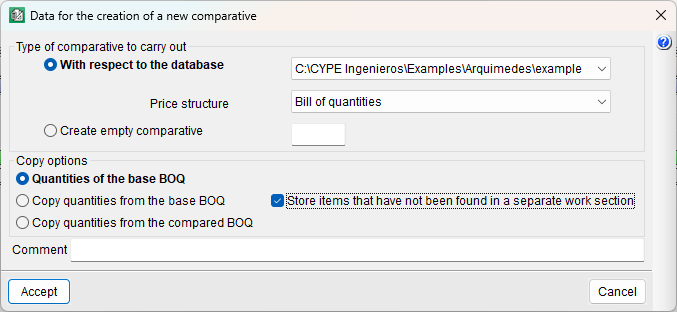
- An open database
A bill of quantities in Arquimedes, BC3 or spreadsheet format. - An empty comparative
Entering data manually from paper-based or other non-readable offer formats.
During the configuration, you can do the following:
- Select the price structure to be used (bill, sale, study, certificate, or execution).
- Define where the measurement quantities will come from, using three copy options:
- Quantities of the base BOQ
The measurement quantities from the base bill of quantities (used in the tender) are applied, without the possibility of modification. - Copy quantities from the base BOQ
Starts from the measurement quantities of the base bill of quantities, but they can be manually adjusted. This is useful for creating an empty comparative, as it allows you to enter the quantities from the received offer and view the quantity differences. - Copy quantities from the compared BOQ
Takes the quantities from the received offer. This is useful when the offer includes revised measurements that may justify differences in amounts.
- Quantities of the base BOQ
- Decide how to handle items not present in the base bill of quantities (storing them in a separate item named "@NoClas").
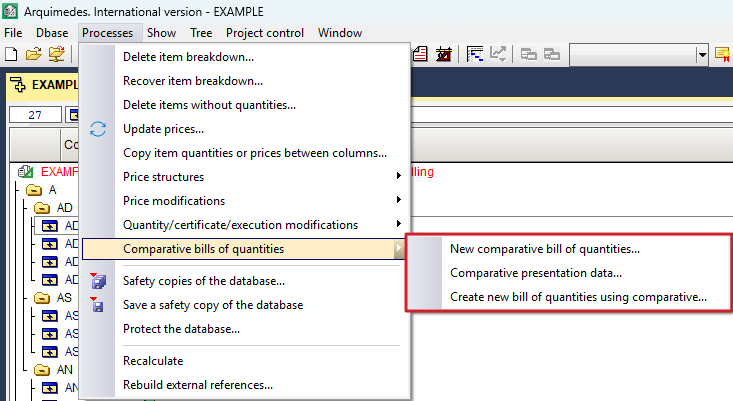
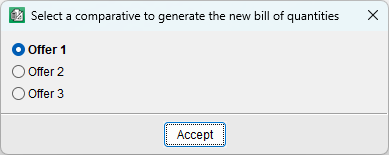
Comparative bills of quantities can be retrieved in Arquimedes format using the "Create new bill of quantities using comparative" option (from the "Processes" menu, under "Comparative bills of quantities").
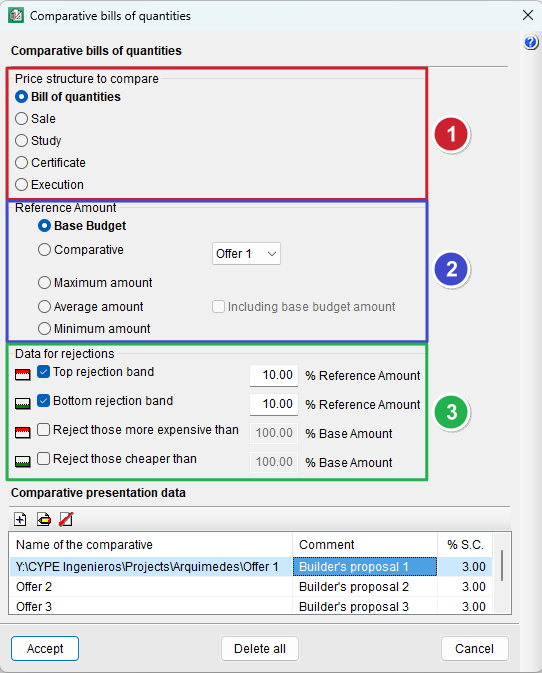
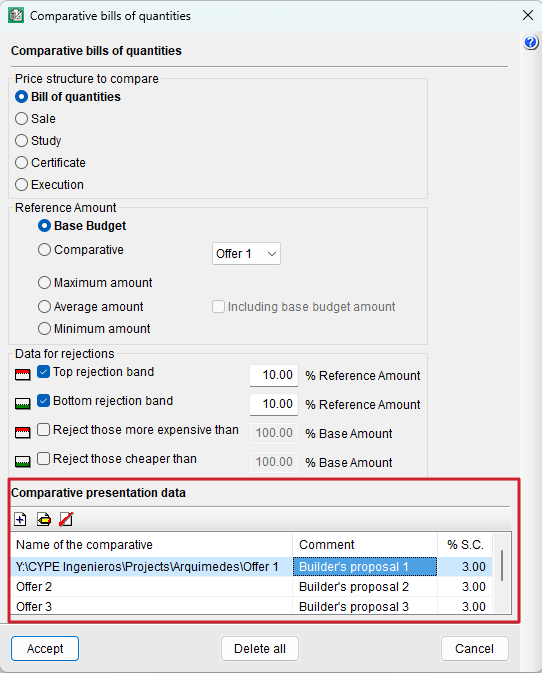
It is also possible to add or delete comparatives and modify their configuration data using the "Comparative presentation data" option.
Entering measurement quantities and costs
First, in the "Cost breakdown structure" window, you need to activate the column display "Comparatives (by comparative group)" or "Comparatives (by quantity type)" (by right-clicking the column header).
- If an empty comparative has been created, simply enter the data (costs) in the "Rate" column cells for the corresponding offer.
- If, in addition to creating an empty comparative, you have selected "Copy quantities from the base BOQ", enter the data (quantities and costs) in the "Quant" and "Rate" column cells for the corresponding offer.
In both cases, the "Amount" column will be filled in automatically.


Analysing the comparative bill of quantities results
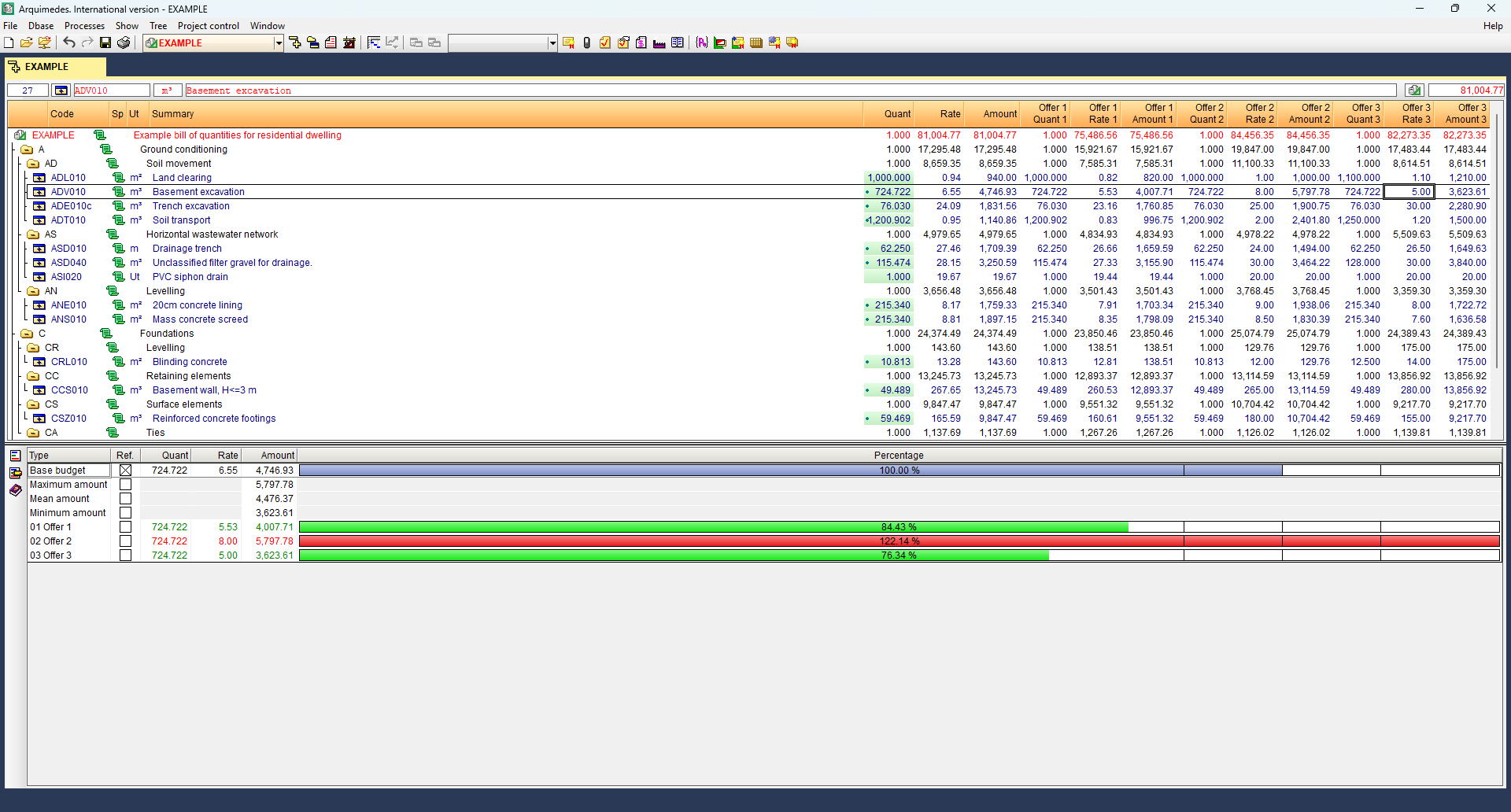
When selecting a cell in any of the compared columns, a table appears at the bottom, showing the compared data for the selected item or work section.
This table allows you to:
- View graphical bars comparing the offer amounts with the reference amount (e.g. average amount).
- Apply exclusion bands to identify disproportionate or risky offers based on percentage differences.
The colours used are:
- Red: offers exceeding upper limits.
- Green: offers below the lower limit.
- Blue: offers within the acceptable range.
Using the "Ref." column in the table, you can change the reference amount used for calculations. The "Quant", "Rate", and "Amount" columns refer to the price structure being compared (box 1).
The three vertical black lines shown on the graph bars correspond to the reference amount, and this amount is reduced or increased by the indicated percentages.
To the left of the table, you’ll find shortcut buttons to "New comparative bill of quantities" and "Comparative presentation data".
| More information: |
|---|
| The reference amount (box 2) and the exclusion bands (box 3) can be configured according to the needs of the process. |
| More information: |
|---|
| To print comparative reports (from "Print current database"), you must select a comparative-type report, such as "Comparative bills of quantities" or "Comparative between valid and modified BOQ" (see the "Results output" section). |