Connection between Allplan® and Arquimedes
The connection between Allplan and Arquimedes is established by installing the "Connection with ALLPLAN®" plugin, which activates the "Arquimedes" catalogue (from Allplan version 2014.1.1 onwards) and "user_kat" or "nem_ava" for earlier versions.
Linking Arquimedes items to Allplan elements
When modelling in Allplan, you can manually assign each element (wall, floor, etc.) the code of an item from an Arquimedes bill of quantities.
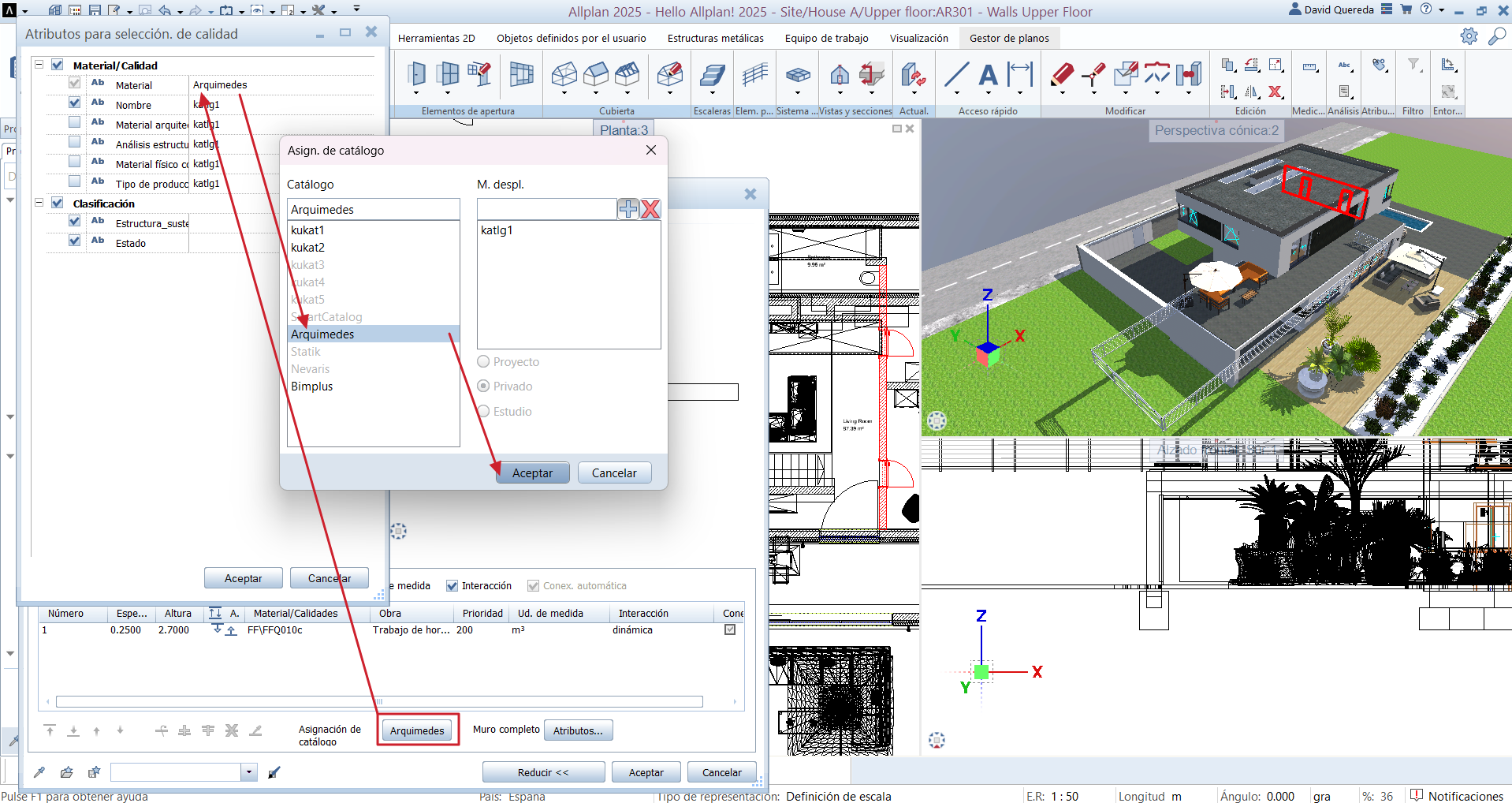
When inserting an element and editing its properties, you must check that, at the bottom of the window, the "Catalogue assignment" button displays the "Arquimedes" catalogue. If another catalogue appears by default, you can change it by double-clicking on the current one and, in the dialog box that opens, double-clicking on the "Material" cell to select the desired catalogue.
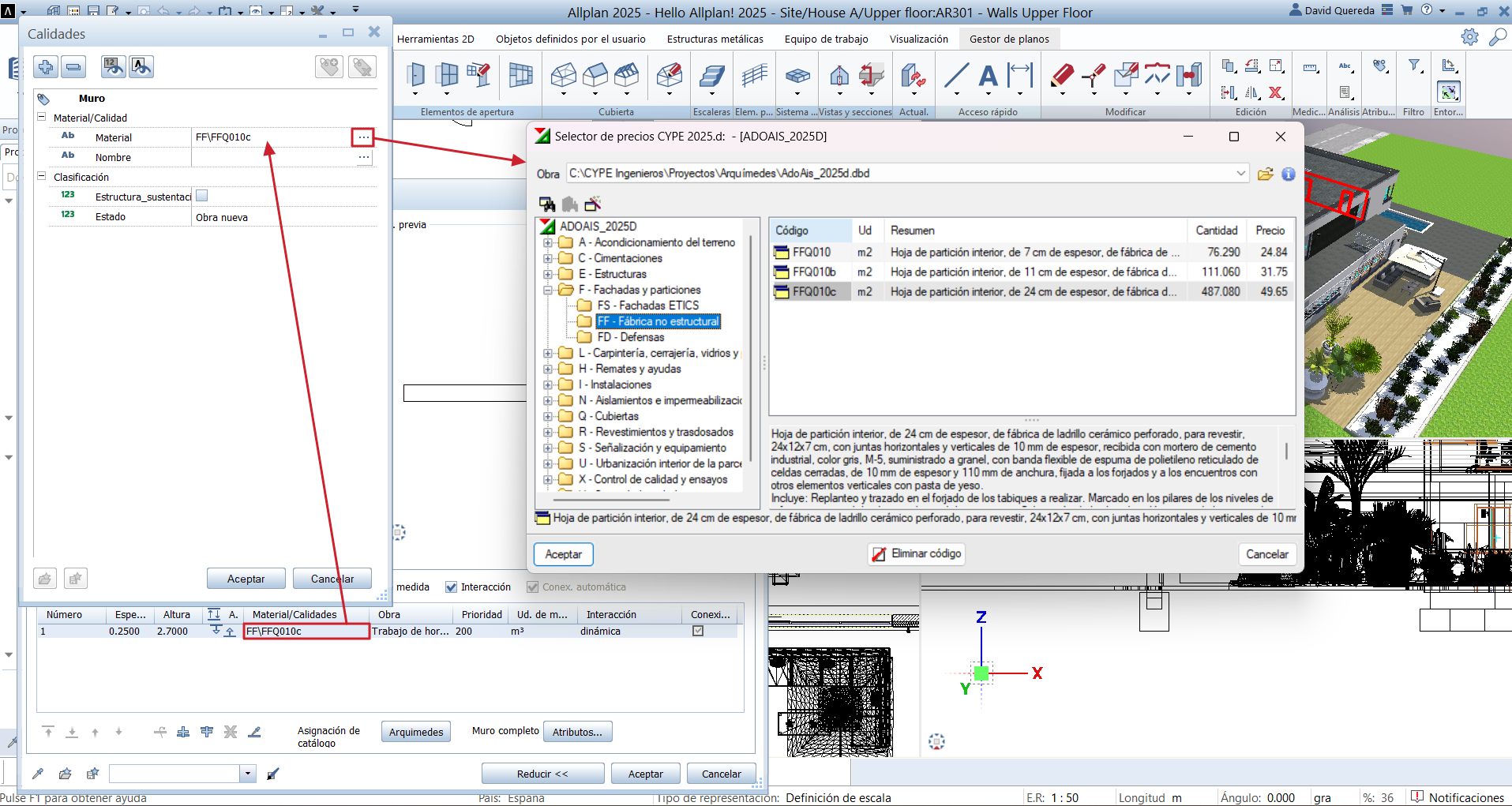
Next, in the "Parameter, Attribute" tab of the element’s properties window, double-click a cell in the "Material/Qualities" column. The "Qualities" dialog box will appear; clicking the three-dot button next to the "Material" cell will open the "CYPE price selector". In this selector, select a .dbd file from a previously saved (but not currently open) Arquimedes database. The structure of work sections and items contained in that database will then appear. Double-clicking on an item automatically assigns it to the "Material/Qualities" cell.
Importing quantities from Allplan into Arquimedes
Before exporting the quantities, you must check in Allplan how the elements are to be measured: by cubic metres, square metres, linear metres, number of units or kilograms. This setting is defined in the "Unit of measurement" column.
After this, a file with the .xca extension is generated, also from Allplan, using the "Export quantities" option in the "File" menu, "Export". During this process, you can select which elements to export (using the magnifying glass button) or export all active elements by selecting the "All" option. It is important to ensure, via the settings wheel, that:
- The selected report template is "Measurements_(Conn_with_prog).rdlc".
- The file type is "Allplan BCM (.xca)".
- The tracking program is the desired version of Arquimedes.
Finally, in Arquimedes, there are three ways to import an .xca file:
- Allplan can automatically launch Arquimedes
After generating the .xca file, Allplan can automatically launch Arquimedes and start the import process. Users can choose whether to import into an existing bill of quantities or a new one, define the reference database and activate the associated databases. - Associating the .xca extension with Arquimedes
If the operating system is configured to associate .xca files with Arquimedes, double-clicking the file will open the program directly. From there, users select the same options as in the previous case to continue with the import process. - Directly from Arquimedes
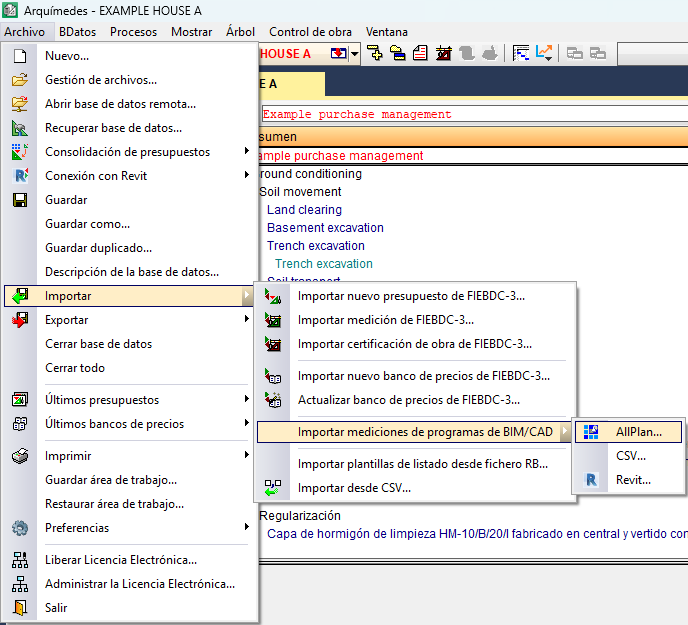
From Arquimedes, you can manually access the "Import quantities from BIM/CAD programs: Allplan" via the "File" menu, "Import". After selecting the previously generated .xca file and choosing whether to import into an existing bill of quantities or a new one, you can configure the import options, such as grouping detail lines or setting the composition of the "Comment" and "Comment 2" columns, amongst others.
In all cases, Arquimedes generates new items with their corresponding quantity tables based on the information received from Allplan. If an item with the same code already exists, a new quantity sub-table will be added to that item rather than creating a new one.
Items not found in any of the active databases will be included in the "@ALLPLAN" work section, automatically created by Arquimedes to ensure that no quantities are lost.
| Best practice: |
|---|
| To import the file into Arquímedes and extract the quantities, you must have a license to use Arquimedes and the "Quantities over DXF" module. |