Editing due payments
Due payments can be generated in two ways:
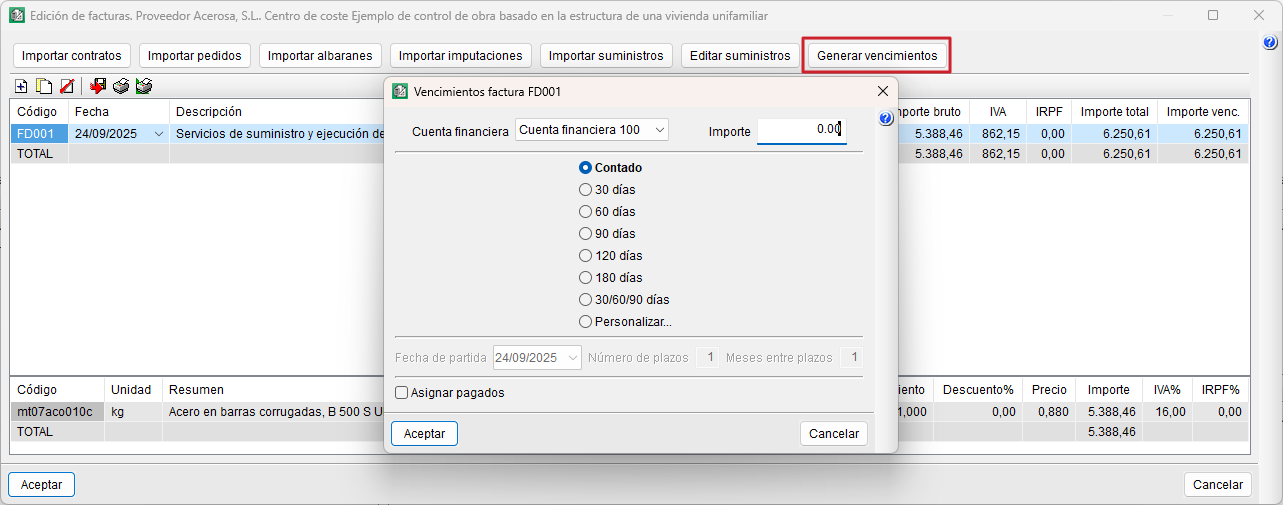
- From the edit screen for received and issued invoices, using the "Generate due payments" button.
- From the "Due payments" section of the "Job control" menu, under the "To charge" (customers) and "To pay" (suppliers) options.
Due payments allow you to set the deadline for collecting or paying an invoice, and are shown in the "Calendar" to help you manage your cash flow.
Generate due payments from invoices
When creating a document from an invoice, you must specify:
- The financial account to be debited.
- The amount.
- The payment plan (cash, 30, 60, 120, 180 days, 30/60/90 or custom).
- The "Assign paid" box automatically marks the due date as paid.
Generate due payments from the "Edit due payments" section
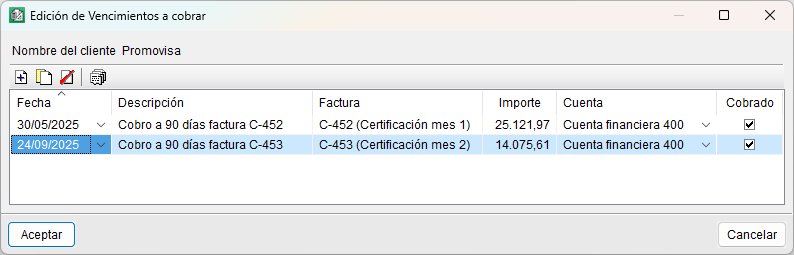
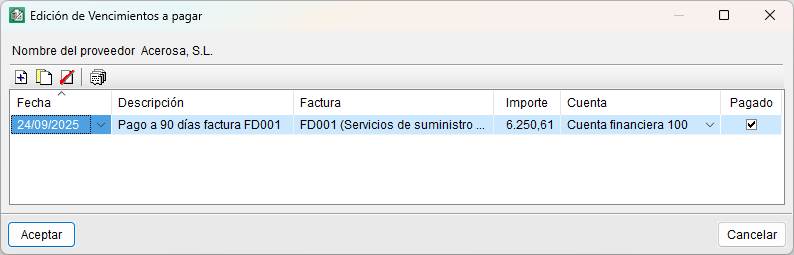
In this case, you first select the relevant customer or supplier. The dialog box that appears will display the due dates already generated from invoices, but it is also possible to create standalone due dates that are not linked to any invoice. These can be added via "Add new element to the list" by specifying the following:
- Due payment.
- Description.
- Amount.
- Associated financial account.
- Collection status.
Manually created due payments will appear in the list with no text in the "Invoice" column, thus distinguishing them from those generated automatically from documents.