Importing quantities in CSV format
Arquimedes allows you to import quantities from files in CSV format, making it easy to incorporate data generated by CAD or BIM programs other than Allplan® or Archicad®.
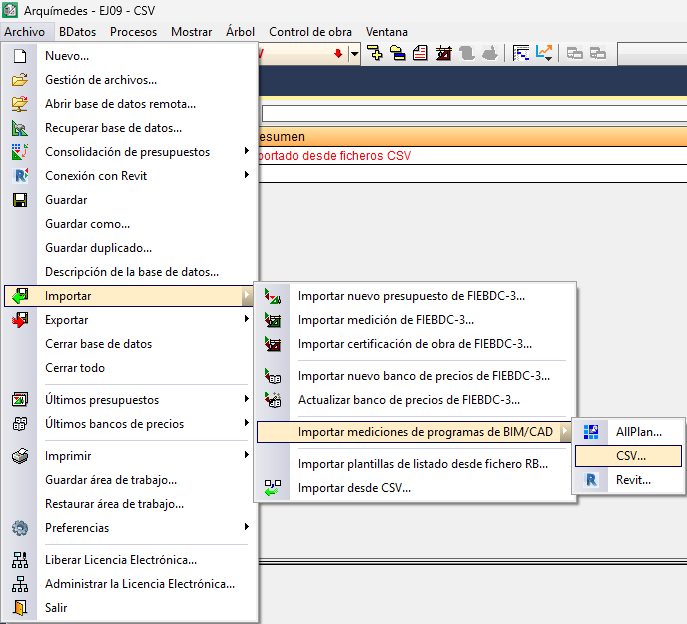
The import process is initiated via the "Import quantities from BIM/CAD programs: CSV" option, available in the "Import" section of the "File" menu.
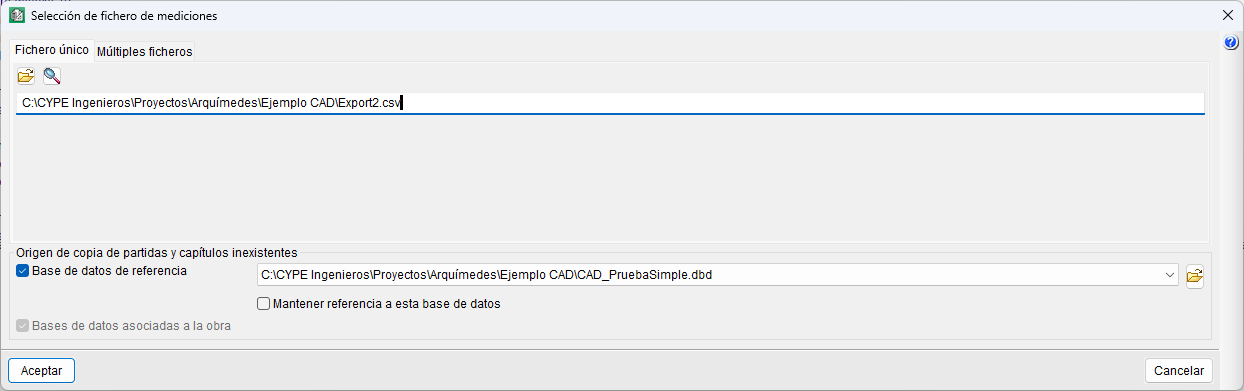
In the dialog box that opens, there are two options: the quantities can consist of a single .csv file (the "Single file" tab) or multiple files (the "Multiple files" tab).
The process begins by selecting the location of the file or files; if desired, you can specify the source from which to copy items and work sections not present in the bill of quantities.
The first place to check is the reference database, which should be the same one used in the connection with CAD programs to associate codes with building elements. If they are not found there, or if the name of the reference database has simply not been provided, the program can search for the items within the databases associated with the project itself. Arquimedes automatically generates the "@CSV" work section, where items that could not be referenced in any database are added.
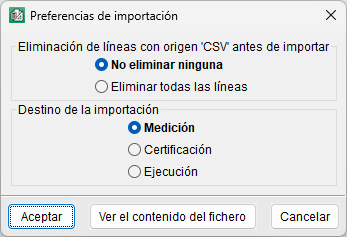
Once you have accepted, another dialog box will appear allowing you to set the import preferences, such as whether to remove rows with a "CSV" source before importing and the import destination (quantities, certificate or execution).
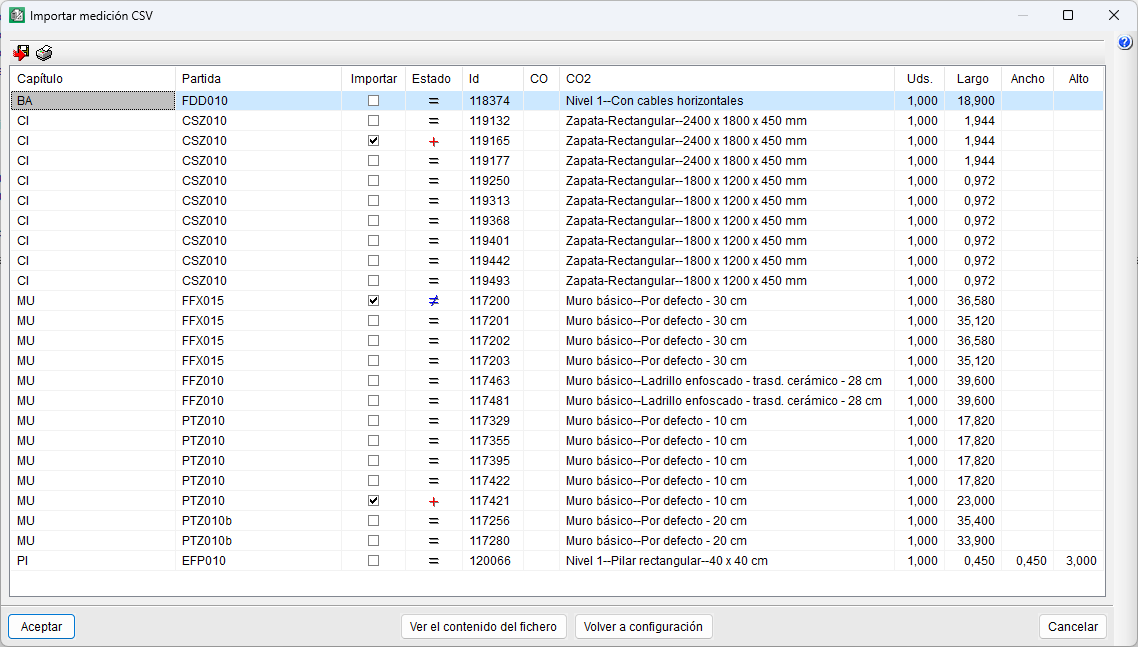
Clicking the "View file contents" button opens a control table where the "Status" column visually indicates the results of the comparison:
- + (red): new line added.
- = (black): existing line with no changes.
- ≠ (blue): existing line with differences.
Once you have confirmed, the assigned quantity will appear in the "Cost breakdown structure" window. Furthermore, if there are any new items, they will be added to the existing bill of quantities.
| Best practice: |
|---|
| For the "Import quantities from BIM/CAD programs" option to be available in Arquimedes, you must have a license to use Arquimedes and the "Quantities over DXF" module. |
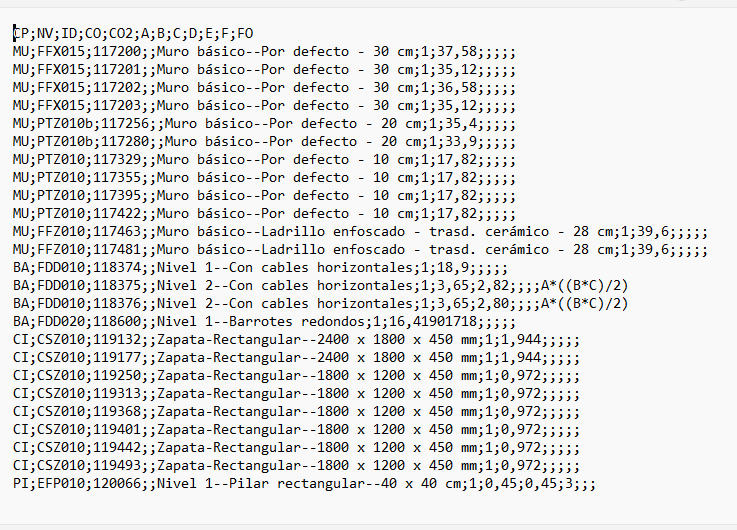
Format of the .csv file for importing quantity lines
The .csv file must include a header row, where the column names are defined. This header enables Arquimedes to correctly identify the cells that make up each detail row.
The required format is:
CP;NV;ID;CO;CO2;A;B;C,D;E;F;FO
- CP
Parent code or work section code. - NV
Key note or item code. - ID
Element identifier. "Id" field in the Arquimedes quantity row. - CO
Comment. The "Comment" field in the Arquimedes quantity row. - CO2
Comment 2. The "Comment 2" field in the Arquimedes quantities row. - A
Units (always present). Field "A" in Arquimedes' quantities line. - B
Length, area, volume or weight (this field may be omitted, but the space is reserved; it would be left blank “;;” in the .csv file). Field "B" in the Arquimedes quantities row. - C
Width. Same as above. Field "C" on the Arquimedes quantity line. - D
Top. Same as above. Field "D" on the Arquimedes quantity line. - E
Field "E" on the Arquimedes quantity line. - F
Field "F" on the Arquimedes quantity line. - FO
"Formula" field in the Arquimedes quantity row. To be interpreted, formulas must be constructed using the "A", "B", "C", "D", "E" and "F" fields from the Arquimedes quantity rows. When there is no formula, all defined numerical fields "A", "B", "C", "D", "E" and "F" are multiplied together, excluding empty fields.
Formatting requirements:
- The field separator must be a semicolon (;).
- All lines must end with a line break.
- Empty fields must retain their position. If it is an intermediate field, use ";;". If it is the final field, use ";".
- In text fields containing a semicolon as part of the text, the field content must be enclosed in quotation marks.
- For numeric fields, the decimal separator must be a comma (,) and the thousands separator must be a full stop (.). The thousands separator may be omitted, as may the decimal separator if the number contains no decimals.