Job control options and settings
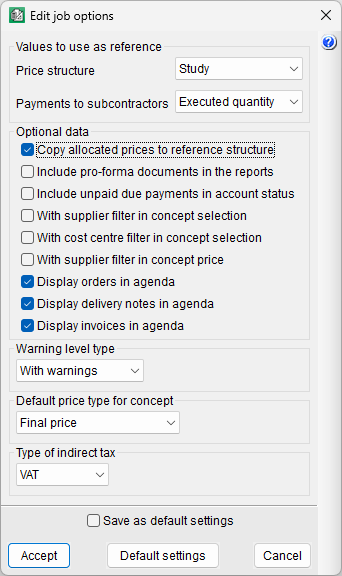
The first time you access any of the options in the "Job control" menu, the "Edit job options" dialog box will appear. After that, you can access it via "Settings" in the "Job control" menu.
The options that appear are the following:
- Values to use as reference
- Price structure
This allows you to choose between bill of quantities, sale or study, and determines the source of concept prices in purchase comparisons and documents (such as purchase orders, delivery notes, invoices and cost allocations). It also affects the calculation of site supplies. - Payments to subcontractors
This allows you to choose between certified quantity or quantity completed, and serves as the basis for the program to calculate payments to subcontractors at each stage of the project.
- Price structure
- Optional data
- Copy allocated prices to reference structure
When this box is ticked, whenever a supply price is awarded to a supplier in a purchase comparison, the price will be copied into the reference price structure for the concept representing the supply. - Include pro-forma documents in the reports
Ticking this box includes documents defined as "Not firm" in the case of purchase orders; "Pro forma" in the case of delivery notes, issued invoices and received invoices in the windows and lists. - Include unpaid due payments in account status
Ticking this box will include due dates that are not marked as paid in account statement lists. They will appear as "Unpaid" in the list. This is used to preview account statements. - With supplier filter in concept selection
Ticking this box will display only those supplies related to the selected supplier. This will occur when clicking the "Concept selection" button in purchase orders, delivery notes, received invoices and supplier allocations. - With cost centre filter in concept selection
Ticking this box will ensure that only concepts related to the cost centre appear when you click the "Concept selection" button when editing supply allocations. - With supplier filter in concept price
Ticking this box will take the supplier into account when calculating concept prices, selecting only those related to the selected supplier, according to the "Price type" option. This option does not affect the "None" and "Metered price" fields. This will occur when clicking the "Concept selection" button in purchase orders, delivery notes, received invoices and supplier allocations. - Display orders in agenda
With this box ticked, orders can be viewed in the calendar. - Display delivery notes in agenda
With this box ticked, delivery notes can be viewed in the calendar. - Display invoices in agenda
With this box ticked, both issued and received invoices can be viewed in the calendar.
- Copy allocated prices to reference structure
- Warning level type
Allows you to choose between no warnings or with warnings. When this option is enabled, the program will prompt you whilst editing supplies linked to more than one document, before making any changes to their values. This will occur when you click the "Edit supplies" button in purchase orders, delivery notes, received invoices and cost allocations. - Default price type for concept
Allows you to define the source of the price for concepts when editing documents. You can choose between none (zero price), last price, minimum price, average price, maximum price or concept reference price. Depending on the option chosen, the program will automatically apply the corresponding price when entering a new concept. These options are modified by the "With supplier filter in concept price" option. - Indirect tax type
Allows you to select between VAT or miscellaneous taxes, defined via the "Percentages" option in the "Display" section of the "Settings" menu.