Quantity details
To take a detailed quantity measurement, you need to create a quantity table, consisting of sub-tables which in turn contain detail rows.
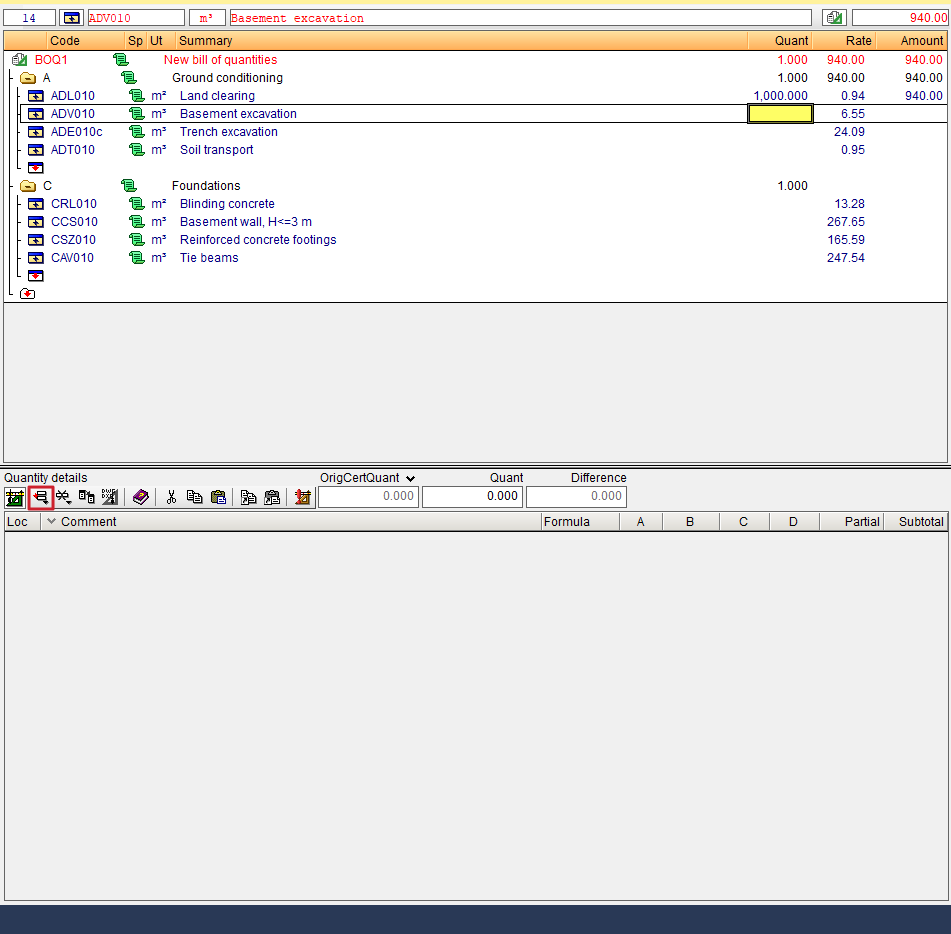
Placing the cursor in the "Quant" column of the item row you wish to measure activates the "Quantity details" area at the bottom of the screen. This area includes a button bar at the top, designed for tasks such as inserting or deleting lines and sub-tables, measuring on DXF/DWG drawings, or copying and pasting references; and three boxes displaying: the certified quantity, the measured quantity (both initially set to zero) and the difference between the two.
To set the mode in which the quantity tables are edited, to facilitate data entry or viewing, you can configure the "Measurement line edit mode". This option is available in the "View" menu under the "Settings" section.
| More information: |
|---|
| You can find more information about the quantity tables by clicking the "Help on the use of the table" button on the bar. |
Inserting a quantity table using a sub-table
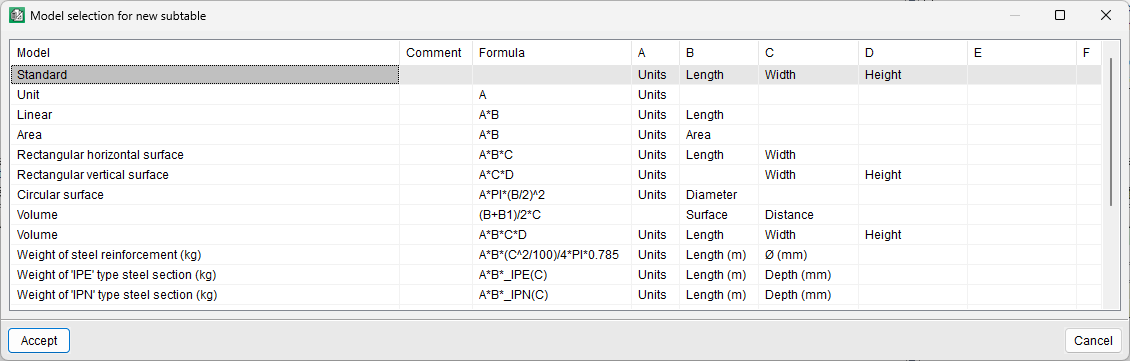
From the "Quantity details" section, you can create a quantity table by clicking the first button labelled "Inserts normal line, insertion line or subtable" and selecting the "Insert new subtable" option, which allows you to add a sub-table with a formula predefined by the program.
To insert a standard sub-table, in the "Model selection for new subtable" dialogue box, select the "Standard" option. This step can be streamlined by using the "Insert new default sub-table (Standard)" option directly".

Inserting detail lines
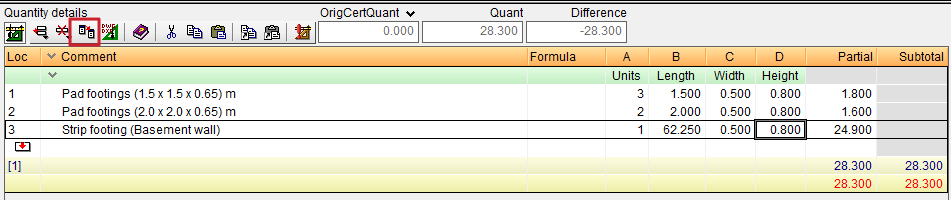
In the subtable created, enter detail rows, adding comments (in the "Comment" column) and values in the numeric data cells (labelled as columns A, B, C, D, E and F). The headers of these columns can be renamed to better reflect the content entered (for example, change "Length" to "Area" if this is more representative).
| Best practice: |
|---|
| To hide unnecessary columns, you can double-click on the column header and adjust the visibility as required. |


Delete detail lines, subtables or tables
The second button in the "Measurement details" section is "Deletes current line, current subtable or complete table", which allows you to delete the current detail row, the current subtable, the entire table, or delete the detail whilst retaining the total. Furthermore, if the subtable is referenced or there is a referenced row, this button allows you to delete it by removing the reference.

Tool for streamlining data entry
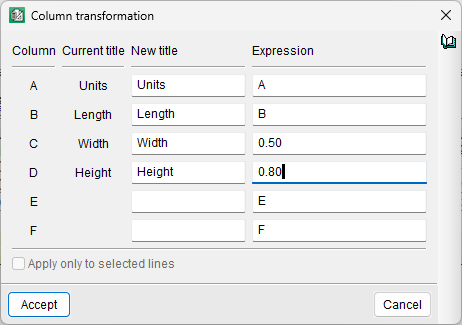
To simplify the entry of repetitive data across columns—provided that all data in the column will be the same—you can use the third button, "Launches the dialogue box for transforming the columns of the current subtable". This feature allows you to apply an expression to the columns that make up the quantities subtable. You can also apply mathematical expressions to the columns, such as setting the value of one column to twice the value contained in another. For example, use the expression "B*2" in column A, and leave the field in column B blank.