Editing columns
The "Edit columns" options are available in the corresponding menu within the "Bars" group of the top toolbar, under the "Geometry" tab (in the "Structure" section).

The options available in this menu are as follows:
- Create continuous column
- Edit floor slab depth
- Edit reference
- Number
Each of these functions is described below.
Create continuous column
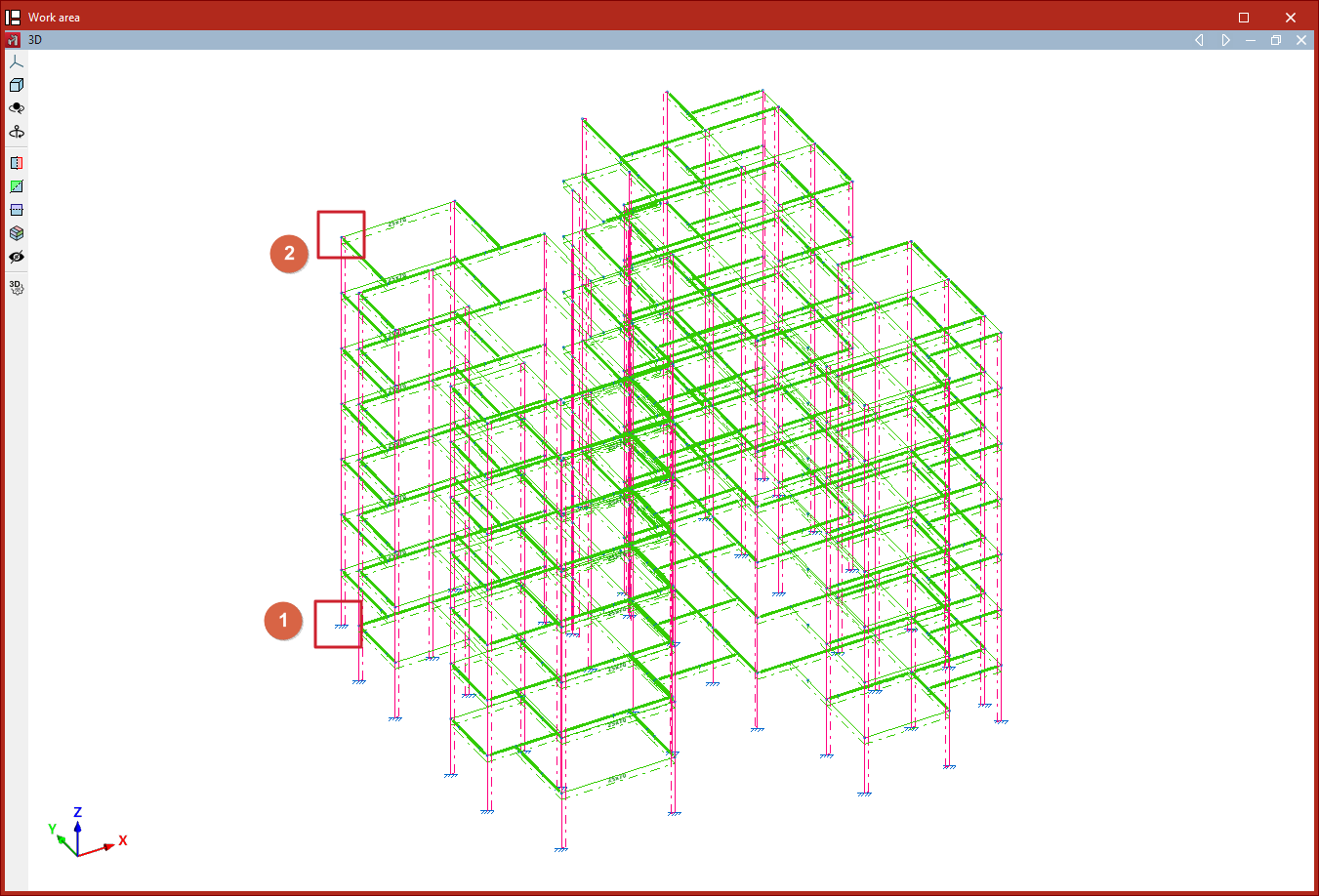
The "Create continuous column" option allows you to describe a group of aligned elements between two nodes as a single column.
Select the starting node of the first element with the left mouse button, then select the final node of the last element to be included in the column.
Edit floor slab depth
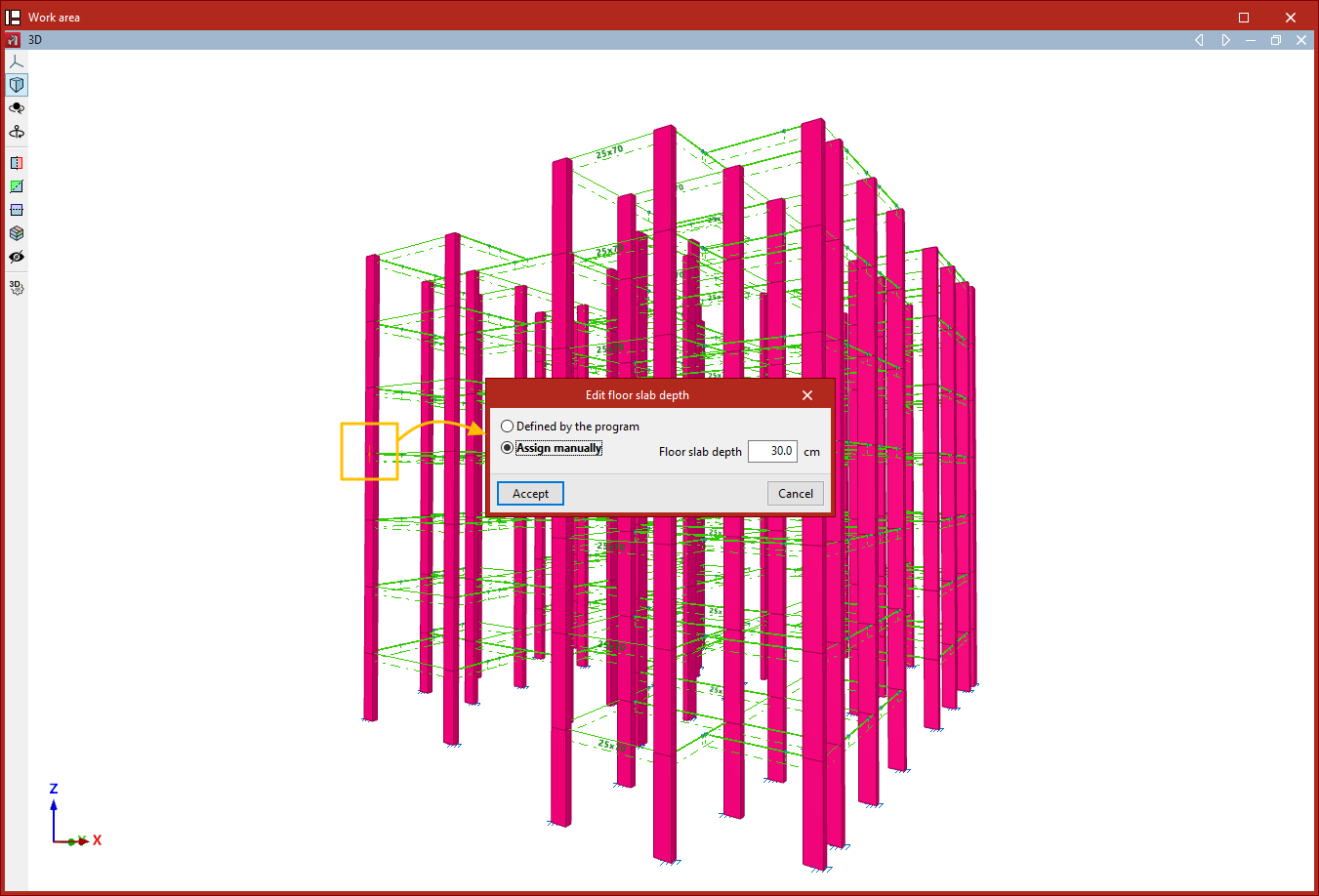
This option allows you to edit the slab depth at a node of a column, in case a depth different from the one automatically determined by the program is required. The slab depth defines the clear height of the column between two levels.
Nodes are selected with the left mouse button or by drawing a selection area, then the selection is confirmed with the right mouse button.
In the window that appears, you can specify whether the slab depth is "Determined by the program" or set it manually, in which case you must enter the value in the corresponding field. Then, click "Accept".
Edit reference
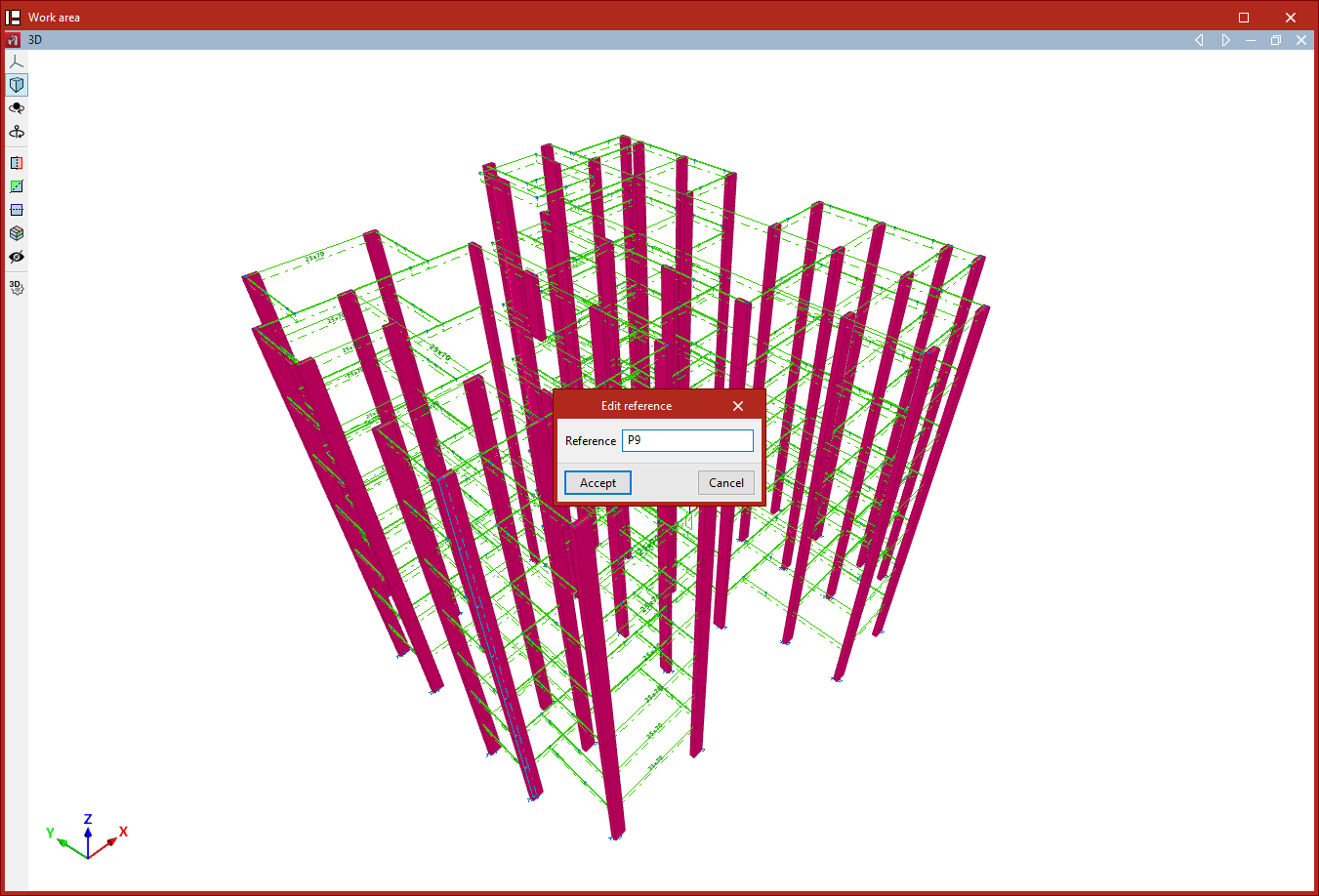
To edit a column's reference, select the corresponding option and then click on the column. After entering the new "Reference", click "Accept".
Number
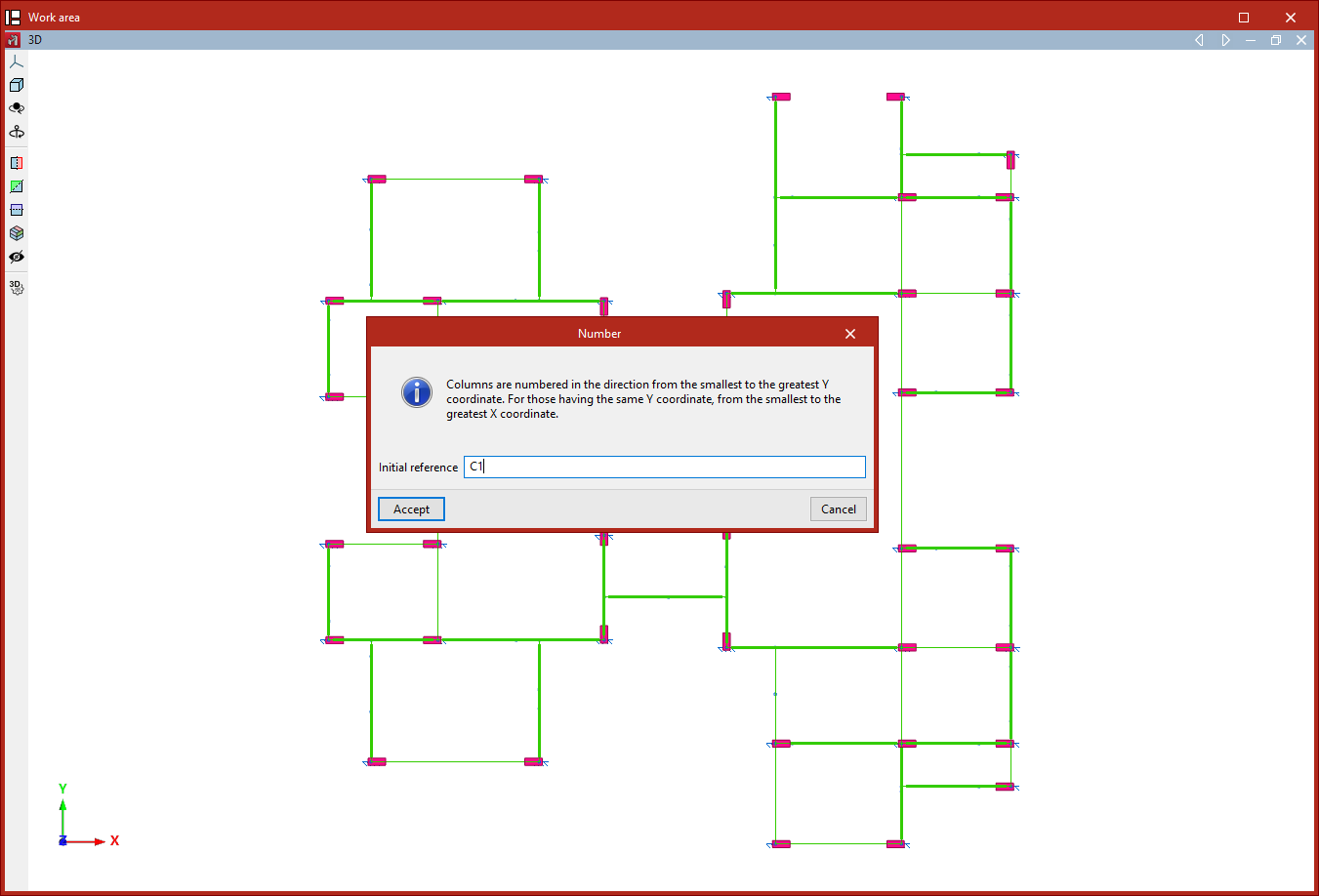
This option allows you to "Number" all the columns in the project consecutively.
After clicking the option, the program displays a message: "Columns are numbered in the direction from the smallest to the greatest Y coordinate. For those having the same Y coordinate, from the smallest to the greatest X coordinate."
All of this is based on an "Initial reference", which must be entered. Then, click "Accept".