Entering and editing grids
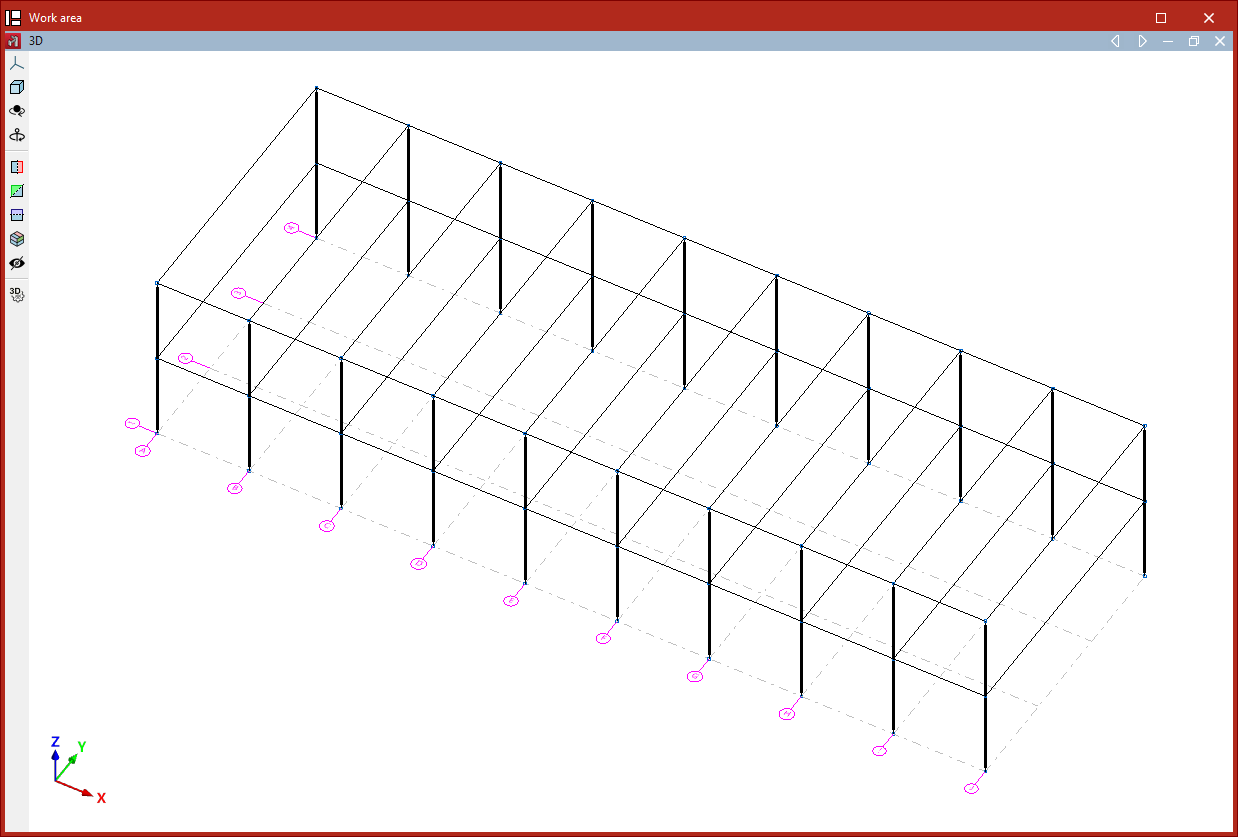
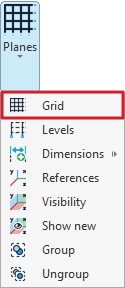
A grid can be added to the model using the "Grid" tool, available in the "Planes" menu within the group of the same name on the top toolbar, under the "Geometry" tab (on the "Structure" subtab):

Grids
A grid is a framework made up of lines parallel to the global X and Y axes. These lines divide the model spatially into elevations, which serve as a reference for entering structural elements and for defining elevation views.
After clicking on the "Grid" option, a window opens where the lines that make up the grid can be defined manually or generated automatically.
Entering gridlines manually
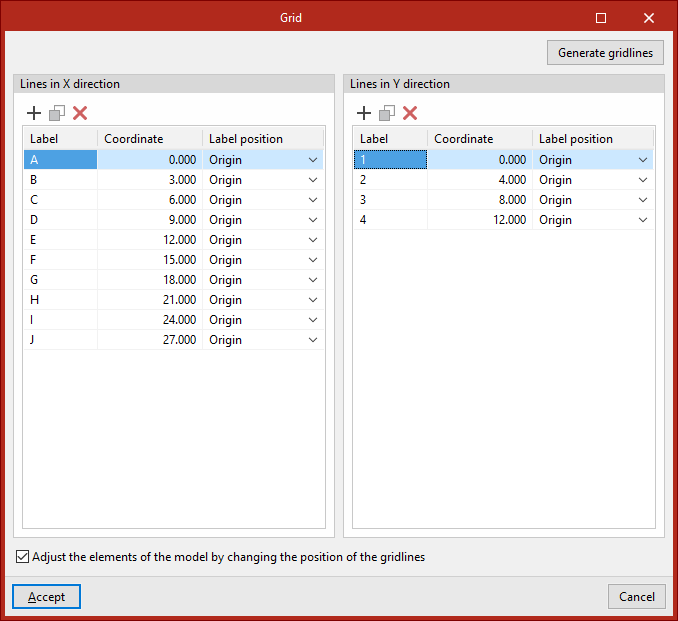
In the "Lines in X direction" and "Lines in Y direction" tables, you can manually "Add", "Copy", and "Delete" gridlines.
By clicking "Add", you can enter the data for a "New line", specifying its "Coordinate" relative to the origin, a "Label" to identify the line, and the "Label position" at either the "Origin" or the "End" of the line.
This process can be repeated to define the remaining gridlines.
The program also provides an option to "Adjust the elements of the model by changing the position of the gridlines". This means that if you modify the coordinates of the gridlines in this panel, any structural elements associated with those lines will automatically update their position.
Generating gridlines
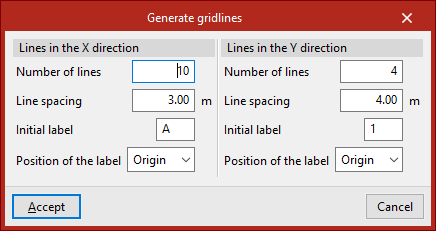
Gridlines can also be generated automatically. To do this, click the "Generate gridlines" button.
In this case, for both the "Lines in X direction" and the "Lines in Y direction", you define the "Number of lines", the "Line spacing", the "Initial label", and the "Position of the label".
Then, click "Accept". The program will delete any previously defined gridlines, if they exist, and insert the new ones into the tables.
You are free to modify the data of the generated gridlines.
Finally, in the "Grid" window, click "Accept" to return to the main interface.
| Note: |
|---|
| To check the visibility of the grid and its associated reference lines, open the "Planes" menu and click on the "References" option. Then tick the boxes "Show grid" and "Reference lines", while leaving "Only those with a node" unticked. |
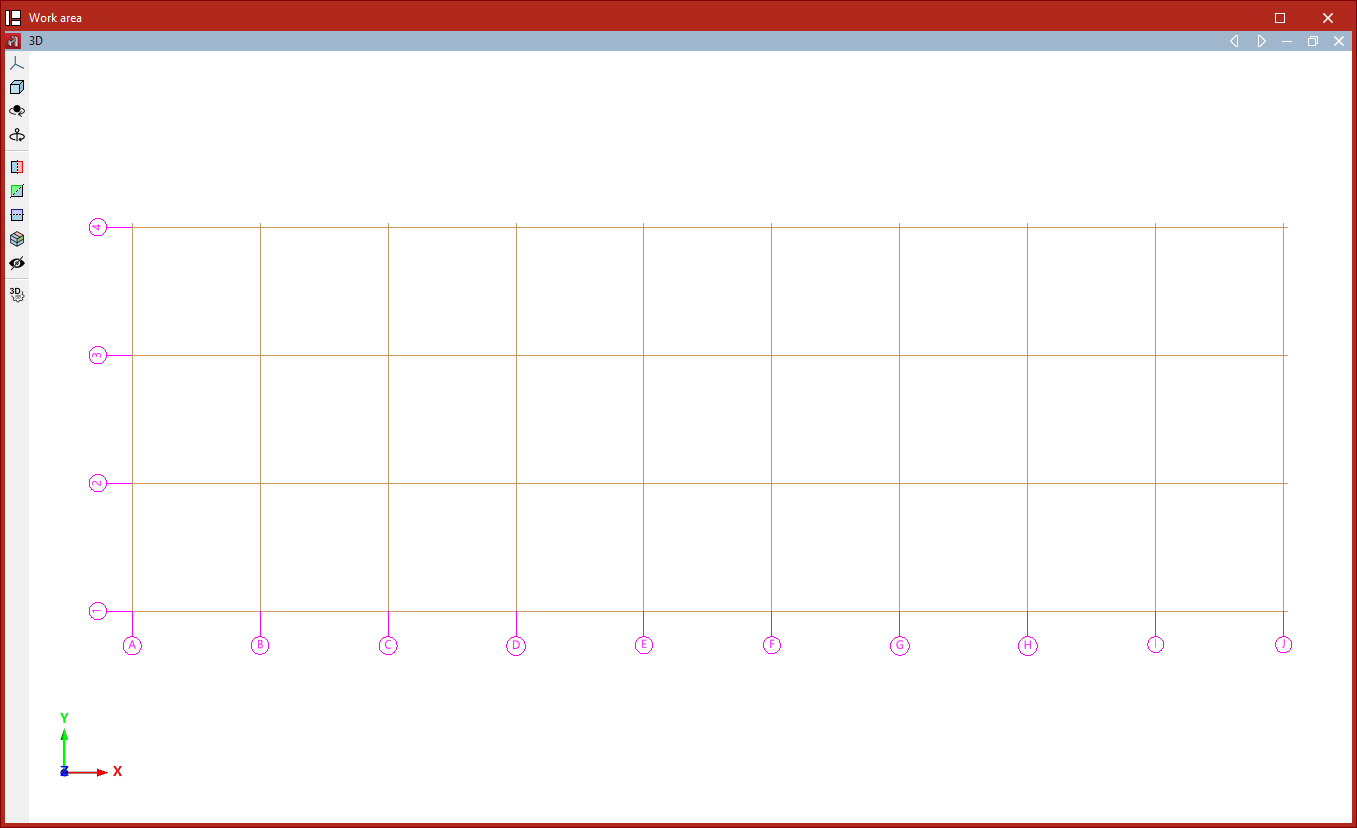
From this point on, nodes, bars, and other structural elements can be entered along the reference lines generated by the grid. Elements contained within the planes defined by the gridlines will be associated with them.