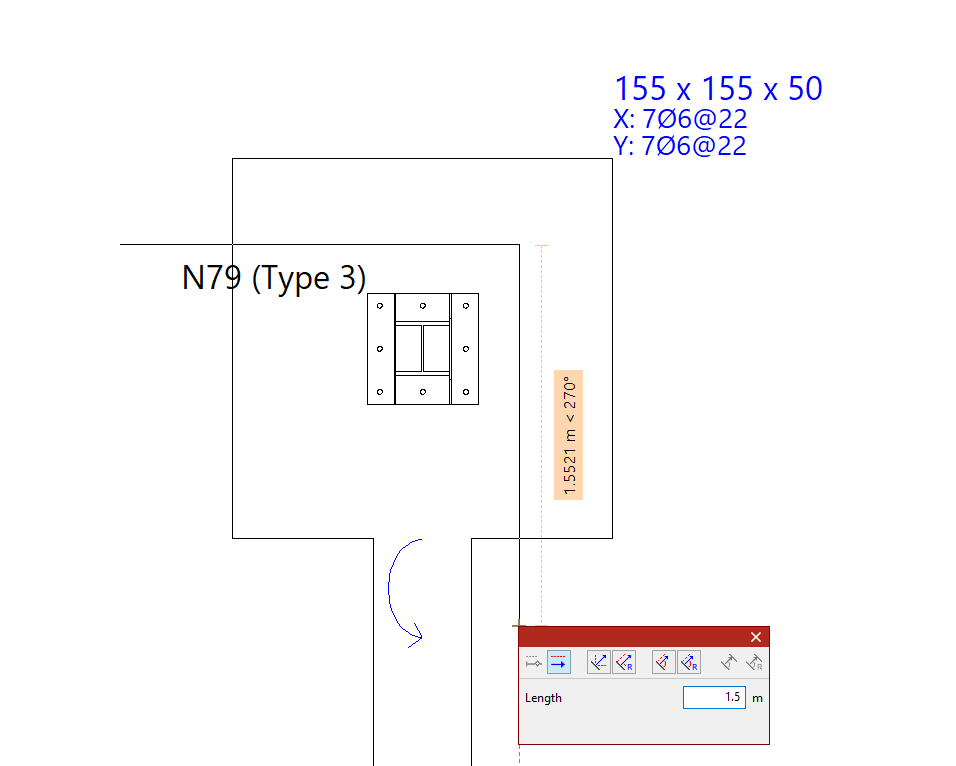
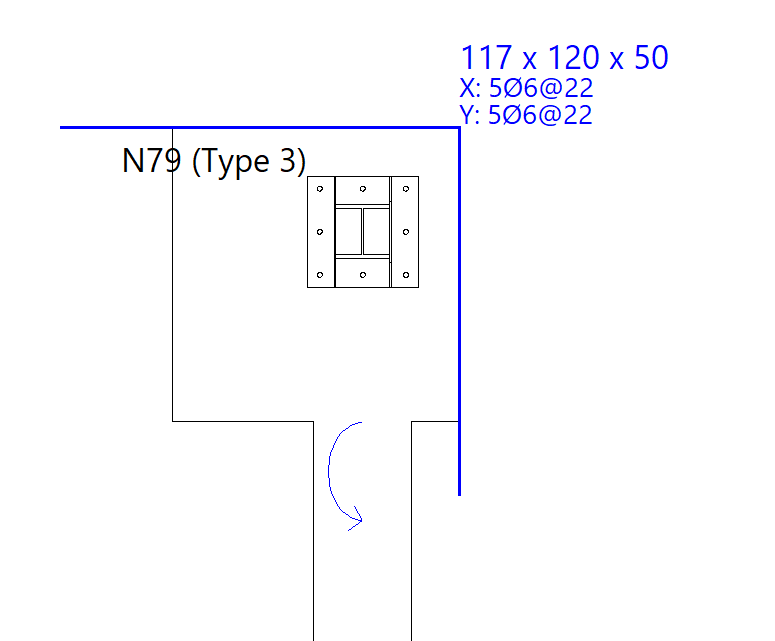
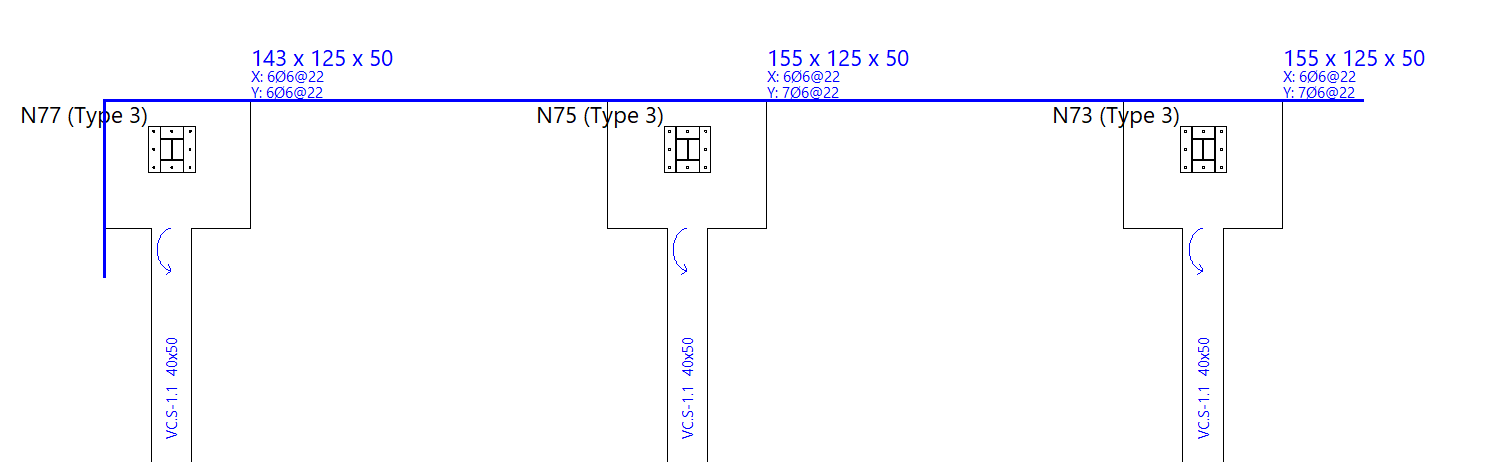
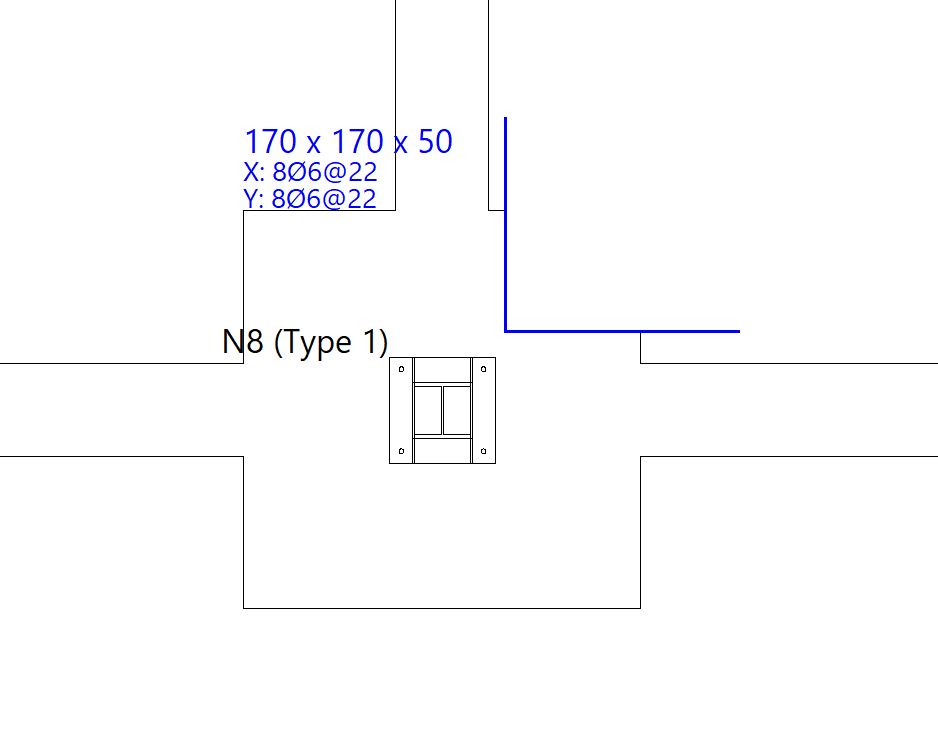
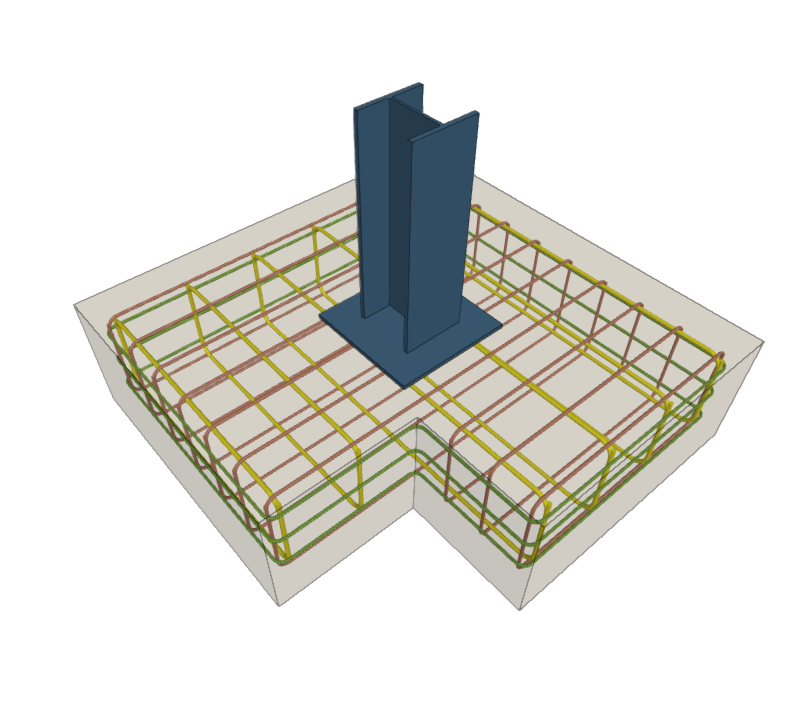
Entering foundation element limits
Foundation element limits are entered into the program using the options in the "Limits" group at the top of the interface, within the "Foundation" tab.

Foundation element limits allow you to define the presence of party walls, property boundaries or spaces reserved for other uses (such as lift shafts or service rooms) that must not be encroached upon by the geometry of the footings.
New limit
The "New" option allows you to add a new limit to the model. There are two ways to add limits:
- Entry by means of points
- Snap on DXF/DWG templates
Each of these features is explained below.
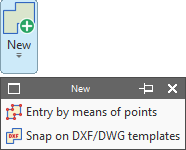
Inserting limits by points
Using "Entry by means of points", you can draw a foundation limit by left-clicking on the points or vertices that define its plan geometry. To confirm your entry, right-click.
Limits are lines or polylines that define areas which cannot be encroached upon by constant-edge footings. When added, the limit trims the geometry of any footings already entered.
The section of the sole plate that includes the pile caps is the part that is retained and taken into account in the analysis.
These limits do not apply to tie beams, centring beams, pile caps or pyramid footings.
Generating limits based on catches for templates
The next option, "Snap on DXF/DWG templates", allows you to automatically define a foundation limit.
To do this, after importing a DXF or DWG template, left-click on a line or polyline defined within it. The program generates a foundation limit based on the geometry of the selected element.
Deleting limits
Back in the "Limits" menu, the "Delete" option allows you to delete a previously entered foundation limit.
Select the limits to be deleted using the left mouse button or by dragging to highlight an area, then click the right mouse button to confirm their deletion.
Moving limits
Use "Move" to move a segment or a vertex of a foundation limit.
You can modify the geometry of the limit by left-clicking on a vertex to select it and then left-clicking again to set its new position.
To move a section of a foundation limit, left-click anywhere on the section and then left-click again at its new position.
Inserting new vertices at limits
Next, clicking on "New vertex" adds a new vertex to any section of an existing foundation limit.
To do this, use the left mouse button to select the element where you want to insert the new vertex, and then select the desired point.
Delete limit segments
Finally, by using "Delete a section", you can delete a section of an existing foundation limit. As before, select the sections using the left mouse button and click the right mouse button to confirm their deletion.
If an intermediate section is deleted, the limit on which it acts is split into two new limits.
Limits of foundation elements in the design process
During the design process, the program prevents footings from exceeding the specified dimensions. The design of a footing may be subject to more than one limit.