


Entering nodes
Nodes are inserted using the tools available in the "Nodes" group of the top toolbar, within the "Geometry" tab (in the "Structure" tab).

New
The "New" option is used to insert a new node into the structure. Nodes can be inserted in several ways:
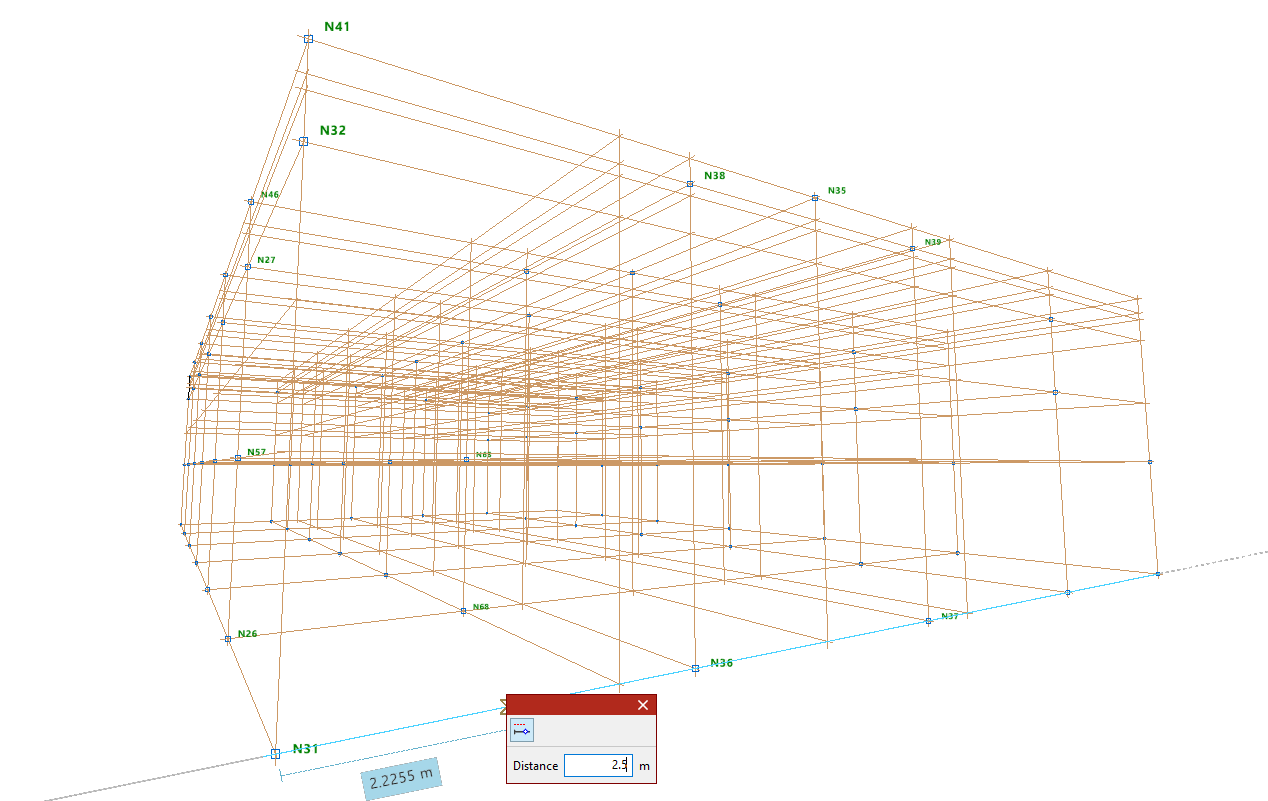
Inserting nodes on reference lines or bars
After selecting the "New" option, left-click on the desired position on a reference line or bar in the work area.
| Note: |
|---|
| To activate the visibility of reference lines, use the "References" option from the "Drawings" menu, within the "Geometry" tab. Users can rely on "Template object snaps" and "Object Snap" to enter the node. The "Allows for dimensions to be defined upon entering each element" option can also be useful for entering the "Distance" between the node and the specified reference point. These options are located in the toolbar at the top right. |
Numerical or coordinate input of nodes
Nodes can also be inserted by typing in their coordinates directly.
To do this, after selecting the option, press the numeric keypad on your computer. A "Calculator" will appear on the screen to enter the X, Y, and Z coordinate data.
| Note: |
|---|
| To enter the knot by coordinates, the "Enter by coordinates" option on the toolbar at the top right can be used. |
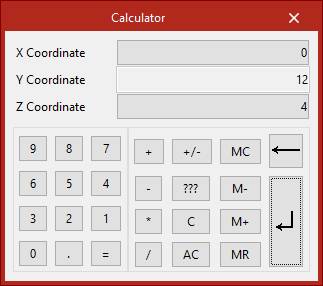
Entering nodes directly
If the window corresponds to a 2D view, users can left-click anywhere on the drawing to enter the node.
Delete
The "Delete" option is used to delete a node or a set of nodes. To do this, select each node to be deleted individually or draw a selection box around them using the left mouse button. Then, click the right mouse button.
| Note: |
|---|
| When deleting nodes, the bars that reach those nodes are also automatically deleted. |
Move
The "Move" option is used to move a node to a new position. After selecting the option, click on the node with the left mouse button and then on its new position. This action will also modify the geometry of the bars that reach that node.
If you do not wish to perform the operation, it can be cancelled by clicking the right mouse button.
