

Inserting and editing plastic hinges in bars
Plastic hinges can be inserted and edited in bars using the following option, which is available in the "Bars" section of the top toolbar, within the "Properties" tab (under the "Structure" sub-tab).

Plastic hinges
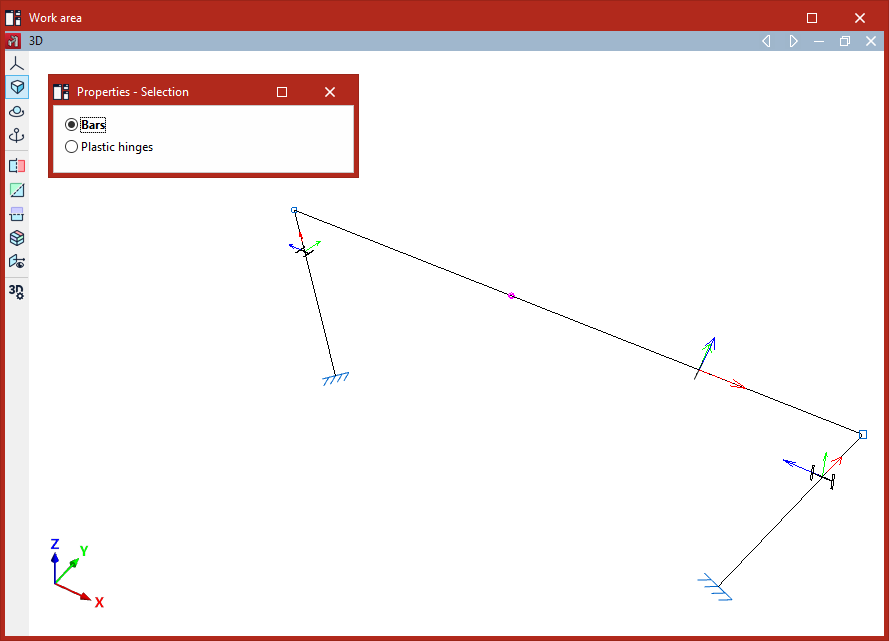
After clicking on the "Plastic hinges" option, the program opens the "Properties - Selection" window, which offers two options: "Bars" or "Plastic hinges".
Entering plastic hinges
If you select "Bars", you can insert plastic hinges into a group of bars.
To do this, select the bar or group of bars using the left mouse button, then click the right mouse button.
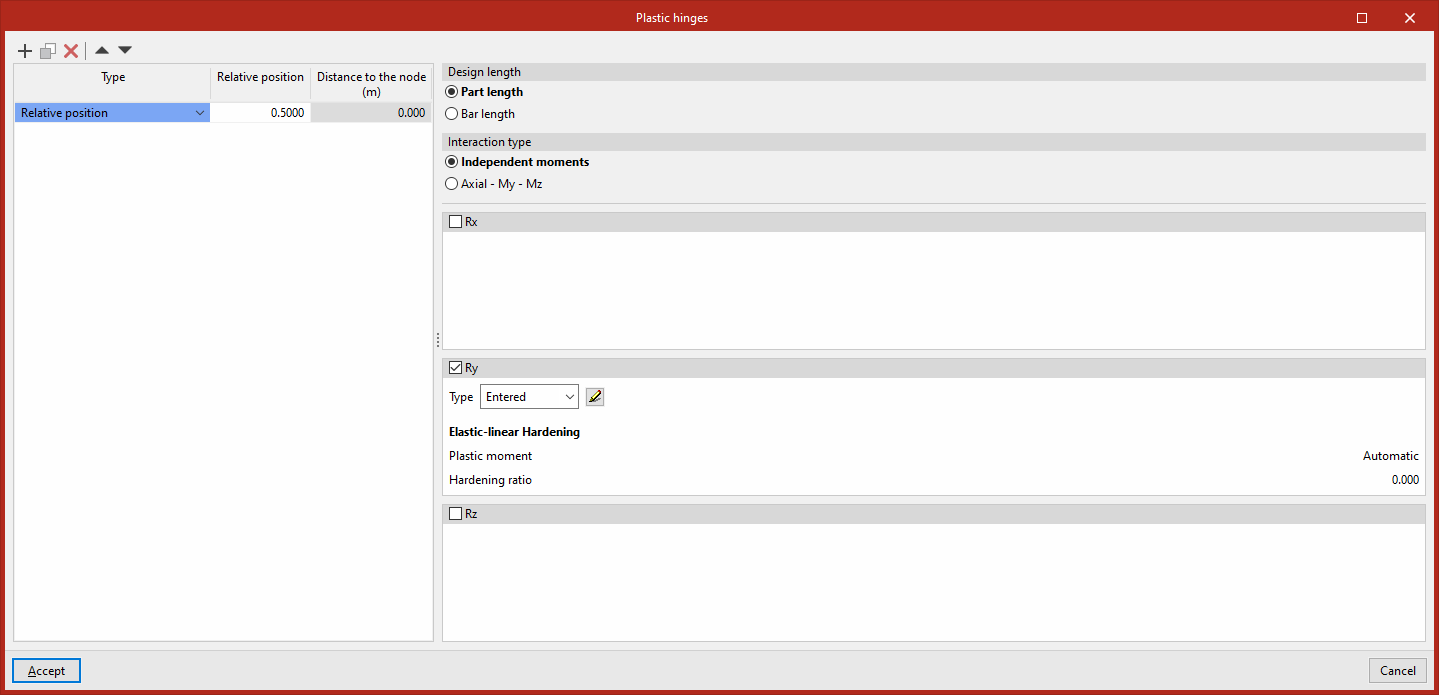
A list will then appear where you can "Add", "Copy", "Delete" or reorder plastic hinges on the bars using the buttons at the top.
The "Type" drop-down menu allows you to specify the source of the data:
- Relative position
In this case, the "Relative position" of each hinge in the bar is defined by entering a value between 0 and 1. - Regarding the initial node
- Regarding the final node
If either of these two options is selected, the “Distance to node” indicated for each joint must be entered in the bar.
The properties of each hinge selected from the list are specified on the right. Thus, under "Design length", you must specify whether to use the "Part length" or the "Bar length".
The "Interaction type" specifies whether the hinge considers "Independent moments" or the axial–moment–moment interaction ("Axial - My - Mz"). The first option assumes that the axial force remains constant and is a simplification that usually provides sufficiently accurate results in many cases:
- For independent moment hinges, the degrees of rotational freedom in which they act (expressed in the bar’s local axes) are defined by ticking the "Gx", "Gy" and/or "Gz" boxes, as well as the hinge properties for each specified degree of rotational freedom.
- For axial-moment-moment interaction hinges, the type of hinge must be defined for the two degrees of freedom on both axes, "Gy" and "Gz".
For each degree of freedom, the "Type" drop-down menu allows you to specify the source of the data:
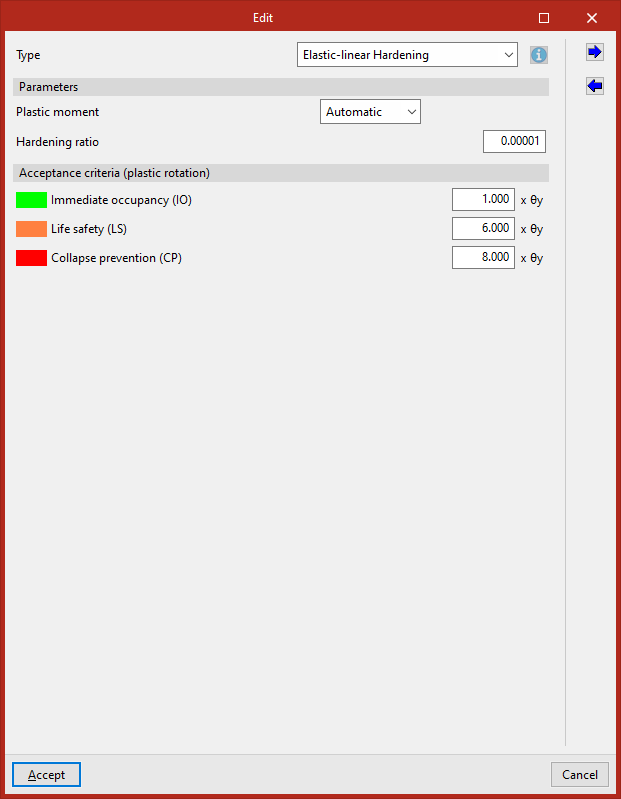
- When selecting "Entered", the hinge data is entered directly into the "Edit" window that appears when you click on the edit button on the right;
- When selecting "From library", you must select a specific type of hinge from those previously defined in the "Plastic hinge library" in the "Project" tab.
The "Export" and "Import" options in the "Edit" window allow you to create plastic hinges types in the library based on the data entered here, as well as to import library data if required.
Editing plastic hinges
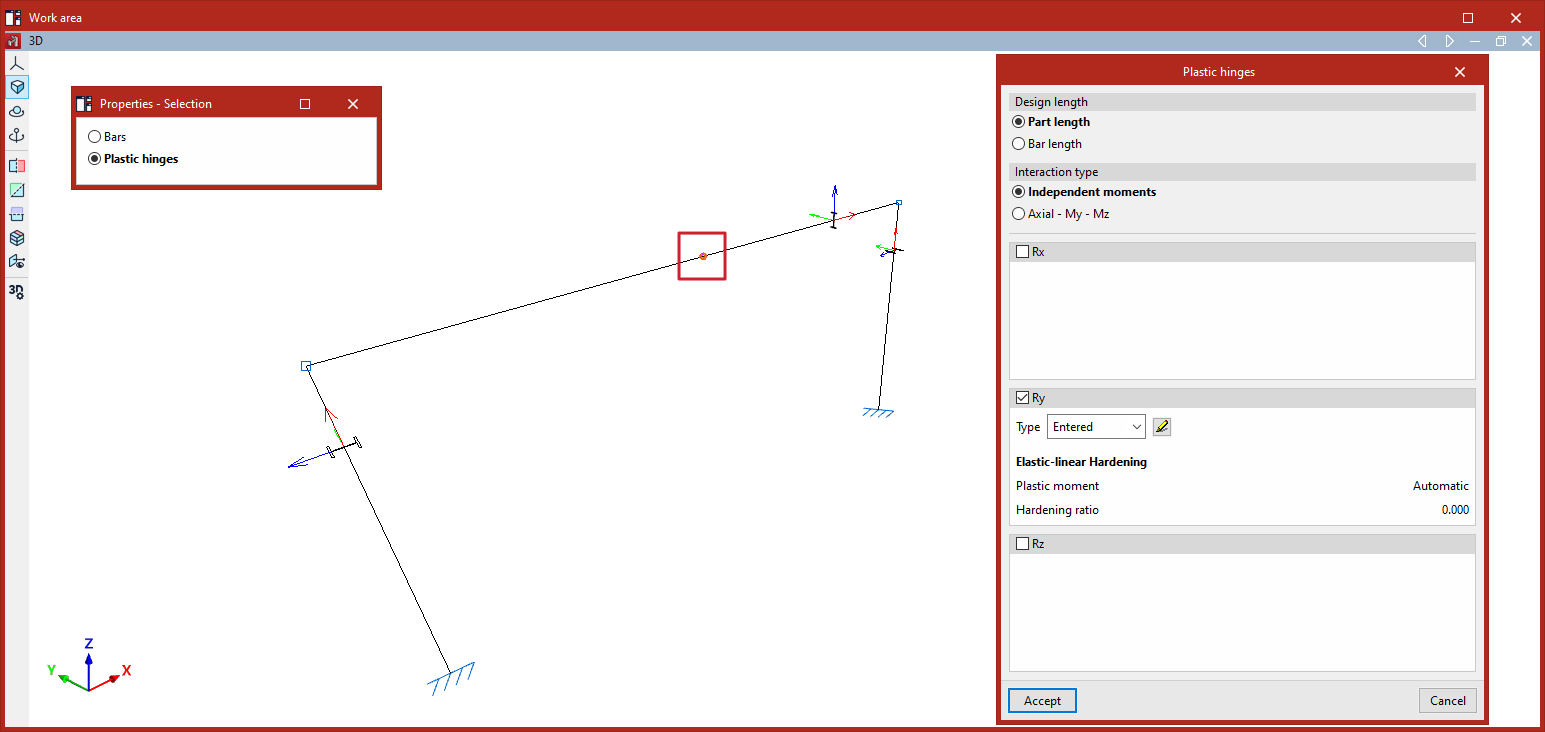
Alternatively, if you select "Plastic hinges" in the "Properties - Selection" window, you can select the plastic hinges previously entered in the model and edit their data.
| Note: |
|---|
| Please follow this link to find out about the different types of plastic hinges available. |
Viewing plastic hinges
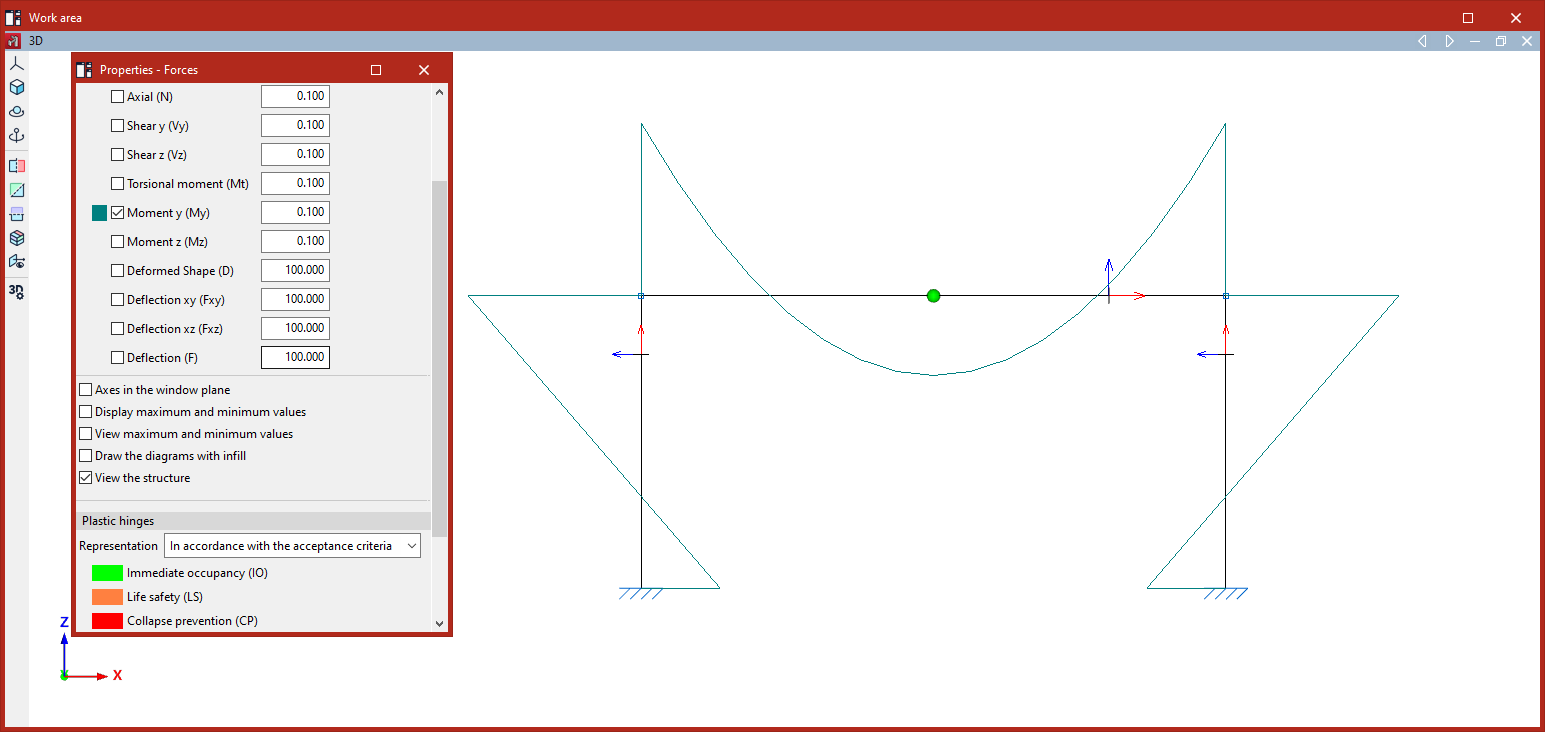
In the "Forces" view (within the "Analysis" tab), the plastic hinges that have reached the yield point in the selected load case are highlighted by an increase in size and a colour change.
| Note: |
|---|
| Taking plastic hinges into account when analysing a structure requires performing a non-linear analysis using the OpenSees analysis engine. |
