Management of the section library
The "Section library" option, available in the "Structure" section of the top toolbar, within the "Structure" tab (under the "Structure" sub-tab), allows you to import predefined section series and manufacturer catalogues, as well as export the series to files on your hard drive.

Section library
Clicking on this option opens the "Management of the section library" window, which offers the following options:
- Importing predefined section series
- Import manufacturer catalogues
- Initial import of predefined section series
- Export section series
The following explains how these options work:
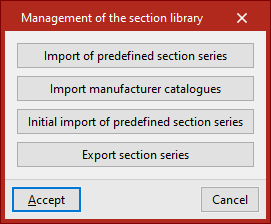
Importing predefined section series
This option allows you to select the predefined section sets you wish to import from those available, based on different guidelines and regulations. To do this, tick the "Import" box and confirm.
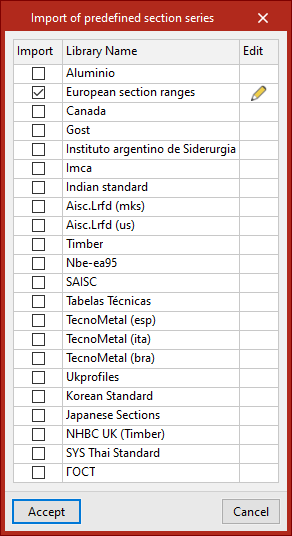
The "Edit" button, located to the right of each selected library, allows you to specify the individual series from each library that you wish to import.
Initial import of predefined section series
The "Initial import of predefined section series" option allows you to specify the section series that will be imported automatically when a new project is created in the program.
Import manufacturer catalogues
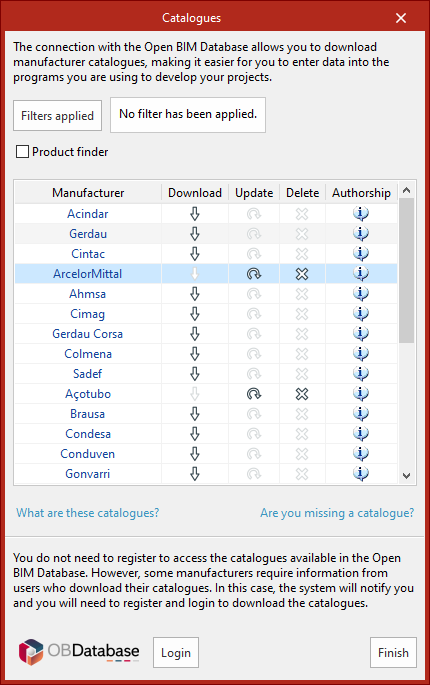
This allows you to download section series included in manufacturers’ catalogues by connecting to the Open BIM Database.
Clicking on this option opens a window showing the available manufacturer catalogues.
Using the "Filters applied" option, you can apply filters by "Category" to display only those manufacturers that offer product catalogues with these features.
Download catalogues
The following options are displayed for each manufacturer:
- Download
Select and download the manufacturer’s catalogues. - Update
Update the catalogues for the selected manufacturer to the latest version, overwriting the downloaded version. - Delete
Delete the catalogue for the selected manufacturer.
Connection to the Open BIM Database
At the bottom of this dialogue box, the program allows you to log in using an Open BIM Database account and password.
When you click "Accept", the program imports the section series from the selected catalogues for each manufacturer. If a section series with the same name already exists in the project library, a dialogue box will appear asking whether you wish to "Substitute the existing series with the imported series" or "Keep the existing series".
Export section series
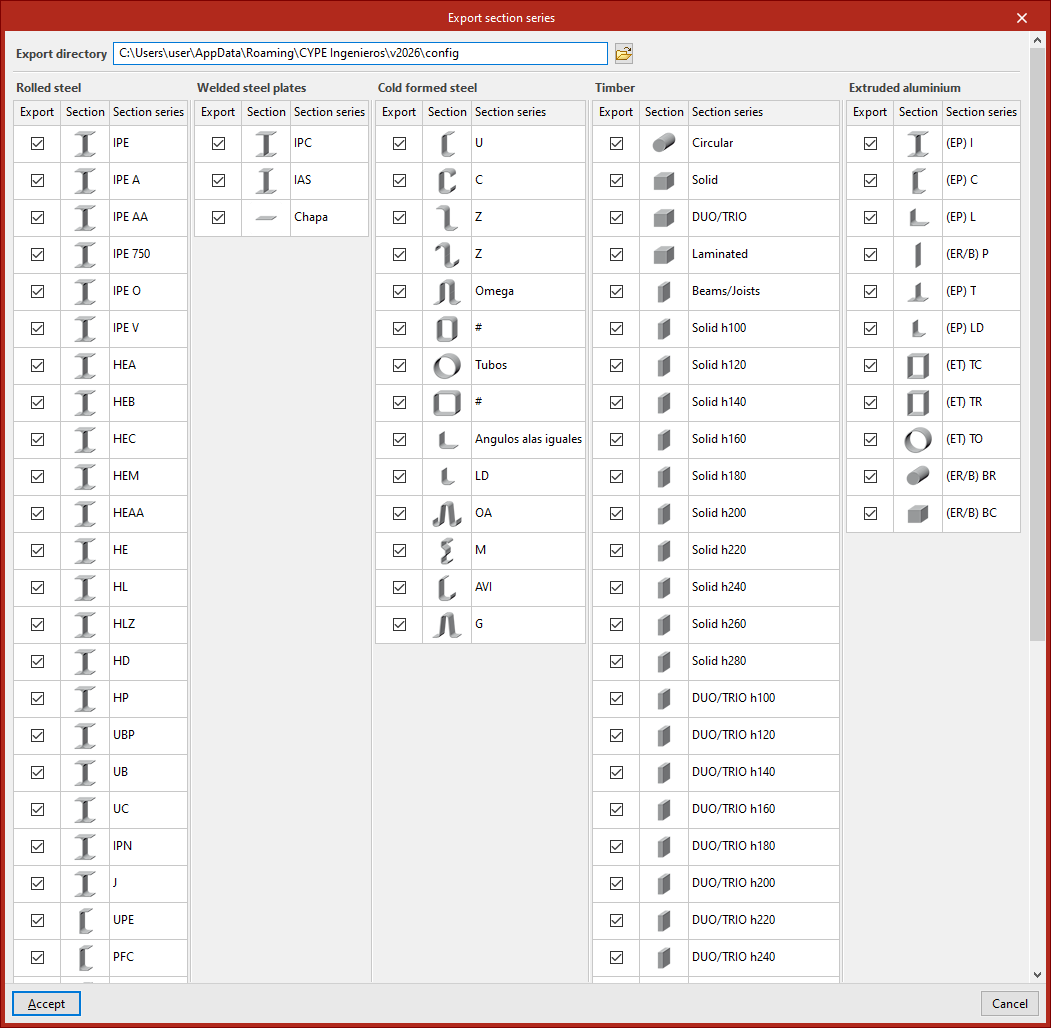
Section series that have been imported or created in the project can be exported to files on the hard drive using this option. The program displays the location of the exported files and also allows you to select the series you wish to export.
Using imported section series
Predefined section series and section series imported from manufacturers’ catalogues will be available in the drop-down menus of the "Describe" window, which opens when you insert a bar by clicking the edit button or by using the "Section" option within the "Geometry" tab.
Additionally, in this window, by selecting the "Edit list of elements" option, you can view or modify these series, as well as import predefined section series and specific manufacturers' catalogues for the selected section type, by clicking on the relevant options at the top of the list. From here, you can also import files from your hard drive containing information on the selected type of section series.