


Work environment
The program is structured in two tabs, "Structure" and "Foundations", accessible from the bottom left of the general interface.
Each of them has an interface with a ribbon at the top that makes it easier to access the different tools in the program. The options visible in the ribbon depend on which tab is open.
"Structure" tab
In the first tab, "Structure", the design and analysis of the structure is carried out.
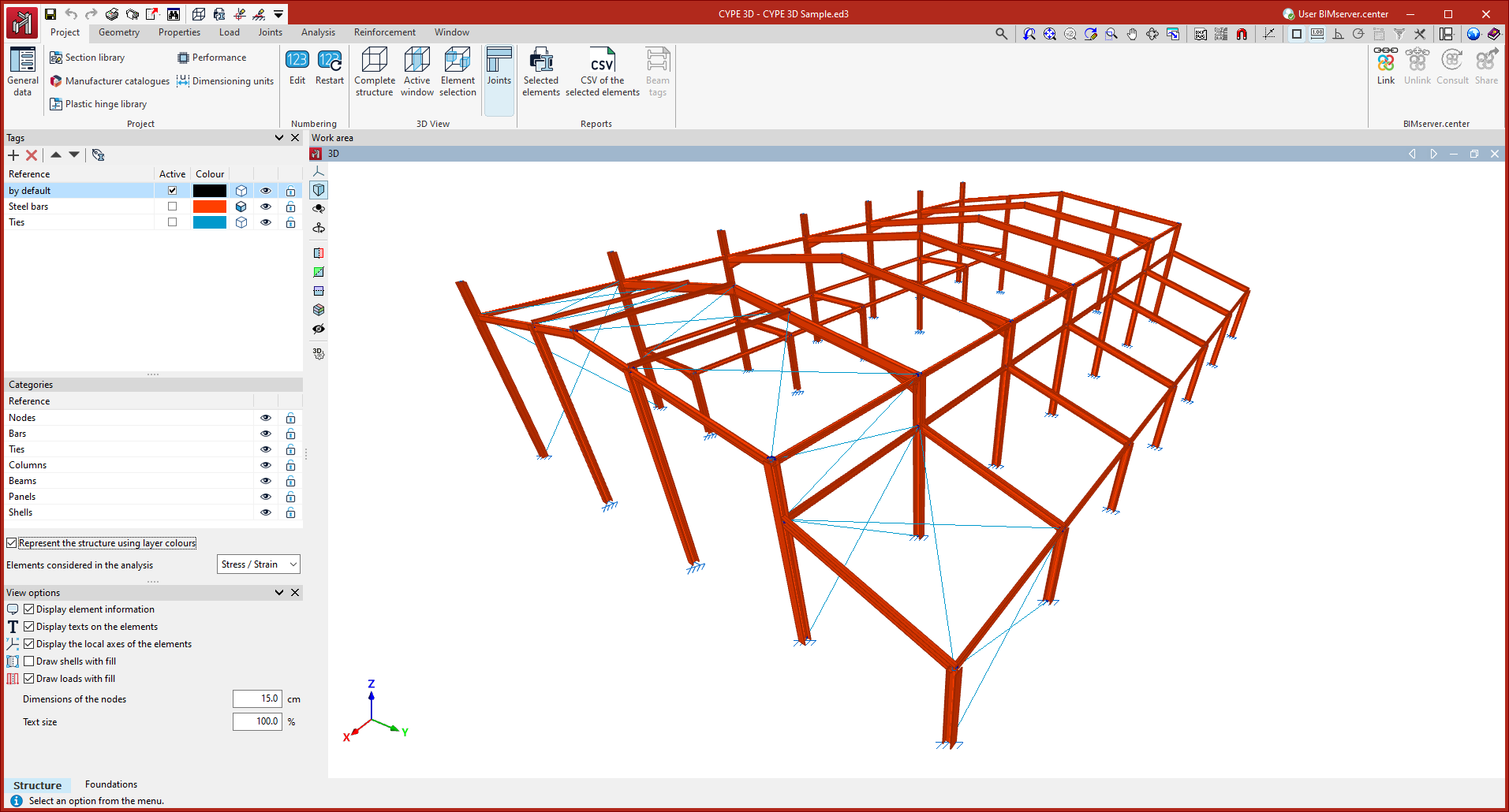
Tabs and ribbon
The tabs available for the "Structure" tab are located at the top of the interface and contain the following tools in the ribbon:
- "Work" tab
Contains the work configuration options, element numbering, 3D view display and obtaining reports. - "Geometry" tab
Contains the options for defining drawings and entering nodes, bars and shells, as well as the tools for editing and importing .dxf or .dwg files and text files. - "Properties" tab
Contains the options for defining diaphragms and editing the properties of nodes (links and ligatures), bars (such as bends, joints and arrow groups) and sheets. - "Load" tab
Contains the options for displaying, entering and editing loads on nodes, bars, shells and panels, as well as surface loads. - "Connections" tab
Contains the options related to the analysis and editing of connections. - "Design" tab
Contains the options related to the design of the job, including stress/strain design and advanced buckling and vibration analyses. - "Reinforcement" tab
Contains the options for consulting and editing reinforcement of concrete columns and beams. This tab only appears if these elements have been defined. - "Window" tab
Contains the options for creating and managing windows in the work area.
Work area
In the central part of the interface is the "Work area", where the elements of the structure in space are entered and edited and the data obtained after the analysis is consulted. This window can be used to move the frame, orbit and zoom in a fully three-dimensional working environment.
Several windows can be configured and maintained to work with different visualisations of the model, including 3D and 2D views, as well as views of the whole structure or a part of it.
Side panel
The side panel on the left gathers the tools to manage the "Tags" assigned to the elements of the model, to activate or deactivate the visibility and capture of the "Categories" of elements or to control the "Display options".
Additional toolbars
At the top of the ribbon, on the left, there is access to the "File" menu, as well as a toolbar with additional utilities such as saving, "Undo" and "Redo" or the printing of "Reports" and "Drawings". In addition, it is possible to configure and provide shortcuts to the options desired by the user.
At the top right, the program includes various tools such as those related to the management of templates and snaps or access to the "Help" with the documents available for the program.
| Note: |
|---|
| The work area of the main part and the panels on the side are dockable windows that can be freely moved and fixed according to the configuration desired by the user. |
"Foundation" tab
In the second tab, "Foundation", the design and analysis of the foundation elements is carried out. For this purpose, the program automatically takes the results obtained in the analysis of the structure in the first tab.
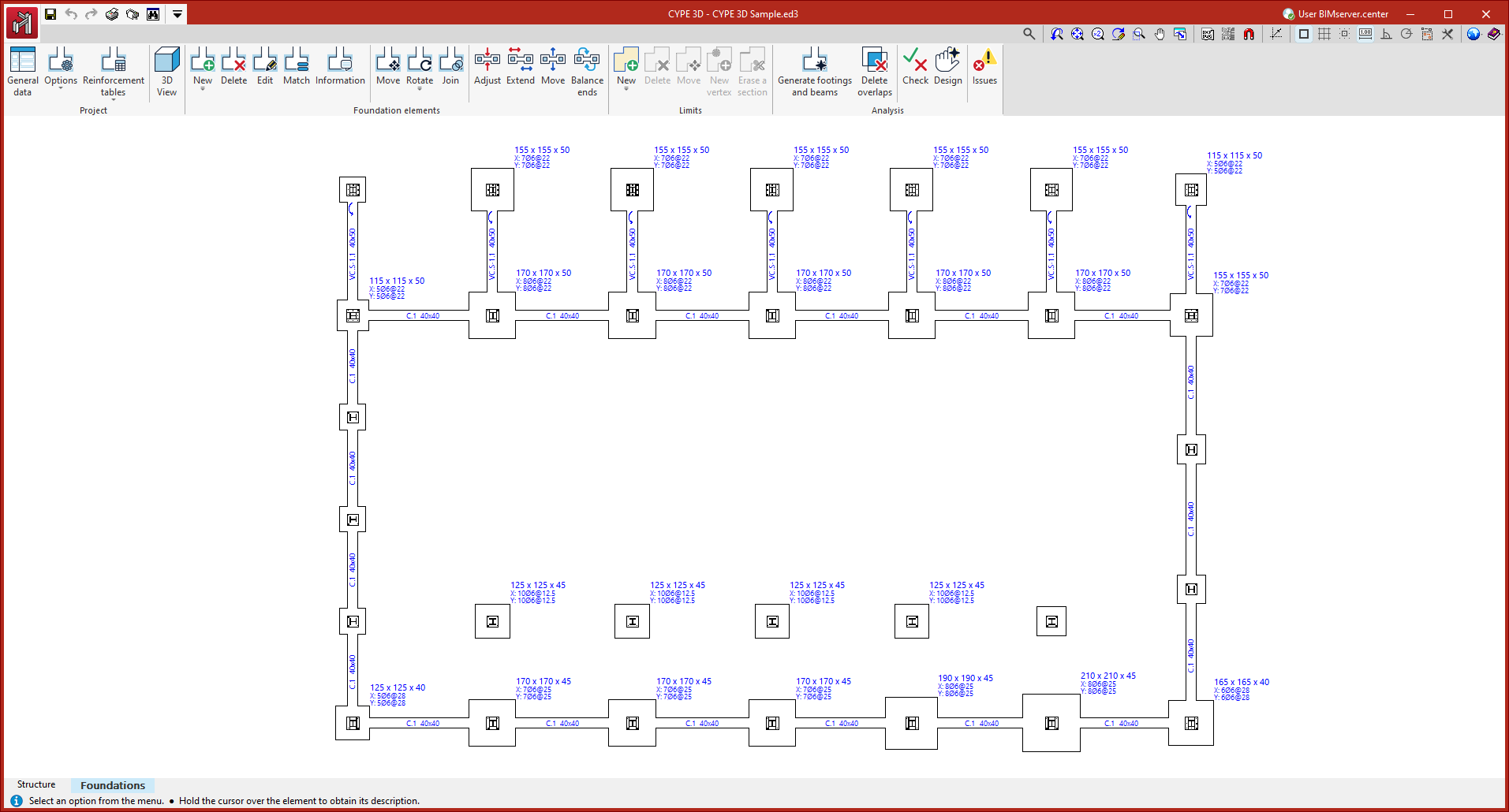
Ribbon
The interface of the "Foundation" tab also includes a ribbon at the top.
This ribbon contains groups with options for managing the "Project" data, entering the "Foundation elements" and defining their "Limits".
Once entered, the analysis of the foundation can be carried out from the options in the "Analysis" group.
Work area
The central part of the interface shows the work area and visualisation area of the foundation, where the elements it contains are entered. In this case, it is a plan view.
Additional toolbars
The program also offers access in this tab to toolbars with tools added to the upper left and right corners.
