Entering and editing connections
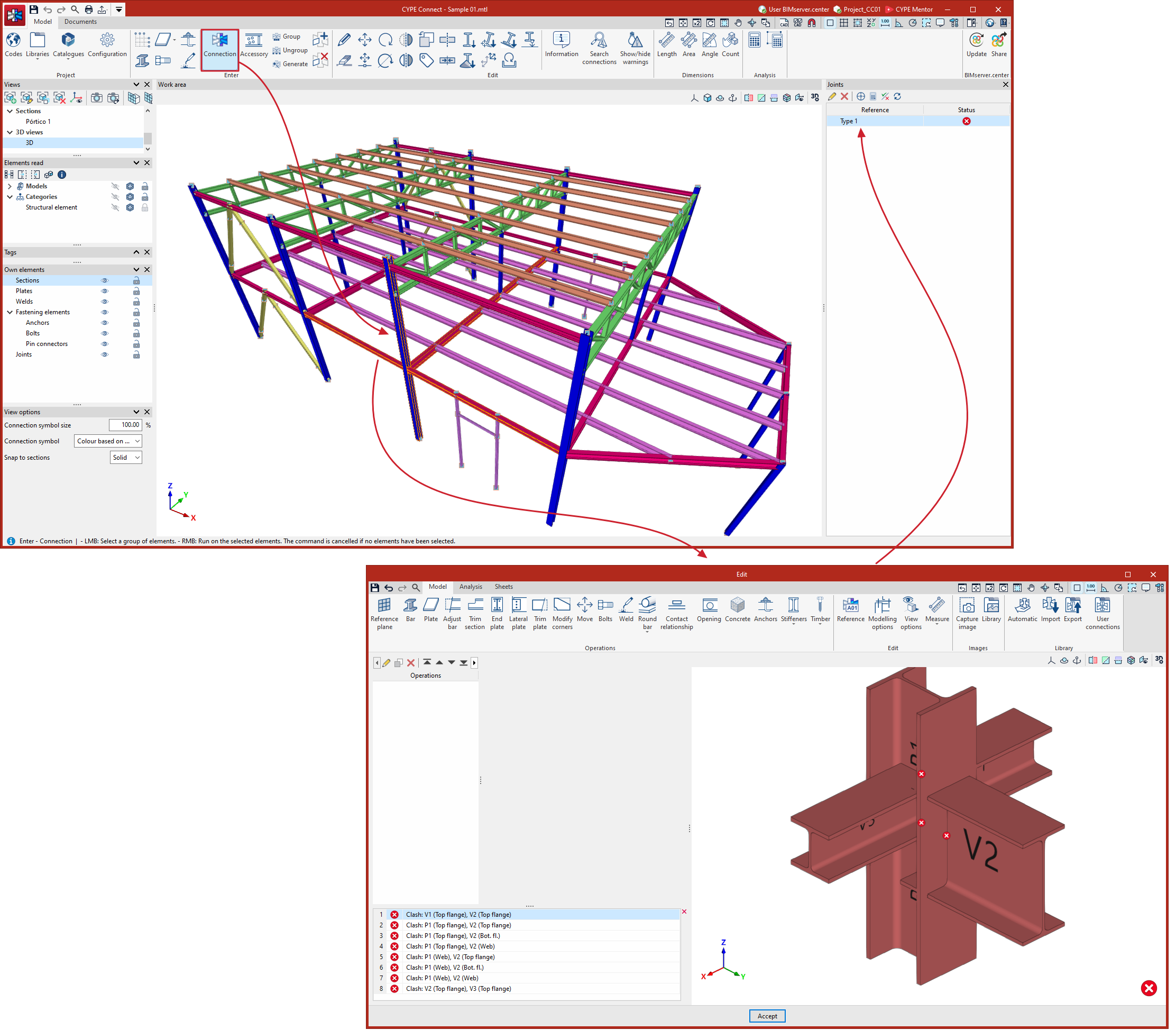
To define connections between sections, on the "Model" tab of the program's main interface, select the "Connections" option from the "Enter" section on the top toolbar.

Connection
Creating new connections
To create new connections, click on the "Connection" option, and first select the bars involved in the connection using the left mouse button (i.e. the bars that connect to the same node) or, after selecting the first bar, draw a selection area to select the remaining bars.
Only some of the bars connected to a node may be selected to create a partial connection between them.
If a bar passes through the node, it will be treated as continuous.
You can also select only the initial or final end point of a bar if you want to resolve the connection at that point, as in the case of a baseplate.
Right-clicking after selecting the bars opens the "Connection" editing window or connection editor.
When you click "Accept" or close the edit window on any of its tabs, the program updates the connection information and returns to the main program interface. The connection you have created will also be added to the "Connection" table, which is displayed by default in the right-hand side panel of the interface.
Options for editing connections
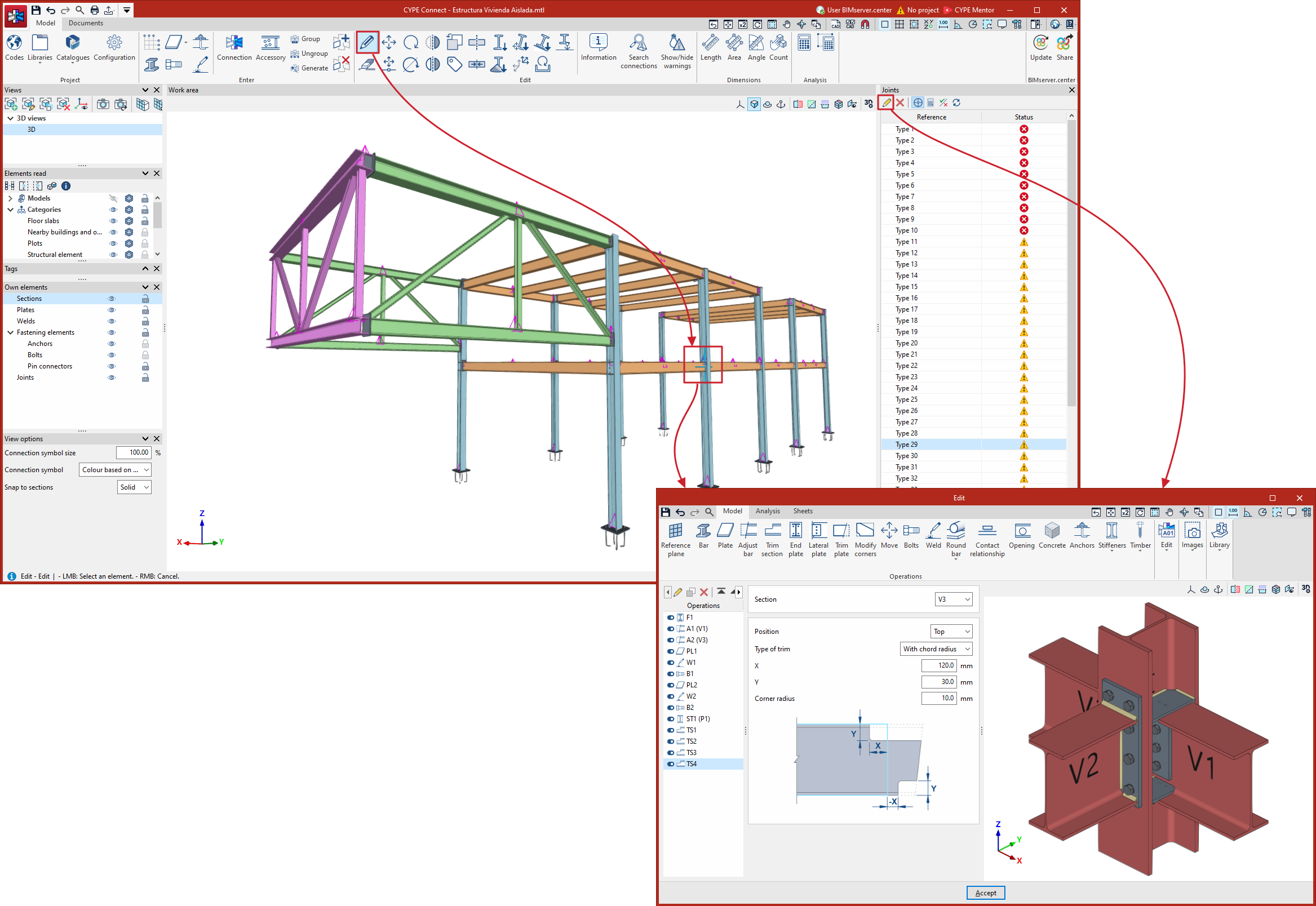
You can edit a connection that has already been created from the "Edit" section of the top toolbar, using the "Edit" option.
The symbol used to represent connectors is a purple pyramid, as opposed to the blue pyramid used for fittings.
Clicking on a specific connection with the left mouse button opens the "Connection" editing window, or connection editor.
You can also edit a connection by selecting it from the table or the "Connection" list in the right-hand sidebar and clicking the "Edit" button on the toolbar at the top of the table.