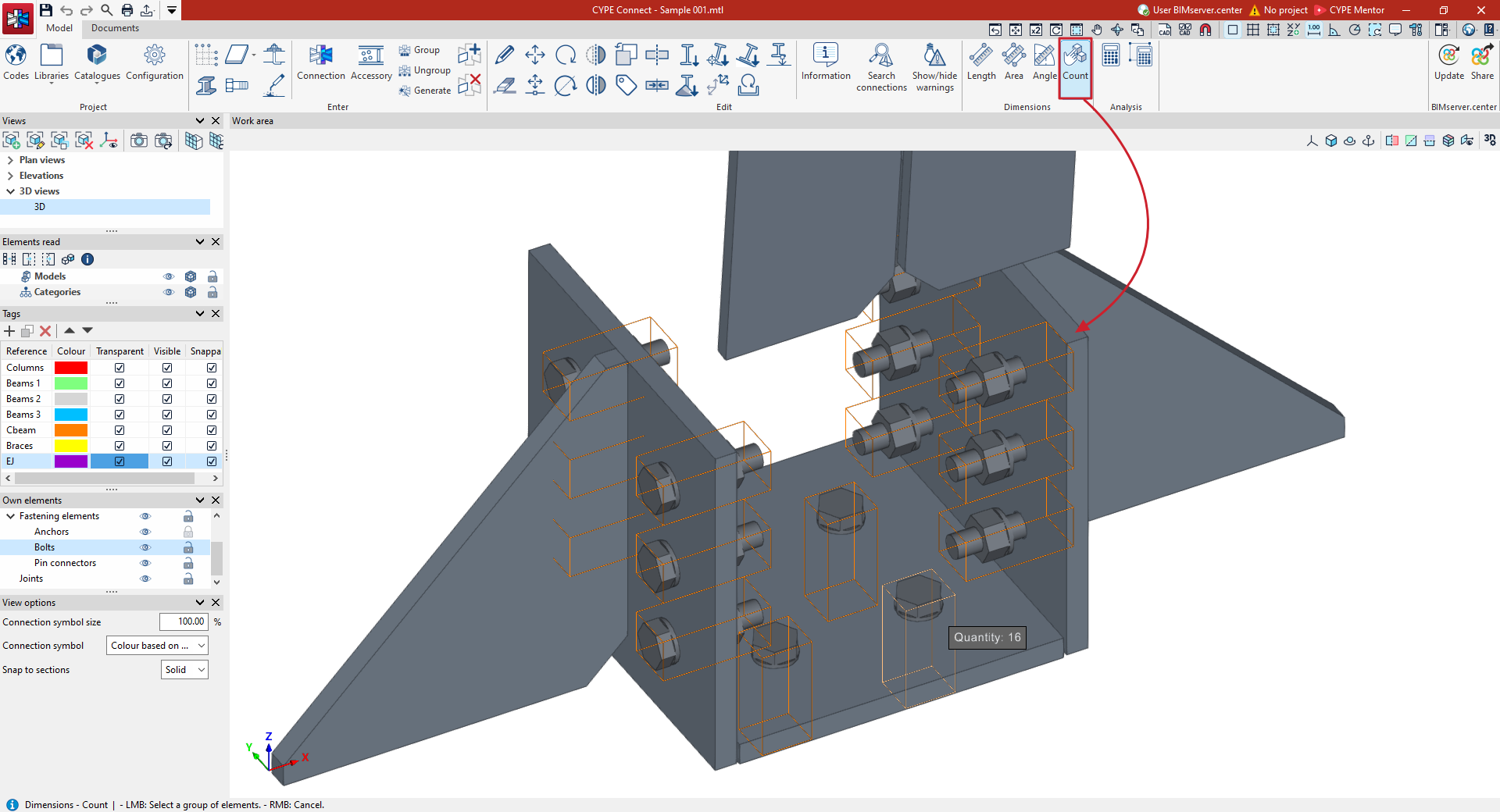
Measurement tools in the "Model" tab
You can take measurements in the program's work area. To do this, go to the "Model" tab on the program's main interface and use the tools in the "Measurements" section of the top toolbar.

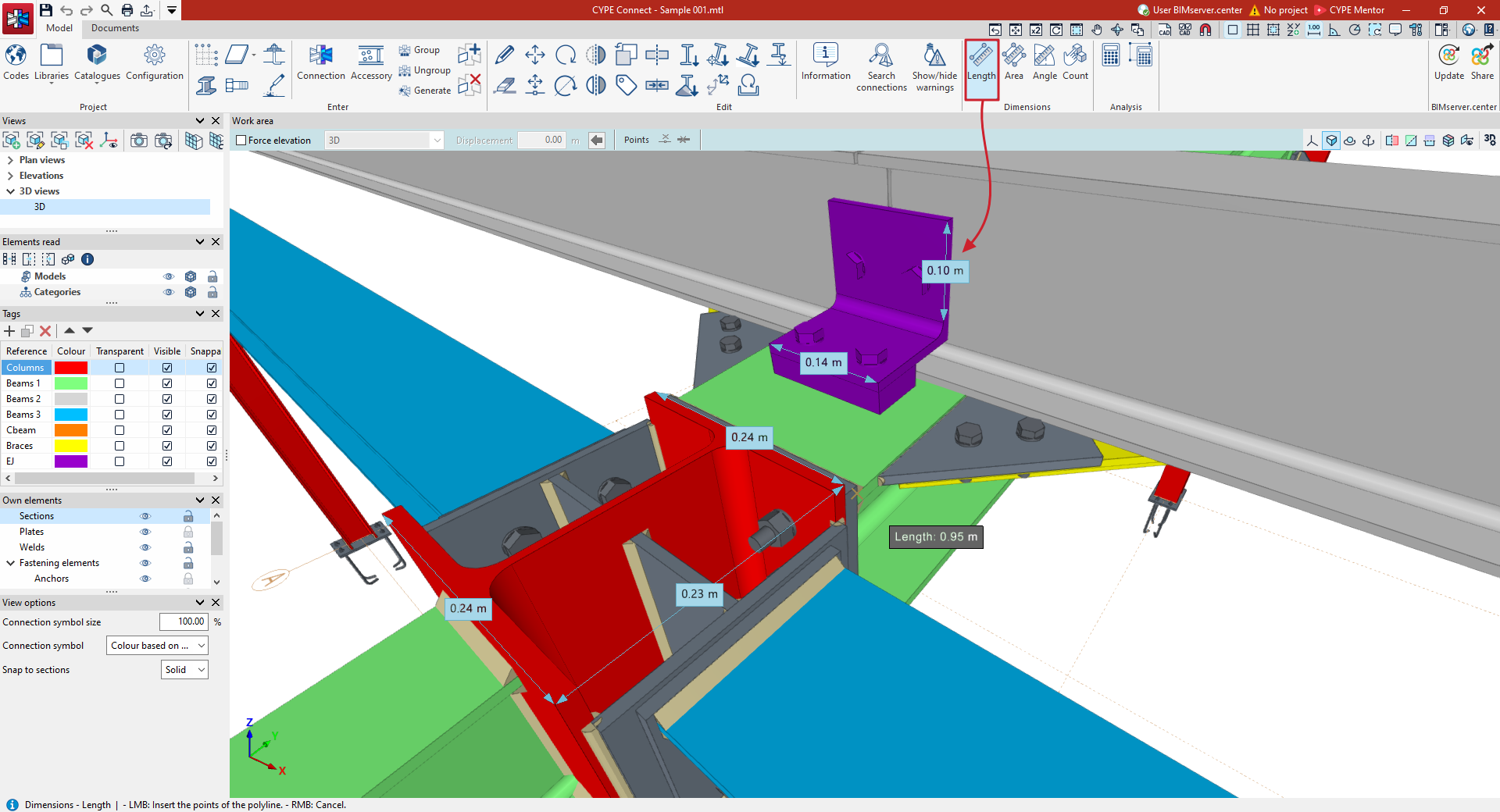
Length
The first option available, "Length", allows you to measure the distance between several points.
After clicking on the option, use the left mouse button to mark two points on the model. The program will display the distance between them directly on the screen.
You can add several segments by clicking on further points in succession. When you do this, the app will calculate the sum of the lengths of each segment and display it next to the mouse cursor. To stop adding points, click the right mouse button. The sum of the lengths will then be displayed on the screen.
To clear the measurements, right-click again.
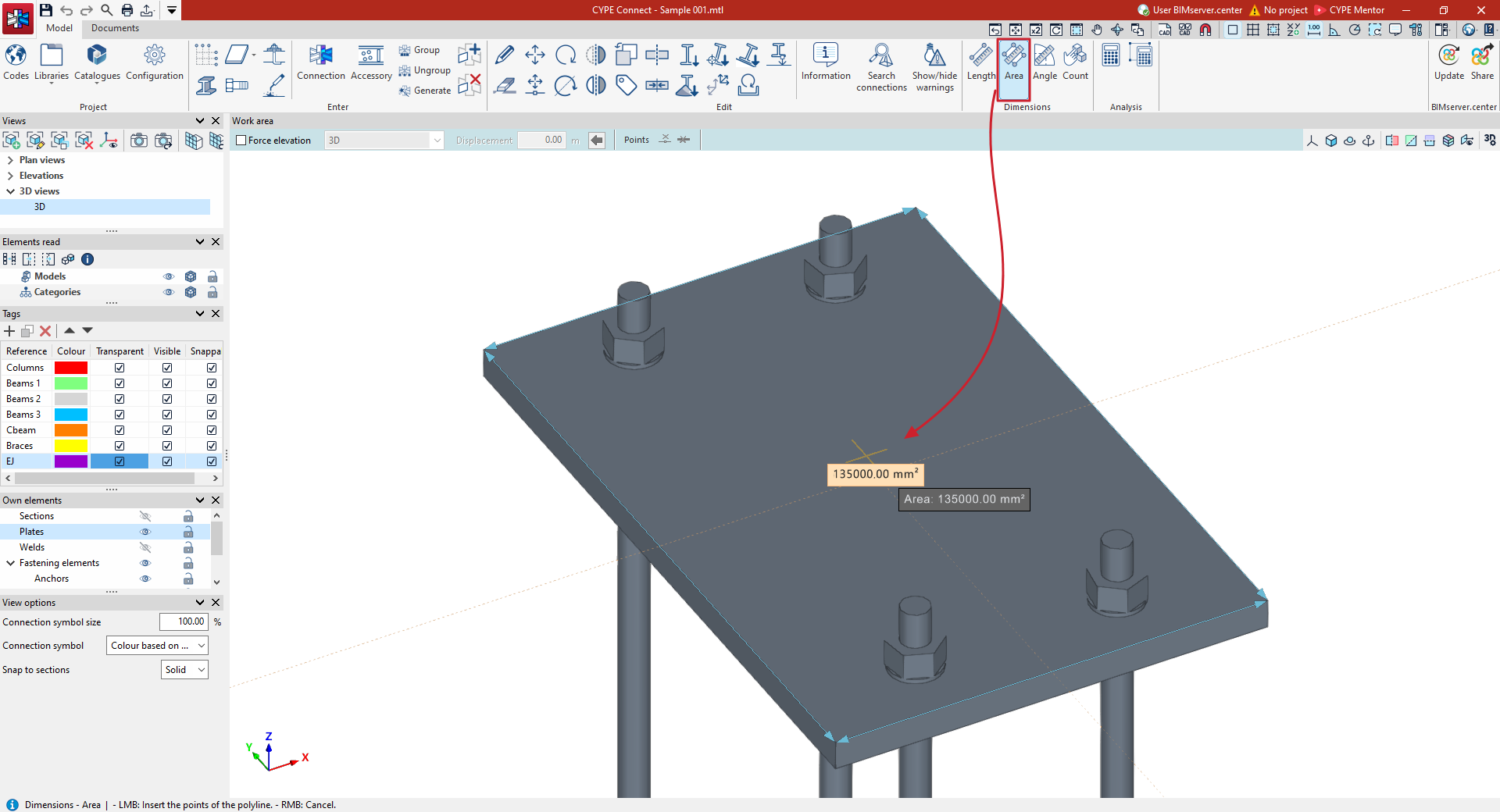
Area
The second option, "Area", allows you to measure the area of a polygon defined by points. To do this, use the left mouse button to select several points on the model that are on the same plane and form a closed outline. Then, click the right mouse button. The area of the polygon will appear on the screen.
You can enter several polygons consecutively. If you do so, when you right-click again, the app will calculate the sum of the areas of each polygon and display it next to the mouse cursor.
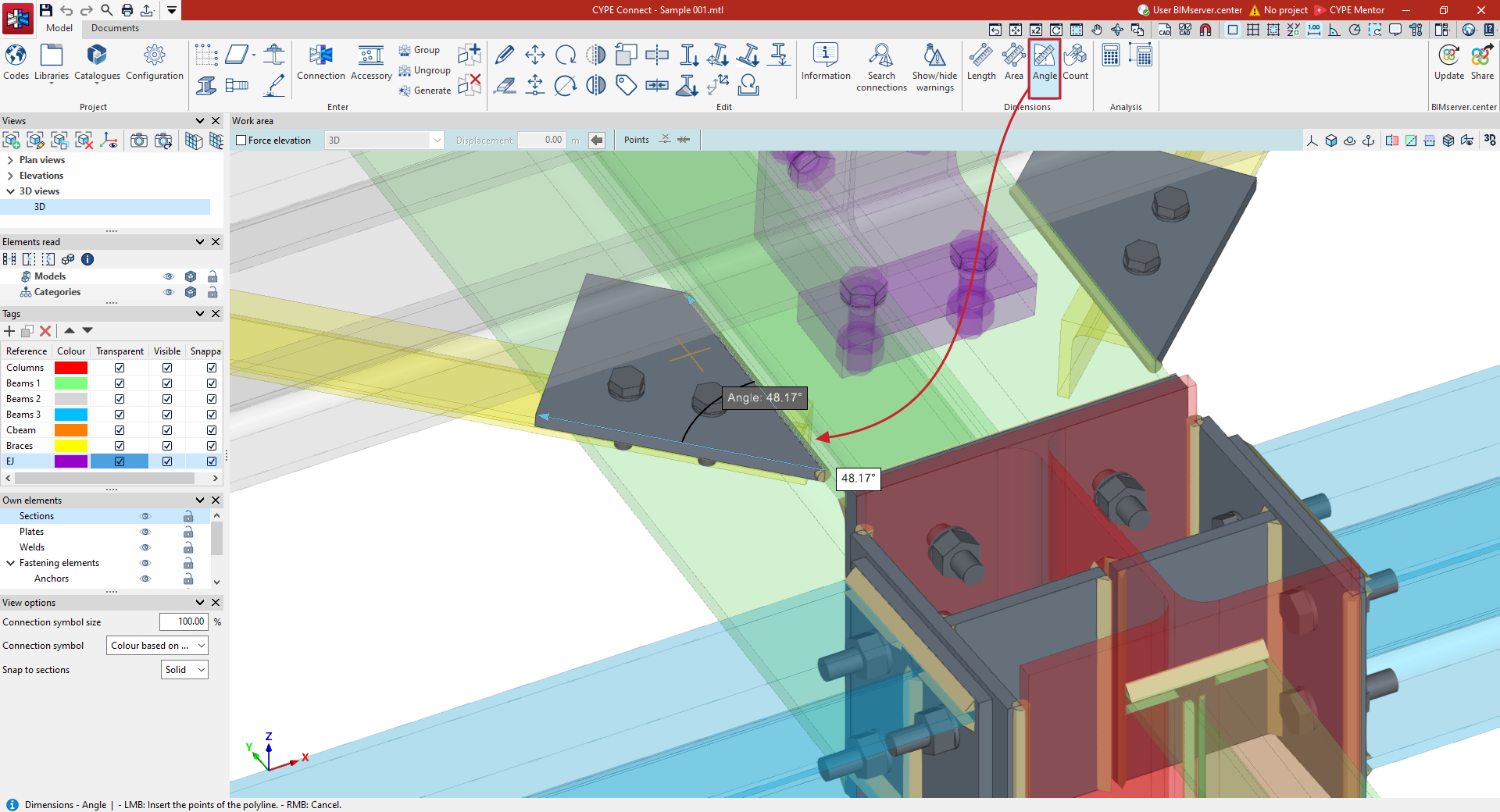
Angle
The following tool allows you to measure the "Angle" formed by three points. To do this, left-click to select the vertex of the angle and then select the two points that define its two sides. The value of the angle will appear on the screen next to its vertex.
You can enter several polygons consecutively. If you do so, when you right-click again, the app will calculate the sum of the areas of each polygon and display it next to the mouse cursor.
Count
Finally, the program allows you to "Count" the number of objects selected in the model. After clicking on the relevant option, you can select any of the model’s elements one by one using the left mouse button, or you can draw a selection area. The program will display the "Quantity" of selected elements next to the mouse cursor.