Part numbering
Part numbering is required to subsequently generate documents for the structural components. This is carried out using the tools in the "Numbering" group on the top toolbar, under the "Documents" tab of the program’s main interface.

Parts
The first option available, "Parts", allows you to number all the parts of the model automatically. When you click on this option, the "Number parts" window appears.
The drop-down menu at the top lists the elements to be numbered. These may be:
- All elements, starting from the initial number.
- Only unnumbered elements, starting from the initial number.
- Only unnumbered elements, starting from the last number used.
At the bottom, enter the "Prefix" to be used for numbering each element, and specify the "Initial number" from which the numbering will begin. The elements include:
- Sections
- Bolts
- Plates
- Welds
- Anchors
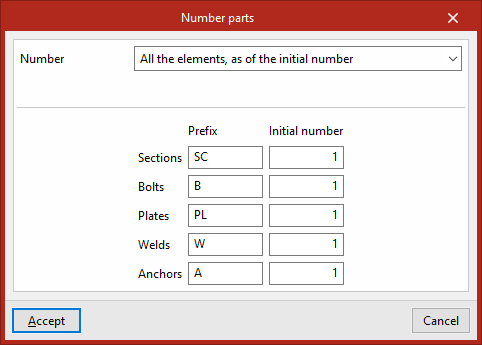
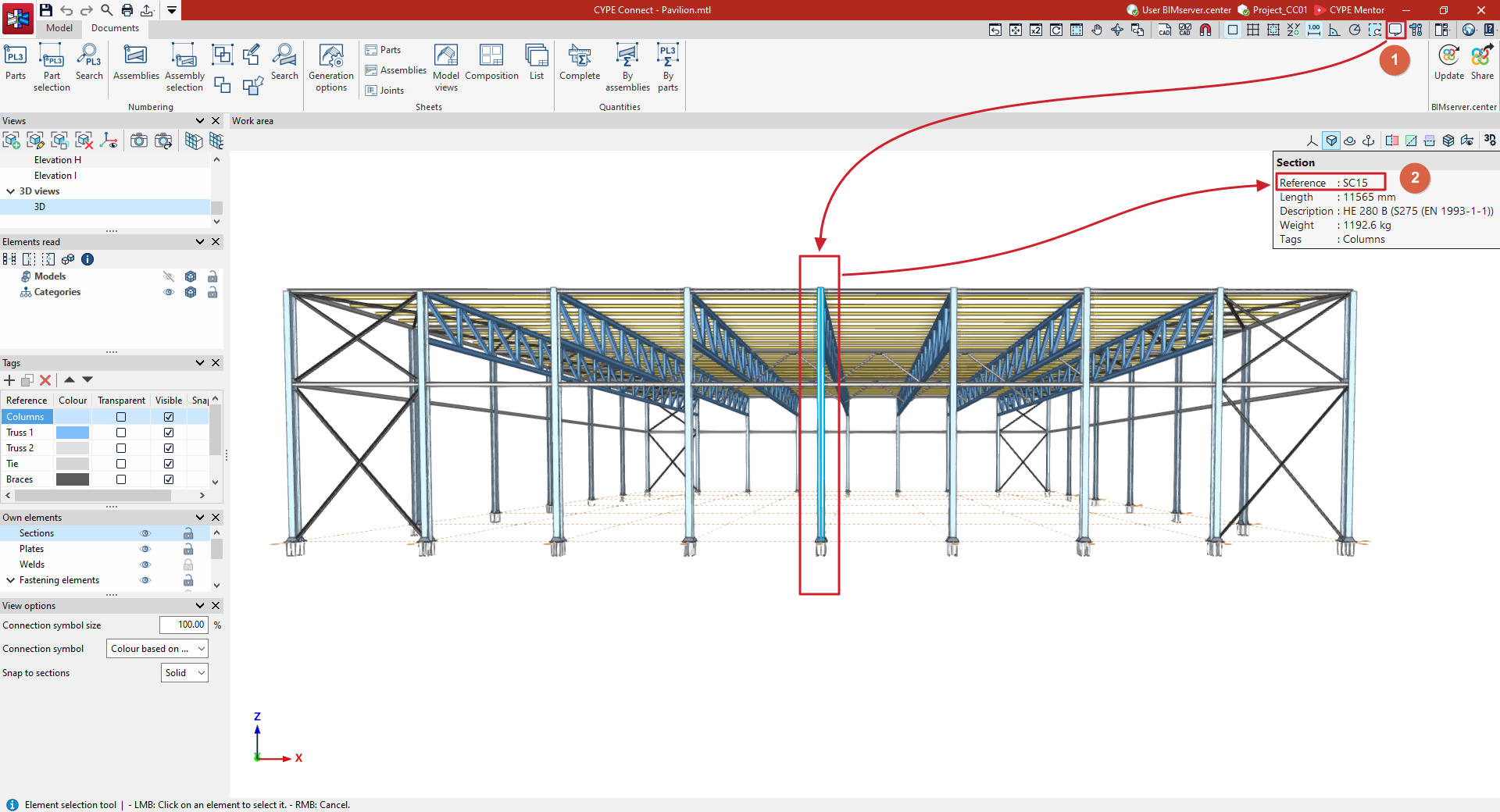
After clicking "Accept", the program numbers the parts of the model, compares elements, and applies the same numbering if they are identical.
| Note: |
|---|
| To view the part numbers, click the "Show information texts" button on the top bar and hover the pointer over each element in the viewer. The number for each part appears in the "Reference" field of the information text box. |
Part selection
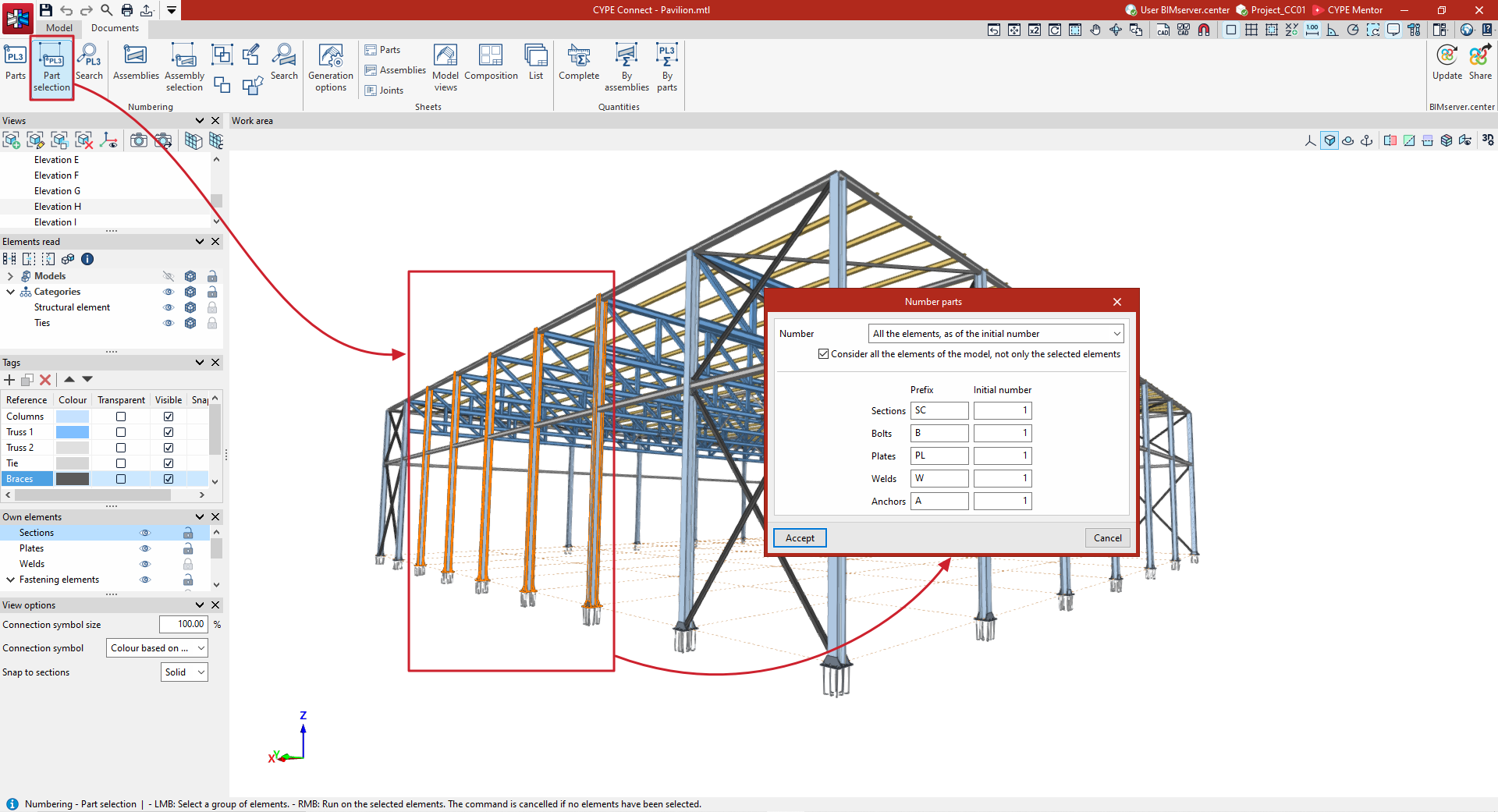
The second option in the group, "Part selection", can be used to number only those parts of the model you have selected.
After clicking on the option, select the parts to be numbered one by one using the left mouse button or by drawing a selection area. Then, click the right mouse button.
This brings up the "Number parts" window again, with the same options as those mentioned in the previous section ("Parts").
In addition, you can tick the box labelled "Consider all elements in the model, not just the selected ones" if you want the program to search the entire model for parts that are already numbered and match the selected ones. In that case, the same numbering will be applied to them.
If this option is disabled, numbering will be applied taking into account only the selected elements.
Finally, click "Accept".
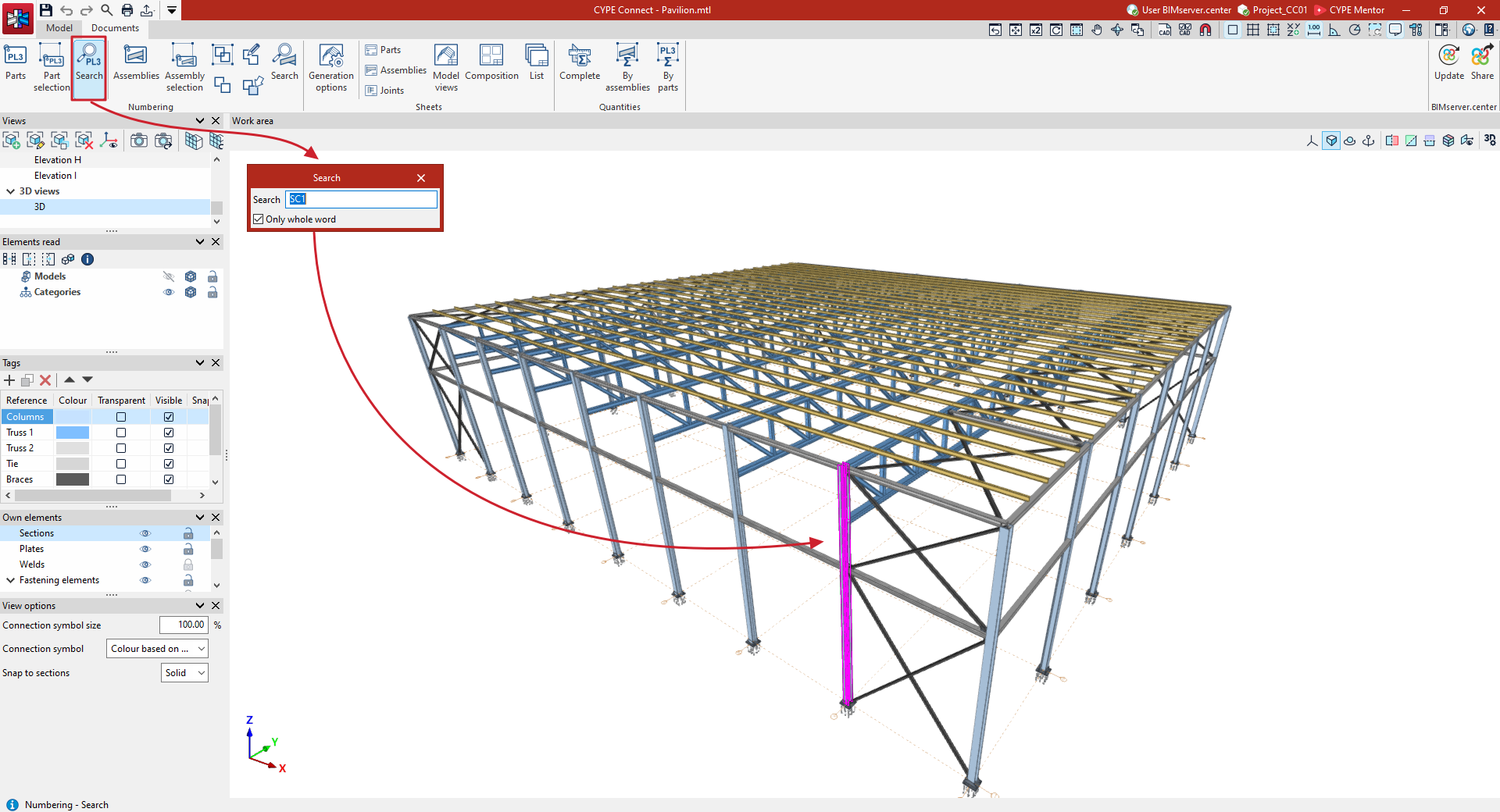
Search
The "Search" option allows you to search for a part by entering the part reference text.
You can choose to search only for references consisting exactly of the word you are typing (by ticking the "Exact match" box) or for all references containing the text you are typing (by unticking that box).
The parts found will be highlighted in magenta on the model.