

Replacing texts
The "Replace texts" option, within the "Editing" section of the top toolbar in the sheet editor, lets you create and view the variable texts available in the program.

The use of variables allows keywords to be replaced with specific project data. For example, if the character string %%shname%% – corresponding to one of the predefined variables – is entered into a text field or text box, the program will replace this text at the time of printing with the value assigned to that variable; in this case, the "Reference" of the sheet.
In this way, the use of variables can be useful for centralising the editing of project data (for example, by using them in the text boxes on the sheets), thereby avoiding duplication of work or the need for additional editing on each text.
There are two types of text substitution variables: "User variables" and "Predefined variables". Both can be managed or viewed in the two tabs with the same names in the "Replace texts" pop-up window, which appears when you click on this option.
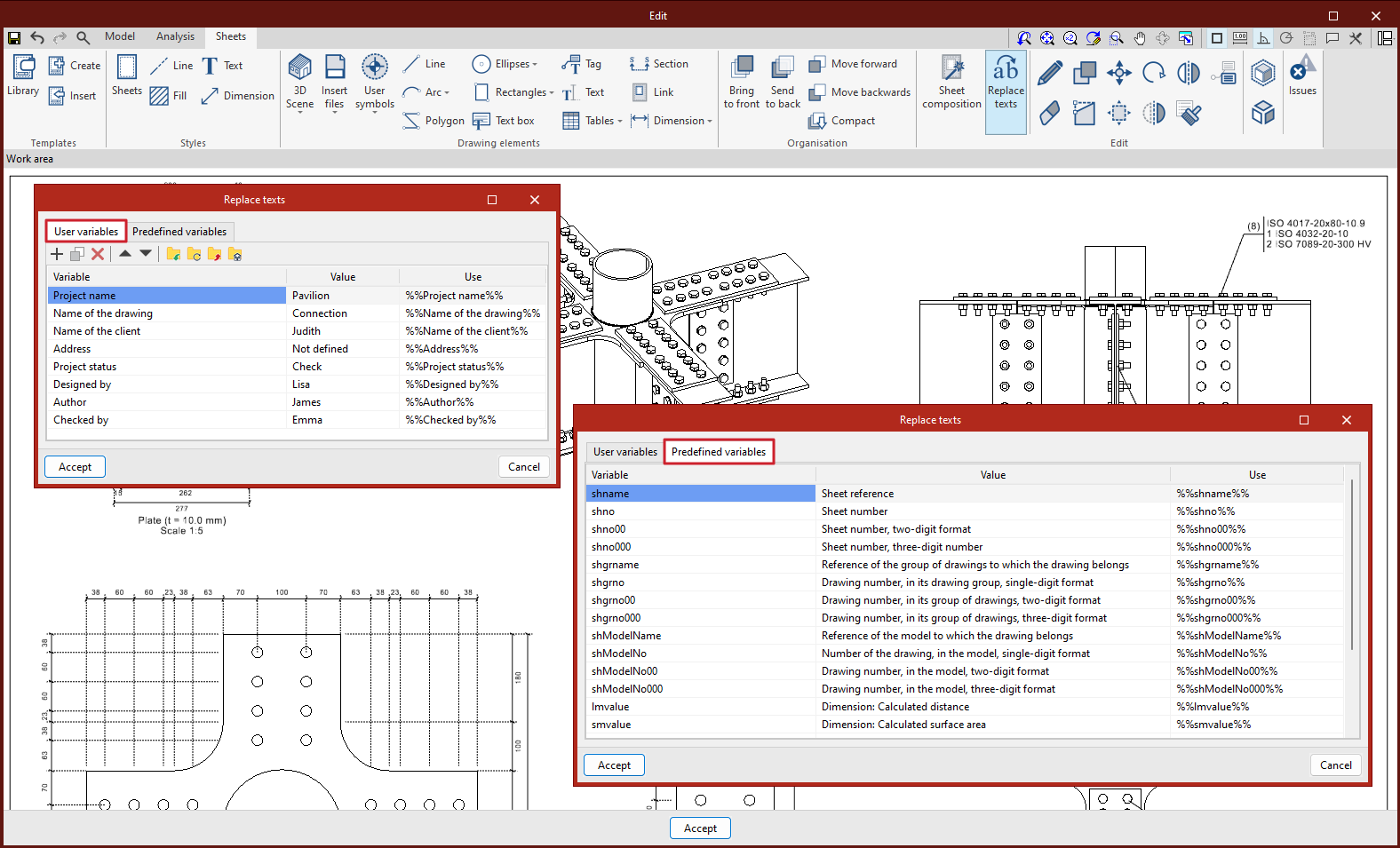
User variables
User variables let you freely create customised variable text that you can reuse in other drawings or projects. These variables may include the project name, the address, the architect and engineer in charge, and so on.
To do this, in the list displayed in the "User variables" tab of the "Replace text" window, you must "Add" each variable as a separate entry, entering:
- The identifier for the "Variable"
- Its "Value", or the text you wish to display in print
- In the "Use" column, the program displays the string that must be entered into any text field to call each variable
User variables can be exported to files in .oblvartxt format, which can be saved locally so that they can be loaded later into other projects. This is done using the export and import options at the top of the screen.
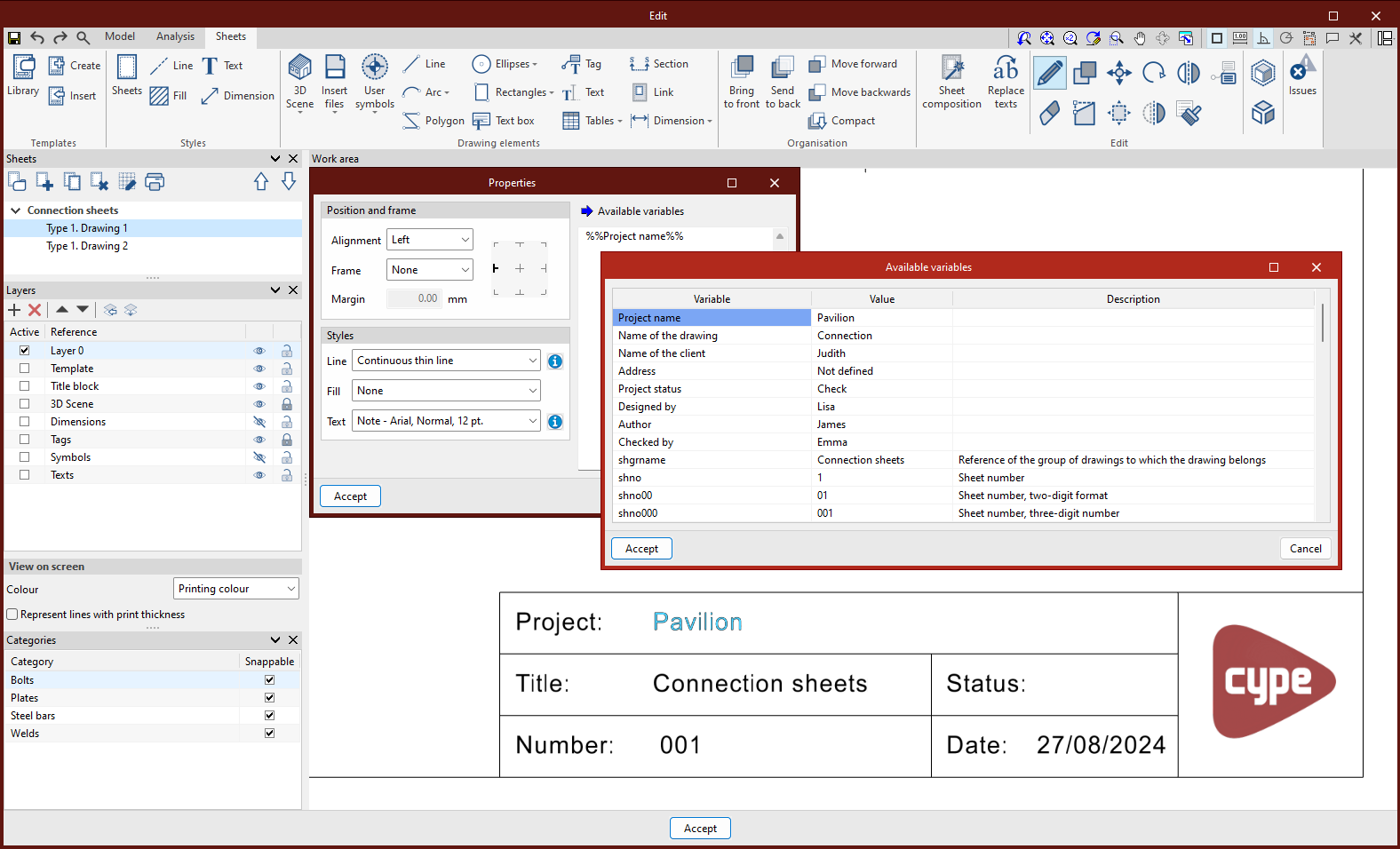
Predefined variables
Predefined variables are a set of variable text fields available by default in the program, which read various project data such as the sheet reference, the sheet number, the scale factor, etc.
The program allows you to view the list of "Predefined variables" in the relevant tab of the "Replace text" window, including:
- The identifier for the "Variable"
- Its "Value", or the information to be displayed in print
- In the "Use" column, the program displays the string that must be entered into any text field to call each variable
In addition, there are other predefined variables that the program uses in tags and dimensions to extract information from the model associated with scenes and views. This allows the program to dynamically link the information displayed in the text of these tags or dimensions to specific model parameters, which can be modified whilst editing. These variables can be accessed via the "Available variables" option, which appears next to each text field.
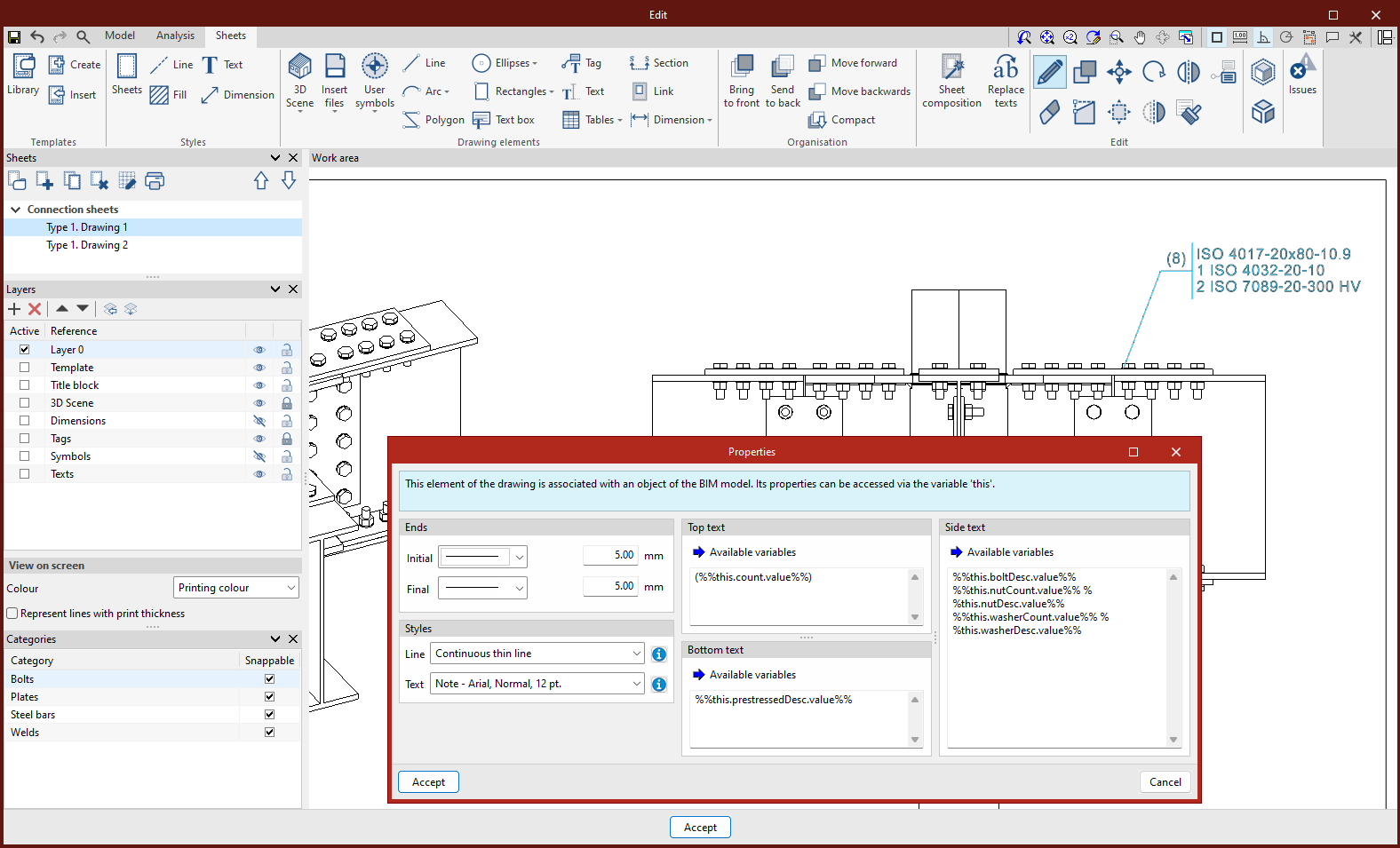
List of predefined variables
The variables displayed in the "Predefined variables" tab are as follows:
| Variable | Value | Use |
| shname | Sheet reference | %%shname%% |
| shno | Sheet number | %%shno%% |
| shno00 | Sheet number, two-digit format | %%shno00%% |
| shno000 | Plate number, three-digit format | %%shno000%% |
| shgrname | Reference number of the sheet group to which the sheet belongs | %%shgrname%% |
| shgrno | Sheet number, within its group of sheets, single-digit format | %%shgrno%% |
| shgrno00 | Sheet number, within its group of sheets, in two-digit format | %%shgrno00%% |
| shgrno000 | Sheet number, within its group of sheets, three-digit format | %%shgrno000%% |
| shModelName | Model reference for the sheet | %%shModelName%% |
| shModelNo | Sheet number, within the model, single-digit format | %%shModelNo%% |
| shModelNo00 | Sheet number, within the model, two-digit format | %%shModelNo00%% |
| shModelNo000 | Sheet number, within the model, in three-digit format | %%shModelNo000%% |
| lmvalue | Dimension: Calculated distance | %%lmvalue%% |
| smvalue | Dimension: Calculated surface area | %%smvalue%% |
| {sceneViewId}.modelName | Model reference shown in the scene | %%{sceneViewId}.modelName%% |
| {sceneViewId}.scnName | Scene reference | %%{sceneViewId}.scnName%% |
| {sceneViewId}.viewName | Scene view reference | %%{sceneViewId}.viewName%% |
| {sceneViewId}.scaleF | View scale factor | %%{sceneViewId}.scaleF%% |
| etqFirstPointZ | 'z' coordinate of the label’s starting point, relative to the scene | %%etqFirstPointZ%% |
| etqFirstPointZUds | 'z' coordinate of the label’s starting point, relative to the scene, in units | %%etqFirstPointZUds%% |
