



Editing transverse reinforcement in beams
The following describes the options available in the beam editor for viewing or editing the transverse reinforcement in beams.
Editing the layout of the transverse reinforcement
To view the layout of the beam’s transverse reinforcement as determined by the analysis, open the editing panel for the entered assembly reinforcement. To do this, open the "Longitudinal reinforcement" menu at the top, select the "Edit" option, and click on the beam’s assembly reinforcement in the main viewport on the right.
| Note: |
|---|
| The "Enter assembly reinforcement" option in the "Longitudinal reinforcement" menu allows you to define the layout of the transverse reinforcement in the same way. |
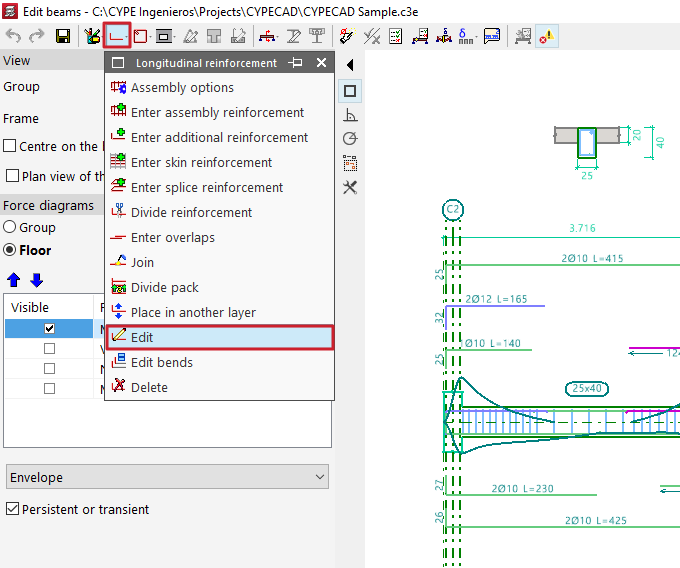
In the window that appears, select the button in the "Transverse" section. From here, using the "Edit reinforcement" option and selecting the stirrups or bars, you can view or modify their type.
The following options are available among the stirrups:
- Closed stirrup
- Closed stirrup with top crosstie overlapping
- Open stirrup
- Open stirrup with top closing crosstie
In the case of branches, the available options include:
- Straight crosstie
- 'S' crosstie
- Closed crosstie
To "Delete frames", click on the option and then on the frames in the viewer.
The "New" option allows you to add new stirrups and branches of the types described. After selecting the stirrup type, click on the starting longitudinal bars and then on the ending longitudinal bars that enclose the transverse reinforcement. In the case of branches, they are added by selecting the longitudinal bars that connect those branches. Once the layout of the transverse reinforcement has been defined, confirm the window.


In the assembly reinforcement editing window, the program also allows you to "Import an admissible arrangement from the assembly reinforcement table" by clicking on the corresponding button on the right-hand side.
Selecting one of the rows in the table defines the longitudinal reinforcement and, in addition, a transverse reinforcement layout with a specific number of stirrups and bars.

Editing the diameter, spacing, number of bars and sections of transverse reinforcement
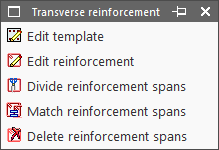
The remaining editing tools relating to the transverse reinforcement of beams can be found in the "Transverse reinforcement" menu at the top of the "Edit beams" window.
This menu offers the following options:
- Edit template
- Edit reinforcement
- Divide reinforcement spans
- Match reinforcement spans
- Delete reinforcement spans
Each of these options is described below.
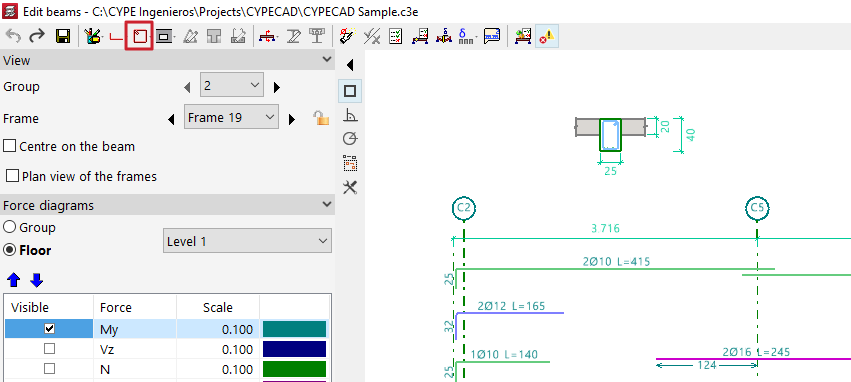
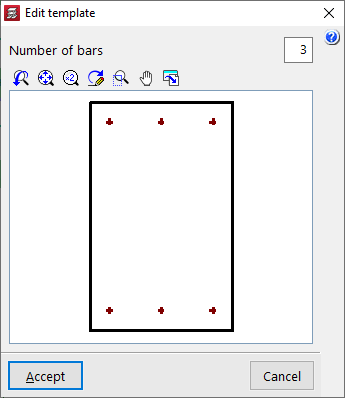
Edit template
If an assembly configuration has not yet been defined for the beam, the "Edit template" option allows you to specify the "Number of bars" that will be tied by the stirrup for the span.
Edit reinforcement
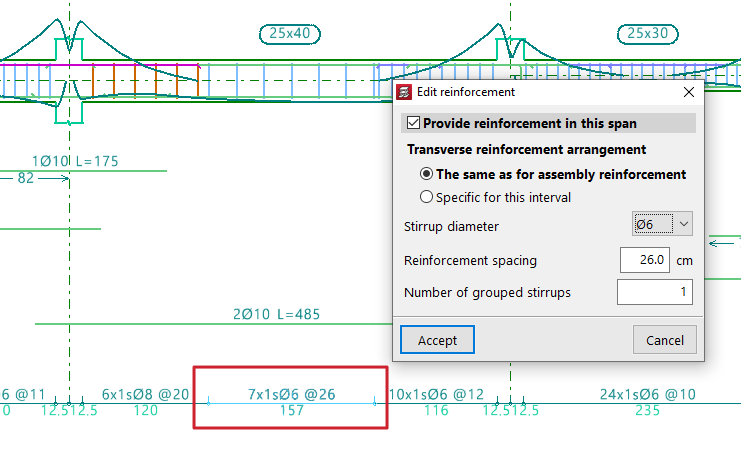
The most common approach is to use the "Edit reinforcement" option, which then allows you to select the transverse reinforcement section located at the bottom of the portal section. The program allows you to tick or untick the box "Provide reinforcement in this span" and specify a "Transverse reinforcement arrangement", which can be "The same as for the assembly reinforcement" or "Specific to this interval". In the latter case, it must be defined as described above by clicking the button on the right-hand side.
In either case, once the arrangement of the transverse reinforcement has been defined, the "Diameter of the stirrups", the "Spacing between reinforcement bars" and the "Number of grouped stirrups" are specified, and, if applicable, the "Diameter of the branches" and the "Number of grouped branches".
Divide reinforcement spans
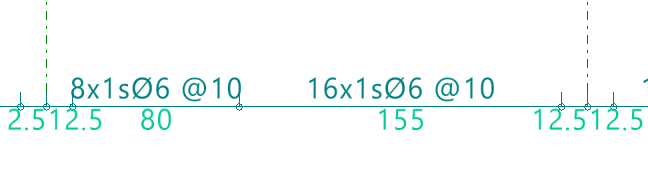
To "Divide reinforcement spans", click on the relevant option and then on the point where you wish to split the stirrup. Next, confirm the "Distance".
| Note: |
|---|
| This option allows you to create areas where stirrups are concentrated or to edit the created reinforcement sections individually, changing the diameter or spacing between the reinforcements within them. |

Match reinforcement spans
The "Match reinforcement sections" option allows you to apply the "Layout", the "Diameters", the "Spacing" or the number of "Grouped hoops and branches" of the selected reinforcement section to any other sections selected subsequently.


Delete reinforcement spans
Finally, the "Delete reinforcement spans" option allows you to delete sections of stirrups, whilst ensuring that at least one stirrup section remains on each beam.


Checking, verifying and saving changes

After making any changes to the reinforcement, click on the "Update error information" option in the top toolbar to check the frame following the changes made.
After selecting this option, you can use the "U.L.S. and S.L.S. checks at the worst case point" and "U.L.S. and S.L.S. checks at a point" options to access the check lists and review the results of the changes.
Finally, you can "Save" the results of your work on the portal using the relevant option. If you wish to exit the editor without saving your changes, you can close the editing window and confirm this in the dialogue box that appears.
