Building element tree
On the "Building" level of the diagram on the left-hand side of the "Project" panel, on the "Building" tab, you will find the building elements tree, which describes the structure, organisation and geometric data of all the elements that make up the building model, and which will be used for the analysis.
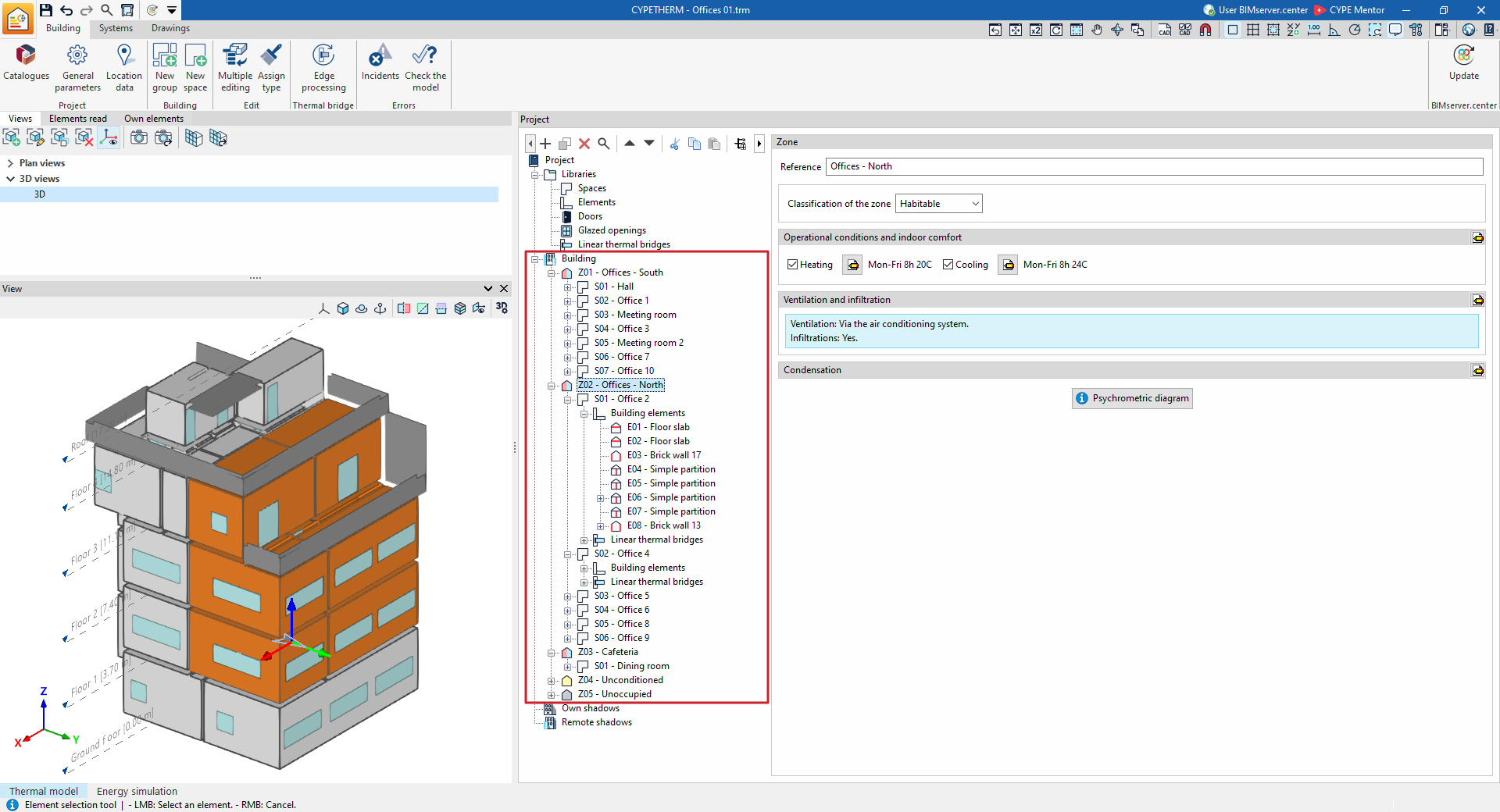
Tree structure for the "Energy simulation" project type
For energy simulation, the building is divided into one or more thermal zones, which comprise the building’s spaces. A thermal zone consists of a group of spaces that share the same operating temperature conditions.
The building diagram defines the spaces contained within each thermal zone. Optionally, these spaces may be organised into groups. Within each space, the structural elements (such as walls and floor slabs) and associated linear thermal bridges are shown.
The structure is therefore as follows:
- Zone
- (Optional) Group
- Space
- Structural elements
- Linear thermal bridges
- Space
- (Optional) Group
In the "Systems" tab, the terminal units of the air-conditioning system serving the rooms within each zone will be defined at the zone level.
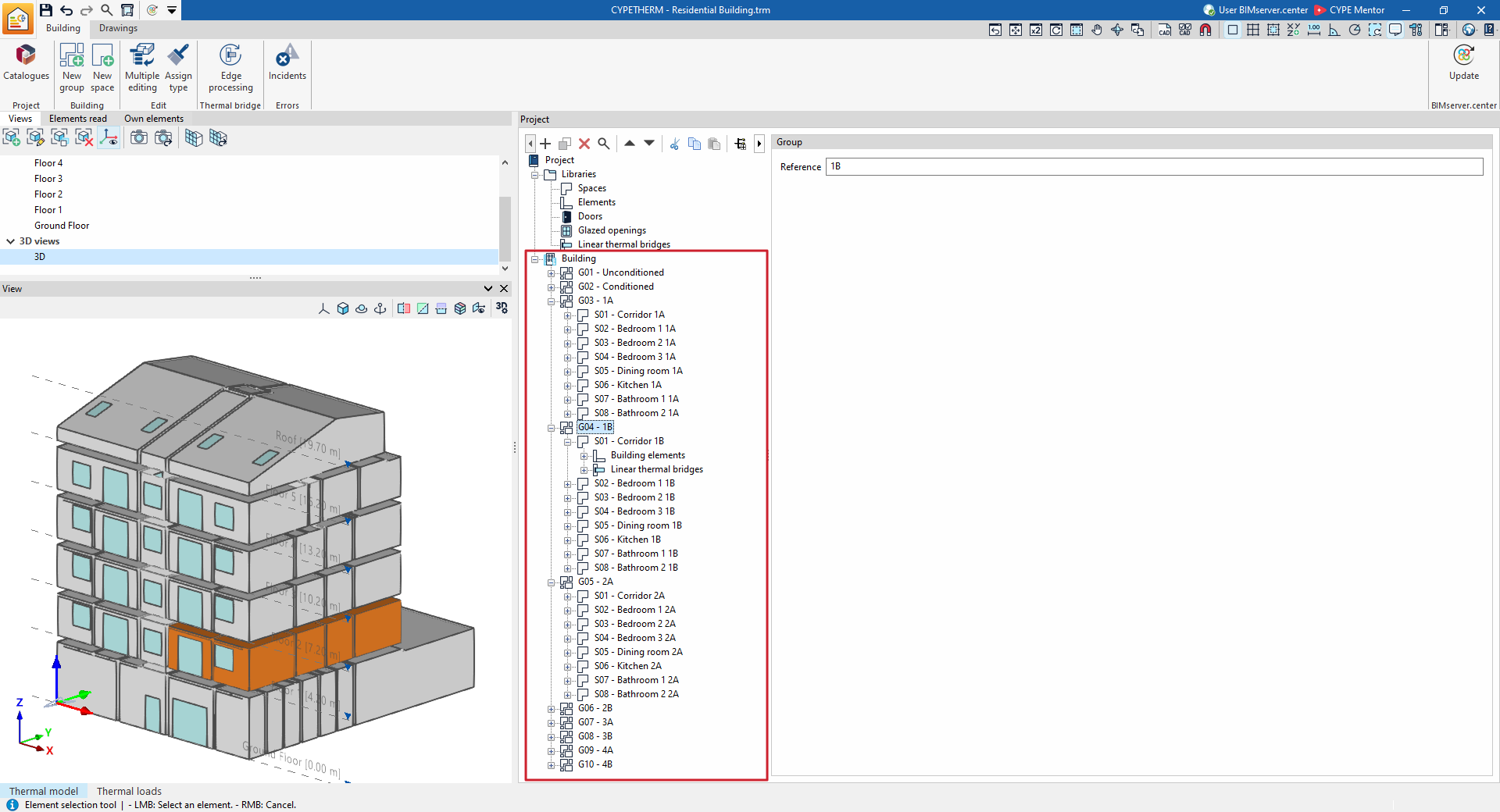
Tree structure for the "Thermal loads" project type
To calculate thermal loads, the building is divided directly into zones, or, optionally, into groups that contain and organise the building’s zones.
In turn, within each space, the structural elements (such as walls and floor slabs) and the associated linear thermal bridges are shown.
The structure is therefore as follows:
- (Optional) Group
- Space
- Structural elements
- Linear thermal bridges
- Space
Creating and editing the building tree
The geometry, structure and layout of elements in this tree are imported either from the geometric model when creating a new project or updating project information on BIMserver.center, or from the information defined in the "3D Model" tab.
The elements arranged in this tree – which include enclosures, structural elements, doors, glazed openings and linear thermal bridges – are characterised by the selection of the different element types previously created in the "Libraries".
In any case, you can freely make adjustments to this tree within the program by adding, deleting or editing its components. To do this, you can use the various organisation options listed below.
| Note: |
|---|
| The building model could be created manually by adding elements one by one and entering their details numerically in the tree view on the ‘Building’ tab; however, this workflow is not recommended as it is time-consuming. Instead, we recommend always starting with a geometric model created in a modelling program that allows elements to be added and managed within the space. However, direct editing of the element tree can be useful for making minor adjustments in some cases. |
Options for organising zones, groups and spaces
To organise the building’s existing spaces into different zones or groups, the following tools are available:
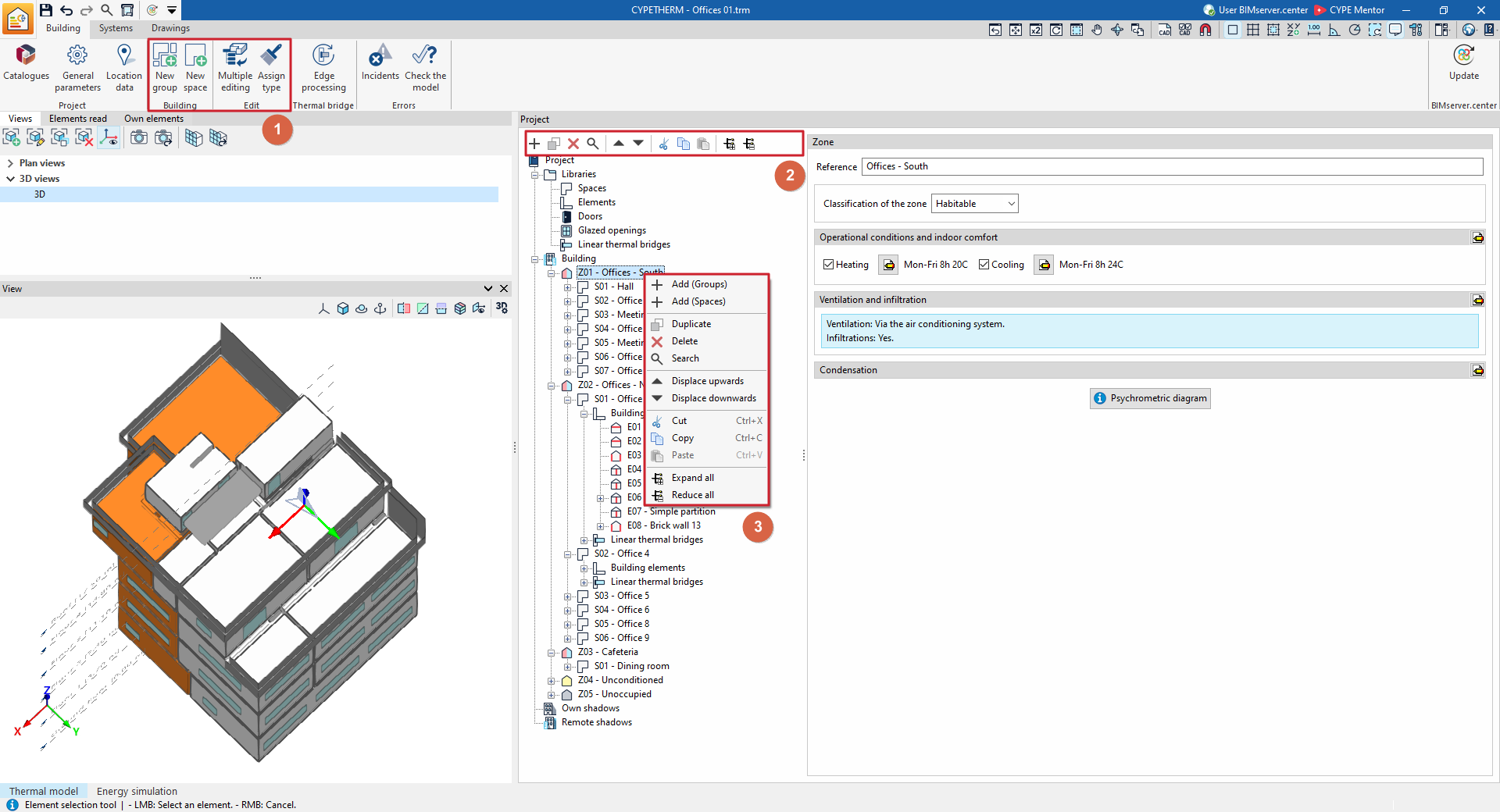
- Options in the "Building" and "Edit" groups
- The options in the "Building" section let you create new groups and new spaces.
- Within the "Edit" panel, the "Multiple editing" option provides a wizard for editing, in a single operation, the properties of different types of building elements. Among its features is the ability to assign spaces to different zones or groups and to change their library type. To do this, after clicking "Spaces" in the window that appears, select the elements to which you wish to apply the properties indicated in the "Selection" column, click on the "Group" or "Type" assignment options, and confirm the window.
- Top toolbar in the project tree
This toolbar provides options for:- "Add (Groups)", "Add (Spaces)", "Add (Building elements)" or "Add (Openings)", depending on the selected level.
- "Duplicate", "Delete" or "Search" for elements in the tree.
- "Move up" and "Move down" elements of the diagram, including zones, groups and spaces (these tools also let you move a space from one zone or group to another).
- "Cut", "Copy" and "Paste" elements.
- "Expand all" or "Collapse all" the content of the selected level in the tree.
- Context menu
The context menu that appears when you right-click on a level in the tree allows you to carry out the following operations:- "Add (Groups)", "Add (Spaces)", "Add (Building elements)" or "Add (Openings)", depending on the selected level.
- "Duplicate", "Delete" or "Search" for elements in the tree.
- "Move up" and "Move down" elements in the diagram.
- "Cut", "Copy" and "Paste" elements (for example, you can select a space, click "Cut", navigate to the destination level – be it a specific group or zone – and click "Paste" to move it to that level).
- "Expand all" or "Collapse all" the content of the selected level in the tree.