

Construction systems management
In the "Project" section of the main toolbar, you will find the following option:

Construction systems
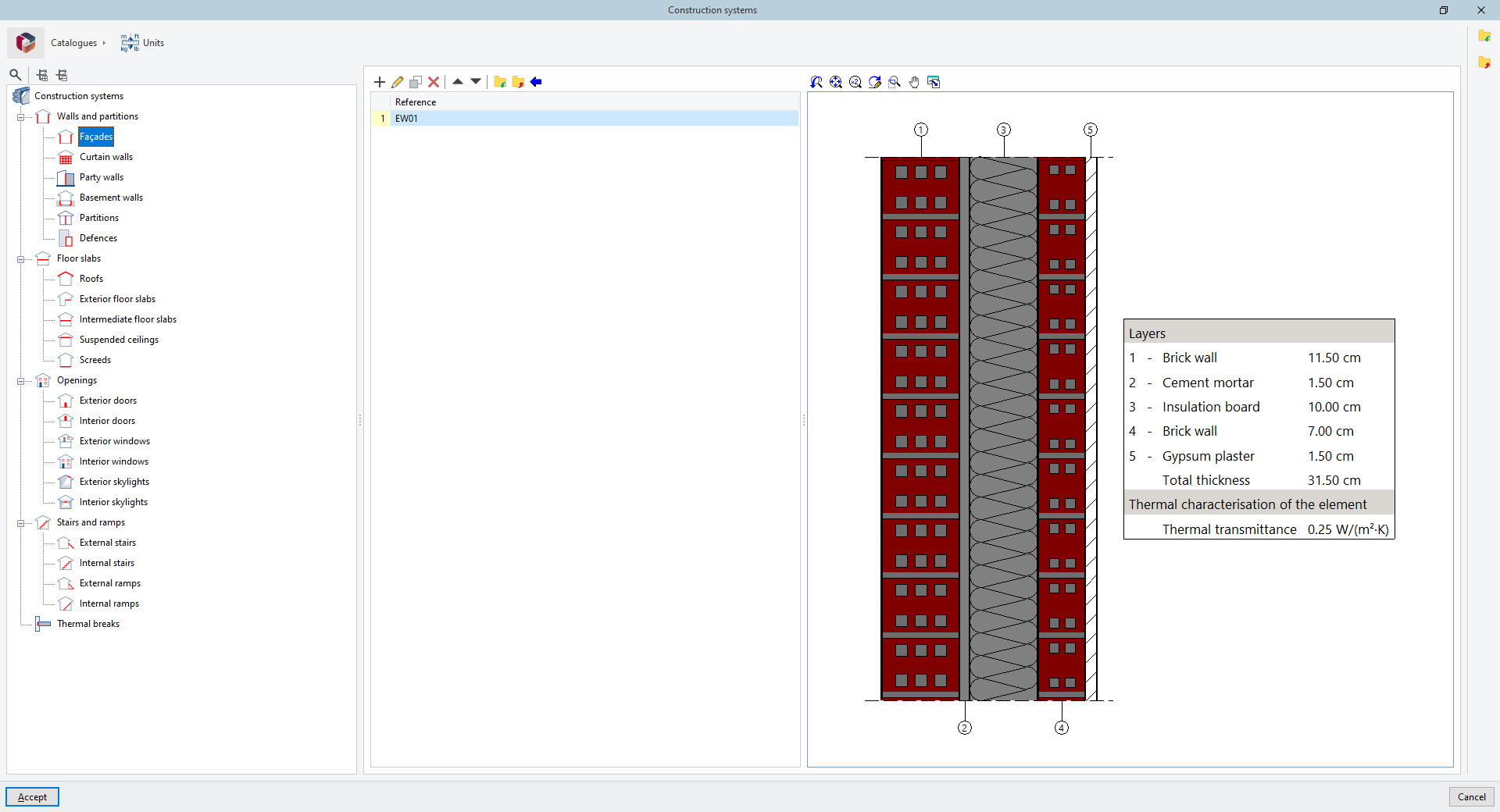
Clicking this button opens a window in which you can define the design systems for the components of the geometric model.
The building systems created here will be available when creating or editing building element types, either via the "Libraries" option in the "Project" panel or when selecting the type whilst inserting "Building elements" using the options in the relevant panel of the main toolbar.
The characteristics of construction systems and their links to model components can be shared within a project on the BIMserver.center platform. Thermal and acoustic simulation tools can read this information and incorporate it into their calculation models.
Category tree
On the left is a tree showing the categories of available items. They are as follows:
- Walls and partitions (Façades, Curtain walls, Party walls, Basement walls, Partition walls, Retaining walls)
- Structural slabs (Roofs, External slabs, Floor slabs, Suspended ceilings, Floor screeds)
- Openings (External doors, Internal doors, External windows, Internal windows, External skylights, Internal skylights)
- Stairs and ramps (External stairs, Internal stairs, External ramps, Internal ramps)
- Thermal breaks
The tools at the top of the tree allow you to "Search" for categories using text snippets, "Expand all" in the tree or "Collapse all" in the tree.
When you select each category, the program displays a list on the right showing the structural systems defined within that category. Further to the right, where applicable, a viewer displays a detailed cross-section of the structural solution selected from the list, along with a descriptive box containing information on the layers and the values of the solution’s key characteristics.
Management of manufacturers' catalogues
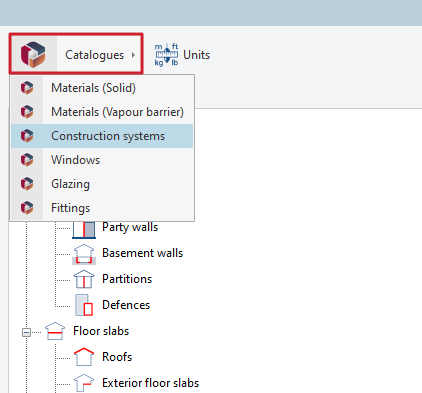
The "Catalogues" button in the top-left corner allows you to import information from manufacturers’ catalogues via the connection to the Open BIM Database for the following types of elements, making it easier to enter data into the program for project development:
- Materials (Solid)
- Materials (Vapour barrier)
- Construction systems
- Windows
- Glazing
- Fittings
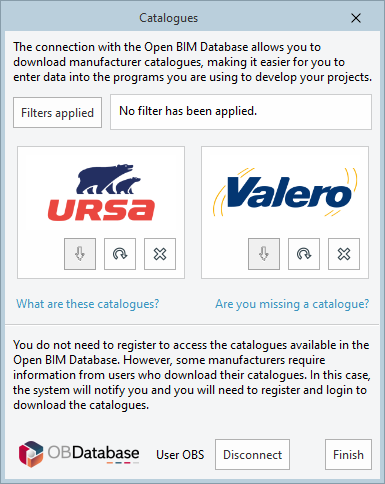
Clicking on any of these options opens a window displaying the manufacturer's catalogues available for those items.
Using the "Applied filters" option, you can apply filters by item "Category", "Language" and "Country" to display only those manufacturers that offer product catalogues with these characteristics.
Download catalogues
The following options are displayed for each manufacturer:
- Download
Download the catalogue for the selected manufacturer. The products in the catalogue will be available in the project. - Update
Updates the catalogue for the selected manufacturer to the latest version, deleting the version previously downloaded to the project. - Delete
Deletes the catalogue for the selected manufacturer. The products in the catalogue will no longer be available in the project.
Other catalogues
This option allows you to download and update other available manufacturer catalogues.
Connection to the Open BIM Database
At the bottom of the dialogue box, the program allows you to log in using an Open BIM Database account and password.
Import and direct download of products from catalogues
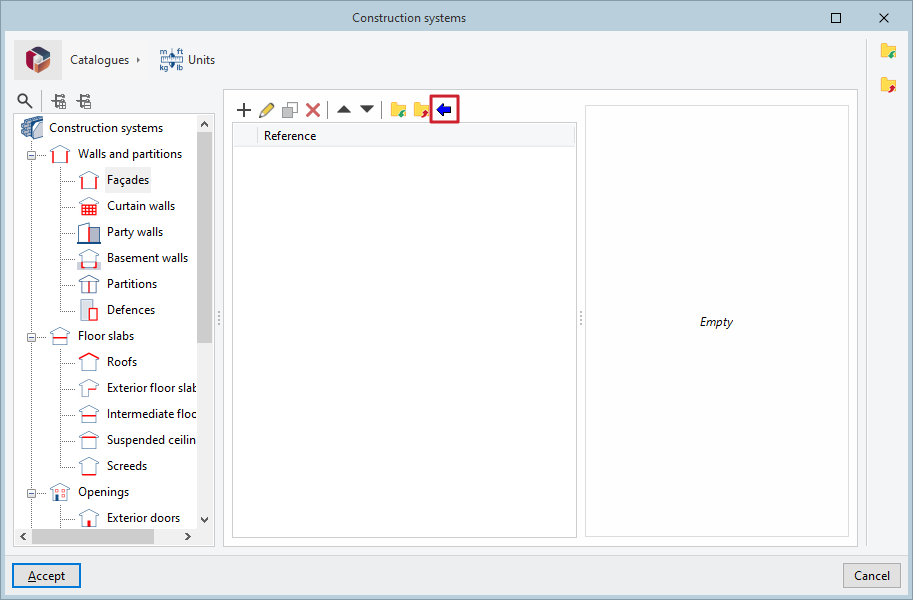
Products from catalogues can be imported using the "Catalogues" button, which is available both on the top toolbar of the construction solution lists and in the editing panel for each construction solution. For material, glazing or joinery catalogues, this button appears in the relevant editing sections.
You can also download and update catalogue products for each type of element directly from each of these editing panels, using the option marked with the Open BIM Database symbol, which is available on all of them.
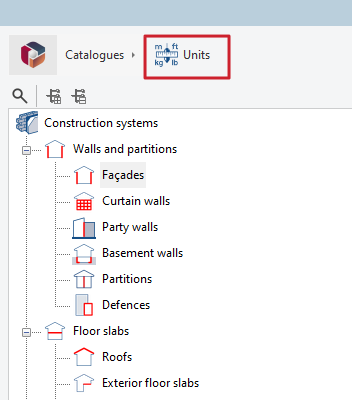
Unit settings
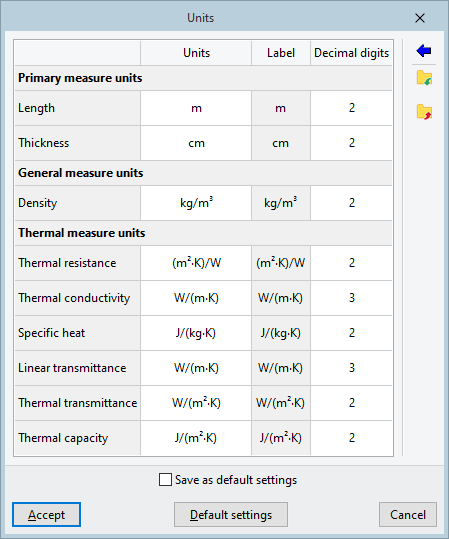
The "Units" button in the top-left corner allows you to configure the units, the label and the number of decimal places for each of the following quantities:
- Basic dimensions (Length, Thickness)
- General properties (Density)
- Thermal properties (Thermal resistance, Thermal conductivity, Specific heat, Linear transmittance, Thermal transmittance, Heat capacity)
If you use the "Import one of the predefined unit systems" option, available on the right-hand side of the panel, you can import one of the following:
- International System
Allows you to import units from the International System. - I-P System
Allows you to import units from the I-P (Inch-Pound) system or the imperial system.
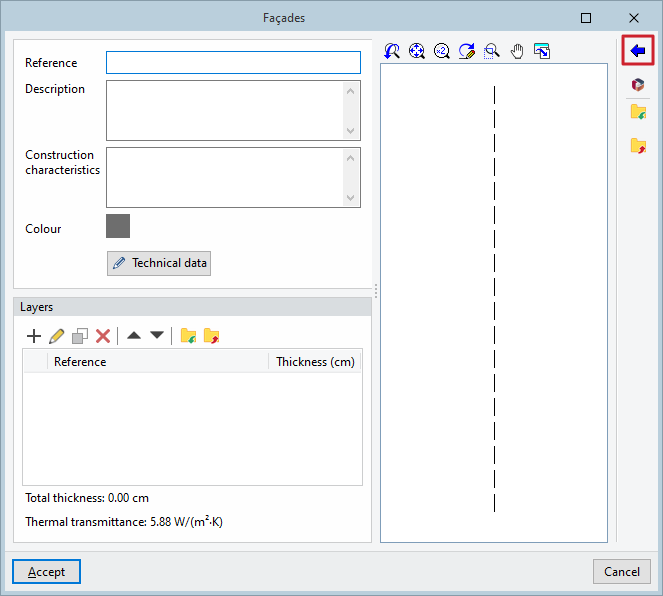
General information and features
When creating a structural solution in the relevant list, the program allows you to enter the following data and general characteristics:
- Reference
- Description
- Design features
- Height (at the railings)
- Width, Height (in "Openings" such as doors, windows and skylights)
- Colour
- Insulation thickness, Height (floor slab thickness), L-value, ψ (under "Thermal breaks")
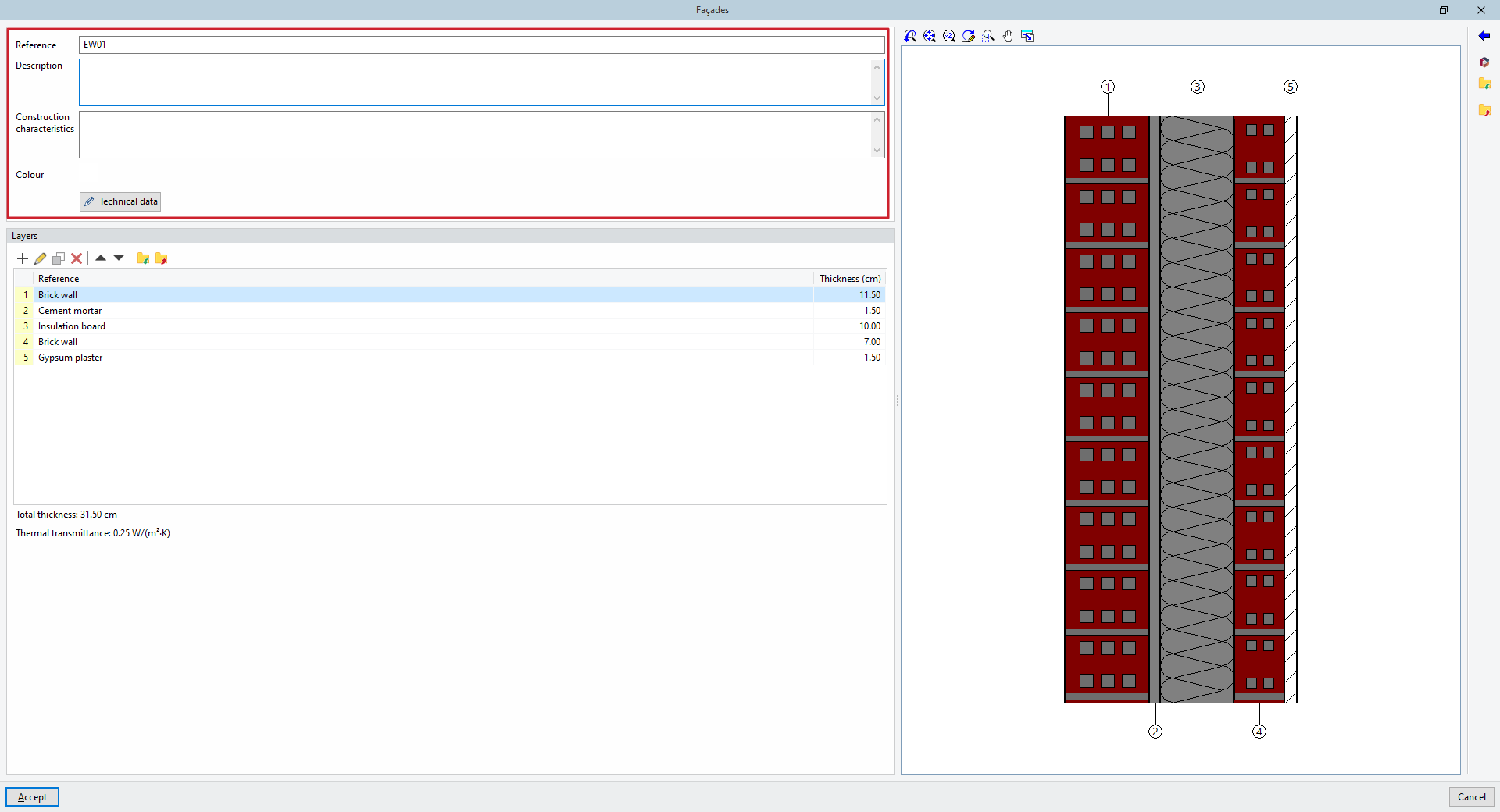
General technical specifications
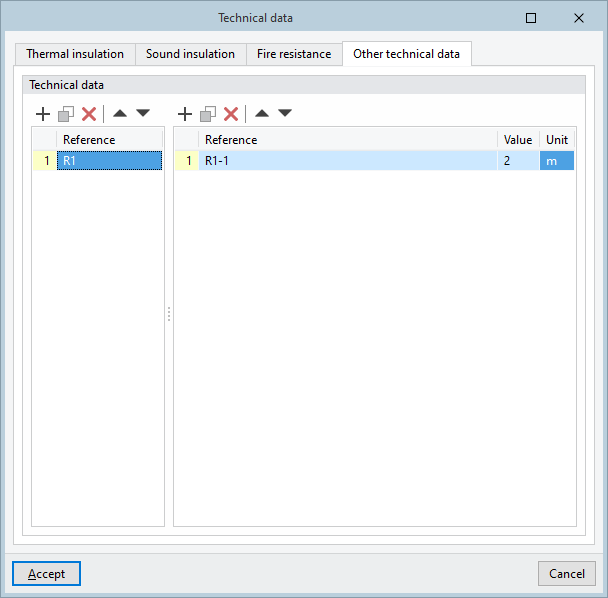
The "Technical data" button opens a dedicated window for configuring the general technical data associated with the structural solution, organised into the following tabs:
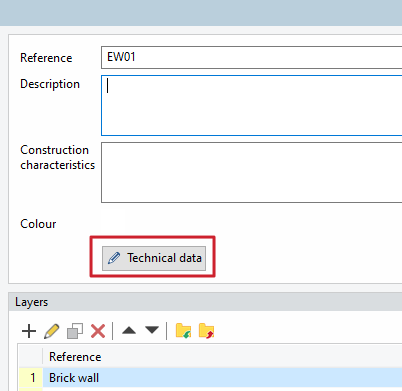
- "Thermal insulation" tab
- Simplified thermal characterisation of the element (optional)
- Thermal transmittance
- Thermal capacity
- Absorptance (optional) (for exposed elements)
- Absorption coefficient
- Soil thermal conductivity (optional) (for elements in contact with the ground)
- Thermal conductivity of the ground
- With perimeter insulation (optional) (in "Slabs-on-ground")
- Type of insulation (Vertical / Horizontal)
- Thermal resistance
- Thickness
- Width or depth
- Localised thermal bridges (per m²)
- Linear thermal bridges
- Additional details (Reference, Value, Unit)
- Simplified thermal characterisation of the element (optional)
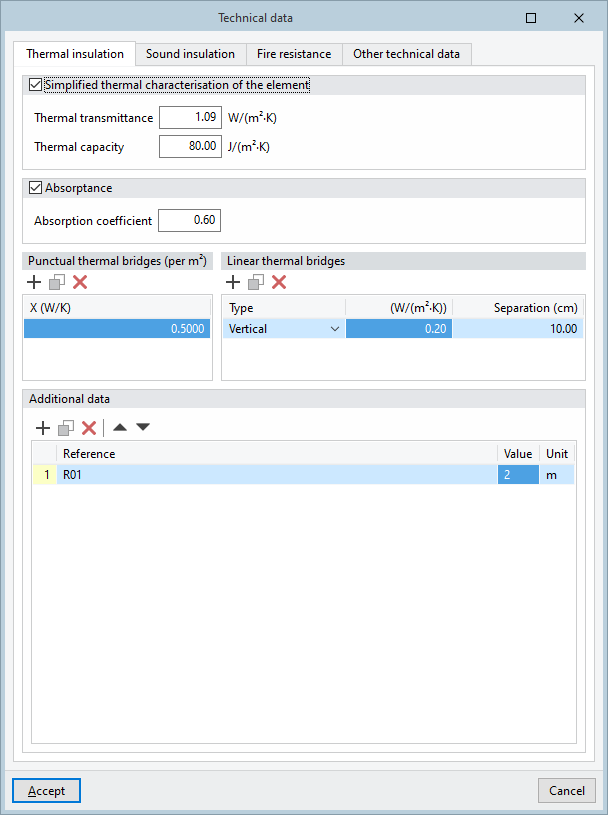
- "Soundproofing" tab
- Acoustic performance of the element (optional)
- Acoustic test report number
- Rw
- C
- Ctr
- Include only the inner layer of the façade in the acoustic calculation of lateral transmission (optional)
- Rw, used in edge-transition transmission
- Additional details (Reference, Value, Unit)
- Acoustic performance of the element (optional)
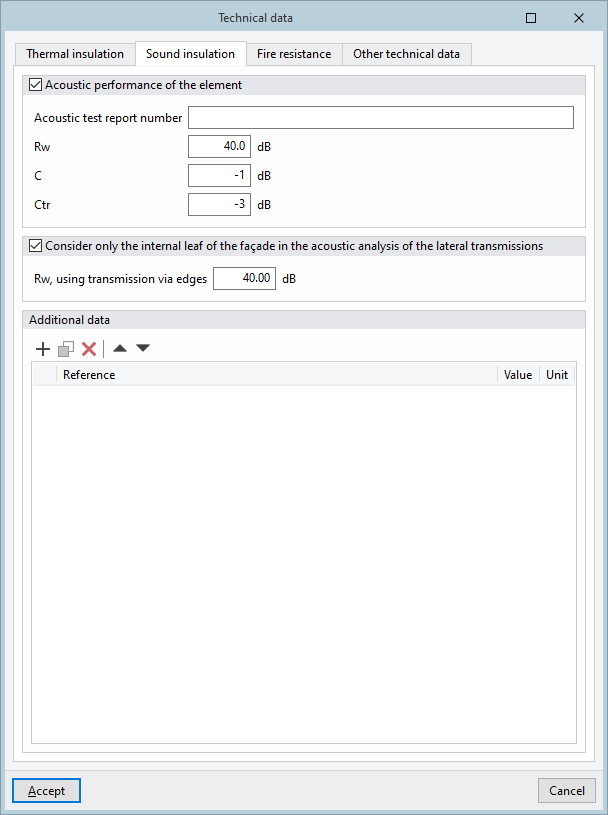
- "Fire resistance" tab
- Fire resistance time (optional)
- EI
- Additional data (Reference, Value, Unit)
- Fire resistance time (optional)
- "Other technical data" tab
- Technical data
- Reference, Value, Unit
- Technical data
Definition of material layers
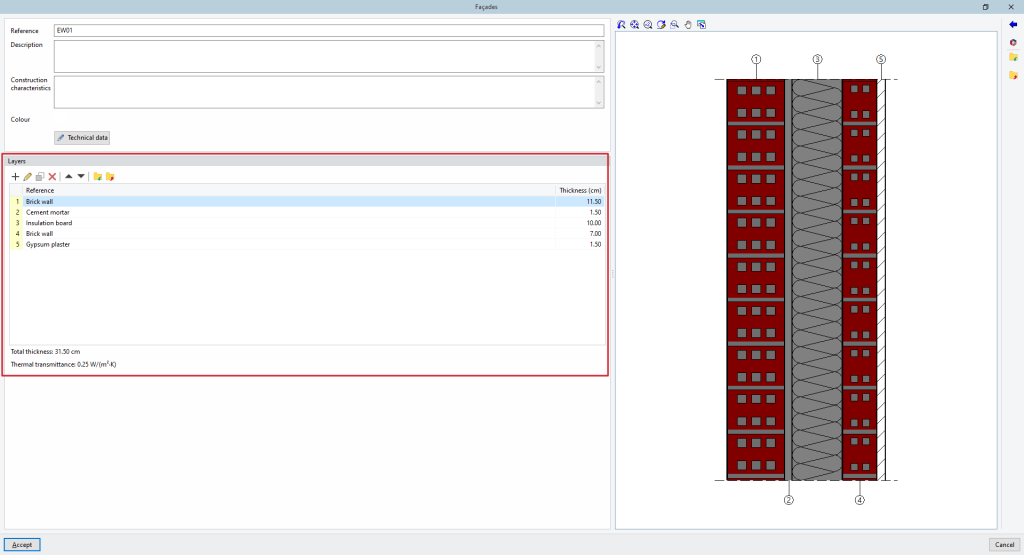
In the "Layers" section, the program provides a table where you can add, edit, copy, delete or reorder the material layers that make up the structural solution:
- Layer
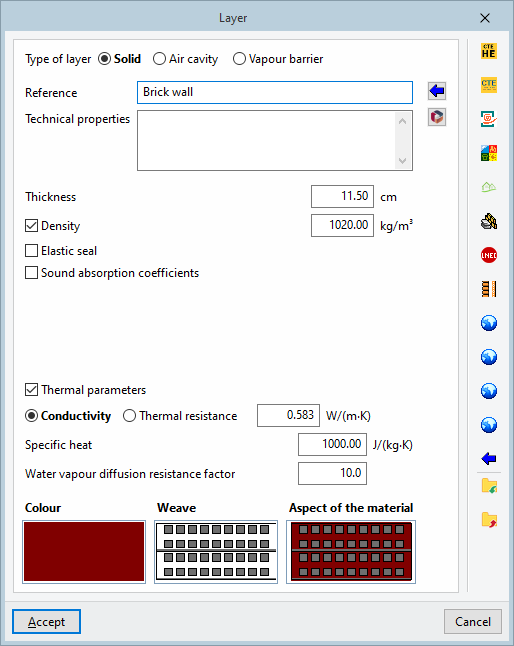
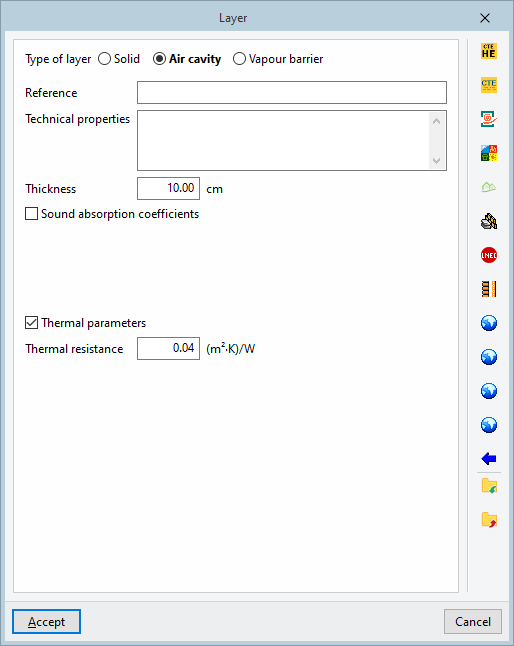
When adding a layer of material, you must specify the following parameters:- Reference
- Technical properties
- Type of layer
You must select whether the layer is solid, an air cavity or a vapour barrier.- Solid
- Thickness
- Density (optional)
- Elastic seal(optional)
- Sound absorption coefficients (optional)
- 500 Hz
- 1000 Hz
- 2000 Hz
- Thermal parameters (optional)
- Thermal conductivity / Thermal resistance
- Specific heat
- Water vapour diffusion resistance factor
- Colour / Weave / Aspect of the material
Allows you to adjust the visual representation of the layer’s material.
- Air space
- Thickness
- Sound absorption coefficients (optional)
- 500 Hz
- 1000 Hz
- 2000 Hz
- Thermal parameters (optional)
- Thermal resistance
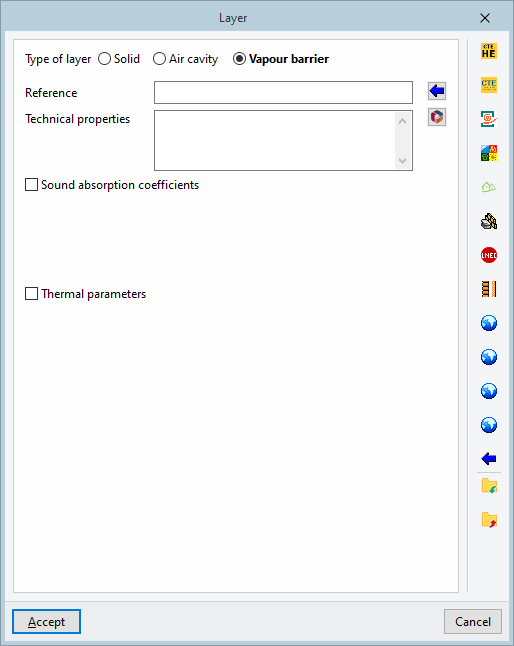
- Vapour barrier
- Sound absorption coefficients (optional)
- 500 Hz
- 1000 Hz
- 2000 Hz
- Equivalent air thickness
- Sound absorption coefficients (optional)
- Solid
- Data import
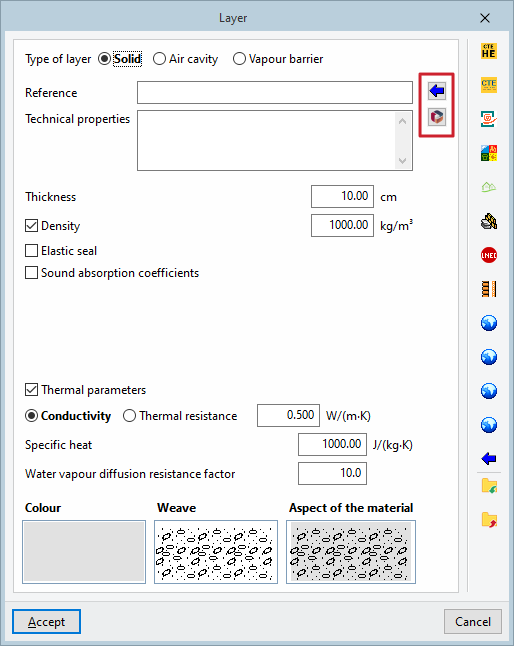
There are several ways to automatically import material data:- Importing data from the Open BIM Database Materials available in the
"Open BIM Database" can be imported, and catalogues from manufacturers that provide material data can be downloaded and updated, using the buttons to the right of the "Reference" and "Technical properties" fields:- Import materials from Open BIM Database catalogues
- Downloading and updating manufacturer catalogues from the Open BIM Database
- Importing data from other catalogues and standards
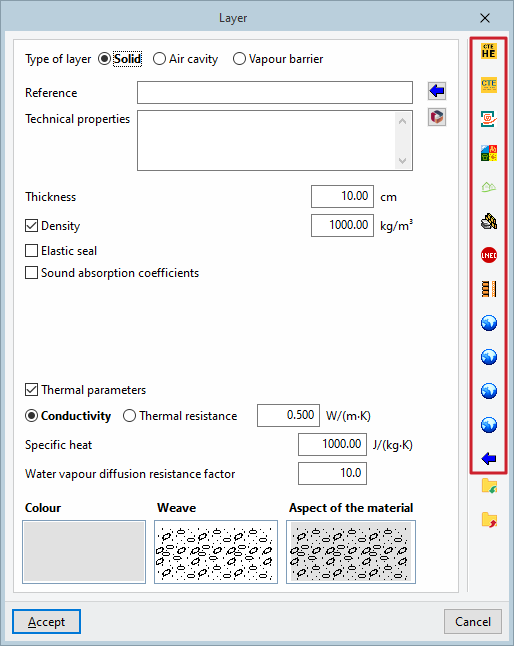
The options in the right-hand column of the "Layer" window allow you to automatically import material data based on information provided by various catalogues and standards:- Materials from the HULC library
- Materials from the LIDER library
- Materials from the CALENER VYP library
- Materials described in the RT2012 standard
- Materials from the BINAYATE Library
- Materials described in the UNI 10351 standard
- Materials from the LNEC library
- Inflatable tyres as described in the UNE-EN ISO 6946 standard
- Materials described in the UNE-EN ISO 10456 standard
- Materials described in standard NF EN ISO 10456
- Materials described in standard ISO 10456
- Materials described in standard EN ISO 10456
- Representative materials (2013 ASHRAE Handbook – Fundamentals)
- Importing data from the Open BIM Database Materials available in the
Specific options for glazed openings
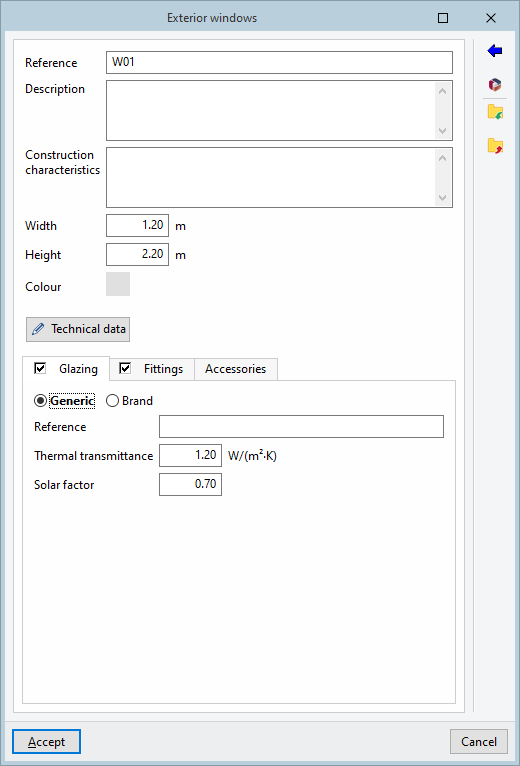
Glazed openings, such as windows and skylights, offer the following options for defining their technical properties:
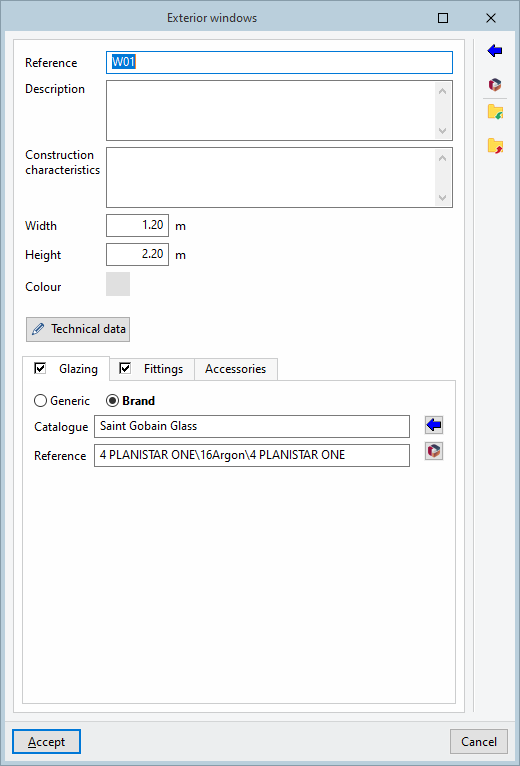
- "Glazing" tab
- Generic
- Reference
- Thermal transmittance
- Sun protection factor
- Manufacturer
- Catalogue / Reference
- Generic
- "Fittings" tab
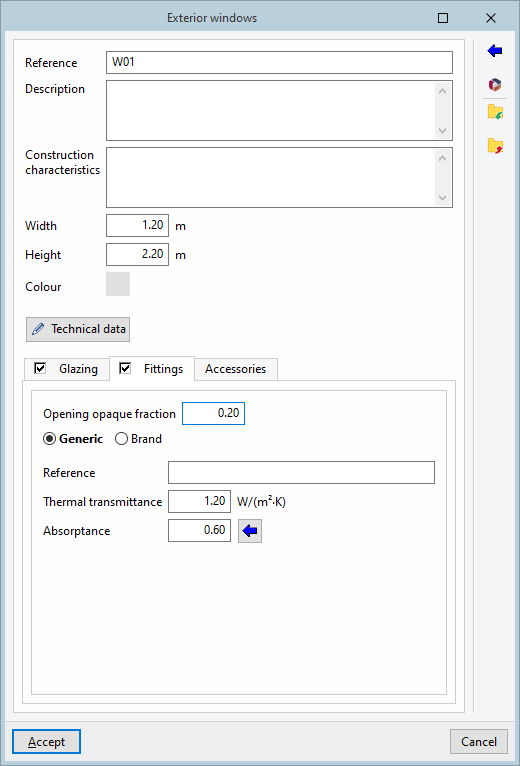
- The opaque portion of the opening
- Generic
- Reference
- Thermal transmittance
- Absorption coefficient
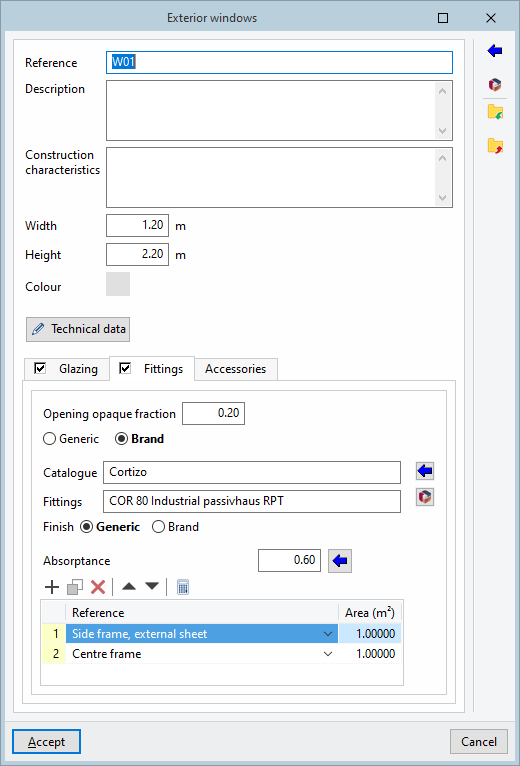
- Manufacturer
- Catalogue / Joinery
In the manufacturer’s joinery selection window, which appears when you click the "Import data" button on the right, you can select the manufacturer and product code, as well as the window finish, if the catalogue includes a range of finishes. - List of nodes
This list shows the nodes that make up the selected joinery and their "Area". Each node has an associated thermal transmittance and thickness, which can be viewed by selecting the joinery in the catalogue.- "Analysis" option:
This tool, which appears at the top of the list, allows you to automatically calculate the area of the joints that make up a window or door unit based on the "Number of leaves" it comprises. This makes it easy to obtain the thermal transmittance of the unit, optimising its integration into the building’s energy model. This feature is available exclusively for manufacturer-supplied joinery, for both internal and external windows.
- "Analysis" option:
- Finish
Allows you to specify the finish of the window frames.- General
By selecting this option, you can manually set the “Absorption coefficient” value for the joinery, customising the material properties.- Absorption coefficient
- Manufacturer
This option allows you to select available finishes directly from a manufacturer’s catalogue. The absorption coefficient value will be calculated automatically based on the reference for the selected finish, which simplifies the specification process and ensures that the values are accurate and consistent with actual commercial products.- Reference
- General
- Catalogue / Joinery
- "Fittings" tab
- Reference
Construction solution viewer
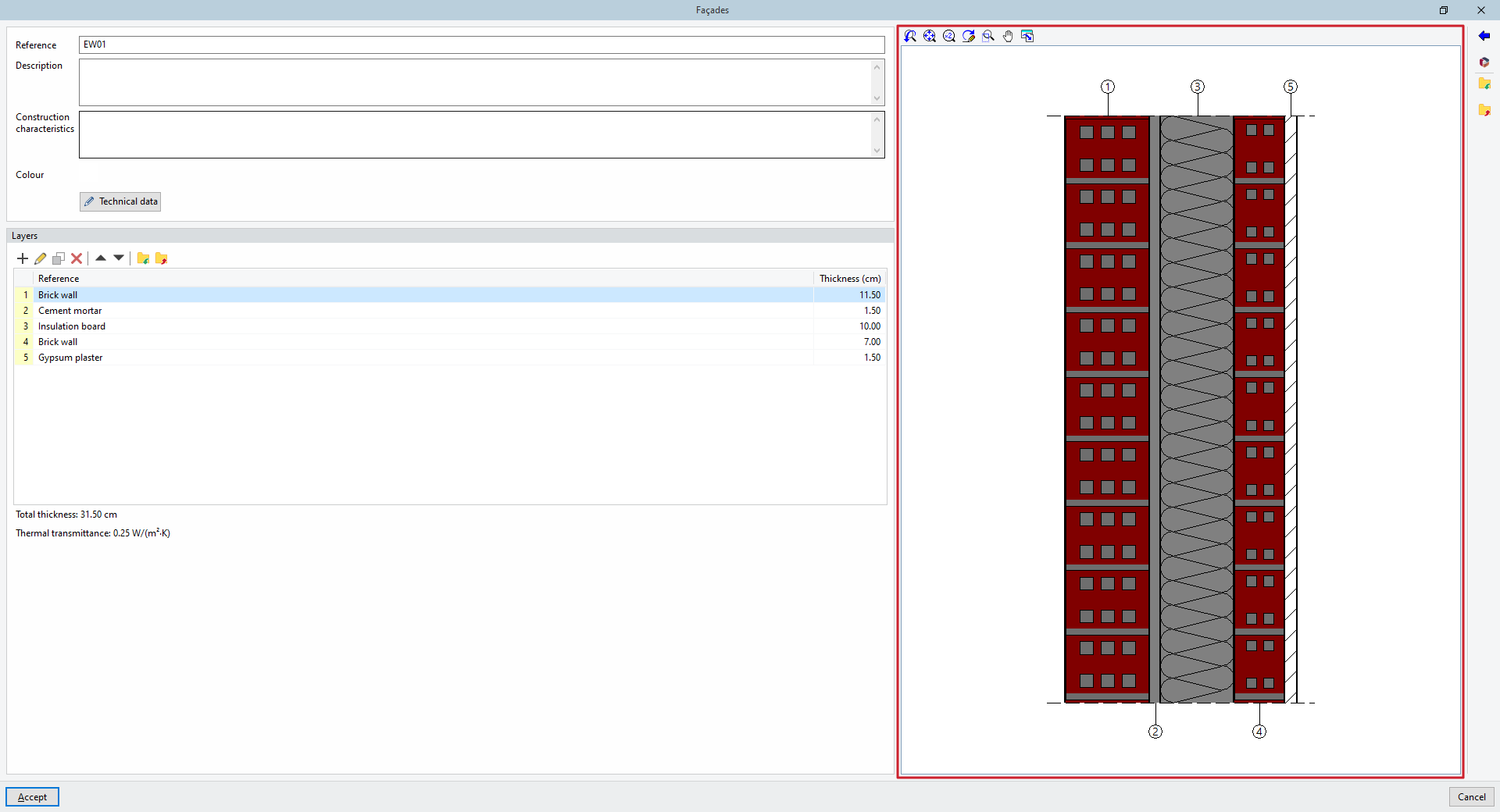
The viewer on the right-hand side of the construction solution editing window displays a detailed cross-section showing the numbering and graphical representation of the defined material layers.
The tools at the top allow you to adjust the drawing, as well as print or save the current view.
Managing elements in lists
The tools at the top of the construction systems list and the materials layers list allow you to perform the following actions:
 | Add | Add a new element to the list. |
 | Edit | Opens the editing panel for the selected element. |
 | Copy | Duplicates the selected element, adding a copy to the list. |
 | Delete | Removes the selected element from the list. |
 | Move the selected item up one place in the list | Swap the position of the selected item in the element with that of the previous item. |
 | Move the selected item down one place in the list | Swap the position of the selected element in the list with that of the element following it. |
Importing and exporting construction systems and materials to files on disk
At the top of the list of construction systems or the list of material layers, there are options to save the details of the complete construction systems or the material of the selected layer to files on your hard drive for use in other projects:
 | Import elements saved to disk into the project | Imports the elements saved on the hard drive into the project, adding them to the list. If an element (with the same reference) already exists in the project, its data will be overwritten. |
 | Export the item to a file | Export the selected element to a file so that you can import it later. |
These options are also available on the right-hand side of the construction system or material layer editing window.
