Importing DXF, DWG, PDF and JPG files
CYPE programs feature the following set of tools at the top of the screen, which are used to import and view files in various formats (such as DXF, DWG, PDF and JPG) to use them as base templates for your drawings:

Import DXF and DWG files
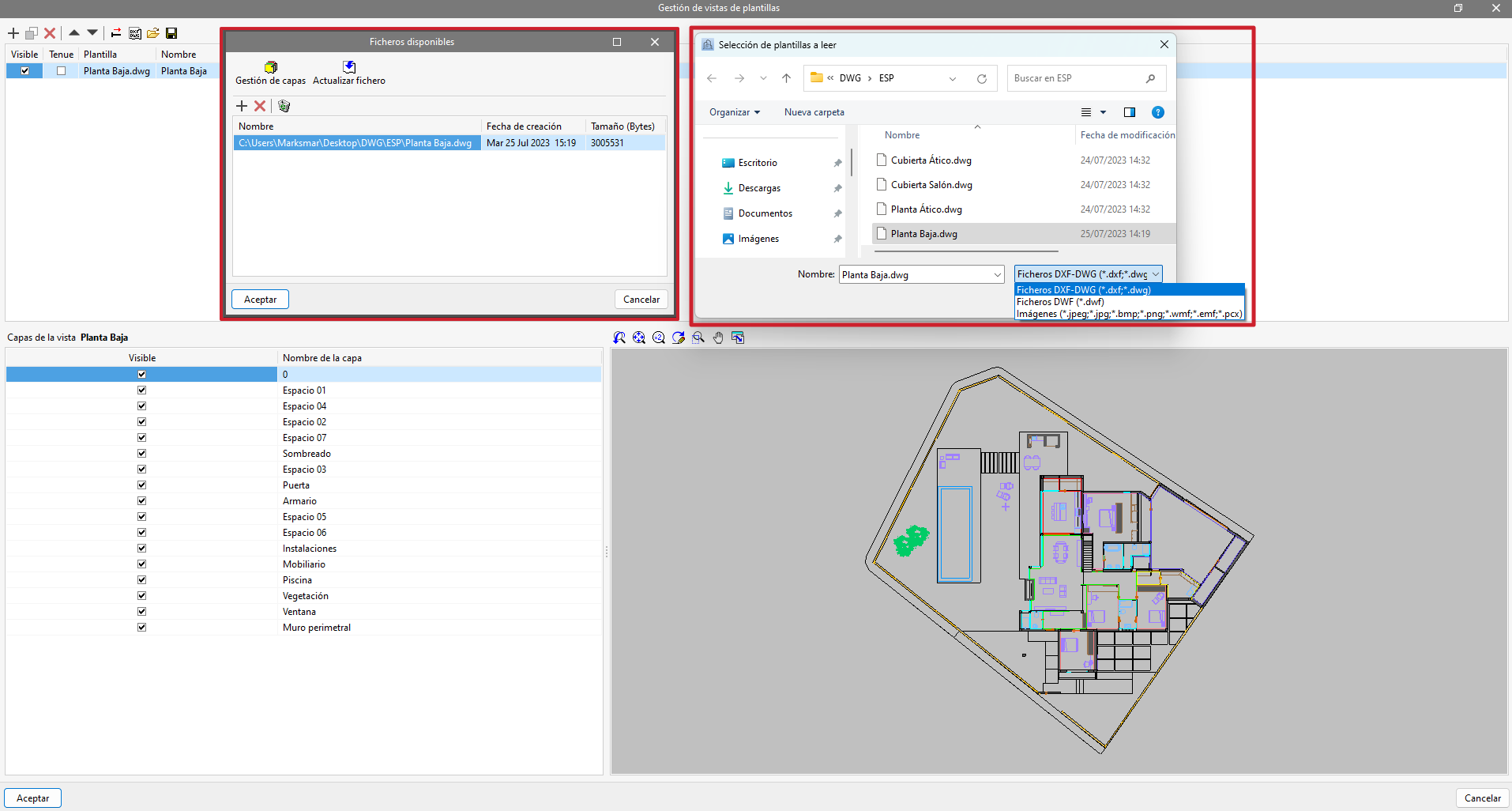
When you click on the first tool, "Import DXF-DWG templates", a pop-up window called "Template views manager" will open, where you can manage templates, transform them (where necessary) and import them into the project in DXF, DWG, PDF or JPG format, amongst others.
When clicking the "Add" option, the "Available files" window will appear. Here, you can add a new file with "Add" and change the file type to be displayed. The default format is "DXF-DWG files", but it is also possible to import "DWF files", "Images" (in .jpeg, .jpg, .bmp, .png, .wmf, .emf and .pcx formats) and "PDF files". After selecting the file from its path or location on the disk, click "Accept". If the document consists of several pages, the "Page number" to be imported must be specified.
This will add the file to the list in the "Available files" window. From here, you can carry out the "Layer management" on the template or "Update the file" if it changes. If you select a file from the list and confirm, it will be added to the list of template views in the "Template views manager" window.
Enable DXF-DWG templates (F4)
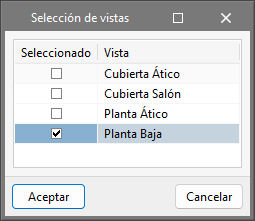
Once the templates have been imported into the project using the option above, select the tool on the right, "Activate DXF-DWG templates (F4)", to proceed to "Select views" of the templates you wish to display in the pop-up window.
Once you have selected the desired template view(s), click "Accept", and they will appear in the graphics window or workspace of the current view.
The F4 key can be pressed as a shortcut to toggle the display of all templates in the view.
Template object snaps (F3)
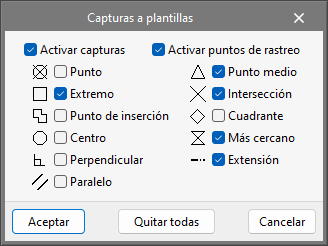
To snap entities or elements from the previously imported DXF, DWG or PDF file, you need to activate the third tool, "Template object snaps (F3)". In the pop-up window, you can tick the "Activate object snaps" box and the "Activate object snap tracking" box, as well as the references that will remain active. These are as follows:
- Activate object snaps
- Point, Edge, Insertion point, Centre, Perpendicular, Parallel
- Activate object snap tracking
- Midpoint, Intersection, Quadrant, Nearest, Extension
The F3 key can be pressed as a shortcut to enable or disable all template object snaps.