
Level management
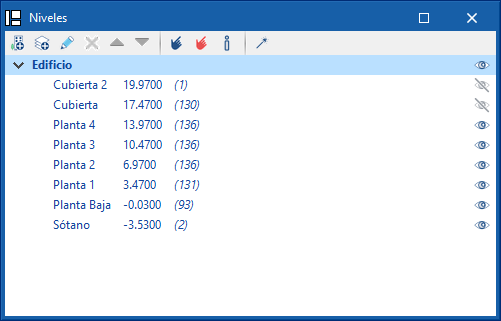
The "Levels" section makes it easier to associate elements of the model to various views, such as building plans or other reference planes. There is a drop-down list of buildings and levels defined in the model.
The toolbar can add new buildings and levels to the model. Next to each level, the elevation is shown along with the number of associated model components in brackets. Their visibility can be activated or deactivated in the work area.
With the "Assign elements to a level" option, components of the model can be selected from the work area and associated with the level selected in the list. The "Unassign elements to a level" option allows the reverse operation to be carried out.
From the "Information on the level of an element" option, users can inspect an object from the workspace and obtain its current level.
Finally, the "Automatic assignment" option associates the components of the model to the defined levels automatically. To do this, it analyses the element’s geometry and identifies the level immediately below it.