
Update history​​

CYPECAD

Since the possibility of connecting to a BIM model from CYPECAD was implemented in the 2018.c version, the program could obtain two types of templates from the BIM model:

  • The DXF or DWG templates associated with the BIM model. Furthermore, when a BIM project is launched from IFC Builder, users can automatically export a template in DXF format with the outline of each floor.
  • The templates of the “BIM model” that display the outlines of the floor slabs and outlines of the columns. These are updated when the BIM model is updated if the initial model has any changes.

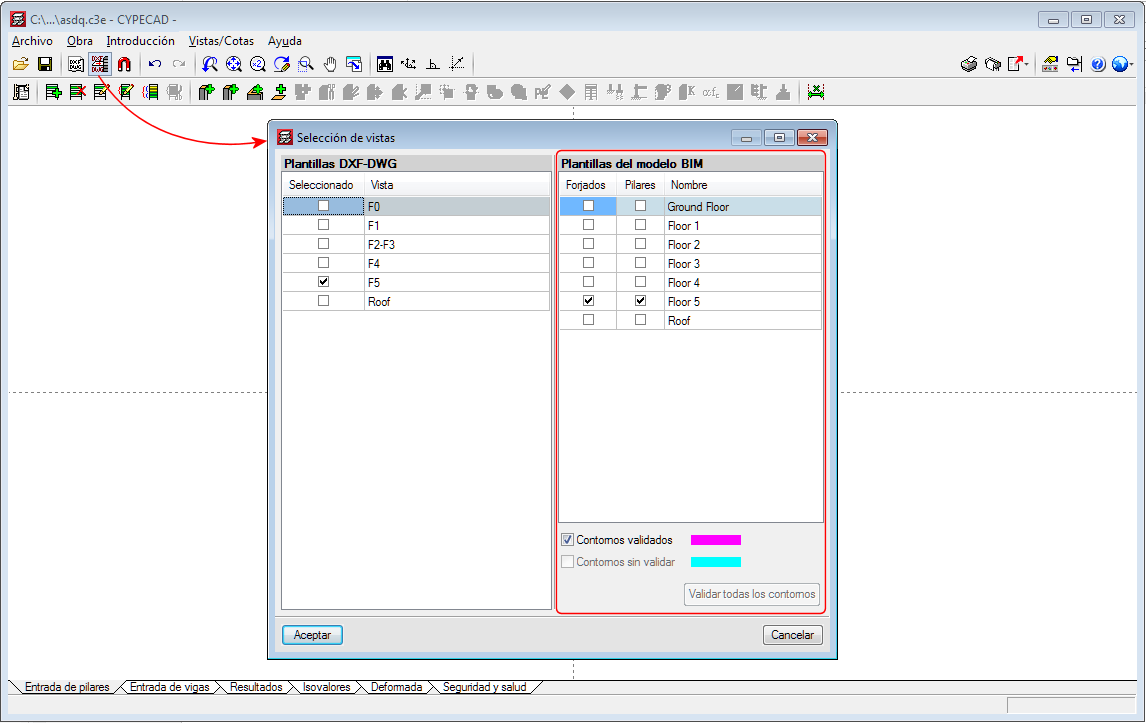
The views of the DXF/DWG templates (including those IFC Builder may generate in the BIM model) can be managed from the “View selection” dialogue box.

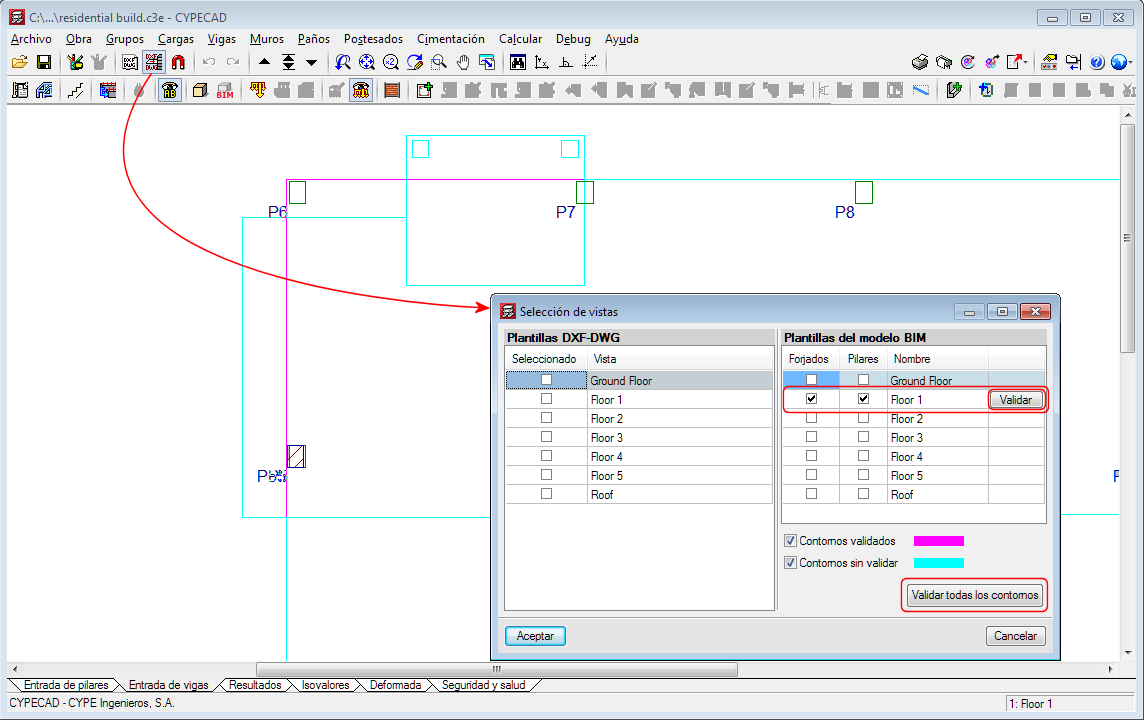
As of the 2018.i version, another section appears in the same dialogue box in which users can also manage the templates of the BIM model. The templates of the BIM model will be shown in magenta when they are generated for the first time (validated outlines). When the BIM model is updated, new outlines or outlines that have undergone any changes will be displayed in cyan (Outlines not validated). In the “View selection” dialogue box, users can mark “Outlines not validated” outlines of the BIM model (cyan) as “Validated outlines” (magenta).

With this improvement, the outlines before the update can be clearly distinguished from the new outlines and so graphically appreciate the changes the architectural model has undergone.
Generating the columns of the BIM model

The 2018.i version of CYPECAD includes the automatic generation of concrete columns based on the columns of the BIM model. The program will generate a rectangular or circular concrete column of the same size and at the same position for each column that has been defined in the BIM model.

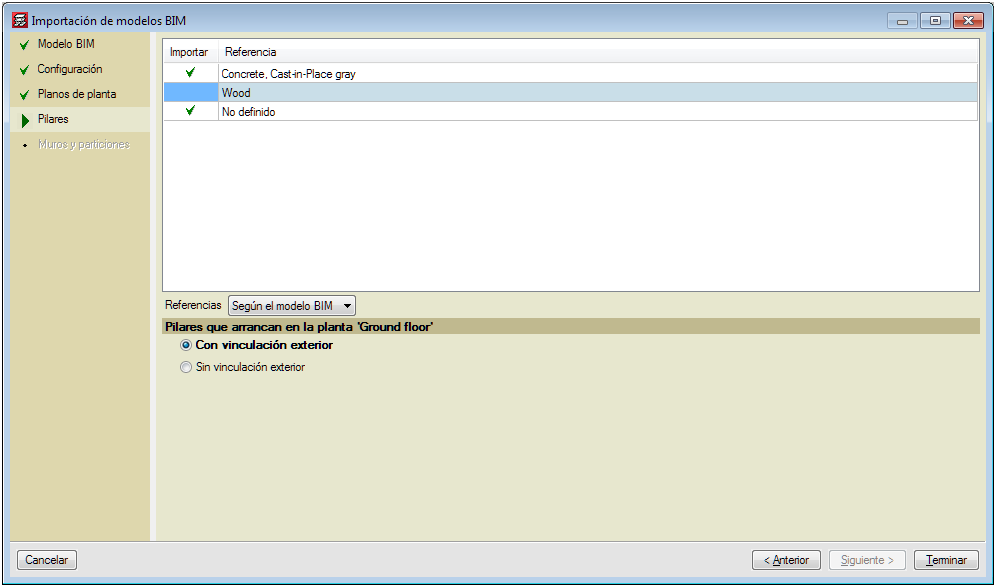
To do so, the assistant that is activated when a project is created from a BIM model, contains the new stage “Columns”. In this stage, users can select the columns that are to be generated depending on their material. The assistant generates the columns with the same reference they have in the BIM model or with an automatic reference. In this stage, users can also select the type of support (with or without external fixity) columns starting at the first level will have. Columns starting on higher floors will be generated without external fixity.

The fixed point of the column will also be generated in accordance with the fixed point of the column of the BIM model.

Updating the columns of the BIM model

When users decide to update the BIM model with the changes the architectural model may contain, any columns that have been generated previously will not be modified. Neither will their position be changed nor will they be deleted nor new columns added, even though these changes have occurred in the BIM model. What is updated is the template of the BIM model and it is up to users to decide what to do when a column has been moved, deleted or introduced, as this affects intersections with the beams, columns and floor slabs that have already been introduced in CYPECAD.

In the previous version (2018.h), the way CYPECAD acts when a column is added or an existing column is moved was modified. As of this version, CYPECAD does not automatically recreate column-beam intersections and users can choose to recreate the intersections manually or have the program recreate them automatically for a floor using the “Reload group” option.

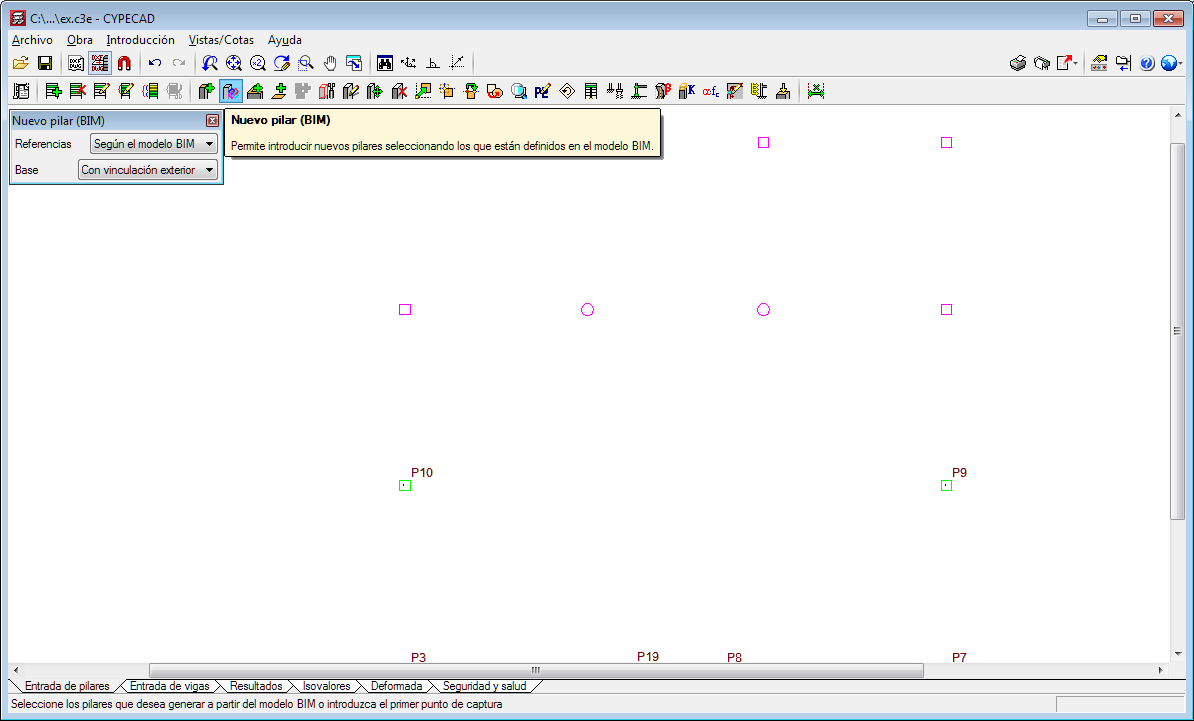
New column (BIM)

To be able to introduce a column that interprets another column of the BIM model that was not present when the connection of the CYPECAD project to the BIM model was launched (after the first import), the tool, “New column (BIM)” has been implemented. When this option is selected, the outlines of all the columns of the BIM model will appear. Then, if we click on one of these outlines, a column will be generated with the same dimensions as the column of the BIM model on each floor.

Users must bear in mind that including a new column may interfere with beams that are already present in floors of the CYPECAD project. Nonetheless, how the program behaves, regarding the automatic adjustment of beams, when a new column is introduced or an existing one is moved, was modified in the previous version of CYPECAD (2018.h). As of that version, the program does not automatically recreate column-beam intersections. Users can recreate them manually or use the “Reload group” option (“Beam Definition” tab > “Groups” menu) to recreate them automatically in the current floor group.

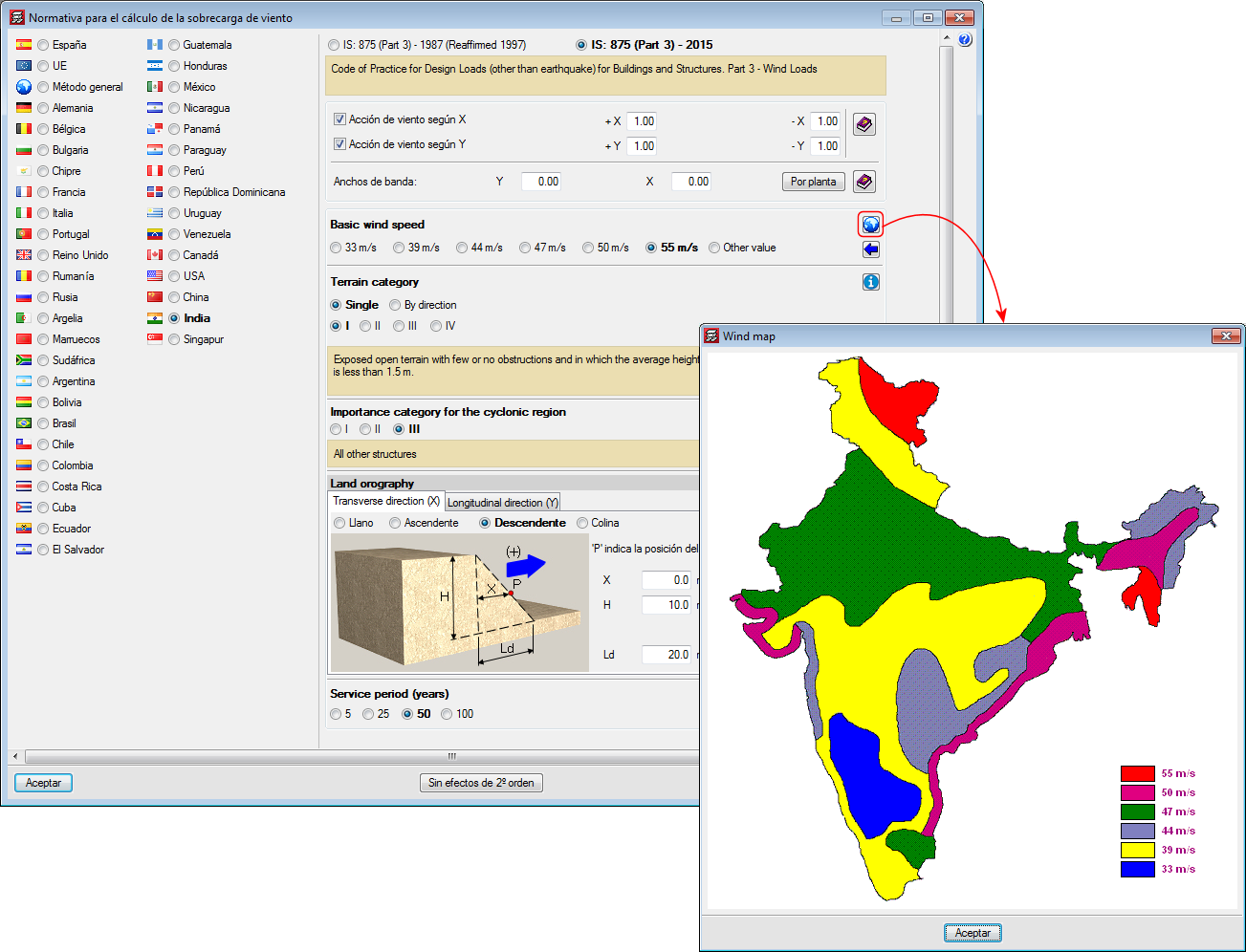
Code of Practice for Design Loads (other than earthquake) for Buildings and Structures. Part 3 - Wind Loads.

Implemented in CYPECAD.

The behaviour of the program has been modified when columns are introduced in a position where beams are already present in the floors they go through or when existing columns are moved to new positions where they would come into contact with beams. For these cases, and in previous versions, the program automatically recreated the new beam-column intersections.

As of the 2018.h version, these intersections are not recreated automatically and users can choose to:

  • Recreate the intersections manually
  • Recreate the intersections automatically using the new option “Reload group” (Beam Definition tab > Groups menu). This new option executes the same process that the program used to execute automatically in previous versions.

Long texts that appear in project report tables are adjusted so the width of the cell in which they appear does not increase substantially.

It is possible to introduce an elevation difference at the start of a wall without having to create a specific floor group for this purpose. To introduce the elevation difference, use the “Sloped floor slabs/Elevation changes” option from the “Groups” menu in the “Beam Definition” tab. With this option, a different horizontal level can be created and assigned to the wall start.

In previous versions, footings with the same dimensions and reinforcement could appear ungrouped in the footings schedule. This occurred if the lateral formwork of these footings was different due to a different number of beams (strap or tie beams) reaching them. In the 2018.g version, footings that have the same dimensions and reinforcement are shown grouped in the footings schedule, regardless of the formwork that is required.

The width of the “Combinations” column of the “Forces in columns” table is increased.

When an alignment is divided after analysing, the forces are not lost. After dividing the alignment, if the option “Redesign frames with changes” from the Analyse menu is used (Beam Definition tab), the reinforcement of the two frames that result from dividing the alignment will be redesigned and then their forces consulted.

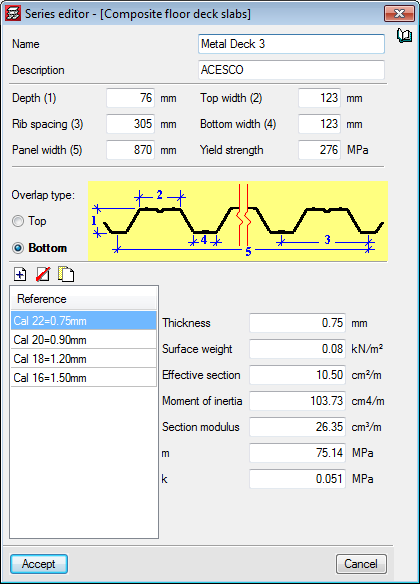
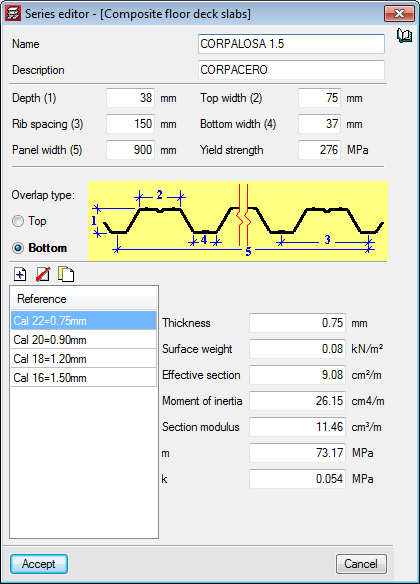
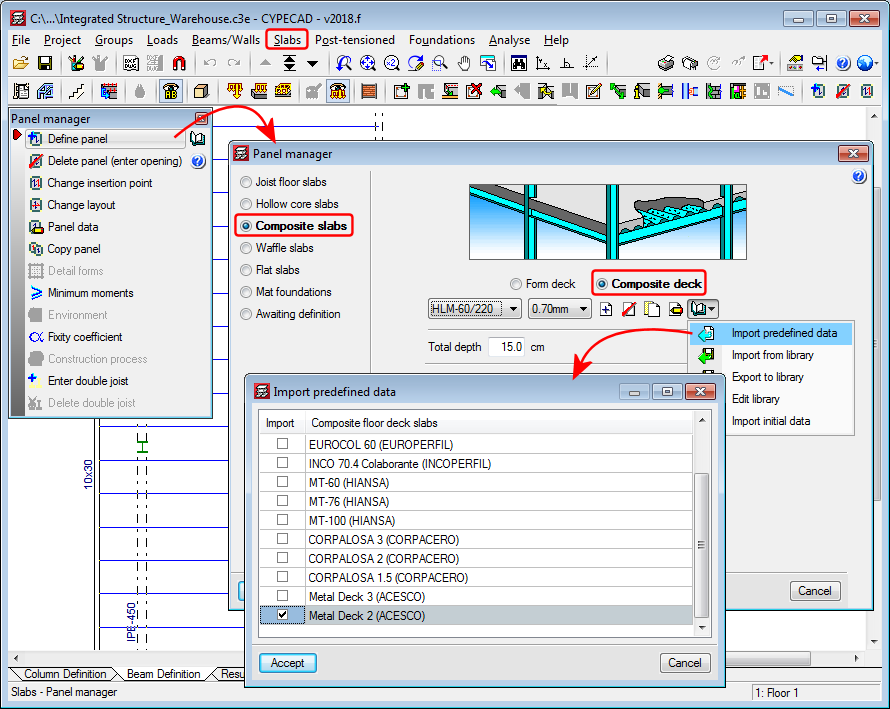
Composite deck slabs from the Columbian manufacturers: ACESCO (Metaldeck 2” and 3”) and CORPACERO (CORPALOSA 1,5”, 2” and 3”) have been added to the program’s libraries.

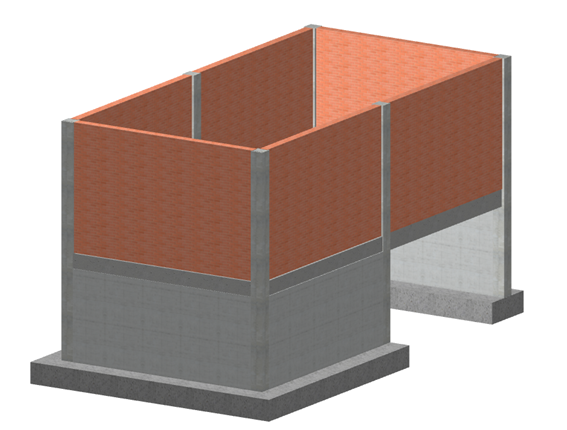
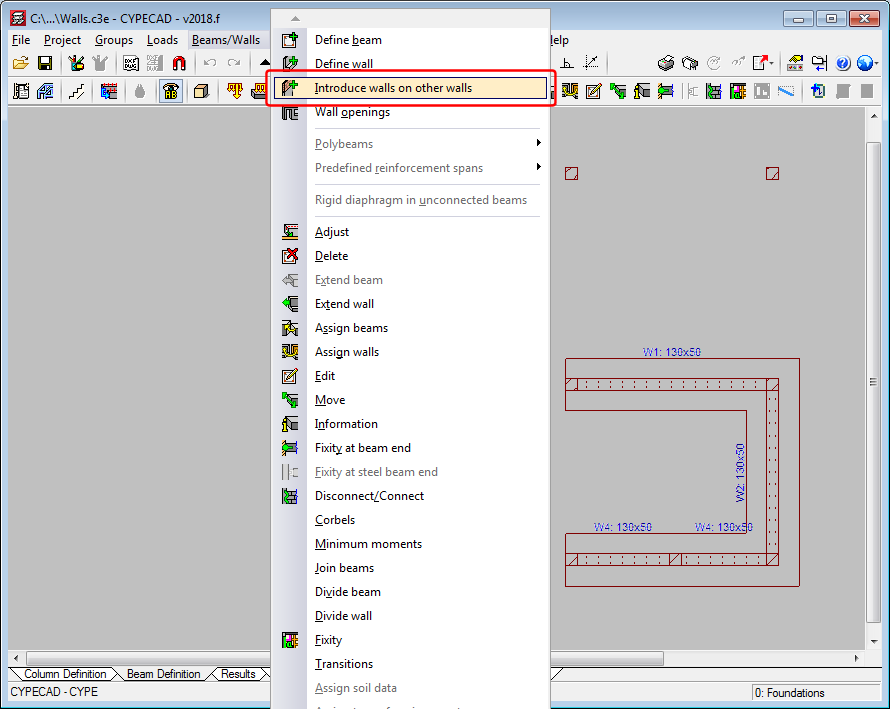
The 2018.f version allows users to introduce a wall on an already existing wall. To do so, the option “Introduce walls on other walls” (“Beam definition” tab > “Beams/Walls”). This way, users can analyse projects containing reinforced concrete walls on lower floors with masonry walls that start on them.

The program does not allow for reinforced concrete walls to be introduced on masonry or concrete block walls.

Walls and partitions that end on a sloped slab (regardless of whether they have been introduced by users or imported from a BIM model) will generate a trapezoidal linear load.

CYPE Mentor