Job certificate
Arquimedes allows for the regular recording of progress reports as the project progresses. You simply need to enter the initial or partial quantities completed in each period, and the program automatically generates the progress reports.
Two windows are used for recording and viewing certificates: the "Quantities/Certificates" window, which allows you to record, close and edit certificates; and the "Cost breakdown structure" window, which allows you to record and view other information not available in the other window. In the latter, you must first enable the display of the "Execution" or "Certificates" columns (by right-clicking on the column header).
Certificate configuration data
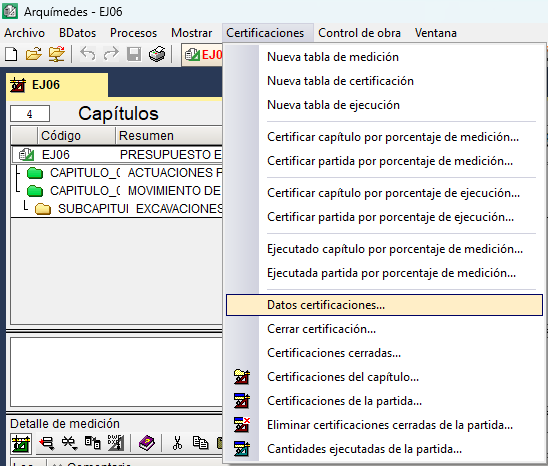
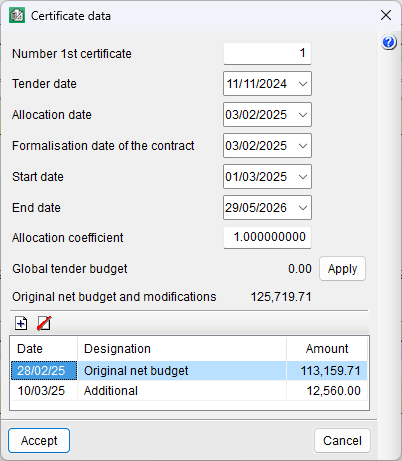
Before starting to record quantities, you must enter the data required for generating and processing certificates in the "Certification data" dialog box under the "Certificates" menu within the "Quantities/Certificates" window.
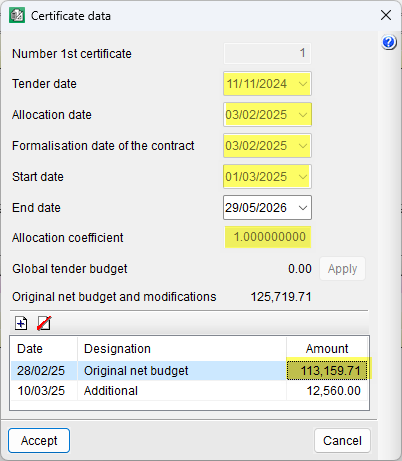
This data includes the number of the first certificate, key dates (tender, award, contract formalisation, start and completion of works), the award coefficient, the total tender bill of quantities and the original net bill of quantities together with the approved modifications. The "Apply" button transfers the tender amount affected by the award coefficient to the table below.
Certificates regarding the job quantities already completed
Once the initial data has been entered, the quantities completed must be recorded. One way to do this is via the "Quantities/Certificates" window. After selecting the desired item, enter the quantity to be certified (which does not necessarily have to match the quantity completed) in the "PartCertQuant" (partial certified quantity) or "OrigCertQuant" (certified quantity at origin) column. If this is the first certificate, the method for storing certified quantities (partial or at origin) will be requested during the closing process.
The certified quantity can be entered with or without quantity details:
- If the item to be certified does not include any details, you can enter the figures directly in the "Items" section, in the relevant columns: "ExecQuant" or "PartialExecQuant" and "PartCertQuant" or "OrigCertQuant".
The columns in this section also show the "ValuationPrice" (certificate price for the item), the "PartValAmnt" (partial amount for the month) and the "OrigCertAmnt" (cumulative amount).

| Best practice: |
|---|
| To load the columns relating to the test, double-click on the column header in the "Items" section. You can also tick the "Establish as default settings" box so that the test columns are displayed every time you reopen the "Quantities/Certificates" window. |
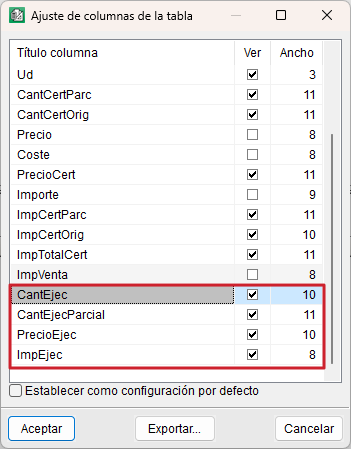
- If, on the other hand, the item to be certified contains details, then these must be entered in the relevant table.
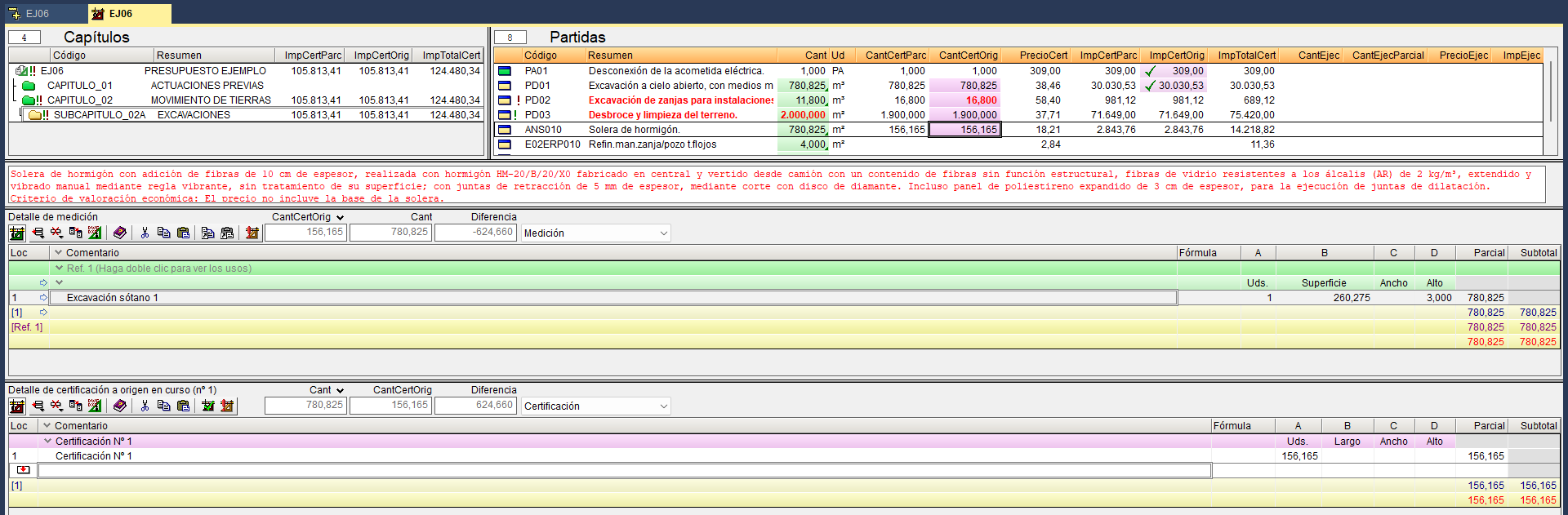
At the bottom of the "Quantities/Certificates" window, there are two quantity tables. By default, the top table displays the "Quantity" table (1), which shows data relating to the selected item, and the bottom table is the "Certificate" table (2), which can display the final certified quantities. These quantity tables can be switched (via the drop-down menu) to display other quantities relating to "Executed job", "Sales quantity" and "Study quantity". In the lower table, the number of the current or closed certificate is indicated. Furthermore, in the centre, the quantity measured in the project is shown alongside the total quantity recorded in certificates, and on the right, the difference between the two quantities ("Difference" or "Excess"); that is, the pending or excess quantity recorded in both certificates.
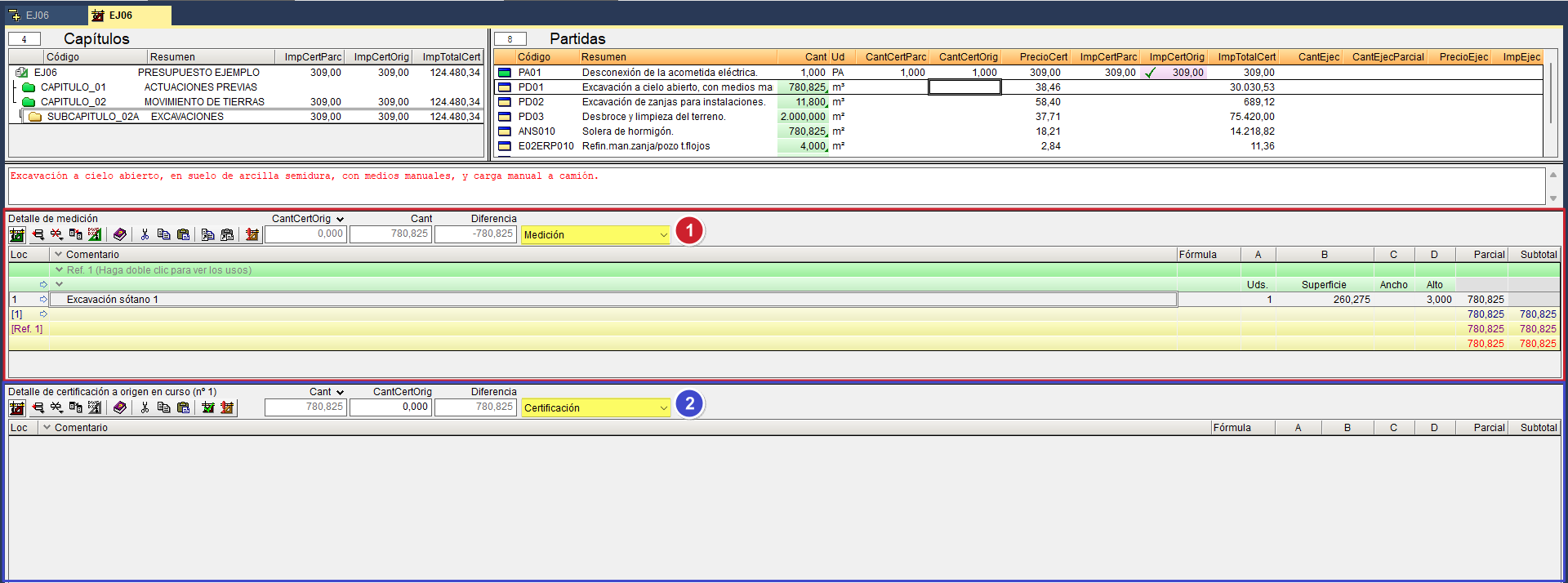
To enter a quantity to be certified in detail, you must first select the desired item in the "Items" section. Next, from the "Certificate" table, you can insert a new sub-table to enter the measurement of the work carried out or copy the project quantity details, if these match. In the first case, follow the steps outlined in the "Quantities with details" section. In the second case, simply hover over the green header of the "Quantities" table, click the "Copy current row, current sub-table or entire table to clipboard" button, and from the "Certificate" table, click the "Paste clipboard content at the end" button.
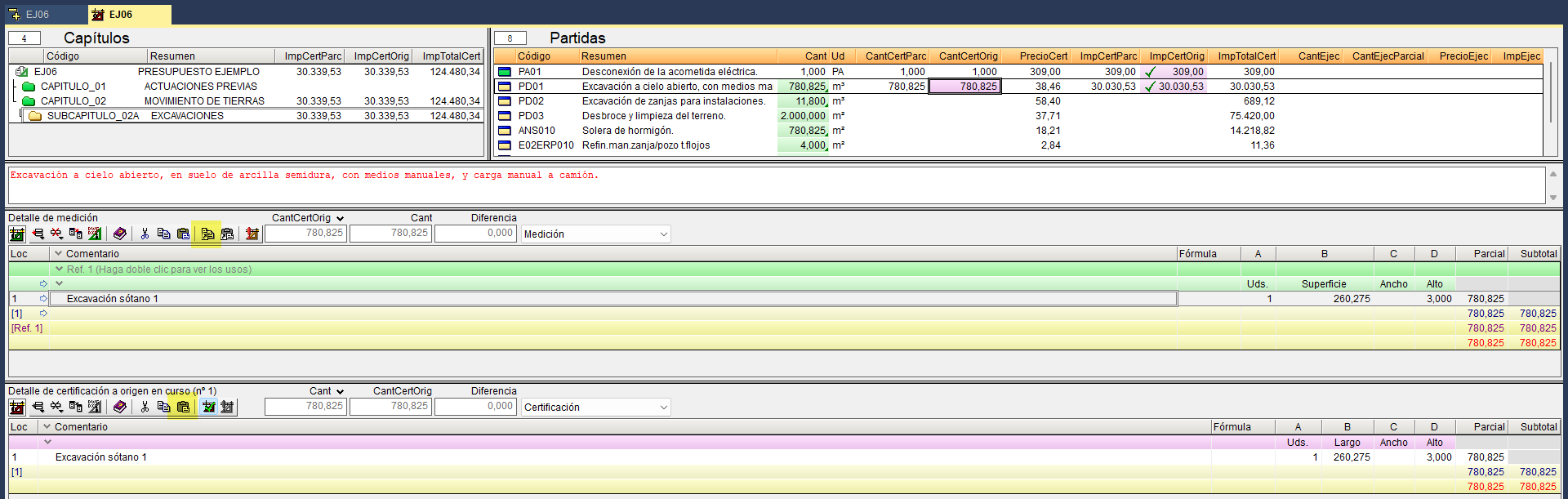
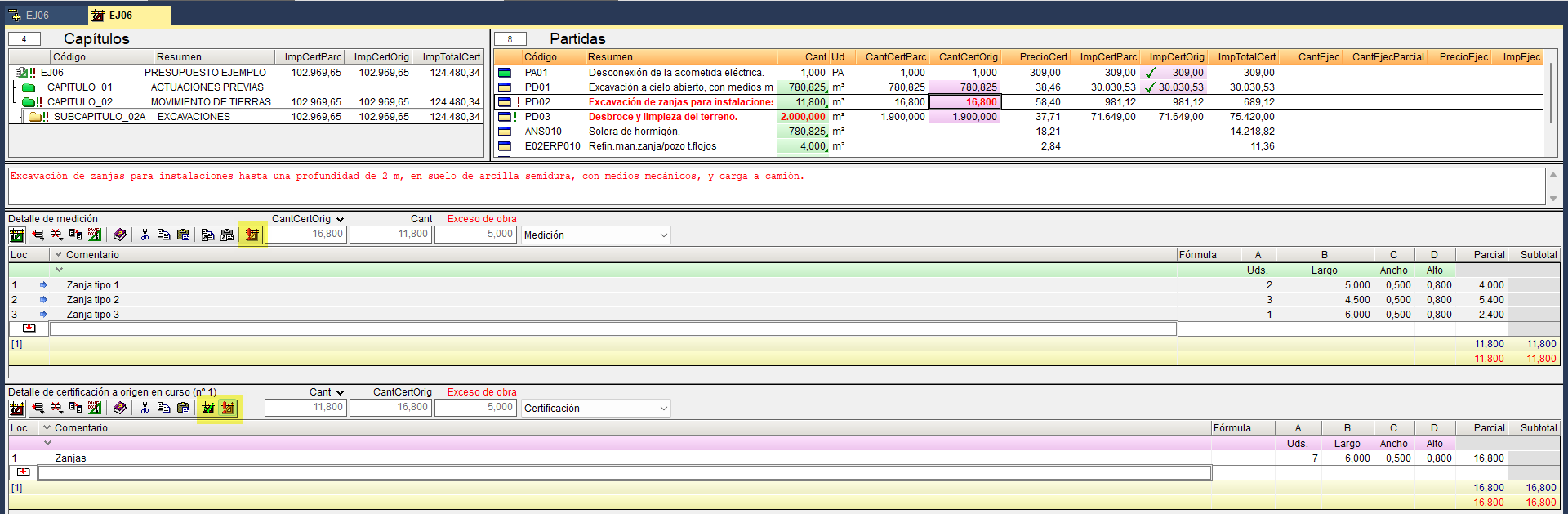
If the certificate quantity entered differs from that in the project or contract, you can click one of these buttons:
- "Marker corresponding to quantity awaiting revision" (located on the bar of the "Quantities" table)
When this is done, the summary text for the item and the measurement quantity turn red, and a green exclamation mark appears next to the icons for the item and the work section in which it is located, as well as in the root work section. - "Marker of certificate in progress pending revision" (located on the bar of the "Certificate" table)
When this is done, the summary text of the item and the certified quantity turn red, and a red exclamation mark appears next to the icons for the item and the work section in which it is located, as well as in the root work section.
When the item has finished running, you must click the "Finished certificate marker" button, which locks the quantity processed and certified so that it cannot be accidentally modified. This button is located on the bar of the "Certificate" table.
It is also possible to record partial quantities or figures for the start of the month via the "Cost breakdown structure" window. In this case, you must first enable the "Execution" or "Certificates" column view.
Certificates by percentage
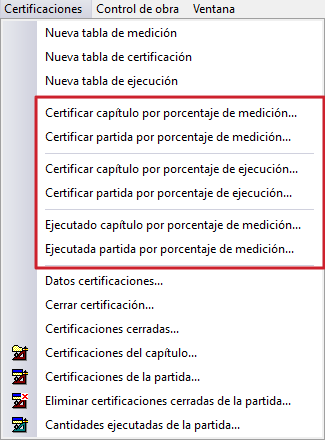
Recording can also be done by "Percentage", and can be applied to a work section or item, using measurement or execution quantities for this purpose. The available options can be found in the "Certificates" menu, within the "Quantities/Certificates" window.
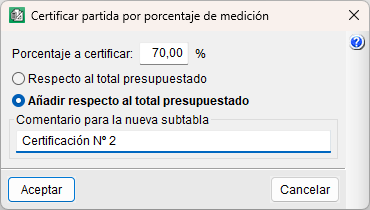
This method of on-site certificate issuance is common in cases where an item consists of several stages and extends over a period of time. For example, for the concrete floor item, 20% could be applied at the start, corresponding to surface preparation; 70% during the pouring of the concrete; and the remaining 10% once the work is completed.
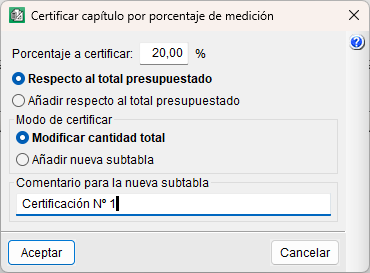
In this case, first navigate to the "Items" section and select the item you wish to certify. Next, go to the "Certificates" menu and select the "Valuation item by quantities percentage" option. In the dialog box, specify the percentage to be certified and choose between "Relative to the total budgeted" (the percentage is deducted from previously certified quantities) or "Add relative to the total budgeted" (the certified quantity is increased by the specified percentage). You can also specify the certificate method, choosing between "Modify total amount" (the amount is added to the certified amount field without a detail table, unless there is a previous certificate with details) or "Add new subtable" (the amount is added to a detail table). You can also add a comment to accompany the new subtable.
Another option is to certify by percentage for an entire work section, for which you must first hover over a work section without selecting any item. The percentage indicated will apply to all items contained within the work section.
Alternatively, you can set the reference quantity to be the quantity of work completed. To do this, use the "Certify item by percentage of completion" option. This is useful for the site manager who has been monitoring progress throughout the month.
Finally, another less common option is "Item executed by quantity percentage", which works by transferring quantities from the "Measurement" quantity table to the "quantity executed" columns in the "Items" section. This is useful for making production forecasts.
Certificates of conflicting or amended project prices
During the execution of a public works project, unforeseen tasks or changes to the initial design may arise, which may require the establishment of new prices or the adjustment of the prices agreed in the contract. These situations are governed by the applicable public procurement regulations and, in practice, by the terms of the works contract entered into.
To certify them in Arquimedes, they must be formally processed and approved in accordance with the contract and created as new work sections or items, incorporating them into the contract’s price structure for inclusion in the job certificates.
Closing job certificates
Once all the certificate quantities have been entered, the certificate must be closed. To do this, go to the "Certifications" menu (within the "Measurements/Certificates" window) and select the "Close certificate" option.
If this is the first time, you will be asked to enter the necessary data to configure the certificate closure (storage mode, certificate type, VAT, certificate date and price revision coefficient). It is advisable to select "Store detail lines" to know which data was entered in the "Certificate" tables. Similarly, to prevent the detail tables from being deleted every time a certificate is closed, it is advisable to select "Quantity to origin".
If the project contains at least one item with certificate pending review, the program will display a warning stating that if you proceed with closing the certificate, this flag will be removed from all items in the project.
The same procedure will be used to close the second and subsequent certificates.
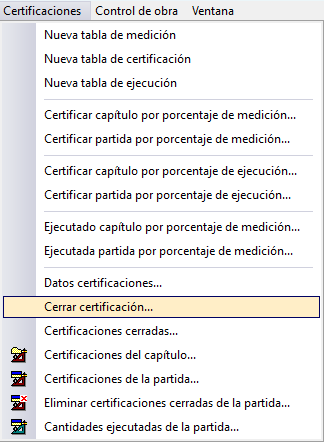
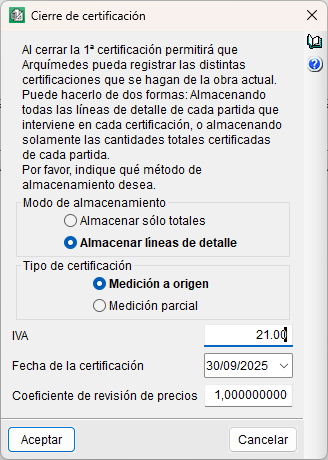
When a certificate is closed in Arquimedes, the certificates are stored by date, so that the results of a closed certificate can be viewed and printed. Some of the list templates can only be used if closed certificates are employed. Furthermore, the quantities and amounts paid for the items are recorded, allowing payments to subcontractors and other suppliers to be tracked via the option available under "View" in the "Job control" menu (see the section "View job control data").
Rectifying job certificates
Arquimedes can be used to rectify:
- Certified amounts: regarding the most recent closed certificate or by editing specific certificates.
- Certification prices: by manually adjusting the value entered in "CertPrice".
- Certificate data: such as dates, bills of quantities or coefficients, by editing the first closed certificate.
Correcting to certified amounts
To make corrections, such as adding or removing certain quantities, if this is the last certificate closed with a source-based closure, you can make the changes and then close the certificate again using the "Close certificate" option in the "Certificates" menu.
If this is the last certificate closed with a partial closure, you must use the "Recover the last" button, make the changes to correct the quantities, and close the certificate again.
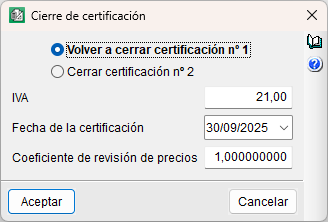
To make corrections, such as adding or removing certain quantities, if this is the last certificate closed with a source-based closure, you can make the changes and then close the certificate again using the "Close certificate" option in the "Certificates" menu.
If this is the last certificate closed with a partial closure, you must use the "Recover the last" button, make the changes to correct the quantities, and close the certificate again.

Corrections to certificate prices
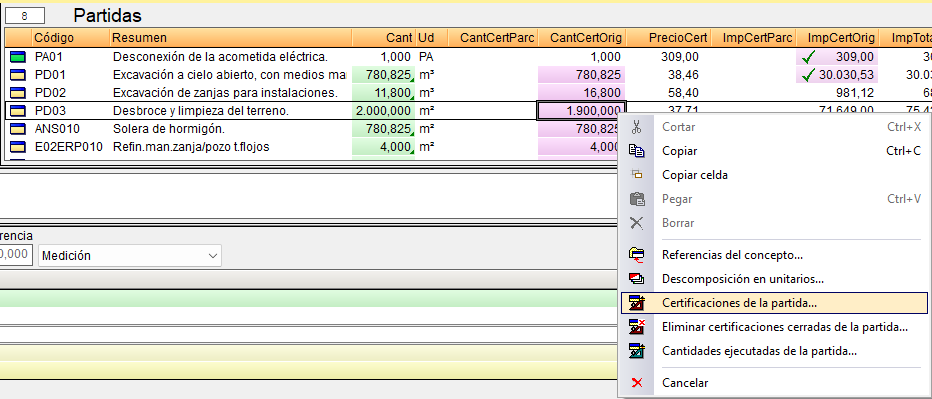
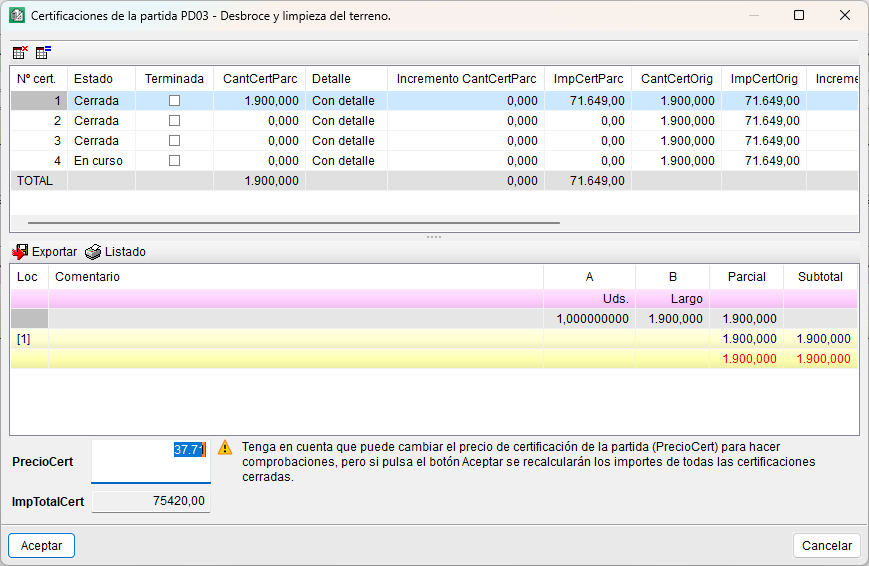
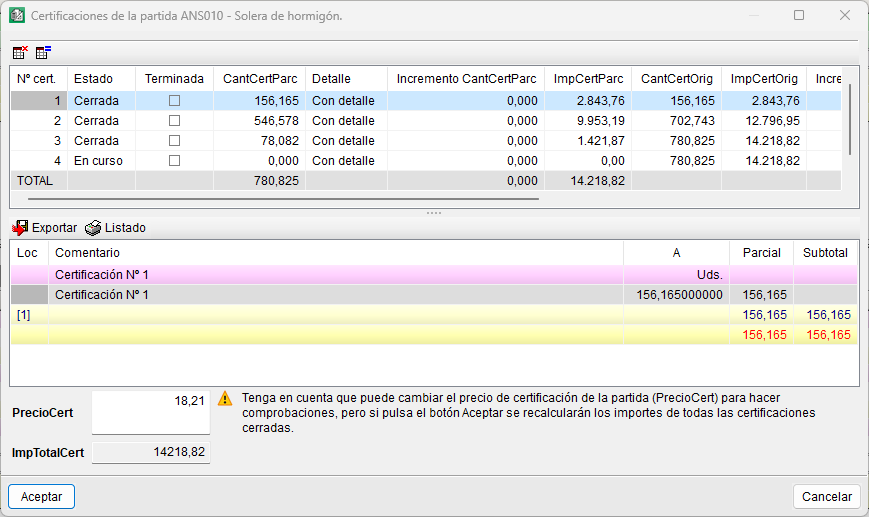
To change the certificate price for an item, right-click on the item in question and select the "Item certificates" option. In the dialog box, change the price in the "ValuationPrice" field.
Corrections to certificate data
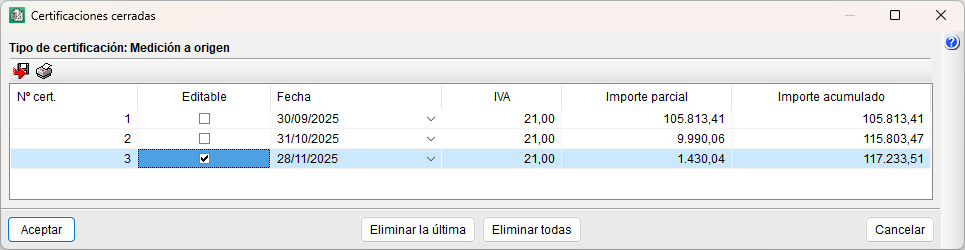
To change the initial details of a certificate, you must edit the first closed certificate and go to "Certificate details" in the "Certificates" menu. The details that can be changed are: the dates of the tender, award, contract formalisation and commencement; the award coefficient; and the total tender bill of quantities. To finish, simply toggle the "Editable" option in "Closed certificates".
Job certificate results
The results of the certificates can be viewed via various options within the program or through lists:
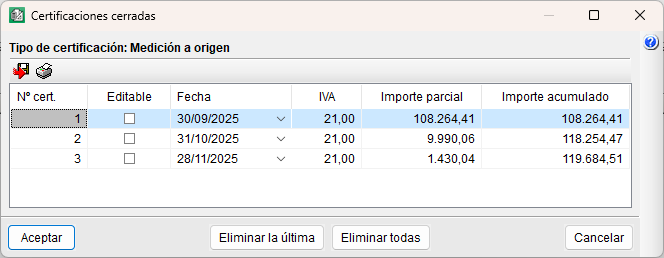
- "Closed certificates" option in the "Certificates" menu. Displays a table containing information about each closed certificate. Using the icons in the top-left corner of this dialog box, you can print the report of the selected certificate and export the content to CSV format for use in spreadsheet programs.
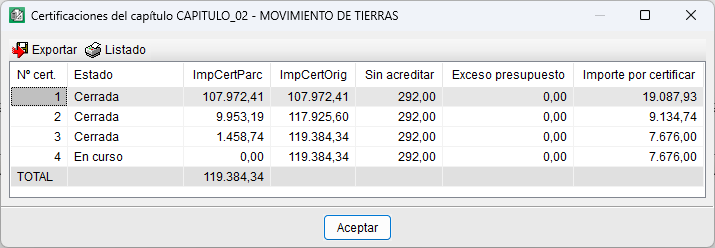
- "Work section certificates" option, available from the "Certificates" menu or from the context menu that appears when you right-click on a work section.
This allows you to view certificate details for the selected work section in the work section area.
- "Certificates" option, available from the "Certificates" menu or from the context menu that appears when you right-click on an item.
This allows you to view certificate details for the item selected in the items section.
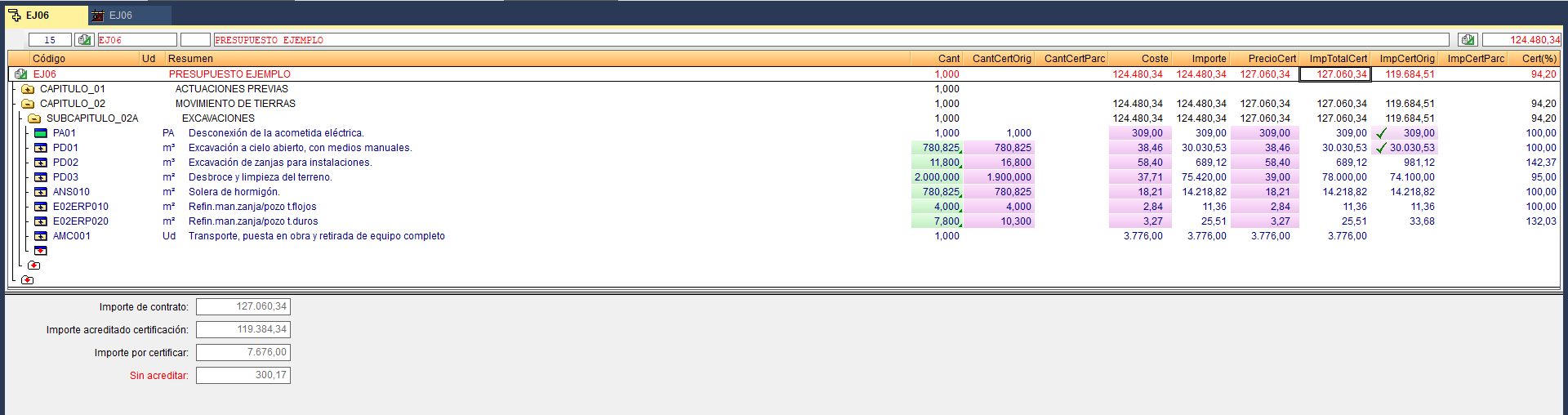
- "Cost breakdown structure" window.
Selecting the columns relating to certificates provides information on the selected level in the tree. From the work section, you can view information about the project, such as the amount to be certified, unclaimed amounts or the bill of quantities overrun.
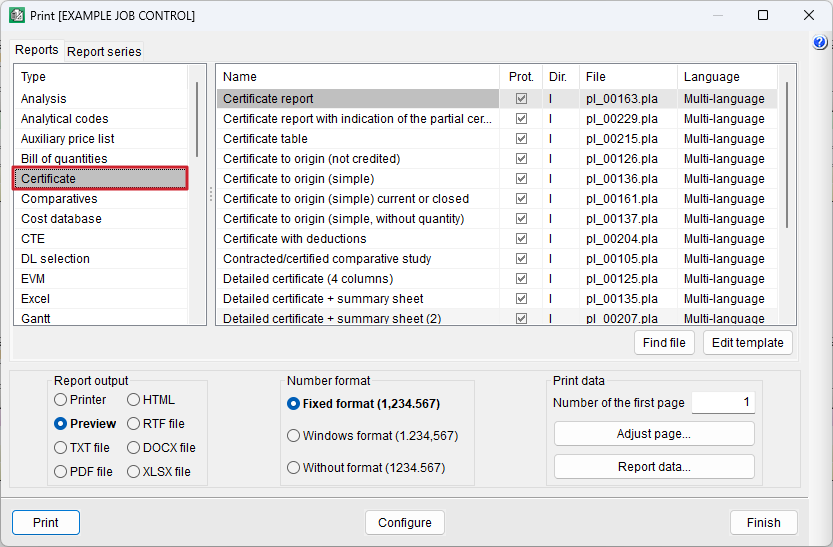
- Customisable reports of the "Certificate" type, via the "Print report" option.