Section options
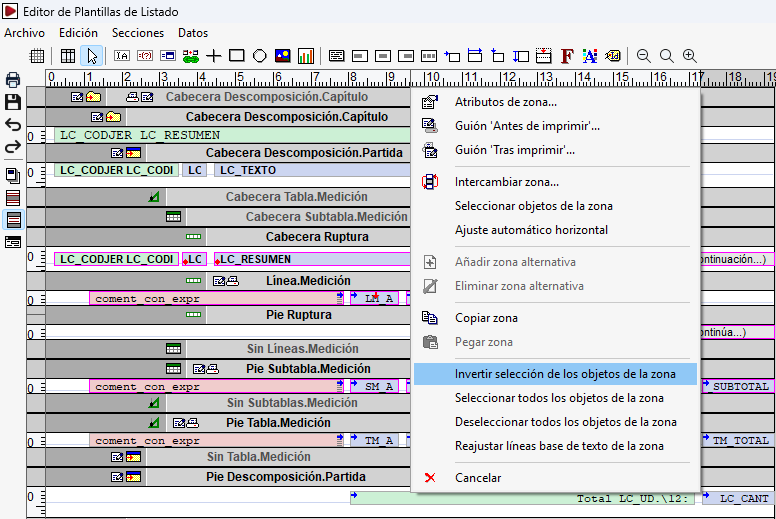
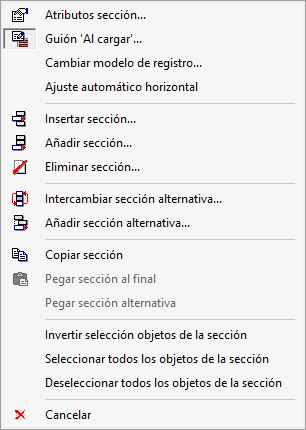
The title bars of the record sections feature a context menu, which can be accessed by clicking on the left-hand end of the bar.
Section attributes
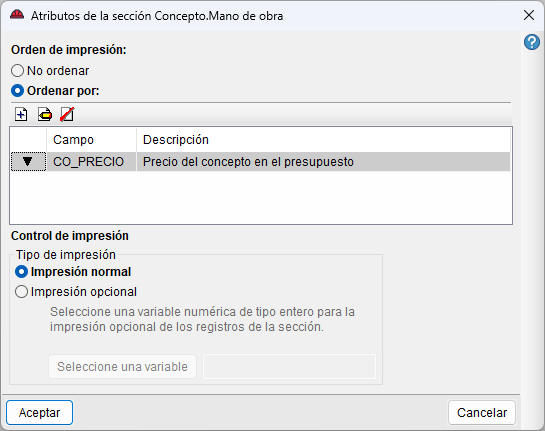
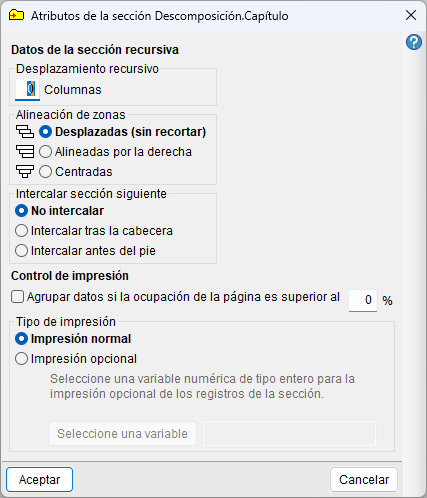
The first option in the menu, "Section attributes", opens the window containing the attributes of the register section to which the zone headed by the title bar belongs.
Selecting this option opens a dialogue box which, depending on the register model associated with the section, will display the specific attributes for each case; these may include the following:
- Sorting registers. If the section corresponds to a "CONCEPT" sub-model and is also the first element in the sequence of registers, it allows up to four sort criteria to be defined, using a table of up to four elements, specifying an ascending or descending order for each field. In the event of a tie, the following criteria are applied in succession, with the code of the concept serving as the final criterion (in ascending alphabetical order, based on the ASCII code of the characters making up the concept code).
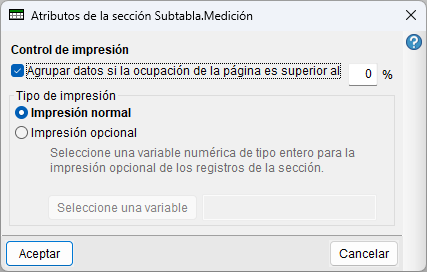
- Print control. Data from one section and the following sections can be grouped together on a single page. This only applies to sections whose register model is not the last in the sequence. A minimum percentage of page space can be set, below which this grouping is applied.
- If a percentage greater than 0% is specified, it only takes effect when the body of the current page already occupies more than that percentage.
- Recursion options. When dealing with a recursive section, additional data specific to this type of section is provided:
- Recursive displacement. Defines, in columns, the horizontal offset applied when a record contains another record of the same type. The displacement affects the section that triggers the recursion and all subsequent sections, allowing the different levels of the hierarchical structure to be visualised.
- Zone alignment. Defines the horizontal arrangement of zones when recursive displacement is applied. It allows them to be displayed displacement without cropping, right-aligned or centred.
- Insert following section. Where alternative sections exist, this allows you to specify whether the section following the parent section is printed before the child section. You can select "Do not insert", "Insert after the header" or "Insert before the footer".
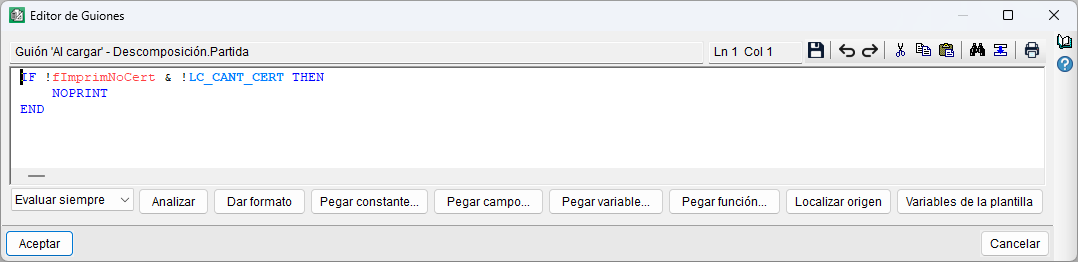
Script "Upon loading"
This option lets you access the script for the section to which the area belongs. See the "Template scripts" section for further information.
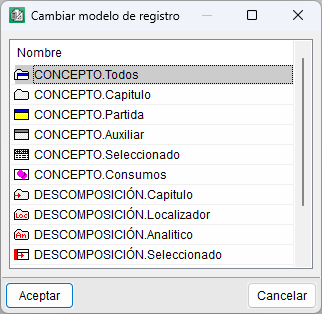
Change registration model
This option lets you replace the section’s current registration model with an equivalent one. To do this, a dialog box opens showing a report of all available registration models. To change the current model, simply select one and click "Accept", or double-click on the model.
Automatic horizontal adjustment
This option lets you easily assign position and horizontal size attributes to objects in the template so that it can adapt to the available print width. This enables you to create expandable templates that can adapt to different paper sizes or multi-column layouts.
| Best practice: |
|---|
| To avoid layout issues, the design width of the template must not exceed the available print width, excluding the margins. |
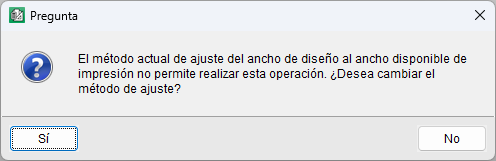
To use the "Automatic horizontal adjustment" option, the horizontal adjustment method must be set to "Individual adjustment". This method can be selected in advance from the "Horizontal adjustment type" option in the ‘Edit’ menu. If "Automatic horizontal adjustment" is used whilst another method is selected, the programme displays a warning allowing you to change it at that point.
Once the adjustment method has been set, click on a point on the template to set a vertical reference line at that horizontal position. Next, when you right-click, the program asks for confirmation to modify the positioning and horizontal redesign attributes of all objects.
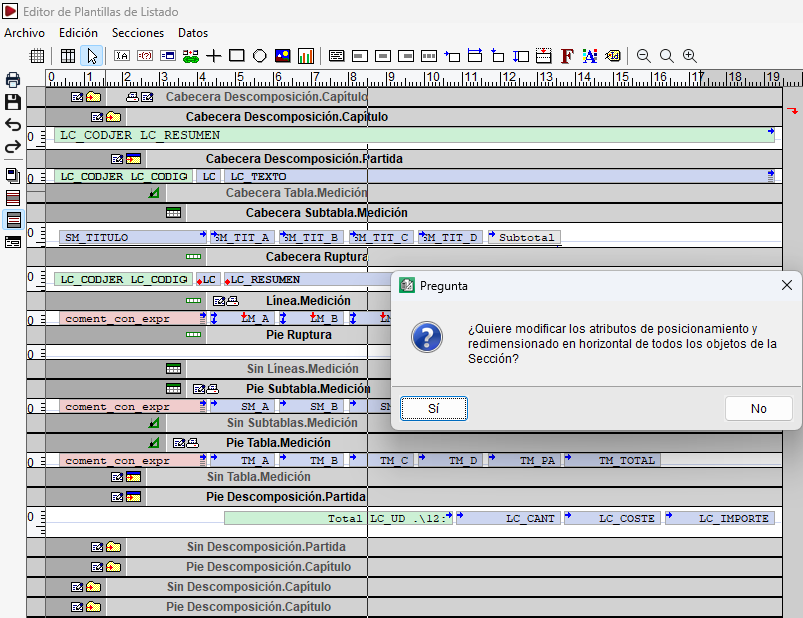
When you accept, they are automatically adjusted according to their position relative to the reference line:
- Objects positioned at the very left retain their position and width.
- Objects crossed by the line remain in their original position and take on a variable width.
- Objects positioned at the far right retain their width and adopt a variable position.
The blue arrows that appear above objects allow you to visually identify the assigned positioning and horizontal resizing attributes.

Insert, add or delete a section
These options let you change the sequence of records:
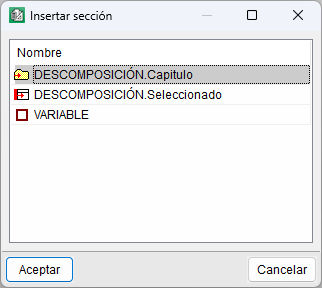
- Insert. Inserts a new section, selected from those available, immediately before the current section.
- Add. Inserts a new section, selected from those available, at the end of the sequence of records.
- Delete. Deletes the current section.
Swap or add an alternative section
These options let you work with alternative or sister sections, located at the same level within the sequence of records:
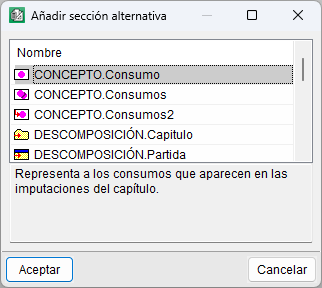
- Add an alternative section. Add a new section at the same level as the current section, allowing different record models to be processed together.
- Swap alternative section. Swap the position of the current section with that of a sister section.
The alternative sections may, in turn, incorporate the corresponding connectable sections.
Copying and pasting sections
These options let you copy an entire section, along with its objects, within the same template or between different templates:
- Copy section. Copy the entire section. If it is pasted into another template that does not contain the user or storable variables used, these are automatically created in the destination template.
- Paste section at the end. Paste the previously copied section at the end of the sequence of records, provided it can be inserted at that position.
- Paste alternative section. Paste the previously copied section at the same level as the selected section, provided it can be connected at that level.
| Note: |
|---|
| The joining options appear disabled (greyed out) when the section cannot be connected at the relevant position. |
Object selection options in sections
When you right-click on a section, the following options are available:
- Invert selection of objects in the section. Invert the selection status of all objects in the section.
- Select all objects in the section. Select all objects in the section.
- Deselect all objects in the section. Deselect all objects in the section.