






Details
This tool is used to store user detail libraries to be included in the drawings later on.
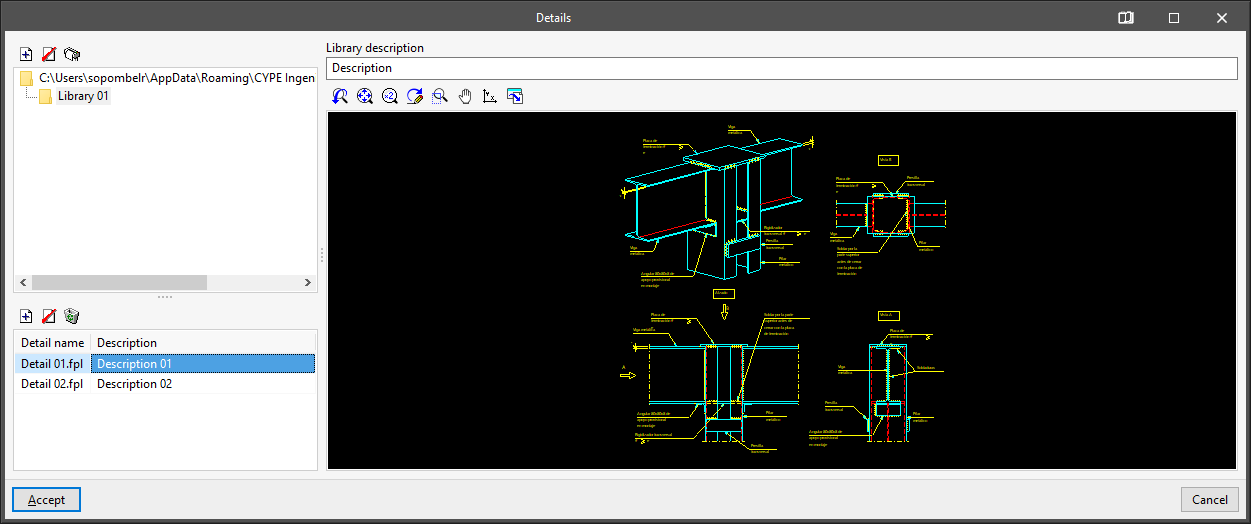
Creating libraries
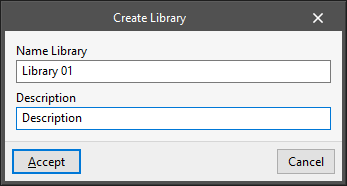
First, new libraries are created to hold the new details. These libraries can be organised in directories and subdirectories. When creating a new detail library, the program requires the following data:
- "Create Library" window
- Name of the library
- Library description
Creating details
Details are created by importing DXF, DWG or image files. After selecting the library where the detail is to be imported, the program will allow users to import a file with the detail.
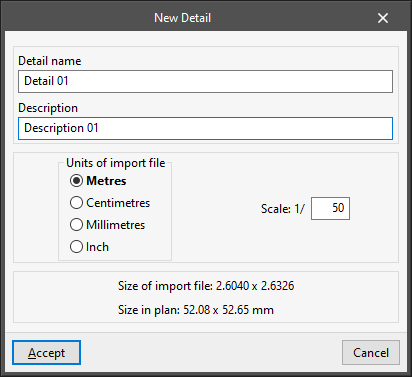
When importing a DXF or DWG, a dialogue box opens in which users must indicate the name to be assigned to the detail, a description, the drawing units with which the file is being created and the scale it is to be transferred to:
- "New Detail" window (DXF and DWG files)
- Detail name
- Detail description
- Units of import file (Metres / Centimetres / Millimetres / Inches)
- Scale (1/n)
With this data, the program calculates the final dimensions that the detail will have in the plan. Thus, the "Size of import file" and the "Size in plan" are displayed.
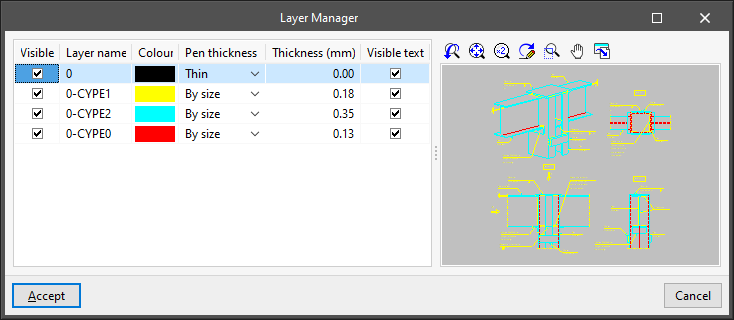
In the next window of the import process, users can choose which layers should be visible, whether texts should be activated, the pen thickness and the layer name:
- "Layer management" window
- Visible, Layer name, Colour, Pen thickness, Thickness (mm), Visible text
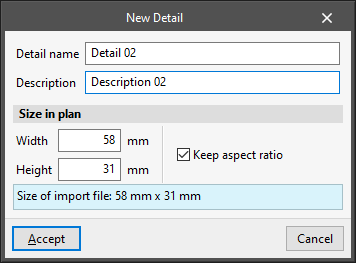
When importing an image file, a dialogue box opens where the name to be assigned to the detail, a description and the data required to define its size in plan must be indicated:
- "New detail" (image files) window
- Detail name
- Detail description
- Size in plan
- Width (mm)
- Height (mm)
- Keep aspect ratio (optional)
| Note: |
|---|
| To add user details to the drawings, use the "Details" option available in the drawing printing process of each program, go to "File", then to "Job drawings", and finally to "New". Then select the "Add user detail" option. Also, default details from the CYPE library can be included if they are available in the program by selecting the "Add" option. This is the case of the CYPECAD construction details library. |
