Parametric connections
CYPE Connect enables advanced parameterisation of connections.
Thanks to this feature, the parameters of the operations included in a group can be defined dynamically, based on values set by the user. To do this, within each group of operations, users can define customisable variables that automatically control the parameters of each operation.
For each parameter in the group’s operations, the user can choose how its value is defined, either by entering a value directly or by using one of the variables previously defined in the group.
This tool offers greater flexibility and automation when defining operations, making it easier to reuse configurations and adapt groups to different use cases.
How it works
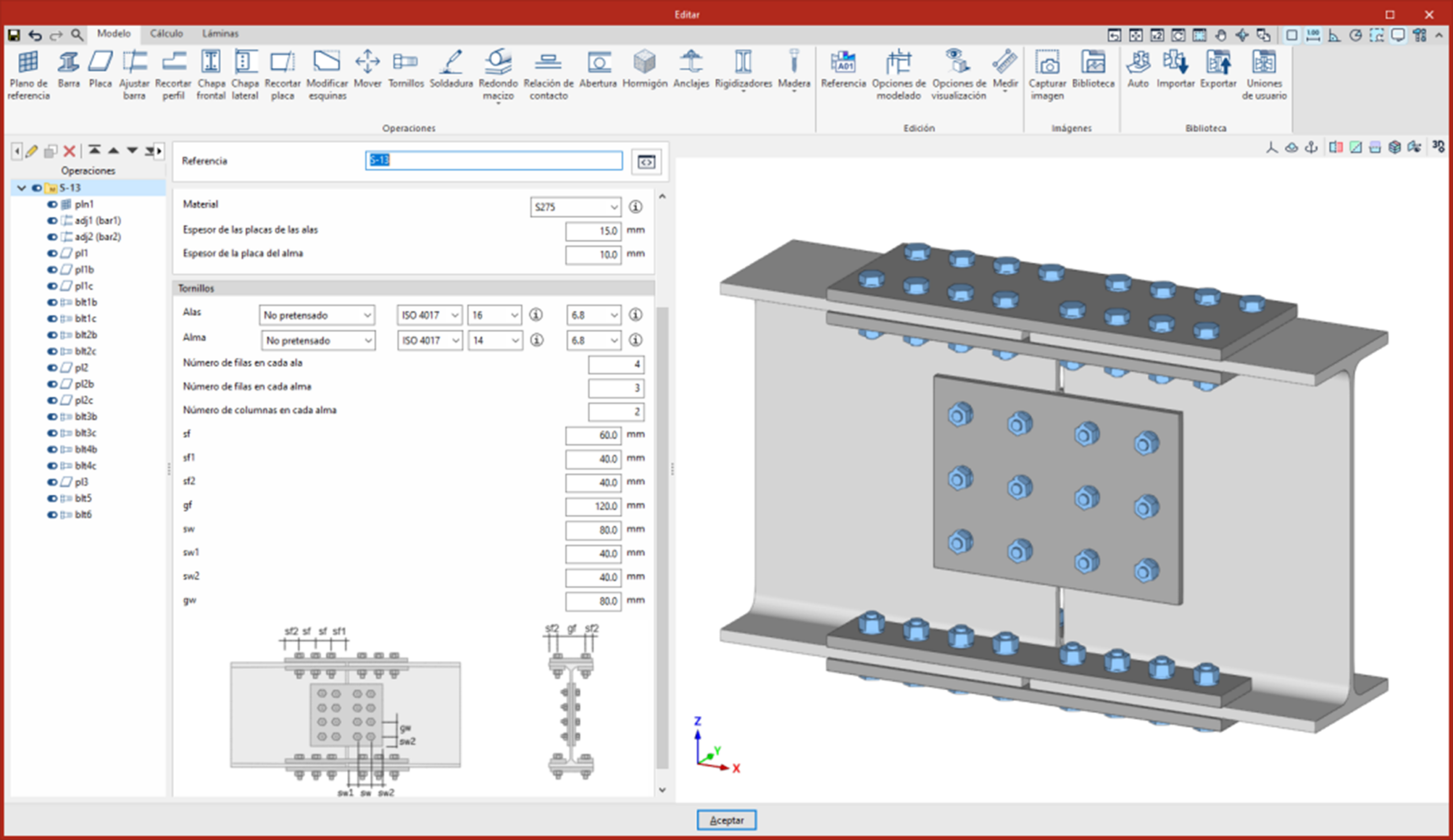
When selecting a group of operations, a button for accessing the variable settings appears to the right of the reference edit field. This button allows you to switch between two group display modes: the variable settings, intended for the definition and internal management of parameters, and the edit view, which only displays variables marked as visible to the user.
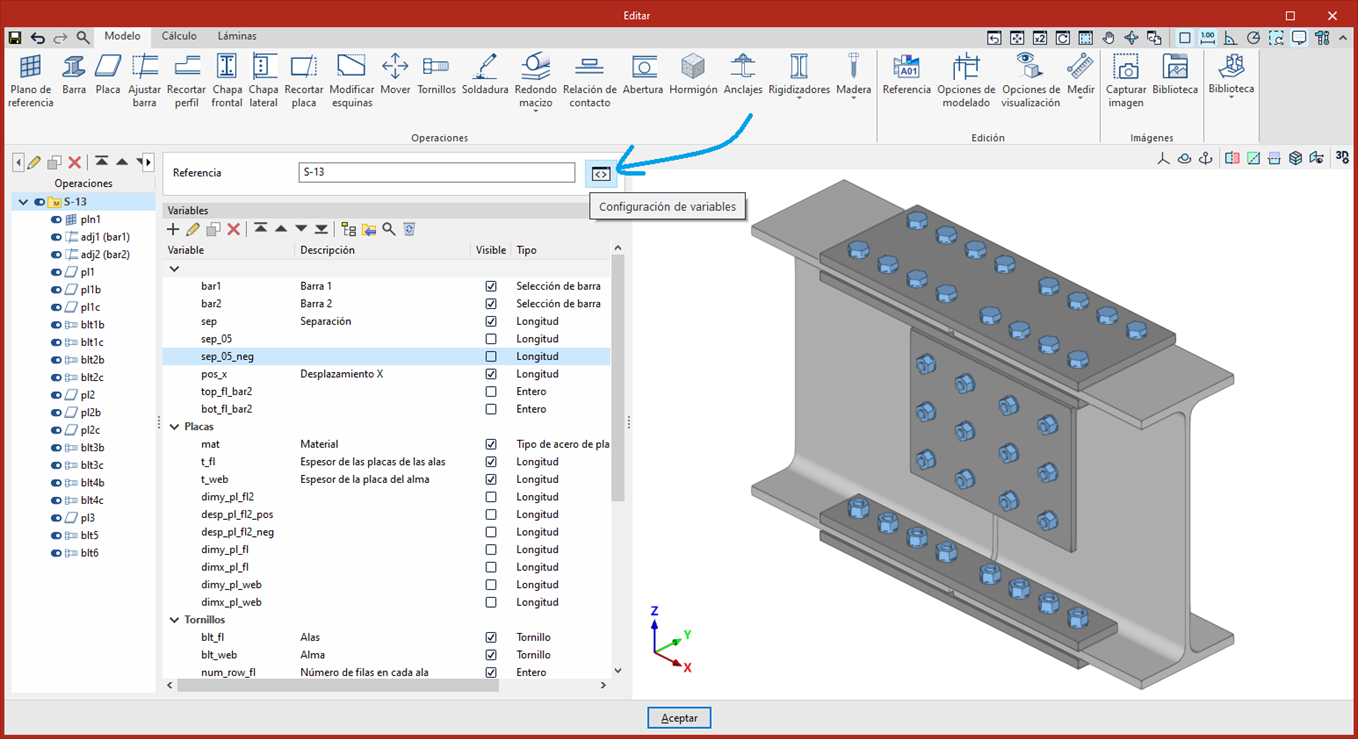
Variables are organised into groups; each variable is contained within a group. Groups can have a title and an image. As shown in the attached image, groups without a title would be represented in the edit view as G1, with the parameters within a frame. Groups with a title would be represented as G2, and groups with a title and an image as G3.
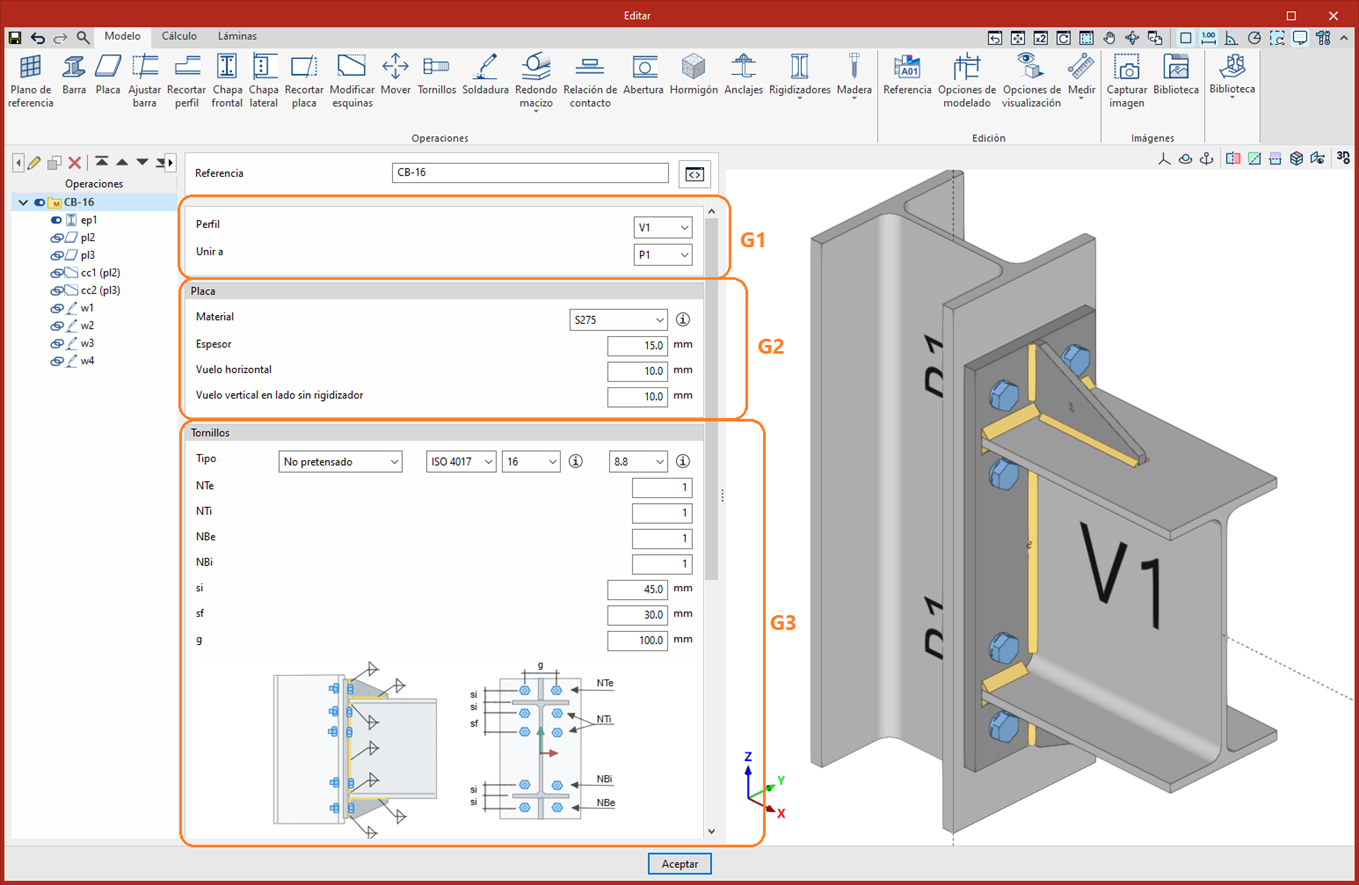
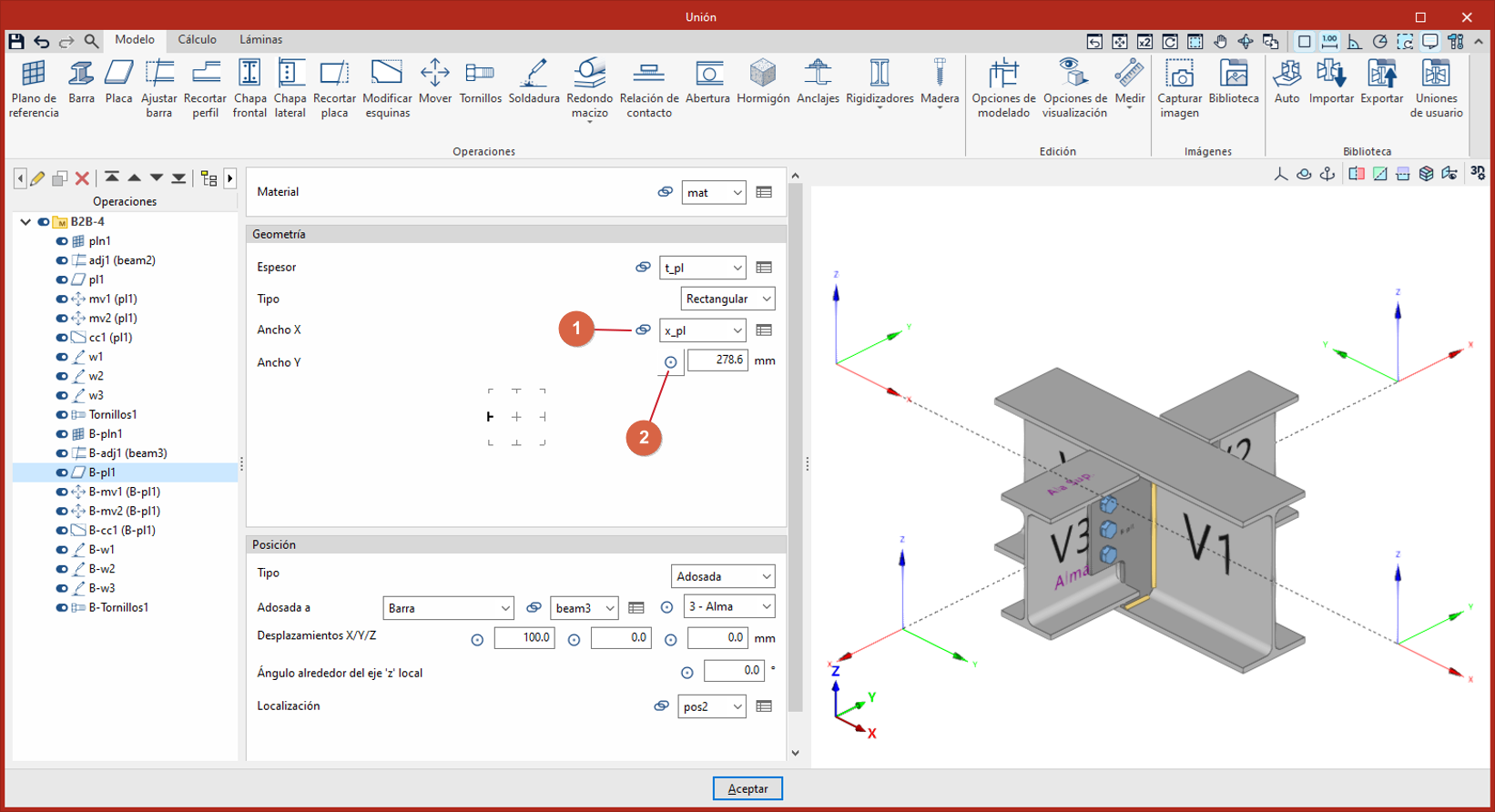
Operations contained within a group in which variables have been defined will display an icon to the left of their parameters, allowing you to switch between variable-based editing (note 1 in the attached image) and manual editing (note 2 in the attached image).
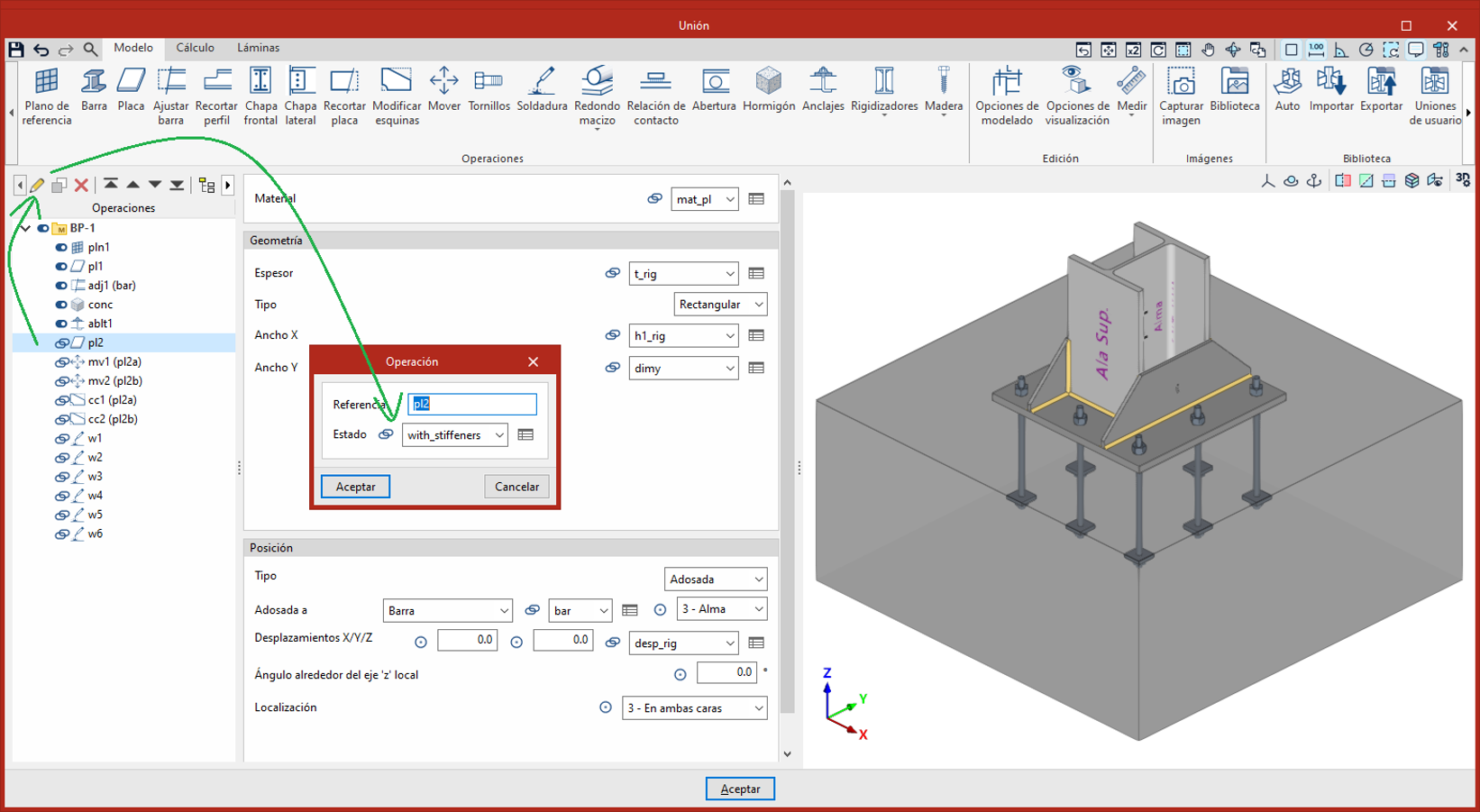
The status of operations—whether active or inactive—can also be defined using a variable. This allows different configurations to be defined within the union, where some operations are active and others are inactive depending on other parameters.
Variables
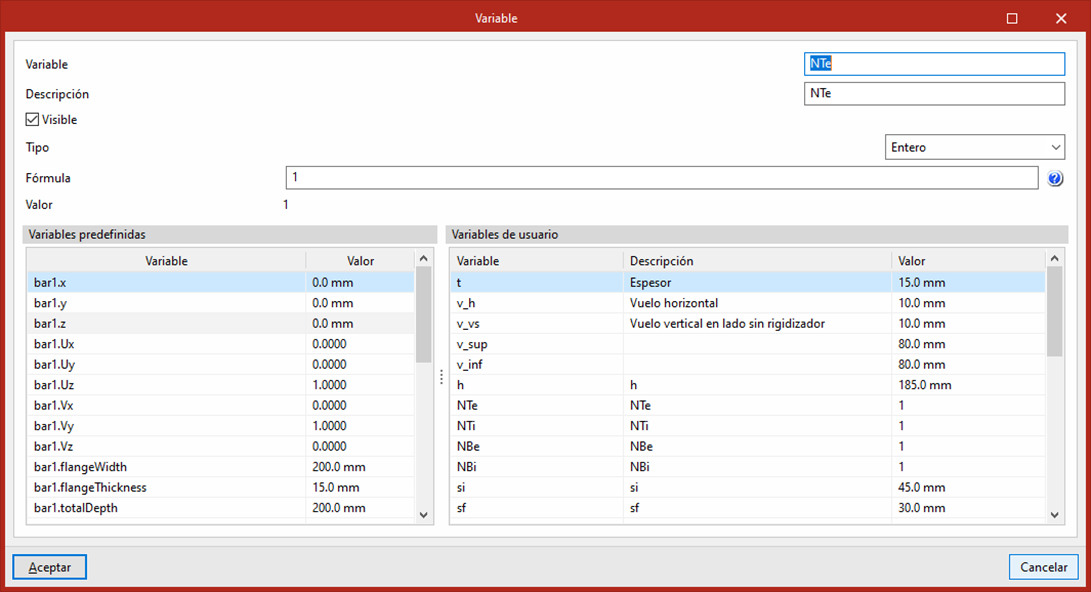
Each variable has the following parameters:
- Reference
Name or identifier of the variable. - Description
A description of the variable. - Visible (optional)
When this option is enabled, the variable will be editable in edit mode, displaying its description and the corresponding field for setting its value. - Type
Defines the data type of the variable. - Formula
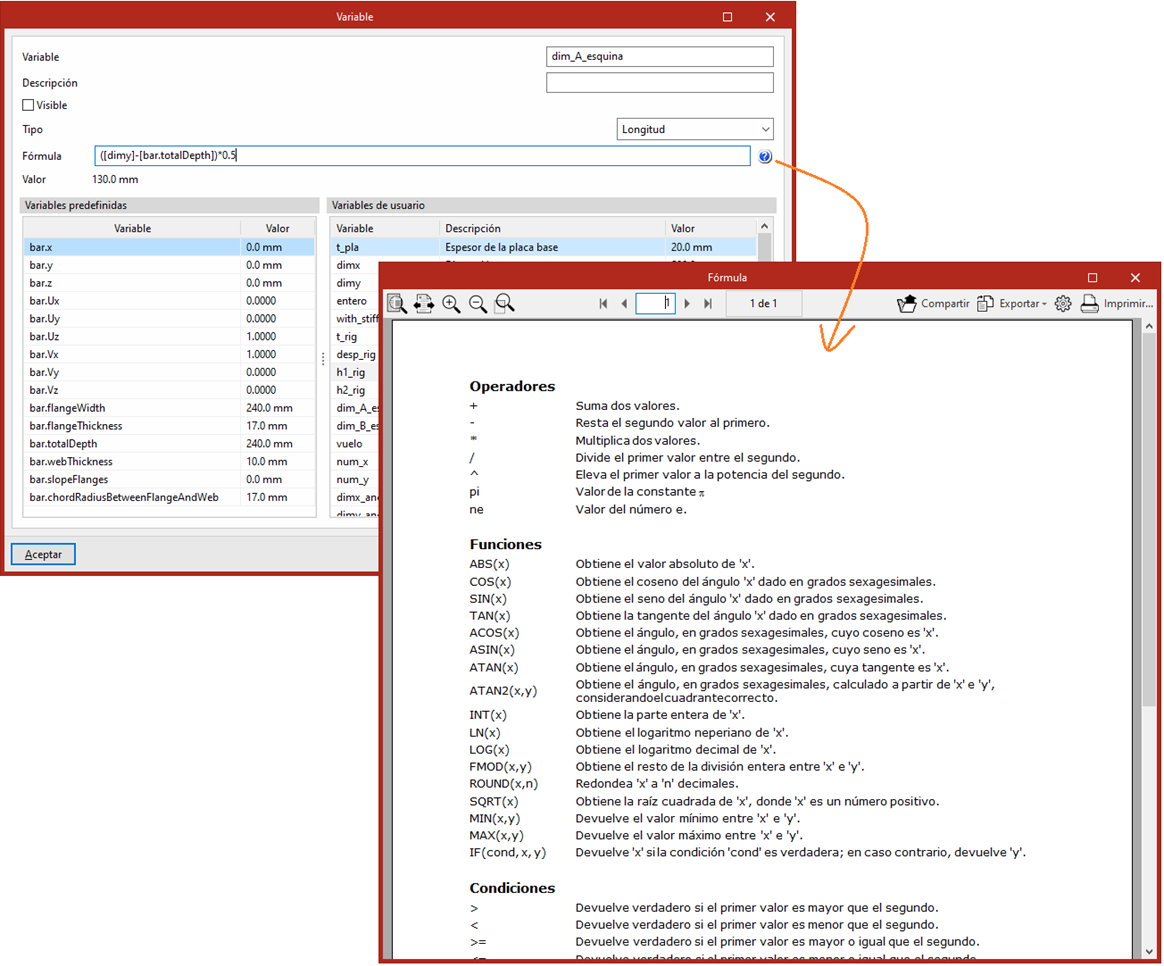
For numeric variables, this section allows you to enter either a fixed value or a calculation expression. For visible variables, it is not necessary to define a formula, as their value can be edited directly in edit mode. The value entered in this field will be used as the default value. - Value
For numeric variables, this displays the result obtained from the defined formula.
For numeric variables, a list of available variables will be displayed at the bottom, distinguishing between predefined variables associated with the bars and user-defined variables. Double-clicking on any of them will automatically insert it at the end of the formula.
Types of variables
Whole
A numeric variable that can only store integer values (no decimals) greater than or equal to 0. It is used for quantities or indices in lists of options.
Length
A numeric variable used to represent measurements of length or distance. It allows you to enter values expressed in units of measurement.
Angle
A numeric variable used to represent angular measurements. It allows you to enter values expressed in degrees.
Dimensionless number
A numerical variable with no associated units. It is used to represent coefficients, ratios or scale factors. It is particularly suitable for trigonometric functions such as sine, cosine or tangent, as well as for any value resulting from relationships between quantities with the same unit.
Yes/No
A Boolean variable that can only take two possible values: Yes (1) or No (0). It is used to represent binary states, the activation or deactivation of options, and logical conditions.
Bar selection
A variable used to select bars within a connection. It is used to identify existing structural elements and specify which ones are subject to specific operations, conditions or properties.
Cross-section
A variable used to select the cross-section associated with a bar. It is used to define the cross-section of additional bars added to reinforce the connection.
Cutter wrench
A variable that allows you to select the cross-section associated with a shear key.
Type of plate steel
A variable that allows you to select the material for the plates from the various types of steel available in the materials library.
Type of concrete
A variable that allows you to select the concrete grade from the options available in the materials library.
Bolt
A variable that allows you to select the type of bolt from the options available in the materials library.
Anchor
A variable that allows you to select the type of anchor from the options available in the materials library.
Checking anchors
A variable that provides access to the options for configuring anchor checks.
Pin, Bolt, Screw, Electrode
Variables that allow you to select the type of element from the options available in the materials library.
List of options
This allows you to define a list of predefined options associated with the variable. Each option is identified by an index and can be selected during editing when it is visible.
Formulas
Formulas define the behaviour of a variable using mathematical expressions. It is a text field where the user can combine variables, constants, operators, functions and conditions to create custom calculations.
Variables must be enclosed in square brackets [ ]. The operators, functions and conditions available for use are listed in the system help.
Variables of the Length type are internally evaluated in metres, regardless of the unit selected by the user. The result is automatically converted to the display units configured by the user.
For example, to add 10 mm to variable A, the expression should be written as:[A] + 0.01