Sheet composition
You can create a composite sheet within the program. This way, a sheet is generated from the content of other sheets.
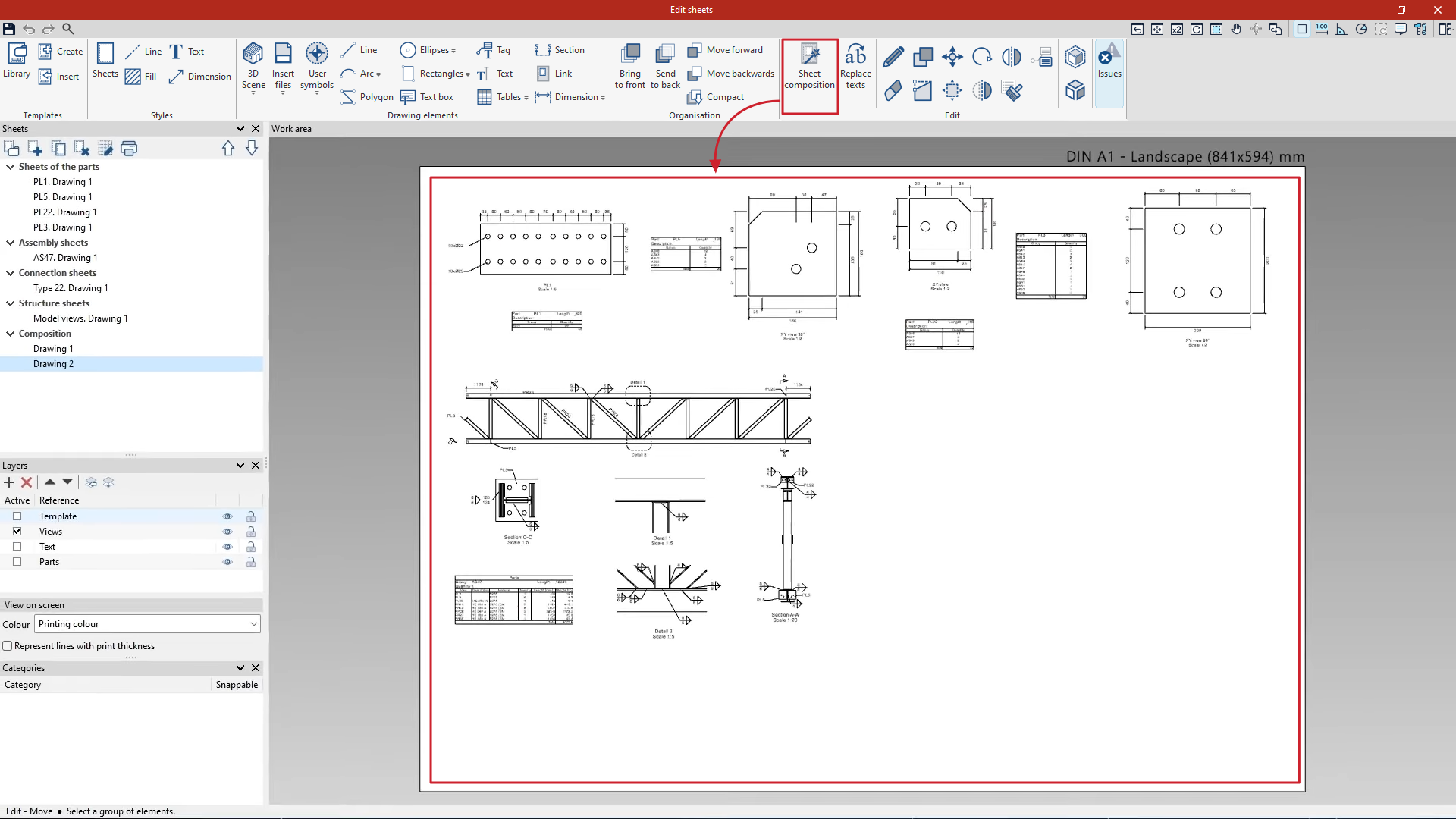
To do this, go to the "Document" tab on the program's main interface and click on the "Composition" option in the "Sheets" section of the top toolbar.

Composition
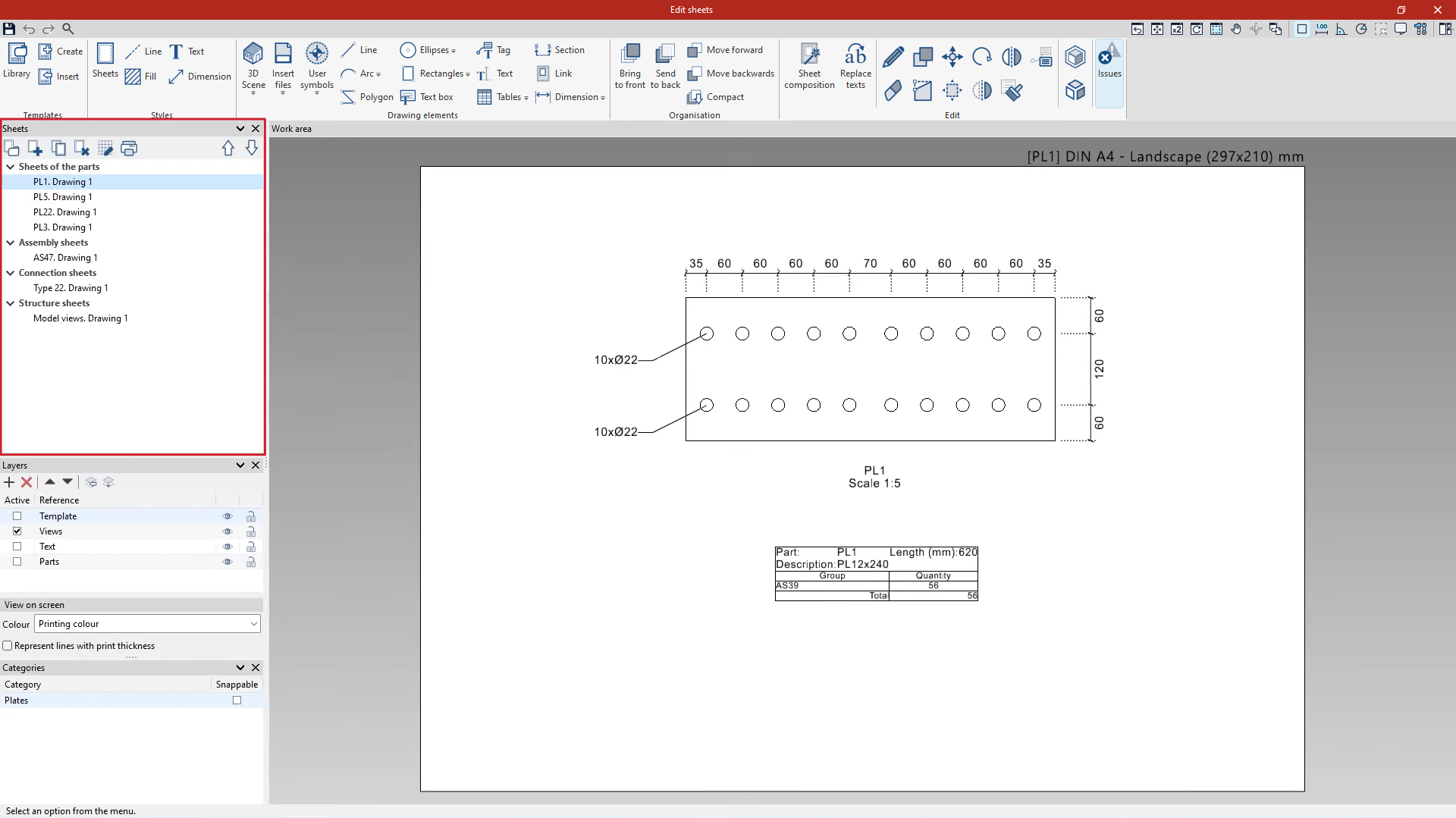
Clicking this button opens the "Edit composition" window.
On the left-hand side, in the "Sheets" section, the program displays all previously generated sheets, whether they are parts, assemblies, joints or views of the model. From here, you can select and modify any of these sheets if you wish, just as if you had accessed each one individually.
From this point onwards, it is possible to create a drawing that incorporates information from different parts, assemblies, joints or views of the model on the same sheet.
Creating a new sheet
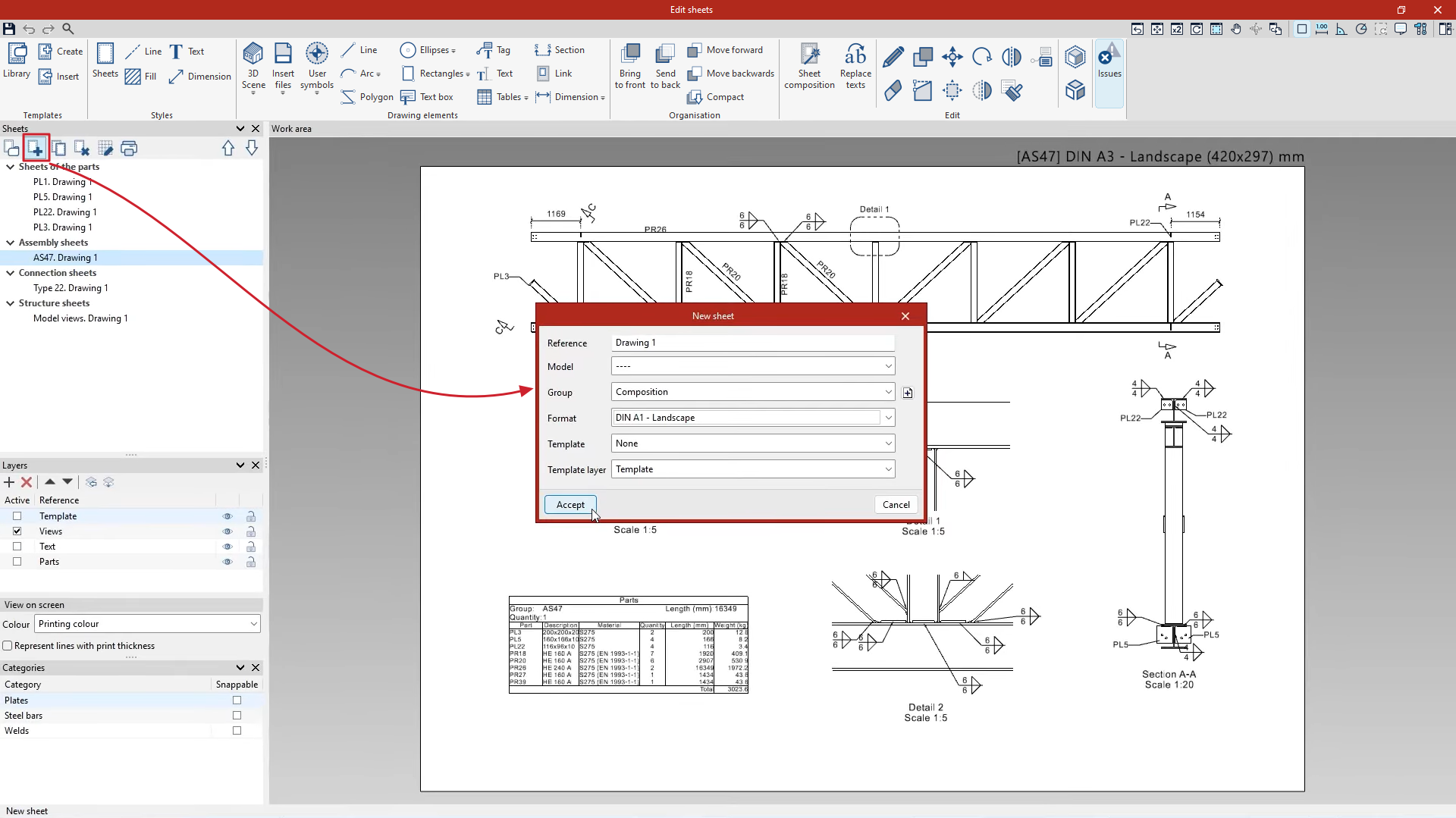
To create a sheet made up of other sheets, click on the "New sheet" option in the "Sheets" section. After entering the sheet’s "Reference", select the first option [“----”] from the "Model" drop-down menu; this does not refer to any specific element.
Next, select the "Group" of sheets in which the composition slide will be placed, or create a "New group" using the button on the right. Select the "Format" and, if necessary, the "Template" and the "Template layer", then click "Accept".
You can now add information to the sheet either manually or automatically, using the options available on the top toolbar:
Manually inserting individual links (the "Link" option)
You can manually create a sheet consisting of individual links.
Each link allows the content of another sheet that has already been created to be displayed on the currently selected sheet.
To do this, follow these steps:
- The "Link" option in the "Drawing elements" group is used.
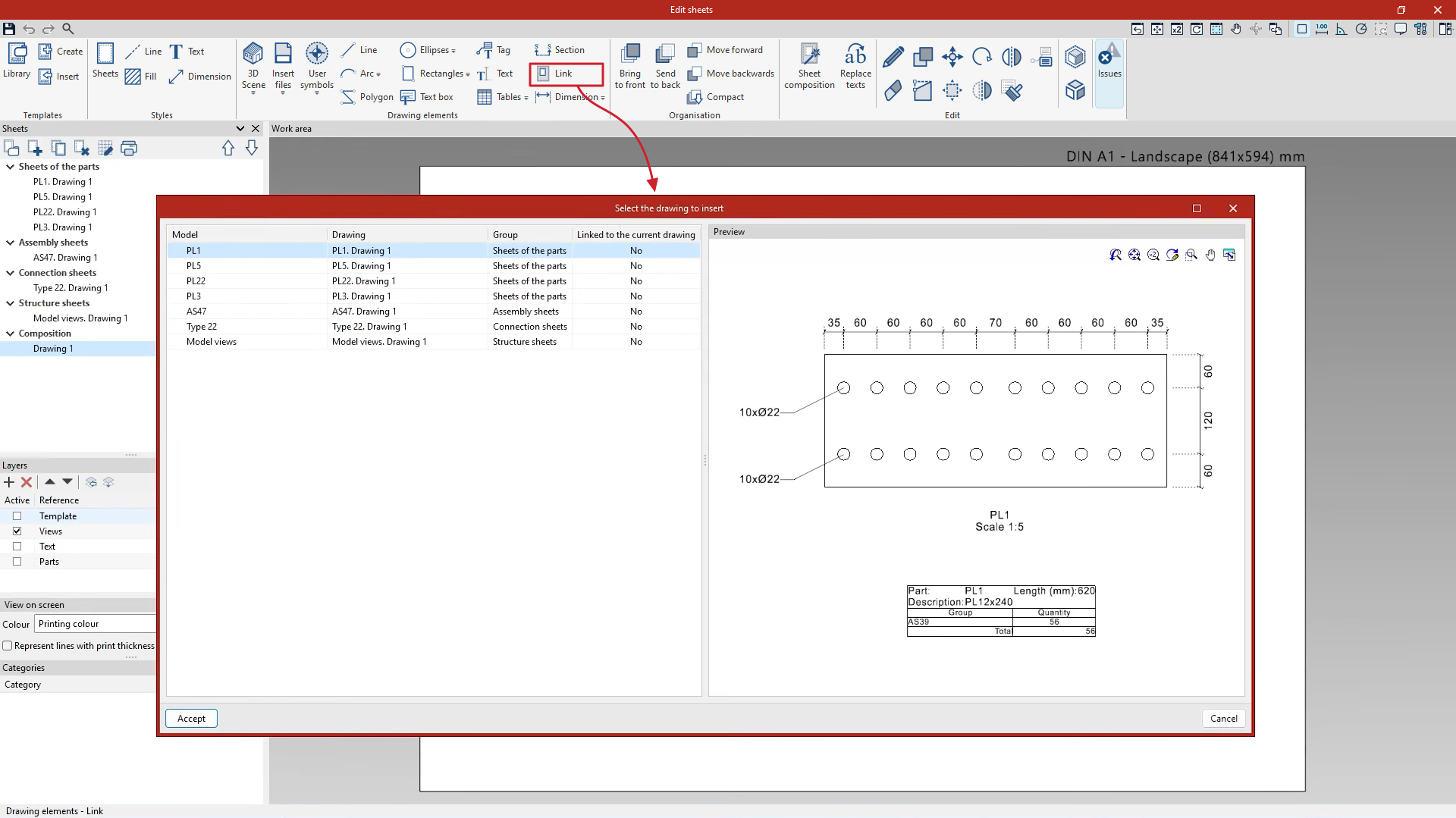
- Clicking on this option opens a window where you can "Select the slide to insert". Here, a list appears showing the name of the "Model" displayed on each sheet, the "Name" of the sheet and the "Group" to which it belongs, as well as an indication of whether it is already "Linked to the current sheet". On the right-hand side, a "Preview" of the slide is displayed.
- After selecting the desired sheet and clicking "Accept", move the mouse to position the link on the work area and click the left mouse button to insert it at the desired location.
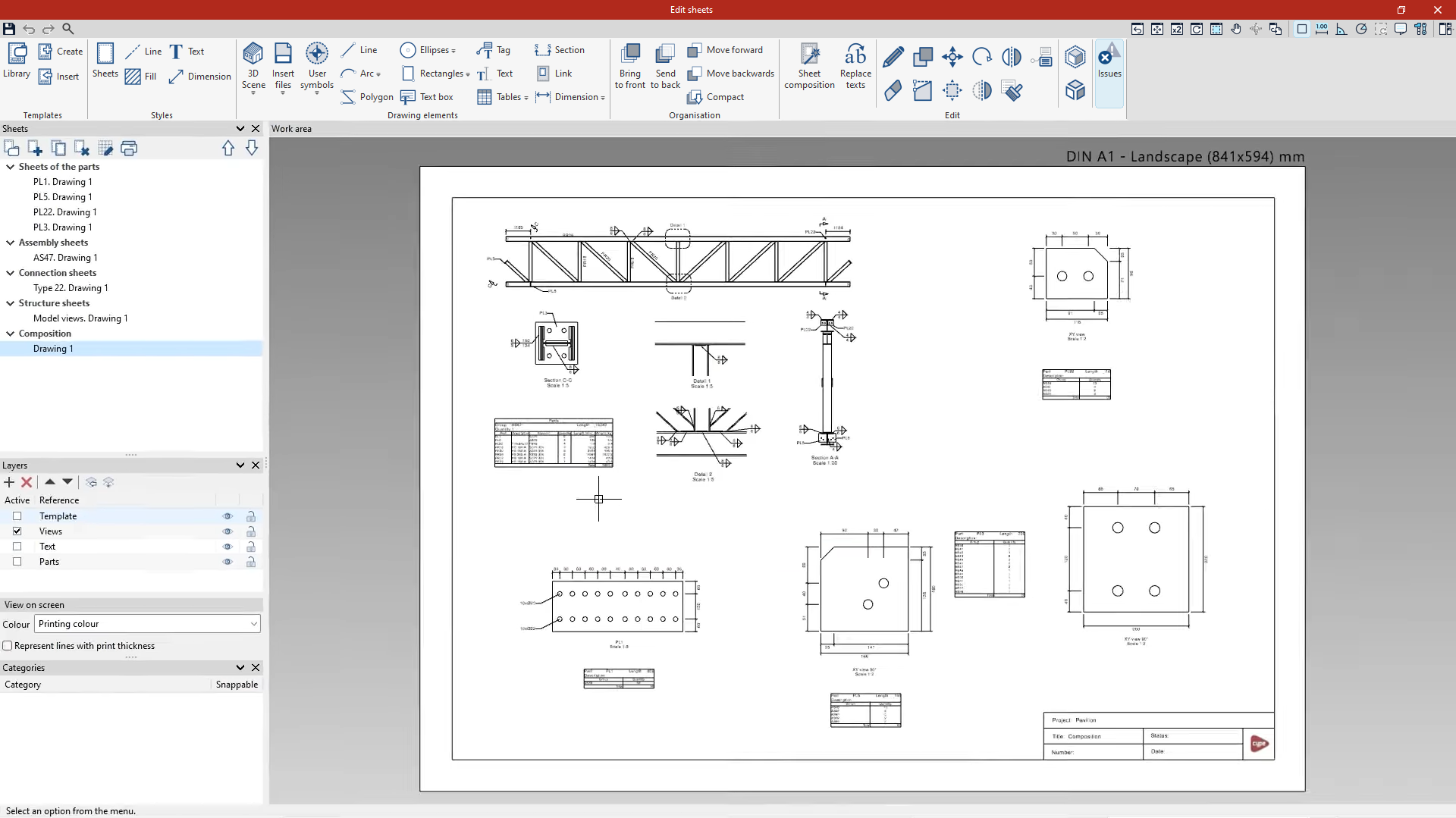
- The sheet selection window reopens automatically so that you can add further links to the same sheet in succession. This allows you to create compositions that include, for example, a graphical representation of an assembly and its parts on the same sheet, or a view of the model and details of various connections.
- When you have finished, close the slide selection window to complete the operation.
| Note: |
|---|
| A "Link" may already contain the template with the box information. If this is not the case, and no template has been generated previously, you can "Insert" a template into the layout sheet using the relevant option in the "Templates" group in the top toolbar. |
If you wish to amend the information displayed in a link, select the "Edit" option from the "Edit" toolbar, then left-click on the link. The program will then select and display the original sheet, where you can make any changes you wish.
To return to the composition sheet, locate this sheet in the "Sheets" navigator on the left-hand side and click on it.
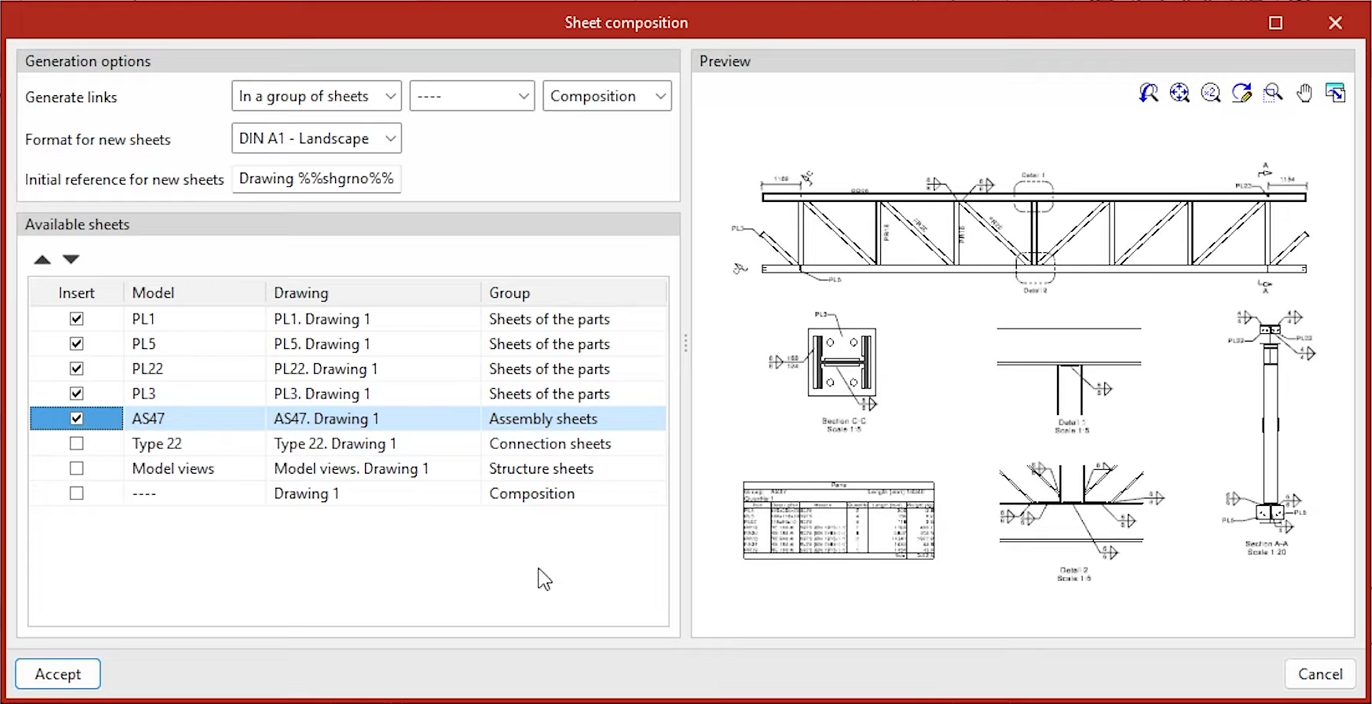
Automatic generation of link sets (the "Sheet composition" option)
The program also allows you to automatically generate a set of links to other slides.
To do this, follow these steps:
- Click on the "Sheet composition" option in the top toolbar.
- In the "Slide layout" window that appears after clicking on this option, do the following:
- Firstly, the "Generation options" are configured. To do this, you specify whether "Link generation" should take place "On the currently selected sheet" or in a new "Group of sheets". Next, specify the "Format" and the "Starting reference for new slides".
- The table below then shows a list of the "Available sheets" in the project, including the name of the "Model" shown on each sheet, the "Name" of the sheet and the "Group" to which it belongs. Here, tick the boxes on the left to indicate the sheets you wish to "Insert" into the new layout.
- A "Preview" of each selected slide is shown on the right.
- Once you click "Accept", the program will generate links to the selected sheets and automatically arrange them on the plan in a mosaic layout.