

Editing building elements of the space in the building tree
When you select the "Structural elements" level within a room, in the "Project" element tree under the "Building" tab, a table showing the structural elements associated with that room is displayed in the main editing area on the right-hand side.
This table shows various columns containing information on the structural elements of this building, including:
- Its identification code (for example, Z01_S01_E01), which is generated automatically and depends on the position of the structural element in the tree.
- The "Element" type and its symbol.
- The "Reference".
- The selected "Type".
- The element’s "Area".
- The "Adjacency" or adjoining space.
- The number of "Openings" open on the element.
- If there are any issues.
The table features options at the top for adding, editing, copying, deleting or reordering elements in the list.
If you expand the "Structural elements" level in the building tree, sub-levels corresponding to each of the space’s building elements are displayed.
When you select a particular element in the tree, it is highlighted in the 3D model viewer.
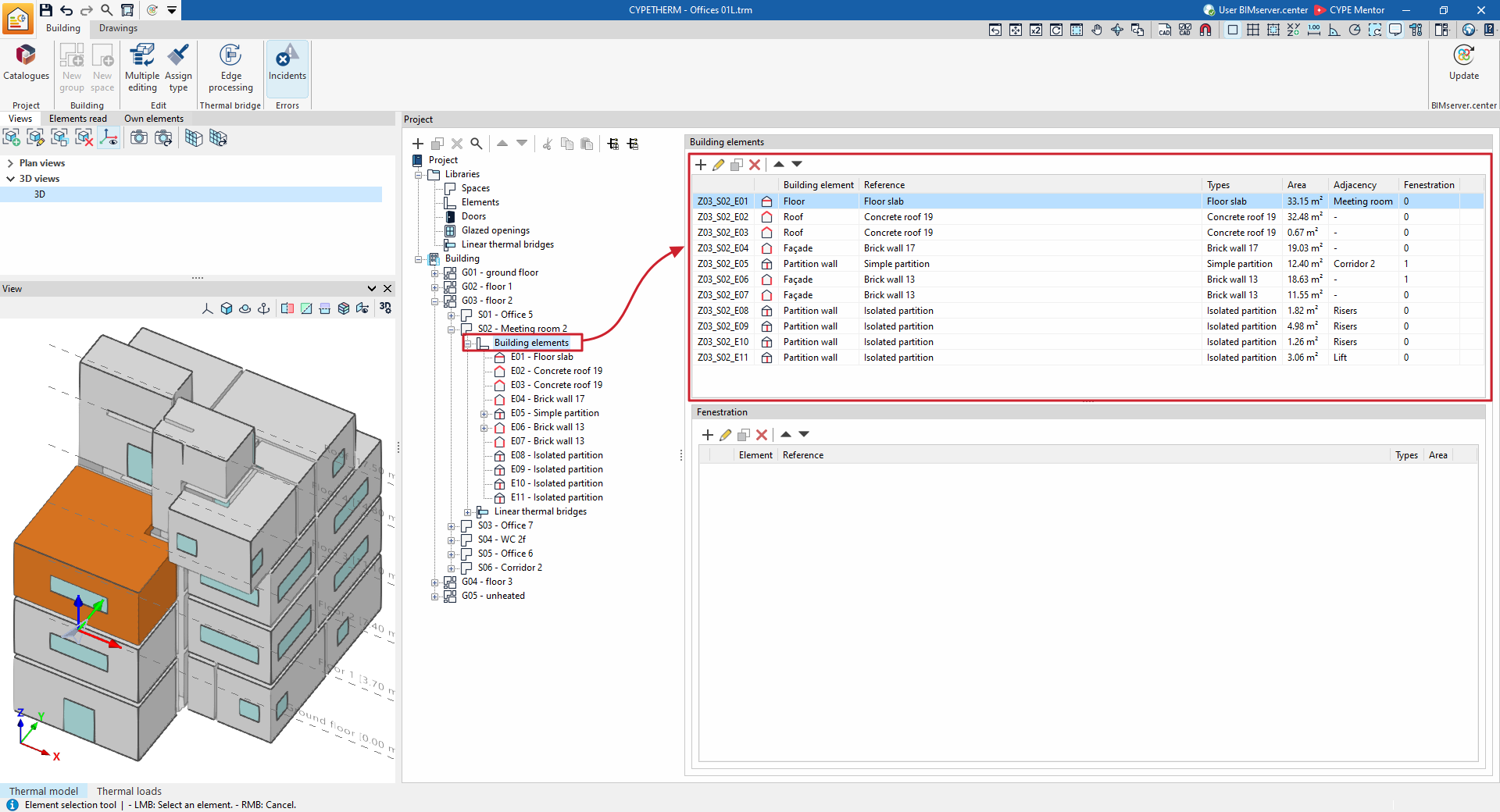
You can edit the properties of each structural element by selecting it in the tree or by editing it in the table.
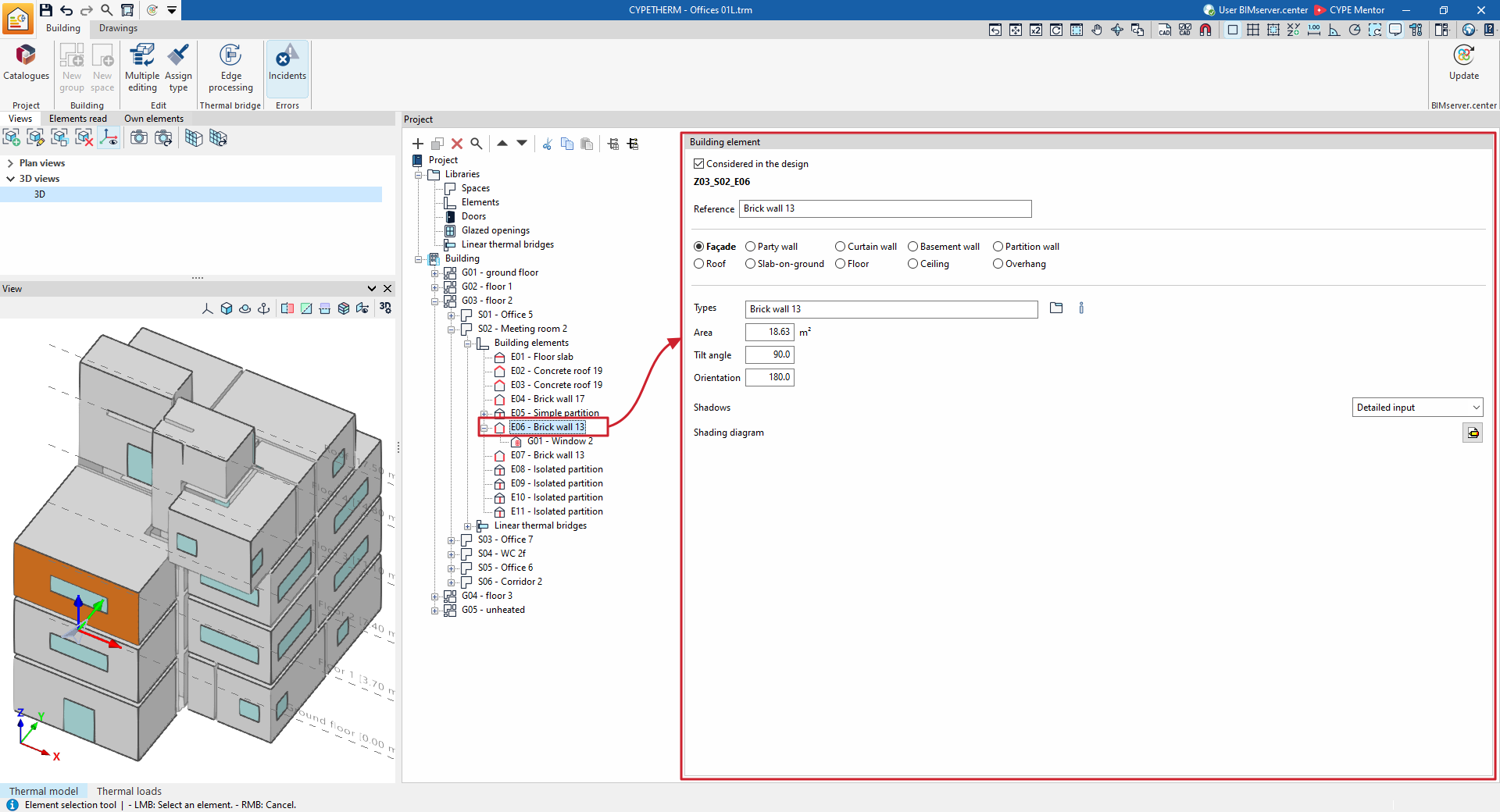
Structural elements are defined by the following characteristics:
- Considered in the design (optional)
By ticking or unticking this option, you can choose to include or exclude the structural element from the analysis performed by the program. When this option is selected, the program allows you to edit the remaining parameters. - Reference
The element’s reference. The program also displays the identification code. - Type
You must define the type of structural element by selecting one of the following options. This sets the conditions on the other side of the element (or boundary conditions):- Façade
A wall in contact with the outside. The conditions of the external environment are taken into account. - Party wall
In the energy simulation, the outdoor ambient temperature conditions are taken into account, with no exposure to the sun or wind (boundary enclosure). If the enclosure has been defined as an adiabatic party wall when editing its type in the library, adiabatic conditions are assumed; in other words, there is no heat transfer through this element. - Curtain wall
A translucent enclosure that allows solar radiation to pass through. The conditions of the external environment are taken into account. - Basement wall
A wall in contact with the ground. Ground conditions are taken into account. - Partition
Wall between rooms. The "Adjacency" must be defined in the following section. - Roof
Flat or pitched roof. External environmental conditions are taken into account. - Slab-on-ground
An element installed on the ground. Ground conditions are taken into account. - Floor
Intermediate slab between spaces, situated on the floor of the space. The "Adjacency" must be defined in the following section. - Roof
Intermediate floor slab between spaces, situated on the floor of the space. The "Adjacency" must be defined in the following section. - Overhang
Forged cantilever. External environmental conditions are taken into account.
- Façade
- Adjacency (for "Partition", "Floor" or "Ceiling" elements)
For partition, floor or ceiling elements, the adjacent enclosure must be defined by selecting one of the following options:- Adiabatic element
An element situated between compartments with the same temperature conditions, meaning that no heat is transferred through it. - Another space
Select the adjacent room from among the rooms defined in the project. In addition, the program offers an option to "Assign the characteristics to the same element present in the adjacent room". - Unknown space
The adjacent space is not defined in the text. It is assumed that the temperature conditions in this unknown space are the same as those of the outside air.
- Adiabatic element
- Type
Enter or select (using the option on the right) the type of structural element from those available in the library. - Area / Vertices
In the "Thermal loads" project type, the area of the element is displayed as a single numerical parameter.
In the "Energy simulation" project type, the area of the element is entered using a polygon defined by its vertices. By clicking on the button that appears, you can view and define the global coordinate points (X, Y, Z) that determine the position and surface area of the element. - Tilt angle / Orientation / Shadows
In the "Energy simulation" project type, these parameters are defined for elements of the "Façade", "Curtain wall", "Roof" and "Cantilever" types. For "Shadows", you can select one of the following options:- No shading
The element is not shaded. - Simplified definition
A value is entered for "Fixed shading percentage". - Detailed definition
Define a shading diagram.
- No shading
- Heat transfer coefficient (optional)
In the "Thermal loads" project type, this parameter can be defined for "Basement wall" elements. - Total floor area / Total floor perimeter (for "Floor" type elements)
- Elevation difference from the ground level (for "Slab-on-ground" type elements and in the "Energy simulation" project type)
- Condensation analysis results (for the "Energy simulation" project type)
This displays the results of the condensation check for the element, provided that this analysis has been enabled, based on the selected element type.
