Creating a new job, linking to a project and importing data
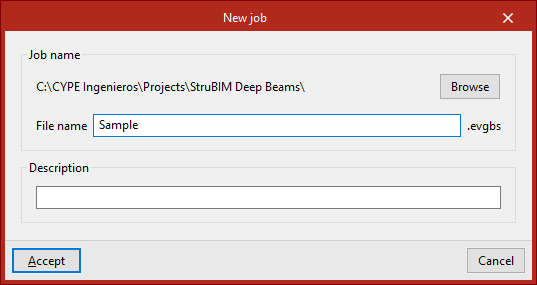
When you launch the app and click on “New”, you are given the option to create a “New job”. After entering the “File name” and “Description”, the project can then be added to an existing project on BIMserver.center.
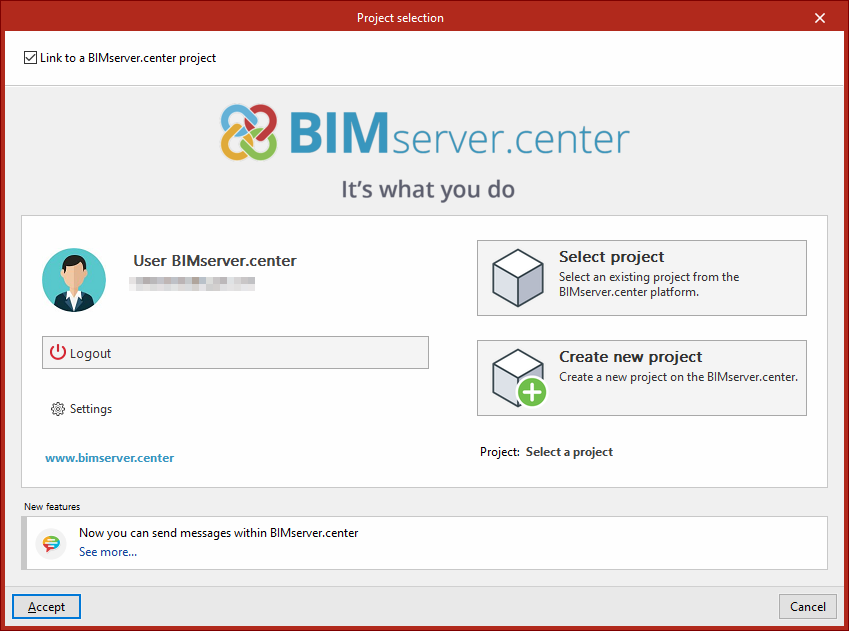
This is done in the "Project selection" window, which offers the following options:
- On the left-hand side, you can log in using a BIMserver.center account.
- On the right, use the "Select project" option to choose an existing project. You also have the option to "Create a new project". In that case, the project you create will be visible on BIMserver.center from that point onwards.
- You have the option to start the project without linking it to the BIMserver.center platform. To do this, simply uncheck the box labelled "Link to a BIMserver.center project", which is located in the top-left corner.
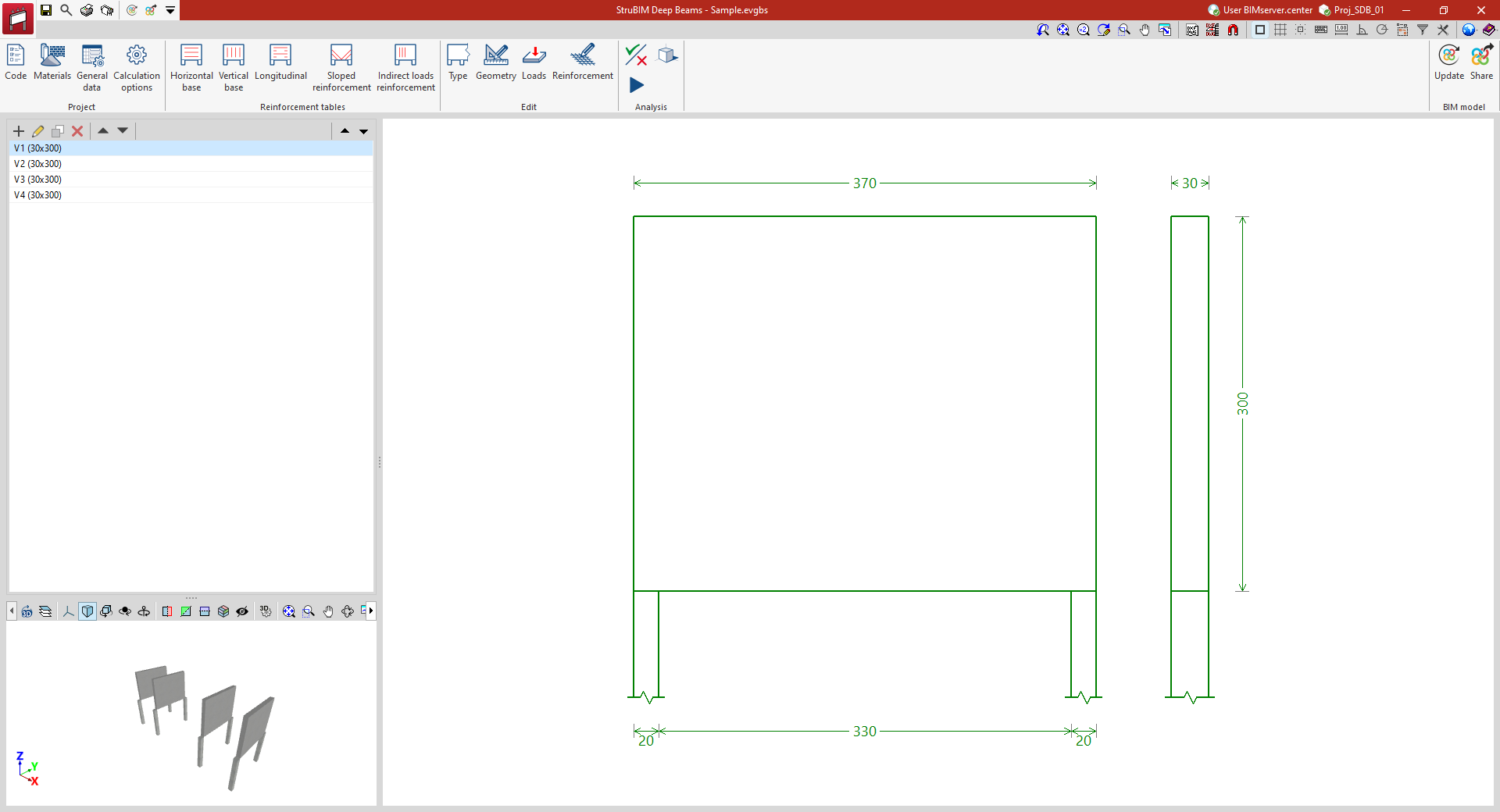
Once the new project has been created, you will be taken to the program’s main interface. At any stage of the project, you can share or import project files via the “BIM Model” panel, located at the top right of the main interface.
Importing BIM models
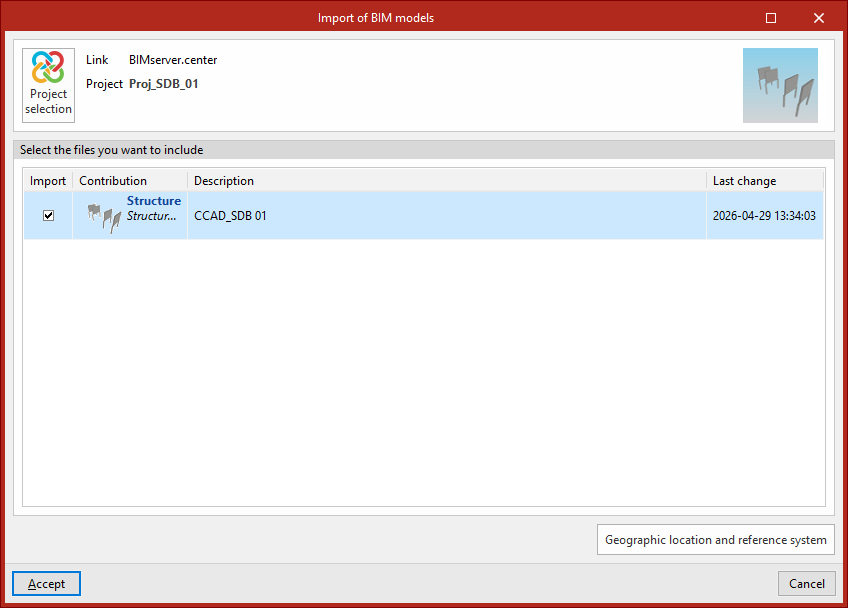
When creating a new project, if you have selected a project hosted on the BIMserver.center platform via "Select project", the "Import BIM models" window will appear, displaying the files contained in that project in IFC format.
The application allows you to include one or more of the existing models in that project. To do this, tick the "Import" box and confirm.
Beam import wizard
The beams extracted from the BIM model can be imported into StruBIM Deep Beams.
To do this, once you have selected the BIM models to import, the program opens a "Beam import" wizard with the following steps:
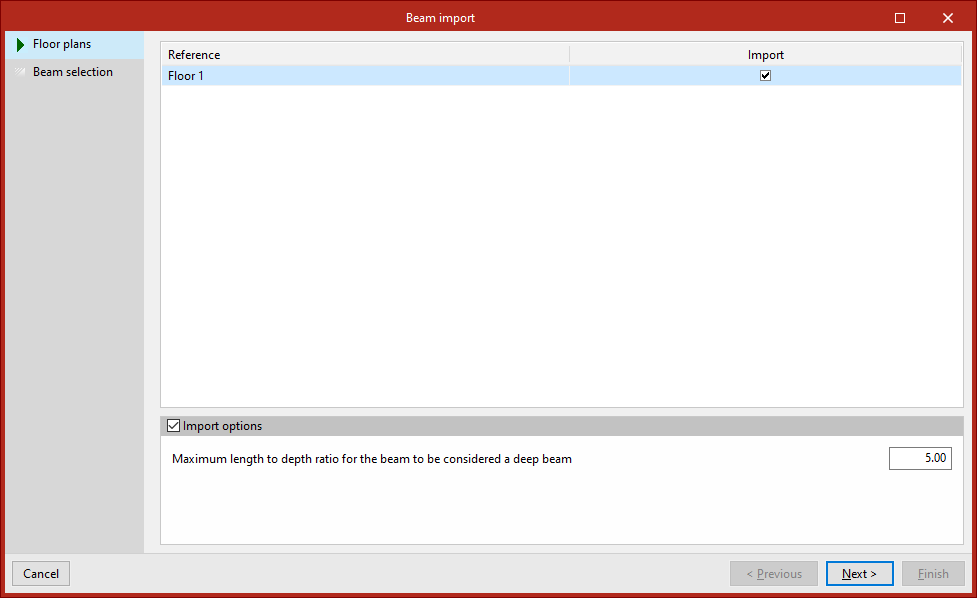
- In the first stage, select the "Floor plans" to be imported. Each one appears in the list with its "Reference" and can be "Imported" by ticking the box in the right-hand column.
By selecting the "Import options" section at the bottom, you must specify the "Maximum length-to-depth ratio for the beam to be considered a deep beam" by entering the value in the corresponding field. Beams with a ratio lower than this value can be imported into the StruBIM Deep Beams model, whilst the remaining ones are ignored.
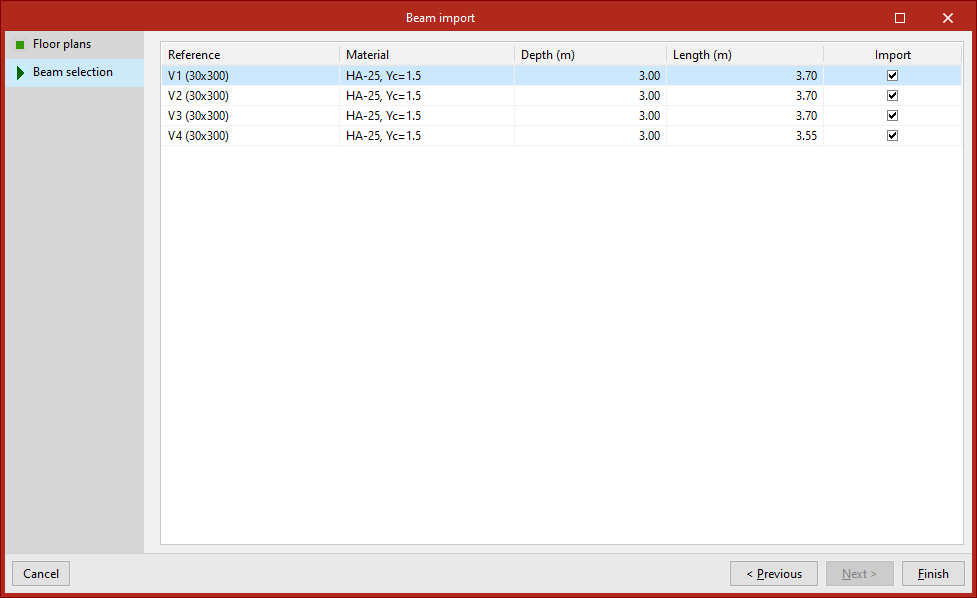
- In the second stage, you need to select the beams you wish to import from the list provided by the program. Each beam is listed with its "Reference", "Material", "Depth" and "Length", and you can "Import" them by ticking the box in the right-hand column.
To complete the import wizard, click "Finish".
Importing results
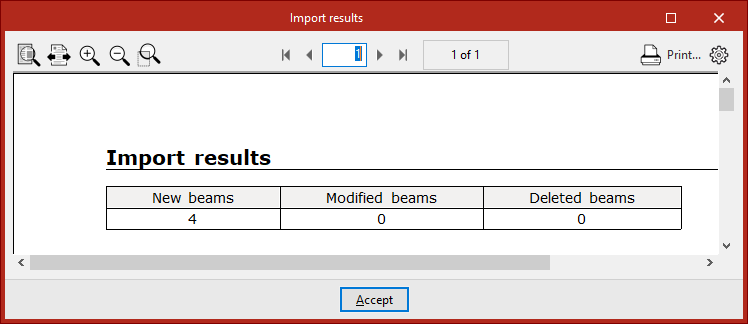
Once the import process is complete, the program will display a list of the results, showing the number of new beams generated, modified and/or deleted.
You will then be taken to the program’s main interface. The imported beams will be displayed in the list on the left-hand side panel. From here, you can add further beams if required.
From this point onwards, users can modify the data for any of the imported beams, as well as apply a specific reinforcement scheme and/or carry out their analysis, verification and design.