

Creating a new database
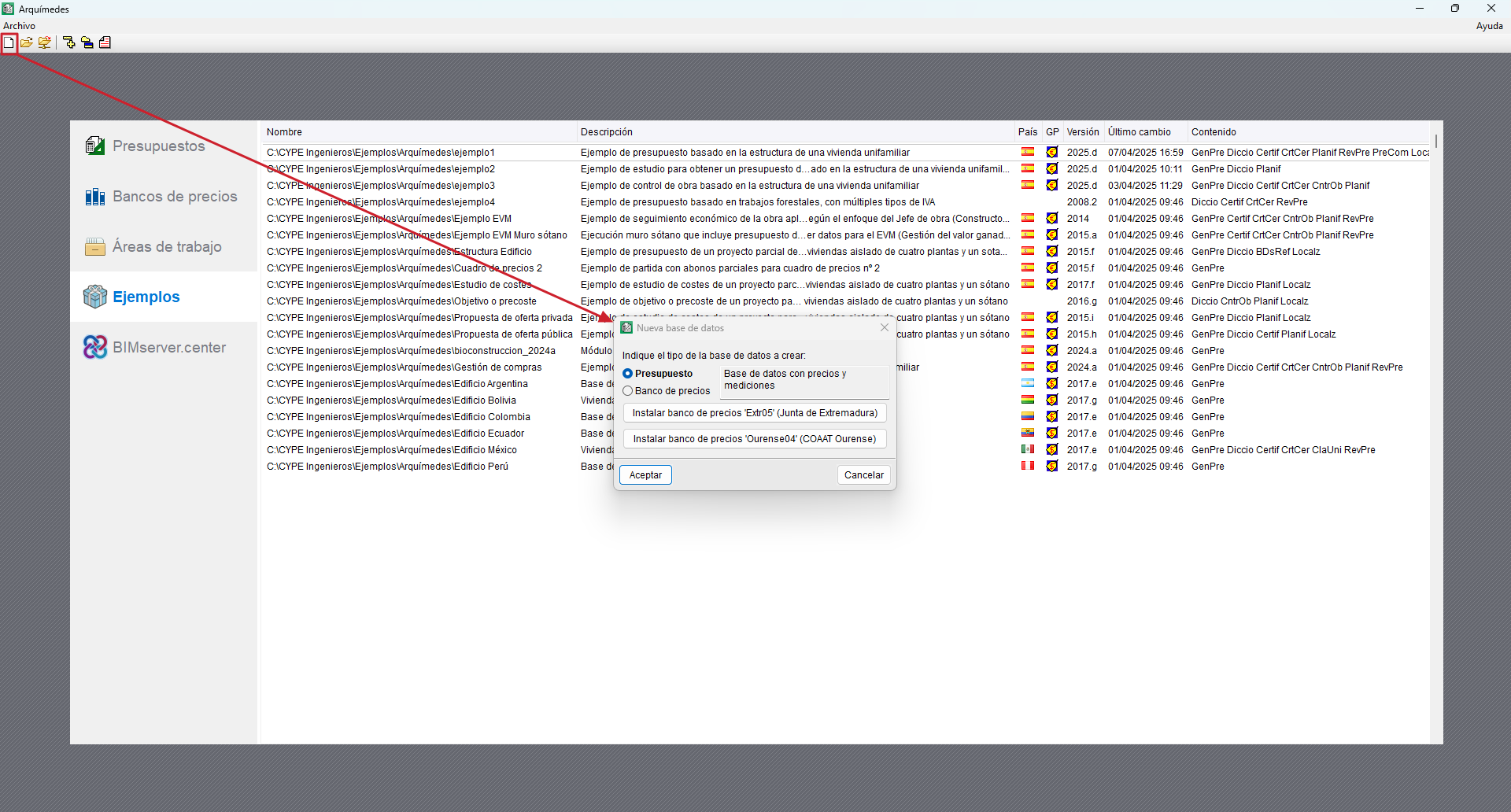
When you start Arquimedes, a presentation window appears where you can select the budget, cost database, work area or job you wish to open. This presentation window appears if no database was open the last time the program was closed.
To create a new database, click on the "New database" icon on the top toolbar. Once selected, you will need to indicate the type of database to be created (bill of quantities or cost database).
You can also open one of the examples included in the program from the "Examples" section of the presentation window.
Cost databases
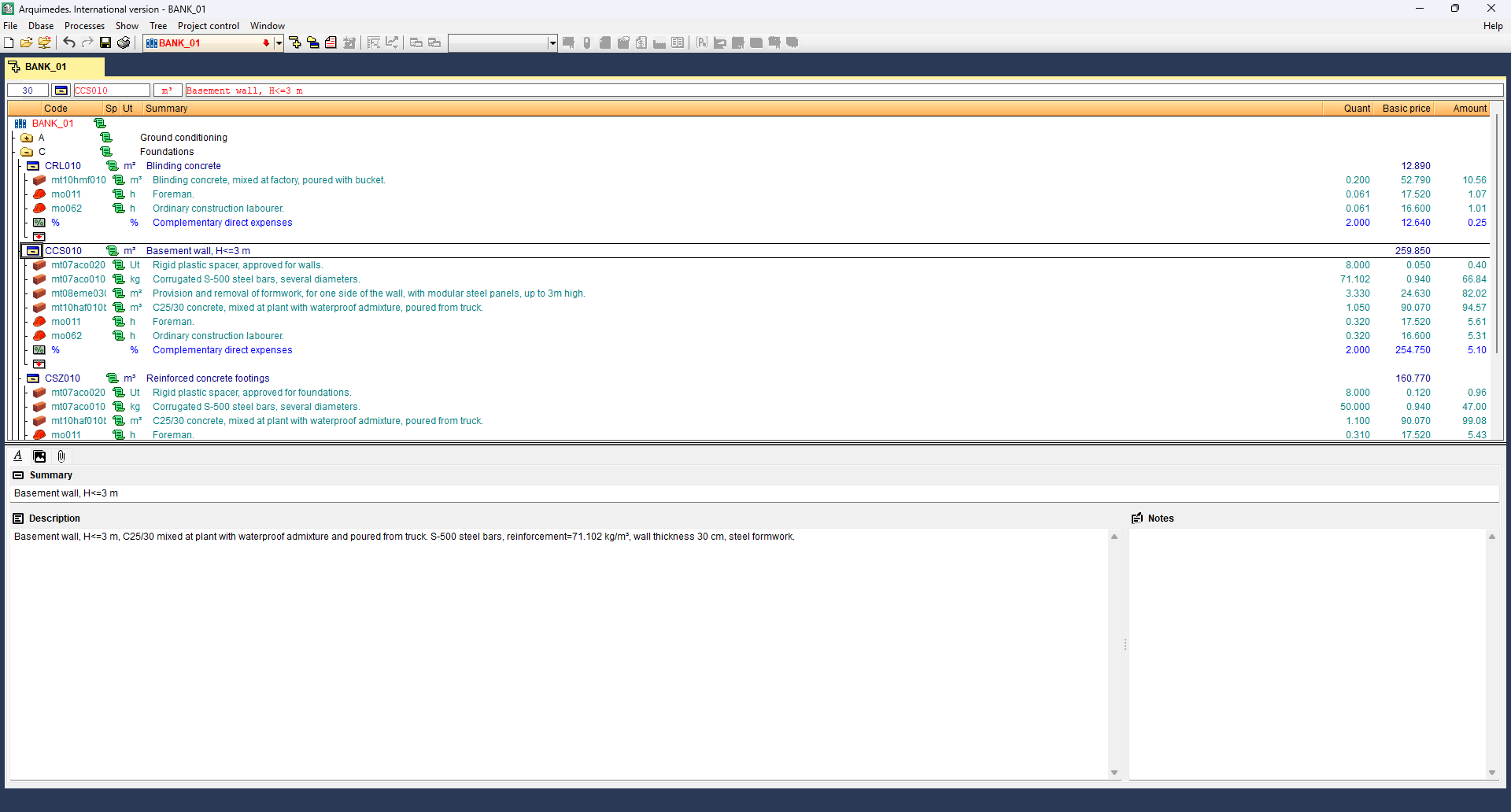
The cost database, also known as a base or price table, has all the concepts organised into work sections.
These contain the simple prices for labour, materials and machinery, and the broken down prices such as items and auxiliary prices.
They may come from public, private, or manufacturing entities and usually include complementary data such as specifications, regulations, or graphical information.
Regular updates are essential to ensure their validity.
In addition, they may have search keys associated with concepts to make it easy to locate them.
They can be classified into three categories according to their structure and level of parameterisation:
- Conventional (or standard): contain a closed list of items with fixed prices defined manually. They include simple and itemised prices.
- Parametric: generate prices from predefined combinations of parameters. They can be implemented directly in Arquímedes or compiled in DLL.
- Multiparametric: allow prices to be adjusted automatically based on multiple project variables (type, location, surface area, etc.).
Bills of quantities
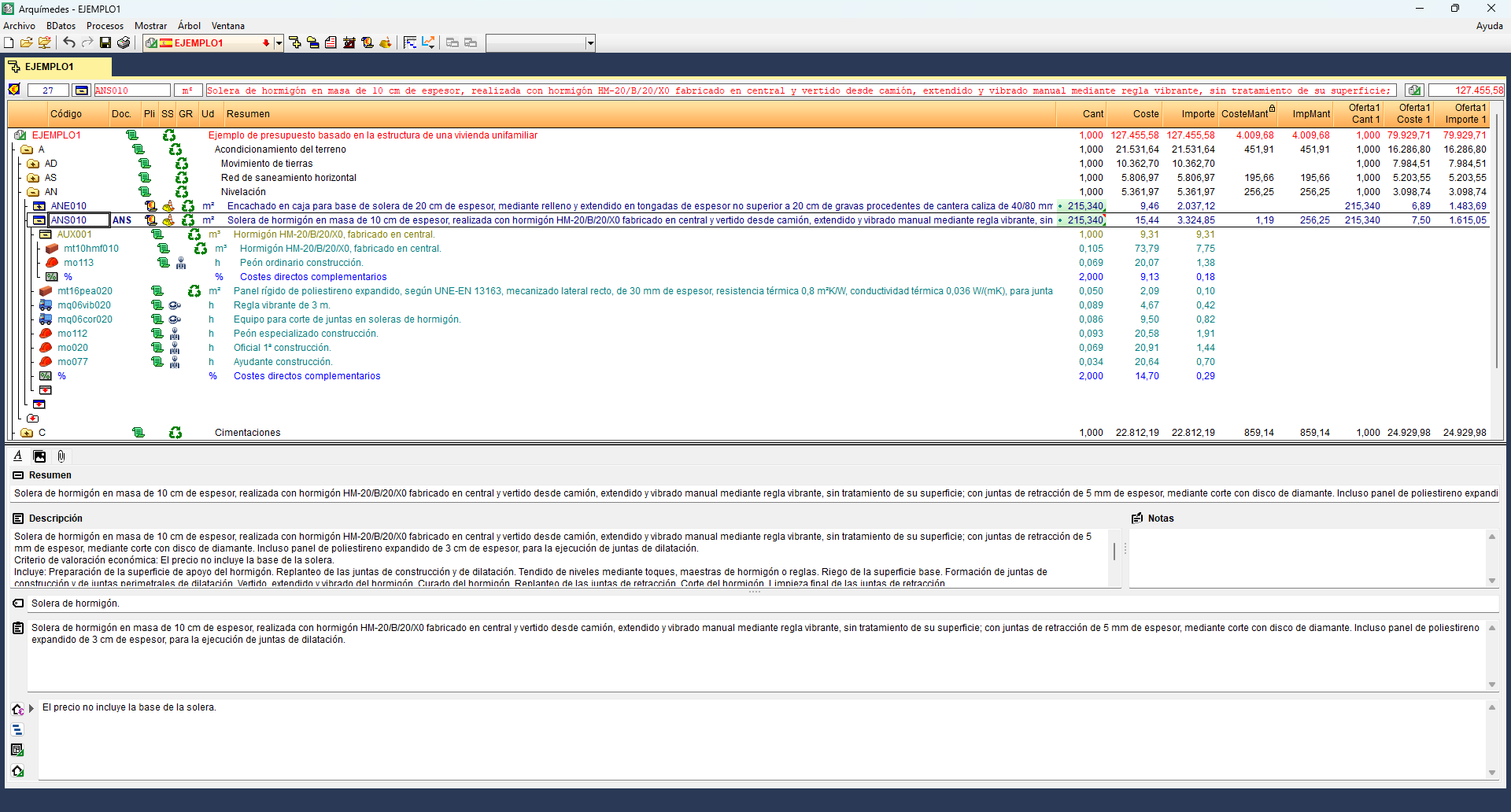
The bill of quantities database is organised into "Items" grouped into chapters. These units are measurable and contractable components and can be valued based on experience, breakdown into basic concepts, or using price tables published by third parties.
When a unit is quantified in the bill of quantities, it is called an "Item".
Chapters allow the bill of quantities to be organised, structuring the "Items" according to the planned order of execution of the job, and cannot be repeated in the "Breakdown tree".
Bill of quantities hierarchy tree
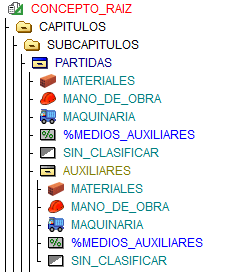
The scheme of successive breakdowns of budget concepts can be likened to an inverted tree structure, where the trunk would be the root concept (associated with the name of the budget file), while the branches would be less complex concepts, such as "Work sections", "Sub-work sections", "Items", "Units" and "Auxiliaries".
Creating a new cost database
There are several ways to create a cost database in Arquimedes. You can import one from a file in FIEBDC-3 format or create a new one from scratch. You can also import a cost database from CSV format (see "Import from CSV" section).
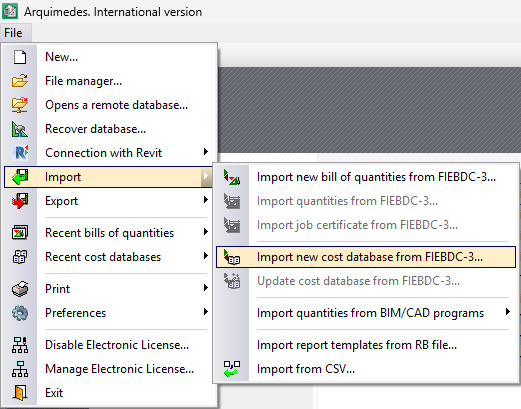
Import new cost database from FIEBDC-3
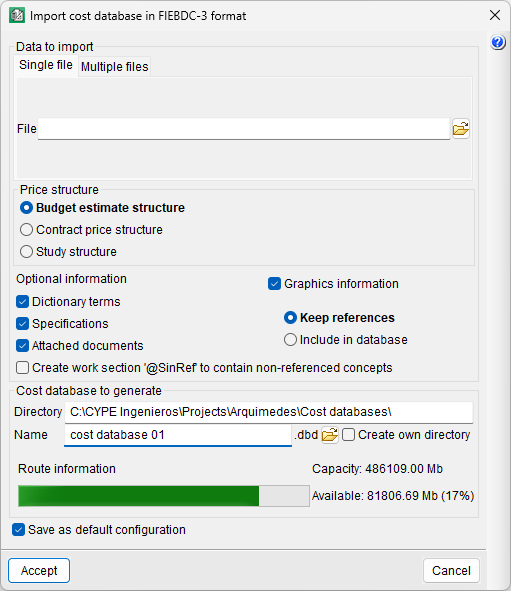
This option is located in the "Import" section of the "File" menu. The dialogue box that opens offers two options: the cost database can consist of a single file in BC3 format (tab "Single file") or multiple files (tab "Multiple files"). To import, select the location of the file or files and indicate the structure (bill of quantities, sale or study) that will receive the prices. Optionally, other additional information can be imported, such as dictionary terms, specifications or graphics associated with concepts.
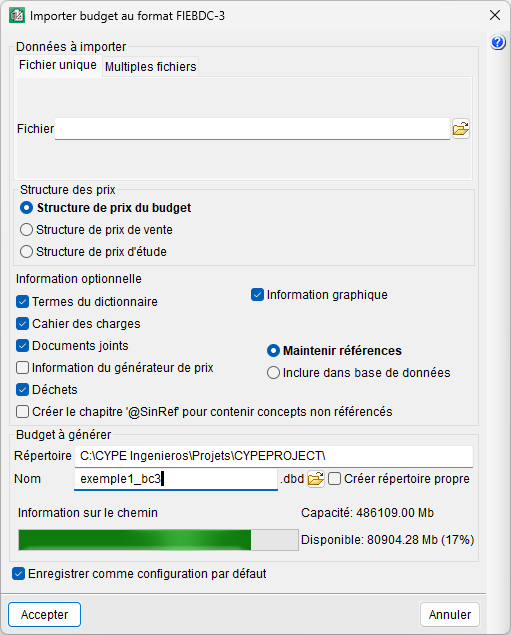
It is advisable to check the "Create own directory" box in order to organise the different price databases installed on your computer better.
When you close the import dialogue box, the price bank in Arquimedes will appear in the "Breakdown tree" window with the assigned price structure.
| Note: |
|---|
| If, when importing a .bc3 file, it contains repetitions of the work section, a warning will be displayed for correction in the "Breakdown tree", marking its icon with 'XX' in red. To repeat the chapter content in the "Breakdown tree", use the "Paste duplicate" option. |
When importing a new cost database in FIEBDC-3 format, three files with the same name will be created, with extensions .dbd, .idx and .dat. Subsequently, a fourth file .dbz will be created automatically, containing information about the backups made by the program.
Create a new cost database from scratch
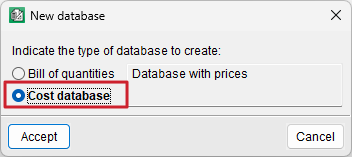
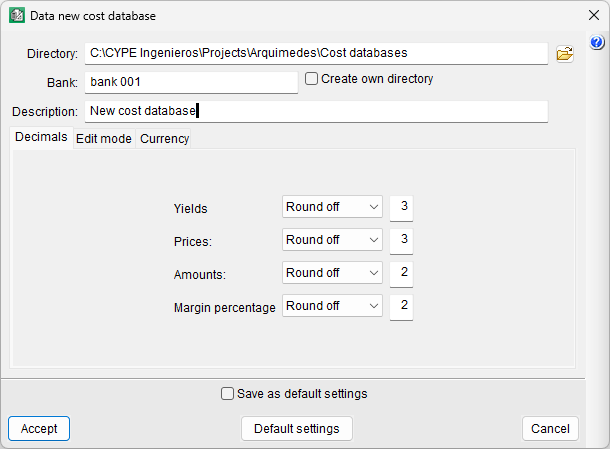
To create your own price database, select the "New database" icon from the top toolbar or the "New..." option from the "File" menu, then select the "Cost database" option. Next, you must indicate the directory, the bank and the description of the database.
In addition, there are three tabs for selecting the number of decimal places to be displayed, the work section editing mode, and the currency to be used.
| Best practice: |
|---|
| From the "Save as default options" checkbox at the bottom of the dialogue box, you can save the settings so that they appear by default the next time the program is run. |
Creating a new bill of quantities
There are several ways to create a bill of quantities in Arquimedes. You can import one from a file in FIEBDC-3 format or CSV format, or create a new one from scratch.
Import new bill of quantities from FIEBDC-3
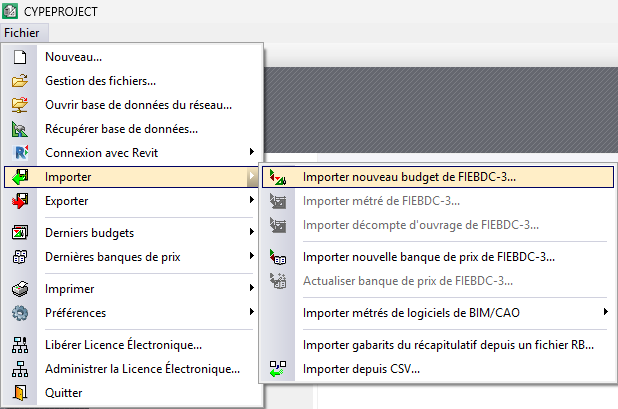
This option is located in the "Import" section of the "File" menu. The dialogue box that opens offers two possibilities: that the budget consists of a single .bc3 file (tab "Single file") or multiple files (tab "Multiple files"). To import, select the location of the file or files and indicate the structure (bill of quantities, sale or study) that will receive the prices. Optionally, you can import other additional information, such as dictionary terms, specifications and graphics associated with concepts.
| Best practice: |
|---|
| It is advisable to tick the "Create own directory" box to organise the different bills of quantities installed on your computer better. |
When you close the import dialogue box, the budget in Arquimedes will appear in the "Breakdown tree" window with the price structure that has been assigned.
Import from CSV
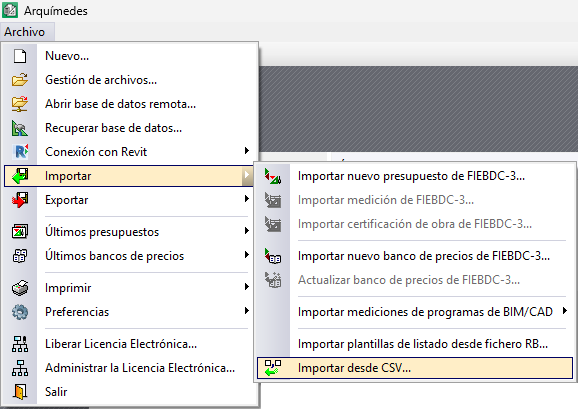
This option is located in the "Import" section of the "File" menu, and allows you to create a database in Arquimedes from two .csv files: one with the items and another with the breakdown of the work sections and the broken-down items. This tool is useful for importing bill of quantities or cost databases created in spreadsheets.
In the dialogue box that opens, select the location of both files and indicate the type of database to be created (bill of quantities or cost database).
The concept file must include, for each line, the following fields: "Code", "Unit", "Summary", "Description" (optional), "Price", "Item type" (0 – Unclassified, 1 – Labour, 2 – Machinery, 3 – Materials, 4 – Auxiliary resources) and "Unit type" (0 – Simple, 1 – Parametric, 2 – Broken down, 3 – Chapter).
For its part, the decomposition file contains the "Parent code", the "Child code" and the "Quantity" with which the child concept intervenes in the parent.
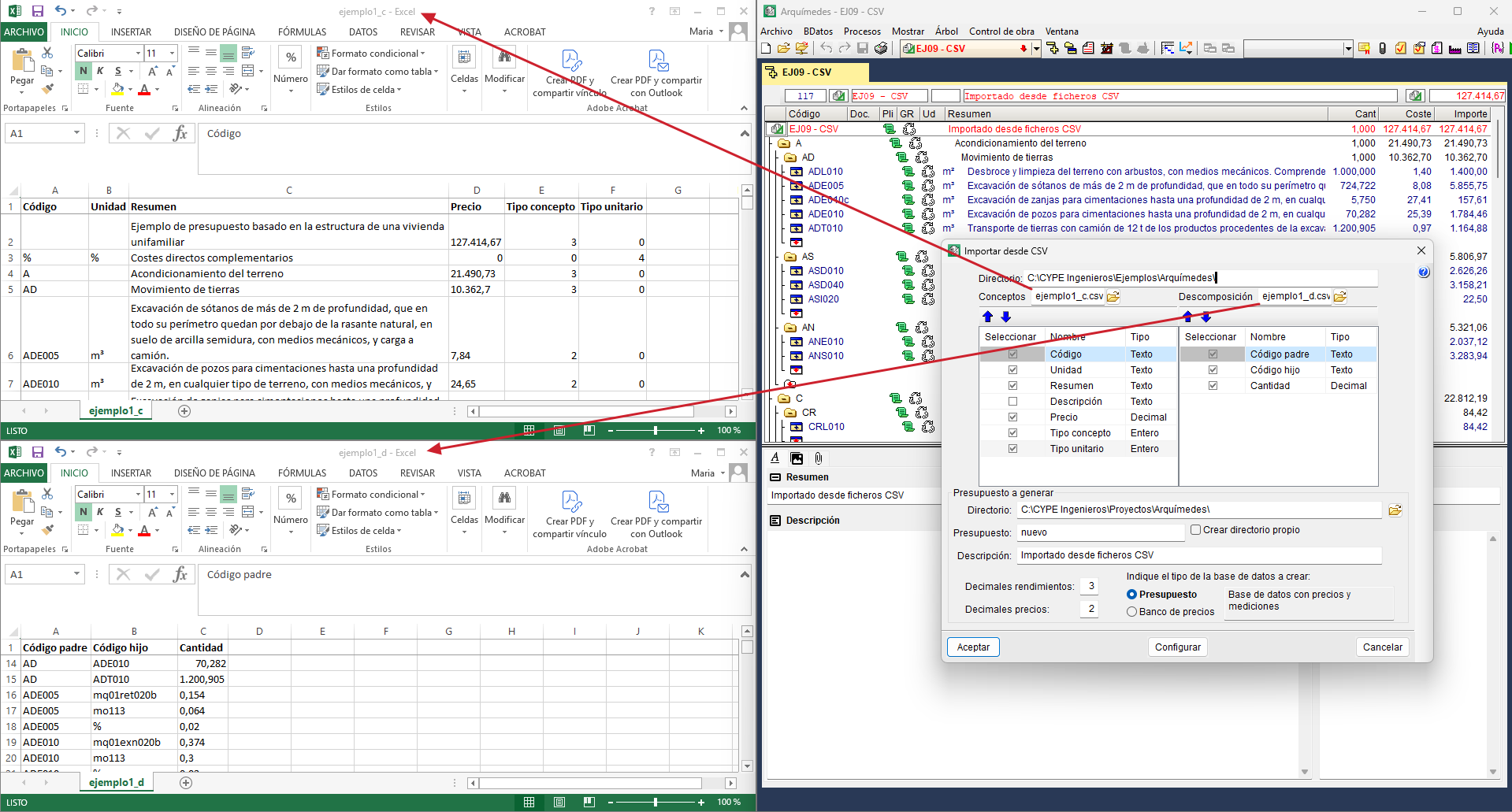
Import from CSV format
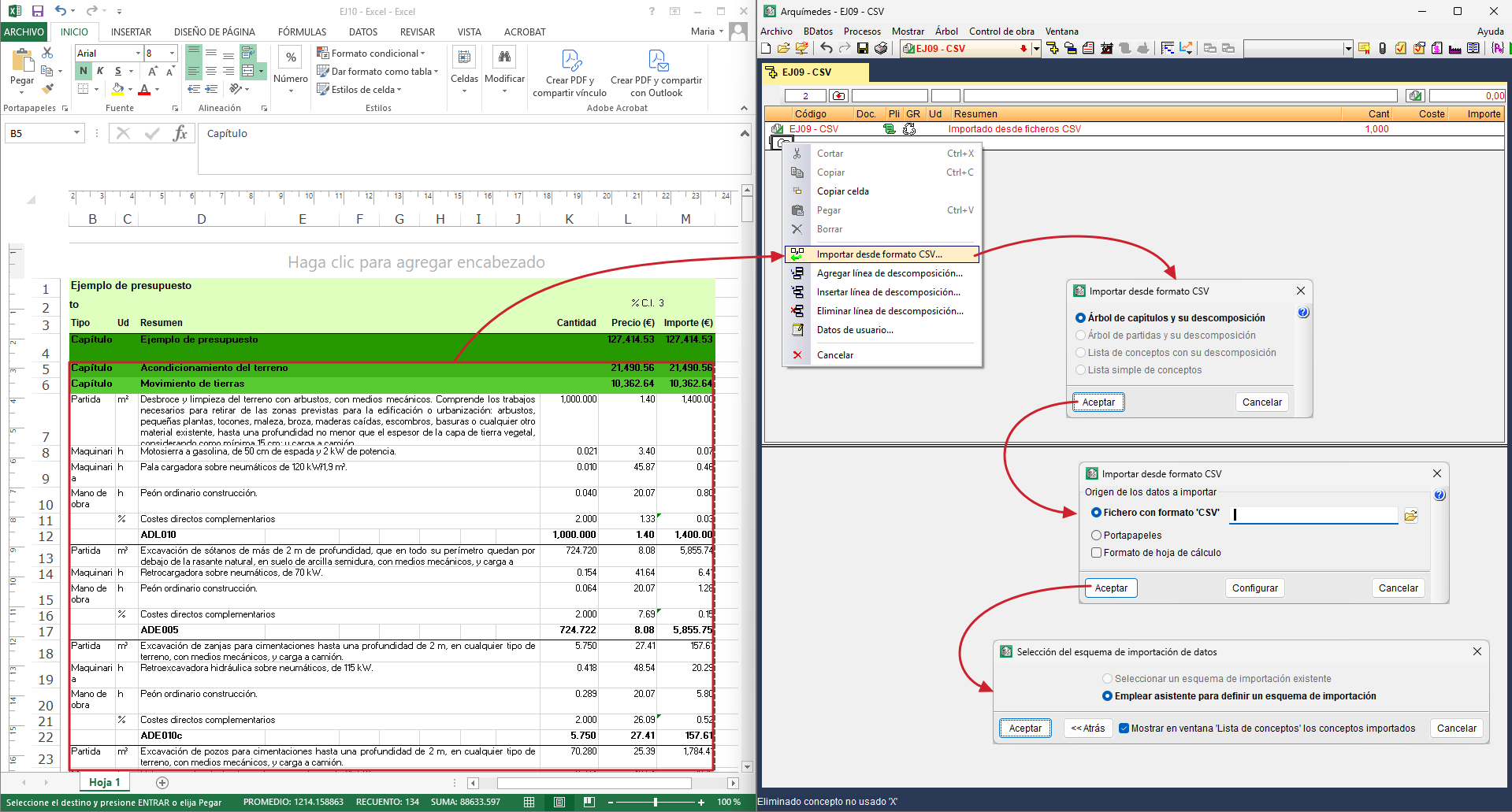
There is another way to import information from files in CSV format or from data copied to the clipboard (for example, from a spreadsheet such as Excel®, Open Office®, Google Docs®, etc.).
This option can be executed from the "Import" section of the "File" menu or from the context menu that appears when you right-click (in the "Breakdown tree" window) on a concept such as "Work section" or "Item" with or without breakdown.
The dialogue box that appears before importing, when you select the option "Import from CSV format" offers several import options depending on the concept selected in the "Breakdown tree" window:
- Chapter tree and its breakdown
This option should be used when the information to be imported contains one or more chapter levels, including items with their breakdown and, optionally, measurement details. In order for the information to be extracted properly, each broken down element, whether a chapter or an item, must have a line called "breakdown footer" that allows you to know what the last element of its breakdown is and thus be able to correctly interpret nested breakdowns. The files produced when exporting works to Excel belong to this type of format.
This option can be activated in the "Import from CSV format" dialogue box if the previously selected concept is of the "Chapter" type (including the root chapter). - Item tree and its breakdown
This type of import should be used when the information to be imported only has items with their corresponding breakdowns and quantity details. This format is a subset of the previous one, so the same rules apply with regard to the "footer" line.
As with the previous option, it is only active when the selected concept is of the "Work section" type. - List of items with their breakdown
The information imported with this option requires a simpler format. It does not need a "breakdown footer". In this case, different column formations are used to differentiate the broken down items (they have no price or no amount) from the unit items that compose them (they contain quantity and price).
List of items with their breakdown
The information imported with this option requires a simpler format. It does not need a "breakdown footer". In this case, different column formations are used to differentiate the broken down items (they have no price or no amount) from the unit items that compose them (they contain quantity and price).
It is active with the item types "Work section" and "Item". - Simple list of items
Information imported with this option requires the simplest format. It is a list of items, which may or may not contain a quantity or yield, and which will be added to the breakdown of the current item.
It is active with the item types "Work section" and "Item".
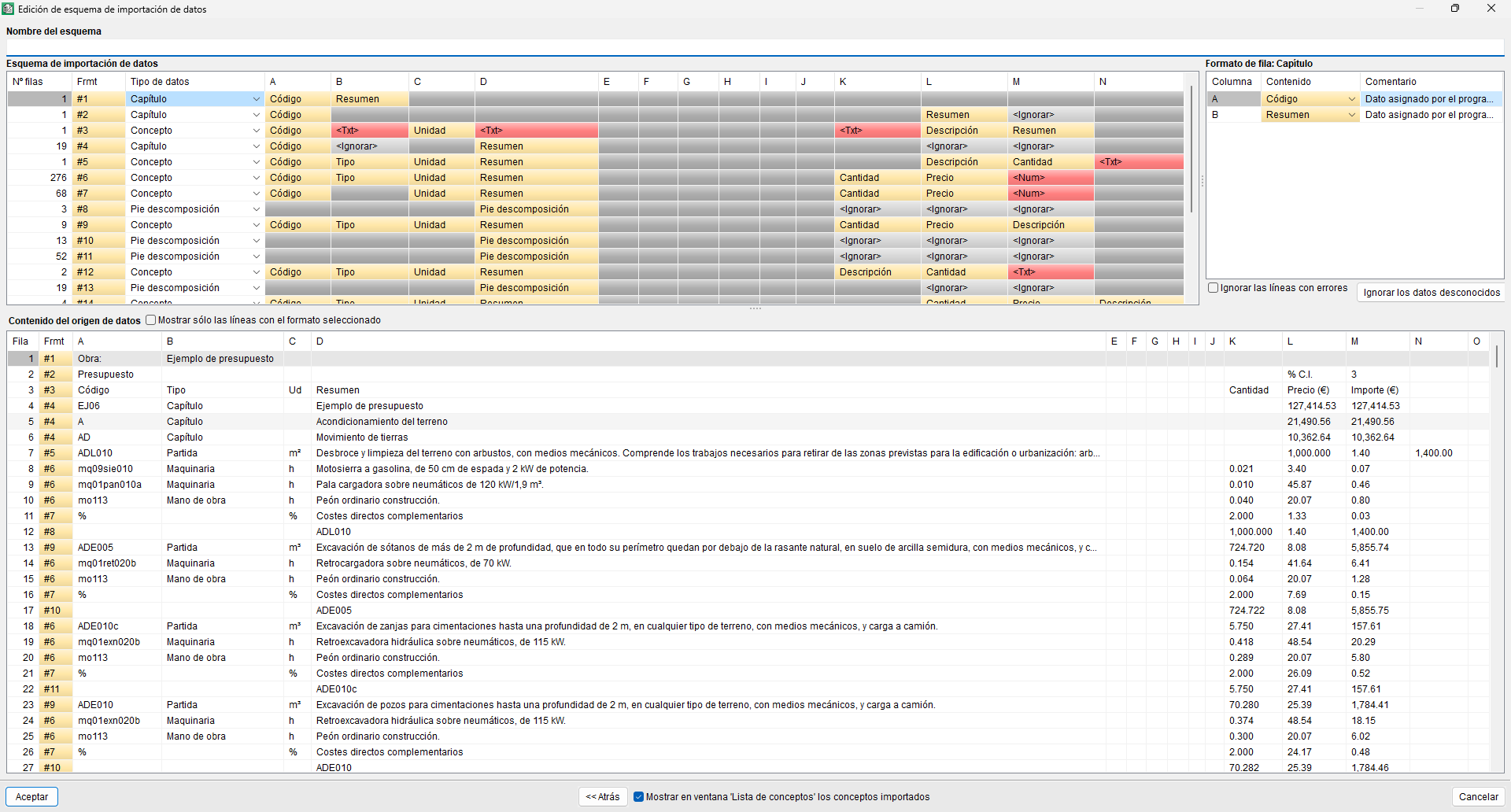
After selecting the desired option, the program opens another dialogue box to edit the data import diagram.
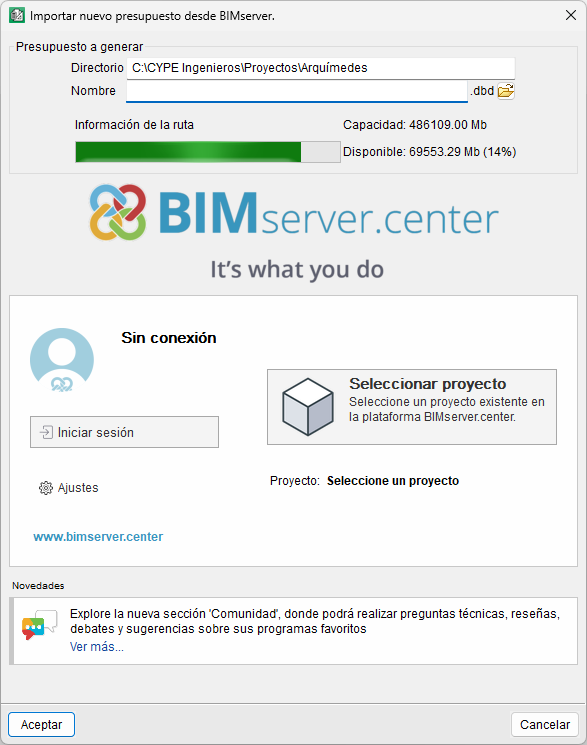
Import new bill of quantities from BIMserver
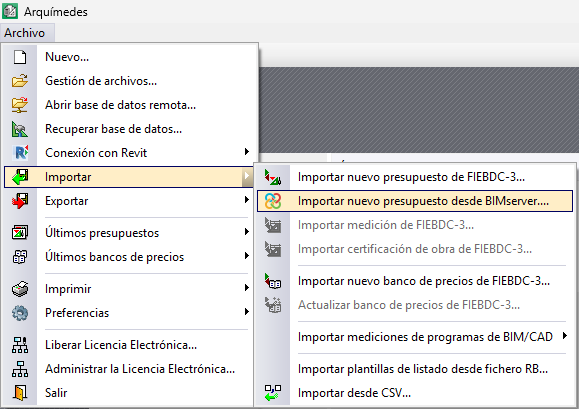
This option is located in the "Import" section of the "File" menu. It allows users to import and consolidate several BC3 files from a BIMserver.center project into a single bill of quantities.
In the dialogue box that appears, you must select the directory where the bill of quantities will be generated, as well as its name. Next, you will need to log in with your BIMserver.center account and select an existing project on the platform. Then, you must select one or more contributions from the project, from which Arquimedes will automatically import all the BC3s it finds in those contributions.
| Note: |
|---|
| From "Settings", you can change the directory of files stored in the local cache. |
When you close the import dialogue box, the consolidated bill of quantities will appear in the "Cost breakdown structure" window in Arquimedes.
Quantities over DXF
Automatically measuring drawings allows users to get quantity lines directly in Arquimedes from files in DXF, DWG or compatible image files (JPG, PNG, etc.), without the need to manually enter numerical values. This functionality is available through the "Quantities over DXF" module.
To start measuring, a new subtable has to be inserted, for example, a default one (Standard). From this subtable, when you place the cursor on a numerical data cell (columns A, B, C, D, E or F) and click on the "Quantities using DXF-DWG" option, the "Quantities using DXF-DWG" dialogue box will be displayed.
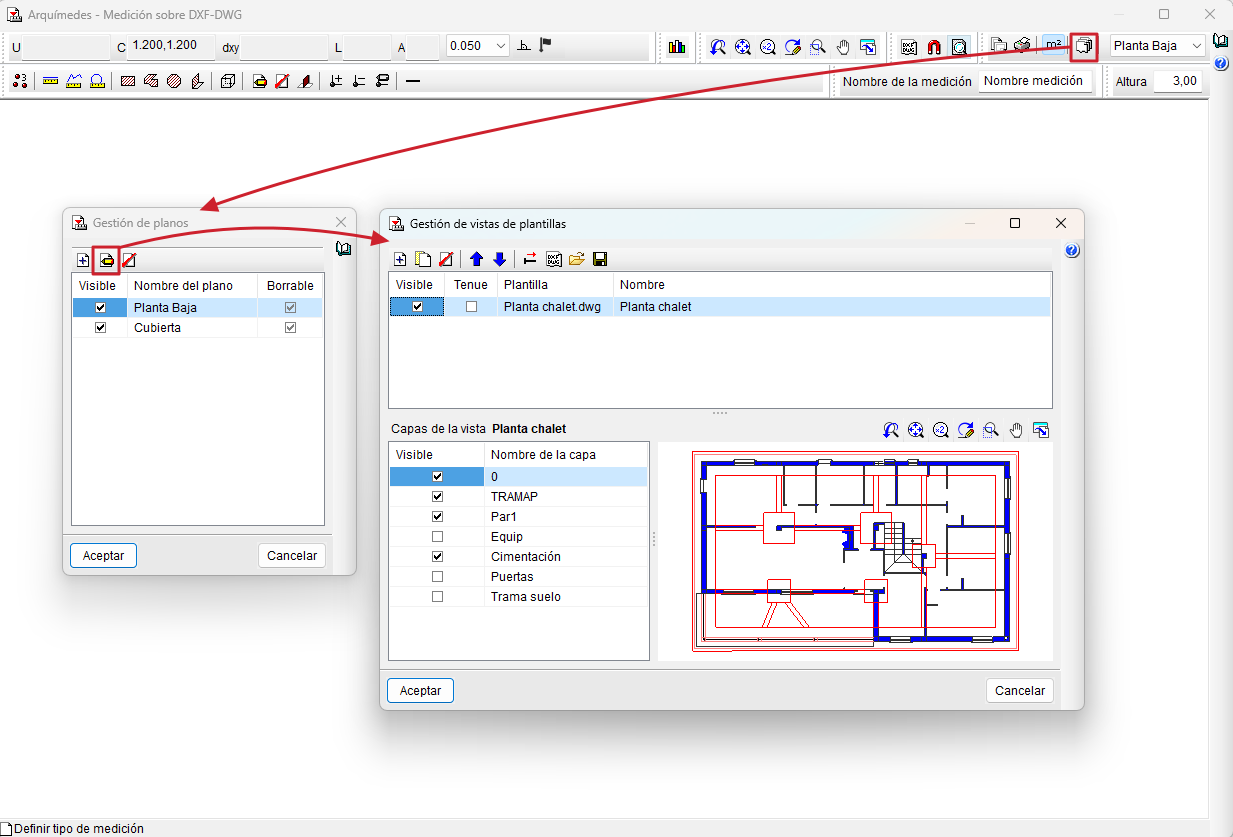
From this dialogue box, users can access the "Drawing management" option on the toolbar to add and name the different drawings that make up the job. Normally, one drawing is defined per floor, type of job or section to be distinguished, and each drawing can be made up of one or more drawing files. If a plan is selected and "Edit" is selected, the "Template view management" dialogue box will be accessed, from where templates can be inserted using the "Add", "Import templates to the job" or "Obtain GXF" option. It is possible to activate or deactivate the layers that are considered necessary in this same dialogue box.
The DXF and DWG files used must be correctly prepared, at a scale of 1:1, where one drawing unit corresponds to one meter, and close to the origin of coordinates (0,0).
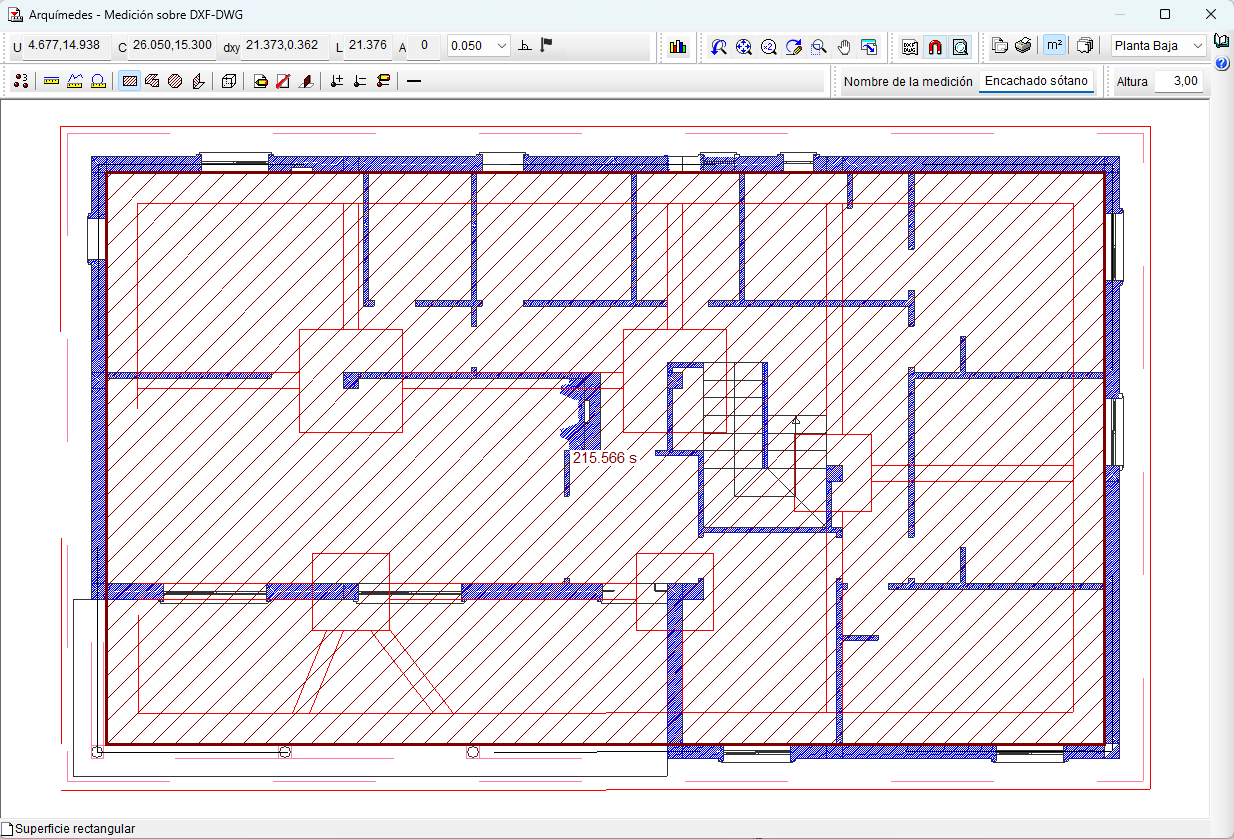
Once the drawings have been defined, one of them is selected using the current drawing selector and a name is assigned to the quantity. Then, by activating "Template object snaps" in the toolbar, it is possible to count elements, and measure lengths, surfaces and/or volumes. The program will automatically obtain the numerical data and place it in the quantity table.
If openings need to be discounted (e.g. openings in floor slabs), the "Add/Remove quantity" tool can be activated, which will apply a negative sign to the corresponding quantity.
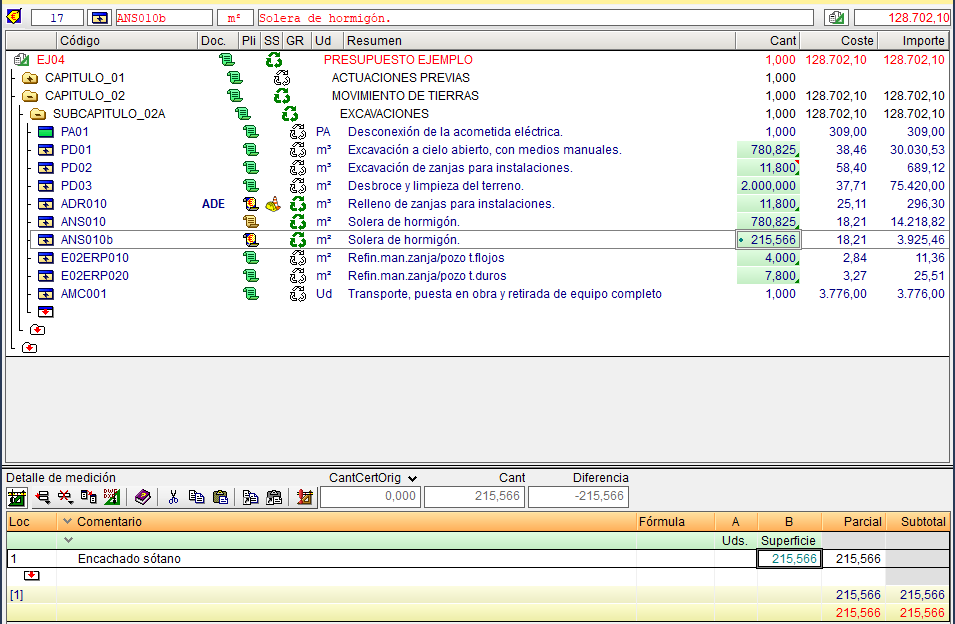
Items with quantities obtained with automatic drawing quantities are identified in the "Qty" column of the "Cost breakdown structure" window with a green dot and an information message.
Also, when double-clicking on a number cell with an associated automatic drawing quantity (identifiable by its green colour), the "Arquimedes - Quantities over DXF - DWG" dialogue box will open again, showing the drawing on which the quantity was taken. From this box, the quantity can be reviewed and adjusted directly.
Integration with other programs
The "Quantities using DXF-DWG" module can also link and import quantities automatically from CAD programs: Allplan® and Archicad®. (Until Arquimedes version 2019.e, the connection to +Extended® - AutoARQ® was also supported).
For the connections between these programs and Arquimedes to be effective, the connection applications must be installed, which are available on the Arquimedes product webpage by clicking on the "Download" option. Specifically, from the "Plugins compatible with Arquimedes" section.
Comparative bills of quantities
Arquimedes can simultaneously compare different bills of quantities or various offers received during a tendering process. This feature is useful for contrasting bidders’ proposals or comparing a base bill of quantities with a revised version.
The comparative is carried out at the item level, not at the unit breakdown level, and is based on matching item codes and the chapter and subchapter structure of the base bill of quantities.
Creating a new comparative bill of quantities
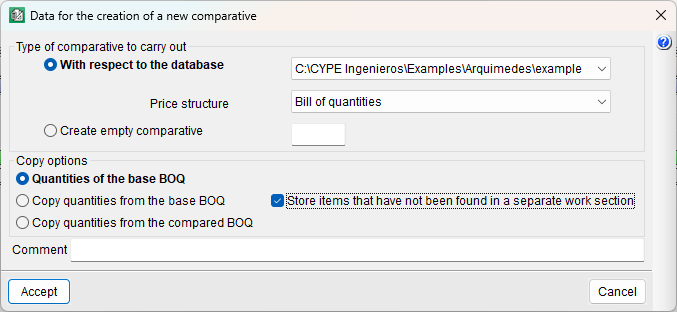
A comparative bill of quantities can be generated using the "New comparative bill of quantities" option (in the "Processes" menu, under "Comparative bills of quantities"), from:
- An open database
A bill of quantities in Arquimedes, BC3 or spreadsheet format. - An empty comparative
Entering data manually from paper-based or other non-readable offer formats.
During the configuration, you can do the following:
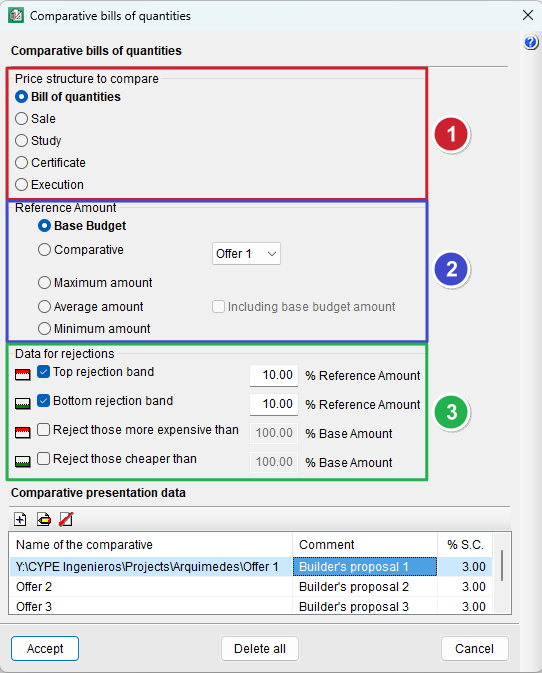
- Select the price structure to be used (bill, sale, study, certificate, or execution).
- Define where the measurement quantities will come from, using three copy options:
- Quantities of the base BOQ
The measurement quantities from the base bill of quantities (used in the tender) are applied, without the possibility of modification. - Copy quantities from the base BOQ
Starts from the measurement quantities of the base bill of quantities, but they can be manually adjusted. This is useful for creating an empty comparative, as it allows you to enter the quantities from the received offer and view the quantity differences. - Copy quantities from the compared BOQ
Takes the quantities from the received offer. This is useful when the offer includes revised measurements that may justify differences in amounts.
- Quantities of the base BOQ
- Decide how to handle items not present in the base bill of quantities (storing them in a separate item named "@NoClas").
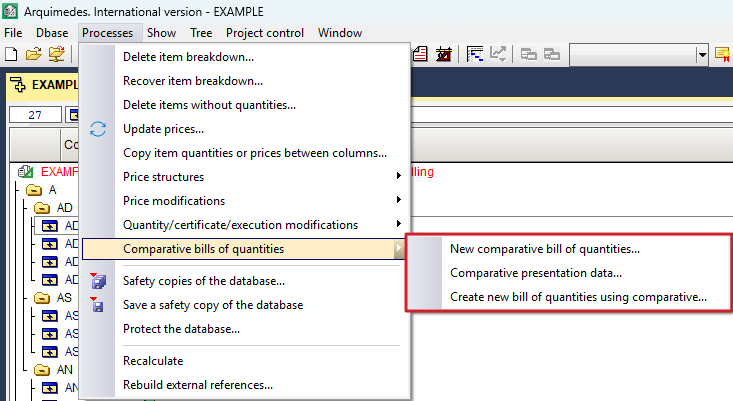
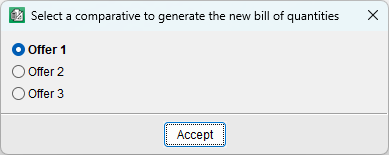
Comparative bills of quantities can be retrieved in Arquimedes format using the "Create new bill of quantities using comparative" option (from the "Processes" menu, under "Comparative bills of quantities").
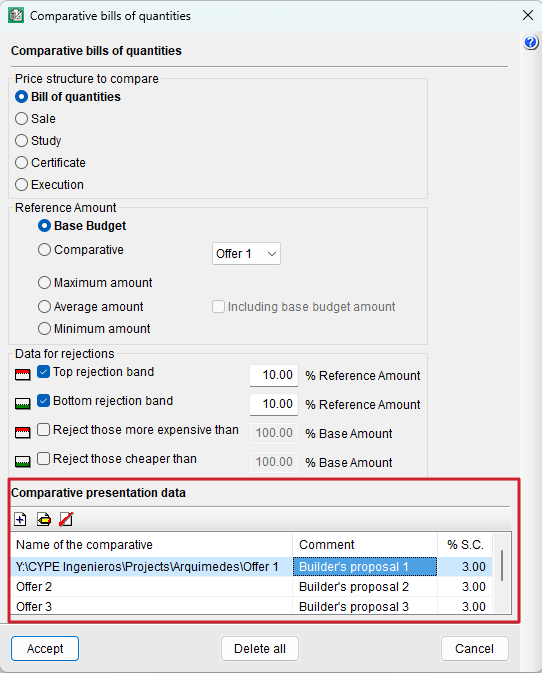
It is also possible to add or delete comparatives and modify their configuration data using the "Comparative presentation data" option.
Entering measurement quantities and costs
First, in the "Cost breakdown structure" window, you need to activate the column display "Comparatives (by comparative group)" or "Comparatives (by quantity type)" (by right-clicking the column header).
- If an empty comparative has been created, simply enter the data (costs) in the "Rate" column cells for the corresponding offer.
- If, in addition to creating an empty comparative, you have selected "Copy quantities from the base BOQ", enter the data (quantities and costs) in the "Quant" and "Rate" column cells for the corresponding offer.
In both cases, the "Amount" column will be filled in automatically.


Analysing the comparative bill of quantities results
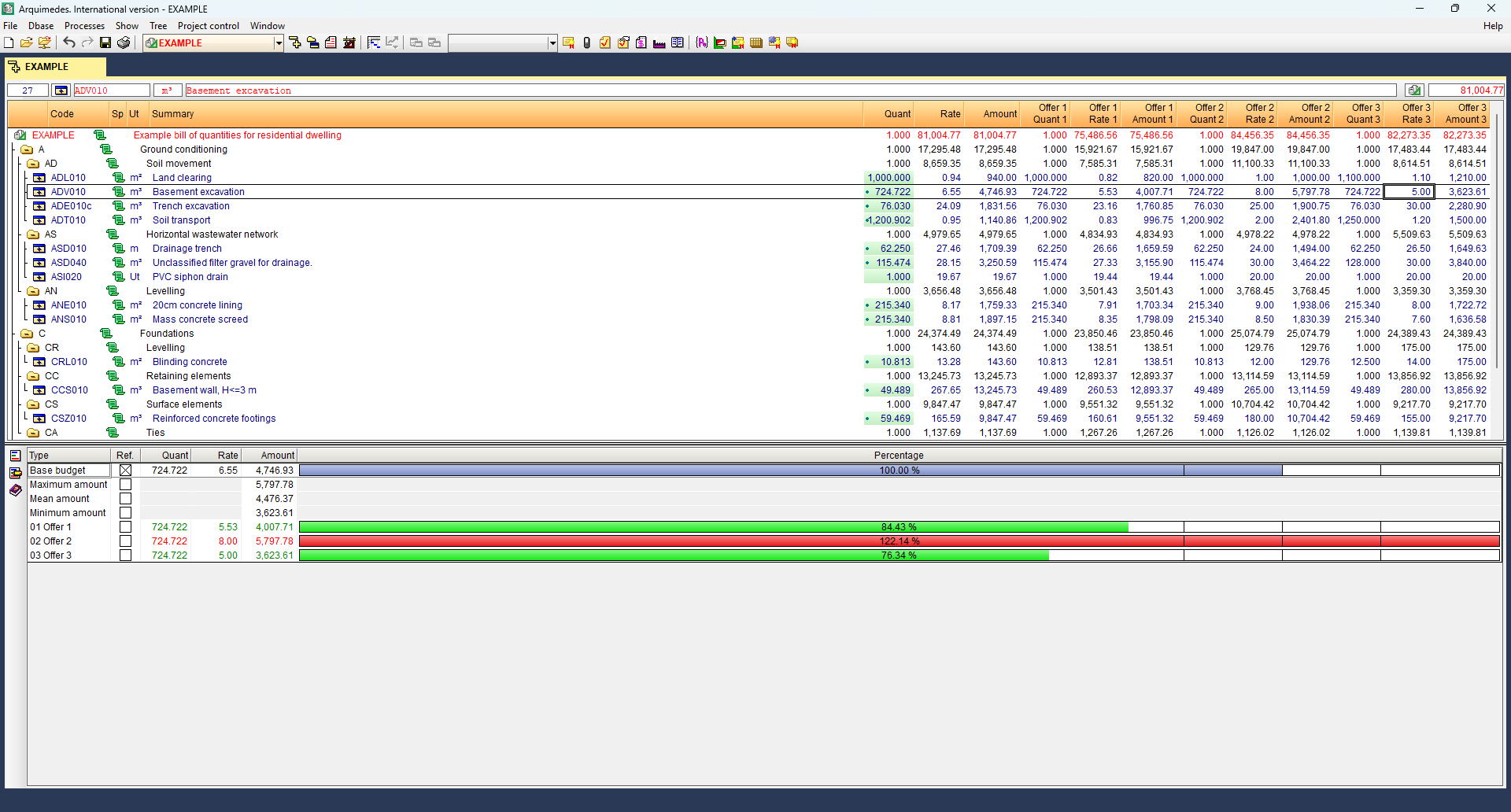
When selecting a cell in any of the compared columns, a table appears at the bottom, showing the compared data for the selected item or work section.
This table allows you to:
- View graphical bars comparing the offer amounts with the reference amount (e.g. average amount).
- Apply exclusion bands to identify disproportionate or risky offers based on percentage differences.
The colours used are:
- Red: offers exceeding upper limits.
- Green: offers below the lower limit.
- Blue: offers within the acceptable range.
Using the "Ref." column in the table, you can change the reference amount used for calculations. The "Quant", "Rate", and "Amount" columns refer to the price structure being compared (box 1).
The three vertical black lines shown on the graph bars correspond to the reference amount, and this amount is reduced or increased by the indicated percentages.
To the left of the table, you’ll find shortcut buttons to "New comparative bill of quantities" and "Comparative presentation data".
| More information: |
|---|
| The reference amount (box 2) and the exclusion bands (box 3) can be configured according to the needs of the process. |
| More information: |
|---|
| To print comparative reports (from "Print current database"), you must select a comparative-type report, such as "Comparative bills of quantities" or "Comparative between valid and modified BOQ" (see the "Results output" section). |
Arquimedes Server
The "Arquimedes Server" module is used to manage the simultaneous access to the same database (bill of quantities or cost database) of several users connected to a network via a configuration of permissions and access methods.
Arquimedes database server
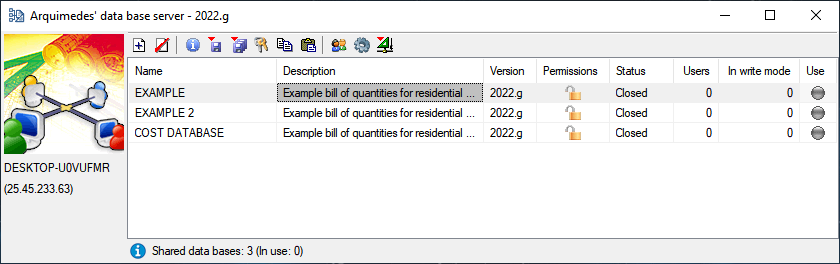
The multi-user work enabled by the "Arquimedes Server" module is managed from the Arquimedes Database Server application. This app is installed independently from the rest of the CYPE programs, using a compressed file that can be found on the Arquimedes product website by clicking on the "Download" button. The installation is carried out specifically from the "Plugins compatible with Arquimedes" section, in the "Arquimedes Database Server (64 bits)" file.
Other CYPE programs do not need to be installed on the device where the server is installed. The Arquimedes Database Server works as a Windows service; therefore, there is no need to start a user session on the computer where it is installed.
Remote and local databases
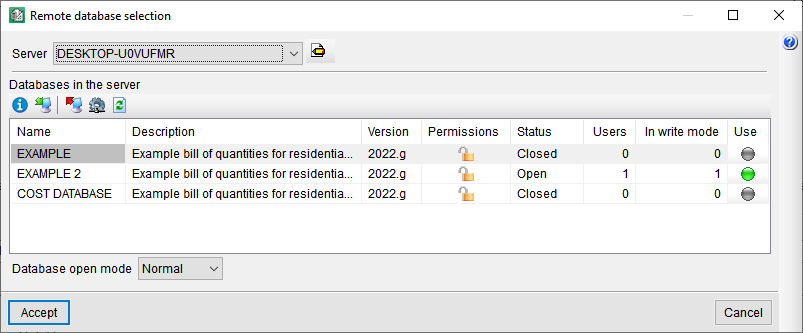
All Arquimedes databases can be operated in multi-user mode from any workstation on the network by simply declaring the desired databases in the Arquimedes database server. In Arquimedes, declared databases are called remote databases as opposed to local databases that are not defined on the server and only allow one user to access them at a time.
The "Open remote database" button on the Arquimedes toolbar opens a dialogue box for selecting a database server. If no server is detected, click on the "Server management" button and add a server by IP or machine name.
Configuring accessibility to the remote databases
The Arquimedes database server allows you to access remote databases by network users to be limited. A remote database can be modified only by certain users (each with configurable operating levels) who optionally have an access password.
Therefore, the Arquimedes database server configures the remote database accessibility by defining a series of permissions with which a customised Control - Operability relationship is obtained. This configuration provides several ways of accessing the remote databases. Two extreme situations are described below:
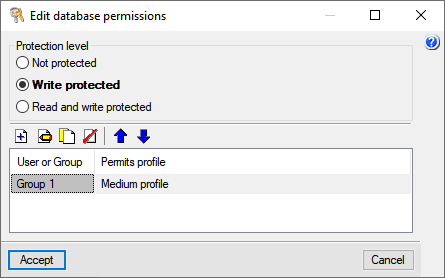
- Any network user (with a license to use Arquimedes and its "Arquimedes Server" module) has free access to all remote databases.
- Any desired remote databases may have the following access limitations:
- Each remote database has its own list of users who are granted access after identifying themselves with a user name and password (each user must have a license to use Arquimedes and the "Arquimedes Server" module).
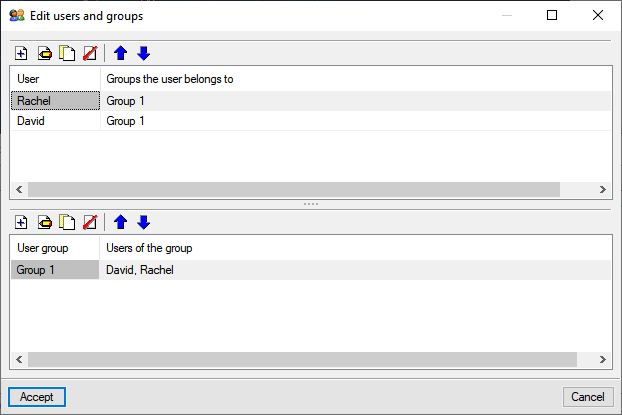
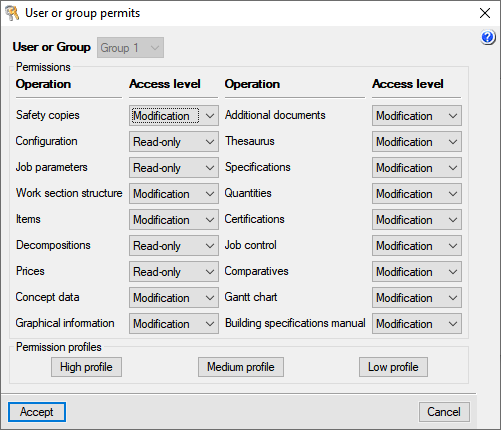
- The operations that the users included in this list can carry out on the remote database are configurable, so each of them may have different limitations concerning their manipulation. These limitations may also be different for the same user in each remote database in which they are declared.
- Each remote database can be hidden from unauthorised users.
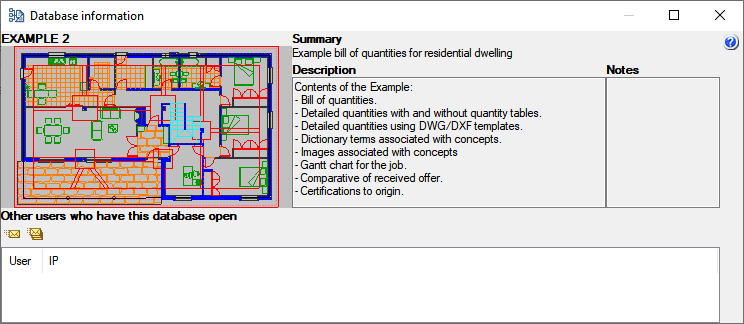
In order to improve the coordination of users' work, Arquimedes allows users working with the same remote database to exchange text messages.
Using the "Send message to user" button or the "Send message to all users in the database" button, you can send a text message to the user or to all users in the database.
Simultaneous running of more than one Arquimedes database server
More than one Arquimedes database server can be installed on the same network, although a single remote database can only be registered on one server. Therefore, in a company network, there could be several Arquimedes Database Servers that each control different remote databases. Each server may have its own users, and there may even be users common to the different servers.
Permissions in the user license for working with Arquimedes Server
Users who wish to access any remote database must be licensed (single-use or network) to use Arquimedes and the "Arquimedes Server" module. The Arquimedes Database Server does not require any user licenses.
Other features
To access further features offered by the program, several modules can be found on the “Arquimedes modules” webpage.
